

Source Image Dataset, Namespaces and Catalog Refresh
This chapter describes how to locate a canonical Image Dataset, link it to a Digitizer Configuration, narrow the list by namespace and refresh the catalog without altering the scientific coordinates.
1. Raster Source and Canonical Dataset
Curve Digitalizer does not treat a figure as a standalone graphics file picked with a generic Open Image command. The source is located in the Session Dataset registry: its canonical identifier, its contract and its SHA-256 digest are required to prevent coordinates and calibrations from later being associated with a different image.
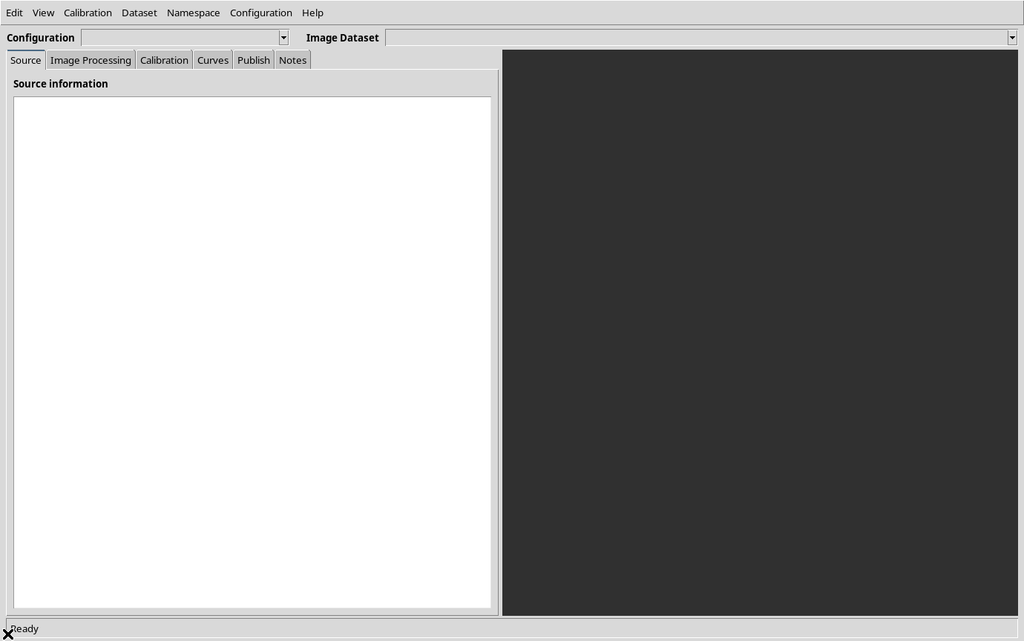
When started in an empty Session the Viewer is usable, but the Image Dataset selector has no entries and the canvas contains no image. This is not an error: a canonical image must first be imported and a configuration created.
2. Preparing a Compatible Image Dataset
The GX-TXT importer acq.image_binary declares support for PNG, JPEG, BMP and TIFF. The Viewer accepts Datasets with an image.raster contract or with an image media type; the actual check is performed through the public Dataset Catalog and Session Inspection APIs.
In this chapter (V04) only two synthetic PNG images were imported, both 1280 × 900 pixels:
| Test Image Dataset | Content of the raster | Original SHA-256 |
|---|---|---|
v04.synthetic_multicurve | Three colored curves with linear X/Y axes | ddffb7b3761e12989022fdf4e79f13ddc99f4b6eda68beb97c65de32d449a7ca |
v04.synthetic_bode | Drawn Bode plot with gain and phase | c5648b6ac1abd70c8cfab6a215b7f34ef0a03ec2df8fa92a85febb6c5385f7b2 |
The two resources were registered through the normal public Acquisition Handler in an independent Session.
3. Configuration, Image Dataset and Identity Confirmation
The Configuration selector holds the current working object; Image Dataset holds the compatible sources made available by the catalog filter. Selecting an entry in Image Dataset is not enough to establish a permanent link.
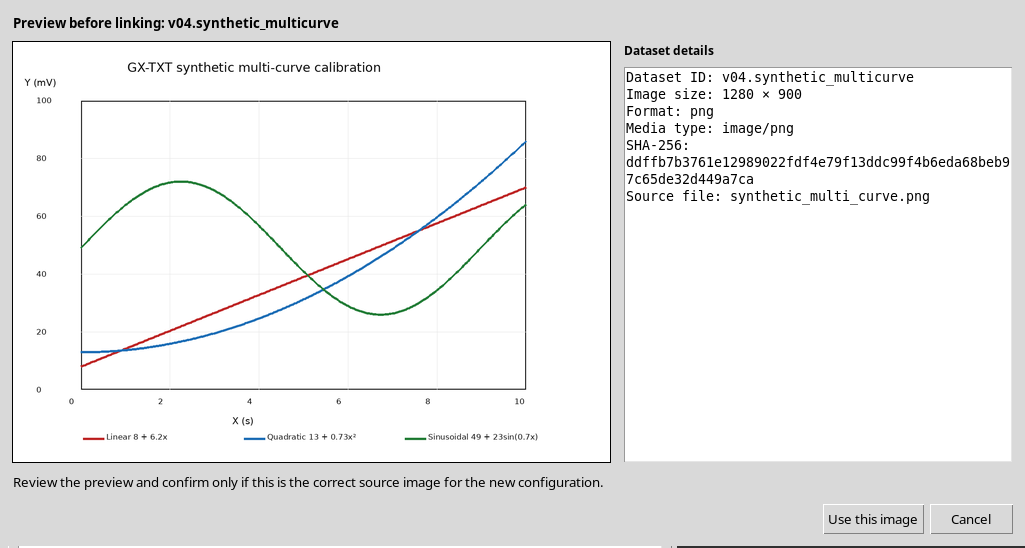
In the example, V04 Namespace Source Test was created. After choosing v04.synthetic_multicurve, the Viewer shows Preview source image with the raster, the dimensions, the format and the SHA-256. The Use this image button confirms the association; Cancel discards it.
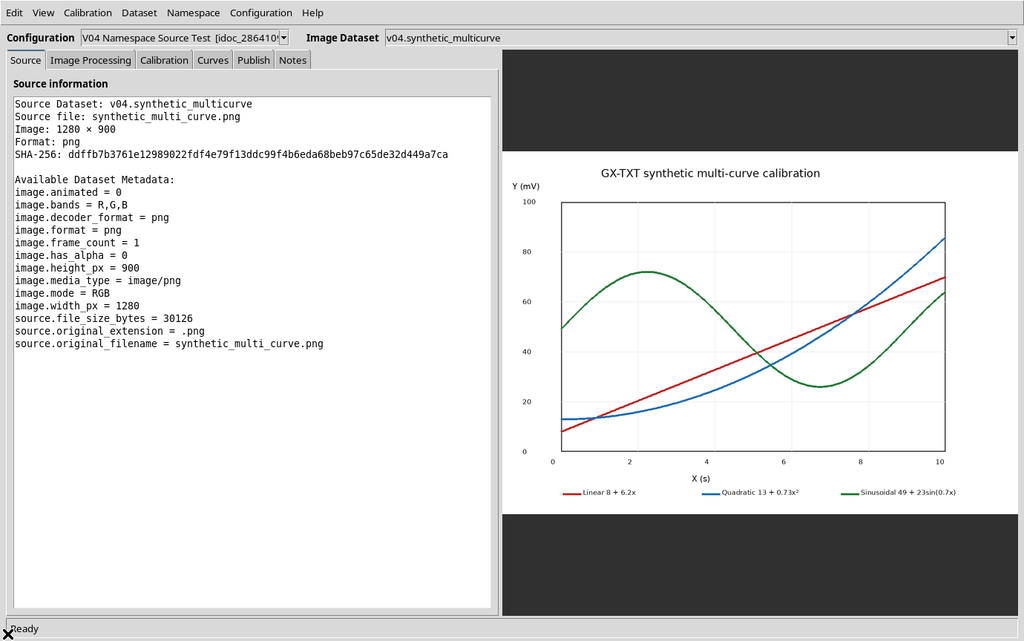
The result is the Source information tab, with the Dataset identity, original file, dimensions and checksum; on the right is the original raster, not a graph of published canonical curves.
4. The Catalog Is Authoritative in the CORE
The list of sources comes from the CORE Dataset Catalog. The Viewer reads revisions, the Session identifier and namespaces from the official services, then filters only the compatible Image Datasets. The menu content is not an alternative inventory maintained by the Viewer.
For each selected source, the Viewer queries the canonical registry and decodes the file. An already linked configuration stores the Dataset ID and the SHA-256 in the Session Interactive Document. The very same raster can be used in several independent configurations; the source is not duplicated merely because a new configuration is created.
5. Automatic Refresh and Timing
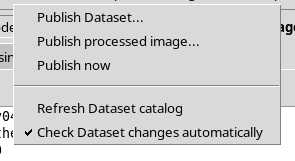
The Dataset menu offers Check Dataset changes automatically. With this check enabled, the Viewer periodically verifies the catalog revision; a nominal interval of five seconds is stated. If the revision changes, an updated list is requested from the CORE.
Do not confuse nominal interval with guaranteed time: the five seconds are the scheduled period, not a promise that an import will complete or that the entry will appear within a fixed time.
6. Manual Refresh: The Second Image Appears on Request
With Check Dataset changes automatically disabled, the second image v04.synthetic_bode was imported into the official registry. The CORE already contained two Image Datasets, but the GUI selector did not update its entries.
The Dataset → Refresh Dataset catalog command was then run. The Viewer requested a new complete snapshot, and the selector then showed both entries without restarting the application.

7. Namespaces: Organizational Metadata, Not Physical Folders
The Namespace → Select Dataset namespace… menu opens a hierarchical selector. GX-TXT namespaces are organizational metadata: they are not file systems, they do not change the canonical identifier of a Dataset and they are distinct from the Workspaces of the Digitizer Configurations.
For this manual, three namespaces were set up only in the synthetic Session:
| Test namespace | Matching Image Datasets |
|---|---|
audit/plots/multicurve | v04.synthetic_multicurve |
audit/plots/bode | v04.synthetic_bode |
audit/empty | None |
The parent path audit/plots includes both children; audit includes both. During this preparation the SHA-256 digests of the two images stayed unchanged. The current CORE namespace also remained base: changing the Viewer filter did not change the current namespace of the Session.
8. Opening the Picker and Selecting a Specific Branch
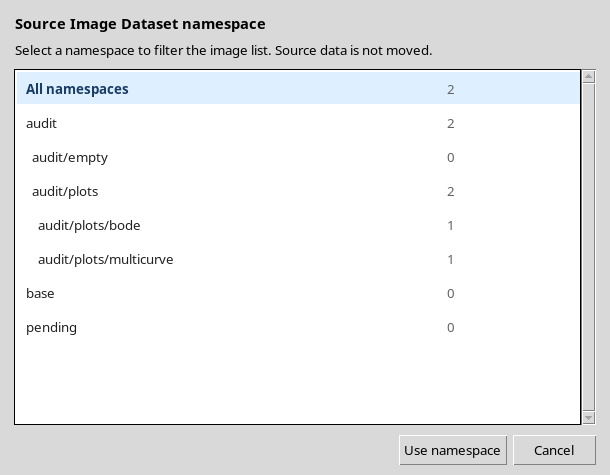
Choose Namespace → Select Dataset namespace…. The Select Dataset namespace window shows Source Image Dataset namespace, a list with hierarchical indentation, Use namespace and Cancel. The text warns that the filter does not move the source data.
Selecting audit/plots/bode and pressing Use namespace reduces the Image Dataset list to the single entry v04.synthetic_bode. The configuration that used v04.synthetic_multicurve, however, remained linked to its original source.
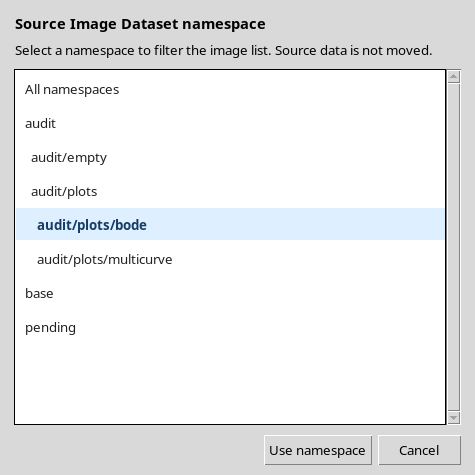
The distinction is substantial: filtering what the user can choose is not the same as replacing an already verified working source.
9. Parent Namespace and Descendants
Selecting audit/plots, the list automatically includes the images of both child namespaces, audit/plots/multicurve and audit/plots/bode.
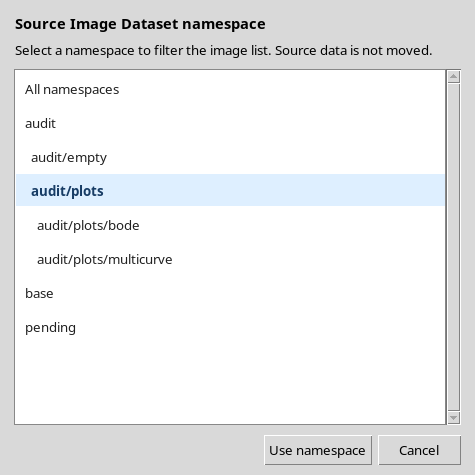
The count observed in the Canvas model is therefore 2 for the parent, 1 for each child and 0 for the empty branch. A display defect affecting the visibility of the numbers is described separately.
10. Empty Namespace, Cancel and Show all namespaces
A namespace can be perfectly valid even if it contains no compatible images. Choosing audit/empty, the Image Dataset selector became empty, but the configuration still pointed to the original Dataset and its metadata: the filter had neither deleted nor unlinked it.
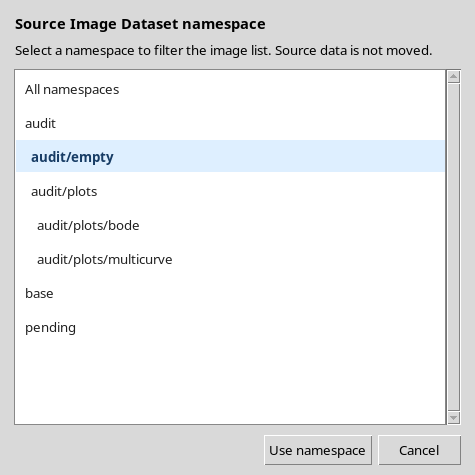
- Cancel in the picker: starting from the
audit/plots/bodefilter, you can highlightaudit/emptyand then cancel. The previous filter remained in effect. - Namespace → Show all namespaces restores both images among the available choices.
The temporary absence of an entry from the menu is not the same as SOURCE MISSING.
11. Protection Against a Silent Source Change
If, after v04.synthetic_multicurve has been linked to the first configuration, the other image is selected from the same Image Dataset box, the Viewer refuses the relinking and shows a warning:
A calibrated configuration cannot be silently reassociated with another image. Create a new configuration for a different source image.
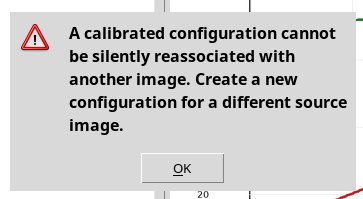
After OK, the selected source was still the first one. Reading the original Workspace confirmed that the Configuration ID, Source Dataset ID, SHA-256 and calibration group had not changed.
The message protects against the risk of reusing points or calibrations with a figure whose pixel coordinates are different. The presence of a new image in the catalog does not authorize an implicit reconfiguration.
12. The Correct Procedure: Creating a Second Configuration
To use the Bode image, a new Digitizer Configuration was created, named V04 Bode Separate Source.
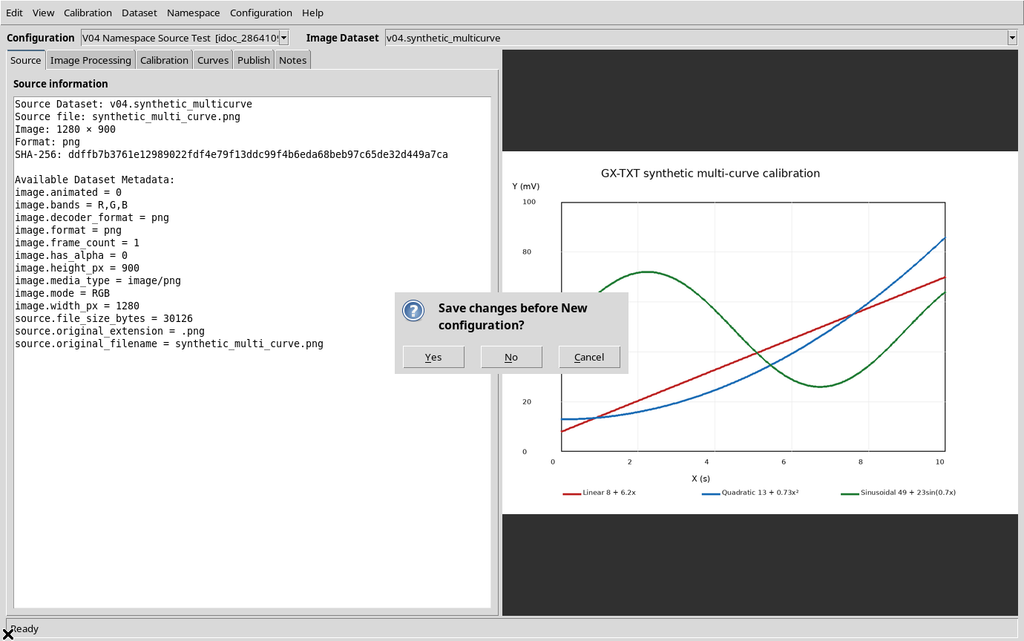
Since the first Workspace had pending changes (including the namespace filter), the Configuration → New configuration… menu first shows the prompt Save changes before New configuration?. Choose Yes to keep the state of the first Workspace, then enter the new name.
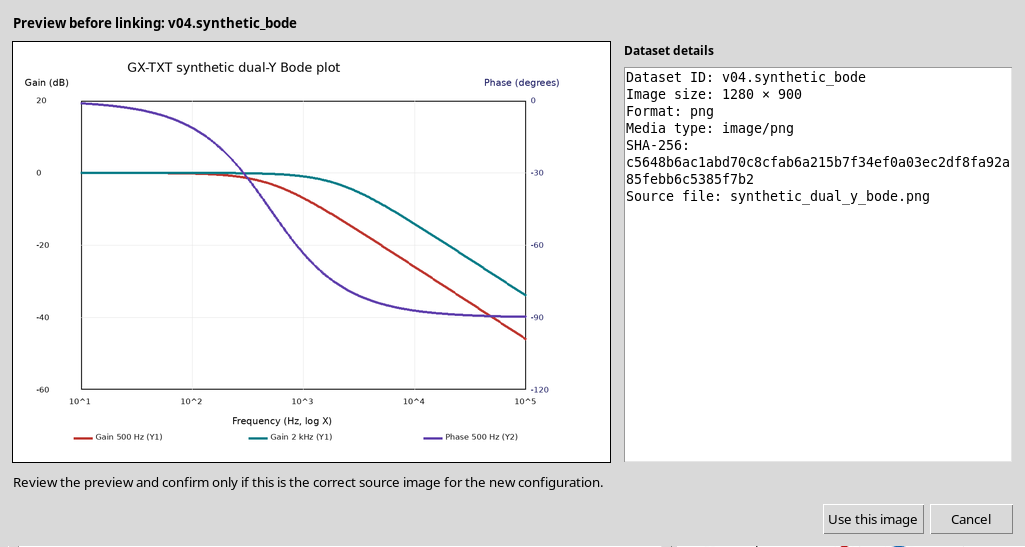
In the new Workspace the v04.synthetic_bode selection is accepted. Here too the Preview source image dialog appeared, with a distinct SHA-256, dimensions of 1280 × 900 and a Bode plot drawn in the raster. Use this image is pressed.
The Viewer correctly displayed the second figure, while the first configuration remained available. Switching from the first to the second configuration, the Source information panel and the raster changed consistently with the selected Dataset. We therefore have two configurations and two distinct canonical Image Datasets.
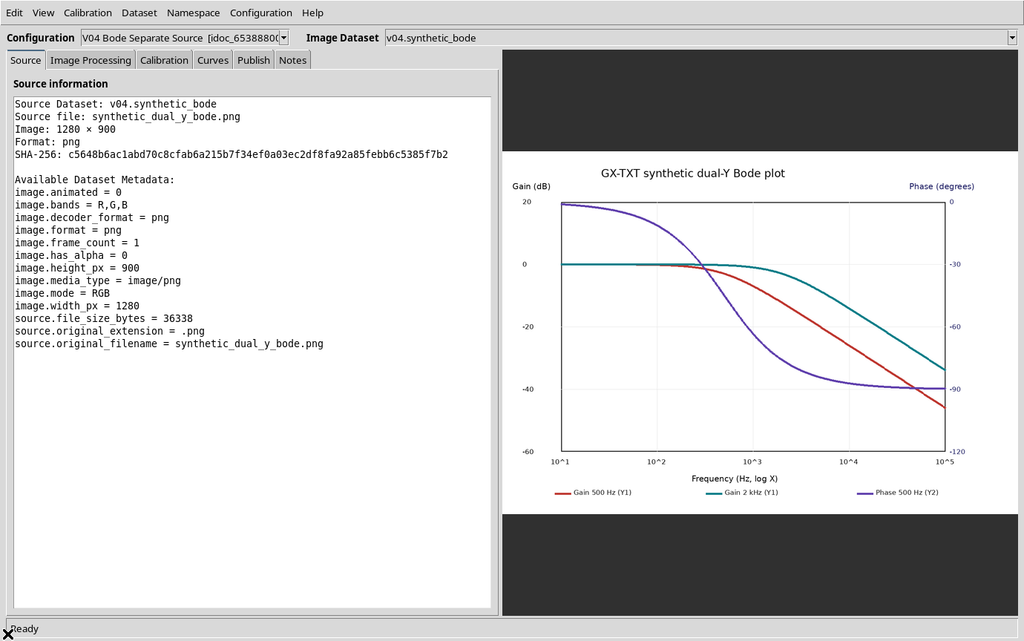
The gain and phase curves visible here are still graphic elements of the source image: they do not attest to the creation of scientific curves, to logarithmic calibration or to the dual-Y Preview.
13. Defect: Truncated Namespace Counters
In the picker, the numbers indicating how many images belong to each branch are created, but they are not readable at the initial width of the dialog.
| Element | Observed measurement |
|---|---|
Select Dataset namespace window | 475 × 475 pixels |
| Visible inner Canvas | 432 pixels wide |
| X position requested by the code for the counters | 440 pixels |
Bounding box of the number 2 | X from 431 to 441 pixels |
| Width of the number left inside the Canvas | About 1 pixel |
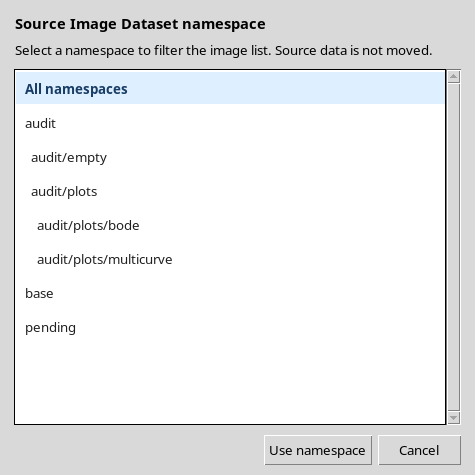
A temporary workaround: by manually widening the window to 610 pixels, the Canvas becomes 567 pixels wide and the counters became readable, with 2 for All namespaces and audit/plots, 1 for the two children and 0 for audit/empty.
14. Operational Summary
To use a source without losing the scientific correspondence:
- Import the figure as a canonical Image Dataset into a GX-TXT Session.
- Create a Digitizer Configuration and choose the source in Image Dataset.
- Confirm Preview source image → Use this image after checking the figure and the digest.
- Use Namespace → Select Dataset namespace… only to filter the list, and Show all namespaces to clear the filter.
- If a newly imported source does not appear, check Check Dataset changes automatically or use Dataset → Refresh Dataset catalog.
- If a different image is needed, create a new configuration instead of attempting a silent relinking.