

Errors, Unavailable Controls and Operating Limits
The Curve Digitalizer interface distinguishes impossible operations, those that require confirmation, and situations in which the scientific data are no longer consistent with the source or the current settings. Knowing this difference avoids interpreting a protection message as a malfunction, but it also helps to recognize real defects in the interface.
This guide describes the Viewer’s validation checks and protections, distinguishing them from the anomalies that may appear in the interface. The examples use synthetic graphs and images for teaching purposes: no screenshot represents an instrumental measurement or, on its own, proves the modification of a canonical Dataset.
1. Three Different Situations: Error, Protection and Defect
An invalid input receives a message explaining the rule to be followed. An unavailable control normally signals a missing prerequisite, such as a calibration still to be accepted or a curve without points. A confirmation, instead, asks you to authorize a possible action.
An application anomaly, on the other hand, can be recognized when the GUI does not reflect the actual state or does not keep a selection as expected. The following sections distinguish correct protections from behaviours that require further precautions.
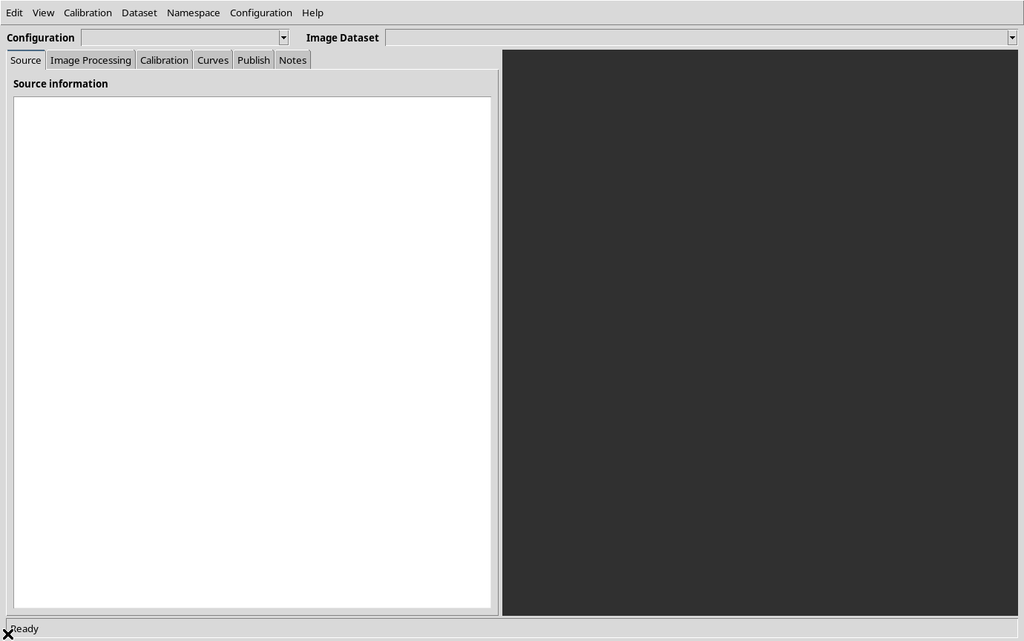
2. A Session Without an Image Dataset
When no compatible Image Dataset is yet available in the Session, the Source selector does not offer a usable image. This is not a calibration error: what is missing is the very source from which to derive the pixels.
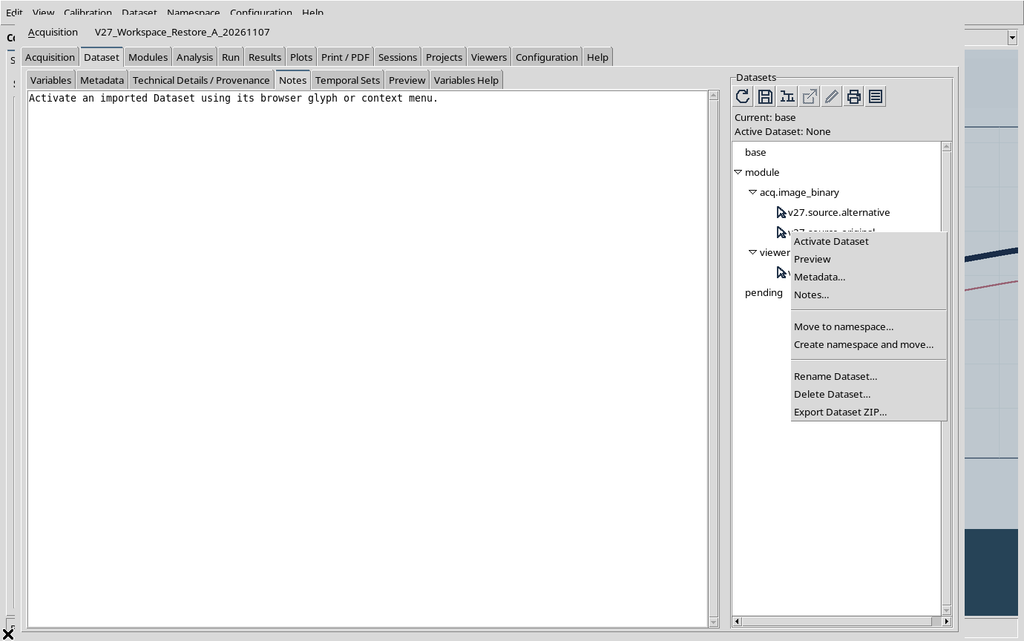
Before proceeding, an Image Dataset recognized by the CORE must be imported or registered in the Session; only then can the Viewer offer to associate it with a configuration.
3. Do Not Arbitrarily Replace an Already Calibrated Source
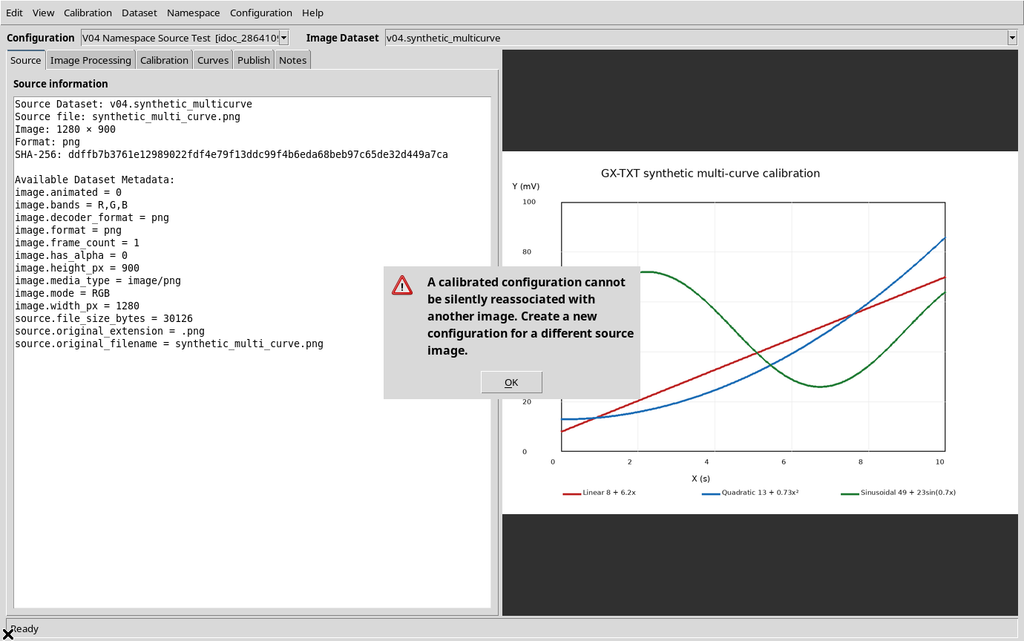
Once a configuration has associated a source and accepted measurements, another image is not automatically interchangeable. Even two images with identical dimensions could represent scientifically different pixels.
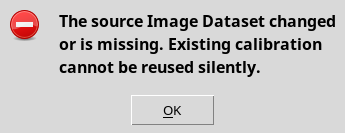
The reassignment attempt is rejected by the GUI. To use another source, create a separate scientific configuration and repeat the calibration: do not implicitly reuse the points of the previous one.
4. SOURCE MISSING: Distinguishing the Dataset Name from Its Contents
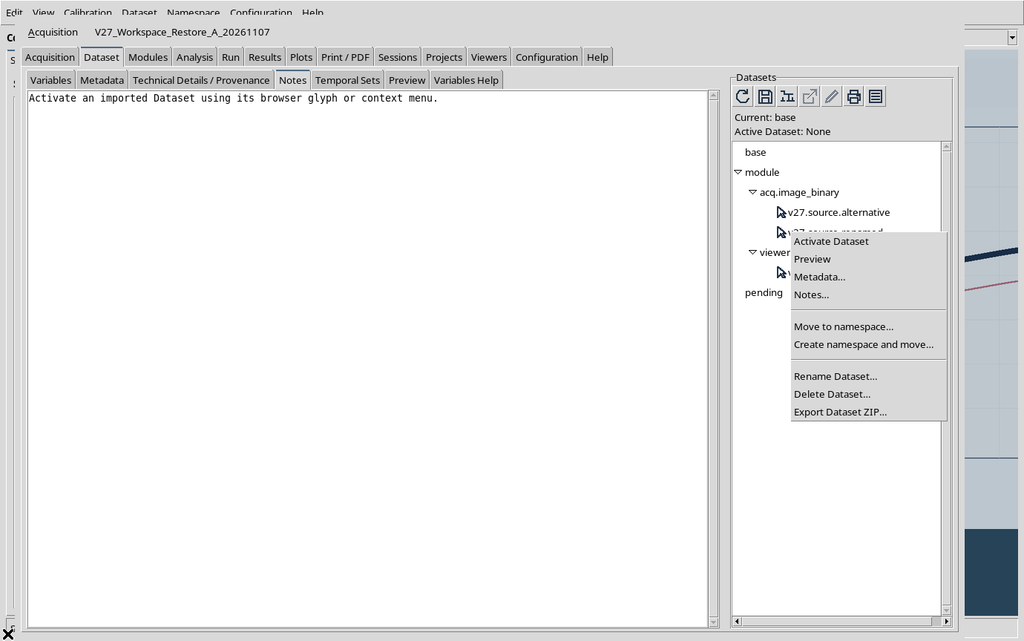
If a linked Image Dataset is renamed or deleted from the catalogue, the scientific document may still keep the identifiers of its points, but its original reference can no longer be resolved. The Source tab reports SOURCE MISSING.
Do not try to fix the problem by merely changing the displayed image. The identity of the correct source must be restored and its digital fingerprint verified, in addition to the ID.
5. SOURCE MISSING Prevents a New Publication
With the source missing, the GUI rejects Publish. This is the desirable result: without the original image it is not possible to confirm that the pixel coordinates still stored represent the intended trace.
The Datasets already published remain distinct from the interactive document; the block concerns a new publication. After restoring the source, check identity, calibration and output plan again.
6. STALE SOURCE: The Same ID Is Not Enough
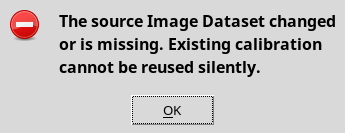
When a different raster is registered under the previous ID, the Viewer can detect a discrepancy in the SHA-256 hash and classify the source as STALE SOURCE. The fact that the name coincides does not make the two images equivalent.
In this case too, Publish is rejected. Restore the original bytes or prepare a new document for the new image: do not force the old calibration onto modified pixels.
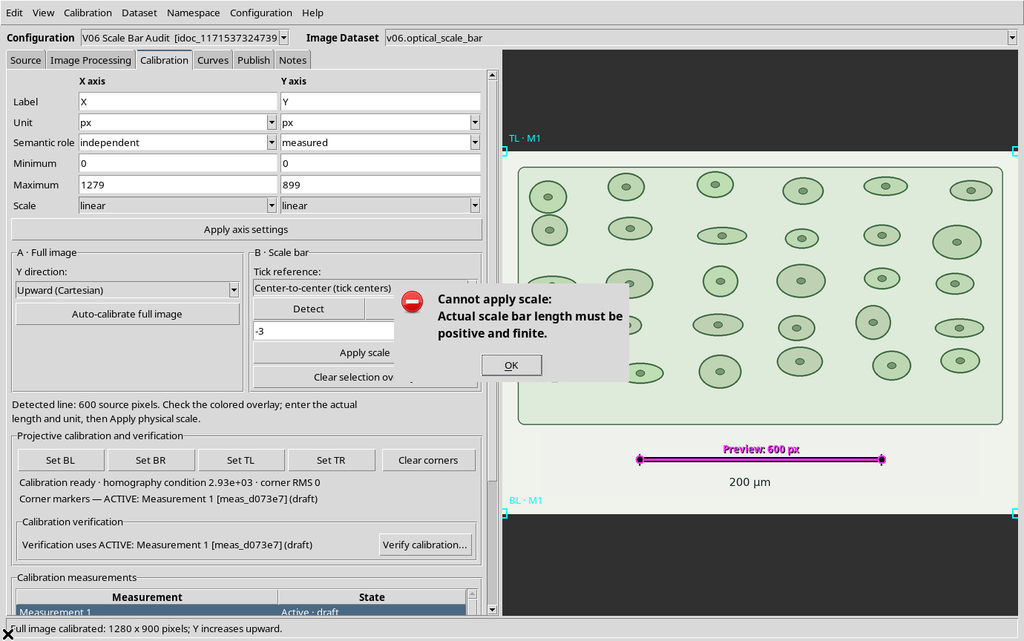
7. The Physical Length of the Scale Must Be Positive
For the physical scale, the specified length cannot be zero or negative. The GUI rejects, for example, a measurement of −3 µm, because it does not describe a valid physical distance.
The correct response is to check the reference on the raster and enter a positive length in the expected unit, not to change the calibration to get around the warning.
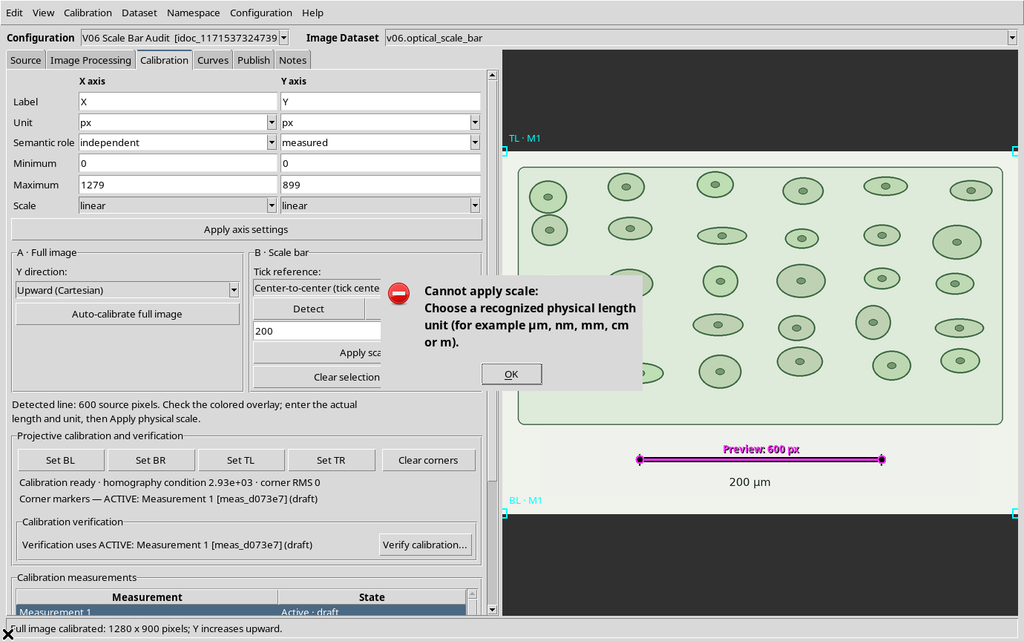
8. Using Recognized Physical Units
The unit field is not a simple free note. If the unit required by the system is not recognized, registration of the scale is rejected.
Check symbol, prefix and quantity. After a conversion, verify that number and unit represent the same distance; a change of unit does not make a misread reference accurate.
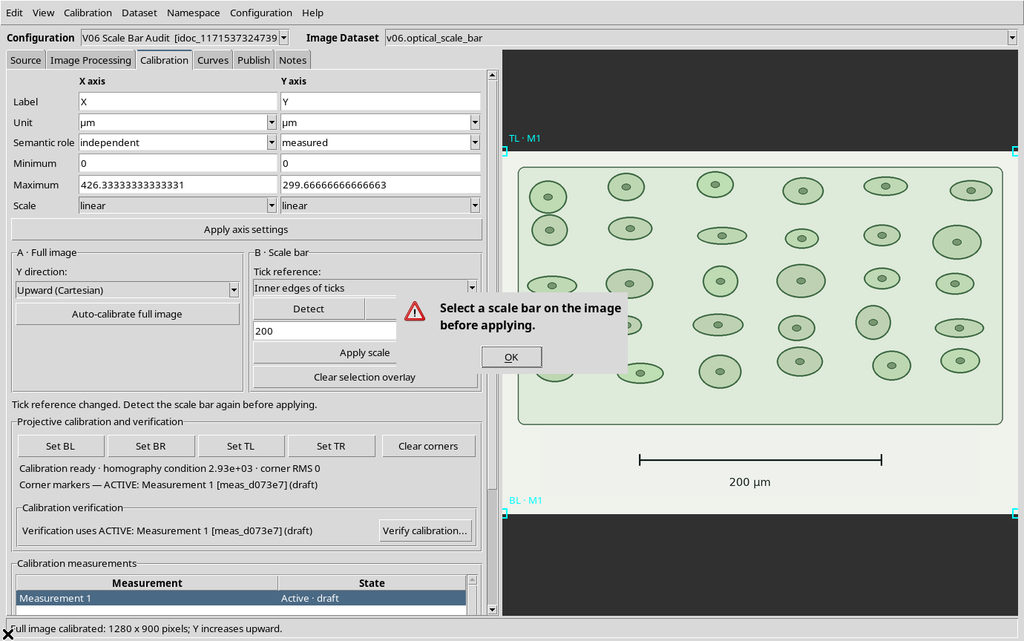
9. Apply Scale Requires a Valid Proposal
If the operator changes the tick reference or has not completed the necessary selection, Apply scale cannot act on a non-existent proposal. The presence of a previously accepted scale is not equivalent to a new valid selection.
Complete the scale acquisition, check the detected reference and only then apply the result.
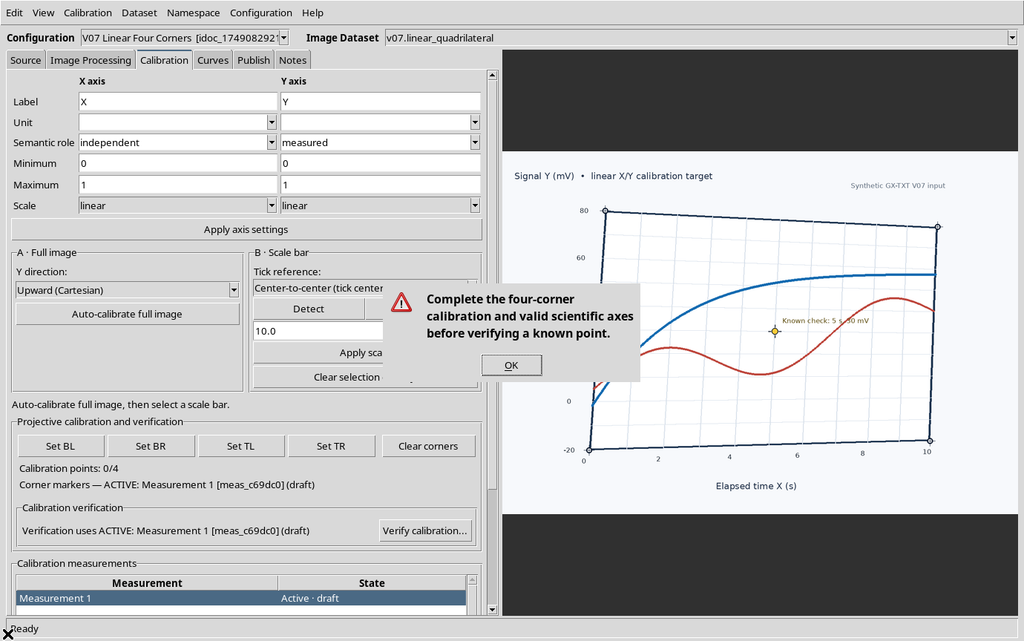
10. Verify Does Not Replace the Four Corners
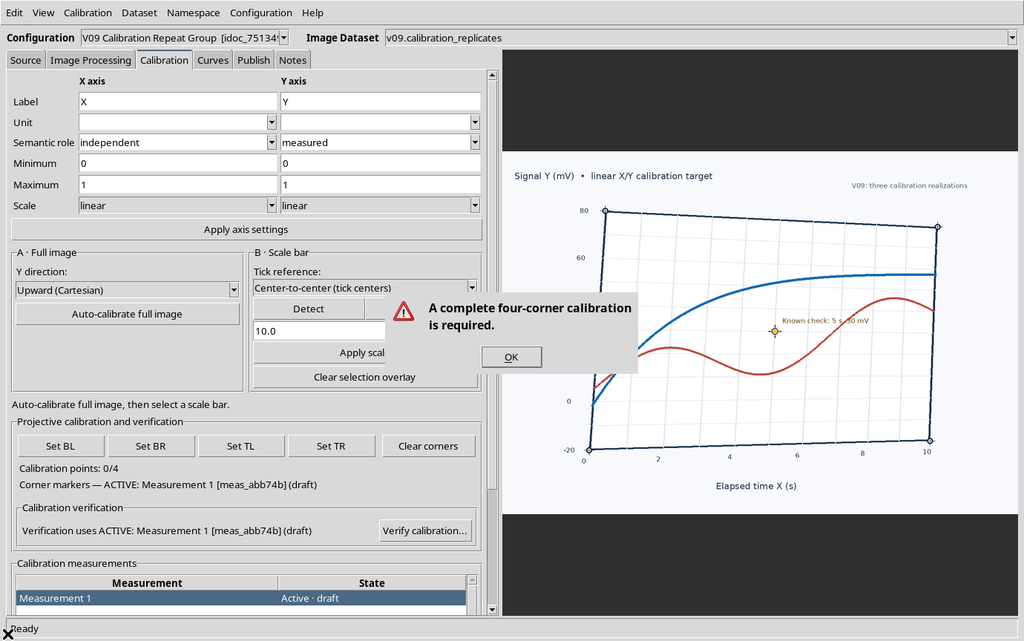
In the four-point calibration, Verify cannot check a transformation for which not all the geometric-scientific references have yet been defined.
Complete BL, BR, TL and TR in the order expected by the GUI, check the axis limits and repeat the check. A verification reference does not automatically create the missing corners.
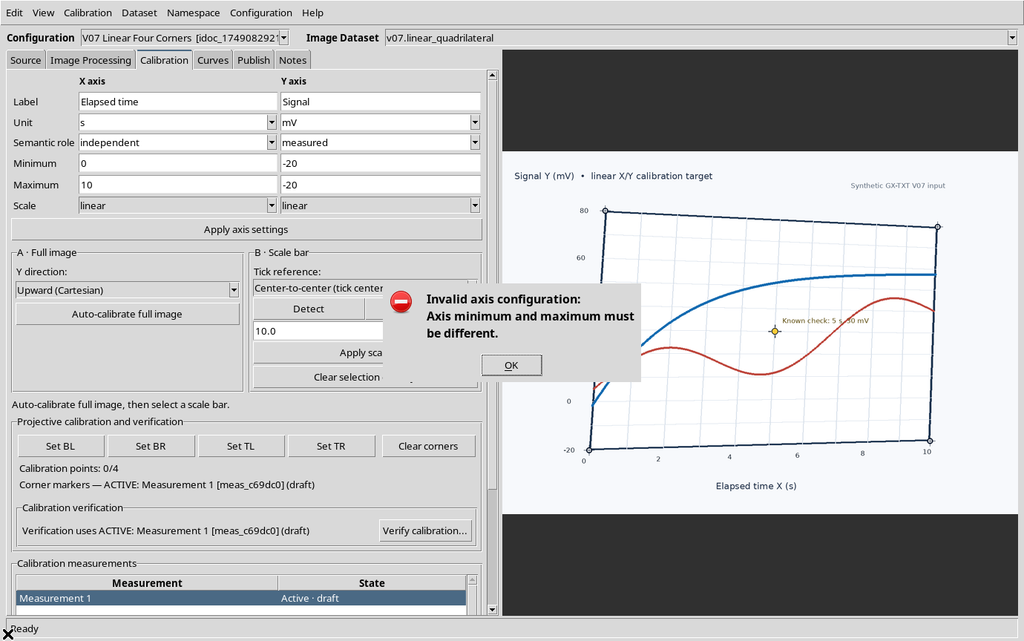
11. The Limits of a Linear Axis Cannot Coincide
A scientific interval from a value to the same value does not define a scale. The Viewer reports Axis minimum and maximum must be different.
Correct X or Y by entering two distinct limits consistent with the position of the corners on the graph. Moving a point on the Canvas is not enough if the numerical values of the axis remain identical.
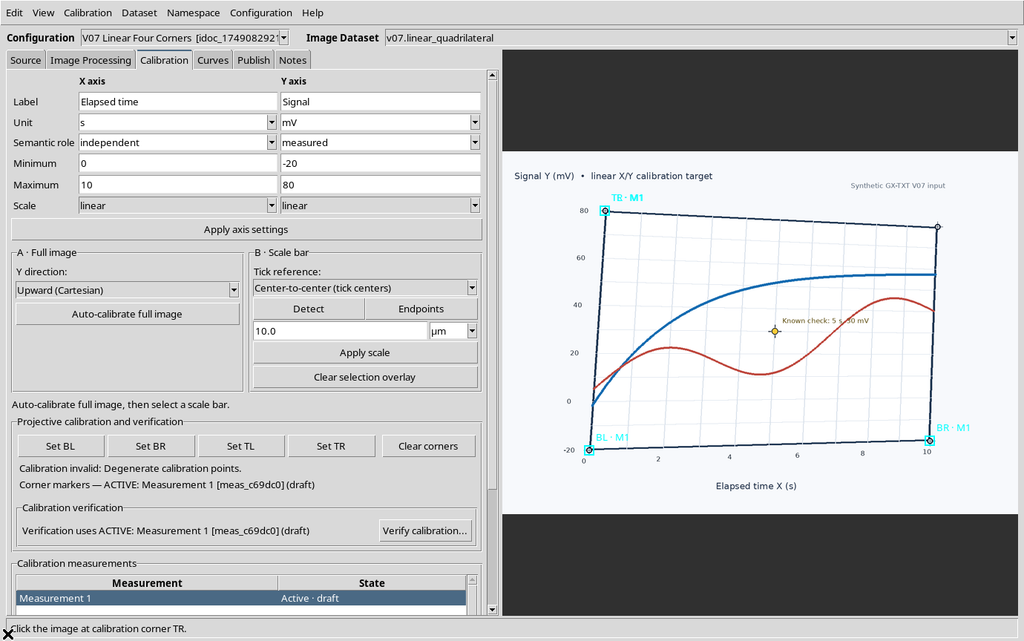
12. Four Points Do Not Guarantee an Invertible Geometry
A calibration can contain four selected coordinates and still be degenerate: the homography needed to convert the pixels cannot be determined validly.
Check that you have not overlapped the corners or arranged them in a geometrically incompatible way. Correct the selection before accepting the measurement; the mere presence of four markers does not prove that the transformation is usable.
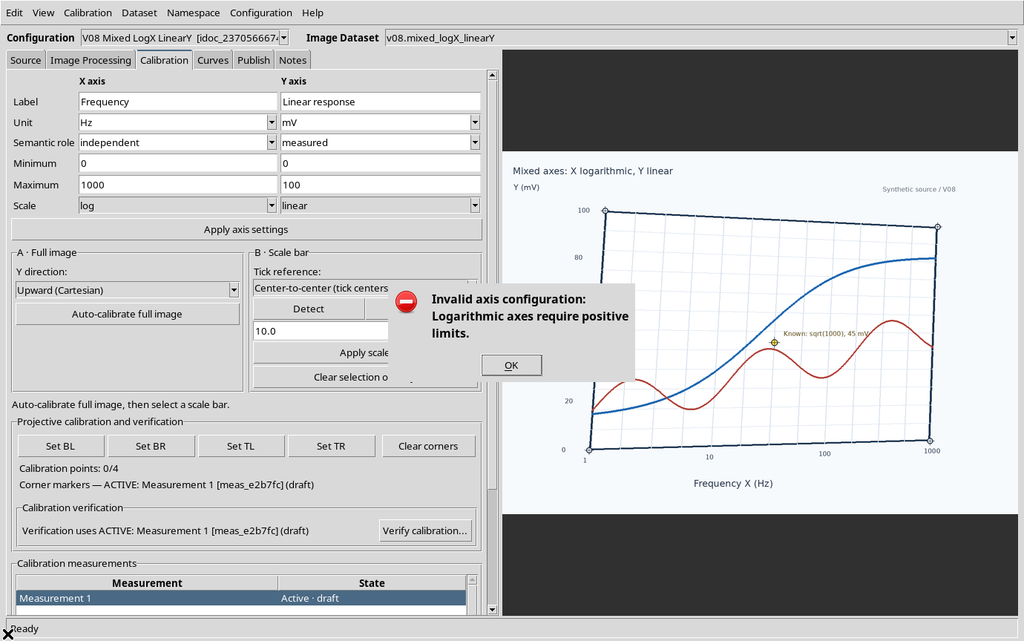
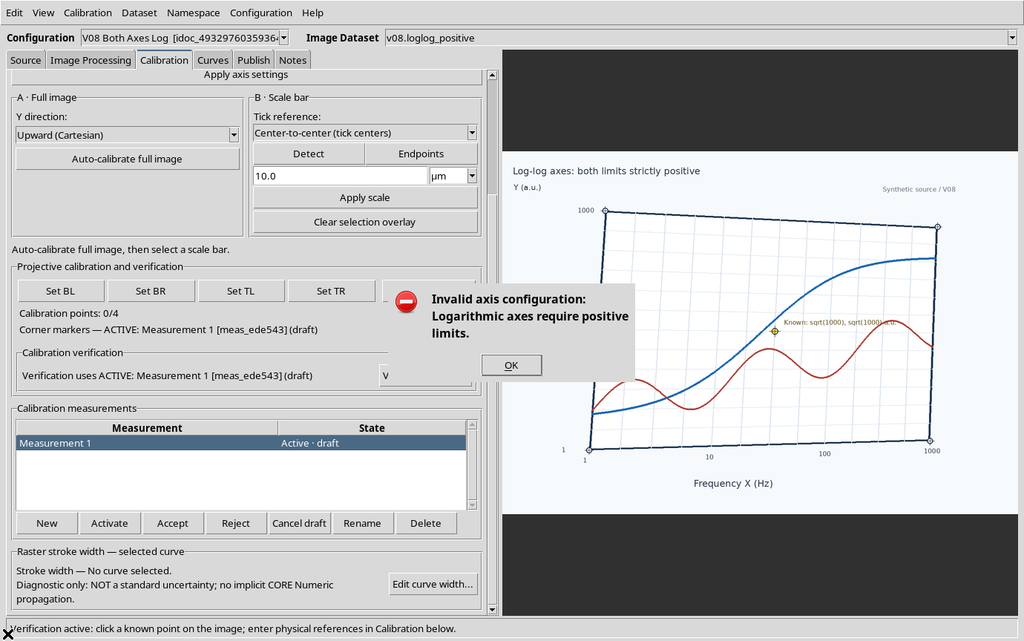
13. Logarithmic X Axis: Zero Not Allowed
On a logarithmic axis the lower limit cannot be 0. The Viewer blocks the setting, because the logarithm is not defined for non-positive values.
Use the actual positive values shown on the graph. Do not arbitrarily replace a zero with a small number: this would introduce an invented scientific value.
14. Logarithmic Y Also Requires Positive Values
The constraint applies to both logarithmic axes: a zero or negative Y limit is rejected. An inverted vertical direction or a flipped display does not remove the mathematical requirement.
Check that the original scale of the graph is really logarithmic and that the numerical labels have been interpreted correctly.
15. The Expected Point for Verify Must Be Numerically Valid
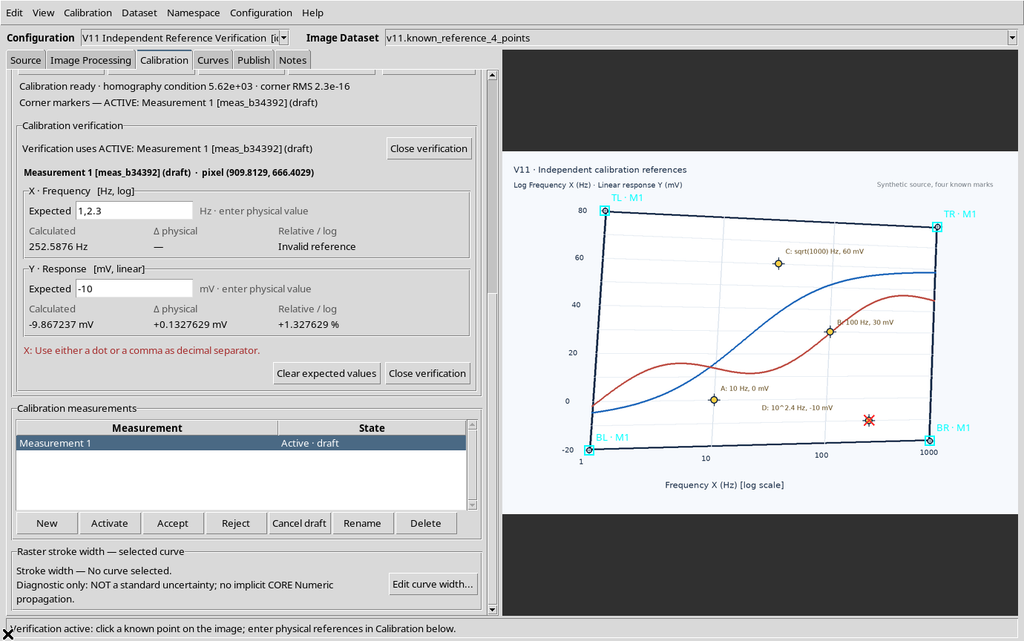
Verifying a calibration compares a position on the raster with an expected scientific value. An X or Y field written with incompatible numerical syntax cannot be used as a reference.
Correct the expected value, respecting the input convention and positivity when the axis is logarithmic. The check must not be turned into an invented measurement point.
16. An Incomplete Calibration Measurement Remains Draft
A realization that does not yet have four valid corners cannot be marked accepted. The GUI rejects the change of state even if the measurement is visible in the list.
To publish, the correct scientific realization must be completed and explicitly accepted. The draft label represents a working state, not a final result.
17. Rejected Measurements Are Not Publish Options
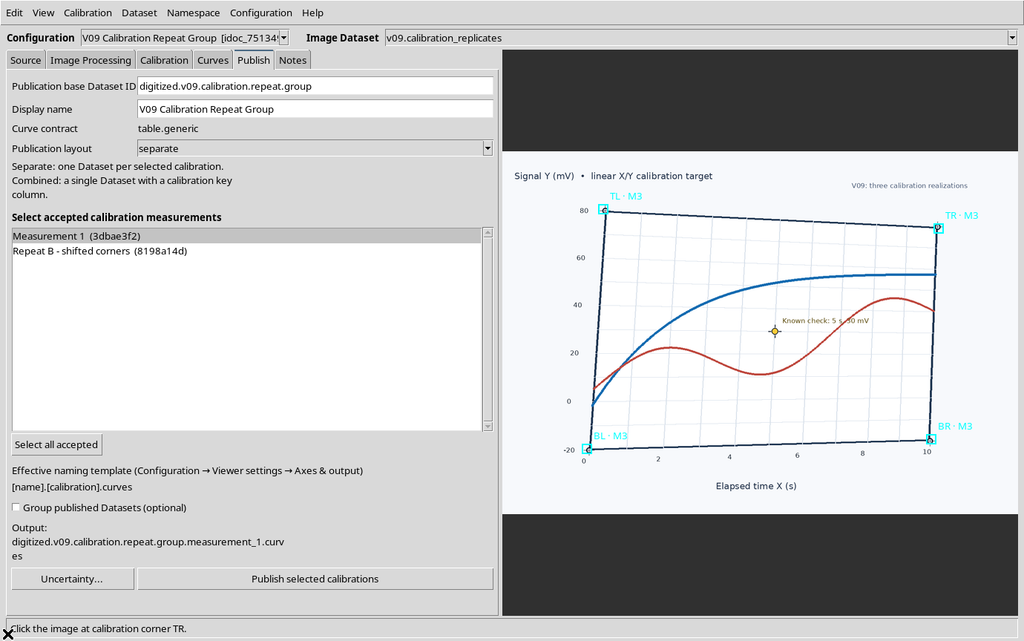
In the Publish panel the list of admissible calibrations considers the accepted realizations. A rejected measurement can remain in the document as working information, without becoming a publishable transformation.
Before publishing, reread the name and state of the selected calibration: the active choice on the Canvas does not replace the selection of realizations in the output plan.
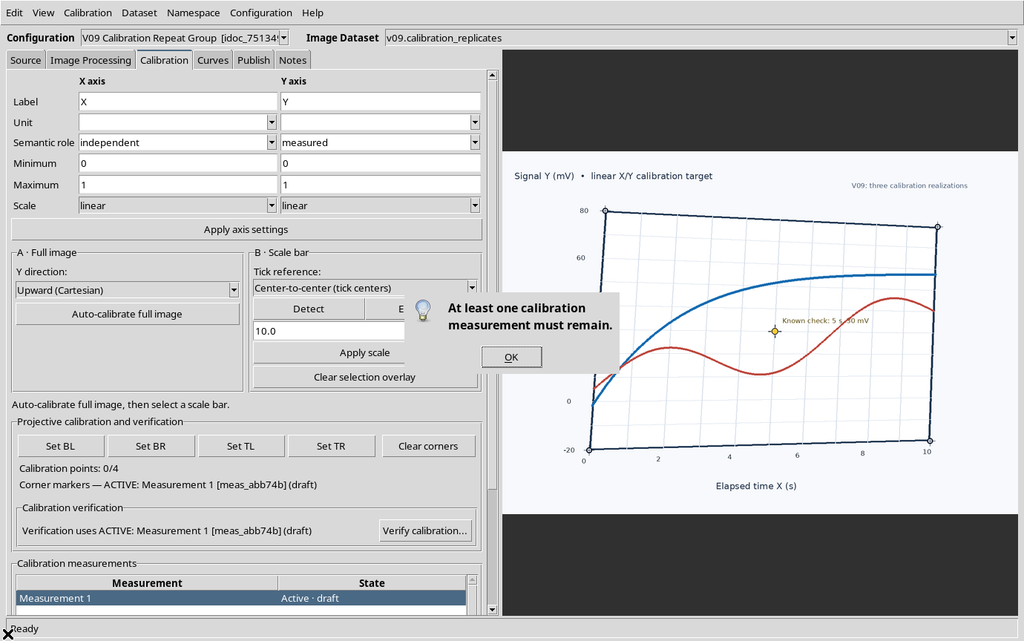
18. Protection of the Last Calibration Realization
The Viewer can prevent deletion of the last remaining realization. In this case the refusal is not a loss of functionality, but a rule of the document lifecycle.
Create and verify an alternative before removing an obsolete realization; also bear in mind that Cancel draft and Delete are not equivalent operations.
19. Do Not Disable Y2 While a Curve Uses It
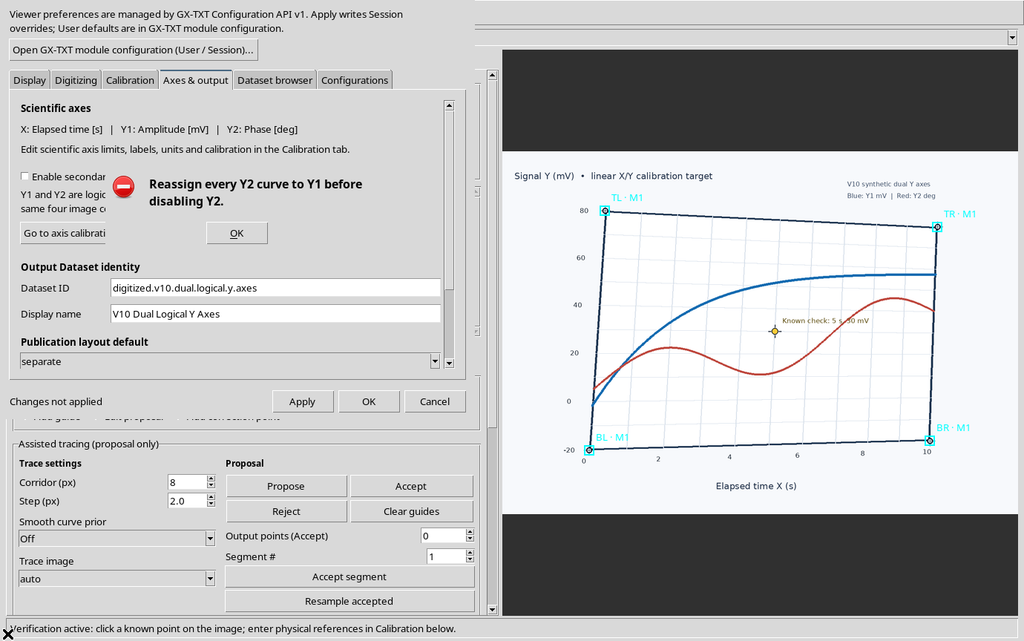
When there is a curve associated with the logical axis Y2, the GUI does not simply accept disabling the second axis.
First reassign the curve to the correct axis and check unit and physical meaning. The distinction between different quantities, for example response in mV and phase in degrees, must not be lost implicitly.
20. Snap Radius Has a Validity Range
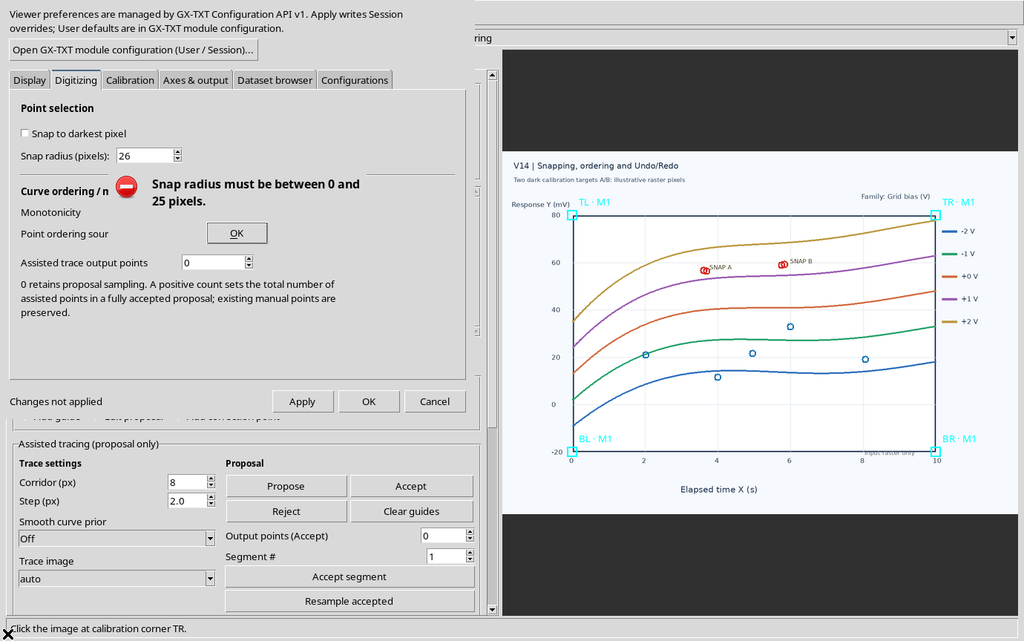
The snapping radius is a bounded operating parameter. In the case illustrated, the value 26 was rejected by the Digitizing settings window.
A larger radius is not automatically more accurate: it can attract the cursor towards irrelevant raster strokes. Use an allowed value and always check the pixel actually acquired.
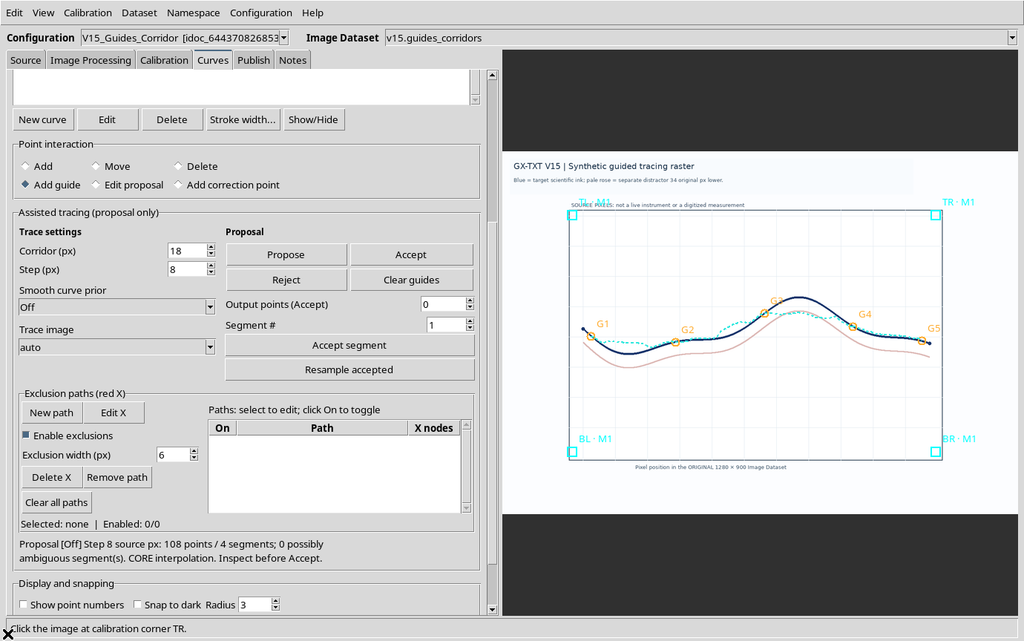
21. Corridor Out of Range and a Possibly Stale Overlay
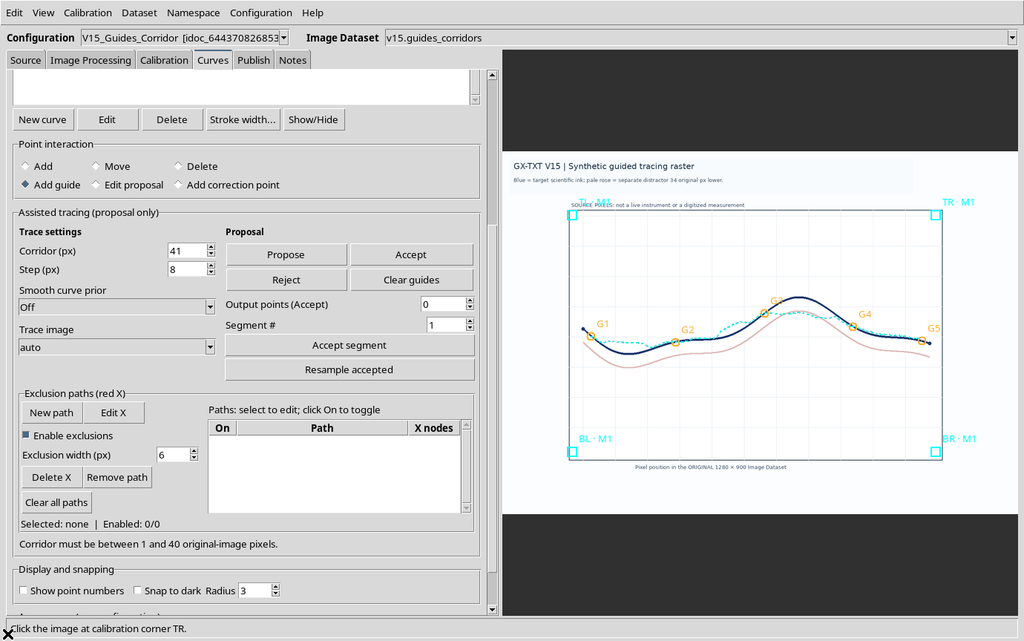
In assisted acquisition, the Corridor parameter must be between 1 and 40 original pixels. The values 0 and 41 are rejected. After the rejection, however, an overlay of the previous proposal may remain visible even though the current proposal is not valid.
Do not interpret the residual cyan line as a valid proposal. Select Reject, correct the Corridor parameter and use Propose again. The stale overlay is a visual discrepancy: it does not prove that new scientific points have been accepted.
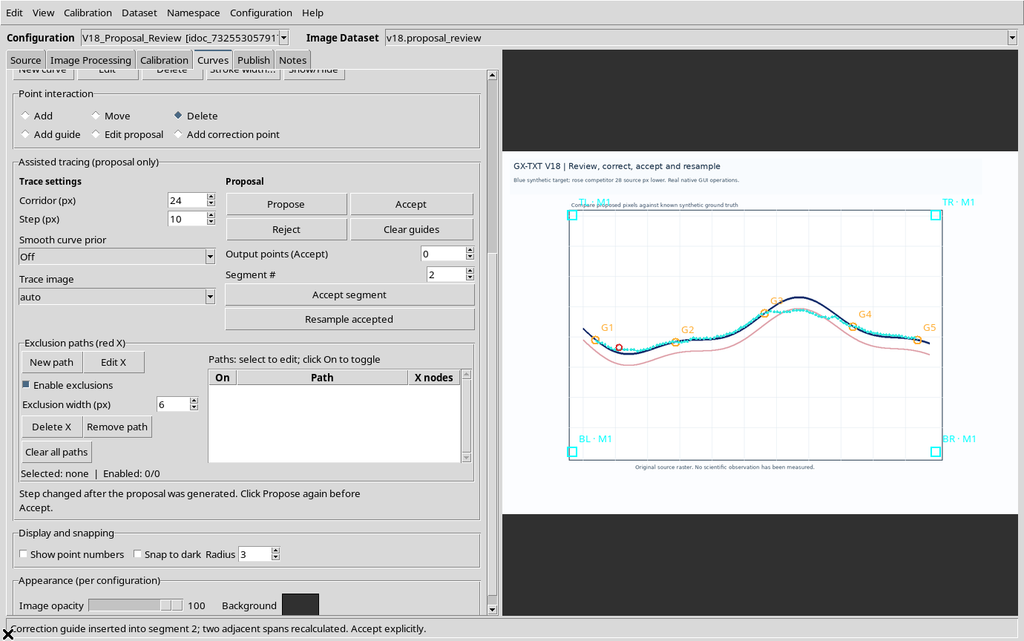
22. Changing Step Makes a Previous Proposal Obsolete
The assisted proposal depends on the parameters with which it was calculated. Changing Step before acceptance can make the proposal still visible incompatible.
In this situation Accept asks for it to be regenerated. The behaviour protects consistency between the current parameters and the trace that the user intends to make final.
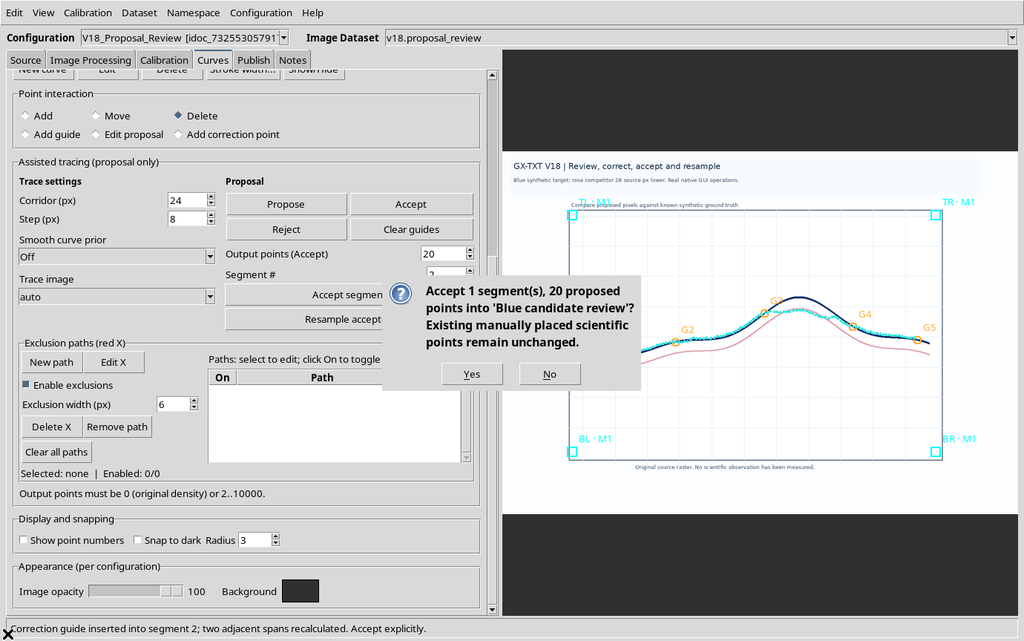
23. Accepting a Segment Is a Scientific Operation
Accept segment converts provisional vertices into scientific points. The GUI asks for confirmation before performing the conversion.
Choose No when the geometry has not been verified: the proposed segment can still be corrected without generating the new points. Check the number of points and the segment boundaries before confirming.
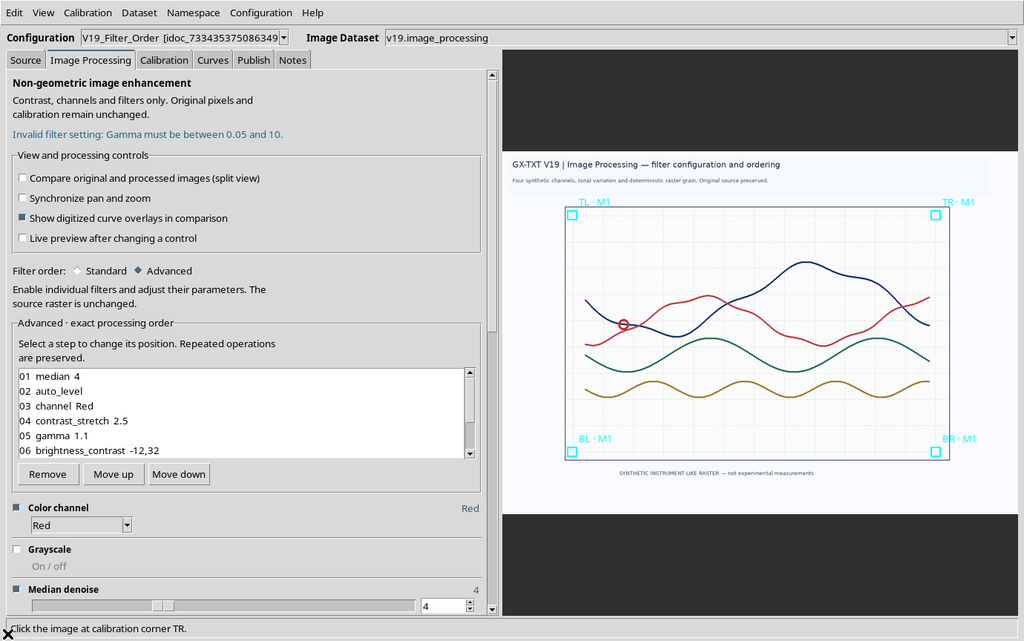
24. Gamma Does Not Allow a Zero Value
In the Image Processing panel a gamma correction with value 0 does not satisfy the filter constraints. The GUI shows an error message and keeps the previous valid value of the pipeline.
Correct the parameter and check the actual value recorded before processing the image. Do not confuse temporarily invalid text in a field with the operation already accepted by the document.
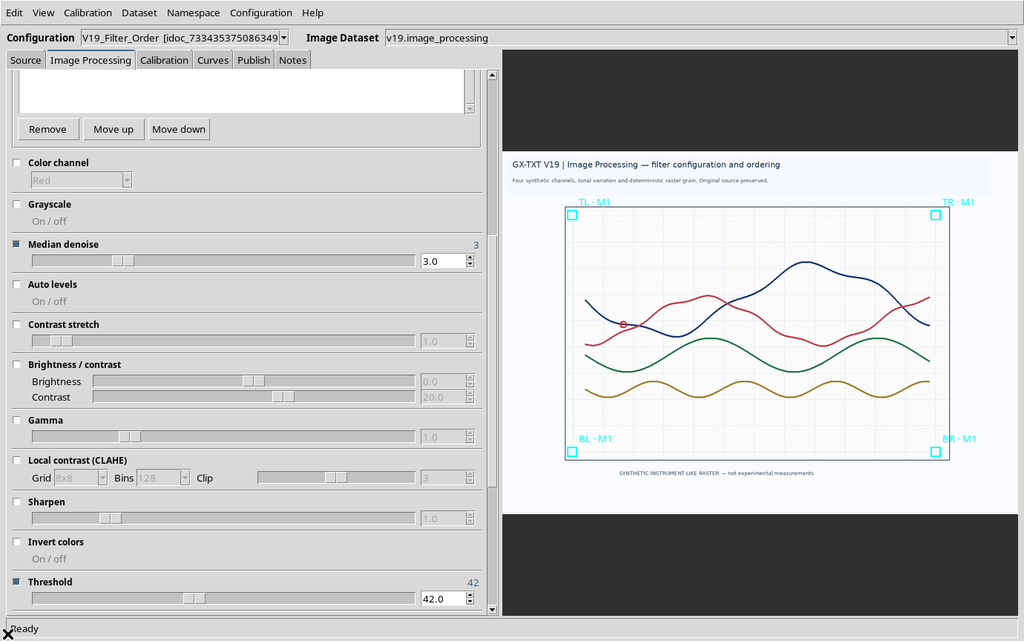
25. Filter Parameters Reset After Disabling
A problem different from a correct rejection is the unexpected reset of parameters: when disabling and re-enabling Gamma or Median, the numerical value may return to the default; in Advanced mode the order of the pipeline may also change.
After re-enabling a filter, reread the values and, if necessary, re-enter them. In Advanced, check the complete order before Apply: do not assume that the parameter remains the one entered earlier.
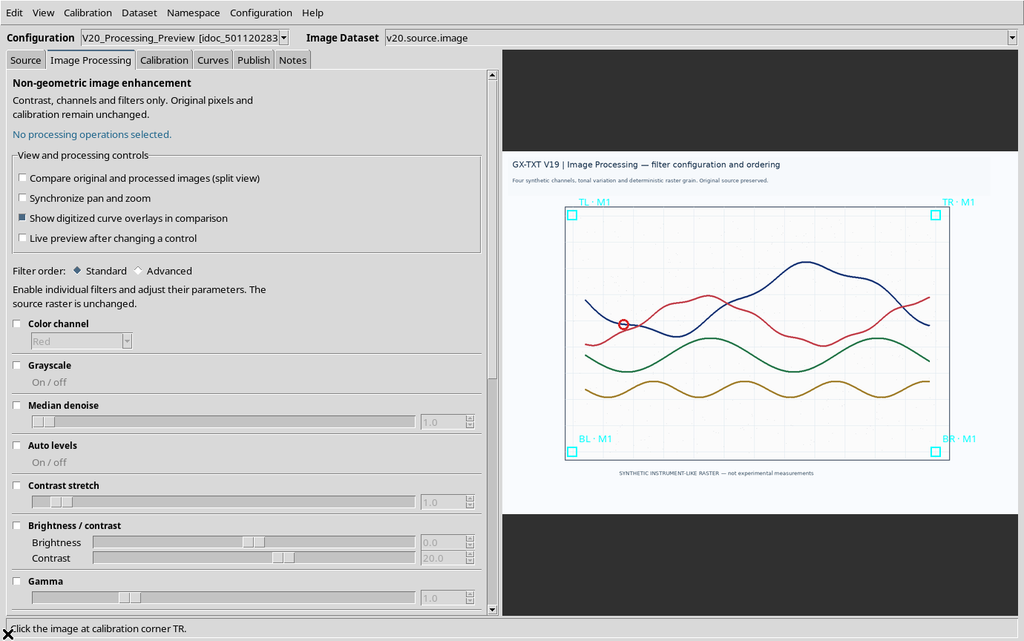
26. No Operation, No New Preview
If no filter has been selected in Image Processing, the request to create a new preview does not produce a processed image.
The GUI reports that there are no operations to apply. The source image is not altered; add a filter only if the scientific procedure really requires processing.
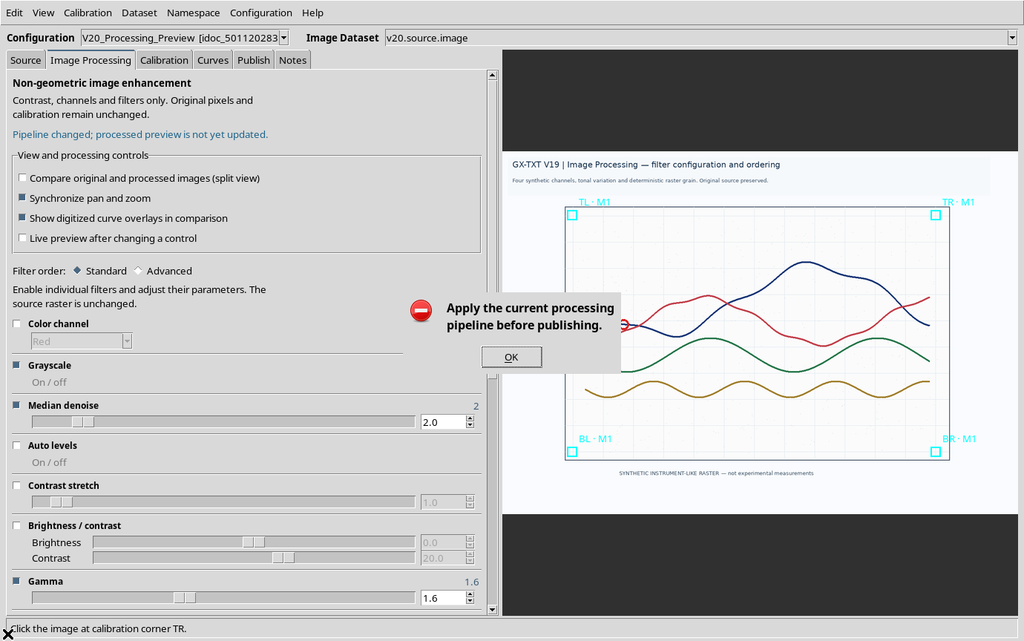
27. Publish Requires a Valid Preview First
A new derived image should not be registered in the CORE without a preview consistent with the pipeline. The Viewer rejects the publishing attempt before the necessary step.
Prepare the pipeline, run the preview, compare the displayed pixels and then check the identity of the output Dataset again before confirming.
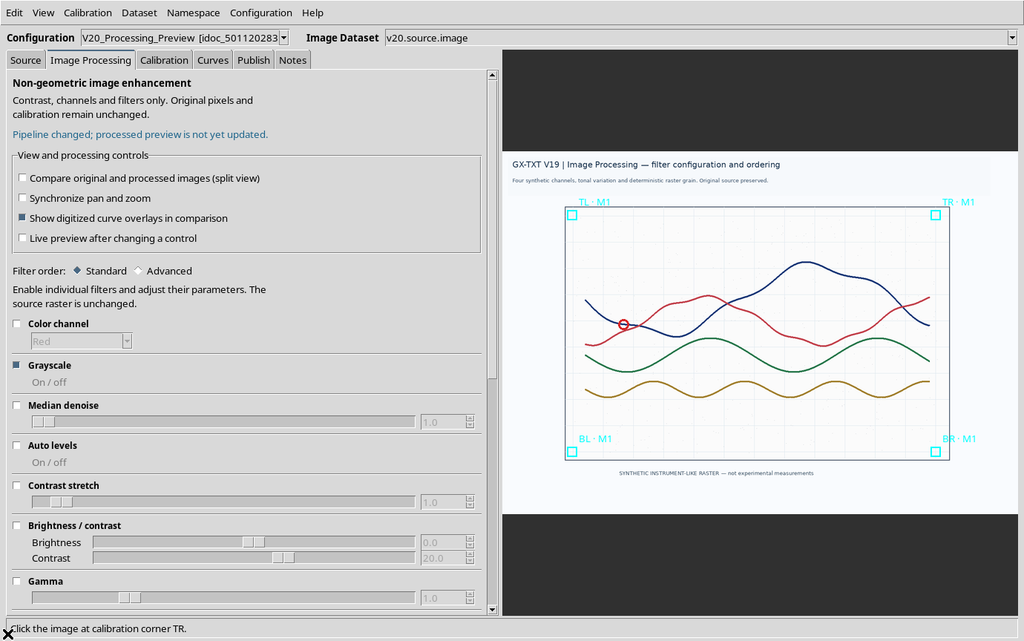
28. A Previous Preview Becomes Stale
Changing the filters after a preview leaves on screen a result that no longer describes the current settings. When you try to publish, the GUI asks you to apply the filters again.
The protection prevents the displayed processing from being mistaken for the one declared in the configuration. Repeat Apply and re-examine the comparison, instead of assuming that the preview updates automatically.
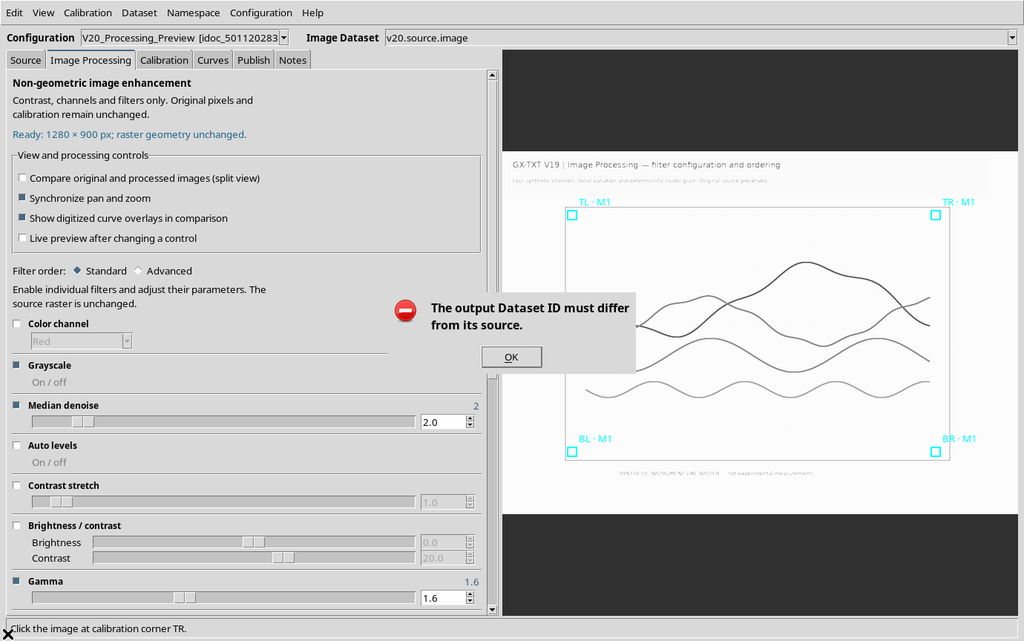
29. Do Not Publish a Derived Image with the Same ID as the Source
An Image Dataset produced by processing must have an identity different from the original source. The GUI rejects an Output ID that coincides with the ID of the starting raster.
Choose a new identifier and check the derivation: the original image must remain recoverable and recognizable in the catalogue.
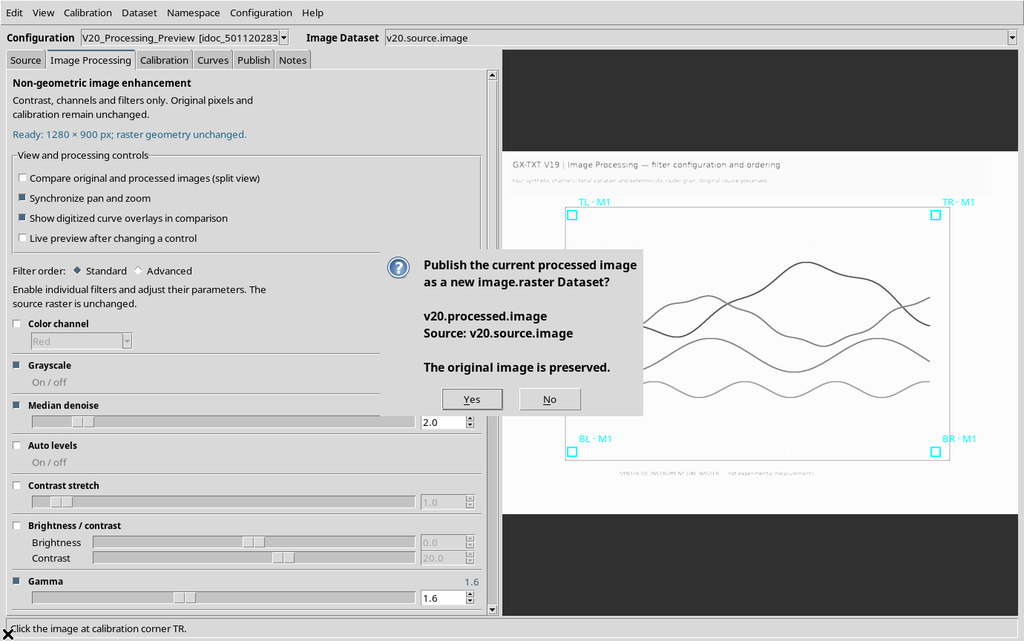
30. No Cancels the Processed Publication
A valid publication may still require confirmation. No interrupts the operation before the derived Dataset is registered.
The cancellation must not be interpreted as an error: the preview remains only a working result; no new Dataset has been authorized with that choice.
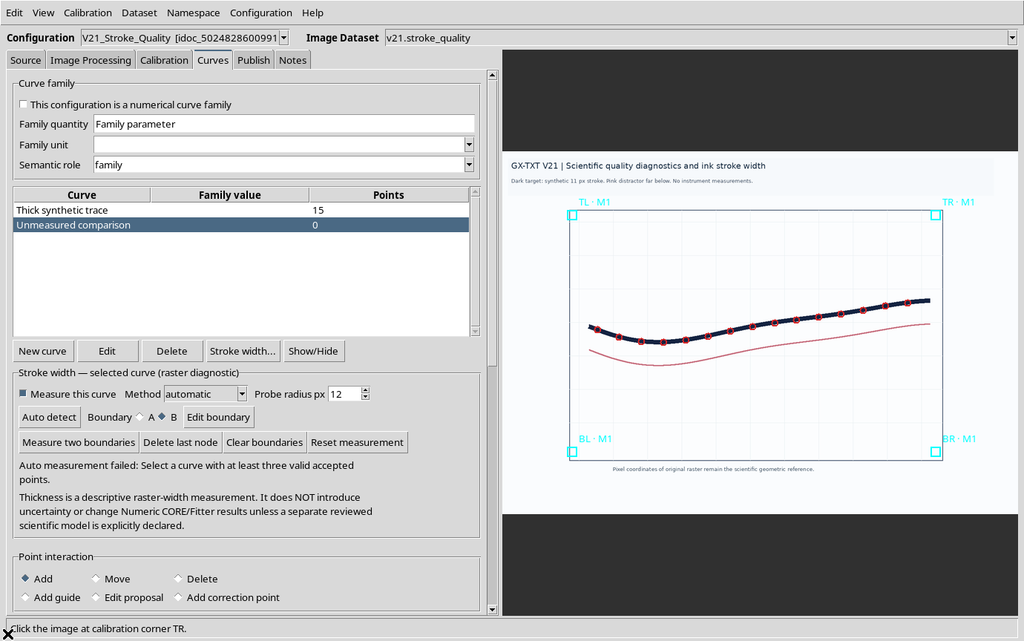
31. Stroke Width Is Not Automatically an Available Measurement
The Stroke Width section can indicate that a curve does not have enough data, or that the measurement is inactive. The unavailable condition with zero points is distinct from a measurement already evaluated.
Do not enter an arbitrary width just to fill a field: check the coordinates actually accepted and the detection criteria. The width diagnostics do not by themselves constitute an estimate of metrological uncertainty.
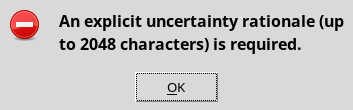
32. An Uncertainty Override Must Be Justified
In the Physical uncertainty window, entering numerical values is not enough to justify an override. The GUI also requires an explicit reason documenting the origin of the assumption.
A hypothetical value must not be presented as measured experimental data. Keep the scientific rationale and always distinguish declared uncertainty from estimated or propagated uncertainty.
33. A Negative Sigma Is Not an Admissible Standard Uncertainty
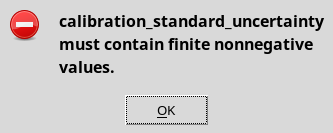
Standard uncertainty values must be finite and non-negative numbers. A negative sigma is rejected before the scientific declaration is registered.
Correct the input data starting from their physical meaning; the check must not be circumvented with an unjustified sign transformation.
34. Changing the Points Makes the Uncertainty Review Outdated
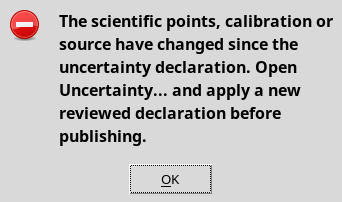
If points are added or modified after the uncertainty declaration has been reviewed, the calculation may be stale with respect to the current curve. The Viewer blocks a publication that would use an obsolete review.
Repeat the evaluation on the final geometry before generating a new Dataset. Uncertainties concern specific data and assumptions, not a generic display window.
35. A Family of Curves Requires Consistent Units
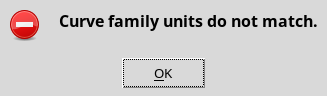
When a family uses a physical parameter, for example Grid bias in volts, the component curves must declare compatible values and units. Publishing is blocked if a curve provides the parameter in an incompatible unit, such as mA.
Check the meaning of the family parameter, not just the names of the curves. Units make it possible to distinguish quantities that must not be associated arbitrarily.
36. An Existing Dataset ID Is Not a New Output
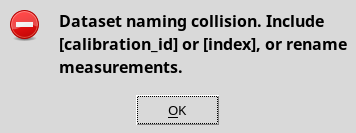
The same canonical identity cannot be reused indiscriminately for distinct publications. The GUI reports collisions of the output name before the data are written.
Choose a new name or correct the naming template; check the complete plan when several calibration realizations are selected.
37. Combined Requires Attention to the Realizations
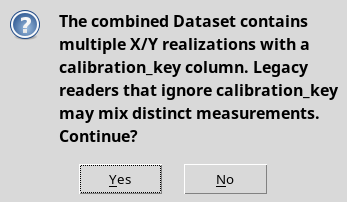
A Combined publication can gather into the same Dataset rows belonging to different scientific realizations. The Viewer presents a warning, because without using the calibration identification field the result could be interpreted ambiguously.
Choose No if the subsequent analysis cannot distinguish the realizations. Separate, instead, keeps the outputs separate when it is the appropriate choice.
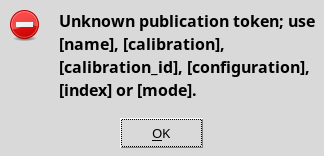
38. Unknown Tokens Are Not Allowed Placeholders
The publication name template accepts only the tokens declared by the Viewer. Writing an arbitrary field name does not automatically produce a new meaning or a new variable.
In case of error, restore a valid template and check the ID preview. The naming tokens modify neither the calibration nor the values of the scientific rows.
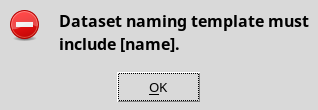
39. The name Token Is Mandatory in the Template
Even a template made up of valid tokens can be rejected if the mandatory name part is missing. This protection prevents incomplete naming schemes from being applied.
Correct the template, check the uniqueness of the generated outputs and do not start publishing until the plan is readable and scientifically recognizable.
40. Save, No and Cancel Are Not the Same Command
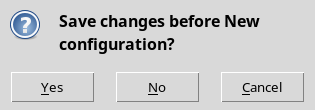
When a configuration contains pending changes, the Viewer may ask Save changes before…. Yes keeps the draft before the switch, No proceeds by discarding the unsaved changes and Cancel interrupts the switch, leaving the draft open.
This window does not signal a damaged configuration. It is important, however, to choose consciously: the notes still present in the editor after Cancel are not necessarily already present in the saved Workspace.
41. Different Publish Selection After Reopen
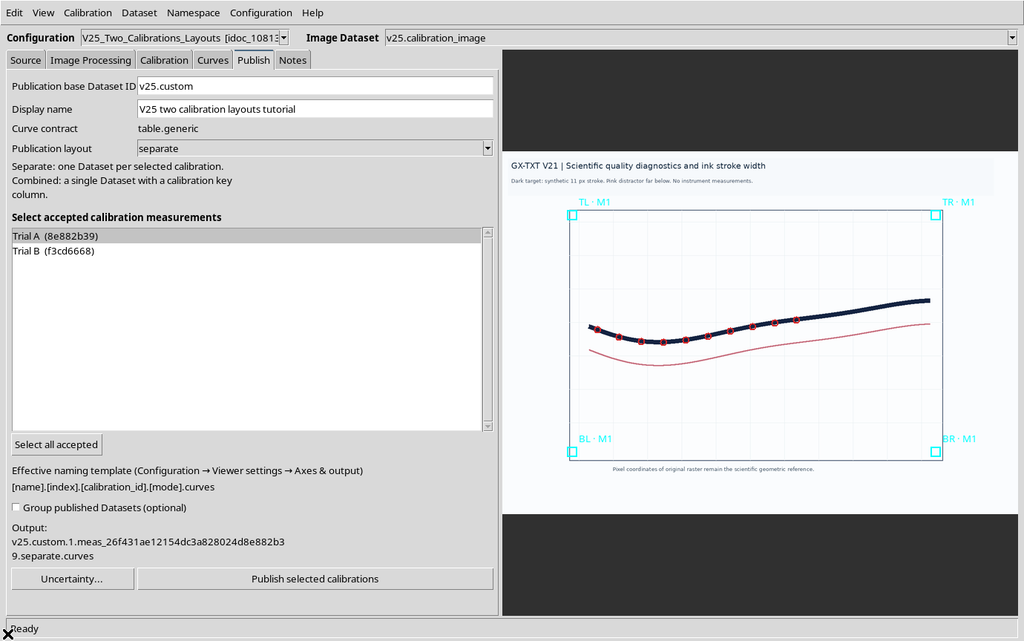
If a calibration selection is saved in Publish and Save → Close → Reopen is performed, the restored selection may correspond to the active calibration instead of the one selected for publishing. For this reason the checkboxes must be checked again.
Before publishing after a reopen, select the desired realizations again and recheck the name of each output. The defect concerns the current selection and can lead to choosing a calibration different from the intended one; no alteration of previously published Datasets has been observed.
42. A Status Warning May Remain Visible After Restoring
After restoring the original source with the correct ID and SHA, the bottom bar of the GUI may continue to show the previous SOURCE MISSING warning, even when the actual verification of the source has succeeded.
The warning may simply be text not yet updated in the status bar. Moving the pointer over the Canvas can update it, but the validity of the source must be checked in the Source tab, through ID and SHA-256, not from the footer text alone.
43. Other Visual Anomalies to Distinguish from Scientific Data
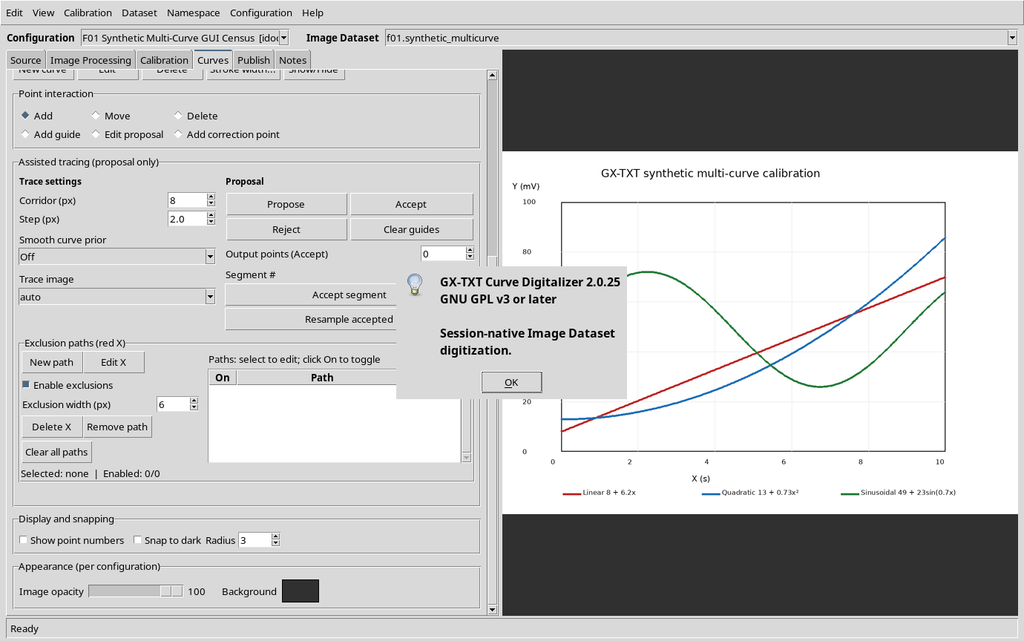
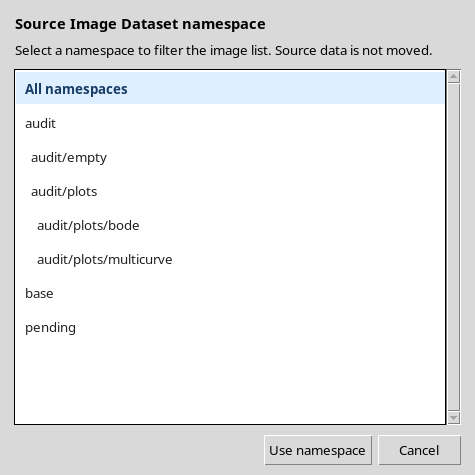
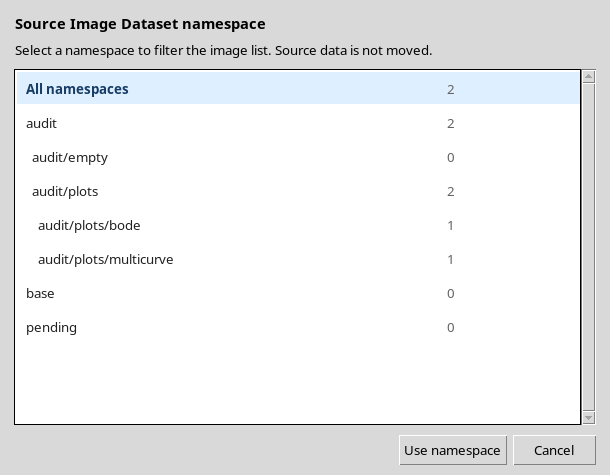
Other anomalies concern presentation: the version shown in About Curve Digitalizer may not match that of the installed descriptor; in the namespace selector, the counters may be cut off when the window is too narrow.
The version discrepancy is a visual identification problem; the truncation of the counters is a readability problem. Widening the window can restore the display of the numbers. None of these symptoms proves an alteration of the Datasets.
44. How to Distinguish a Check That Protects Data from an Application Error
| Observed situation | Operational interpretation | Recommended action |
|---|---|---|
| Zero logarithmic value, negative sigma, incomplete four corners | Invalid scientific input | Correct the data; do not force |
| SOURCE MISSING or STALE SOURCE | Source identity not verified | Restore the original ID and content |
| Stale uncertainty or stale preview | State not updated to the current parameters | Repeat the evaluation and check the new result |
| Rejected calibration not selectable for Publish | Deliberately non-publishable state | Accept a valid realization |
| Corridor rejected but previous overlay still visible | Visual defect | Reject, correct, Propose |
| Gamma value reset after disabling | Defect | Restore the value and order of the pipeline |
| Publish selection changed after Reopen | Defect | Reselect and check before publishing |
| SOURCE MISSING persisting in the footer after restore | Visual defect | Verify the SHA and refresh the status |
This distinction refers to the behaviour documented in the screenshots. In other versions or Sessions, warnings must not be automatically ignored: always check the condition actually present before modifying or publishing data.
45. Final Check Before Publish
Before creating a new scientific Dataset, check in this order: the source and its SHA-256, the accepted state of the intended calibration, the association of the curves with the correct axes and units, the consistency of the points, the validity of any previews or uncertainties, the realizations selected in Publish, the output identifiers and the meaning of the Combined/Separate layout.
The confirmations and refusals shown in this chapter are part of normal scientific work with the Digitalizer. When one of the known anomalies appears, adopt the specific precaution indicated and keep the editable document, the original Dataset and the canonical results already registered separate.