

Script identity: User, Session, metadata and revisions
Every GNU Octave source managed in Octave Script Workspace carries information that determines its identity, its description and the scope in which it is stored. Knowing these fields avoids confusing a plain editor buffer with a registered script, or a user script with one belonging to a scientific Session.
The screenshots show the original interface of GX-TXT DEV112 with patch P005, Octave Script Workspace module 1.8.3. The examples use very short synthetic sources, with English comments, saved but not run. No scientific results were produced.
1. Locating Scope, Script ID, Name and the other metadata
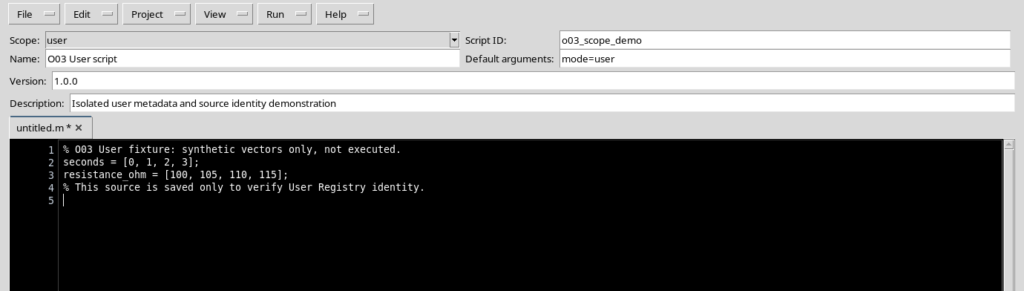
Open Octave Scripts from the Viewers tab of the main window. In the editor, the properties box shows the Scope, Script ID, Name, Default arguments and Description fields; the Version section is visible when enabled from View.
- Scope distinguishes the
userscope from thesessionscope. The choice determines which registry will hold the script. - Script ID is the technical identifier of the script within its scope. It is not the same as the human-readable title.
- Name is the descriptive name that identifies the script in the interface controls.
- Default arguments stores the text of the default arguments. On its own it is neither an execution nor a declaration of the Runner’s typed parameters.
- Description lets you describe the purpose of the script.
- Version is a descriptive version in a format such as
1.0.0. It must not be confused with the automatic Registry revision.
To keep the source readable, use View → Focus source / restore panes, leaving the properties visible only while you fill them in. In the example, the identifier o03_scope_demo was chosen.
2. Telling a draft from a registered script
Opening a buffer, even one that already contains an ID, a name and Octave code, does not yet create a registration. To register the User draft in the example, the native File → Save command was used.
After saving, the reference is user:o03_scope_demo. The status bar shows the new identity and the saved state; the source stays in its own tab. A modified buffer, on the other hand, signals that the changes have not been saved yet.
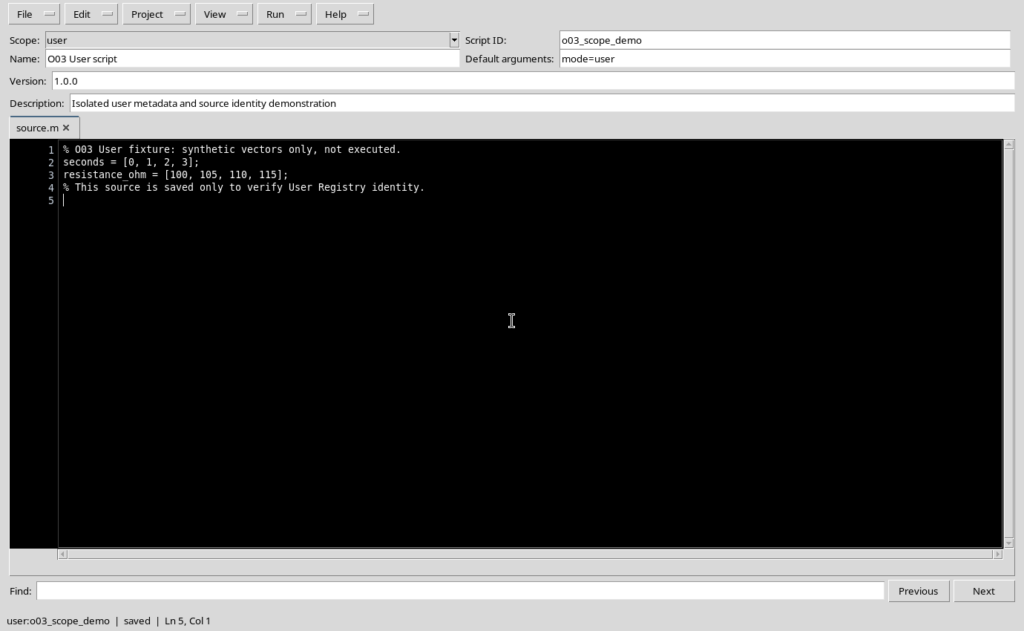
This operation registers a source; it does not run it. The choices around saving, Save copy, closing and protecting changes are covered in the dedicated chapters.
3. Preparing a script associated with a Session
To use the same Workspace in a scientific Session, open or create a Session from the main window and go back to the editor. A User draft that is already open does not automatically become a Session one.
With a Session active, select File → New Script: the new tab is created with Scope = session. Fill in the ID, the Name and the other fields, then write the code. To demonstrate the separation of scopes, you can use the same Script ID as in the User example.
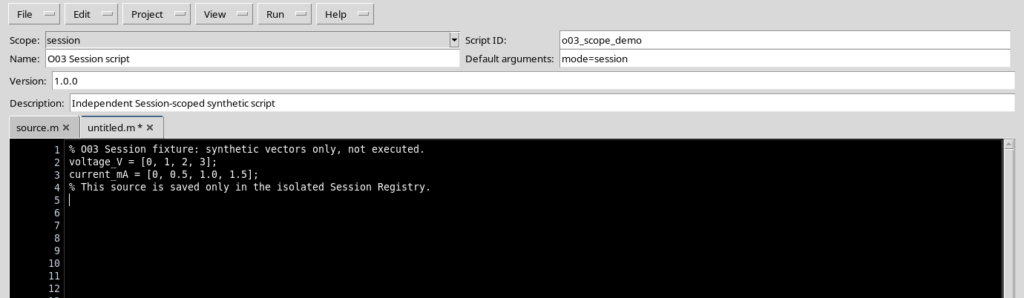
After File → Save, the new source takes the identity session:o03_scope_demo, distinct from user:o03_scope_demo. The registered Source remains an ordinary Octave script; its association with the Session does not imply that any calculation has already been carried out.
4. Two registrations, same Script ID
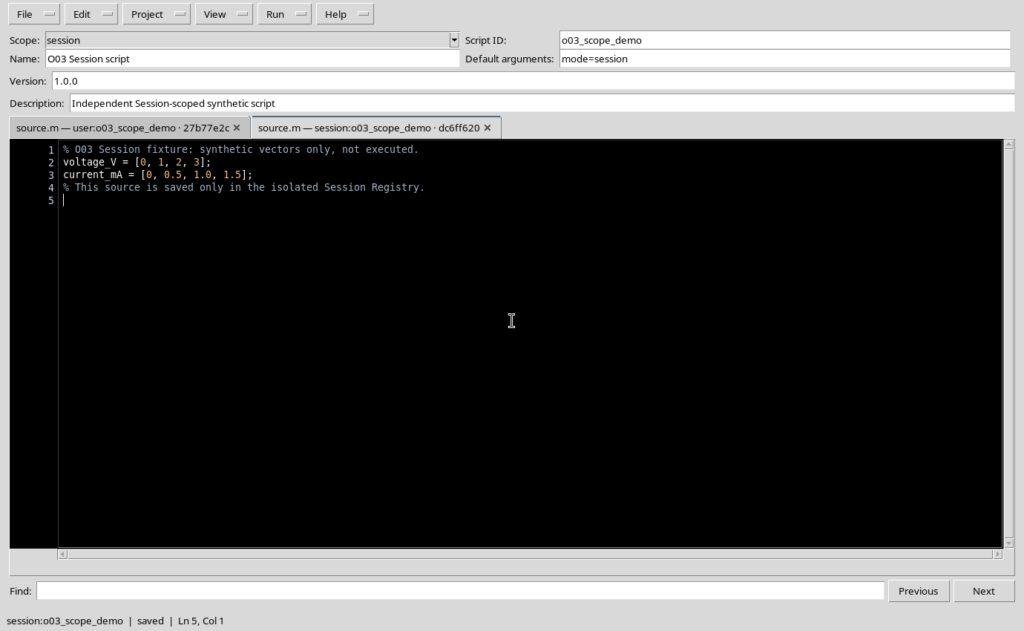
The full identity is Scope + Script ID. Consequently user:o03_scope_demo and session:o03_scope_demo are two different records, even though they share the final part of the identifier.
Both references may appear in the Explorer’s Registered scripts panel, with different descriptive names. For this check two different sources were kept: the first is an example with a vector of resistances, the second with a vector of currents. Their SHA-256 values are different.
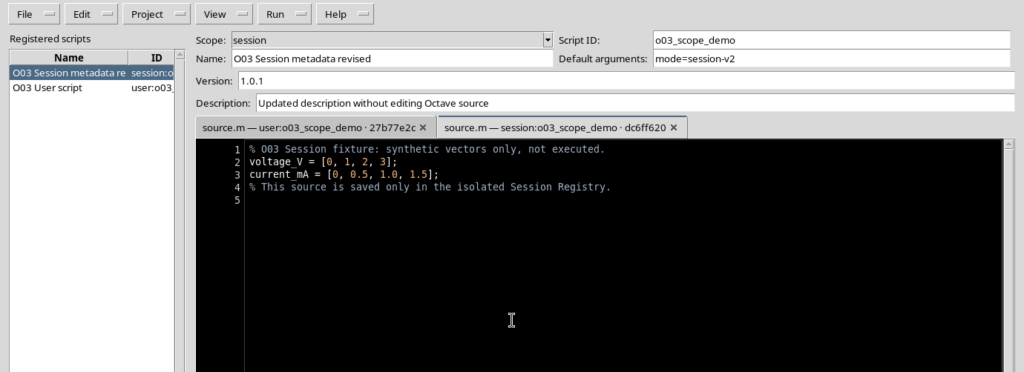
A User source stays in the user scope; a Session source belongs to the specific Session. For this reason, when you switch Sessions or reopen tabs, check the Scope value and the full reference before making changes.
5. Version, automatic revision and SHA-256 are not the same thing
GX-TXT keeps three different pieces of information:
| Information | Meaning |
|---|---|
| Version | Descriptive version that can be filled in among the properties, such as 1.0.0 or 1.0.1. |
| Registry revision | Revision number incremented when an update to the registered record is saved. |
| Source SHA-256 | Cryptographic fingerprint of the bytes of the saved code. It changes if the bytes of the source change, not necessarily when only the metadata are modified. |
The Version is directly visible in the properties box. The numerical revision and the full fingerprint are Registry information: they must not be mistaken for fields visible in the normal Source editor.
In the case shown, the Session script was registered with revision 1 and version 1.0.0. The automatic revision is kept separate from the descriptive version precisely because the two quantities can evolve independently.
6. Updating metadata without changing the code
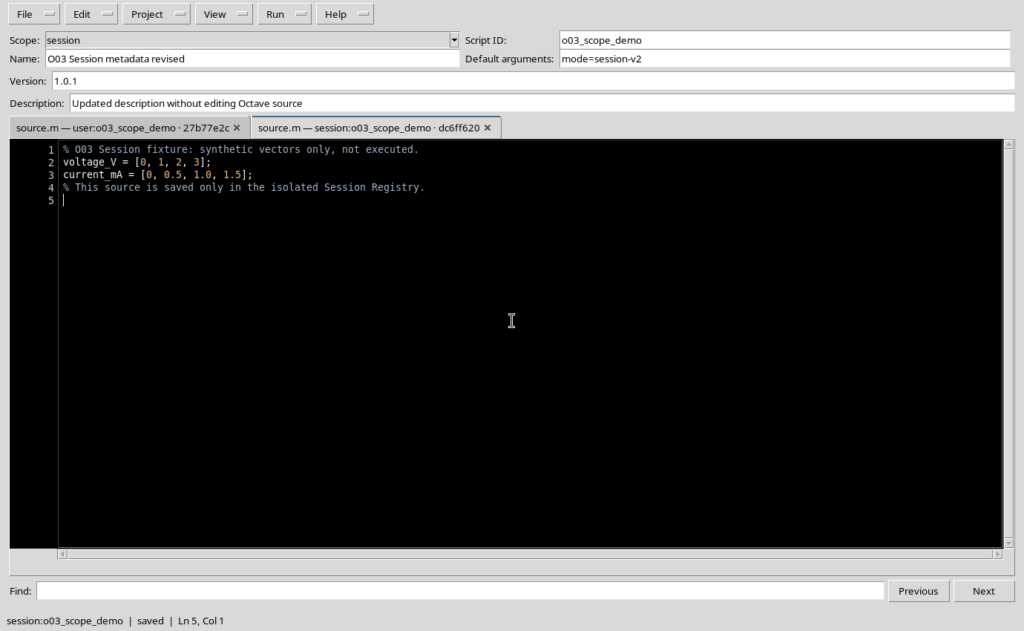
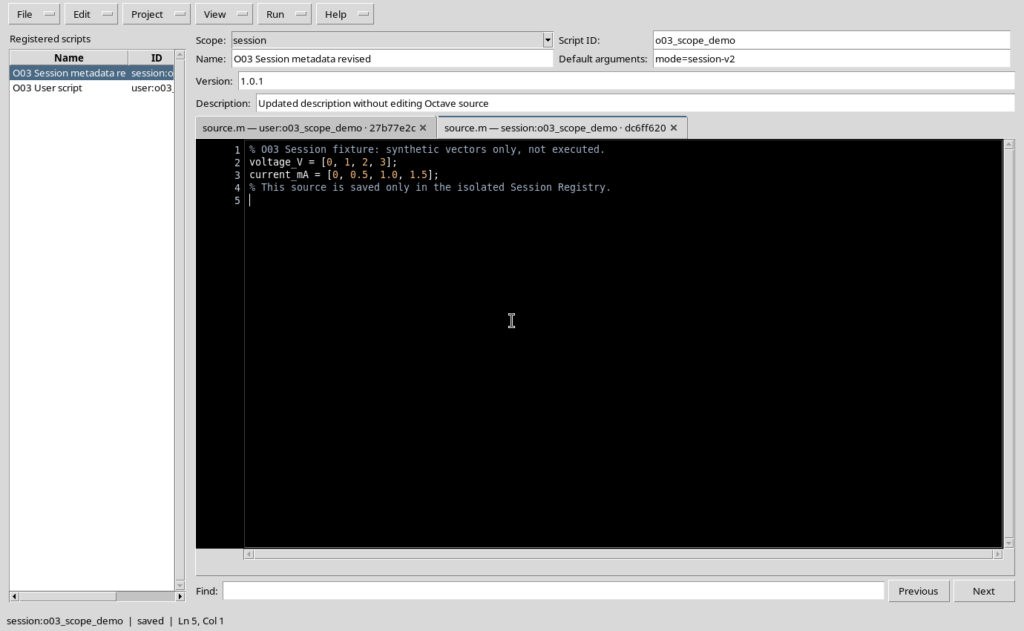
Select the Session tab and change, for example, Name, Description, Default arguments and Version, leaving the Source untouched. In the example, the Name becomes O03 Session metadata revised, the arguments mode=session-v2 and the Version 1.0.1.
The editor signals that there are changes to save, even though the Octave text has remained identical.
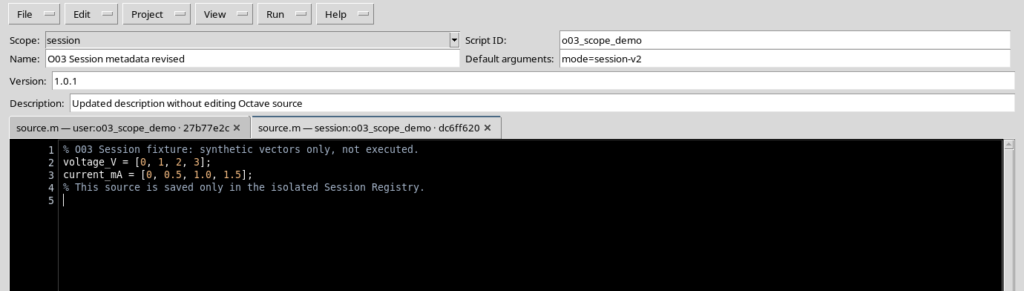
Using File → Save, the Session record is updated. A subsequent read check confirmed this difference:
| Property | Before | After |
|---|---|---|
| Script ID | o03_scope_demo | Unchanged |
| Scope | session | Unchanged |
| Name | O03 Session script | O03 Session metadata revised |
| Version | 1.0.0 | 1.0.1 |
| Registry revision | 1 | 2 |
| Source SHA-256 | Initial fingerprint | Identical |
The result is therefore a new revision of the record without a new version of the source bytes. The User script with the same ID was not changed.
7. Take care when selecting scripts between User and Session
The version shown has a limitation you should know about. When a User tab was opened before a Session was activated, switching from that tab to a Session script via Registered scripts may wrongly show the Editor Session changed warning, even though the correct Session is still active.
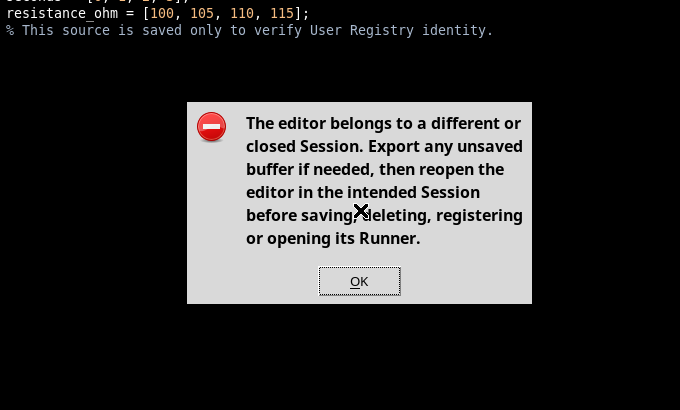
The warning alone does not prove that the Session has actually been closed. In the verified example, both registered records were still intact and the User Source had not been modified.
Verified workaround: close the warning with OK; if the desired Session tab is already open, use Ctrl+Tab to select it. The tab restores the correct Session context without saving or running any script.
Before any new operation that modifies a record, check Scope, the current tab and the state of the source again. Avoid reading a context message as an invitation to register the same script again.
8. Practical checks before moving on
To identify precisely what you are working on, examine the full reference (user: or session:), the Script ID, the Name, the Version and any indicator of unsaved changes. When you update only the description or another piece of metadata, the Source must not be altered in order to obtain a new revision of the record.
The fundamental difference is between record identity, declared version and code content. Keeping them separate makes the next steps more reliable: protected saving, importing, preparing the Runner and reproducibility of analyses.