

Opening Octave Script Workspace and getting to know the work area
Octave Script Workspace is the GX-TXT integrated editor for preparing GNU Octave sources in .m files, browsing the framework’s public functions and organizing the scripts that belong to the user or to a Session. This guide shows where to open it, how to recognize its panels and how to give priority to the code area. Saving, running and debugging are covered in the dedicated chapters.
The screenshots refer to GX-TXT DEV112 with patch P005, Octave Script Workspace module 1.8.3. Command names are given in English, as in the interface.
1. Opening the Viewer from the main window
In the GX-TXT main window, select the Viewers tab. The page shows the Viewer catalogue, with a Search box. To find the editor straight away, type octave: the Octave Scripts button appears in the Scientific Scripting section. Select it to open Octave Script Workspace.
The name on the button is shortened; the title of the window that opens is Octave Script Workspace. There is no need to start an analysis, run code or open a project first.
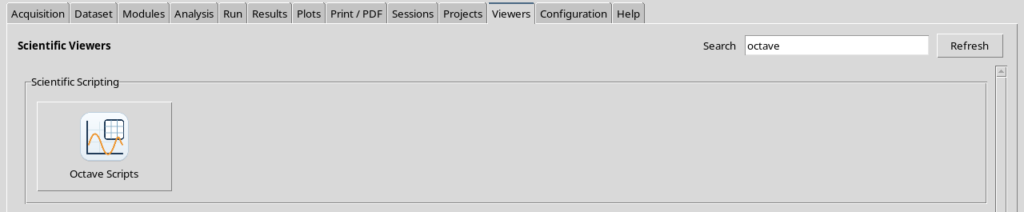
If the Viewer is already open, selecting the same button brings it back to the foreground, keeping the current working context. The editor is a separate window from the Viewers tab of the main window.
2. First opening: you can work without a Session
The editor can be opened without an active scientific Session. On first opening, the Scope drop-down may show user: this means that the new source, once it is saved, will belong to the user scope. Having a buffer in the editor is not the same as having a registered script.
The program shows an untitled.m tab containing an introductory example of Octave syntax and of access to the GX-TXT APIs. It is source text to read and modify: opening the Viewer does not run it, and it does not automatically produce Datasets or numerical results.
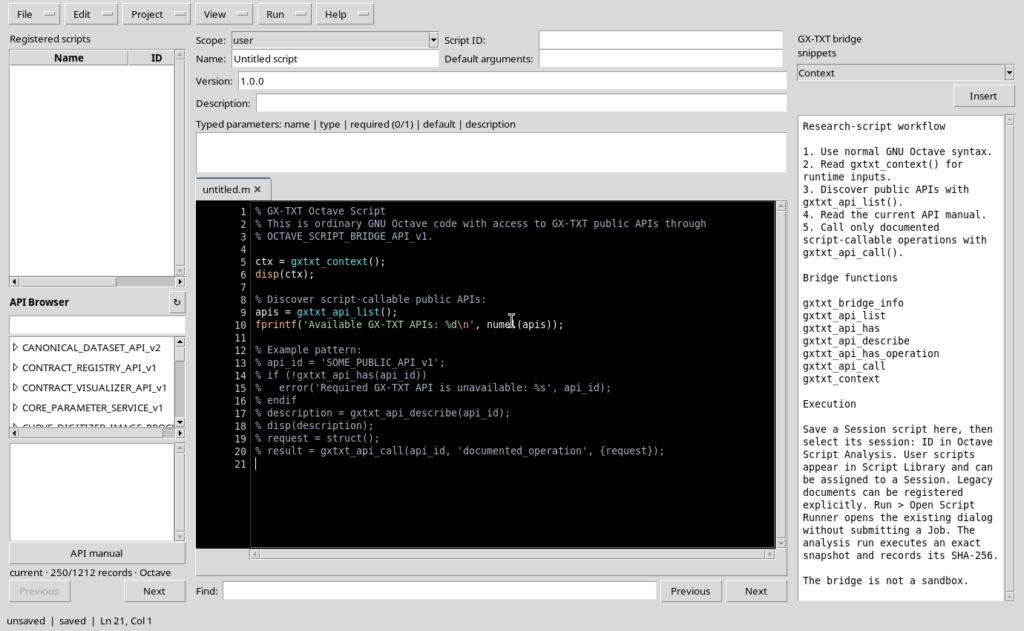
Look at the Scope, Script ID, Name, Default arguments and Description fields. These are script information, not processing results. The difference between identifier, revision and saving is covered in more detail later.
3. Working with an active Session
To prepare a script intended for a specific Session, first open or create the Session from the main window. Go back to Octave Script Workspace and choose File → New Script. The new buffer is initialized in the session scope, which is available when a Session is active.
An important detail: activating a Session does not automatically turn an already open user buffer into a session one. The File → New Script command, on the other hand, creates a new tab with the appropriate context. At this stage the tab is still a draft: registering it will later require an identifier and the save operation.
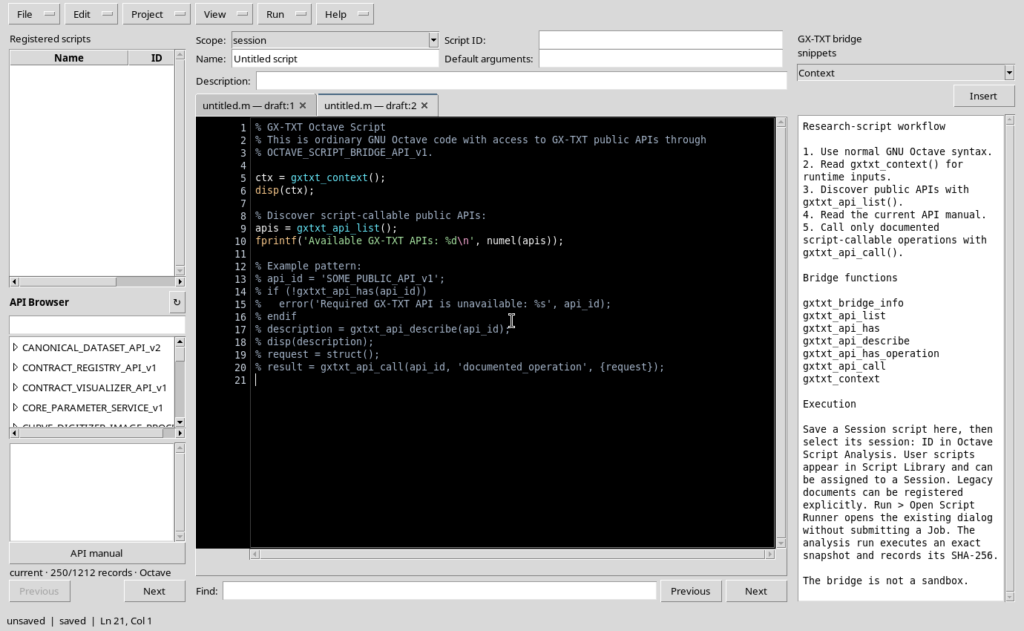
The tab bar lets you keep several sources open. The label untitled.m — draft marks a draft that has not been registered yet. Do not confuse the number of tabs with the number of saved scripts.
4. Finding your way around panels and menus
The initial layout of the Viewer has three side-by-side areas. They are all real and useful, but there is no need to keep them open all the time while writing code.
| Area | Recognizable controls | Main purpose |
|---|---|---|
| Left | Registered scripts, API Browser, API manual | Find registered sources and look up the identifiers of the available APIs. |
| Centre | Metadata, untitled.m tabs, dark editor with line numbers, Find field | Prepare Octave code and switch from one draft to another. |
| Right | GX-TXT bridge snippets, Context, Insert and reference text | Examine bridge examples and insert them into the source when needed. |
| Top bar | File, Edit, Project, View, Run, Help | Reach the operations for the source, organization, display, execution and help. |
The dark box in the centre is the Source editor, where the code is actually edited. The API Browser and the bridge texts are reference tools: reading an example is not the same as calling its functions. The Insert button, when used, transfers text into the buffer and is not in itself an execution.
The Run menu should not be confused with simply loading code into the editor. Before running a script, specific checks will be needed on the saved version, on the inputs and on the requested operation.
5. Getting a minimal view for writing code
For normal work, it is best to give the source the full available width. Open View → Focus source / restore panes: the two side columns are hidden, without deleting their contents or changing the text in the centre.
From the View menu you can also deselect Script properties, Parameters and Version individually. For normal editing, these boxes take up space that can be given back to the code; reopen them only when needed. For a general overview, on the other hand, the three-panel layout is more instructive.
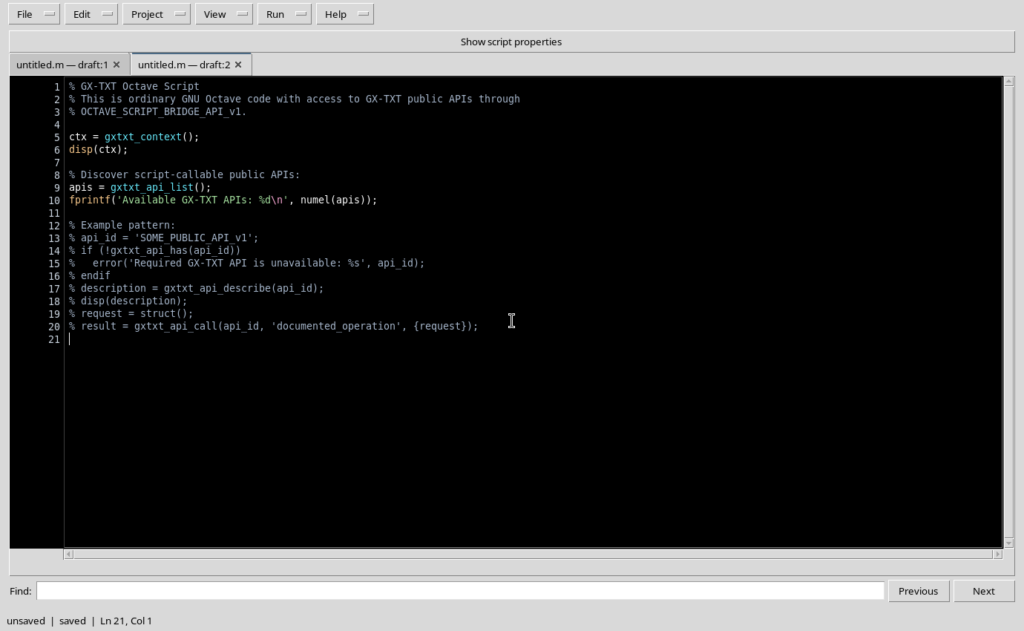
In the configuration shown, the Focus source command increased the editor width from about 709 to 1267 pixels. These measurements depend on the window size and are not fixed values of the application. Invoking Focus source / restore panes again restores the side layout.
The High Contrast Dark theme is genuinely visible in the Source area: black background, light text and syntax colours. Some Tk/ttk controls, panels and previews keep a light appearance instead; it is not a globally dark theme.
6. Checks before the first save or run
Before starting scientific work, check which Session is active in the main window, which Scope is selected, which tab is current and whether the code on screen is still a draft or a registered source. Avoid interpreting the initial example as a scientific result: in the Viewer it is only text.
The scientific Session, the registered script, any execution Job and the Datasets produced are different objects. Opening the Viewer or creating a draft does not run GNU Octave, does not automatically save a .m file and does not publish Datasets. The next sections of the guide introduce the menus, controlled saving of the source and the subsequent operations.
The first goal is therefore simple: open Octave Scripts, recognize your user or session context, locate the Source editor and adopt an essential layout when writing code.