

Browsing the GX-TXT APIs from the Octave editor: Bridge Snippets and built-in help
Octave Script Workspace provides tools for preparing calls to the GX-TXT public APIs without leaving the editor. The GX-TXT Bridge Snippets panel inserts code templates into the Source; the API Browser and the manuals let you check which operations are declared and which arguments they require.
The screenshots refer to GX-TXT DEV112 with patch P005, Octave Script Workspace module 1.8.3. Command names are given in English, as in the interface. Inserting, reading or describing a fragment does not mean running it.
1. Opening the GX-TXT Bridge Snippets panel
From the View menu, enable GX-TXT Bridge Snippets. The side panel appears with a selection box and the Insert button. To keep the Source readable, you can hide Script Explorer / Registered scripts and leave only the editor with the hints on the right.
The box offers five templates: Context, Discover APIs, Require API, Describe API and Call API.
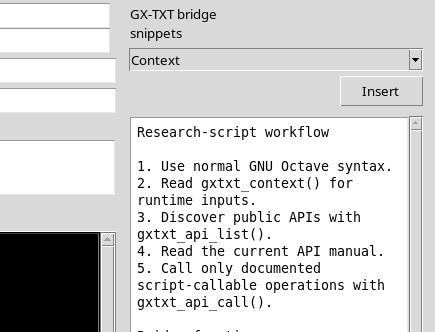
Choose the template and press Insert. The code is added at the cursor position in the active Source: before inserting it, check which tab and which line are selected. The fragment modifies the buffer, but it does not register a new revision and does not submit a Job.
2. Context and Discover APIs: the starting point
The Context template inserts:
ctx = gxtxt_context();
disp(ctx);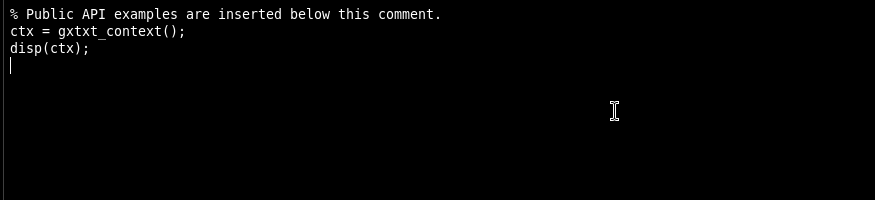
gxtxt_context() is the public access to the context that will be available when the script runs in a managed Bridge environment. It is not a command for reconstructing or directly reading internal framework files.
The Discover APIs template inserts a call to gxtxt_api_list(), together with instructions for displaying the result.
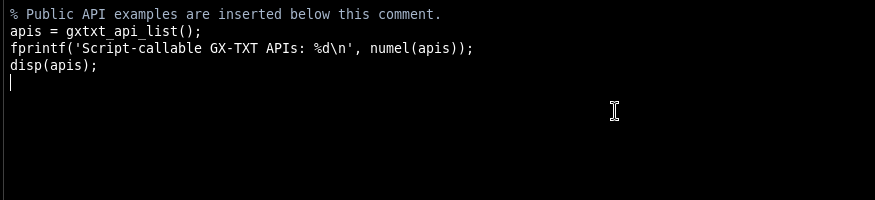
The actual list is determined while the script runs, not when you select Insert. To find out the installed declarations in advance, it is better to use the API Browser panel.
3. Require API and Describe API: check before calling
The Require API template proposes a check with gxtxt_api_has(api_id), with an error message if the requested API is not available.
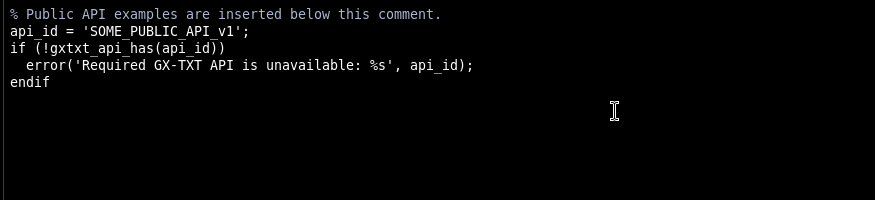
The identifier SOME_PUBLIC_API_v1 in the templates is a placeholder, not the name of a ready-to-use service. It must be replaced with a real identifier, checked against the catalogue and the public documentation.
The Describe API template inserts gxtxt_api_describe(api_id), which can be used during a managed run to obtain the description of the API.
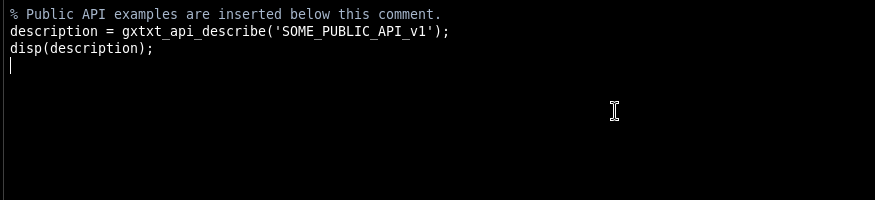
The distribution also includes the public helper gxtxt_api_require(requirements) for declaring requirements in a script. For example, the intended syntax for a simple requirement is:
% Require this documented API in a managed Script Bridge run.
gxtxt_api_require({'NUMERIC_API_v1'});
The example is reference text, not a call executed in this guide. Checking requirements and enabling capabilities belong to the script runtime, not to the Insert button.
4. Call API: preparing a documented call
The Call API template inserts the outline of a request, with an API identifier and an operation name to be replaced.
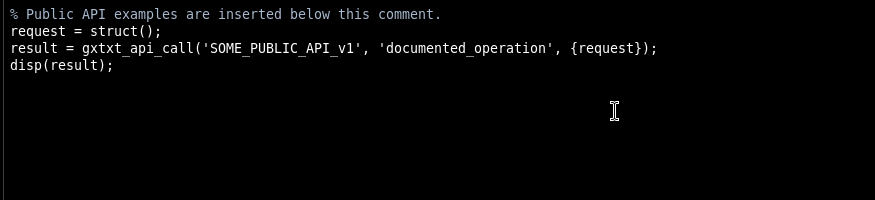
The general form is:
% Replace the placeholders with a documented API and operation.
request = struct();
result = gxtxt_api_call('SOME_PUBLIC_API_v1', ...
'documented_operation', {request});
The strings SOME_PUBLIC_API_v1 and documented_operation are placeholders. Operation names, parameters or result structures must not be inferred from the template alone. The actual signature must be checked in the manual of the selected API. The public function gxtxt_api_has_operation(api_id, operation) is also available for checking, during a managed run, whether an operation is available.
5. Using the API Browser to learn the declarations
Enable View → Script Explorer / Registered scripts and View → API Browser. In the API Browser search field you can enter an identifier, for example NUMERIC_API_v1, to narrow the list down to the matching declarations.
In the installation shown, the catalogue lists 136 Script Bridge declarations associated with NUMERIC_API_v1. Selecting the array_reduce operation shows the information declared by the math.numeric provider.
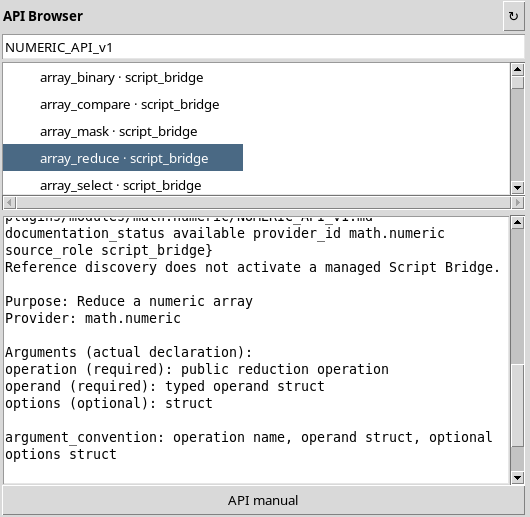
For array_reduce, the catalogue shows a required operation argument, a required operand and an optional options field. The result is declared as a numerical result struct. This is an indication of the contract: to actually build the content of operand and any of its parameters, you need to read the specific manual.
Browsing the catalogue does not activate the Bridge. Installation, enablement and runtime status information must be interpreted separately: the presence of a declaration does not prove that every operation can be called immediately from any script.
6. Opening the manual of a single API
After selecting a family or an operation, press API manual in the API Browser panel. The system opens the documentation associated with the provider.
For NUMERIC_API_v1, the Numerical service manual opens, with information on the contracts, conventions and capabilities of the numerical library.
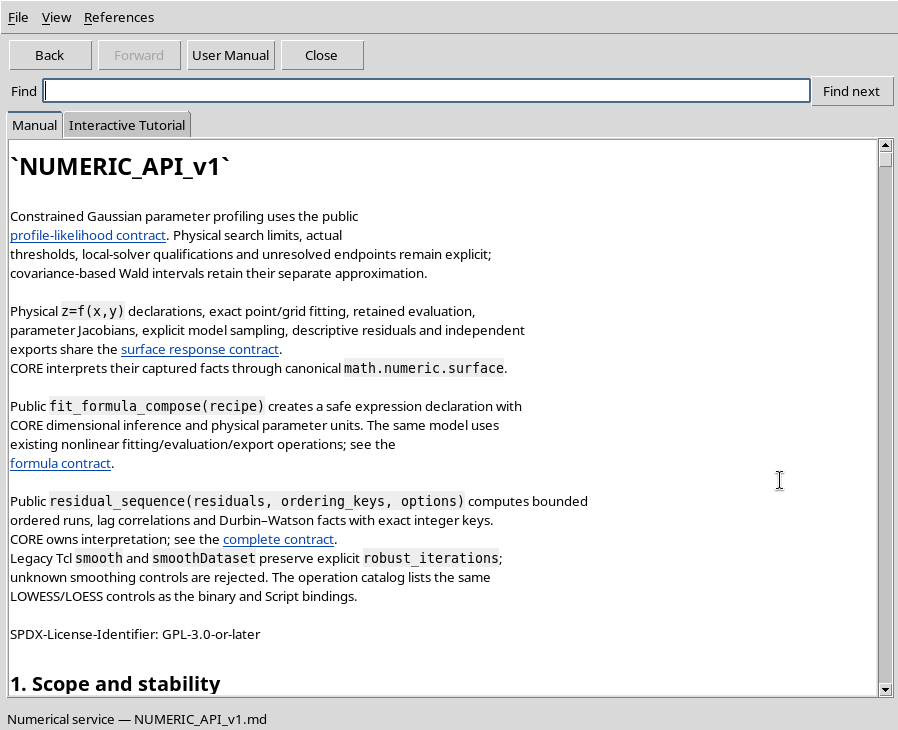
Consult the contract of the specific function before writing gxtxt_api_call(): names, the form of the arguments and the returned structures may vary between APIs. The API Browser is a reference tool, not a console for immediate execution.
7. Using the Bridge help and the Viewer manual
The Help → Script Bridge help menu opens a concise reference to OCTAVE_SCRIPT_BRIDGE_API_v1. It lists the functions for context, discovery, availability, description and API calls.
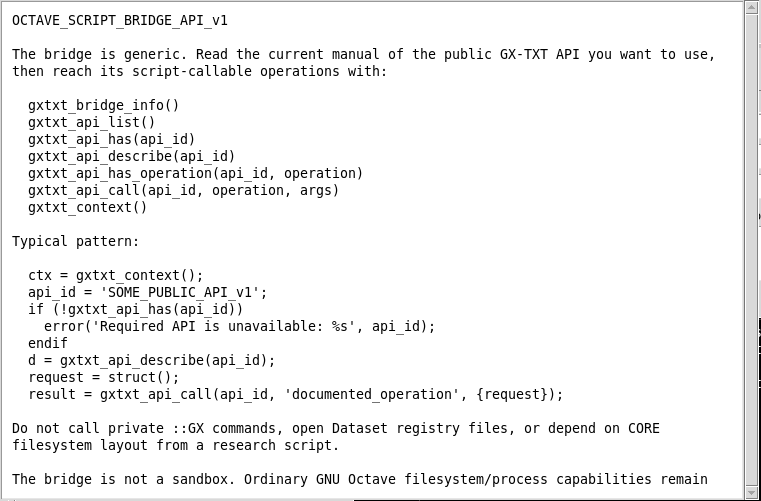
The reference points out that scripts must use public interfaces and must not call private ::GX Tcl commands or depend on internal CORE paths. The Bridge is not a sandbox: GNU Octave code, when actually run, keeps the capabilities allowed by the environment and by the user’s permissions.
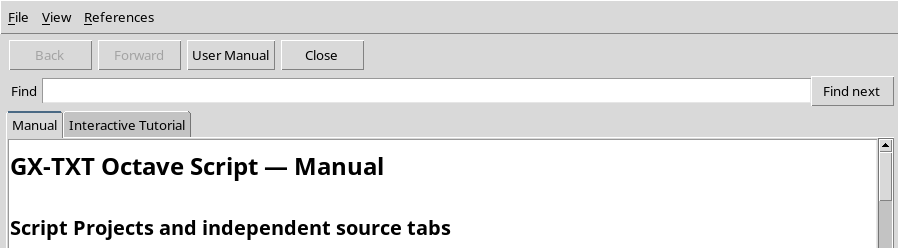
For the general Viewer guide, use F1 or Help → Viewer manual / Debugger guide…. The Octave Script Workspace manual opens, with Back, Forward and User Manual navigation, search and close.
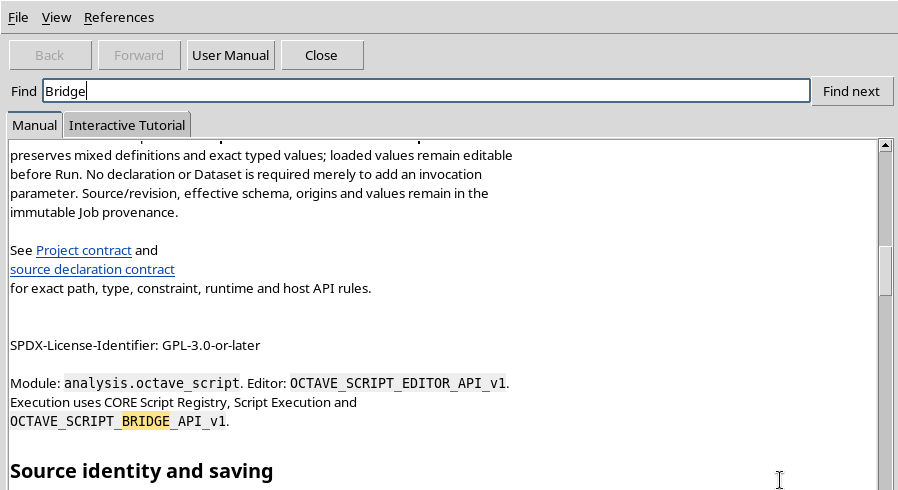
The Find field and the Find next button let you search for text in the manual, for example the word Bridge.
There is also a tab called Interactive Tutorial. In the installation shown, however, the tab reports that no interactive tutorial package is installed. The text manual can still be consulted normally.
8. Checking the identity and version of the module
The Help → About… entry shows the identity of the module, its version and the references to the declared public APIs.
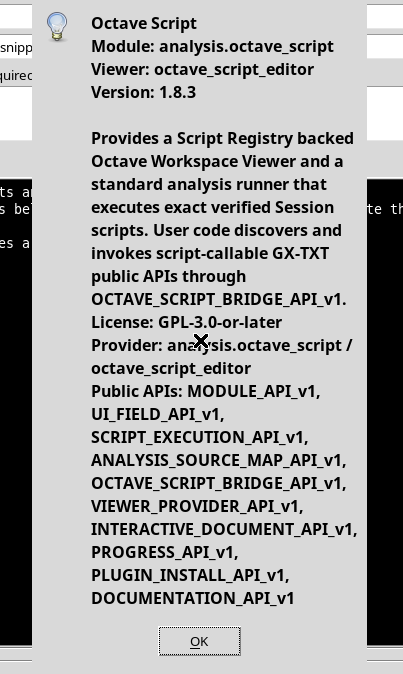
The information in the dialog distinguishes the analysis.octave_script module from the octave_script_editor Viewer. The Public APIs list shows public contracts of the framework or of the module; it should not be confused with the list of operations already enabled for a specific Octave process.
9. Declaring the required APIs in the script metadata
To declare a requirement in the script record, use View → Additional required APIs. The field appears above the Source, next to the other metadata of the document.

In the example, NUMERIC_API_v1 is entered. The value is a script metadata item, not an instruction inserted in the Source. With File → Save, GX-TXT registers the declaration: an update of the metadata alone increases the revision of the record, but may leave the SHA-256 of the code unchanged.
This declaration can be used in the preliminary checks of a future run. It does not imply that the API has been called, nor that the code has produced scientific results.
10. Recommended sequence for preparing an API-based script
| Tool | When to use it |
|---|---|
| Bridge Snippets | Prepare the template of a public call in the Source. |
| API Browser | Search for a family and read the declared operations. |
| API manual | Check the arguments, result and limits of the chosen contract. |
| Script Bridge help | Consult the general model of the Octave Bridge. |
| F1 / User Manual | Find the instructions on the Viewer and its functions. |
| Additional required APIs | Save API requirements as script metadata. |
| File → Save | Explicitly register changes or new metadata. |
The practical sequence is: find the API in the Browser, consult its manual, insert the appropriate template into the Source, replace the placeholders with documented signatures, declare any requirements and save.
During normal writing it is best to keep mainly Source open, bringing up Snippets and the API Browser only when you need them. Running the code, debugging and checking the outputs belong to separate procedures: none of the reference commands presented in this chapter replaces those steps.