

Opening Script Runner and checking the Octave source revision
Script Runner is where a registered script is examined before its execution is requested. Opening the window lets you check the identity, version, revision and SHA-256 fingerprint of the source, without starting any computation by itself. In this guide we also look at the three choices offered when the editor contains unsaved changes.
The procedure refers to GX-TXT Octave Script Workspace (DEV112 with patch P005, module 1.8.3). The English names reproduce the GUI commands. All the numerical data in the example are synthetic.
1. Starting from a Registered Octave Script
Open a Session and prepare a .m script in the Source. To recognize the difference between saved content and later changes we will use a small series of voltages, with no acquisition from instruments:
% Synthetic voltage samples, in volts.
time_s = [0, 1, 2, 3, 4];
voltage_V = [0.2, 0.4, 0.6, 0.8, 1.0];
mean_voltage_V = mean(voltage_V);
With File → Save, register the source by giving it an identity in the Session. Saving creates an identifiable revision: displaying the code and being able to request a Job are two distinct operations.
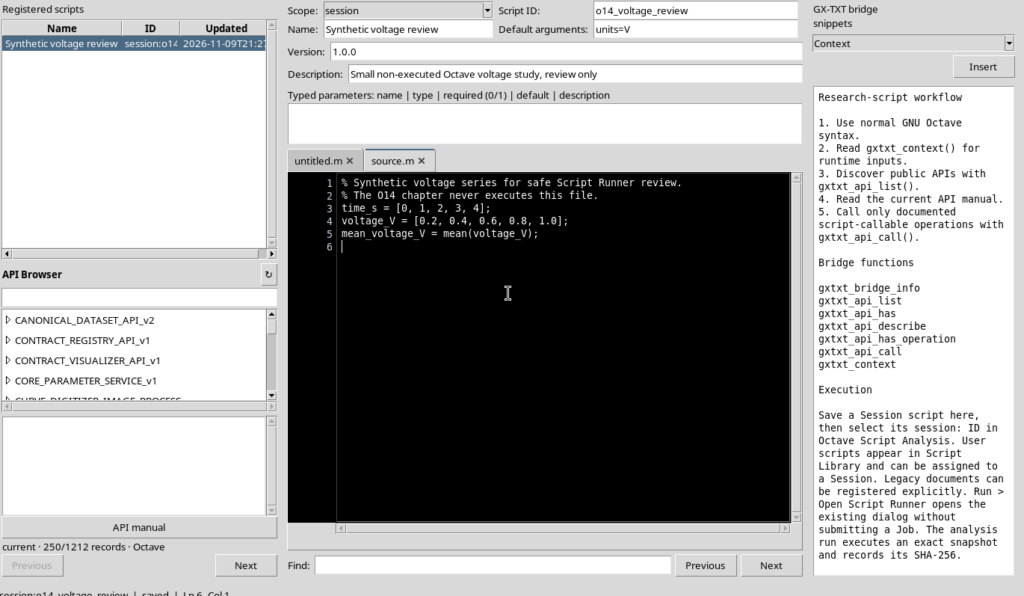
To keep the script readable, leave the optional panes you do not need closed. The following examples open only the window required for the review.
2. Finding the Run → Open Script Runner… Command
With the saved script still selected, open the Run menu and choose Open Script Runner…. The operation is not equivalent to Run Job: it presents a screen for preparing and checking the invocation.
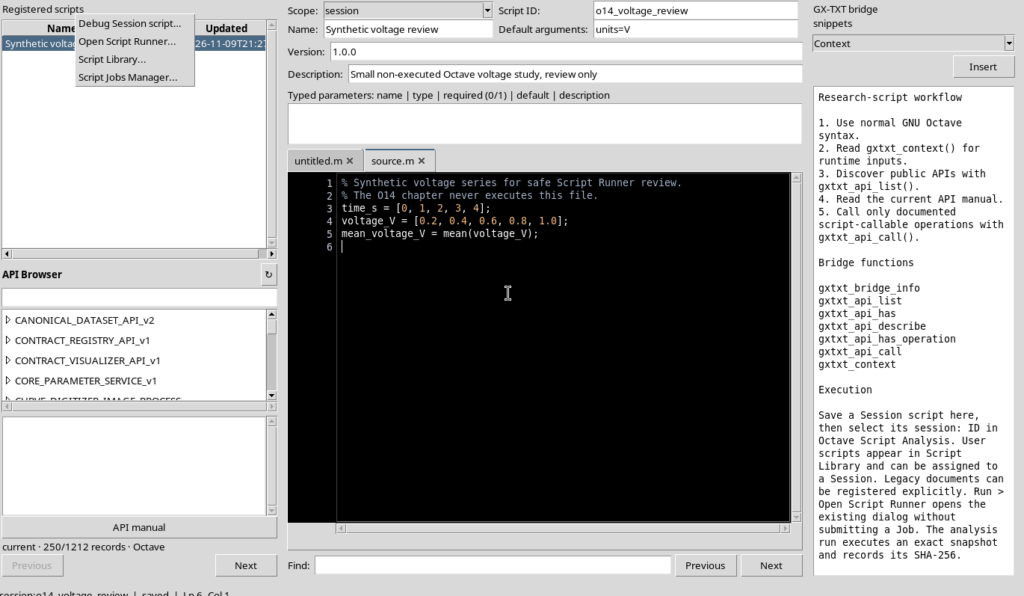
It is important not to confuse this path with other script management interfaces. To examine code that is already open, start directly from the Source tab.
3. Reading the Identity and SHA of the Saved Revision
At the top, the Runner window shows the script name, the language Octave, the registered reference and the Version / revision pair. Next comes the SHA-256 value, that is, the cryptographic fingerprint of the saved content.
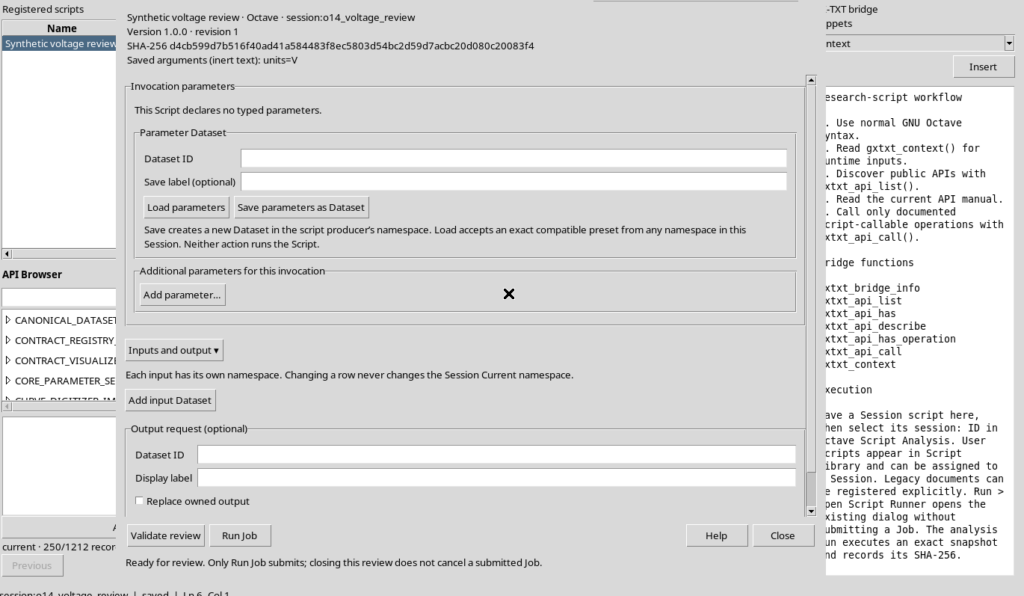
Do not confuse these elements:
- Version is the version label assigned to the script, for example
1.0.0. - revision is the revision of the registered record, which can change after a save.
- SHA-256 identifies exactly the bytes of the source taken into account for the revision.
A Saved arguments (inert text) field, if present, shows text kept as script metadata: on its own it does not constitute an execution. In the lower part you can see Validate review, Run Job and Close. The mere fact of seeing these buttons does not mean that a Job has been submitted.
4. Distinguishing the Modified Buffer from the Saved Source
Go back to the Source, change a value and do not choose File → Save straight away. For example, change the voltage series to:
voltage_V = [0.25, 0.45, 0.65, 0.85, 1.05];The editor content now differs from the registered source. The saved revision still keeps its own SHA; the modified buffer does not automatically become a new revision.
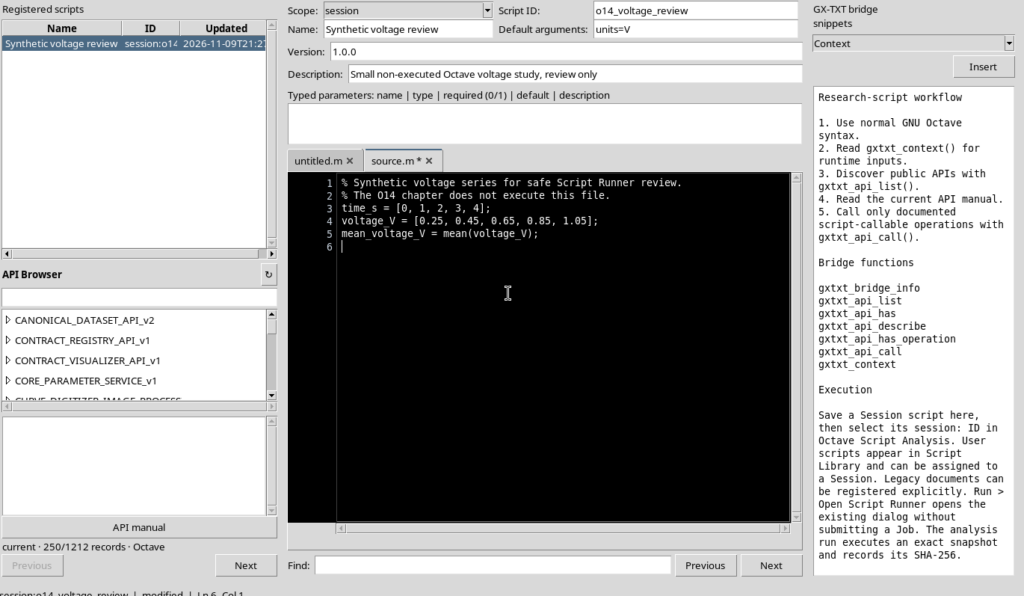
When you request Run → Open Script Runner… again, GX-TXT asks which revision you intend to examine.
5. Interpreting the Three Choices Yes, No and Cancel
The Choose the Runner revision window explains the options before any Job.
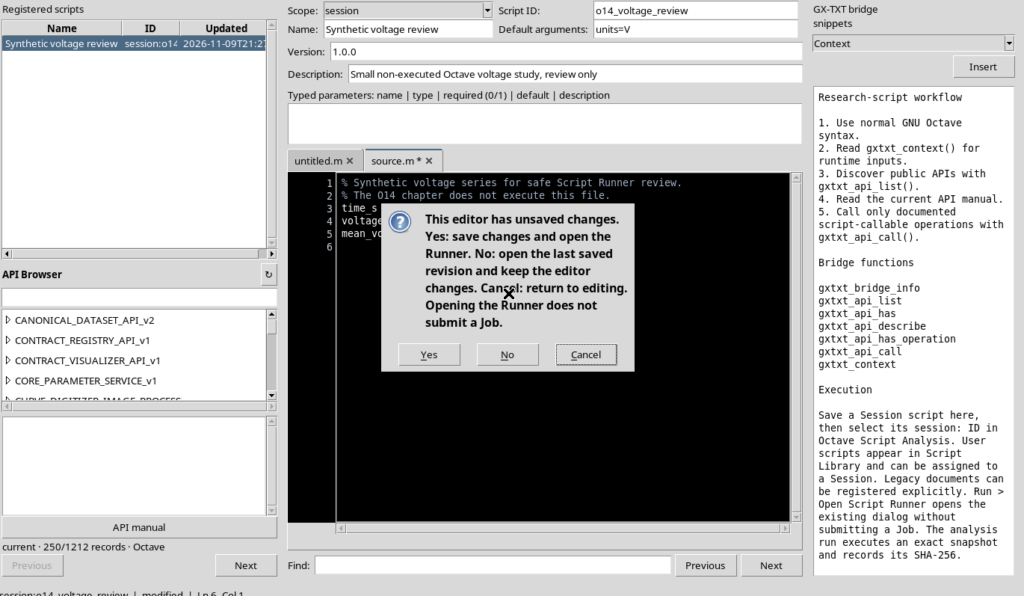
| Choice | Effect on the source and on the Runner window |
|---|---|
| Yes | Saves the current changes, then opens Runner on the new revision. |
| No | Keeps the changes in the editor, but opens Runner on the already saved revision. |
| Cancel | Returns to the editor without opening Runner and without losing the changes. |
This distinction prevents the mere presence of changes in the Source from being mistaken for a decision to run them. If you choose No, the data shown by Runner must match the previously saved content.
6. Cancel: Going Back to Editing the Code
Choosing Cancel closes the dialog. The Source remains open with the unsaved changes, without creating a new revision and without opening a Runner window.
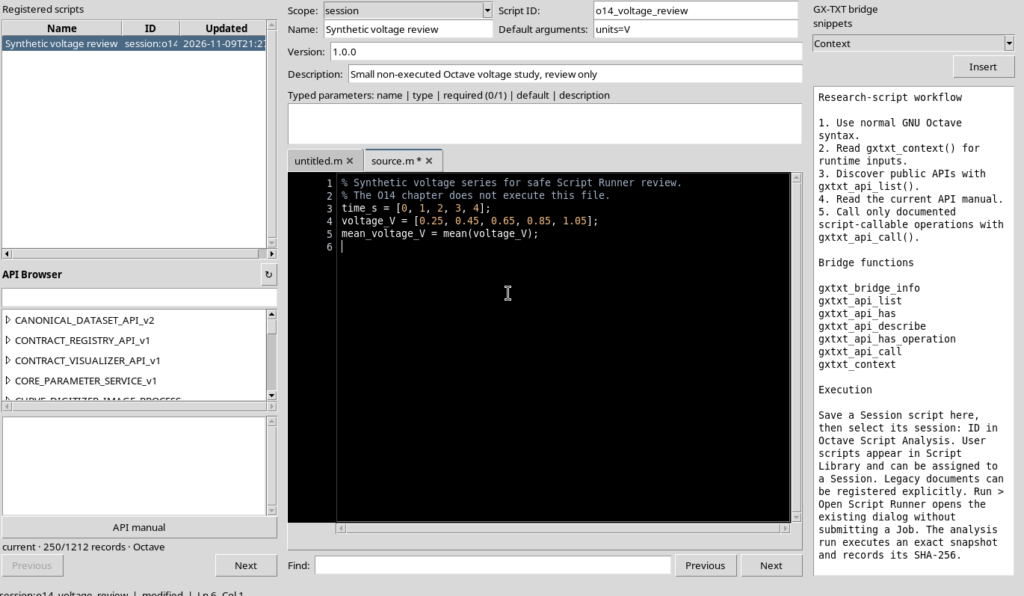
This is the right choice when you want to keep writing code or check a change before deciding which revision to examine.
7. No: Examining the Previously Saved Revision
Repeat Open Script Runner… and choose No. The Runner window opens using the revision that was in the registry before the last change to the buffer. The Source tab, instead, keeps the unsaved text.
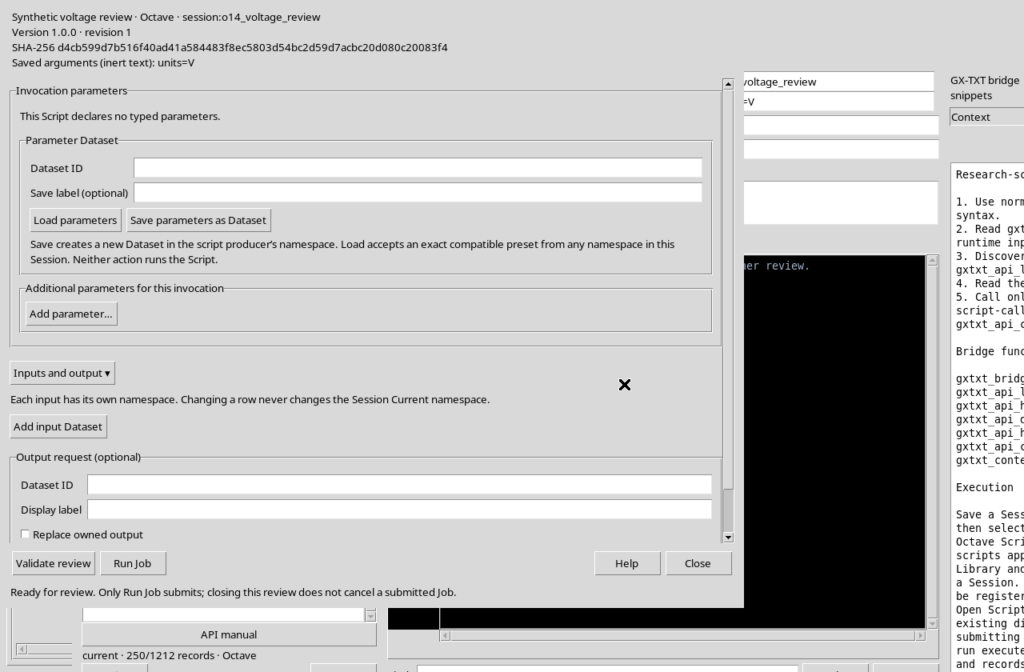
The decisive check is the SHA-256: it must be that of the registered source, not a fingerprint attributed to the current draft. You can then press Close to close the review and return to the editor. Closing the window is not the same as discarding the buffer.
8. Yes: Saving and Opening the New Revision
Open Runner again from the still modified Source and this time choose Yes. GX-TXT saves the code and presents the updated revision. In the example the revision goes from 1 to 2, with a different SHA-256 because the source has changed.
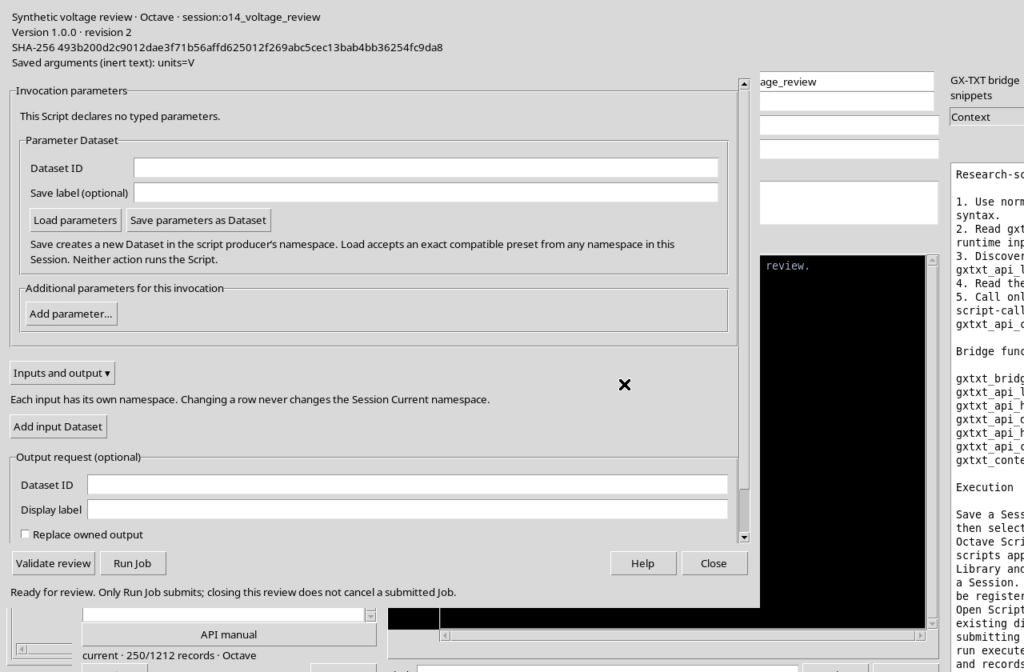
Selecting Close takes you back to the Source, which is now saved and has no pending changes.
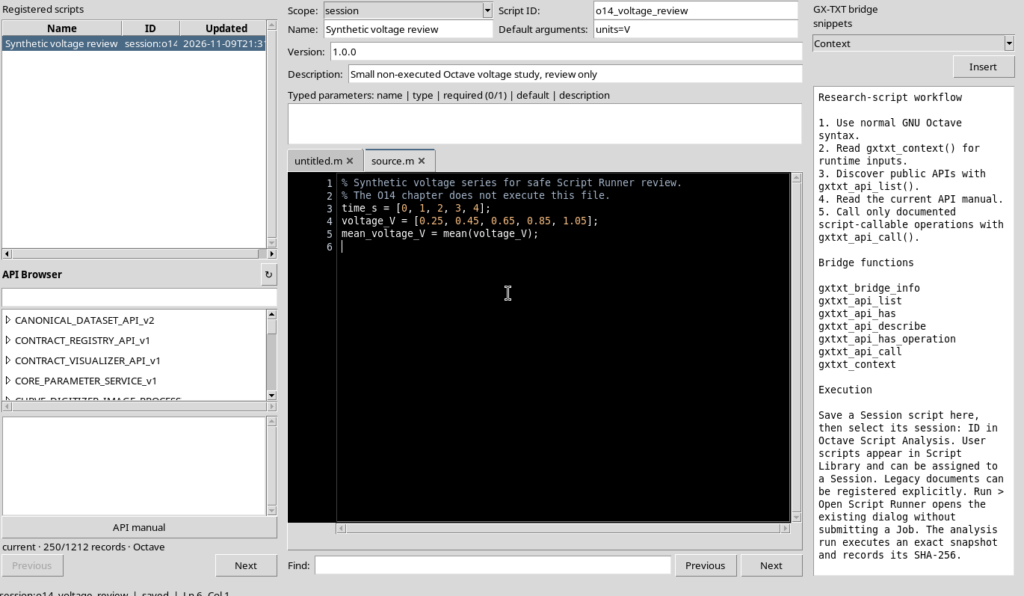
Yes saves the code, but does not start the computation. The scientific submission requires a further explicit act, Run Job, to be carried out after preparing and checking parameters, input Datasets and output request.
9. If the Source Is Not Yet Registered
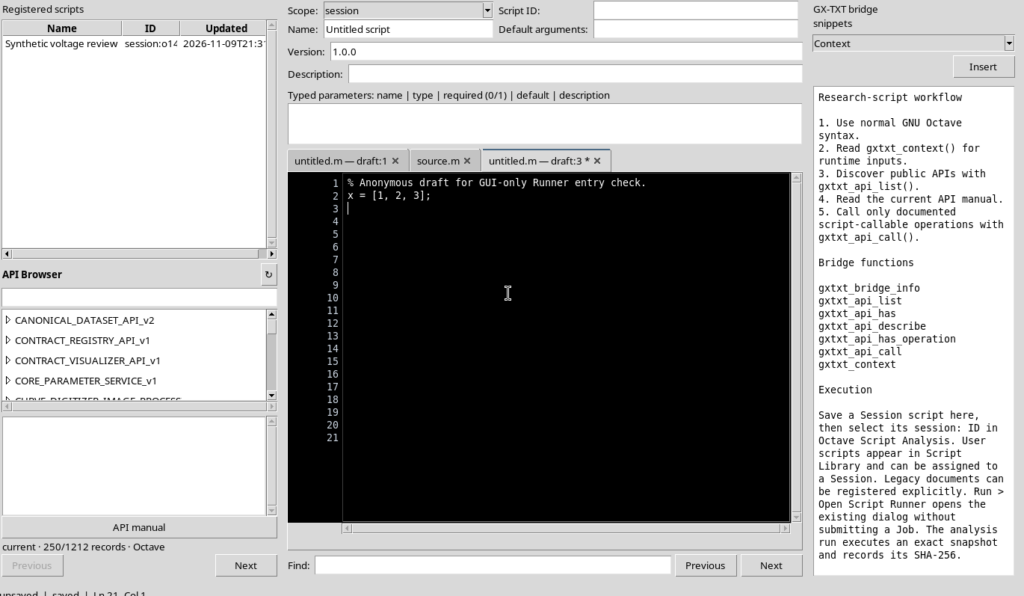
If you create a new tab with File → New Script, the content can exist in the editor buffer without yet having a registered identity in Session or User scope.
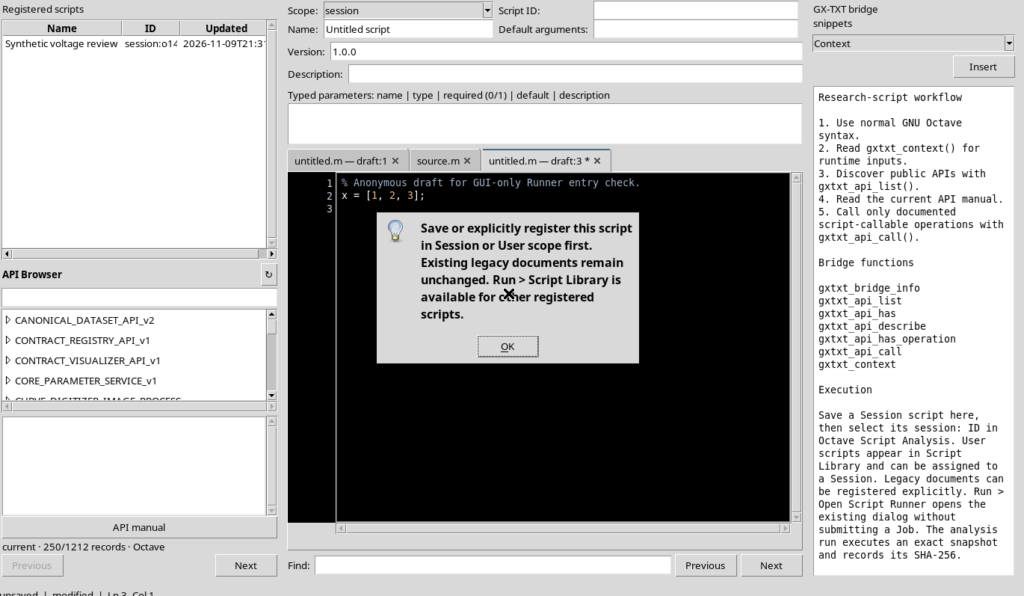
If you try to open Runner in this condition, the Workspace shows Open Script Runner with an instruction to explicitly save or register the script before proceeding.
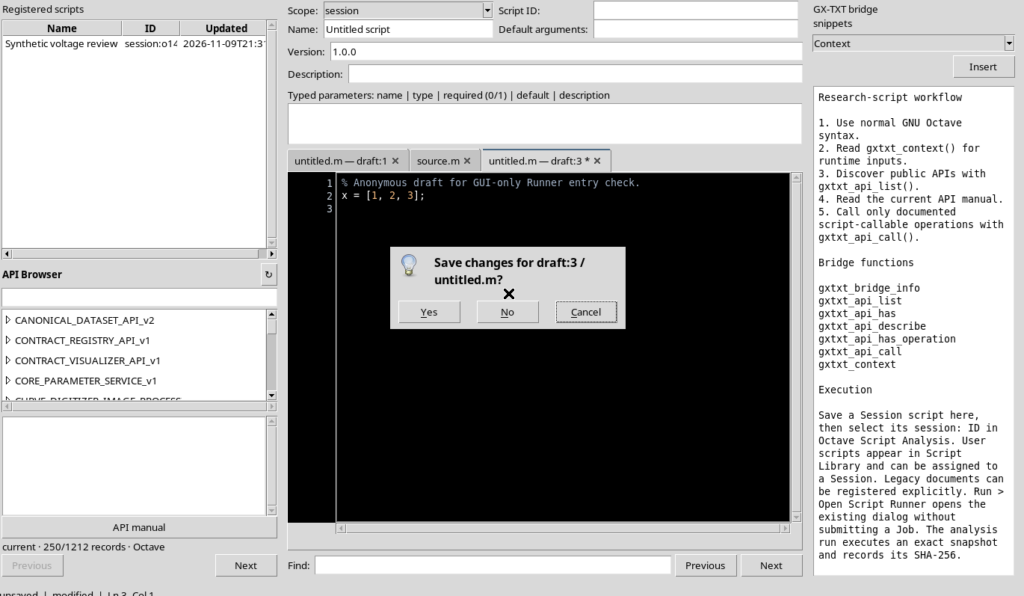
After OK you return to the editor; to abandon a draft you can use File → Close tab and answer No to the Unsaved source question, avoiding saving it.
Anonymous content must not be confused with a registered revision. Assign the correct identity, version and scope before requesting its execution review.
10. Closing the Review Before Moving On to Datasets
For a consistent check, always verify that the reference and SHA-256 shown in Runner belong to the version of the code you want to examine. Close leaves the review screen without submitting a Job. If a Job had already been submitted, closing the window would not be a command that interrupts the execution.
After this preparation, the next operations concern binding any Input Datasets, managing parameters and validating the invocation. It is better to tackle them separately: a saved script, a reviewed script and a submitted Job are three distinct states of the workflow.