

Working with multiple source tabs in the Octave editor
Octave Script Workspace lets you keep several GNU Octave sources open at the same time. Each tab keeps its own code, the identity of the script and the editing position, so you do not have to close one file every time you move to another.
The screenshots refer to GX-TXT DEV112 with patch P005, Octave Script Workspace module 1.8.3. The application commands are given in English. The examples show small vectors of synthetic data: opening, editing and saving tabs does not run the code and does not produce Datasets.
1. Opening several sources in the same window
After opening Octave Scripts, use File → New Script to start a new source. Fill in Script ID and Name, write the code and use File → Save to register it. Repeat the command to open further tabs. You can work on one tab at a time while keeping the others available in the same window.
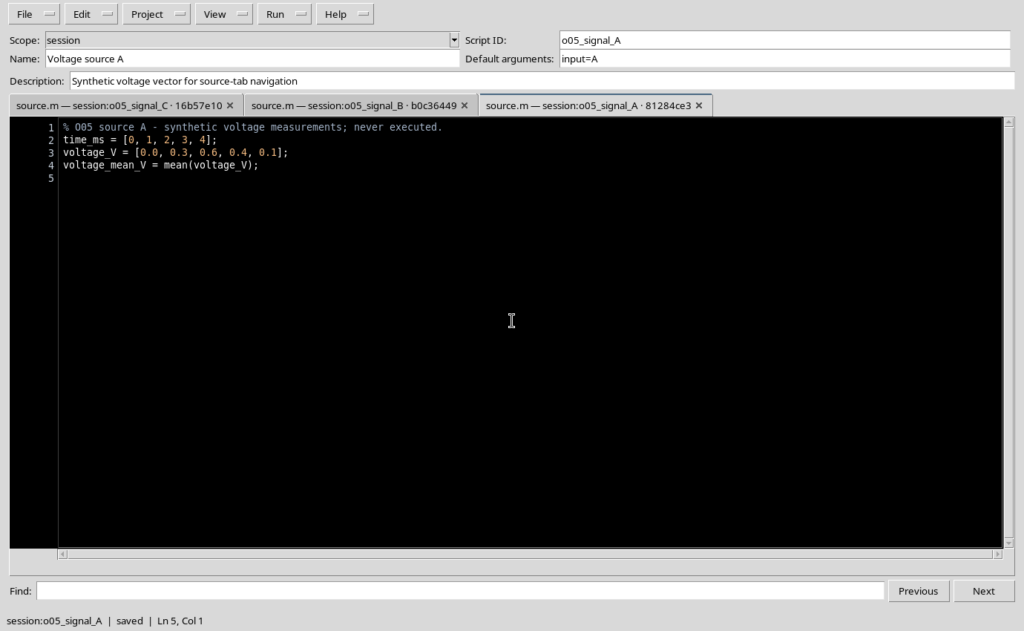
In the example, three separate scripts are open, dedicated to voltage, current and temperature. The tab bar shows the file name, the qualified reference of the script and, when needed, a short suffix to distinguish tabs with the same file name.
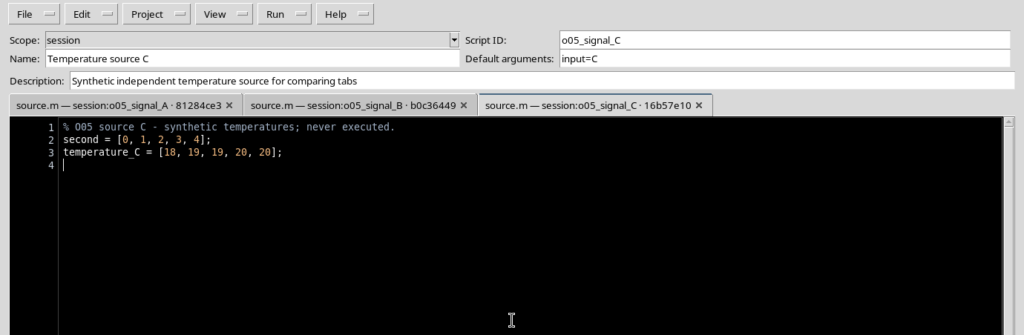
Since every registered standalone script uses the source name source.m, the file name alone is not enough to identify the tab. Also check the session:... or user:... part and the Scope, Script ID and Name fields.
The short suffix that may appear after the reference in the tab is a visual distinguishing identifier: it is not the full SHA-256 of the code.
2. Switching between tabs without losing your place
Click the desired tab or use Ctrl+Tab to move to the next one. Ctrl+Shift+Tab goes back to the previous one. When you reach the last tab, navigation may start again from the first.
Each tab keeps its own text and cursor position. Moving from voltage to current, for example, does not copy or replace the content of the first source.
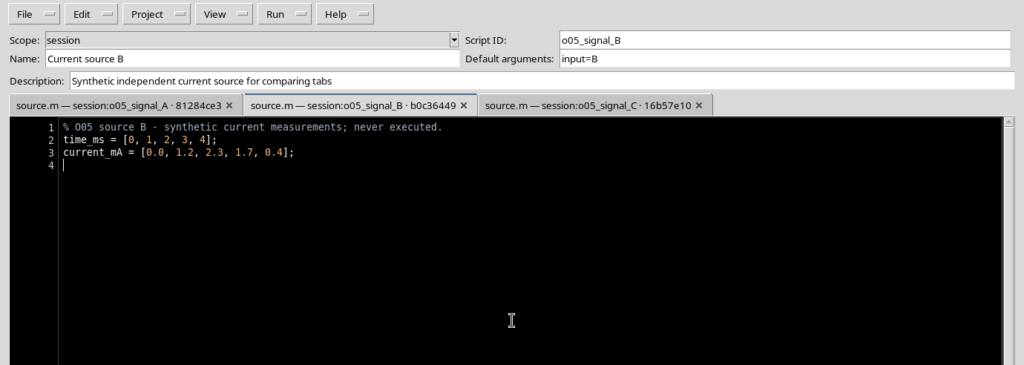
Moving between sources does not require any execution. If a tab contains a long text, finding the tab again means you can resume from that document and from your cursor, without turning it into another script.
3. A modified tab does not make the others modified
When you edit the code in a tab, its label marks the unsaved changes with an asterisk *; the status bar may show modified. In the example, a calculation line was added to the voltage source, while the other scripts stayed unchanged.
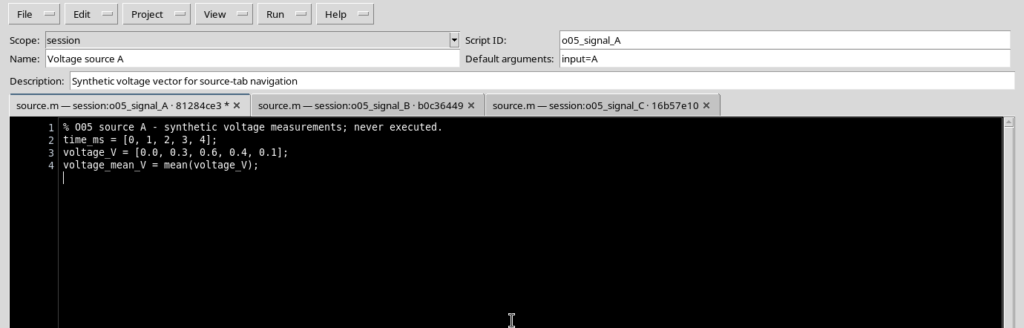
When you move to another tab, the modified one keeps its indicator. The current tab, if it has not been changed, remains saved.
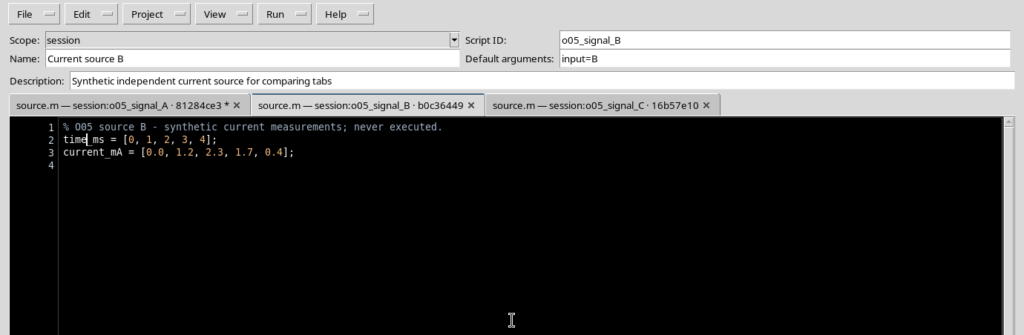
This is a useful check before saving: an asterisk on a tab other than the current one signals work still to be completed.
4. Saving only the source you want
With the tab to be registered active, select File → Save or press Ctrl+S. In the example, the voltage source was saved: its asterisk disappeared and the modified code became the new registered version. The current and temperature sources were not changed.
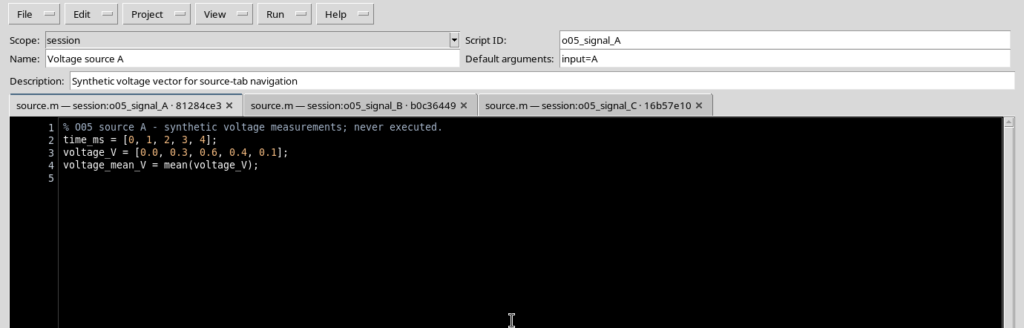
Save concerns the current tab. Save All is a different command, to be used deliberately when there are several sources to save; its particular behaviour in Projects is covered in the dedicated chapters.
5. Closing a tab without deleting the registered script
Each Source tab has a closing X. You can select File → Close tab or use Ctrl+W to close the active tab. You can also use the X of an inactive tab, without first replacing the document displayed in the centre.
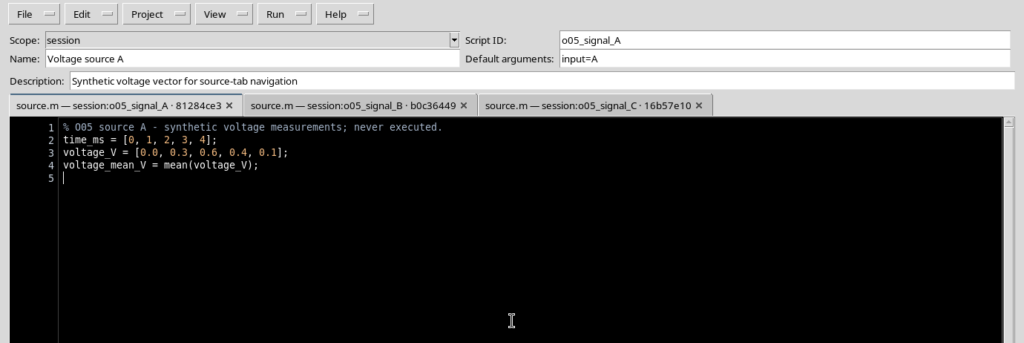
In the example, closing the inactive current tab left the voltage and temperature tabs open, keeping the voltage Source active.
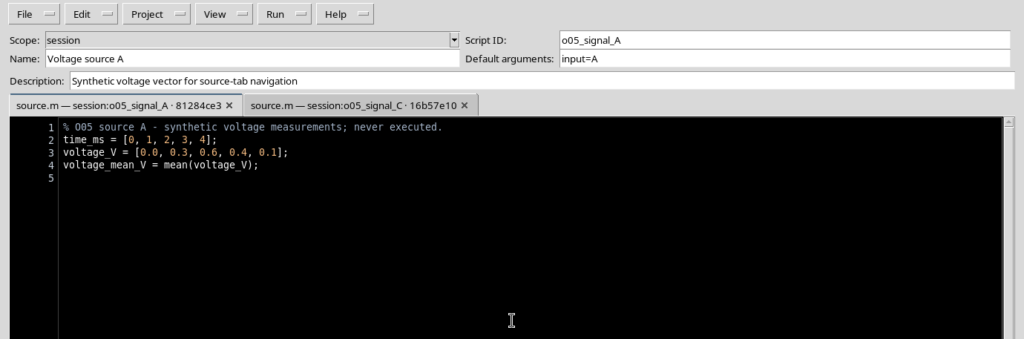
Closing a tab is not the same as deleting the script from the registry. If the script is saved, it can be reopened from Registered scripts. If the tab has unsaved changes, you are asked to choose between Yes, No and Cancel, as explained in the guide on protected saving.
6. When the tabs no longer fit in the bar
With many sources open, the editor does not shrink the text space indefinitely. It keeps the current tab accessible and shows a small … button at the end of the bar. In the example, with eight tabs, five are not visible at the same time in the top strip.
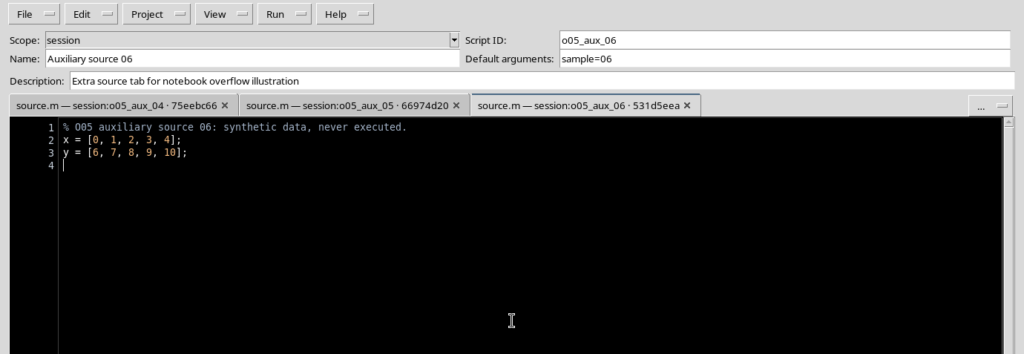
Selecting … shows a list of the open sources. The list keeps the qualified references even when the tabs have little space. From the notebook, the same list can also be opened with Alt+Down.
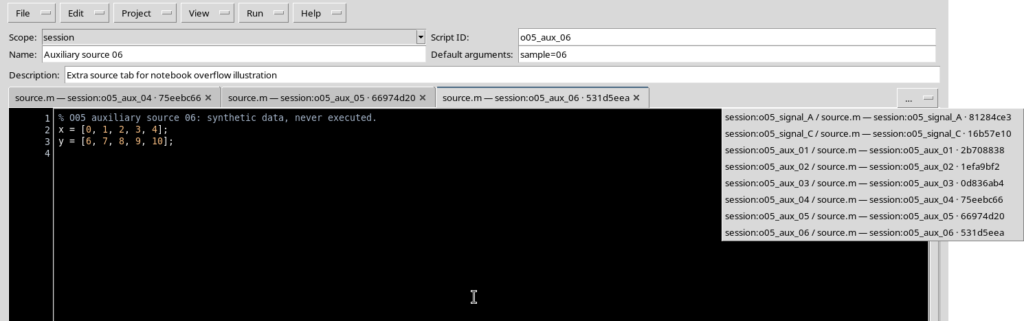
Choosing an item that is not currently visible brings it to the foreground and makes its tab accessible.
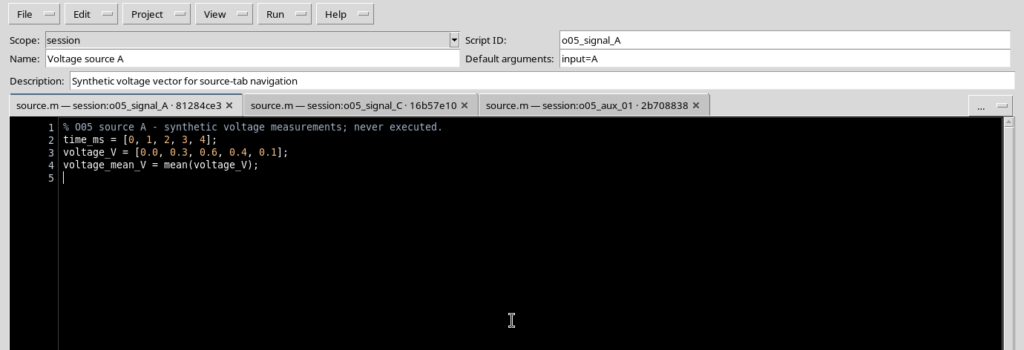
Do not confuse a tab temporarily hidden for lack of space with a closed tab: in the first case the document is still open and appears in the … list.
7. Finding an already saved tab
To recover a registered source, temporarily show Script Explorer / Registered scripts from the View menu, then select the desired full identity. The selection lets you open the corresponding code even after its tab has been closed normally.
The version shown has a peculiarity you should know about: if the first draft generated when the Workspace opens has been saved as a script and remains selected, opening another script from the Explorer may remove its tab from the bar, although it does not delete the corresponding registered source.
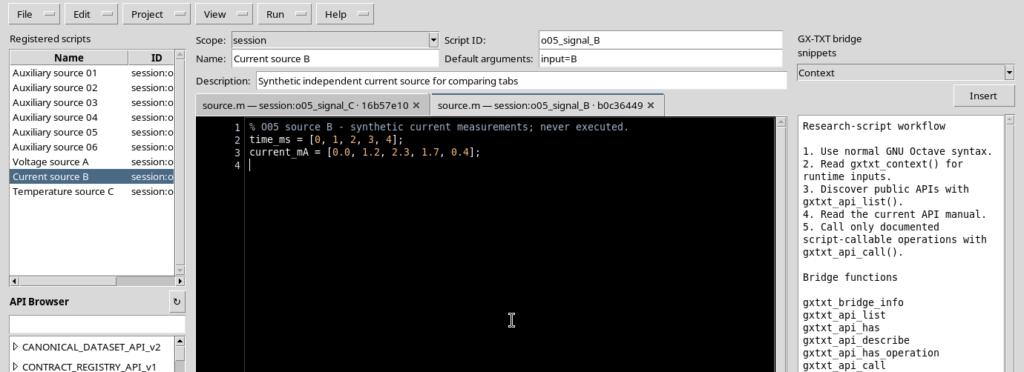
If you run into this behaviour, find the script in the Explorer and select it again. The saved code is reloaded and the tab becomes available again. Always check Scope and Script ID before resuming writing.
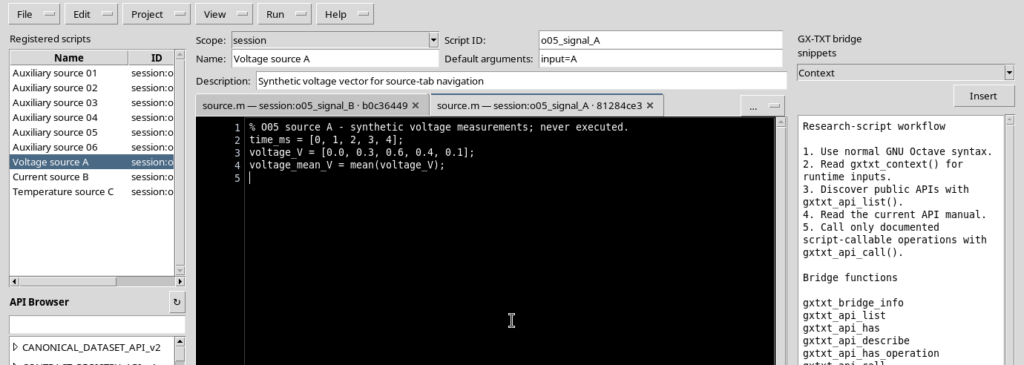
It is therefore important to distinguish between a tab being present in the window and the script being present in the registry. A change in the interface does not, in itself, prove that the registered content has been deleted.
8. Quick commands and recommended layout
| Control | Result |
|---|---|
| File → New Script / Ctrl+N | Opens a new source in another tab. |
| Ctrl+Tab | Moves to the next tab. |
| Ctrl+Shift+Tab | Moves to the previous tab. |
| File → Save / Ctrl+S | Saves the current source. |
| File → Close tab / Ctrl+W | Closes the active tab, with protection if modified. |
| X on an inactive tab | Closes the chosen tab, leaving the active one available. |
… / Alt+Down | Shows the tab selector when needed. |
| Registered scripts | Lets you reopen an already registered script. |
For normal use, keep open only the sources you actually need, keep Source wide with View → Focus source / restore panes, and bring up the Explorer only when you need to look up or reopen a document.
The advantage of tabs is being able to compare several sources without confusing their identity and without losing changes that still have to be saved. Managing multiple files belonging to the same Project is a separate matter and is covered separately.