

Creating and opening an Octave Project in the GX-TXT Workspace
Octave Script Workspace lets you create and open a Project directly from the Project menu, without leaving the editor to use other Viewers. A Project differs from a standalone script because it has a registered identity, an entrypoint and a structure designed to hold several sources.
This guide refers to GX-TXT DEV112 with patch P005, Octave Script Workspace module 1.8.3. Commands are given with their English GUI names. The operations presented concern creating and browsing Projects: they do not run Octave scripts or publish Datasets.
1. Opening the Project Canvas
With Octave Script Workspace open, choose Project → New Project…. The central area is temporarily replaced by the Project Canvas, which has four tabs: New project, Open / Manage projects, Import project and Public APIs.
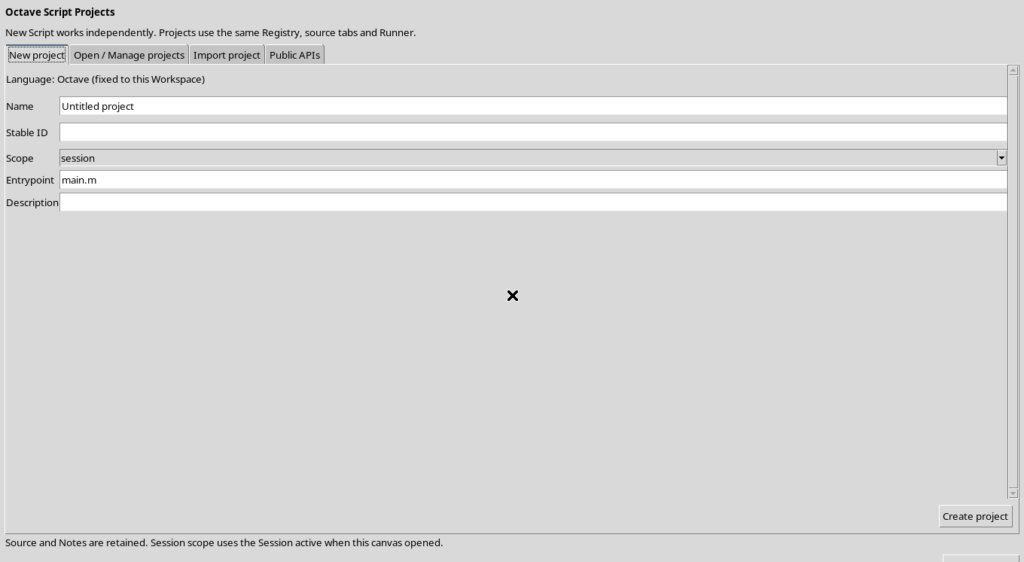
The New project tab is for creating a new Project. Open / Manage projects lets you find registered ones. Import project contains the controls for choosing a Project ZIP archive; Public APIs is the view dedicated to the Project’s APIs, separate from the general API Browser.
The Canvas does not delete the previous Source: the Return to code command takes you back to the editor tabs. Project operations use the same GX-TXT registry used by scripts, but a different organization of the sources.
2. Filling in the fields of the new Project
The New project page contains Name, Stable ID, Scope, Entrypoint and Description. The language is shown as Octave, fixed by the Workspace you are working from.
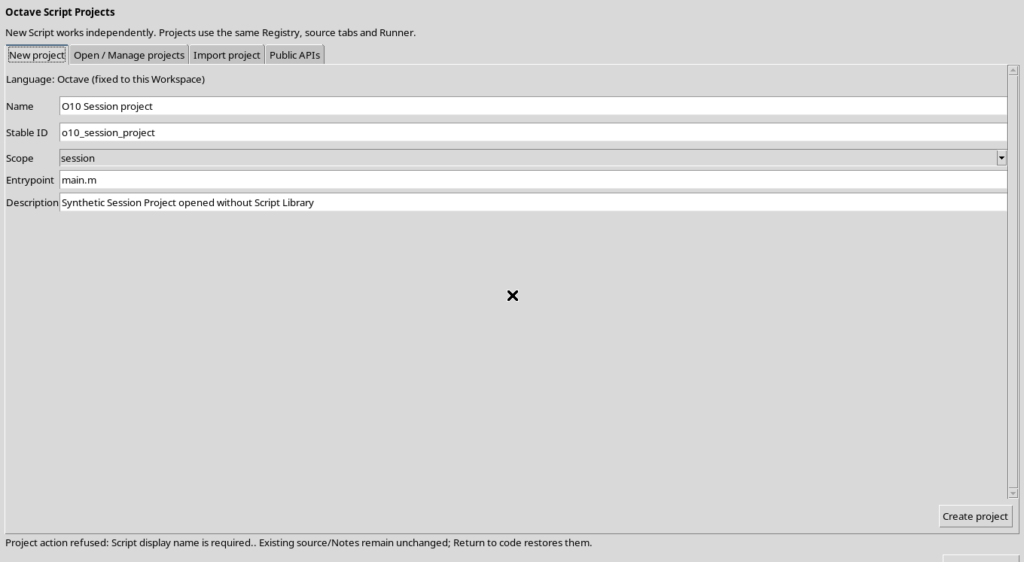
Name is the human-readable title; Stable ID is the technical identifier of the record. Scope determines the owning scope: when a Session is open, both session and user are available. Choosing session associates the Project with the currently active Session; user registers it in the User scope.
Entrypoint indicates the main file of the Project. The initial value proposed for Octave is main.m. The Description field lets you briefly explain the purpose of the work. After checking the values, press Create project.
3. Checking the identifiers before creation
The registry does not accept an arbitrary identifier. The Stable ID field must follow the rules of the GX-TXT registry: start with a letter and continue with letters, digits, dots, hyphens or underscores. An identifier containing, for example, a slash / is rejected.
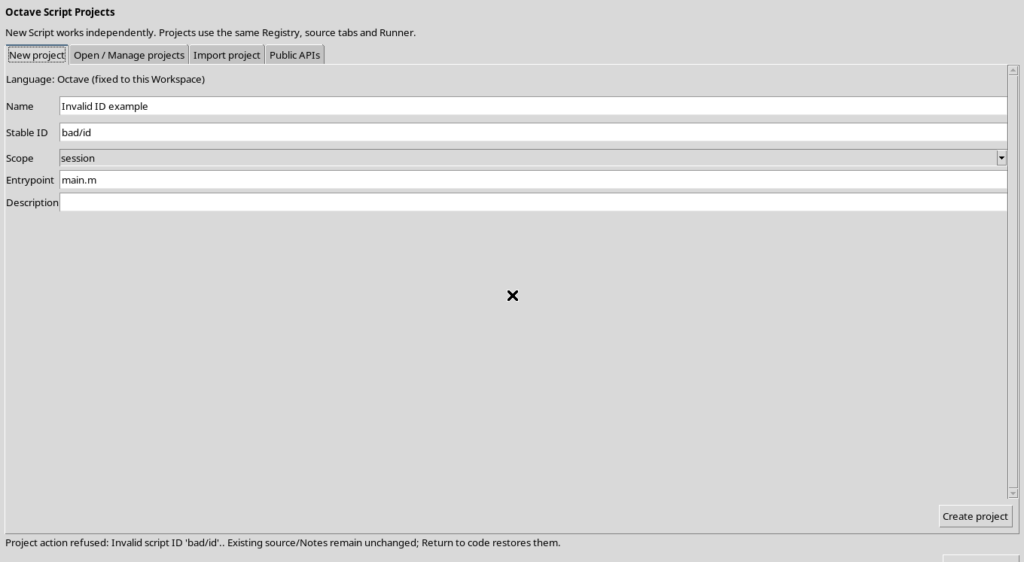
Name is also required: if it is left empty, the program does not create the record. Furthermore, you cannot create a second Project with the same Stable ID in the same Scope, because that identity would already be taken.
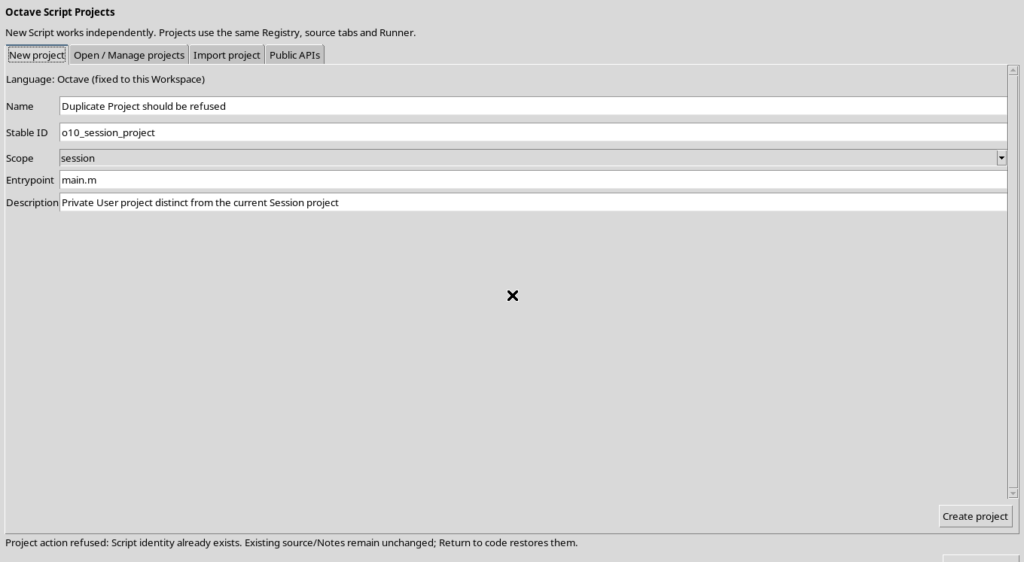
Errors are shown as Project action refused. The form remains available for correcting the fields: there is no need to close the Workspace. The refusal protects the previously registered sources.
4. The first Source created by the Project
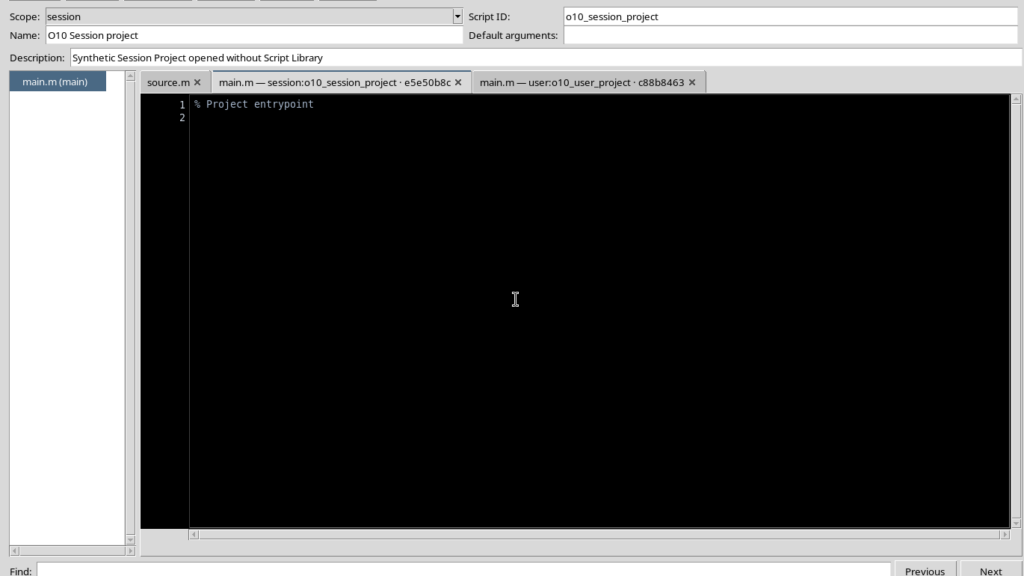
When creation succeeds, the Canvas returns to the editor and opens the new Project on the entrypoint tab. For the initial case, main.m is prepared with a short comment:
% Project entrypoint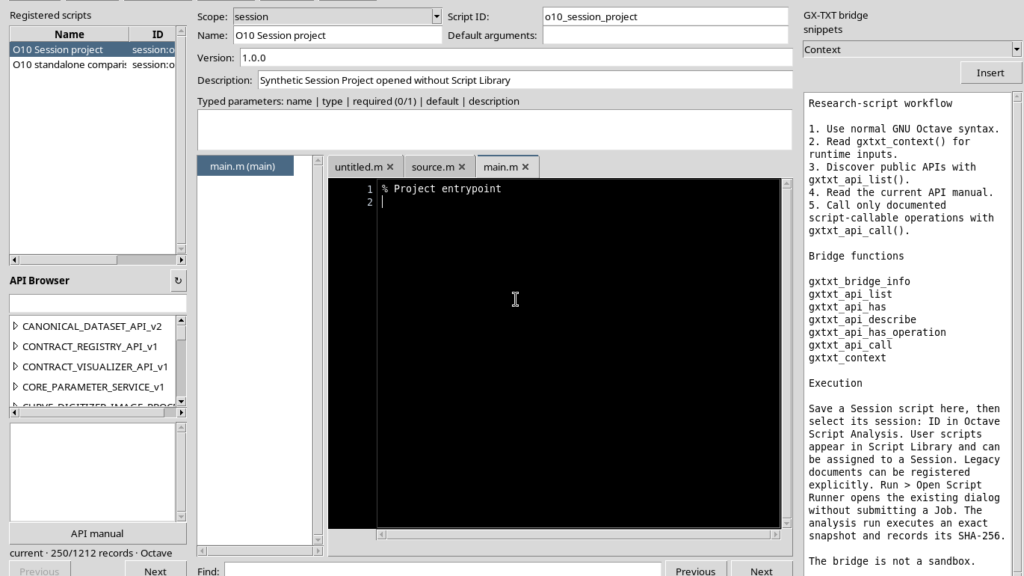
This line does not produce a scientific result and does not start any Job. It is simply the starting point of the main file. The Project already has a record with a revision and a fingerprint of the source: subsequent saves and any additional files are handled through the Project operations.
An ordinary standalone script continues to exist separately. Creating a Project does not require converting or deleting the scripts you were editing.
5. Finding a Project with Open / Manage projects
To browse the registered Projects, choose Project → Manage Project… or Project → Open Project…. The Open / Manage projects tab opens, showing a table with Name, Identity, Entrypoint and Revision.
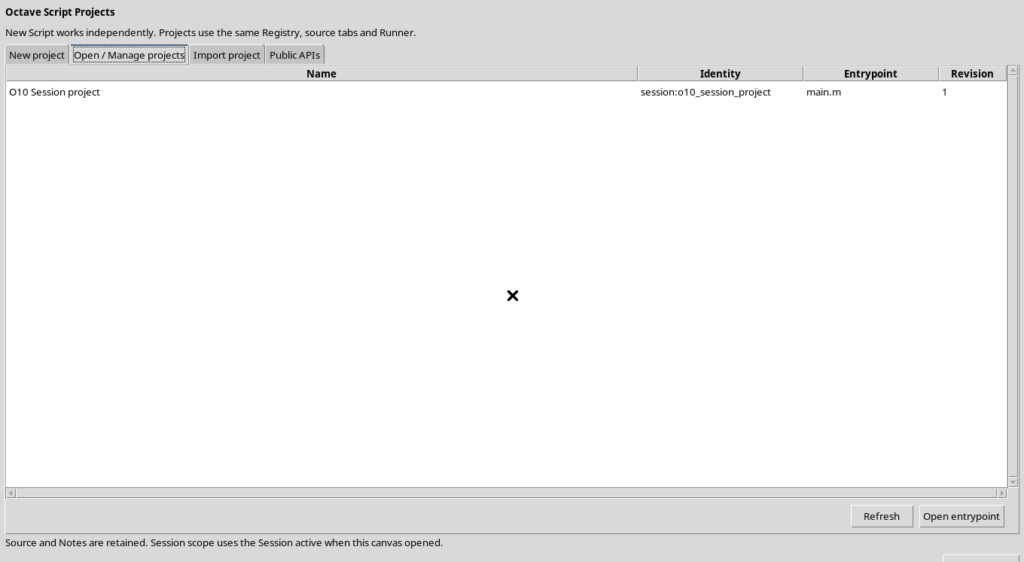
Select the desired Project and press Open entrypoint to go back to its main file. Refresh updates the list after any changes.
The table concerns Projects, not all standalone scripts. To identify an item correctly, do not stop at the name alone: the qualified reference, such as session:identifier, is what distinguishes the records.
6. Creating a Project in the User scope
The same New project page lets you select user in the Scope field. The Project is registered in the User scope, even though it can be created while a Session is active.
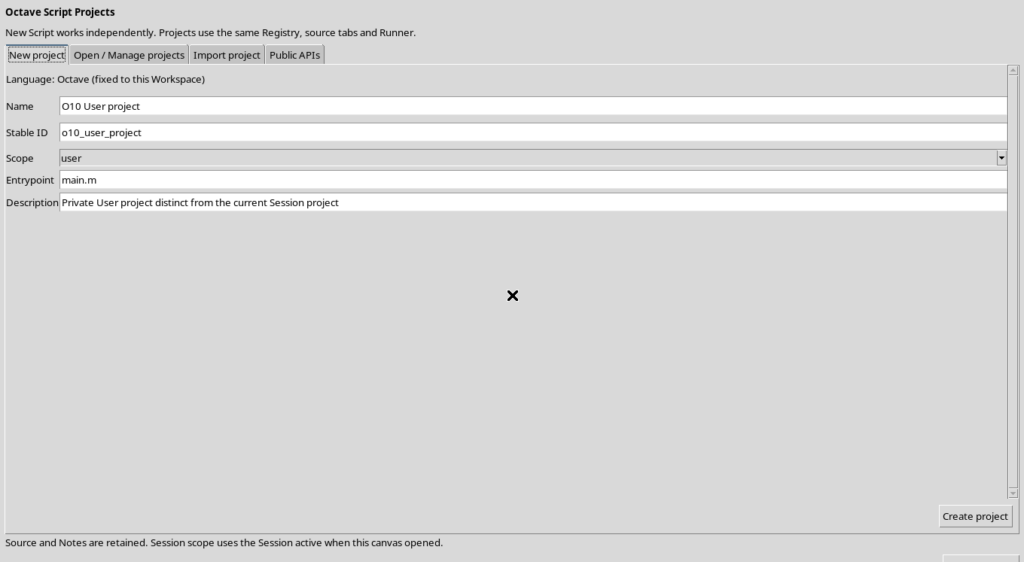
The User record has its own identity, distinct from that of Session Projects. The initial entrypoint remains main.m and, once Create project is pressed, its Source tab opens in the editor.
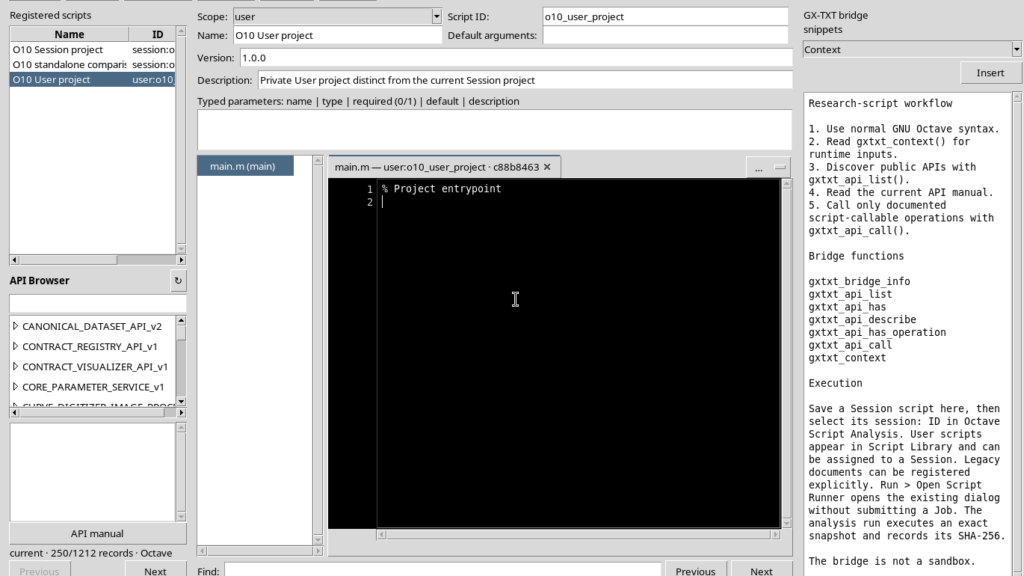
The difference between scopes concerns ownership and registration of the source, not GNU Octave syntax. Before creating a Project it is therefore important to decide whether the work should belong to the current Session or to the User scope.
7. Opening User and Session Projects from the same list
With a Session active, Open / Manage projects can show User Projects and Session Projects at the same time. The Identity column makes the Scope explicit, for example user:... and session:....
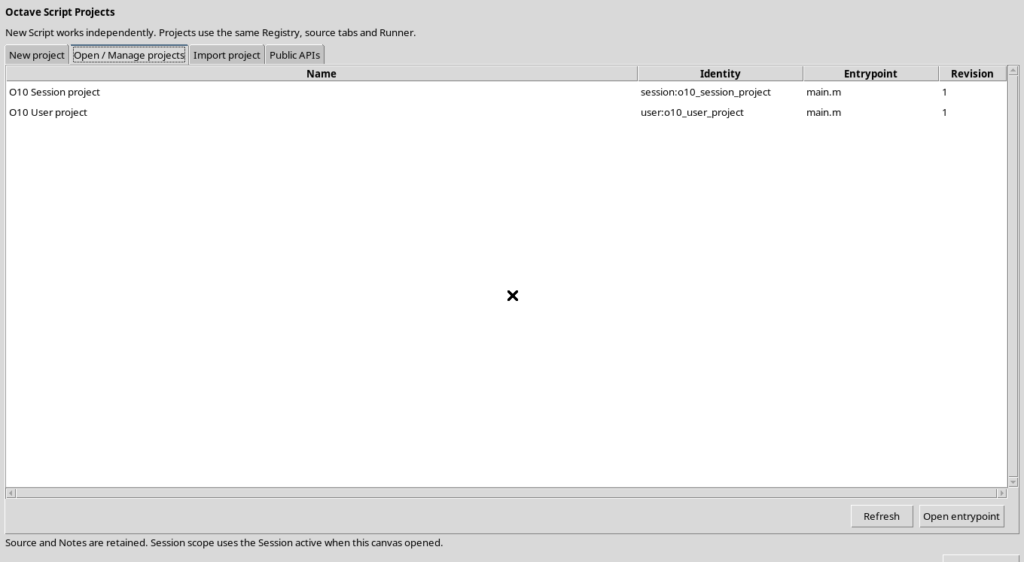
You can start from the tab of a User Project, select a Session Project of the current Session in the list and use Open entrypoint to open it. The Source is brought back to the corresponding tab.
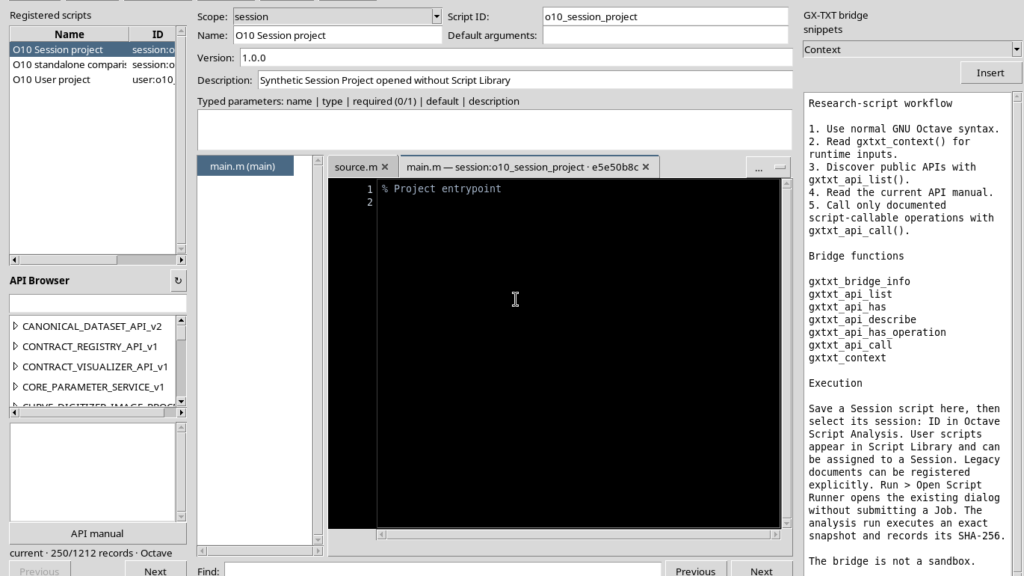
Opening must not be confused with copying the Project: choosing Open entrypoint does not create a new identity and does not change the revision. If you want to tell apart two projects with the same descriptive name, always use the full reference.
8. The Import project tab
The Import project tab is designed for selecting a Project ZIP. It contains the identity and Scope information, a read-only archive field and the Choose project ZIP… button.
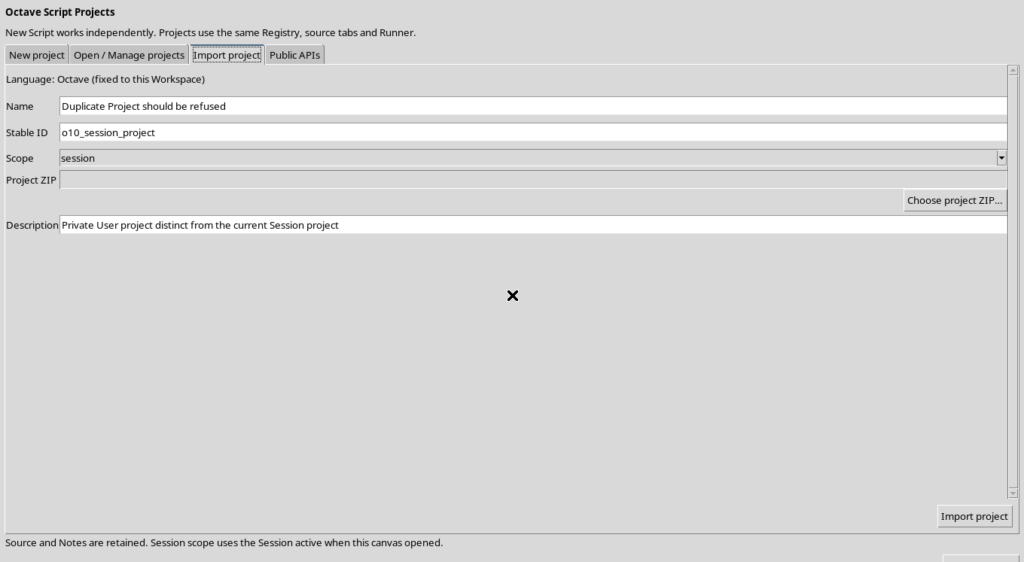
The program requires a selected archive before proceeding: pressing Import project without a ZIP produces a refusal message and does not create a new Project.
The full procedure of importing, checking the archive, identity conflicts and file content is separate from simply creating a Project. This guide shows the import interface; no ZIP archive is imported.
9. Returning to the code without losing your work
The Return to code button is always available in the Canvas. Selecting it restores the editor and the previously active Source, without creating a new Project and without modifying the registered code.
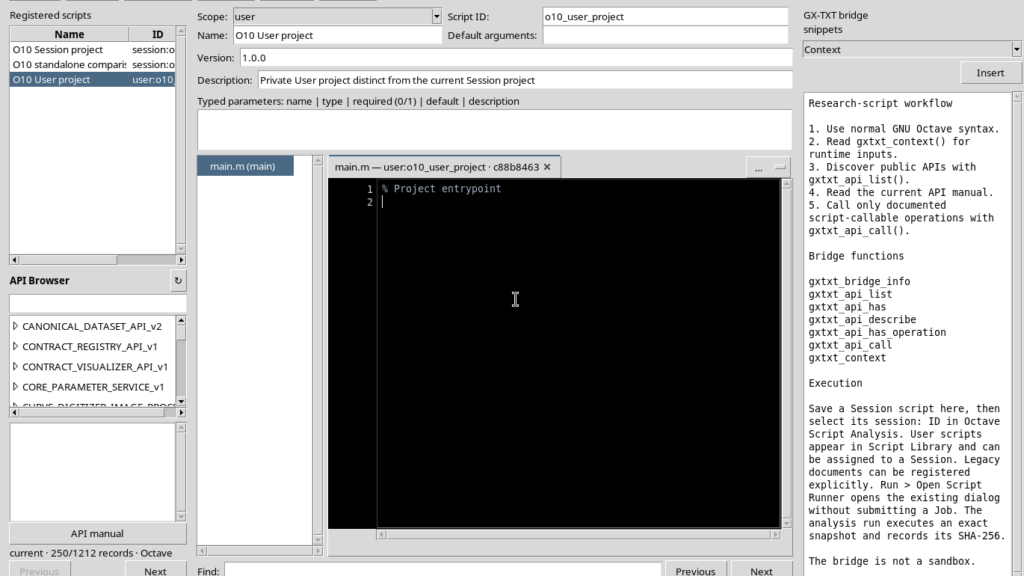
Escape can also take you back to the code while the Canvas is open. You can use this command after checking a form or cancelling an operation, without touching the registry.
It is useful to distinguish three actions: Create project registers a new identity, Open entrypoint opens an existing record and Return to code leaves the Canvas and returns to the working view. None of the three, on its own, runs the script’s calculations.
10. Recommended layout for working in the Project
While writing, keep mainly the Source open. The View → Focus source / restore panes entry frees up space by hiding the side panels. The Parameters, Version and Additional required APIs rows can be hidden if they are not needed.
| Operation | Result |
|---|---|
| Project → New Project… | Opens the form for creating a Project identity. |
| Create project | Registers the Project and opens its entrypoint. |
| Project → Open Project… / Manage Project… | Shows the Projects registered in the available contexts. |
| Open entrypoint | Opens the main file of an existing Project. |
| Project → Import Project… | Shows the Project ZIP selection form. |
| Return to code / Escape | Restores the Source view without creating a new record. |
A Project can therefore be created, found and reopened directly from the Octave Workspace, without using the Script Library for these steps. Operations on the individual files of the Project, multi-file revisions, global saving and the Runner are later topics, to be dealt with separately from the initial creation.