

Organizing the Octave workspace: panels, Focus source and layout
Octave Script Workspace offers an editor for GNU Octave code and a few support panels. The layout can be changed: you can browse registered scripts, API information and bridge hints, or give almost the whole window to the source.
The screenshots refer to GX-TXT DEV112 with patch P005, Octave Script Workspace module 1.8.3. Interface commands are given with their original English labels. The small numerical examples are only there to show the Source; they are not run.
1. Recognizing the three main areas
When it opens, the Workspace may show a panel on the left, the central editor and a panel on the right. In this configuration you can see Registered scripts, API Browser, the code and GX-TXT Bridge Snippets at the same time.
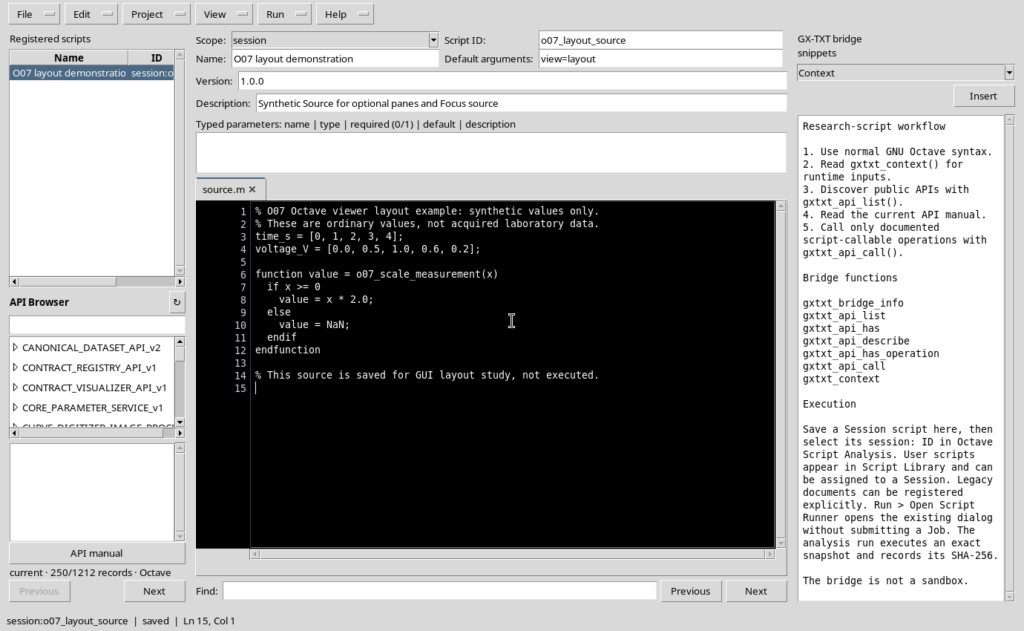
This layout is useful for getting your bearings in the structure of the window, but it is not necessarily the best one when you need to read or edit a long source, because the central area becomes narrower.
The visibility options are in the View menu. Showing a panel is not the same as starting a calculation or changing the content of the script.
2. Using Script Explorer and API Browser only when needed
View → Script Explorer / Registered scripts controls whether the left panel is present. The list lets you find registered scripts and recognize their qualified reference, for example session:... or user:....
The left panel also contains the API Browser, whose visibility command is independent. You can leave the Explorer open to choose a script and hide the API Browser, avoiding wasting vertical space.
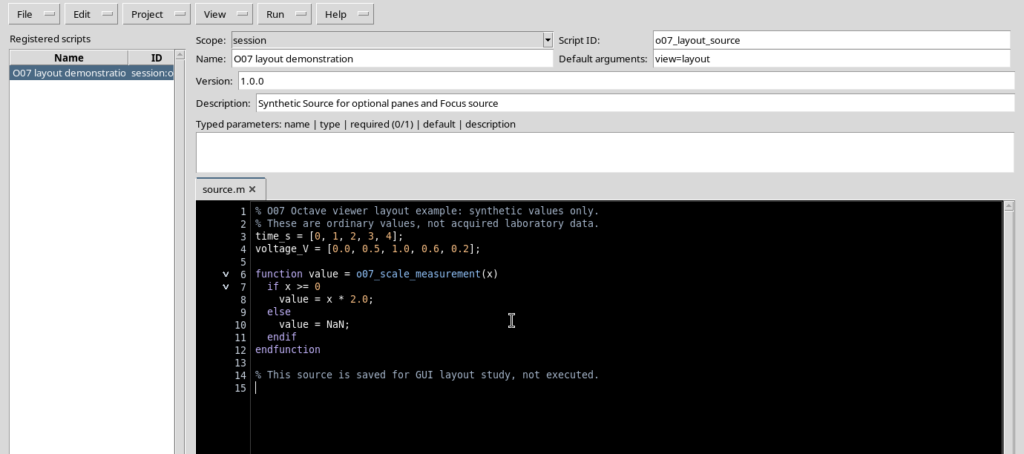
The API Browser is for looking up the interfaces available in the framework. Its presence does not mean that a function has been called. Before writing a call to an API, consult its public contract and check the required inputs.
3. Consulting GX-TXT Bridge Snippets
The right panel is controlled by View → GX-TXT Bridge Snippets. It contains short references and code fragments relating to the bridge between Octave scripts and GX-TXT.
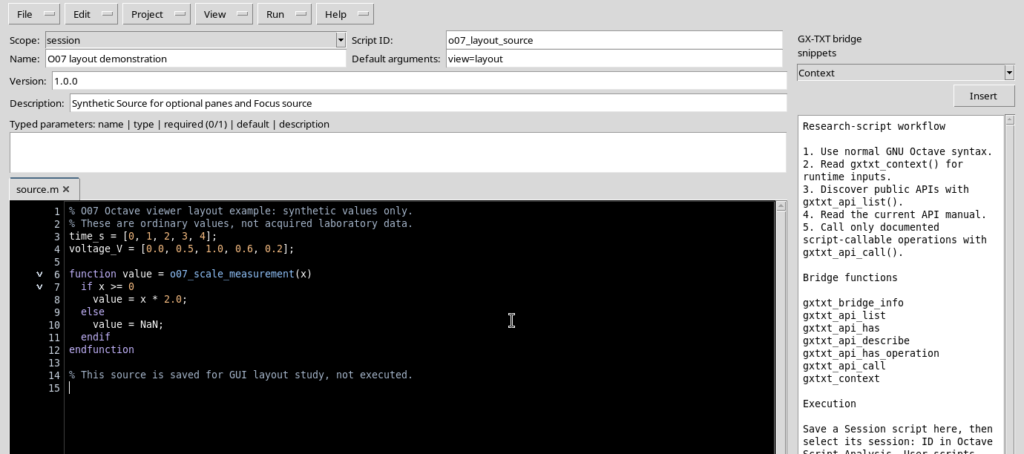
The panel can be shown when you need to look up a function or read an example and hidden again while writing. Simply opening the panel does not insert code and does not start a script.
4. Widening the code with Focus source
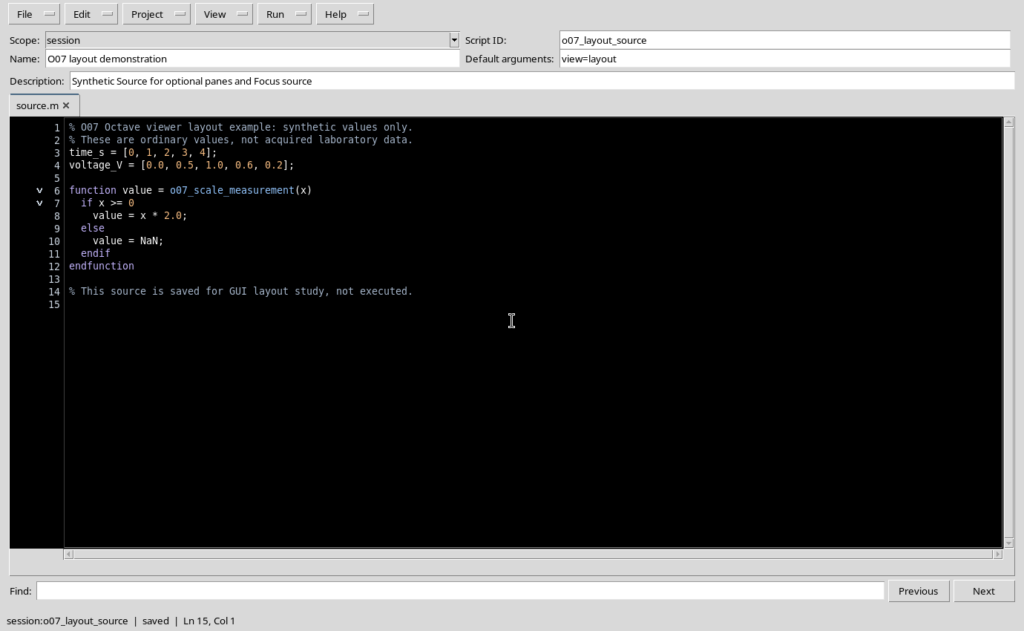
The View → Focus source / restore panes entry is the quickest command for recovering space. When the Explorer and Bridge Snippets are present, it hides them and lets the central editor take up almost the full width of the window.
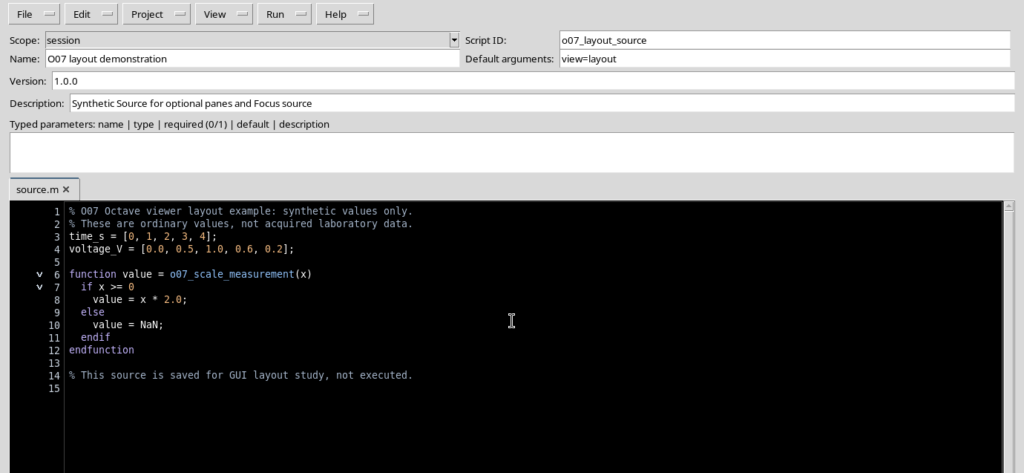
Invoking the same entry again returns to the previous side layout. The command concerns the layout: it does not change script identifiers, does not modify the Octave text and does not save a new revision.
It is particularly useful with long functions, nested statements or lines that need a wide horizontal reading area.
5. Hiding the property rows to free up height
The View menu also offers controls for the sections above the Source. Script properties manages the main fields; Parameters and Version can be controlled separately.
By turning off the sections you do not need, the code can take up a larger share of the available height. When Script properties is hidden, the interface offers the Show script properties button.
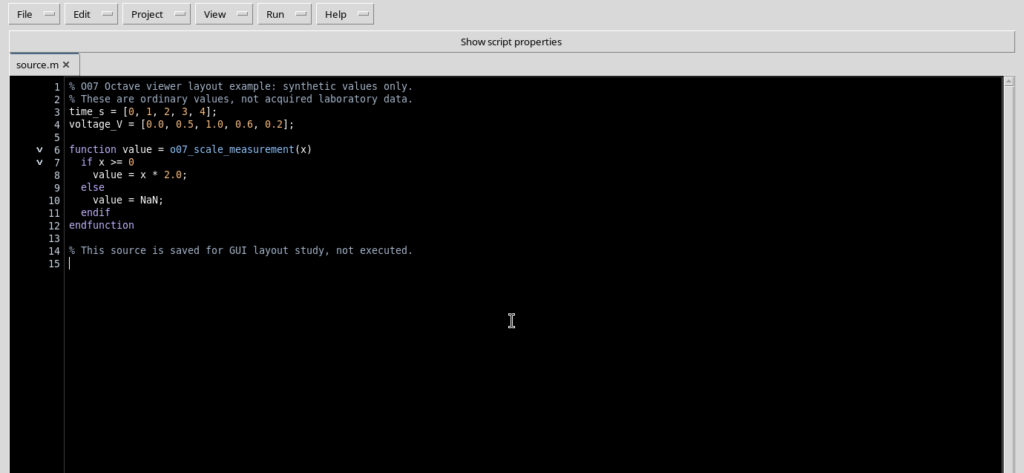
Hiding a field is not the same as clearing its value. To edit the metadata again, simply re-enable the corresponding panel.
6. Restoring only the information you need
The upper rows can be reopened one at a time.
Script properties brings back the identity fields, such as Scope, Script ID, Name, Default arguments and Description.
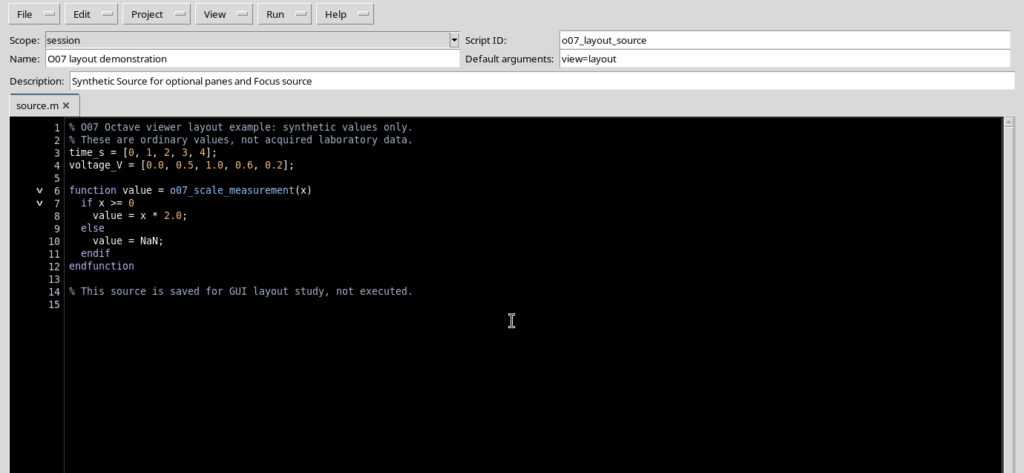
Version adds the row for the declared version of the source, without requiring the other panels to be opened.
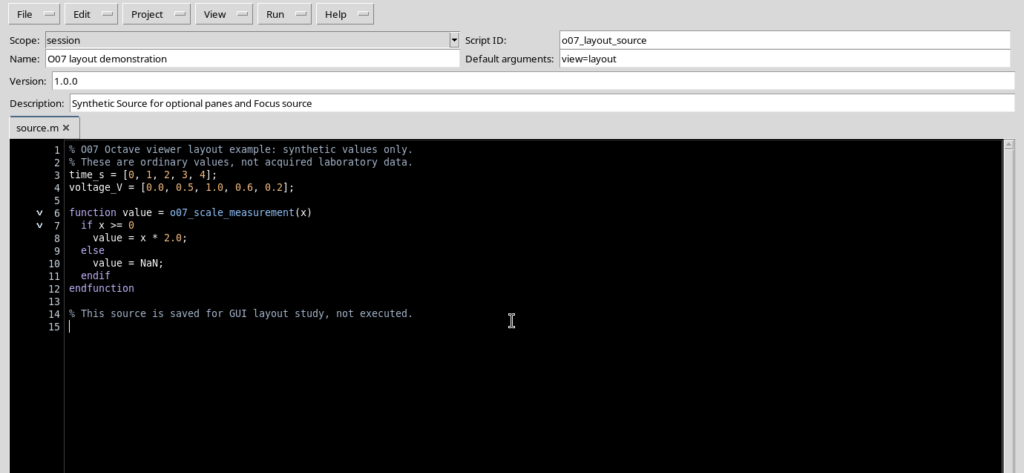
Parameters shows the area for the definitions of typed parameters. This section must be distinguished from the plain Default arguments text field and is covered in detail when script invocation is discussed.
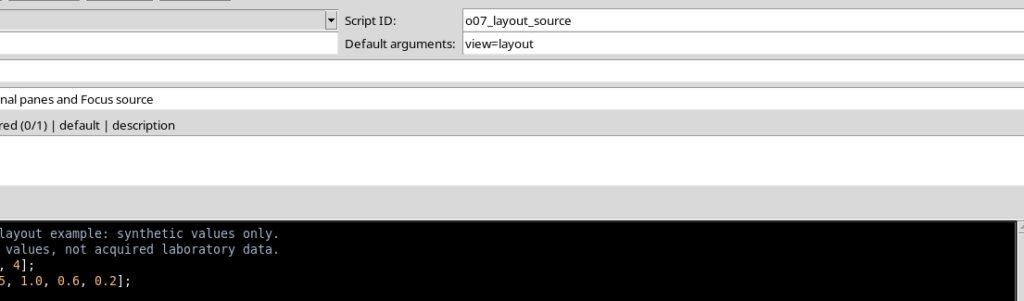
Additional required APIs shows a further section dedicated to the declared API requirements. This too can be hidden when you are not editing that information.
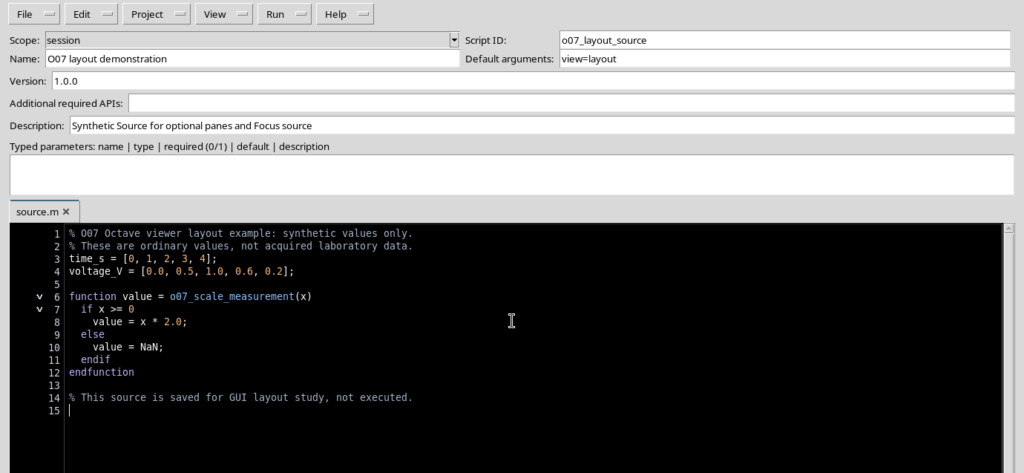
A practical layout for writing code is to keep only the main properties visible when you need to check ID and Scope; the other rows can stay closed.
7. Adjusting the dividers and restoring the layout
When several panels are open, the dividers between the areas can be adjusted. Moving them lets you give more width to the Explorer, the Source or Bridge Snippets. The Workspace remembers the new geometry.
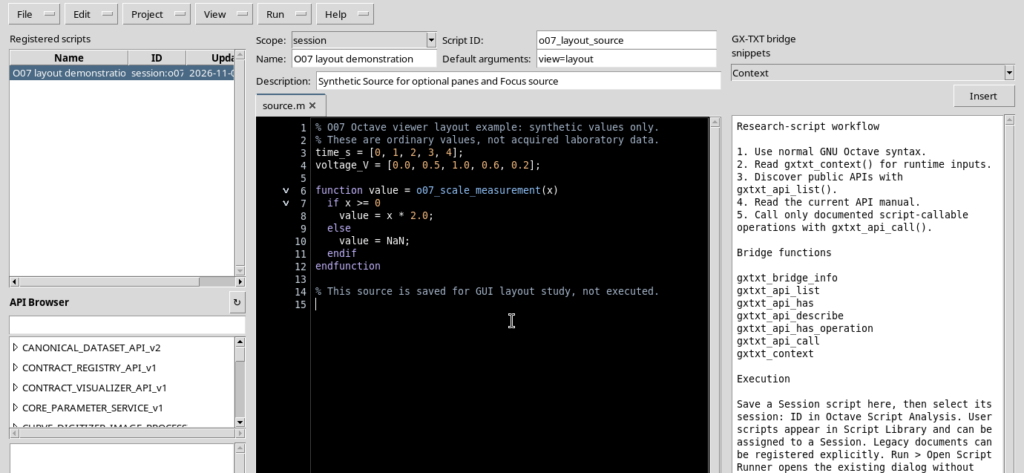
If the layout has become impractical, View → Reset editor layout restores the reference proportions and makes the side areas available again.
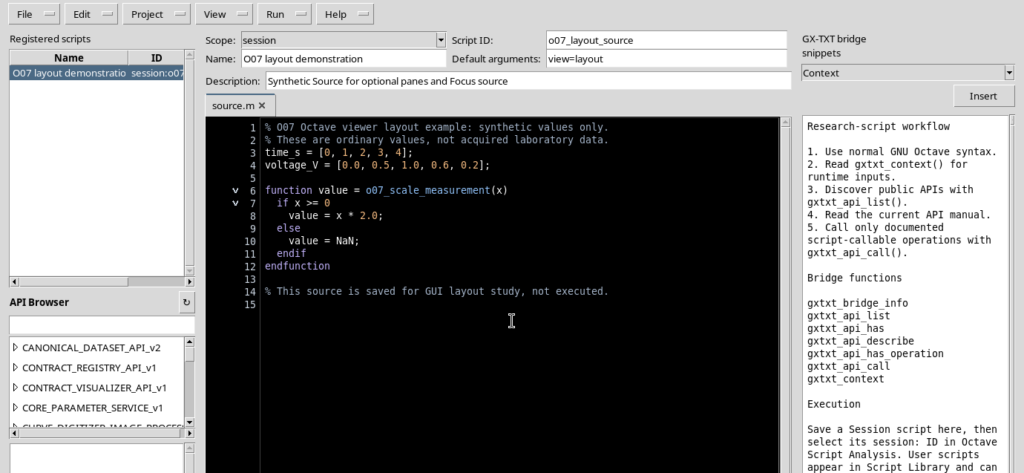
The reset concerns the geometry of the interface. It does not undo changes to the code and does not replace the Undo or Save commands.
8. Persistence of layout and theme
The Workspace remembers the visibility of the panels and of some property rows. If you close the window with an essential layout, you find it again when you reopen it.
The theme chosen for the Source, High Contrast Dark in the example, also stays applied: the code area is black with light text. The monospaced font of the Source remains readable after reopening.
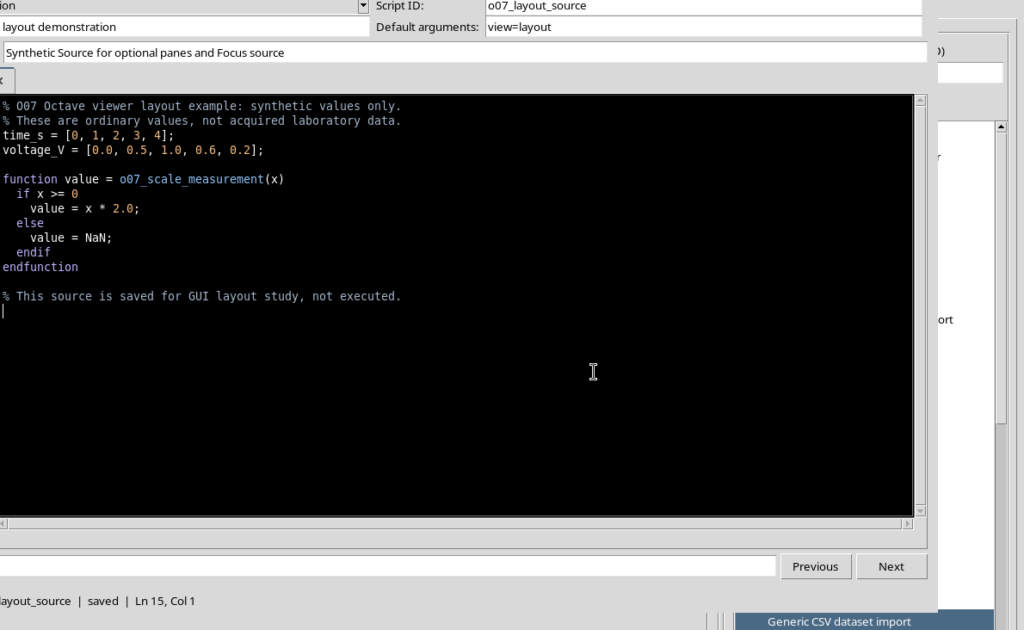
The dark theme of the Source is distinct from the general appearance of the window: some Tk/ttk controls may keep their own original light colouring.
The saved layout does not necessarily mean that the same tab is opened automatically. Registered scripts remain available in the Explorer and can be selected again.
9. A recommended layout for working on code
For everyday use, keep Focus source on and leave open only the upper rows you actually need. Bring up Registered scripts, API Browser and Bridge Snippets when you need to consult them; then hide them to go back to a wide editor.
| View menu entry | Main use |
|---|---|
| Script Explorer / Registered scripts | Shows or hides the list of scripts. |
| API Browser | Shows or hides the API reference in the left panel. |
| GX-TXT Bridge Snippets | Shows or hides bridge examples and hints. |
| Focus source / restore panes | Maximizes the central area or restores the previous panels. |
| Script properties | Shows or hides the main metadata. |
| Parameters, Version, Additional required APIs | Manages the respective rows separately. |
| Reset editor layout | Restores the initial geometry of the areas. |
The Debugger views and their support panels follow a similar logic, but belong to the specific debugging workflow. While you are only writing code, there is no need to keep them open.
The goal is to keep as much space as possible for the Source, without giving up the framework tools when they become useful.