

Editing code, finding text and navigating by line
Octave Script Workspace includes an editor for writing and reviewing GNU Octave sources: it shows line numbers, highlights the parts of the language and offers search, navigation, selection, clipboard and block folding. These tools let you work on long scientific scripts without losing your place in the text.
The images show the actual English commands of GX-TXT DEV112 with patch P005, Octave Script Workspace module 1.8.3. The operations presented concern only source editing; they do not start GNU Octave and do not produce Datasets.
1. The Source editor: lines, colours and scientific characters
Open Octave Scripts from the Viewers tab, then choose a source tab or create one with File → New Script. To leave more room for the code, use View → Focus source / restore panes and hide the boxes you do not need.
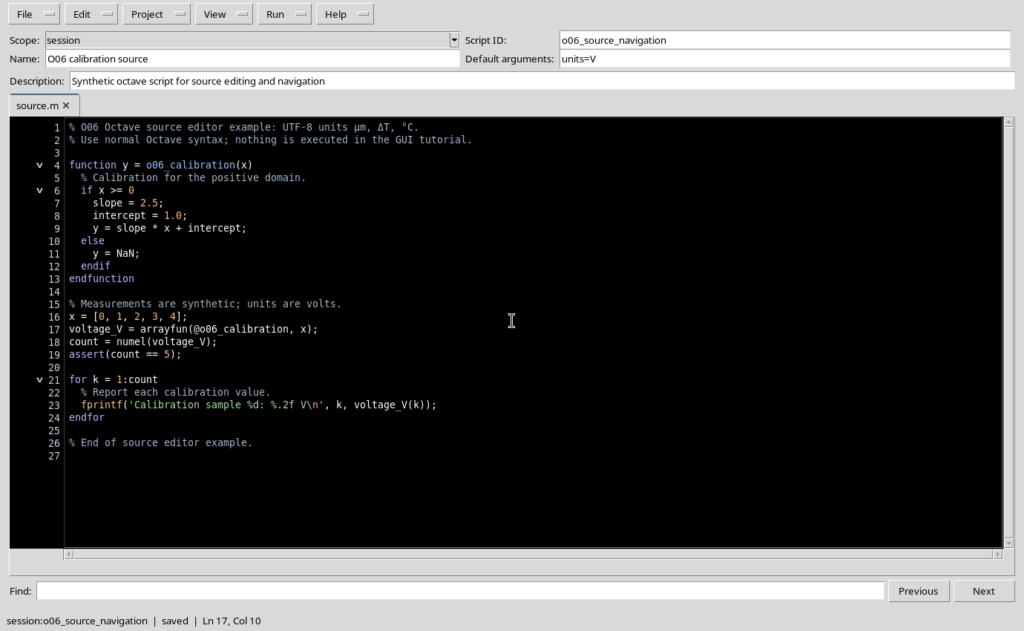
The Source editor shows line numbers on the left, a scrollable writing area and syntax colouring specific to Octave. In the sources you can tell apart comments, strings, keywords, numbers and function names. Colouring helps reading the code, but it is not a scientific check of its result.
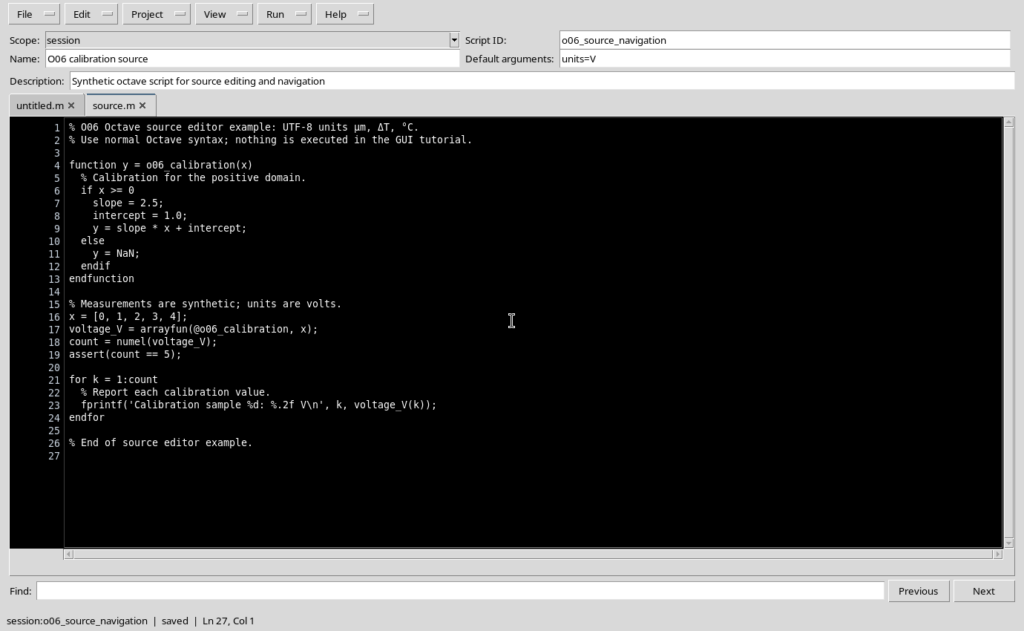
You can also include Unicode scientific symbols in comments, for example μm, ΔT and °C. In the example shown they remain readable and are preserved in the registered source file.
An ordinary block of Octave code may contain, for example:
function y = o06_calibration(x)
if x >= 0
slope = 2.5;
y = slope * x + 1.0;
else
y = NaN;
endif
endfunction
The text remains editable: the presence of a function in the editor does not mean that it has been run.
2. Searching for a word with Ctrl+F, F3 and Shift+F3
The Edit → Find command, also available with Ctrl+F, moves the cursor to the Find field below the Source. Enter a word, for example calibration, and use F3 to reach the next match. A match is highlighted in the code.
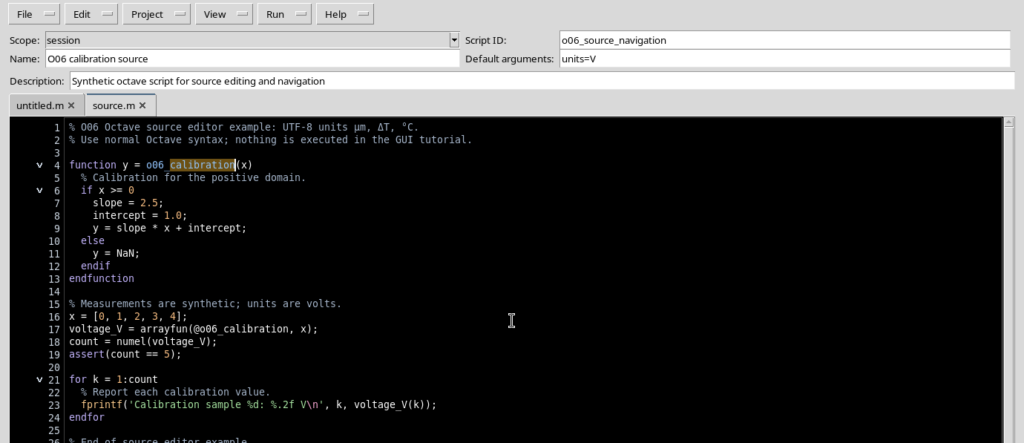
Press F3 again to move to the next match; Shift+F3 goes back to the previous one. The Source search is not case-sensitive. When you reach the last occurrence, the search may start again from the first.
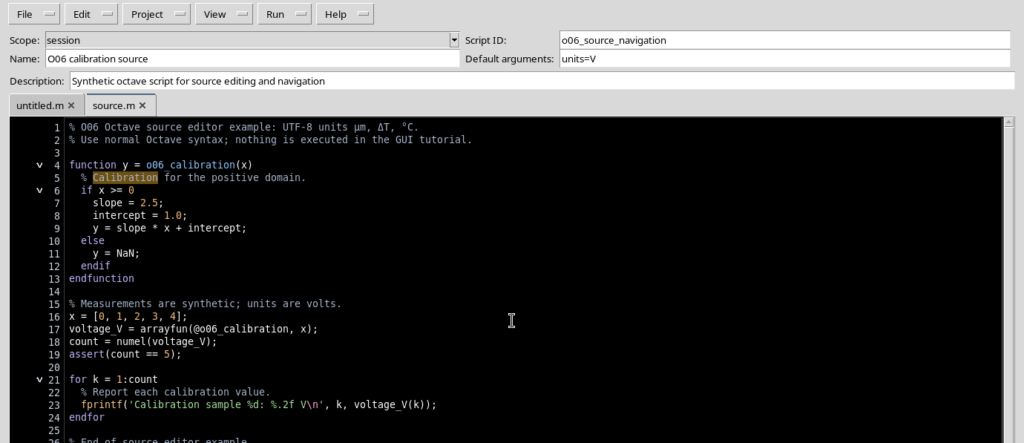
When a word does not exist, no match is highlighted. Find, Find next and Find previous move the reading position: they do not record changes and do not run instructions.
3. Jumping straight to a line
If you know the line number, select Edit → Go to line… or press Ctrl+G. In the Go to line window, enter a positive integer in the Line field and confirm with Go; Cancel interrupts the command.
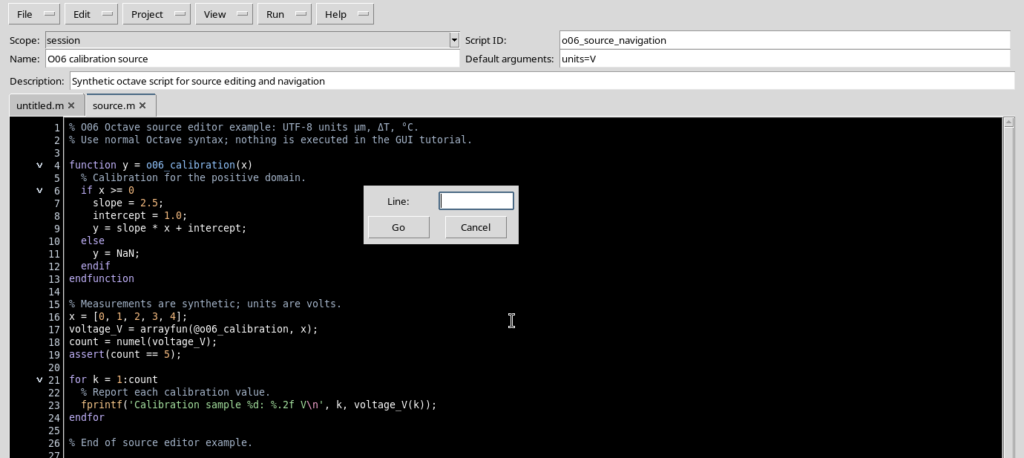
The cursor is moved to the beginning of the requested line. The example shows navigation to line 12. If you enter an invalid value, such as a word or zero, the dialog stays open. A number larger than the available lines is brought back to the last line.
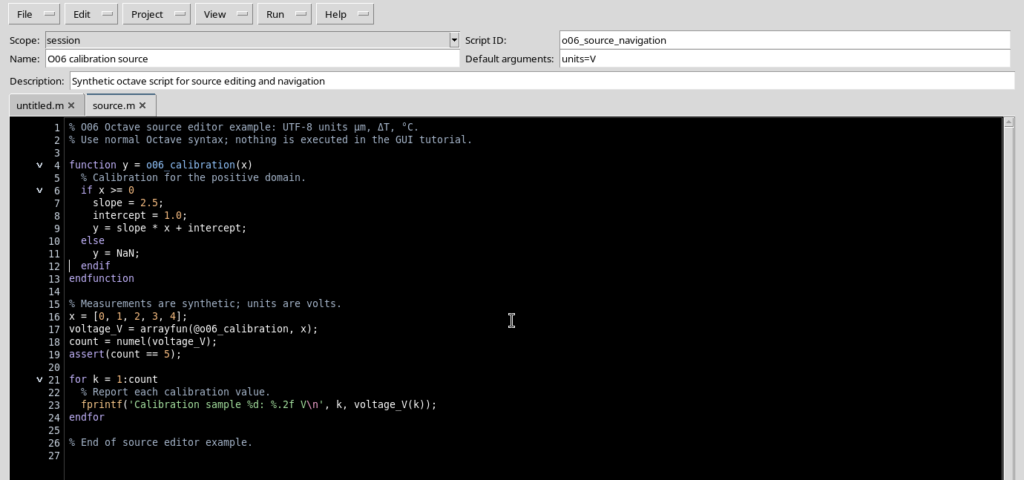
The current line number and column are also shown in the editor status bar.
4. Collapsing blocks without deleting instructions
When a function or a control structure takes up many lines, the Edit menu offers Fold current block, Fold all and Unfold all.
With the cursor inside a block, Fold current block temporarily hides its inner lines. A folded-block marker remains in the line margin and the Source becomes more compact.
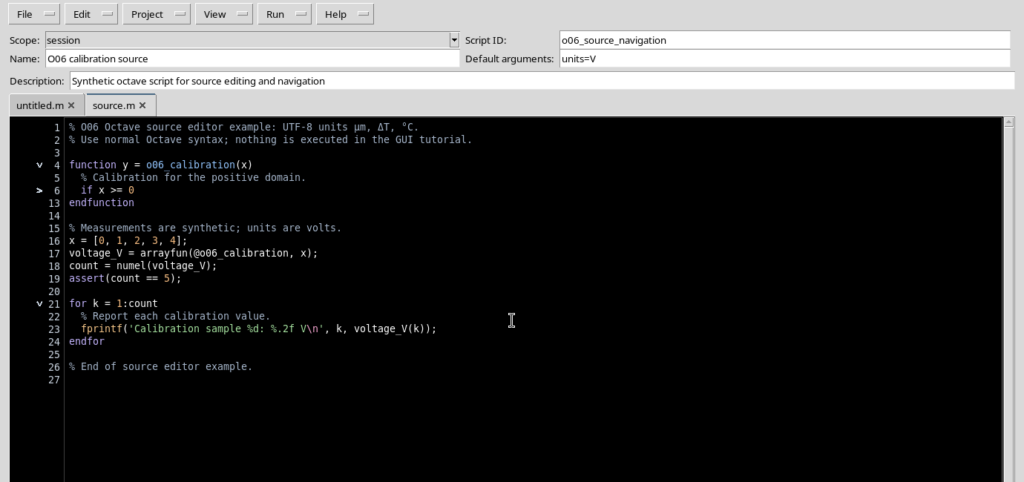
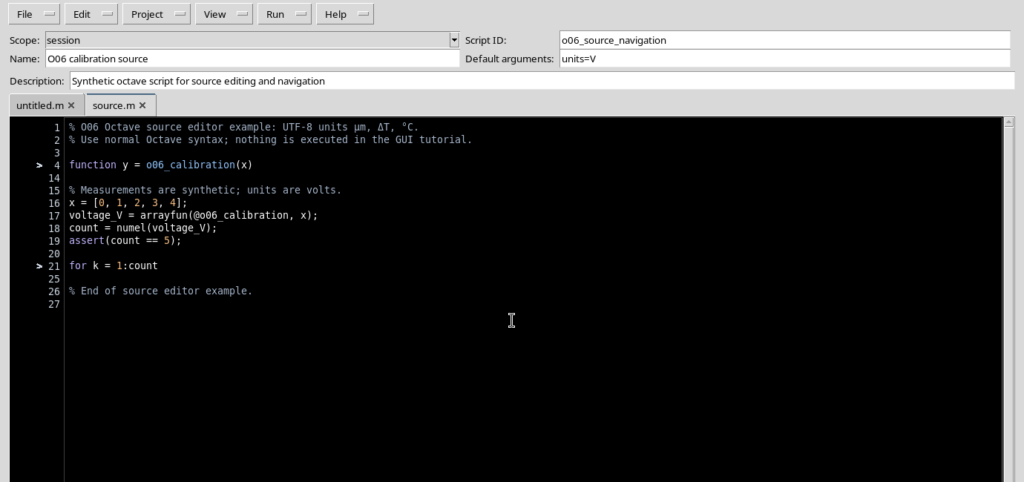
Fold all folds every recognized block: in the example you can see the function, the if block and the for loop as condensed structures.
To see the whole text again, choose Edit → Unfold all. The instructions become visible again in their original position.
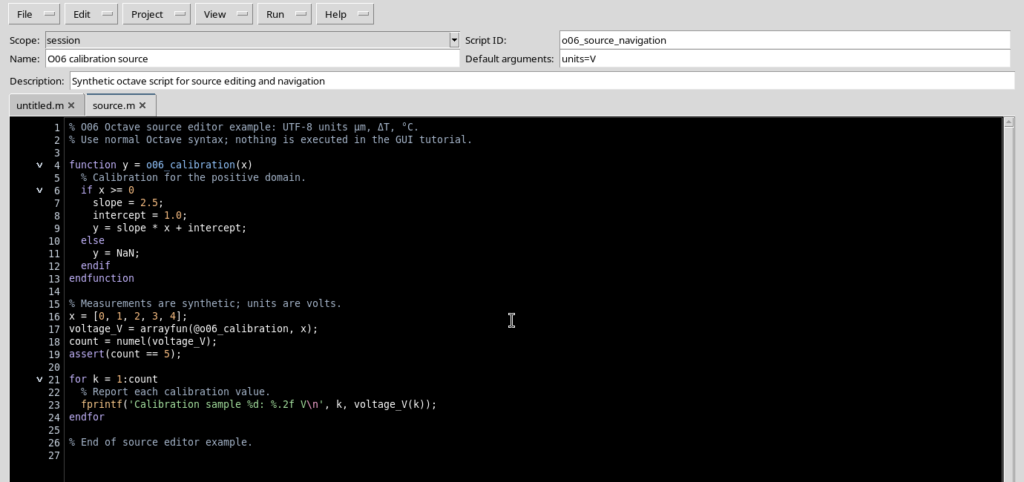
Folding changes only the display; it does not delete instructions and does not alter the saved code. When looking for a line, bear in mind that its block may be temporarily folded.
5. Selecting, copying and pasting text
To transfer part of a line or a whole block, select the text with the mouse or the keyboard and use Edit → Copy, or Ctrl+C. Ctrl+A selects the entire content of the Source.
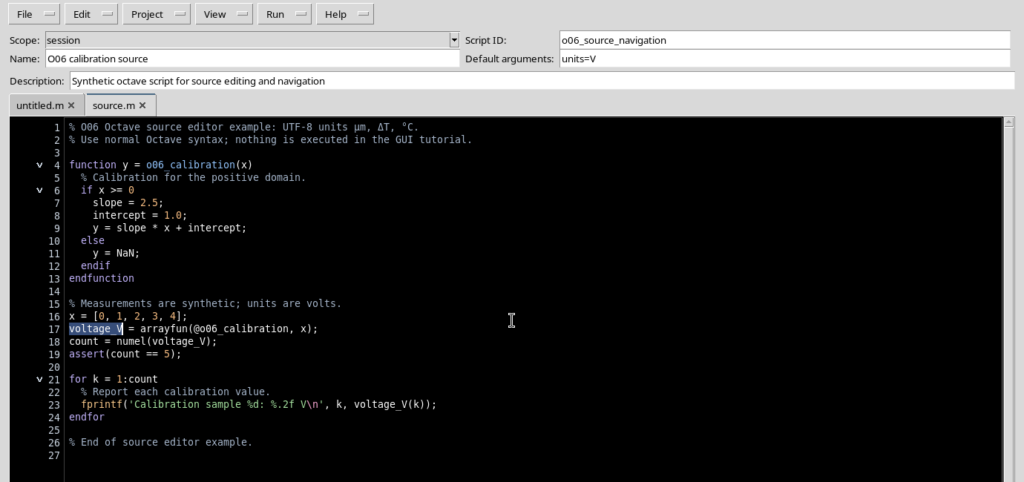
Move the cursor to the destination and use Edit → Paste or Ctrl+V. If some text is selected, the normal paste operation replaces the selection; otherwise it inserts the characters at the cursor position.
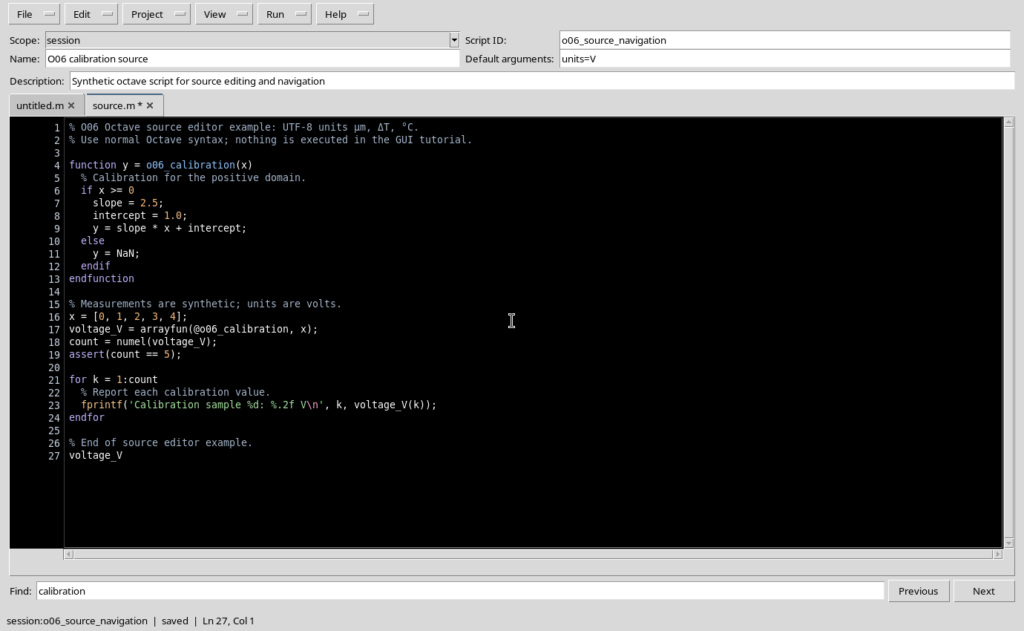
Edit → Cut or Ctrl+X removes the selected text and copies it to the clipboard. Copy, on the other hand, removes nothing. Before using Cut, check that the selection contains exactly the lines or characters you want.
6. Recovering a change with Undo and Redo
To undo a change to the text, use Edit → Undo, or Ctrl+Z. In the example, after a paste, Undo restored the previous source.
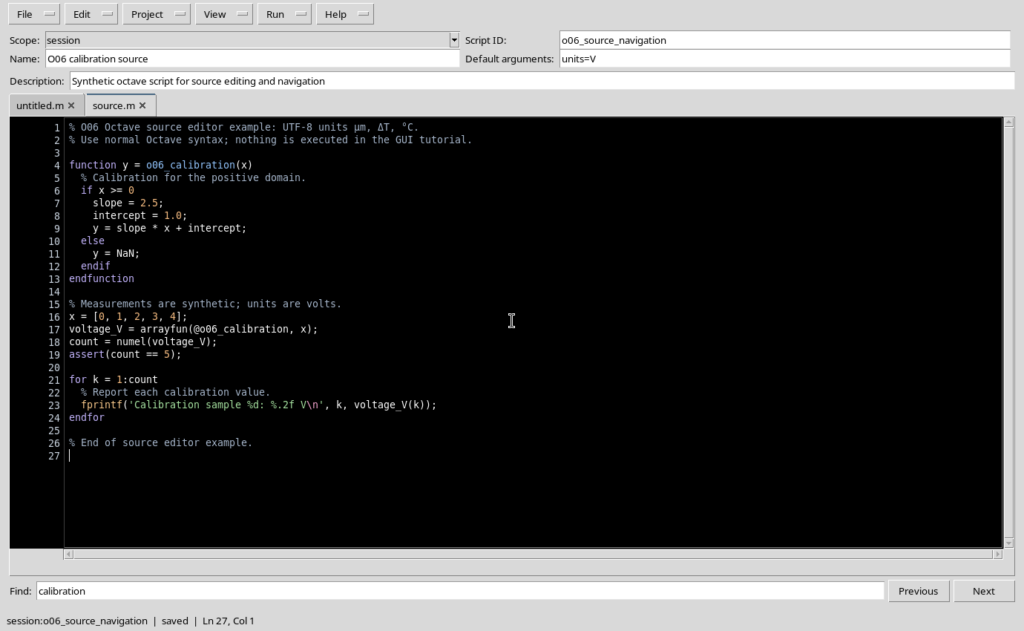
The Edit → Redo or Ctrl+Y command reapplies a change that has just been undone. Undo and Redo also work on cut operations when they are available in the editor history.
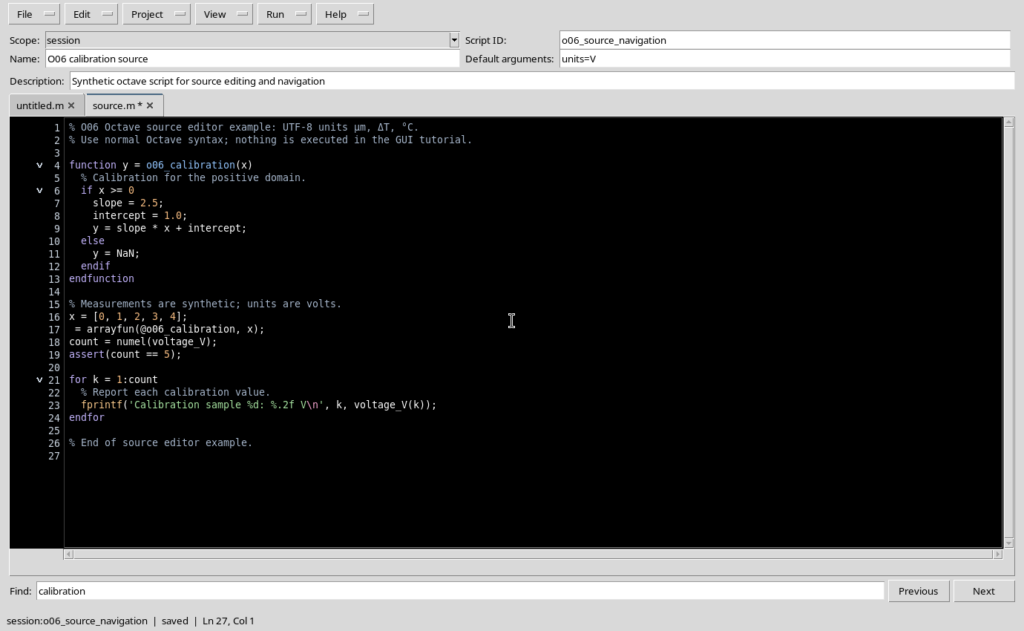
The change history concerns the editor buffer. It does not replace a version control system or the revisions of the GX-TXT registry: to keep the changes permanently you need to run File → Save.
7. Checking what has been changed
Changes to content or properties may bring up the modified state. If Undo brings the code and metadata back to the original condition of the tab, the state may return to saved.
Search, Go to line and folding do not change the text. Conversely, Paste, Cut and inserting new instructions modify the buffer until they are undone or saved. When working with several tabs, always check which Source is active before running Undo, Redo or Save.
The saved code remains separate from the temporary history of the buffer: editing, undoing and restoring a selection must not be confused with publishing a new revision.
8. Command summary
| Command | Action |
|---|---|
| Ctrl+F | Moves the focus to the Find field. |
| F3 / Shift+F3 | Finds the next / previous match. |
| Ctrl+G | Opens Go to line. |
| Ctrl+A | Selects the whole Source. |
| Ctrl+C / Ctrl+X / Ctrl+V | Copies / cuts / pastes text. |
| Ctrl+Z / Ctrl+Y | Undoes / redoes a change. |
| Edit → Fold current block | Folds the block under the cursor. |
| Edit → Fold all / Unfold all | Folds all blocks / shows the whole Source again. |
| Ctrl+S | Saves the current source in its scope. |
These commands let you work on the source precisely, distinguishing navigation and display from actual changes to the text. Preparing the Runner, debugging and numerical execution are later operations.