

Importing and exporting Octave scripts: .m files, UTF-8 and saving
Octave Script Workspace lets you read a GNU Octave source from a .m file, edit it in the editor and export it back to disk. It is important to distinguish these operations from File → Save, which registers the source in the GX-TXT Workspace.
The screenshots show GX-TXT DEV112 with patch P005, Octave Script Workspace module 1.8.3. The command labels match the English ones in the program. The tests use only synthetic data and do not run any Octave code.
1. Choosing a .m file to import
Open Octave Scripts and use File → Import .m…. The Import GNU Octave script window appears, with the GNU Octave scripts (*.m) filter. Select the desired file and confirm with Open.
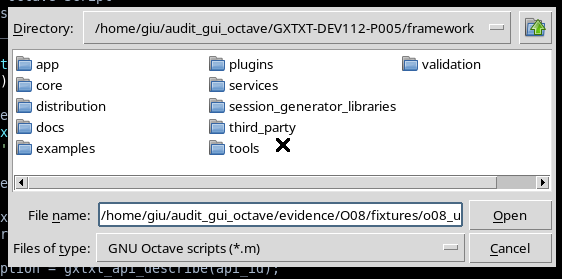
An ordinary source may contain comments, vectors and simple calculations, for example:
% Synthetic measurements, not acquired laboratory data.
time_ms = [0, 1, 2, 3, 4];
voltage_V = [0.0, 0.25, 0.50, 0.75, 1.00];
resistance_ohm = 1000;
current_mA = voltage_V * 1000 / resistance_ohm;
Importing the file means loading its content into the editor. It does not start or run the instructions it contains.
2. The imported script is initially a draft
After Open, the Source shows the imported text. The Workspace proposes a Name derived from the file name and a Description recalling the file it comes from. The Script ID identifier, on the other hand, must be defined before registration.
The imported tab is an unsaved draft, even though the original file already exists on disk. The modified state indicates that the editor document needs a separate registration.
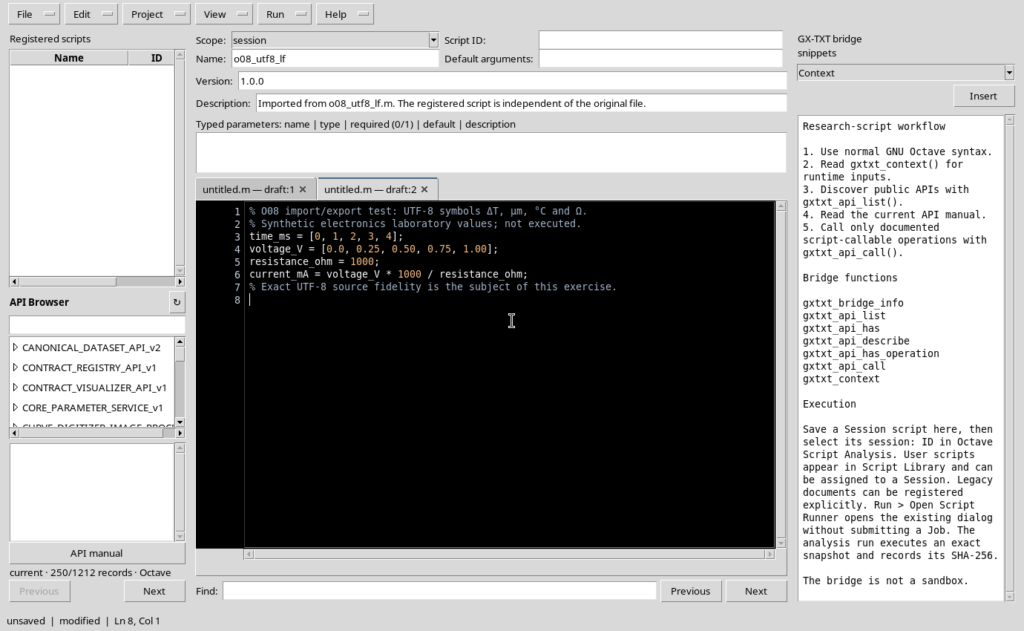
Fill in Script ID, check Scope and Name, then choose File → Save or Ctrl+S. GX-TXT then creates a record in the User or Session registry, depending on the selected scope.
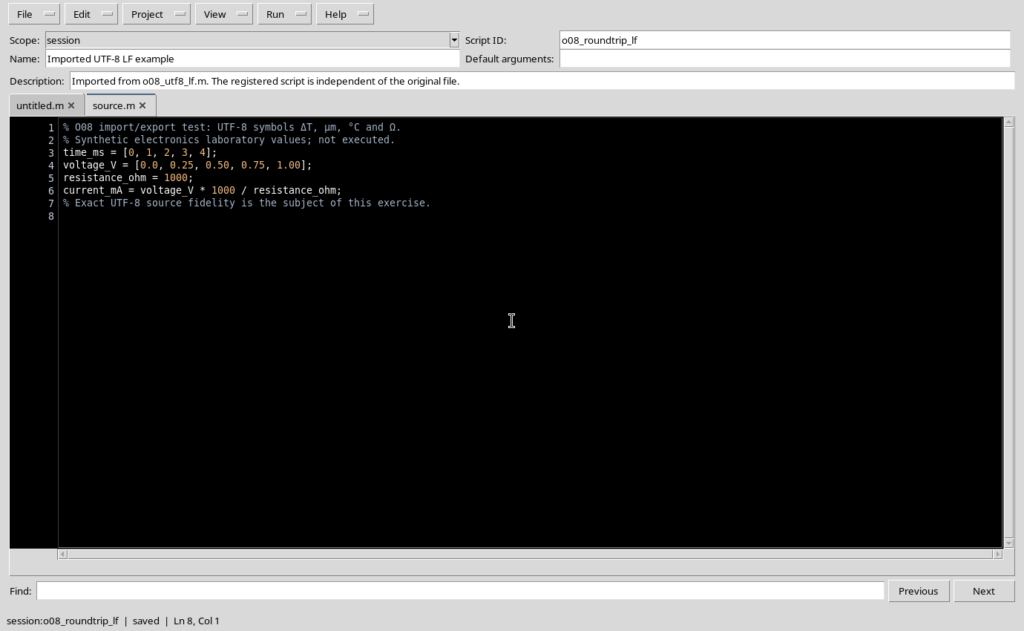
The source file and the GX-TXT record are independent. Saving the script in the Workspace is not the same as rewriting the .m file it was imported from.
3. Exporting the Source to a .m file
To write the content of the Source to disk, use File → Export .m…. The program opens the Export GNU Octave script window, proposing an initial name taken from the script’s Name. Choose the folder and a name with the .m extension, then confirm with Save.
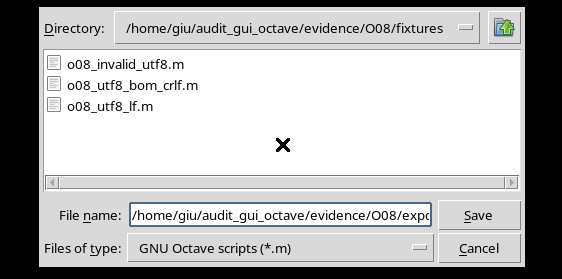
Exporting is distinct from File → Save: it does not automatically create a new GX-TXT record and does not by itself update the registry revision. For a UTF-8 source with LF line endings, the Import → Save → Export path preserved every byte exactly, including the scientific symbols in the comments.
To check the fidelity of a copy, you can compare the SHA-256 value of the original file and of the exported one. If the values match, the files have the same binary content with extremely high probability.
4. UTF-8, BOM and line endings
The sources tested are encoded in UTF-8. Comments can therefore contain scientific characters such as μm, ΔT, °C and Ω, without requiring manual conversions.
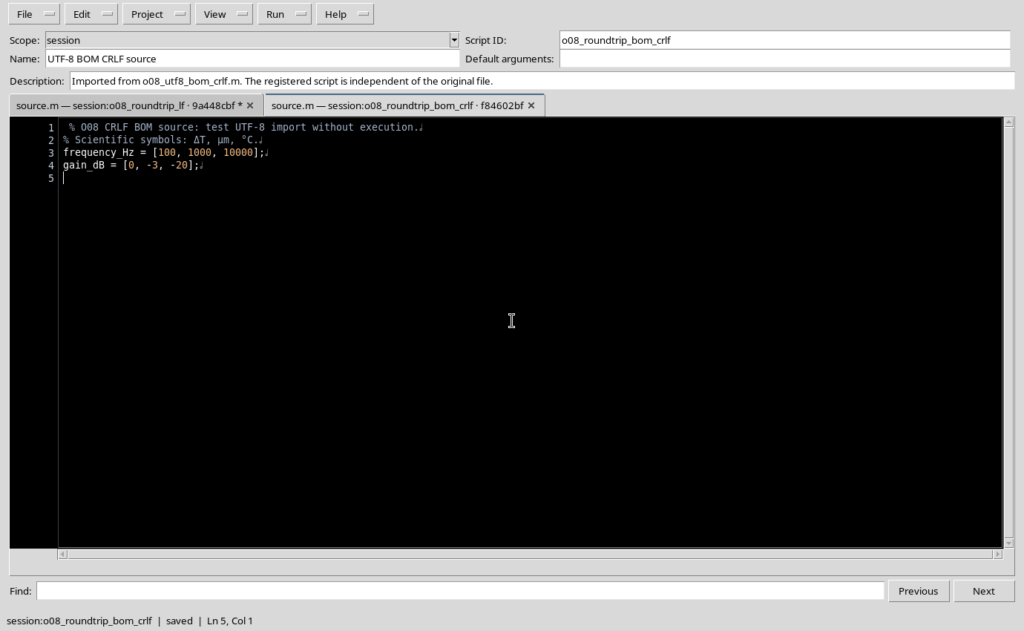
In the example, a UTF-8 file containing a leading BOM and CRLF line endings, typical of some Windows environments, was also imported. The Source shows the content, which can be saved in the registry.
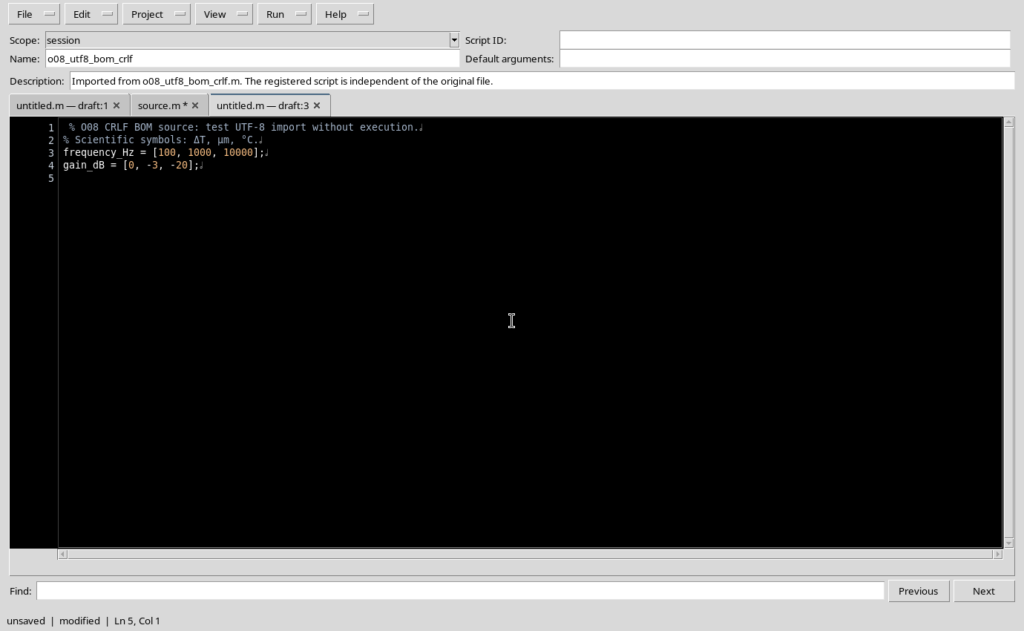
In the test, both the registered version and the exported one kept the starting file exactly: the leading BOM and all CRLF sequences were preserved, with no automatic conversion to LF.
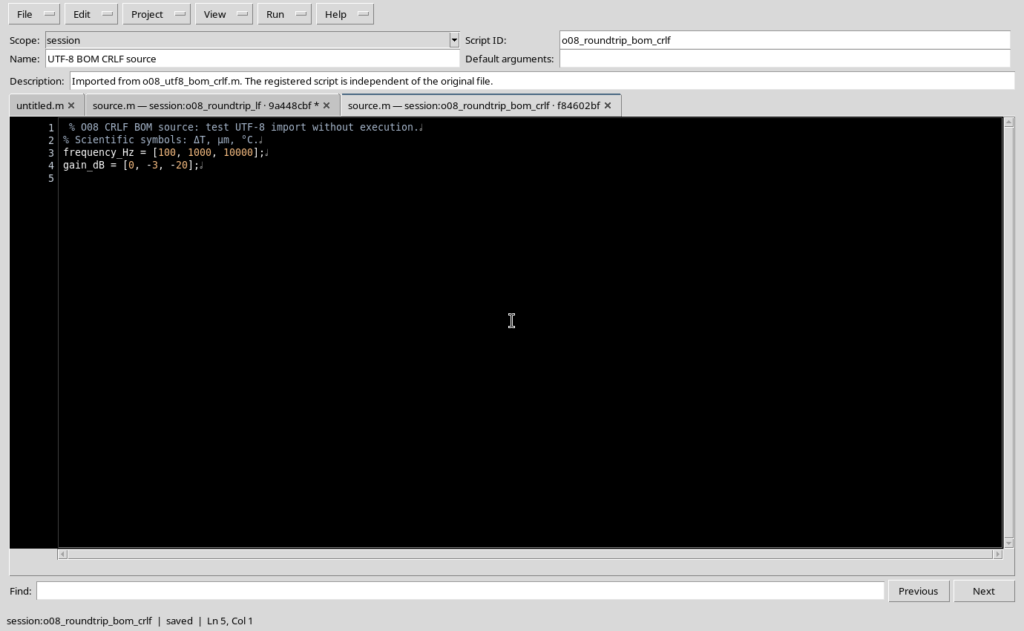
This observation concerns file fidelity in the GX-TXT editor. It does not prove that every Octave program or toolchain accepts a BOM equally well: for maximum portability, it may be preferable to produce UTF-8 sources without a BOM, depending on the needs of the target environment.
5. Rejected files: extension and encoding
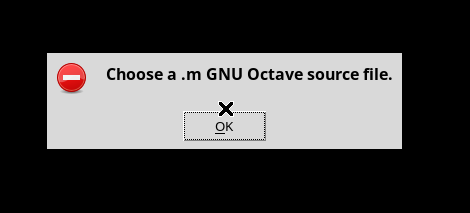
Importing checks that the chosen file has the .m extension. If you select another format, GX-TXT does not load it and shows an Import failed message, without replacing the currently registered Source.
The validity of the UTF-8 bytes is also checked. A .m file containing invalid UTF-8 sequences produces another Import failed message.
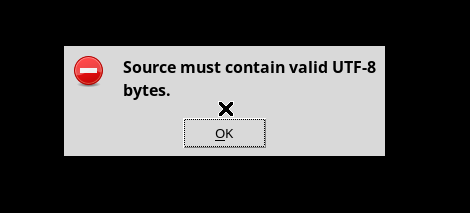
In both cases the previously registered source remains available. Simply changing the extension of a file does not fix its encoding: to import it, the content must really be valid UTF-8 text.
6. Cancelling an import or an export
In the Import GNU Octave script and Export GNU Octave script selectors, the Cancel button interrupts the operation. If you cancel an export, no new file is created.
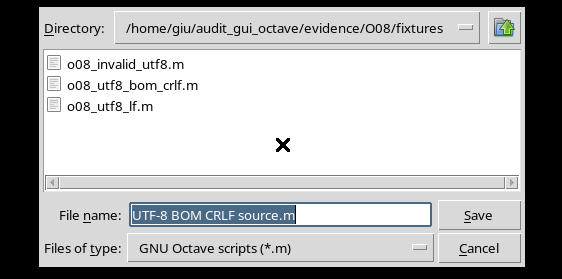
An import started from the File → Import .m… menu can also be cancelled without changing the code already in the editor. Before attempting a new import, check the current tab and whether there are any unsaved changes.
7. Export uses the current content of the buffer
An important behaviour is that Export .m… exports the text currently visible in the Source, not necessarily the last version registered with File → Save.
In the test, a comment was temporarily added to a saved script. The tab became modified, while the registered record stayed unchanged.
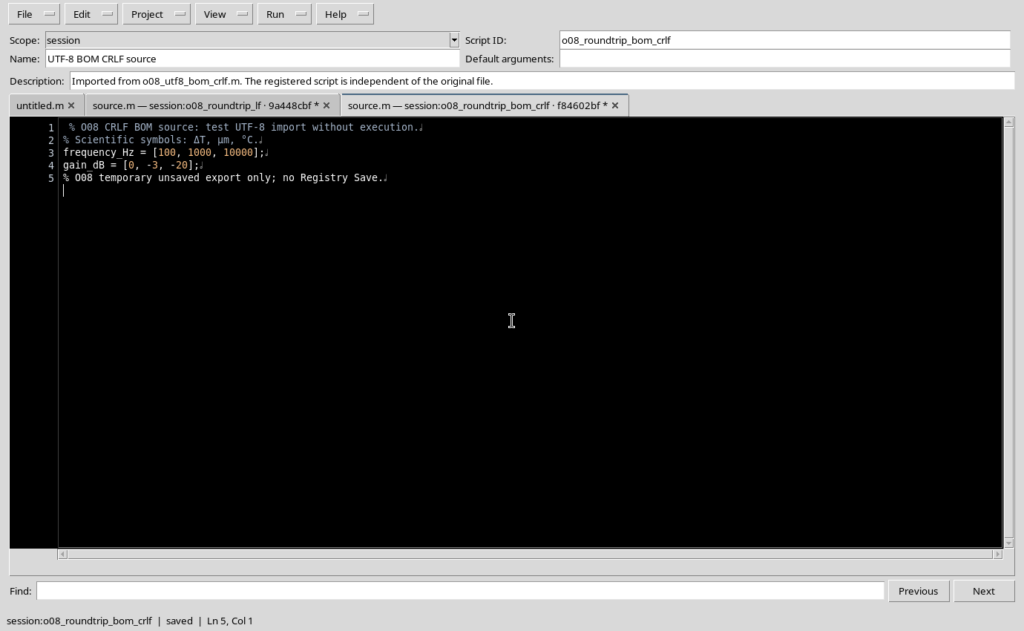
Exporting to a new .m file included that change, without updating the GX-TXT version. The exported file was different from the registered Source, and this was verified by comparing their SHA-256 values.
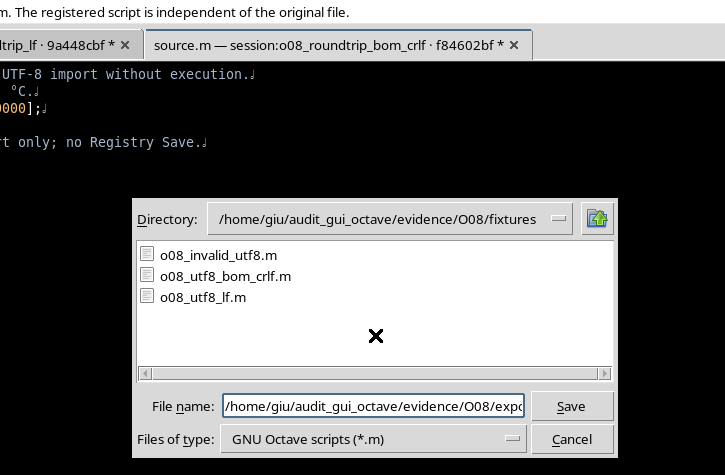
So, to obtain a copy of the code exactly matching a registered revision, first check that the tab is not modified. Otherwise, the export may contain changes that are still provisional. In the case shown, Ctrl+Z then restored the original content without altering the registered revision.
8. Beware of the Ctrl+O shortcut in this version
In this version of the Workspace, when the cursor is in the Source, the Ctrl+O shortcut may open the import selector and at the same time insert an empty line into the code. If you then choose Cancel, the tab may show as modified even though nothing was imported.
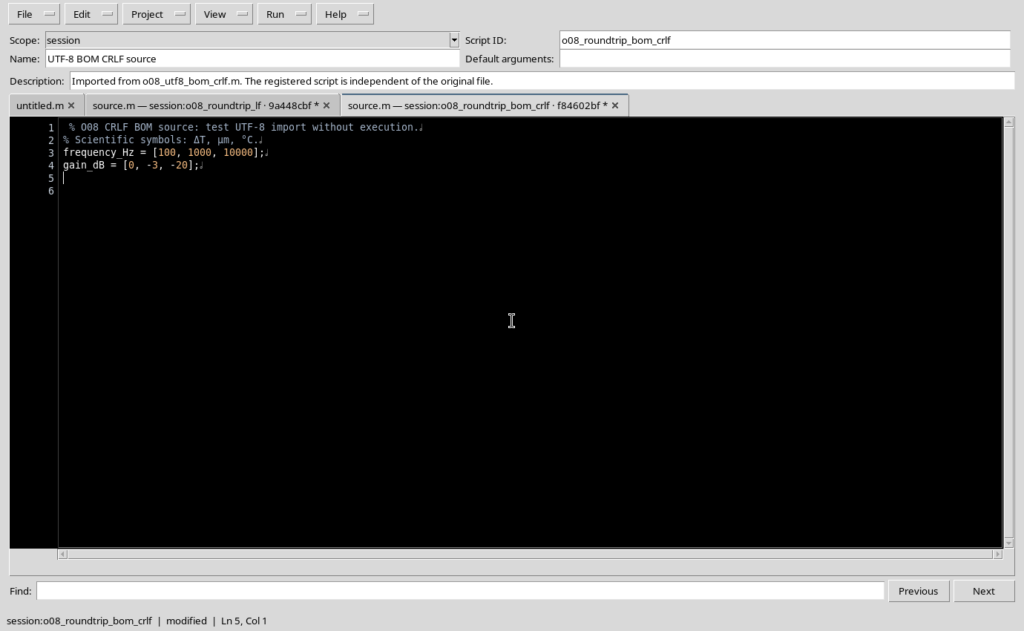
To avoid this, preferably use File → Import .m… from the menu: this route has been verified to cause no unwanted changes. If you have already used Ctrl+O, check the Source and press Ctrl+Z to undo any added line before saving.
The anomaly concerns the open buffer: it does not automatically alter the version already registered in the Workspace.
9. Import, Save and Export compared
| Operation | Source or destination | Main result |
|---|---|---|
| File → Import .m… | An existing .m file | Loads a new unregistered buffer. |
| File → Save | User or Session registry | Registers or updates the GX-TXT script. |
| File → Export .m… | A .m file chosen on disk | Writes the current text of the Source, even if modified. |
| Cancel | File dialog | Interrupts the import or export without completing it. |
For a reliable workflow, check the extension, the UTF-8 encoding, the Scope, the Script ID and above all the saved/modified state before exporting. Registering in the Workspace and creating an external file are two separate actions.
All the operations presented concern file management and editing: the numerical execution of Octave scripts is a different stage.