

Organizing a multi-file Octave Project: helpers, entrypoint and Save All
An Octave Project lets you work with several .m files while keeping them under a single identity in the GX-TXT registry. From the Octave Script Workspace you can create auxiliary files, open them from the Project tree, edit them in separate tabs and save a common revision.
The screenshots show GX-TXT DEV112 with patch P005, Octave Script Workspace module 1.8.3. All the example code uses synthetic data and English comments. Preparing and saving the sources does not run GNU Octave and does not produce Datasets.
1. Creating the Project and choosing the main file
Open Octave Scripts and select Project → New Project…. In the New project form, enter Name, Stable ID, Scope, Entrypoint and a description. For our example the Scope is session and the initial entrypoint is main.m.
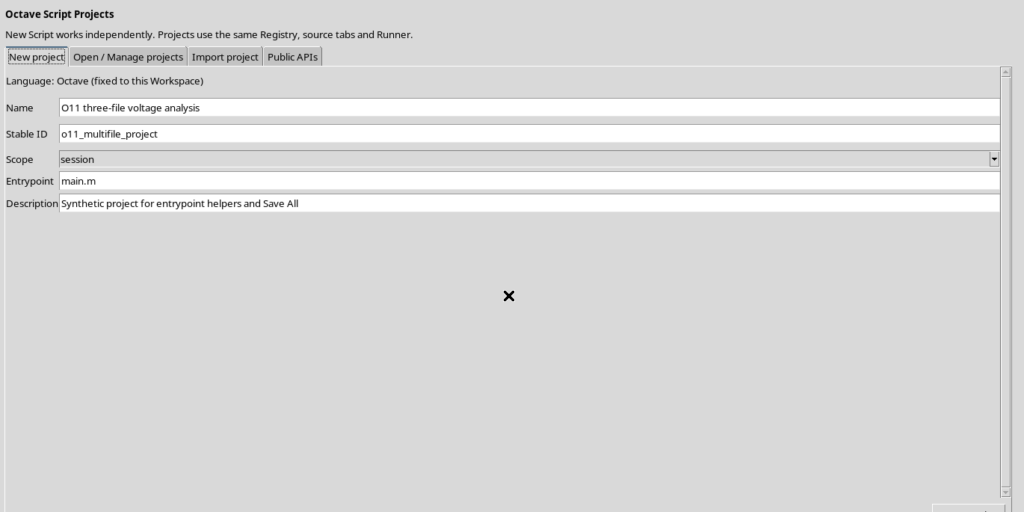
After Create project, the Viewer registers the Project and opens the tab of the main file. The Project is a different object from a standalone script: it keeps the entrypoint and the set of files that make it up.
The default entrypoint starts with a simple comment. We can then replace it with an example like this:
% Synthetic voltage study; not executed.
time_s = [0, 1, 2, 3, 4];
voltage_V = [0.0, 0.3, 0.5, 0.8, 1.0];
This source only defines two numerical vectors; it does not require access to laboratory instruments.
2. Reading the Project file tree
In the central area, next to the Source, the Project shows a file tree. Subpaths are shown as folders, while the main file is marked (main).
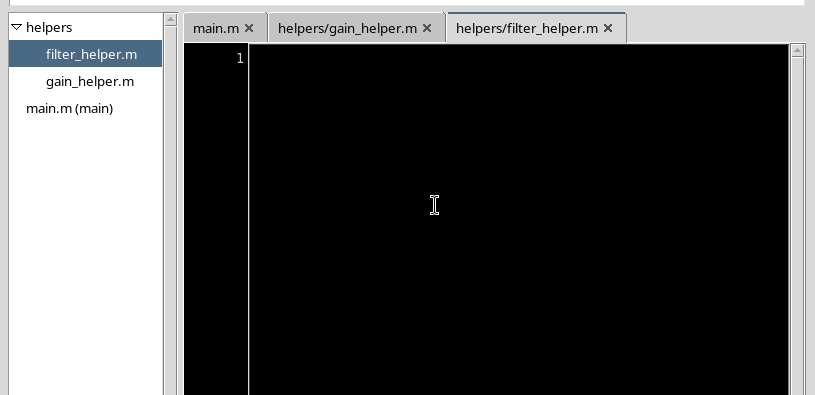
Selecting an entry in the tree activates its Source. Each file can be opened in its own tab and keep its content separate. The folder shown in the tree is part of the Project’s organization: there is no need to create another Project for each auxiliary function.
3. Adding .m helpers from Project → New file…
To add a source, choose Project → New file…. The Viewer opens a small form, Normalized relative source path (subfolders allowed). Enter a relative path, for example helpers/gain_helper.m, and select Apply.
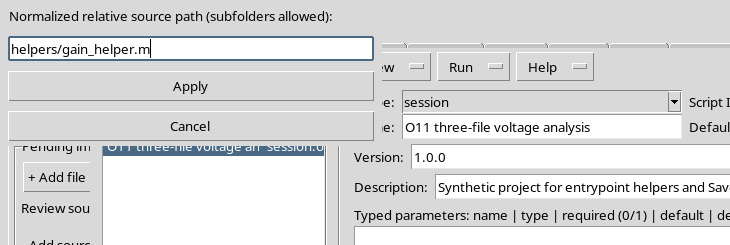
An Octave helper can define a function with the same name as the file:
% Synthetic gain helper; not executed.
function result = gain_helper(x)
result = x * 2.0;
endfunction
Another file, helpers/filter_helper.m, may contain:
% Synthetic smoothing helper; not executed.
function y = filter_helper(x)
y = x + 0.1;
endfunction
Keeping the function name and the file name consistent is an important convention for the normal use of Octave functions. Using tidy, descriptive relative paths also makes navigation in the editor easier.
The New file command registers the change to the Project structure. The new file can be opened and filled in immediately afterwards.
4. Editing three Sources without saving them separately
Open main.m, helpers/gain_helper.m and helpers/filter_helper.m from the tree, then fill in their sources. You can move between tabs without losing what you have already written.
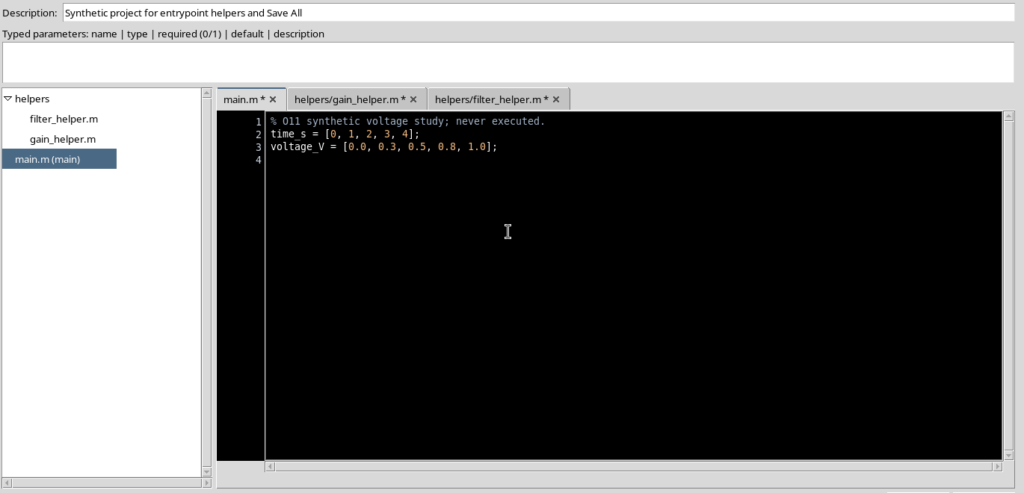
To work comfortably with several files, use View → Focus source / restore panes: the side panels that are not needed are hidden, making the Project file tree and the code more readable.
Until you save, the changes stay in the editor buffers. Having three modified tabs does not mean that three revisions have already been created in the registry.
5. Registering all files with Save All
Select File → Save All, or Ctrl+Shift+S, to save the changes in the open files of the Project. In the case shown, the simultaneous changes to main.m and to the two helpers were registered in a single new revision of the Project.
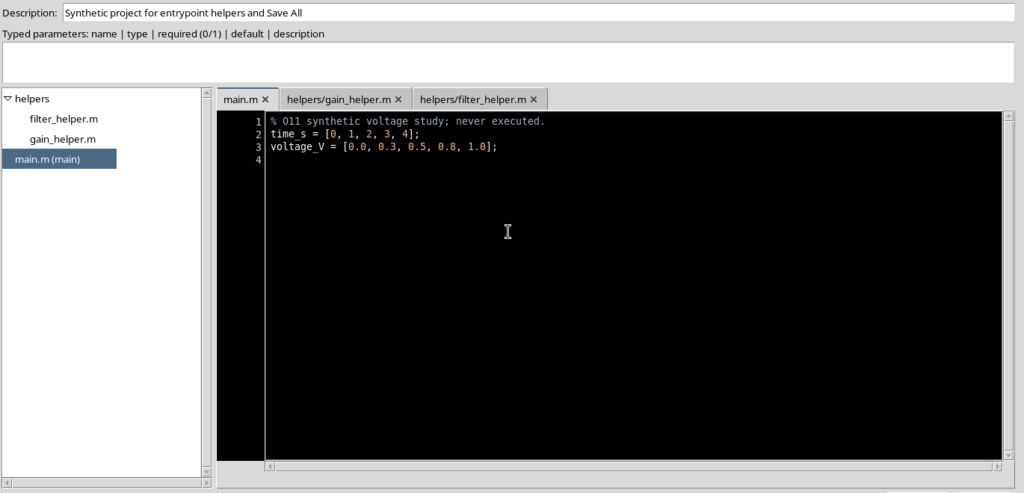
The save shares the identity of the Project and updates the fingerprint associated with its contents. Do not confuse the number of modified files with the number of revisions: in this case, three updated files produced a single save transaction.
File → Save works from the current Source and, in Projects, may also involve the other open files through the same registry. File → Save All makes the coordinated saving of the open tabs explicit.
6. Moving a helper without changing its name
If a file needs to be placed in a different subfolder, select it in the tree and choose Project → Rename/move file…. The form proposes the current path: edit it and confirm with Apply.
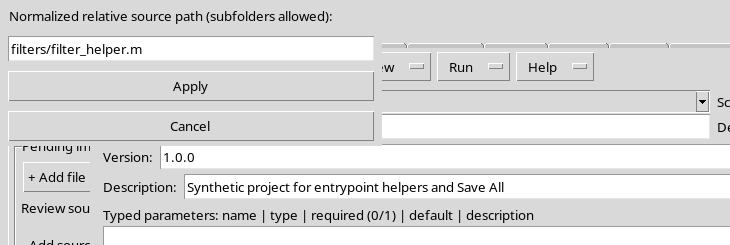
In the example, helpers/filter_helper.m is moved to filters/filter_helper.m. The base name remains filter_helper.m, consistent with the filter_helper function defined in the source.
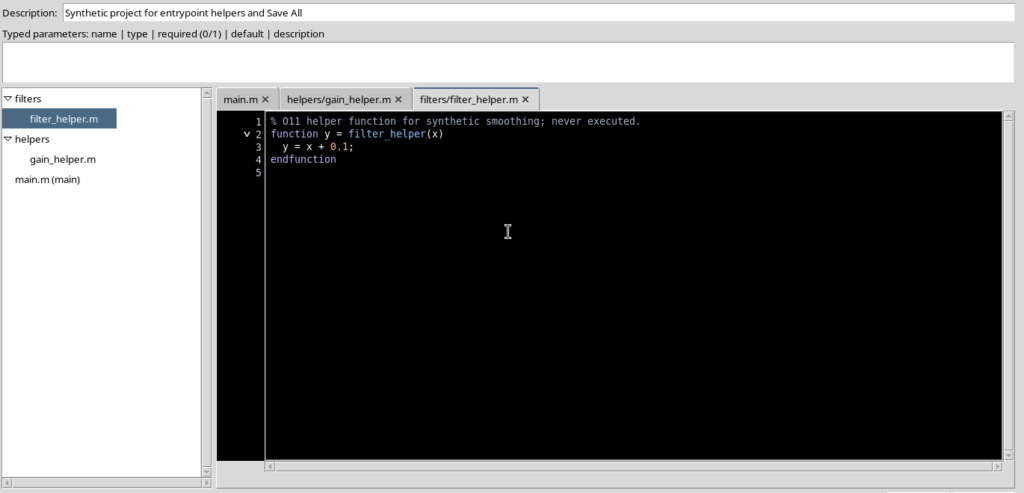
The content is kept at the new registered path; the old path must not remain as a second copy of the file. The move, like other structural changes to the Project, updates the record.
7. Setting and recognizing the entrypoint
The Project → Set entrypoint menu sets the currently selected file as the main file. The tree marks the chosen file with (main).
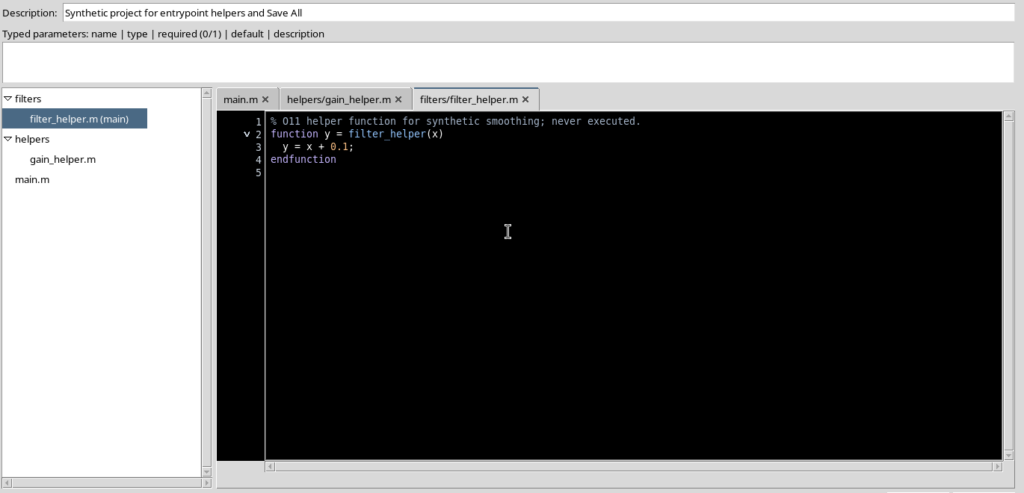
For our example the appropriate main file remains main.m. After examining the function, select main.m again and repeat Set entrypoint.
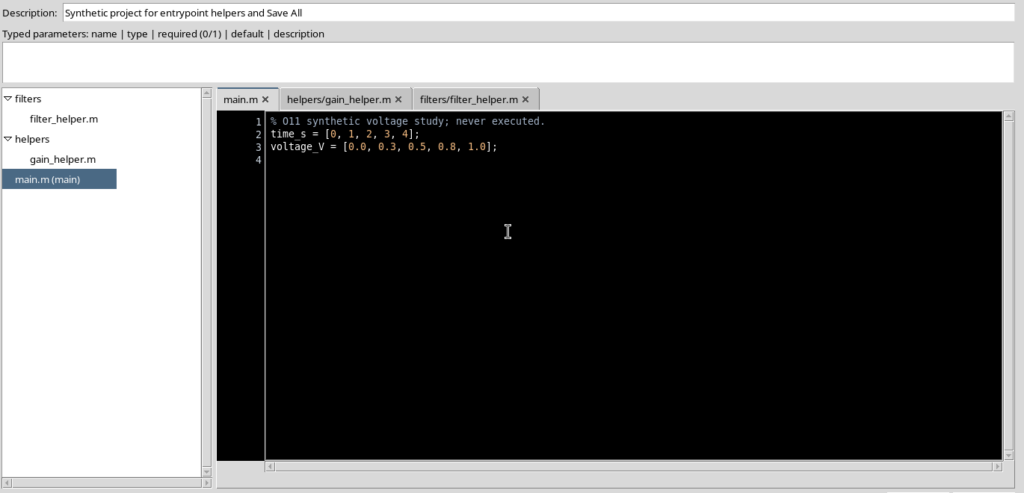
Changing the entrypoint is not the same as running the file: it only changes the reference registered as the starting point. Do not choose a helper as the entrypoint just to open or edit it: to navigate, simply select it in the tree.
8. Protection of the main file
If the selected file is the current entrypoint, Project → Remove file does not allow it to be removed straight away. The message Project change refused appears, asking you to choose another entrypoint first.
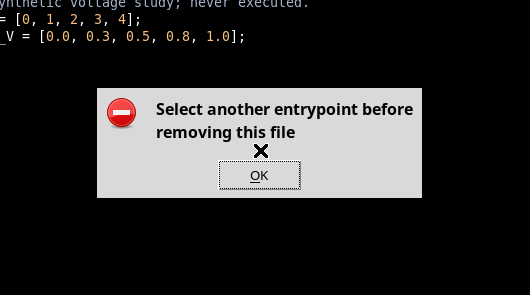
The protection prevents leaving the Project without its starting file. Before removing a helper, check its role, any references to it in the rest of the code and any changes not yet saved.
9. What happens when the Project changes elsewhere
A Project may be updated by another editor or process while an earlier tab is still open. If the local buffers are based on a revision that is no longer current, the changes must not be blindly overwritten.
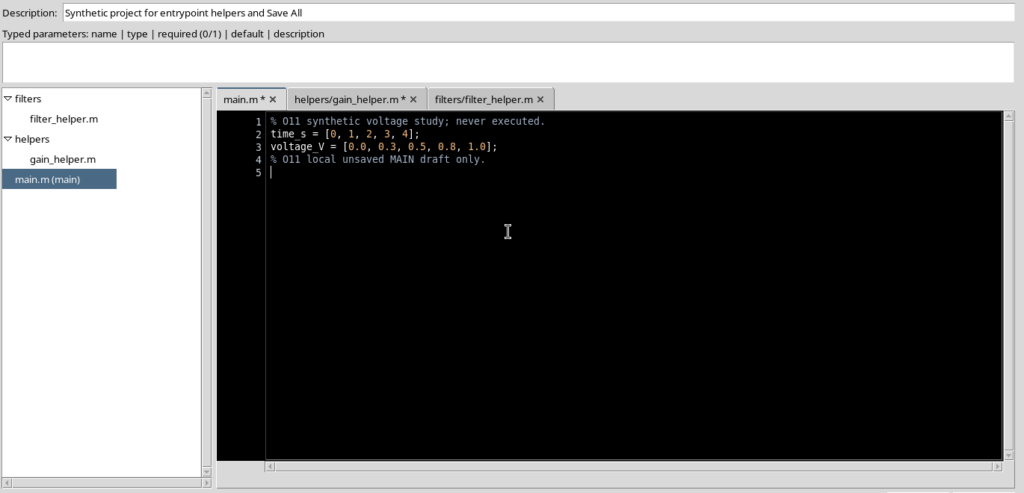
In the situation shown, two files have unsaved local changes, while the registry contains a more recent revision of the Project.
If you try File → Save All on the outdated revision, the program refuses the operation with the message Project changed; reload before Save All.
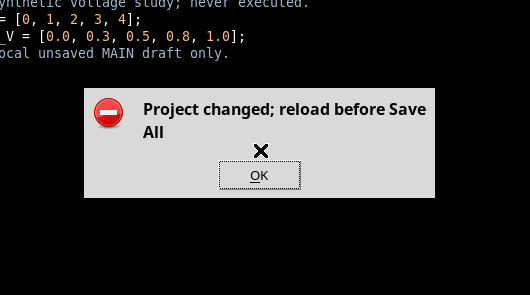
The refusal protects the data already registered: in the test no partial overwrite occurred. The two local buffers stayed open and modified, while the registry kept the most recent revision.
10. Save copy does not replace conflict handling
It is important not to assume that File → Save copy… can always be used to resolve an outdated revision. In the verified situation, this command also refused the copy with the message Source changed before Save As; original buffers retained.
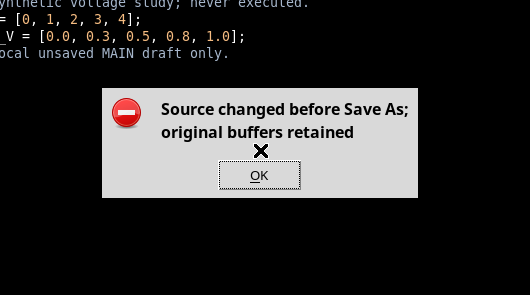
If a warning of this kind appears, do not close or discard the local changes straight away. Keep the text that is still useful separately, compare it with the most recent registered version and decide deliberately how to apply the changes. The Viewer did not perform an automatic merge of the two sets of files in this procedure.
11. The main Project file commands
| Command | Operation |
|---|---|
| Project → New file… | Adds a file with a relative path to the Project. |
| File tree | Opens or selects a Source already belonging to the Project. |
| Project → Rename/move file… | Changes the relative path of a file. |
| Project → Set entrypoint | Gives the selected Source the role of main file. |
| Project → Remove file | Requests removal; the main file is protected. |
| File → Save All | Registers the coordinated changes to the Project files. |
| File → Save copy… | Attempts a separate copy, subject to the protections of the current source. |
The Project organization operations use its authoritative GX-TXT registry, not a second library or an alternative workspace. In this guide only tabs and source files were handled: no scripts, debugging tools or calculations were started.
The safest procedure is to keep a clear entrypoint, give helpers consistent names, check the modified tabs and use Save All when you want to register several changes together. If the registry has changed in the meantime, resolve the conflict before saving again.