

Selecting input Datasets, namespace and alias
When an Octave script uses data coming from GX-TXT, the Script Runner window lets you bind one or more canonical Datasets to a single invocation. Each binding specifies a namespace, a Dataset identity and a semantic name (alias) with which the script can tell the inputs apart. The selection also captures the Dataset revision: if the data or their location change, a new review of the choice is required.
The guide uses the actual controls of GX-TXT Octave Script Workspace and two small example numerical series. All the operations described here concern the preparation of the inputs: Validate review does not start Octave and does not create a Job.
1. Preparing a Saved Script and Two Canonical Datasets
Open the scientific Session containing the Datasets to be used. Before accessing the Runner, the Octave code must be saved with File → Save and correctly identified in the Session.
To get familiar with the working environment, consider a simple script:
% Synthetic temperature samples for reviewing input bindings.
% No calculation is started during input selection.
time_s = [0, 10, 20, 30, 40];
temperature_C = [19.0, 20.2, 21.0, 21.6, 22.1];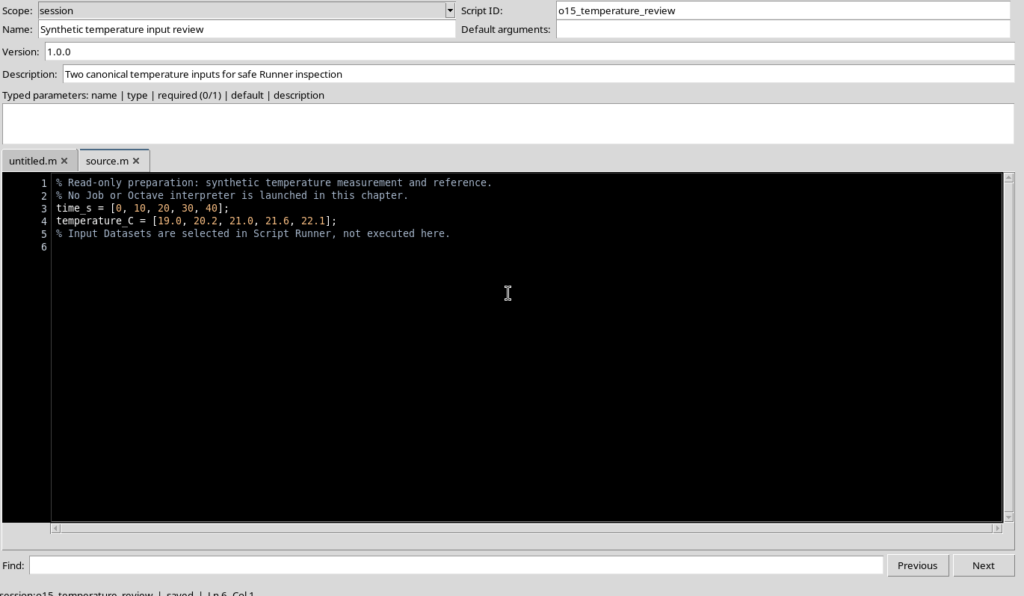
In the example two canonical numerical Datasets of five rows are already available, one for the measurements and one for the reference. Their preliminary publication is not carried out by the Runner: creating the Datasets and the subsequent scientific processing are distinct operations.
2. Opening Runner and Locating the Inputs
From the selected Source, choose Run → Open Script Runner…. The window shows the identity of the script and the source revision. Scroll down to the Inputs and output section, expanding it if necessary with the button of the same name.
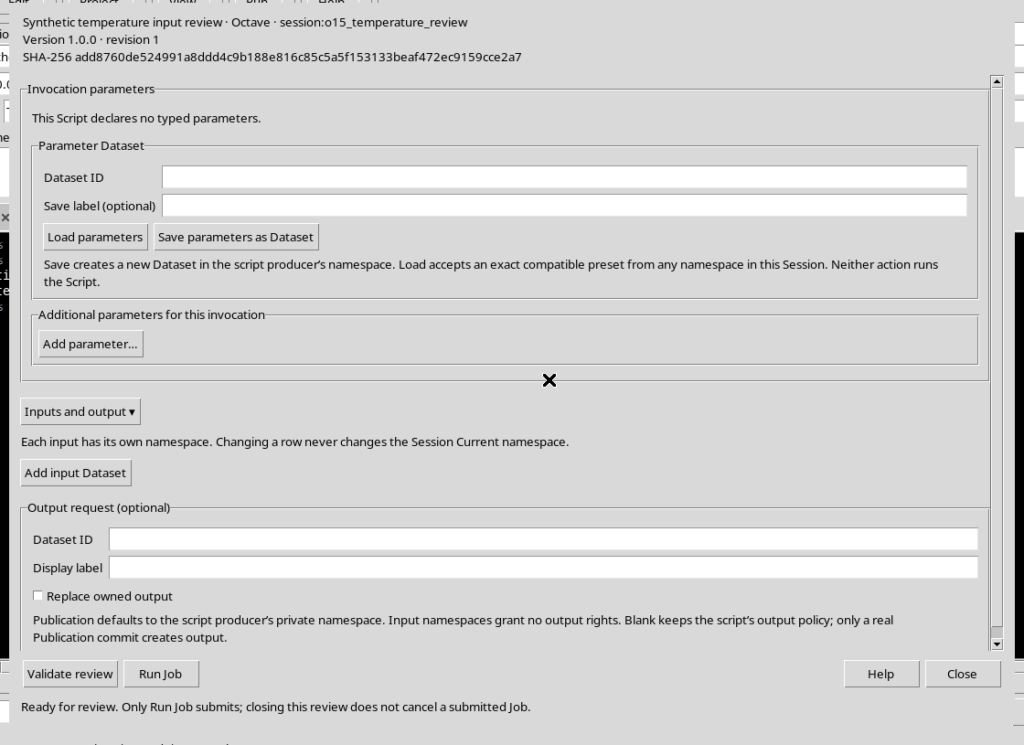
The Add input Dataset button adds an input request to the current invocation. It does not import a file from disk, does not publish a new Dataset and does not run the code. The Output request section, visible further down, concerns any results instead and is separate from the inputs.
3. Adding a Row and Understanding the Initial Namespace
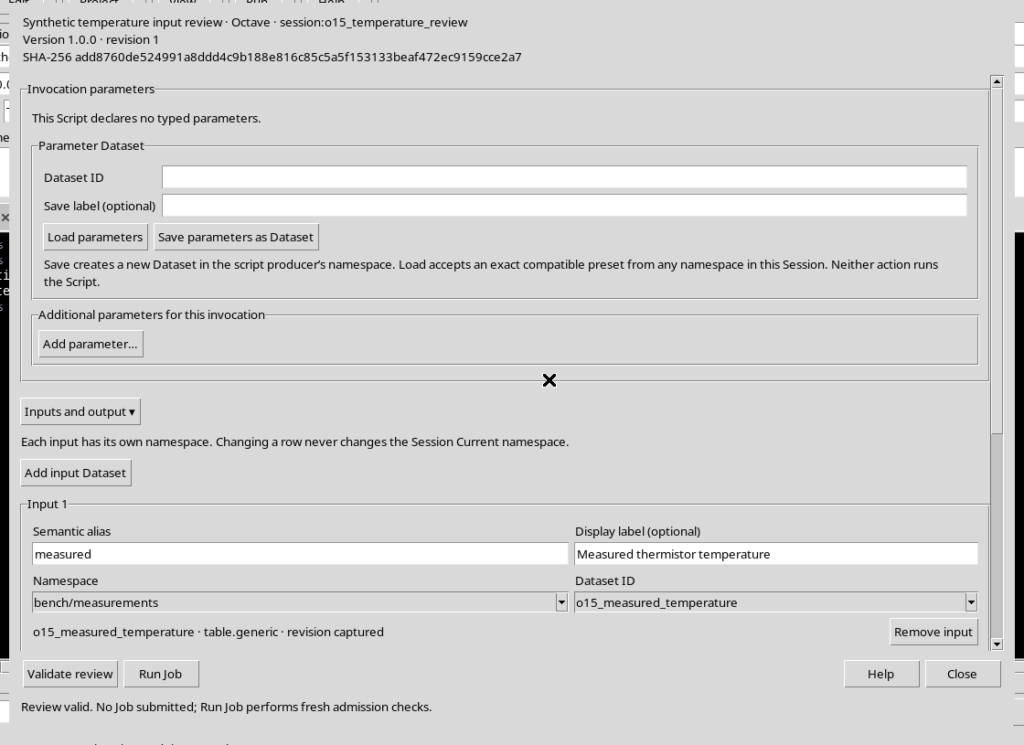
Press Add input Dataset. An Input 1 row appears with the fields Semantic alias, Display label (optional), Namespace and Dataset ID, plus Remove input.
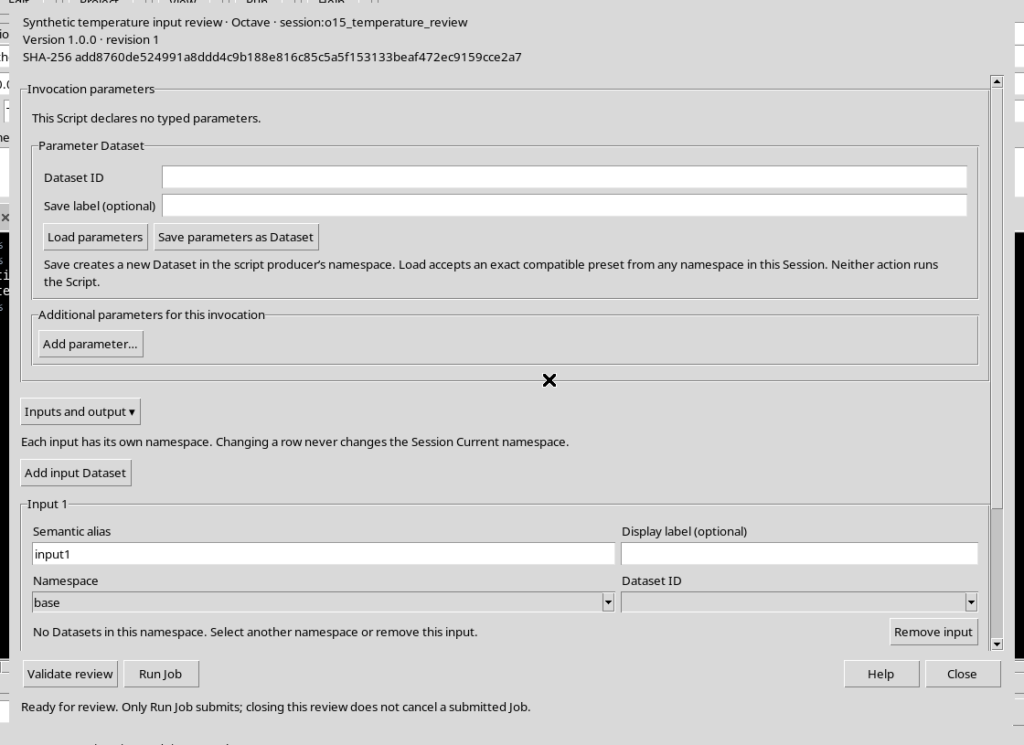
The initial namespace is the current one of the Session. In the example it is base, which does not contain the two desired series. The message No Datasets in this namespace does not mean that the Session has no Datasets: it only means that the filter of that row finds none in the selected namespace.
4. Using Namespace to Filter Datasets
Open Namespace and select the area where the first series resides. In the example we choose bench/measurements.
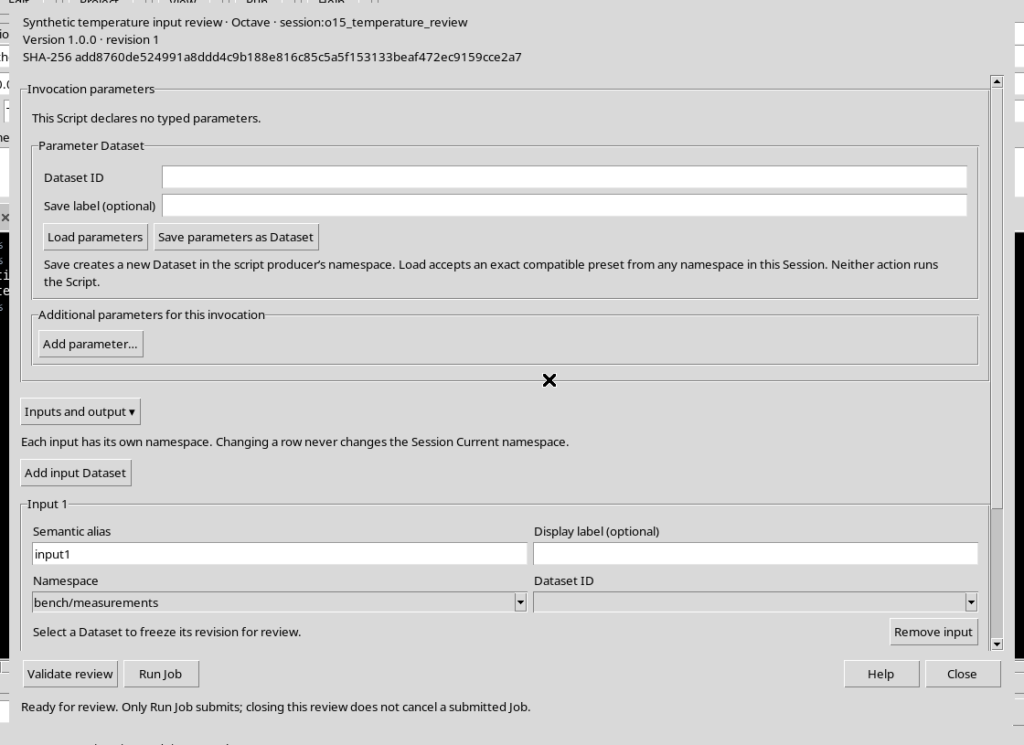
Namespace is an organizational criterion; Dataset ID is the canonical identity. A namespace path does not coincide with a file path. Changing the namespace of a row does not move the Dataset and does not change the Current namespace of the Session.
5. Choosing the Dataset ID and Capturing the Revision
In the Dataset ID menu select the correct Dataset, for example o15_measured_temperature. The row shows the chosen identity, the table.generic contract and the revision captured indication.
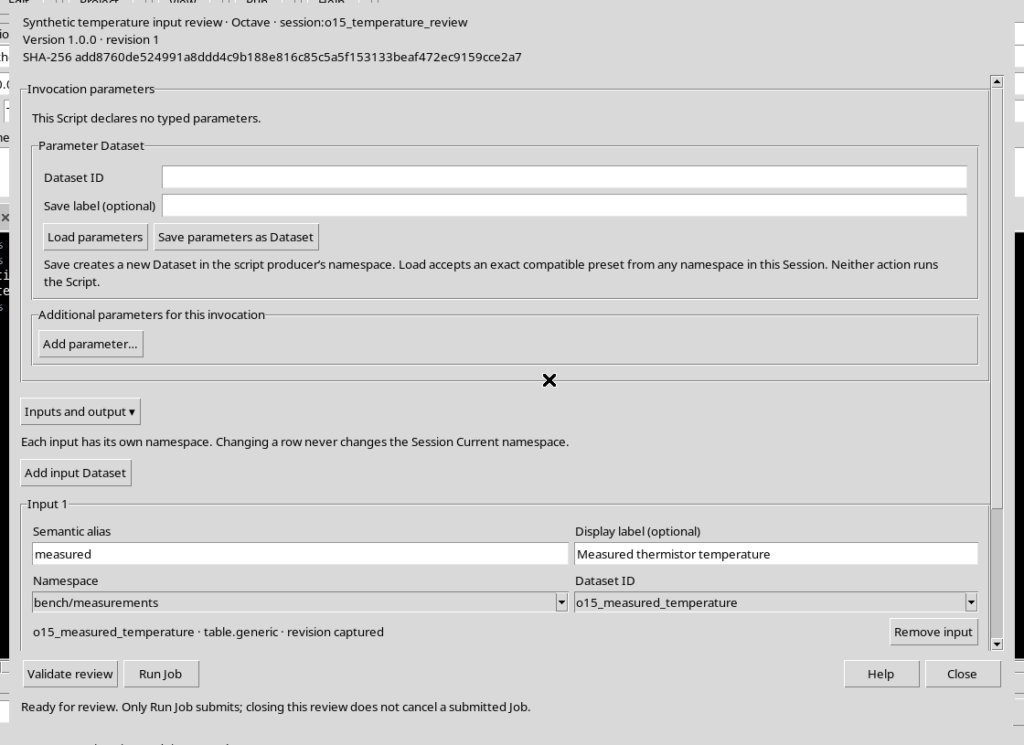
The captured revision is a reference to the canonical state of the Dataset at the time of the choice. It is not the revision of the .m script, nor a new Dataset. GX-TXT can check this reference again before accepting an invocation.
6. Distinguishing Semantic Alias, Display Label and Dataset ID
Give the input a short, meaningful and unique Semantic alias, for example measured. Display label (optional), for example Measured thermistor temperature, is a label for human reading; it does not replace the canonical identity.
Add a second row with Add input Dataset. Choose the namespace bench/reference, the Dataset o15_reference_temperature and the alias reference. Scroll inside the Runner window to see both rows without changing the editor layout.
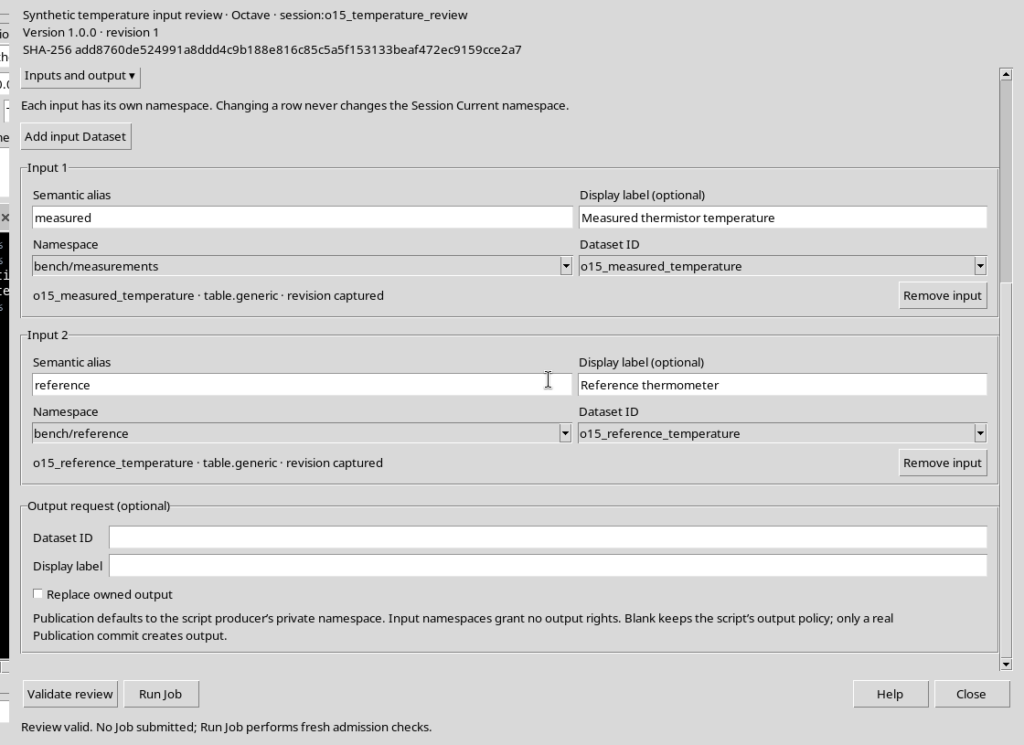
| Field | First input | Second input |
|---|---|---|
| Semantic alias | measured | reference |
| Namespace | bench/measurements | bench/reference |
| Dataset ID | o15_measured_temperature | o15_reference_temperature |
| Display label | Measured thermistor temperature | Reference thermometer |
The alias is the scientific name that distinguishes the two inputs of the same invocation. A reference could be read at a later stage through the GX-TXT public APIs for Octave; configuring the inputs alone does not add read instructions to the script.
7. Changing Namespace Requires a New Dataset Choice
If you change Namespace in the second row, Runner clears the previously selected Dataset ID and revision for that row only. The first row keeps its Dataset, its alias and its own revision reference.
To restore the second input, select bench/reference again and then the correct Dataset from its list. Going back to the old namespace does not automatically restore a previous selection: you have to choose the Dataset again.
This rule prevents the screen from continuing to show as valid a binding that was created in another namespace.
8. Validating Distinct Aliases
The Validate review button lets you check the invocation without requesting its execution. The two inputs must have different aliases. If both are called measured, validation shows Duplicate input alias ‘measured’.
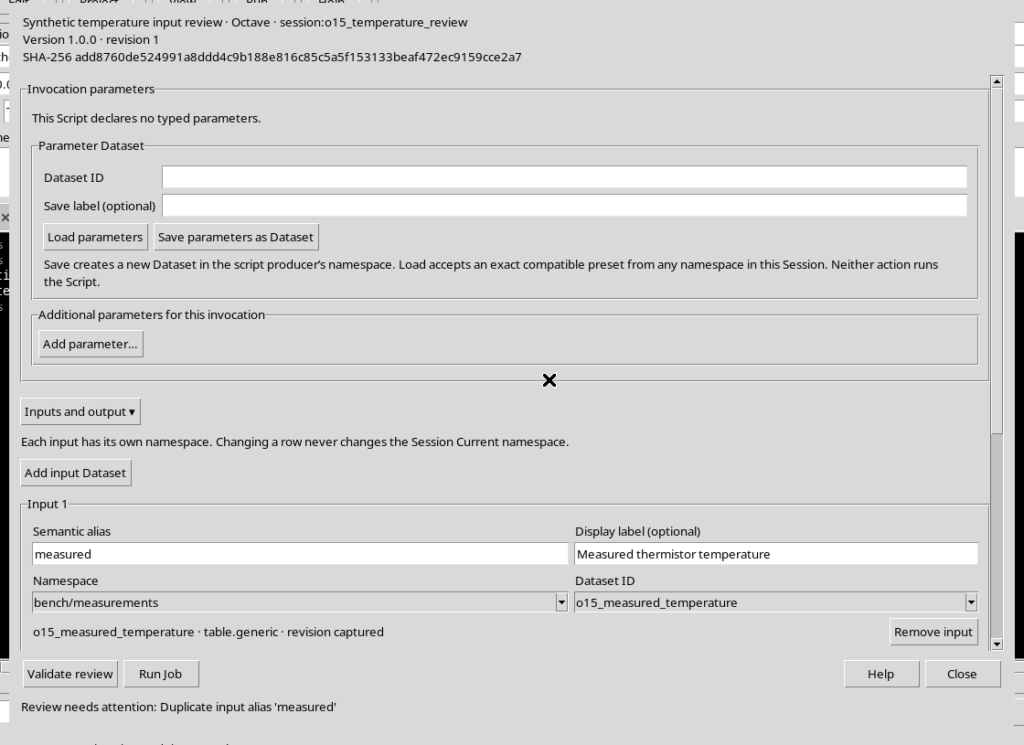
Correct the second alias to reference, leaving the selected Datasets unchanged. A consistent selection can obtain Review valid. No Job submitted. The message indicates that the preparatory check has passed, not that the data have been processed.
9. Recognizing an Input That Is No Longer Up to Date
A Dataset can change namespace or revision after it has been selected in the Runner. In that case the binding is no longer safe: the check compares the current state with the captured one.
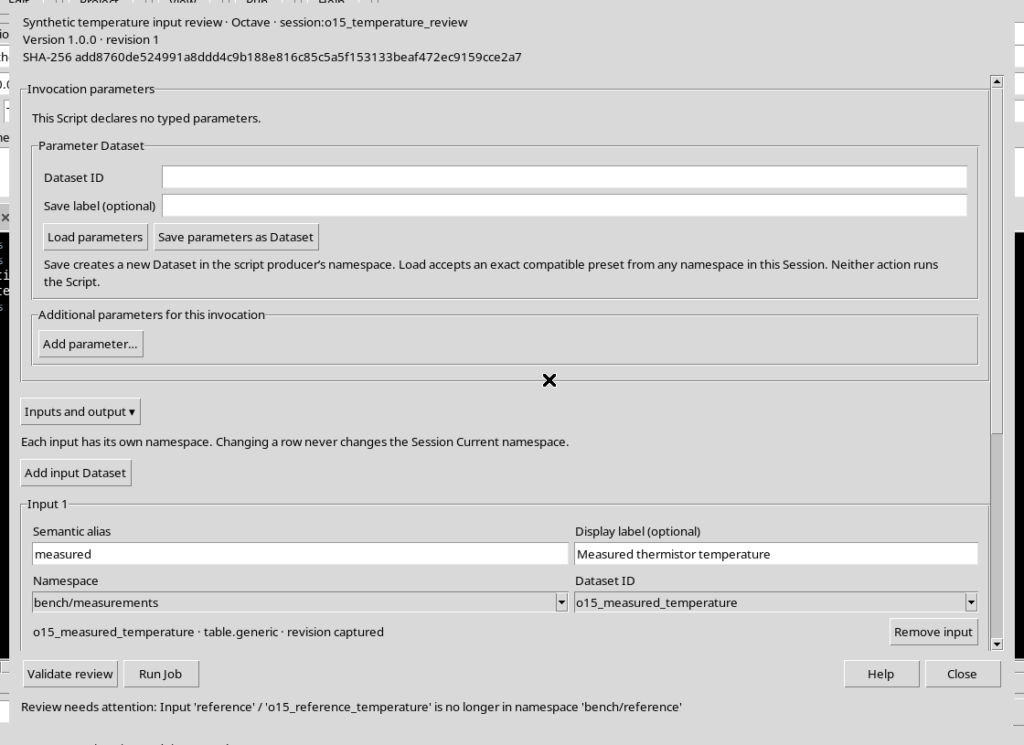
It is not enough to change just the alias text or keep the old reference. Check the current namespace and explicitly select the Dataset ID again to capture the current revision.
This protection is important in reproducible scientific workflows: the Dataset identity alone does not prove that exactly the reviewed data are being used.
10. Removing a Request Without Deleting the Dataset
Remove input deletes the single binding row from the Runner. It does not delete the canonical Dataset, does not touch the other inputs and does not modify the Octave code.
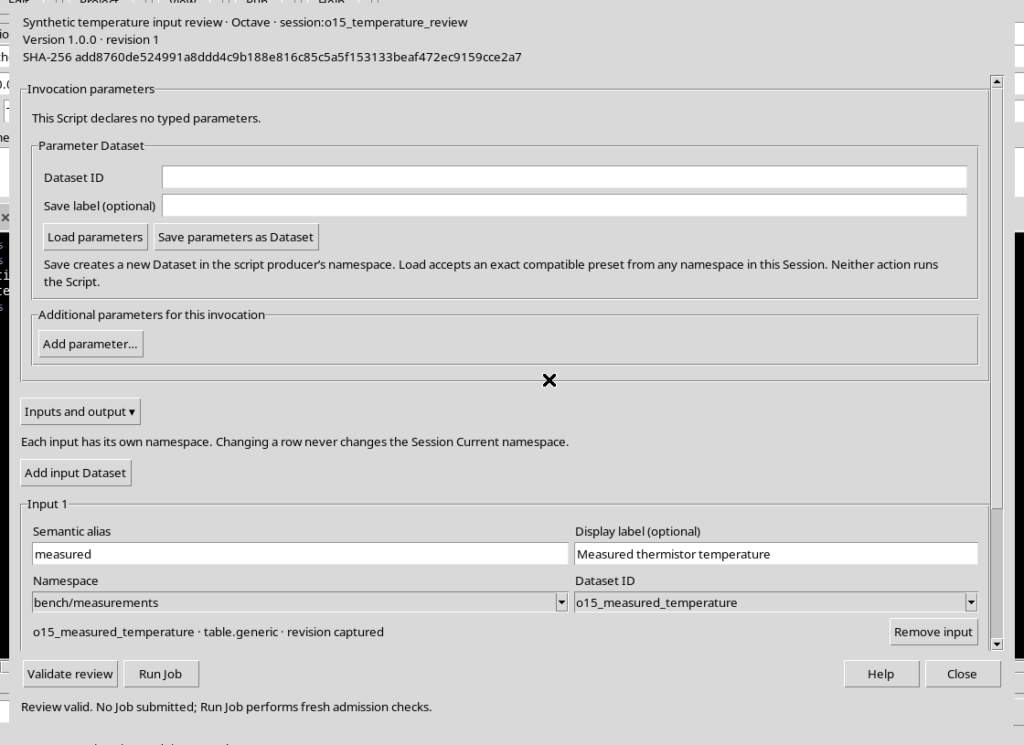
You can add a row again, choose the namespace and select the updated Dataset. When the inputs are correct, Validate review checks the preparation without submitting a Job. If you want to return to the Source, use Close.
In short: first choose the correct namespace, then the Dataset ID and finally a unique alias; check the revision indication and validate the configuration. Only a later explicit Run Job request, with parameters and outputs properly reviewed, can start the computation.