

Saving and loading a Parameter Dataset
A GNU Octave script can use a parameter configuration several times without having to rebuild it by hand. In GX-TXT Script Runner, Save parameters as Dataset saves the current values in a typed canonical Dataset; Load parameters reloads them when the Runner is opened again, including any definitions added only to the invocation.
The Parameter Dataset is not the result of a computation and is not a new script: it keeps a configuration to be reviewed before a future Run Job. The procedure shown uses GX-TXT DEV112-P005, Octave Script Workspace 1.8.3, and synthetic values.
1. Preparing a Mixed Configuration in the Runner
Start from a saved Octave script containing some gxtxt_parameter_declare declarations. For example, a numeric coefficient, a number of samples and an enumerated mode can be declared:
gxtxt_parameter_declare('gain', 'double', 'default', 2.0, ...
                        'min', 0.0, 'max', 5.0);
gxtxt_parameter_declare('samples', 'integer', 'default', 5, ...
                        'min', 1, 'max', 20);
gxtxt_parameter_declare('mode', 'choice', 'default', 'linear', ...
                        'values', {'linear', 'robust'});
Saving the Source makes these parameters part of the registered definitions, without running the code.
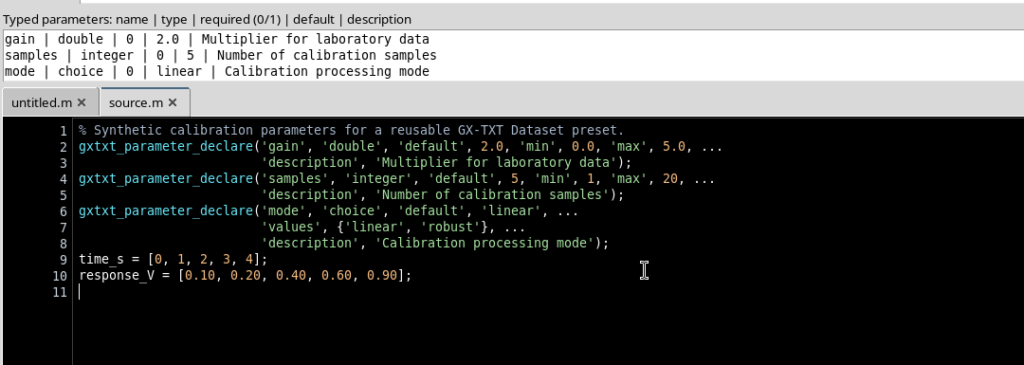
Open Run → Open Script Runner…. The Source parameters appear in the Invocation parameters section, initially with the declared defaults.
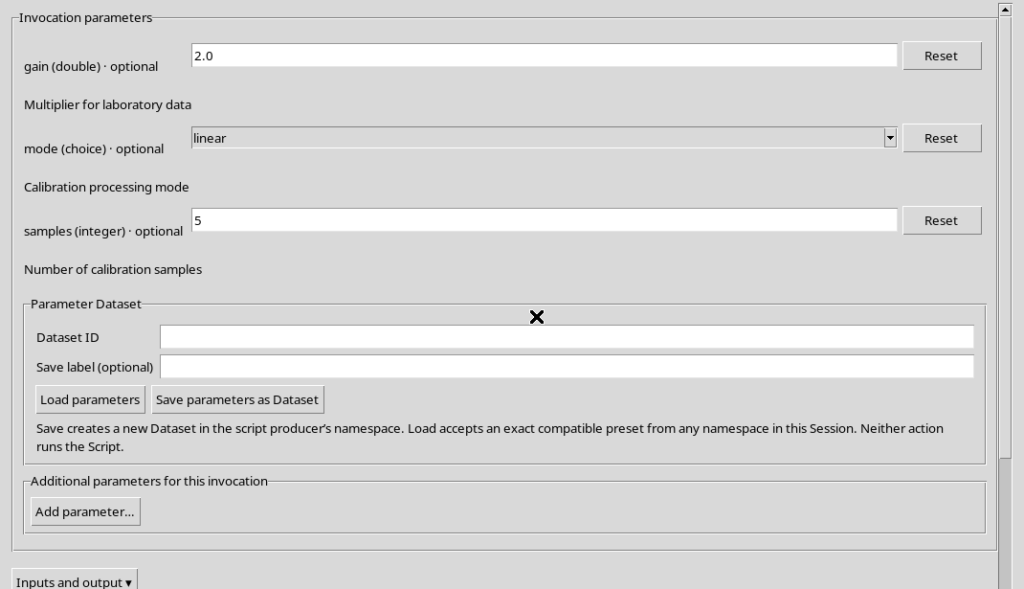
Set gain = 3.5, samples = 9, mode = robust. In the Additional parameters for this invocation section, add offset_V (double, value 0.25) and use_reference (boolean, checked). Validate review must confirm the values. This gives a mixed configuration of five parameters.
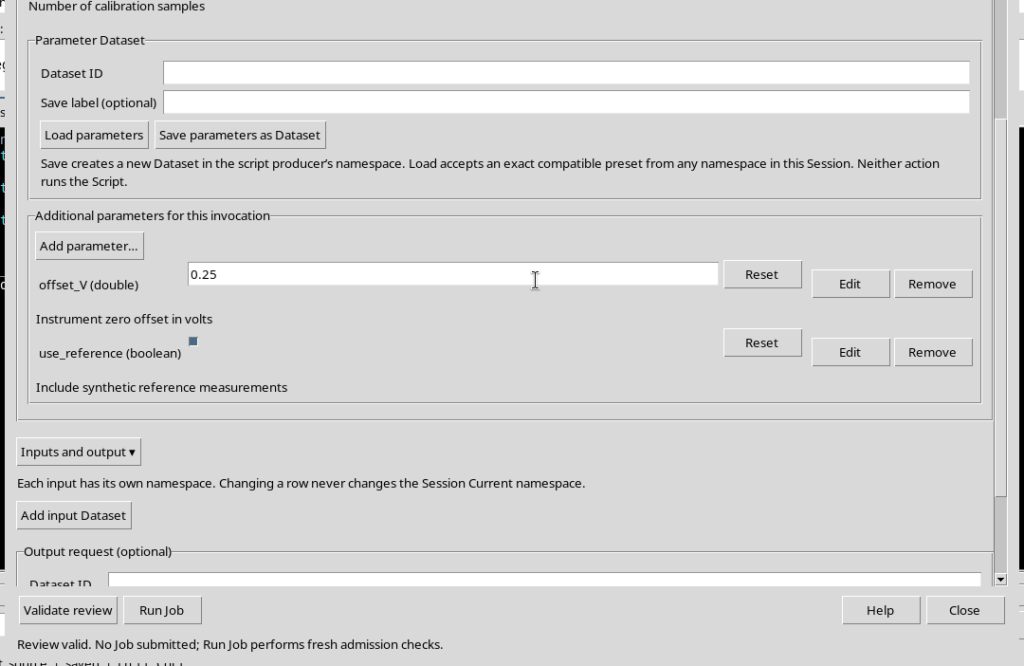
2. Entering the Dataset ID and the Label
The Parameter Dataset section contains Dataset ID, Save label (optional) and the buttons Load parameters and Save parameters as Dataset. The Dataset ID must be a new valid canonical identity in the Session.
If you try Save parameters as Dataset with the ID left empty, the GUI rejects the operation and reports that dataset_id is missing.
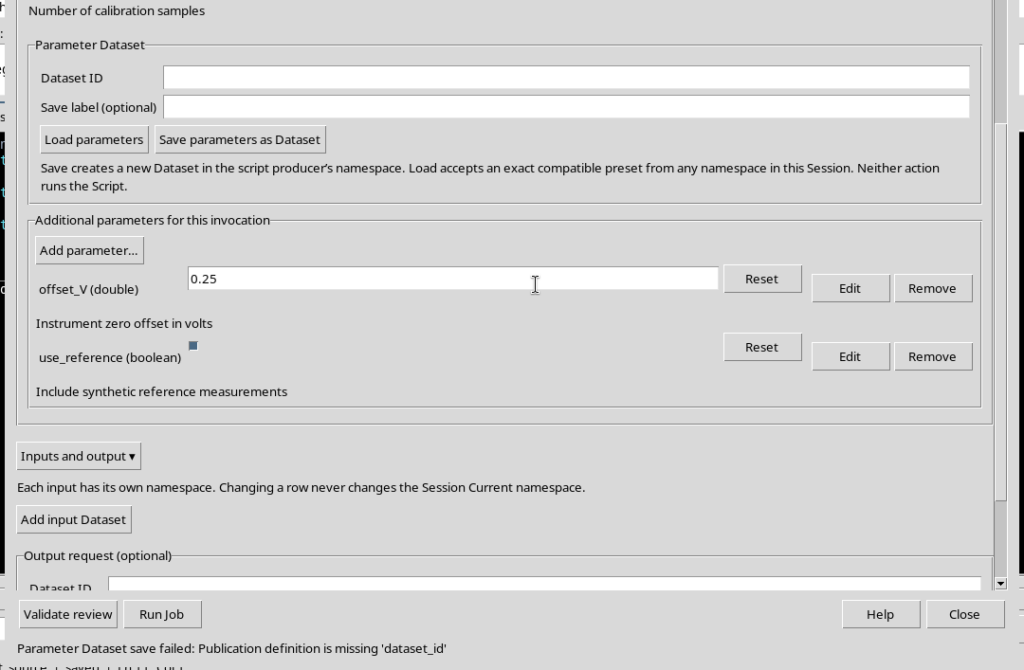
For the example you can use o17_temperature_preset as Dataset ID and Synthetic temperature calibration settings as descriptive label. The label is meant for human reading; the ID remains the canonical reference for loading.
3. Saving the Configuration Without Running Octave
Press Save parameters as Dataset. After validation, the Runner shows the message Parameter Dataset … committed. No Job submitted. This confirms the publication of the Parameter Dataset, not the submission of the scientific computation.
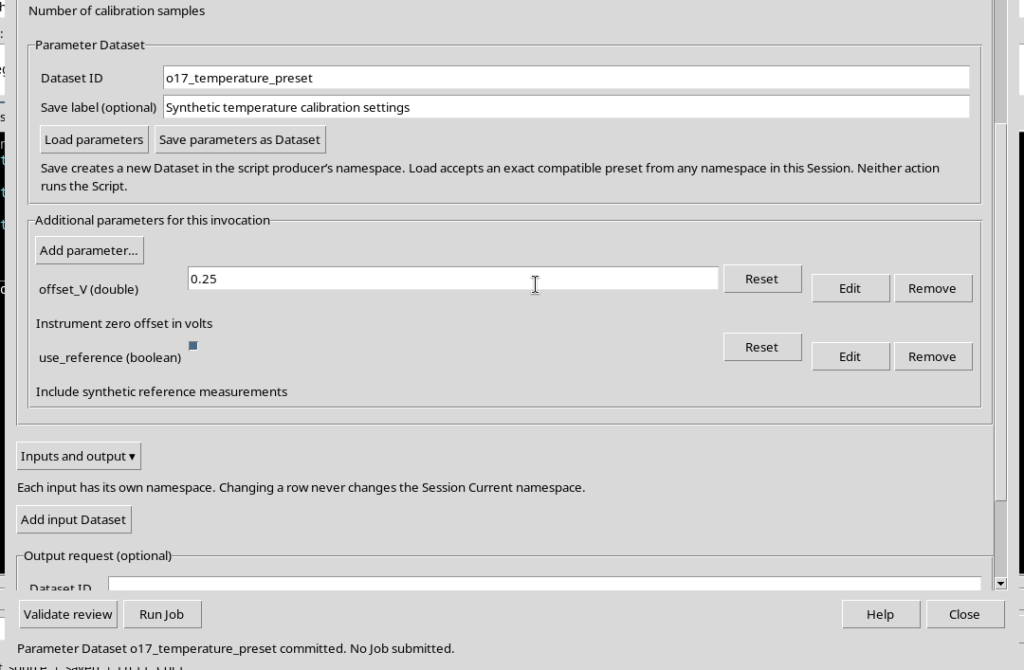
The created Dataset uses the gxtxt.script_parameters.v1 contract. GX-TXT also stores the identity of the script, its revision and the SHA-256 fingerprint of the source, in addition to the typed parameters and the definitions that had been added to the single invocation.
4. Understanding What the Parameter Dataset Contains
The preset is a canonical Dataset with a single row of values, not a table of experimental measurements. For the example configuration the structure is:
| Canonical variable | Type | Saved value |
|---|---|---|
p_gain | float64 | 3.5 |
p_mode | string | robust |
p_samples | int64 | 9 |
p_offset_V | float64 | 0.25 |
p_use_reference | bool | true |
preset_marker | bool | true |
The variables with the p_ prefix represent the saved parameters. preset_marker is the marker that lets the system keep a canonical row even in special cases of empty string values. It is not a sixth scientific parameter of the script.
The provenance information links the preset to the registered declarations and to the additional definitions. A change to the identity or schema of the script does not automatically make an old preset compatible.
5. Avoiding Overwriting an Existing Dataset
Save parameters as Dataset creates a new Dataset, but does not implicitly overwrite an existing ID. If you repeat the save with the same Dataset ID, the Runner answers Dataset ID … already exists.
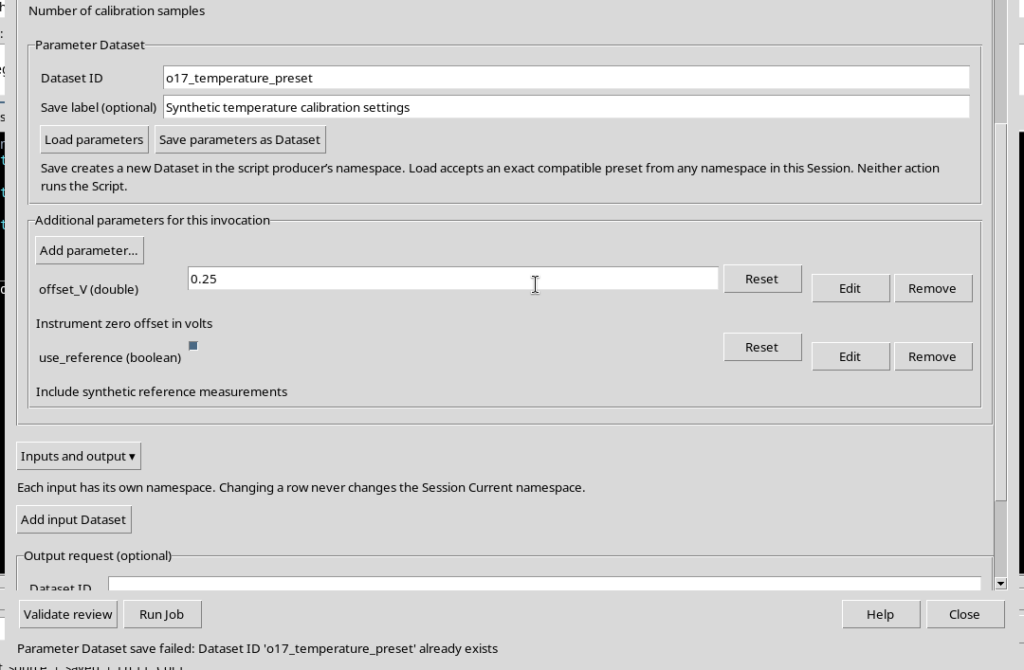
To keep a second configuration, use a new ID. To change the current values in the Runner you do not need to rewrite the previously saved Dataset.
6. Reopening the Runner Before Loading a Preset
Close the window with Close, keeping the script registered. Reopen Run → Open Script Runner…. The temporary definitions added only to the previous invocation are not present: the parameters declared in the Source remain, with their defaults.
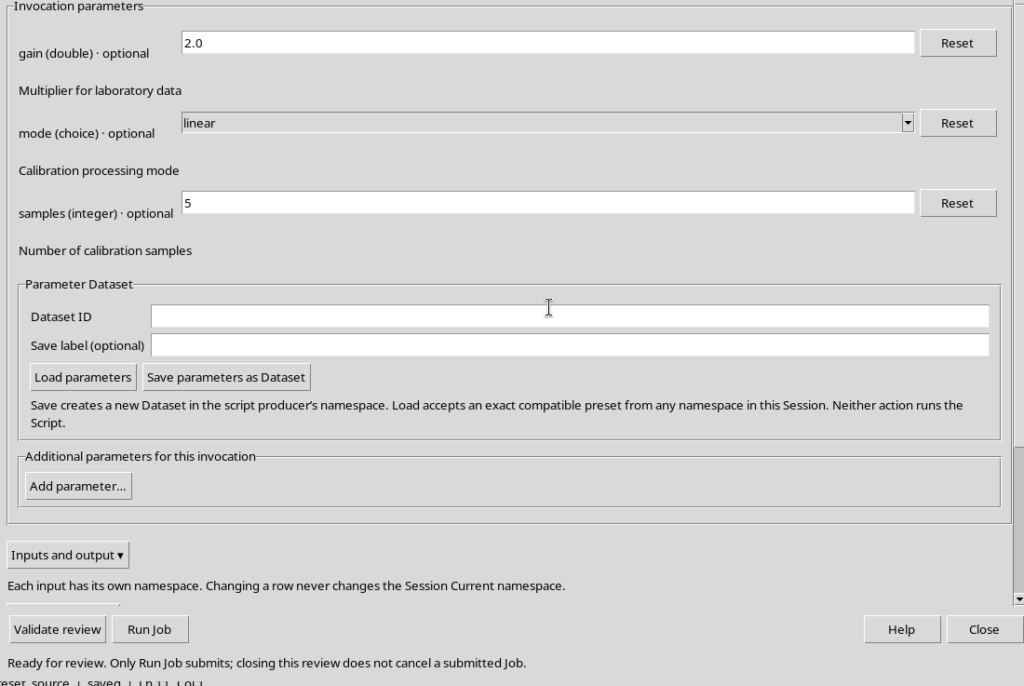
This does not mean that the preset has been lost. The Dataset was published separately and can be recalled through its ID.
7. Loading and Restoring the Whole Configuration
In the Parameter Dataset → Dataset ID field, enter the identity of the preset, then press Load parameters. The Runner answers Loaded … Review values before Run Job.
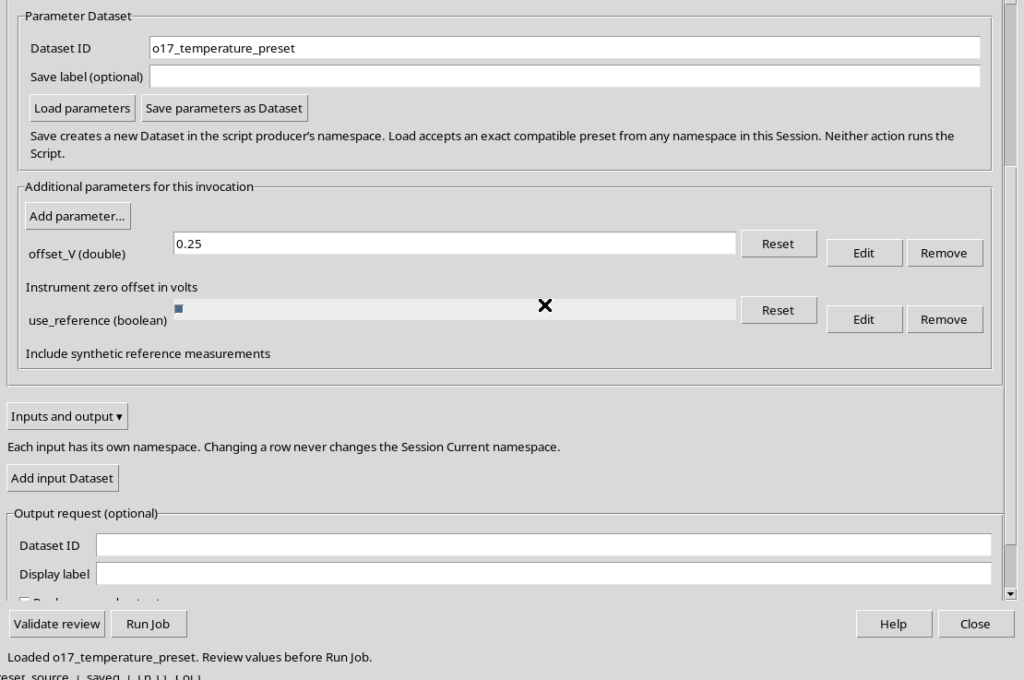
In our example gain = 3.5, mode = robust, samples = 9, offset_V = 0.25 and use_reference = true come back. The rows of the temporary parameters reappear with the Edit, Remove and Reset controls.
Loading checks the compatibility of declarations, types and canonical variables. A successful load does not start the Octave code: the values must still be reviewed.
8. Changing the Loaded Values and Reloading Them
Once loaded, the values remain editable: you can, for example, switch to gain = 4.0, offset_V = 0.5 and uncheck use_reference. Validate review checks the new configuration without overwriting the saved preset.
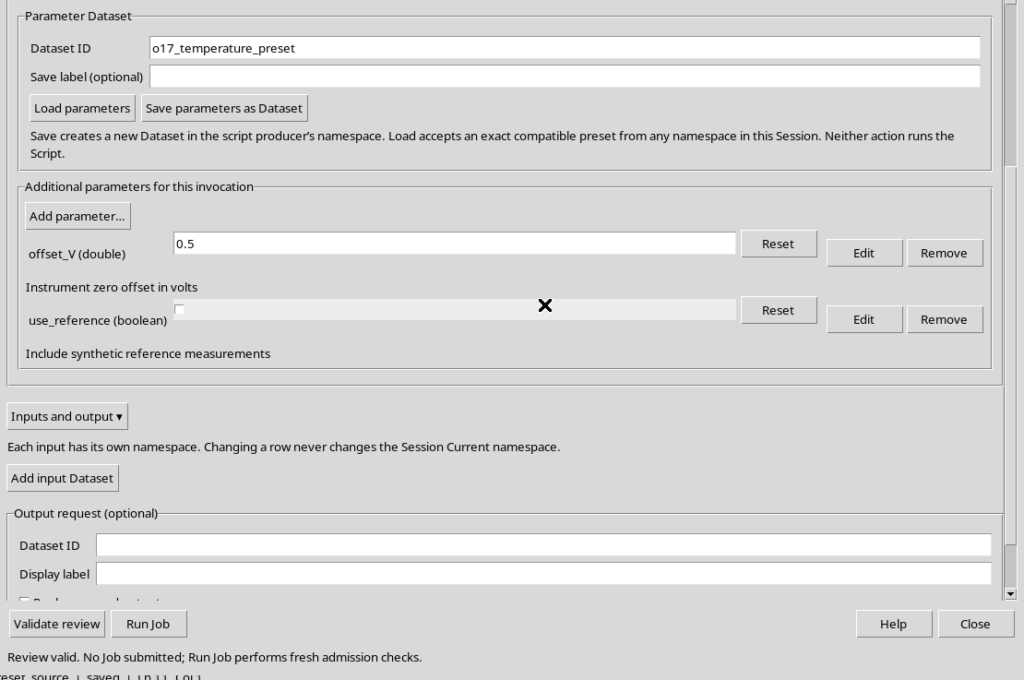
Pressing Load parameters again with the same ID, the Runner restores the five originally saved values. This operation replaces the values in the preparation screen; it is not a new publication.
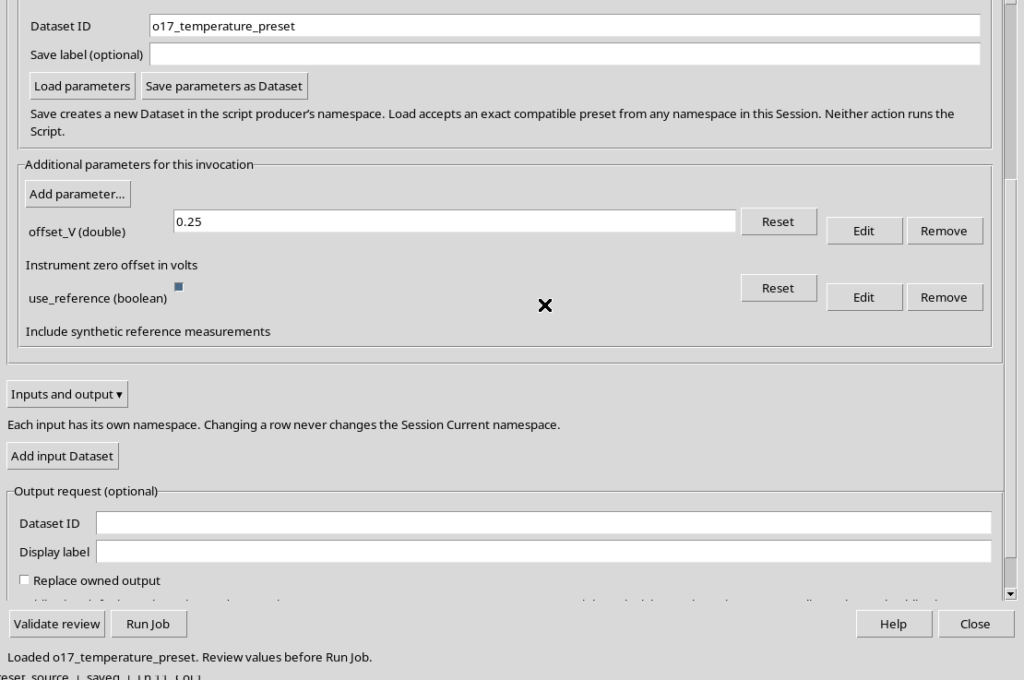
9. Handling Namespaces and Revisions Without Using Stale Data
The preset is created in the namespace of the script producer. Load parameters can also accept a compatible Dataset located in a different namespace of the same Session.
The selection keeps a reference to the Dataset revision. If the Dataset is moved or modified after loading, Validate review can reject the preparation, reporting Parameter Dataset changed; load it again.
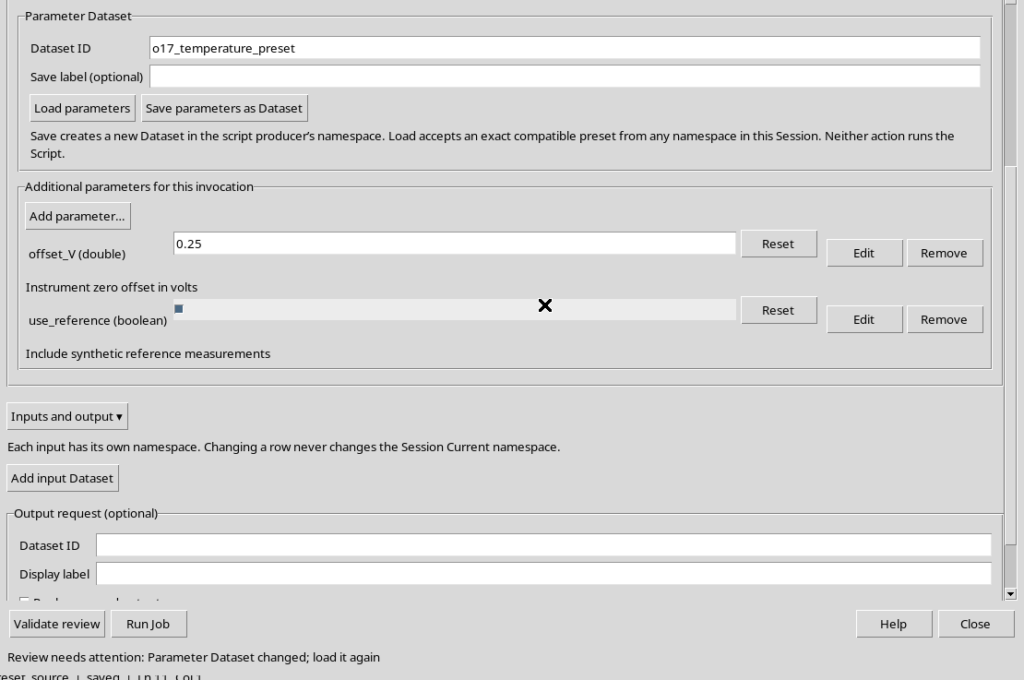
To proceed, use Load parameters once more: GX-TXT reads the Dataset again, captures its current revision and lets you review the values. In the example, loading from a different namespace succeeded after the new selection.
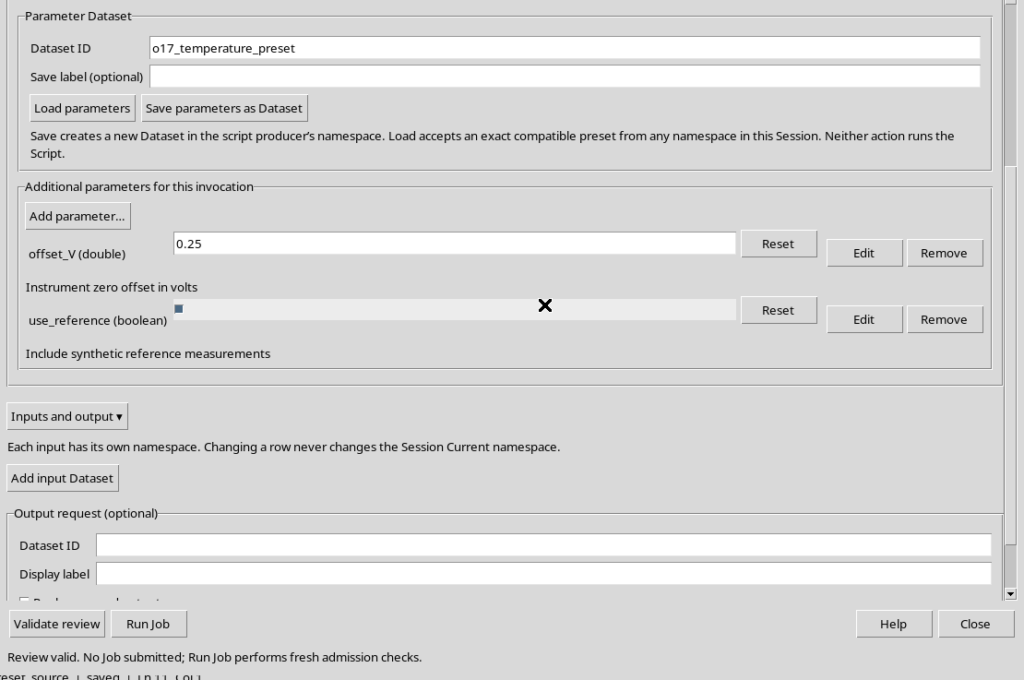
10. Rejecting Incompatible Presets and Completing the Check
A Parameter Dataset is not a universal configuration for any script. If it is selected in a Runner associated with another registered script, GX-TXT checks the reference and can reject the load with Parameter Dataset has incompatible reference. The parameters of the second script are not partially modified.
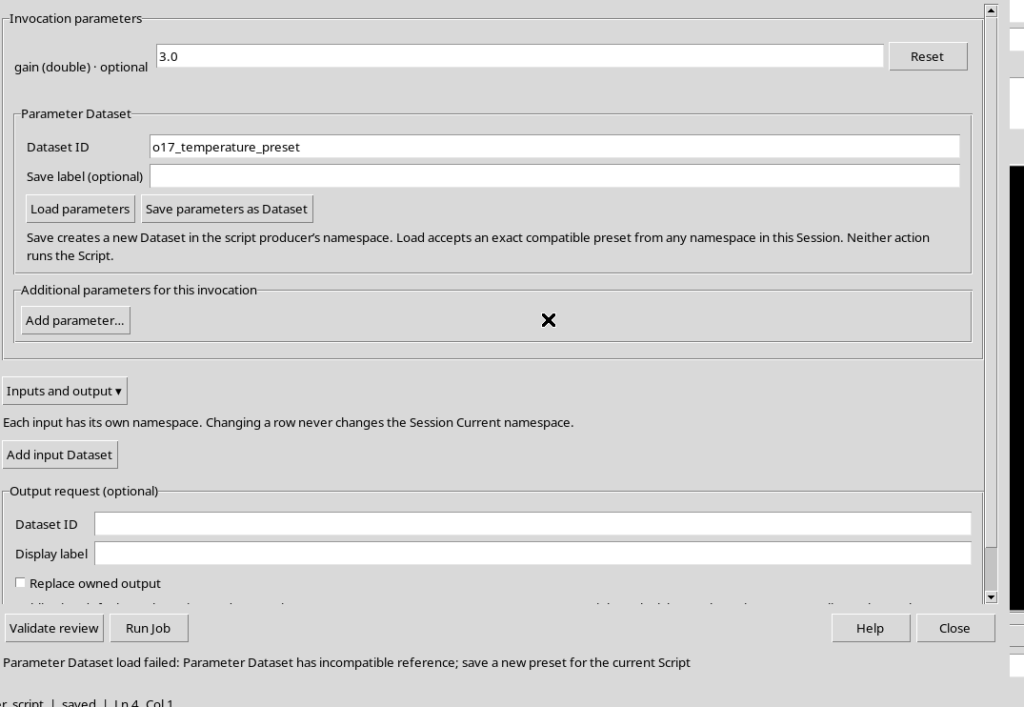
Reopening the Runner of the original script, Load parameters restores the valid preset instead. Press Validate review and check the message Review valid. No Job submitted before deciding on any execution.
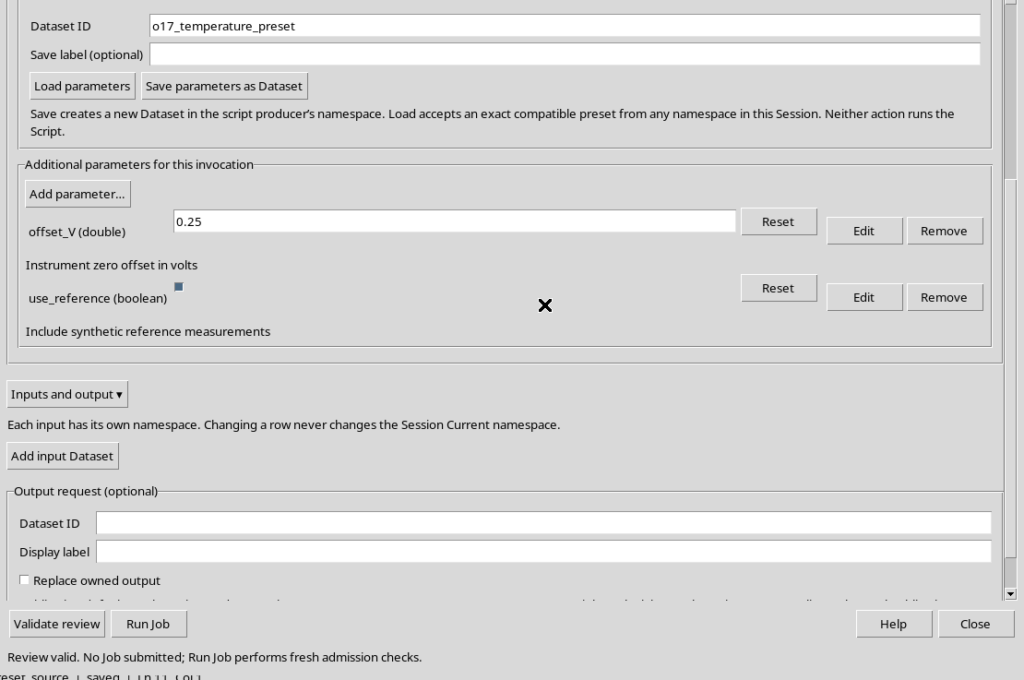
To remember: Save parameters as Dataset publishes a canonical configuration Dataset; Load parameters rebuilds its additional definitions and typed values from it; Validate review checks the preparation, while only a later Run Job can start the Octave script. It is best to use a new Dataset ID for each configuration to be kept, and to reload the preset when its revision changes.