

Checking outputs and running a controlled Octave Job
The Run Job button of GX-TXT Octave Script Workspace starts a supervised execution: it is not equivalent to Validate review, which checks the configuration without computing. In this guide we prepare a script with five synthetic voltage measurements, declare an output Dataset, run the code once and verify the result in the Script Jobs supervisor and in the canonical Dataset.
The procedure concerns GX-TXT DEV112-P005 and the Octave Script Workspace 1.8.3 module. It uses only artificial data, a short-running script and the GX-TXT public APIs. No laboratory instruments are needed.
1. Saving a Small Script with the Public APIs
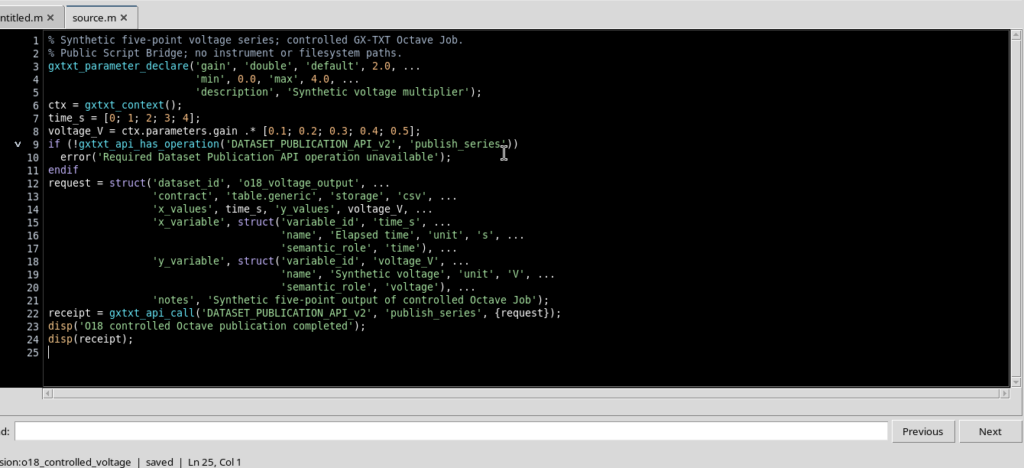
In the Source create a new GNU Octave script and save it with File → Save, assigning it an identity in the Session. The following example defines gain, computes five points and publishes a table through Dataset Publication API v2.
% Synthetic five-point voltage series; no external instrument is used.
gxtxt_parameter_declare('gain', 'double', 'default', 2.0, ...
                        'min', 0.0, 'max', 4.0, ...
                        'description', 'Synthetic voltage multiplier');

ctx = gxtxt_context();
time_s = [0; 1; 2; 3; 4];
voltage_V = ctx.parameters.gain .* [0.1; 0.2; 0.3; 0.4; 0.5];

if (!gxtxt_api_has_operation('DATASET_PUBLICATION_API_v2', 'publish_series'))
  error('Required Dataset Publication API operation unavailable');
endif

request = struct('dataset_id', 'o18_voltage_output', ...
                 'contract', 'table.generic', 'storage', 'csv', ...
                 'x_values', time_s, 'y_values', voltage_V, ...
                 'x_variable', struct('variable_id', 'time_s', ...
                                      'name', 'Elapsed time', 'unit', 's', ...
                                      'semantic_role', 'time'), ...
                 'y_variable', struct('variable_id', 'voltage_V', ...
                                      'name', 'Synthetic voltage', 'unit', 'V', ...
                                      'semantic_role', 'voltage'), ...
                 'notes', 'Synthetic five-point output of controlled Octave Job');

receipt = gxtxt_api_call('DATASET_PUBLICATION_API_v2', ...
                         'publish_series', {request});
disp('O18 controlled Octave publication completed');
disp(receipt);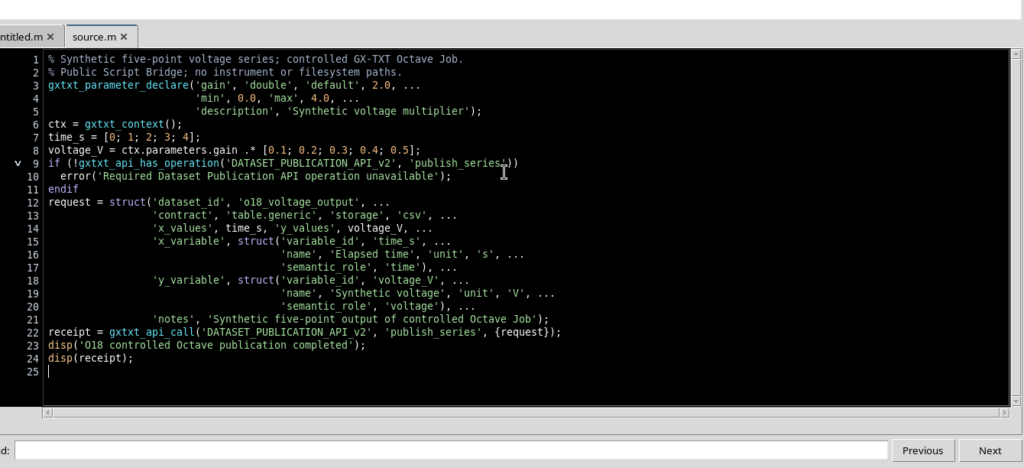
Here gxtxt_parameter_declare statically registers a double parameter between 0 and 4. During execution, gxtxt_context() provides the effective value of gain selected in the Runner. gxtxt_api_has_operation checks that the public operation is present; gxtxt_api_call requests it from the GX-TXT provider.
The result will be a Dataset with two distinct variables, time_s in seconds and voltage_V in volts. The table.generic contract describes the canonical table; the Dataset ID o18_voltage_output is the identity chosen by the script for this publication.
2. Opening the Output Request Section
With the script saved, choose Run → Open Script Runner…. In the window locate Inputs and output, then Output request (optional). It contains the Dataset ID and Display label fields and the Replace owned output checkbox.
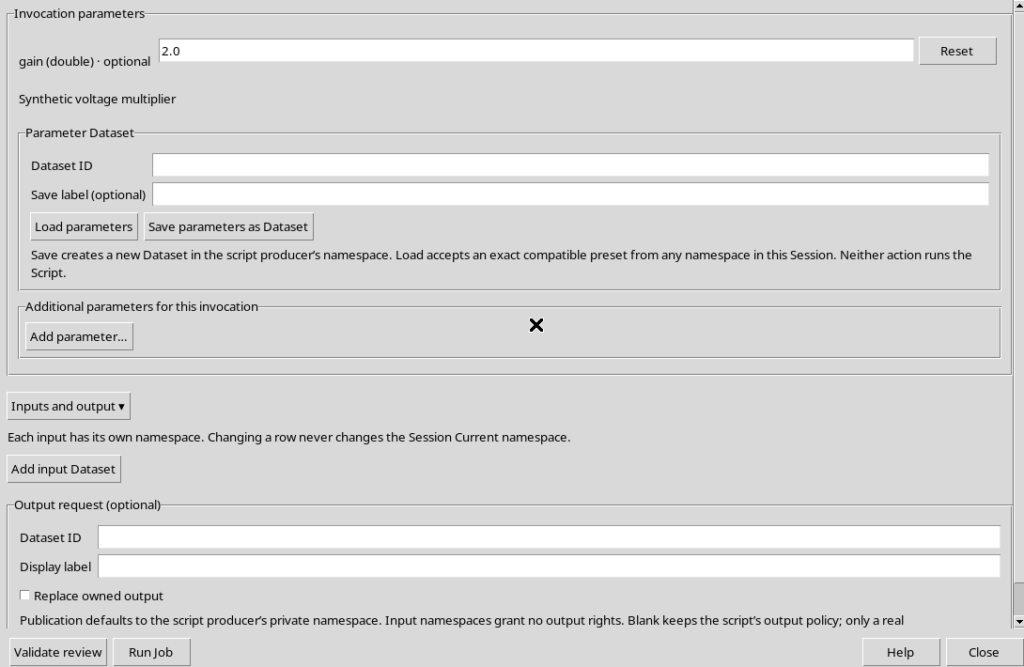
You need to distinguish the output request from the publication commit: entering an ID in the Runner does not automatically create the Dataset. Publication happens only when the scientific code requests and completes the publication API. Likewise, the label in the request documents the intention of the call, while the names of the published variables come from the scientific definition.
3. Checking the Output Identifier
The Dataset ID must follow the grammar of GX-TXT identities. For example, a name containing spaces is not valid: Validate review rejects it with an Invalid dataset ID message.
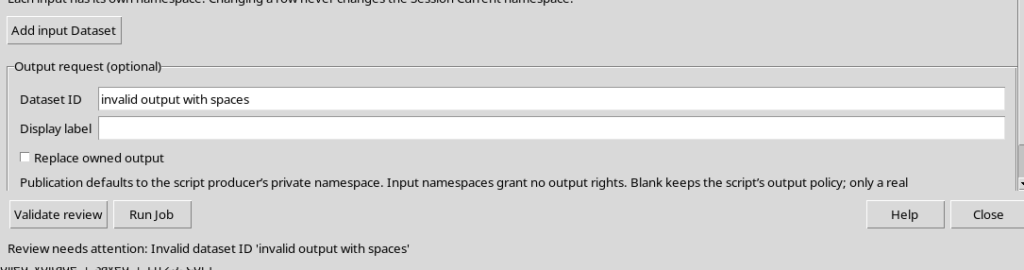
This is a check of the request, not proof that the code has run. Correct the field before proceeding.
4. Validating the Request Without Execution
Use Dataset ID = o18_voltage_output, Display label = Synthetic voltage series, five points and initially leave Replace owned output unchecked. Check that gain = 2.0, then press Validate review.
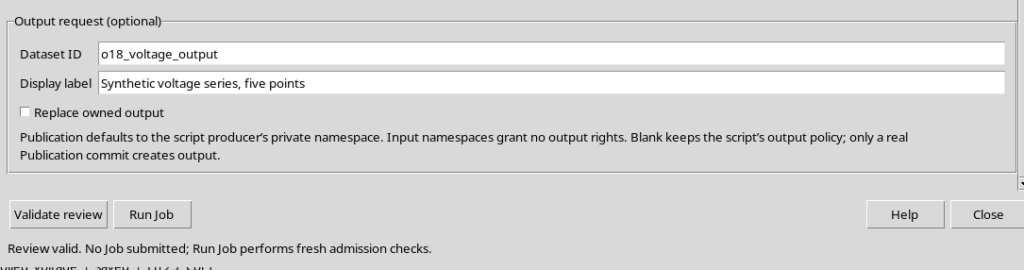
The message Review valid. No Job submitted confirms that the parameters and the request are consistent. The output name must match the one the script intends to publish: in the example the request.dataset_id definition contains exactly the same ID.
5. Submitting Run Job Only Once
Press Run Job. GX-TXT creates the request with an immutable snapshot of the registered source, its revision and the accepted parameters. During preparation the controls may be temporarily disabled and Submitting immutable Script and input snapshots… appears.
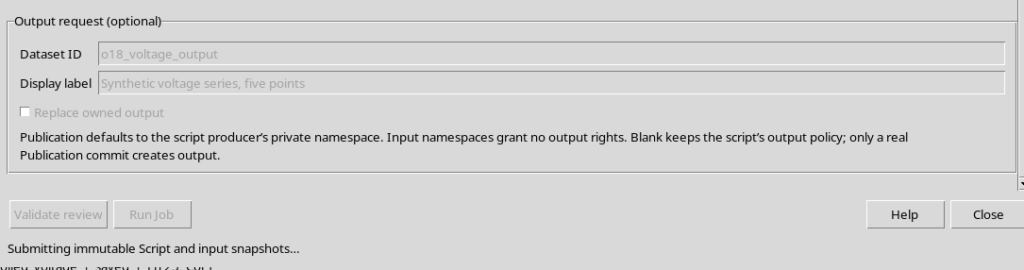
This phase must not be confused with final success. The Job goes through the supervisor states; opening or closing the review window does not replace checking the actual state.
6. Checking the Outcome in Script Jobs
Open Script Jobs and locate the Job of the Octave script. The table shows the registered reference, language, version, revision, state and times.
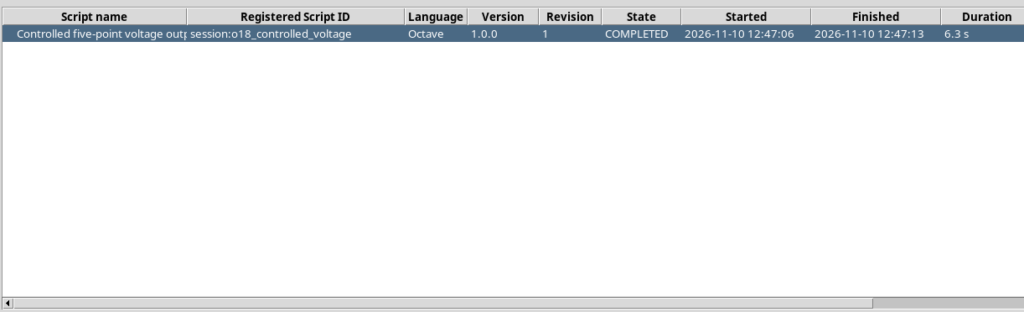
COMPLETED indicates that the supervisor has successfully finished that execution. In the example the Job uses GNU Octave 9.4.0 and the script registered at revision 1, and it ends without errors. Any automatic CORE services may have their own separate Jobs: they must not be confused with the Octave execution requested by the user.
7. Opening the Execution Details and Reading the Result
Select the Job and open the execution details. In the Program output section, the message printed by the script confirms the publication call. The result contains the Dataset ID, the CSV provider and the SHA-256 fingerprint of the content.
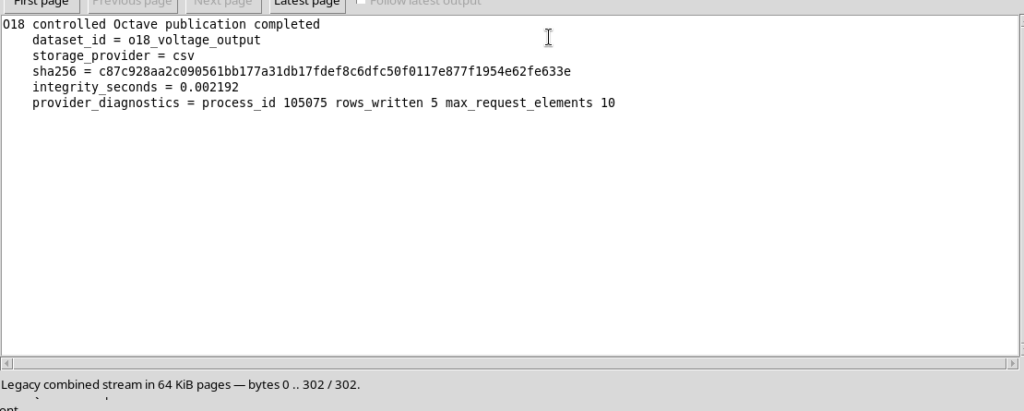
Besides the program message, GX-TXT keeps the execution report. This distinguishes the identity of the registered source from the final published content: they are two different objects, each verifiable through its own fingerprint.
8. Checking the Five Points of the Canonical Dataset
The o18_voltage_output Dataset has been published in the private namespace of the analysis.octave_script producer, with the table.generic contract. The canonical read returns the two variables time_s and voltage_V, both with five values.
| Time (s) | Voltage (V) |
|---|---|
| 0 | 0.2 |
| 1 | 0.4 |
| 2 | 0.6 |
| 3 | 0.8 |
| 4 | 1.0 |
The results follow the relation V_i = g * (0.1 + 0.1*i) V, with i = 0,1,2,3,4 and g = 2.0. The small deviation in the decimal representation in the CSV, when present, is the normal serialization of floating-point numbers. The scientific match is therefore checked within the relevant numerical precision.
Job completion and the presence of the canonical Dataset are complementary checks: a completed Job does not automatically imply that a Dataset has been published. In this case the publication is also confirmed by the canonical record and by the content of the five rows.
9. Avoiding Unintended Overwriting
If the same Output Dataset ID is kept in the Runner and Validate review is selected after the output already exists, GX-TXT rejects the create-only request: Output Dataset already exists; choose a new ID or review owned replacement.
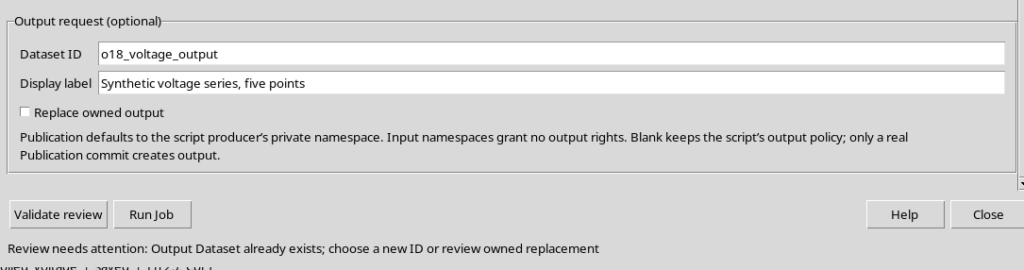
If the output belongs to the same authorized producer, you can select Replace owned output to explicitly review the replacement intention.
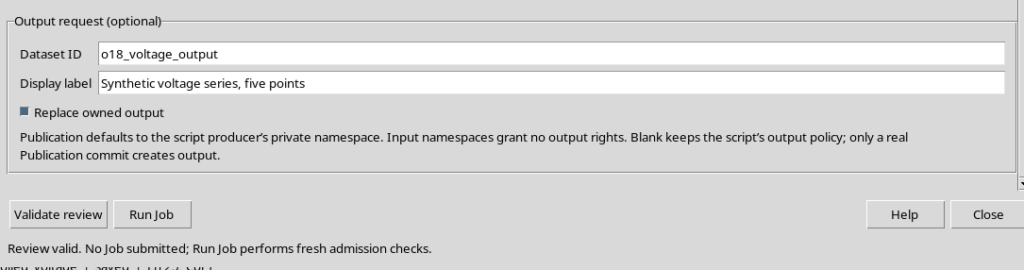
Caution: in this example only the GUI validation of the owned replacement was checked. No second Job was submitted and no replacement was carried out. A future publication that must actually replace a Dataset also requires the appropriate replace_owned intention in the request to the API, with the producer ownership checks. Checking the box does not by itself guarantee that a script performs a replacement.
10. Closing the Runner and Keeping the Result
After reading the outcome, return to the Source and use Close to close the review. Closing is not a command to cancel a Job that has already been admitted. The original script remains registered and the produced Dataset continues to be available in the Session.
Path to remember: save the Source, open Run → Open Script Runner…, fill in and validate the Output request, press Run Job only once, check Script Jobs, read Program output and verify the published Dataset. Publication must be explicit in the code: Output request, Validate review, Run Job and Dataset commit are different steps, with different responsibilities.