

Script Jobs Manager: history, filters and Rerun
Script Jobs Manager is the window from which you consult script executions that have already been started, check their state, open logs and details, apply filters and prepare a new execution through Rerun. The history keeps distinct executions: reopening the details of a Job does not mean running it again.
This guide uses GX-TXT DEV112-P005, Octave Script Workspace 1.8.3 and GNU Octave, keeping the English labels of the interface. The code editor is shown in High Contrast Dark; the other Tk/ttk controls keep the normal look of the application.
1. Saving an Octave Script with a Numeric Parameter
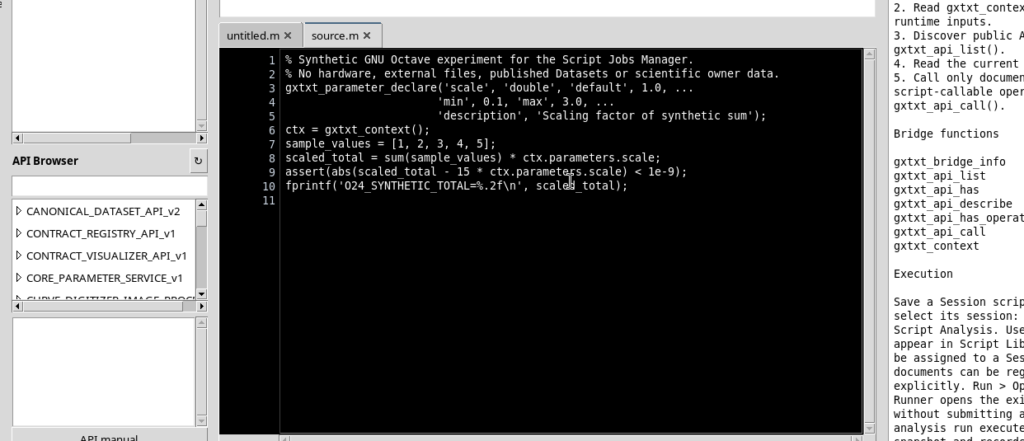
With an active Session, open Octave Script Workspace, choose File → New Script, assign an identifier and save the following code with File → Save.
% Synthetic GNU Octave experiment for the Script Jobs Manager.
% No hardware, external files, published Datasets or scientific owner data.
gxtxt_parameter_declare('scale', 'double', 'default', 1.0, ...
                       'min', 0.1, 'max', 3.0, ...
                       'description', 'Scaling factor of synthetic sum');
ctx = gxtxt_context();
sample_values = [1, 2, 3, 4, 5];
scaled_total = sum(sample_values) * ctx.parameters.scale;
assert(abs(scaled_total - 15 * ctx.parameters.scale) < 1e-9);
fprintf('O24_SYNTHETIC_TOTAL=%.2f\n', scaled_total);
gxtxt_parameter_declare describes a typed parameter to the Runner: in this case scale, of type double, with default value 1.0 and limits from 0.1 to 3.0. gxtxt_context() provides the public context of the execution, including the parameter value actually approved in the Runner. The sum of the five samples is 15; multiplying it by scale = 1.0 gives 15.00. assert checks the consistency of the result, while fprintf writes it to the program output.
Start Run → Open Script Runner…, check the proposed parameter, press Validate review and finally Run Job. The Runner starts a new execution associated with the saved revision of the source.
2. Opening Script Jobs Manager and Recognizing the State of a Job
From the Run → Script Jobs Manager… menu open the execution history. A row represents a specific Job, not just the name of a script: the same source may have been run several times, even with different parameters.
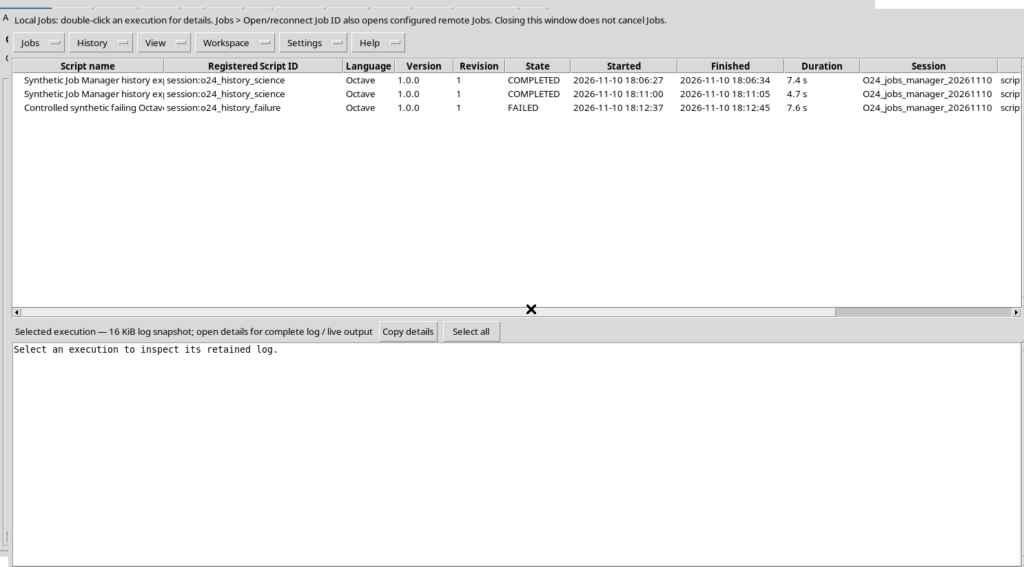
The main columns identify Script name, Registered Script ID, Language, Version, Revision, State, Started, Finished, Duration, Session and Job ID. Scroll horizontally when some columns are not visible. In the example the first Job is COMPLETED, that is, finished successfully.
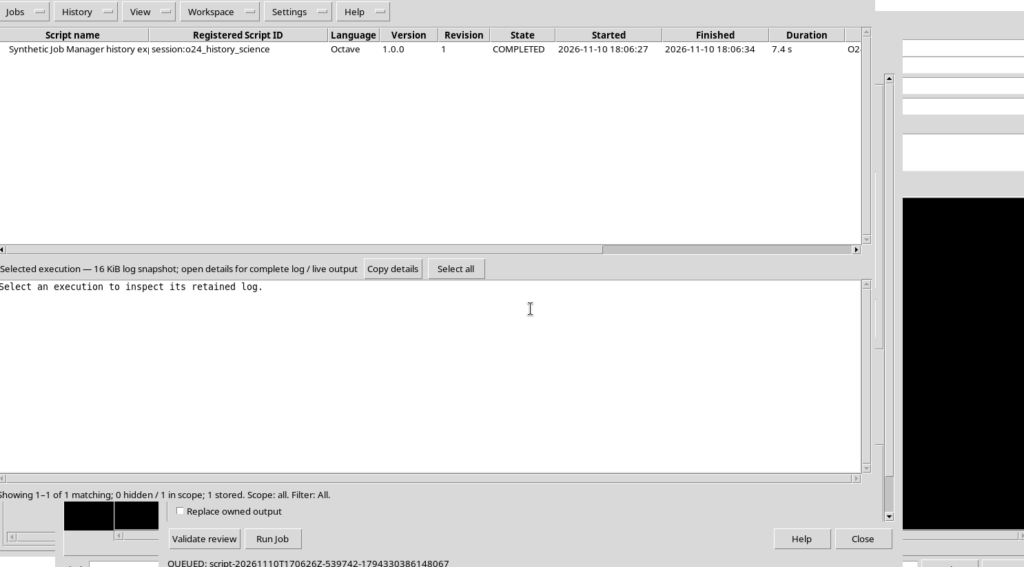
A Session and a source identifier describe the origin of the execution; a Job ID, instead, distinguishes the single executed instance and lets you find its results later.
3. Selecting a Row and Consulting the Log Preview
Click a Job to show the Selected execution box below the table. This box summarizes the identity of the script, the revision, the execution result and a bounded log snapshot, that is, a limited portion of the log, up to 16 KiB.
In the example the numerical result appears:
O24_SYNTHETIC_TOTAL=15.00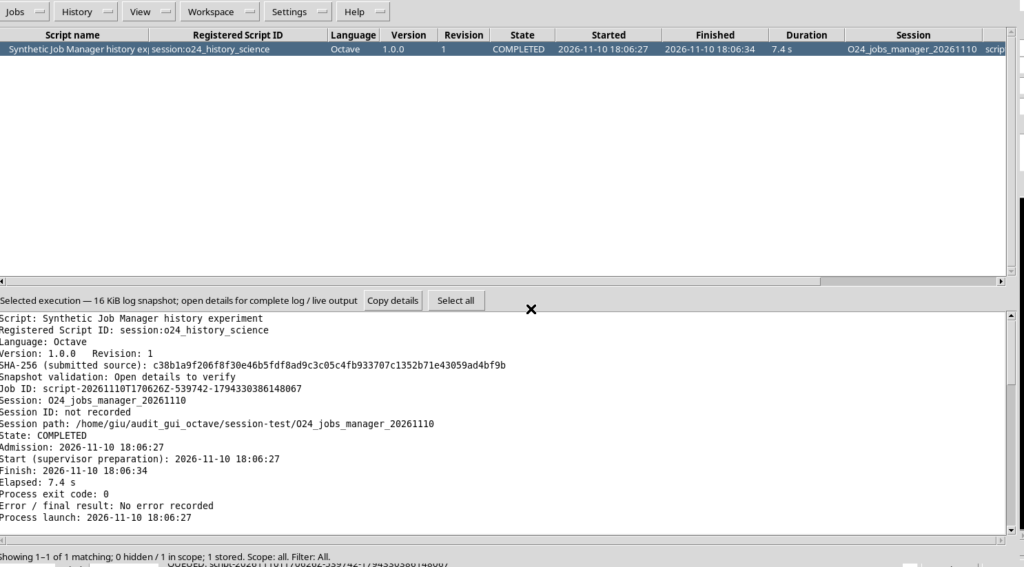
The preview must not be confused with the whole log: it is meant for quick consultation. Copy details and Select all operate on the displayed content; they do not modify the execution.
4. Opening the Full Execution Details
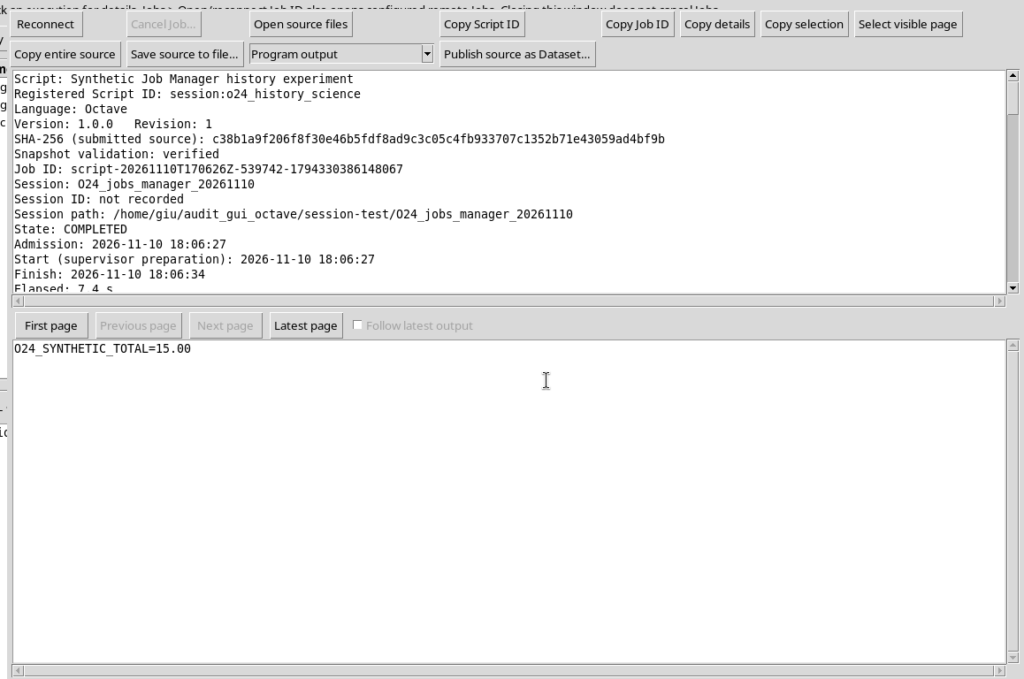
With a single Job selected, choose Jobs → Open execution details, or double-click its row. A window dedicated to the same execution opens, with identifiers, revision, runtime information and available output.
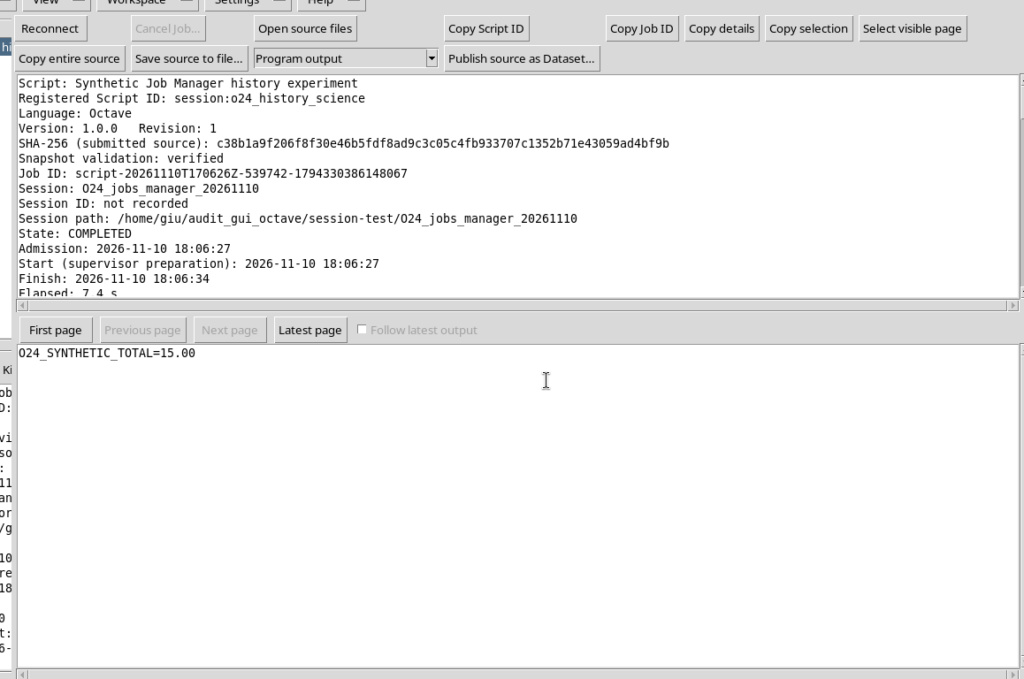
The details window does not automatically create a new Job. You can close it and return to the history. The various streams, the diagnostics and their in-depth use are covered separately in the guide to outputs.
5. Using View: Filters, Session, Sorting and Columns
The View menu offers the filters All, Active, Finished, Failed and Hidden. Active narrows the list to Jobs that are still active; Finished includes the terminal states, errors included; Failed shows the failed executions.
The window also lets you choose Scope: All Sessions or Scope: current Session. The filter limits the consultation of the history: it does not change the active scientific Session and does not start any analysis.
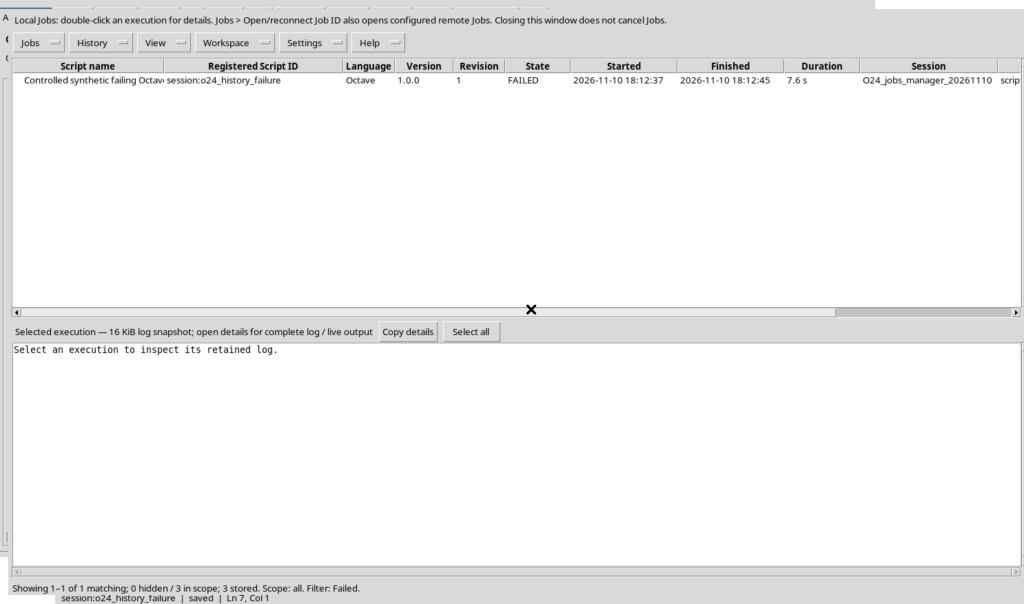
The table headers let you sort the rows, for example by State. From View → Columns you can show or hide columns without changing their original values. History pages are limited to 500 Jobs; the Previous page and Next page controls are used when the results exceed one page. Operation with more than 500 items is not illustrated in this example.
6. Rerun: Opening a New Review of the Request
Select a Job that has already finished and choose Jobs → Rerun selected…. The program opens the Runner with a message that explicitly distinguishes the new execution from the history: the original Job is kept. The originating Session must be open and the registered source must still be available.
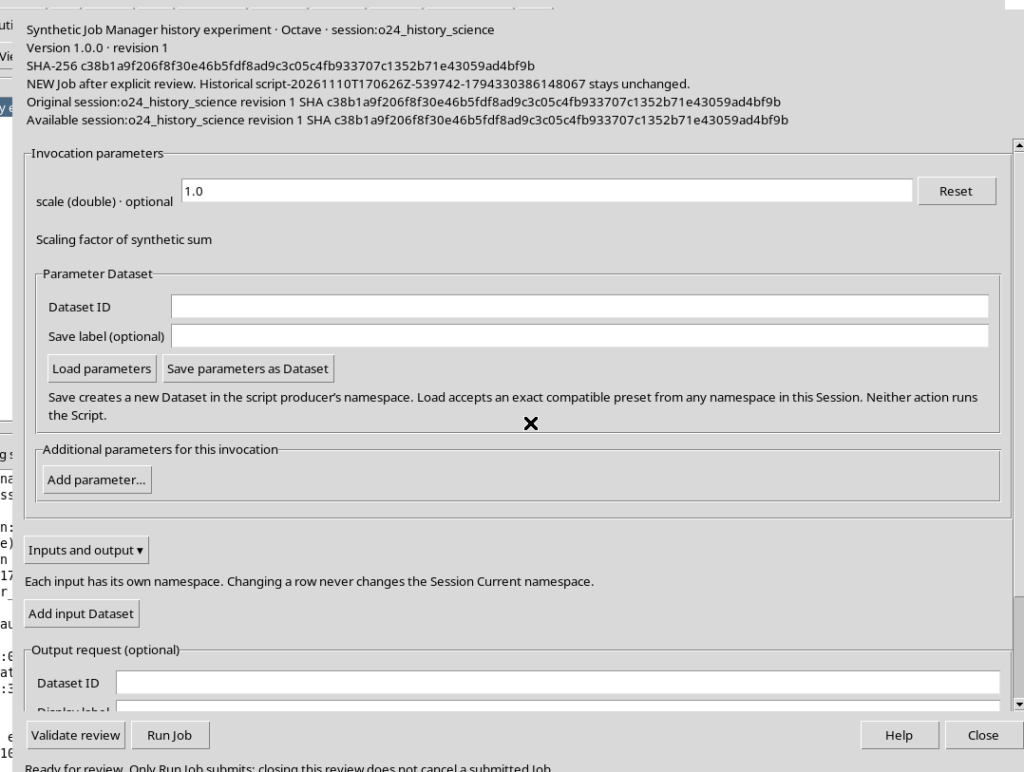
Rerun does not mean restarting the old Job. The parameters are proposed for a new review of the invocation, and the user must check them before proceeding. If the source, the resources or the inputs had changed, the differences would have to be reviewed: do not assume that a historical request is automatically repeatable.
7. Confirming the Review and Changing the Parameter
In the Runner opened by Rerun the I reviewed this invocation control appears. Without this confirmation, an attempt to use Run Job is rejected, even if the field validation is formally correct.
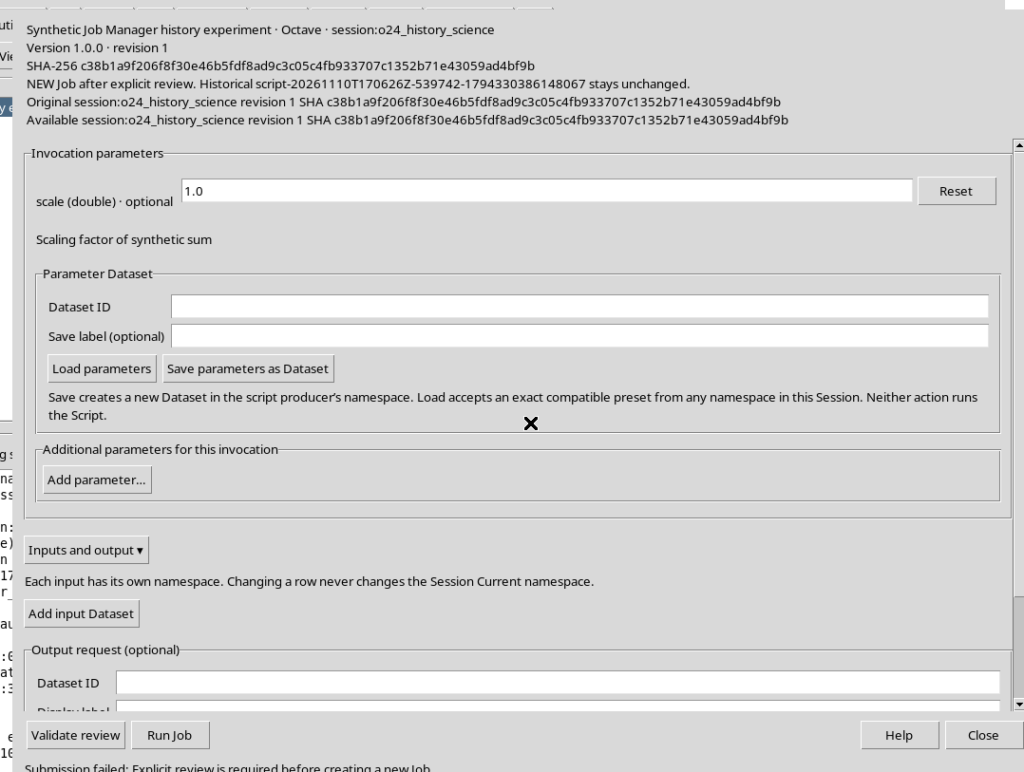
In the example, change scale from 1.0 to 2.0, check I reviewed this invocation, then choose Validate review and Run Job. The computation stays the same, but the declared parameter changes the expected result from 15 to 30.
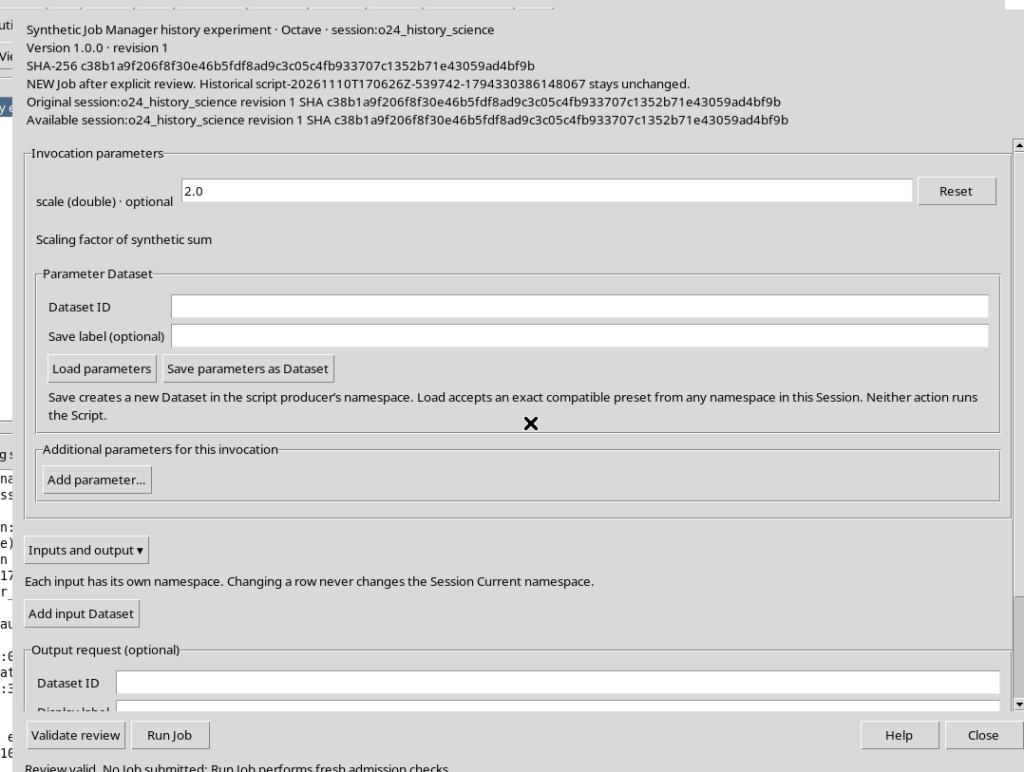
The change is made in the invocation parameters. There is no need to alter the text of the script or overwrite the registered source to run the same computation with a different value.
8. Comparing the Original Job with the New Job
After completion, reopen or refresh Script Jobs Manager. Two distinct Jobs are visible, both COMPLETED, sharing script and revision but keeping their own parameters and results.
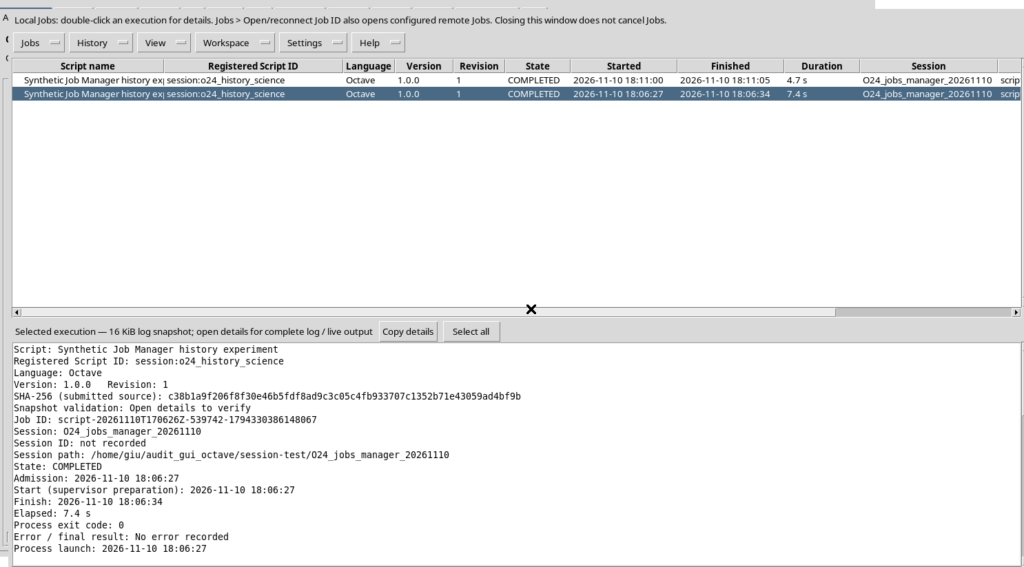
Opening their respective logs you read the values:
Prima esecuzione: O24_SYNTHETIC_TOTAL=15.00
Nuova esecuzione: O24_SYNTHETIC_TOTAL=30.00
The second Job does not replace the first. Consulting the history therefore lets you compare successive invocations while keeping the provenance of the results.
9. Interpreting a FAILED State Too
To illustrate an error, you can use another independent source:
% Synthetic controlled failure to inspect Manager's Failed filter.
% The error is intentional; only the current Session is affected.
measurements = [2, 4, 6];
raw_total = sum(measurements);
error('O24_SYNTHETIC_FAILURE: controlled user error');
fprintf('UNEXPECTED_TOTAL=%d\n', raw_total);
After the usual Validate review and Run Job, this execution ends in FAILED. The result is deliberately different from a completed computation and lets you interpret the State column.
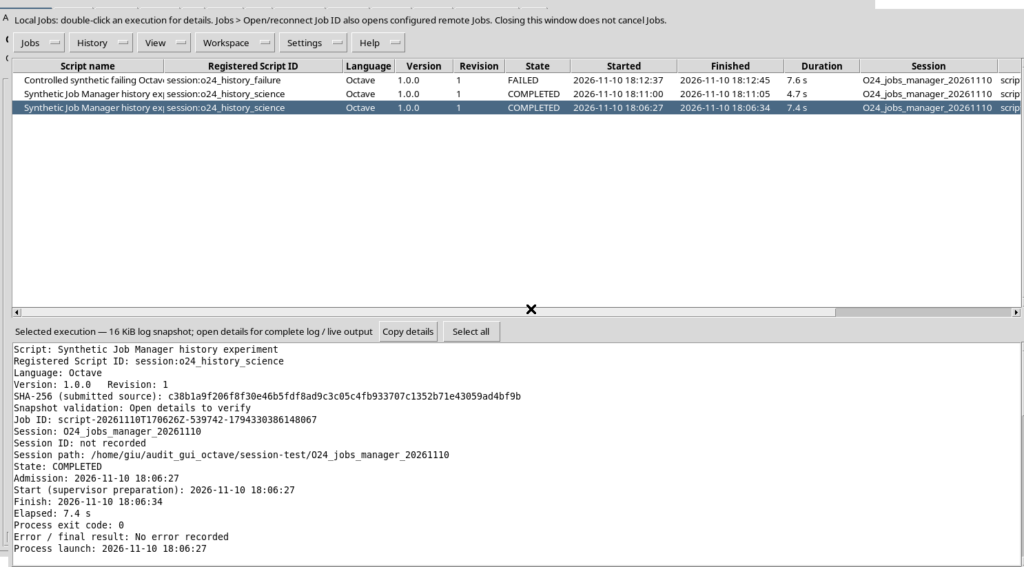
A failed Job does not imply the loss of its identifier, its logs or the executed revision. To investigate the error, open its details window; to run a corrected version of the script, prepare a new request.
10. Hiding and Restoring a Job in the History
Select a terminal row, then choose History → Hide selected / Remove from visible list. This function hides the Job from the ordinary list without deleting it. It does not remove the log or the data.
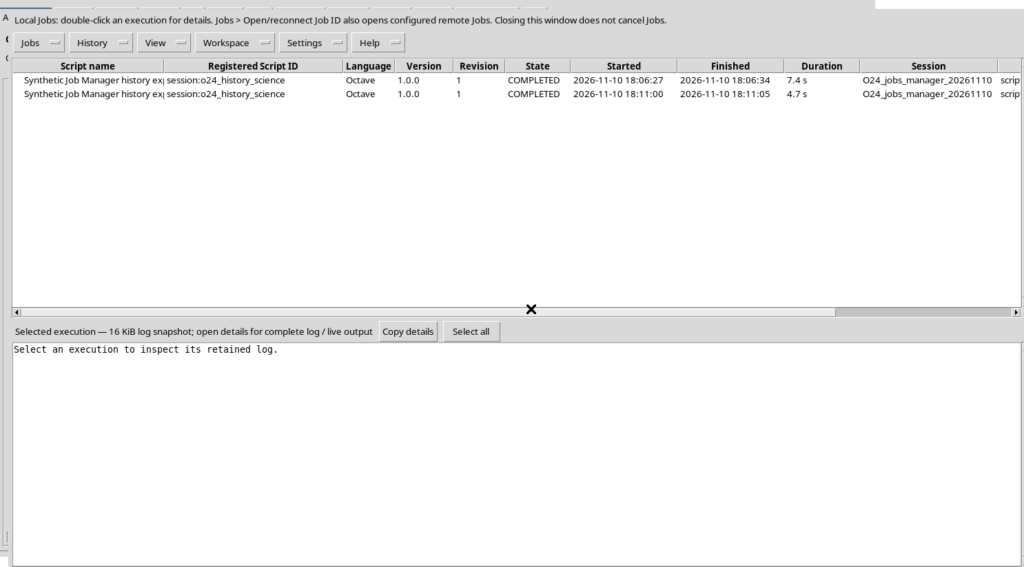
Select View → Hidden to find the hidden executions; History → Include hidden is also available to temporarily include them in the general view.
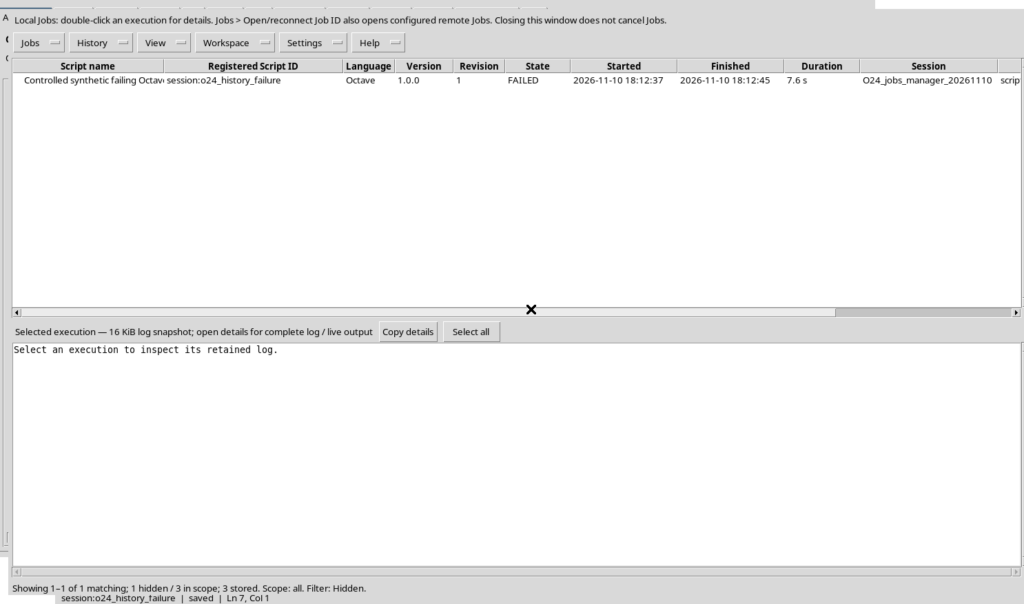
Select the hidden Job and choose History → Restore selected. Going back to View → All, the row appears again together with the others. The operation is reversible and does not require running the program again.
11. Refresh, Reconnect and Opening by Job ID
Jobs → Refresh reads the state of the displayed executions again. Jobs → Reconnect / recover local journal lets you update the connection with the local history. Both are consultation commands: they are not equivalent to Run Job and must not be used as if they restarted a processing run.
To find a specific execution, choose Jobs → Open/reconnect Job ID (local / remote)… and enter the exact identifier. An identifier containing spaces is rejected; with a valid local ID the details of the same Job are opened.
The window also mentions remote Jobs, but to use them the corresponding node must already be configured. This guide illustrates only reopening a local Job.
12. Saving a Layout with Workspace
The Workspace menu manages the view settings of the history. You can choose a filter, a scope, the columns and the layout, then use Workspace → Save As / Duplicate… to save a view with a meaningful name.
For example, a Workspace dedicated to failed Jobs can store Failed as filter and current Session as scope. Workspace → Manager… lets you select the saved layout and reopen it.
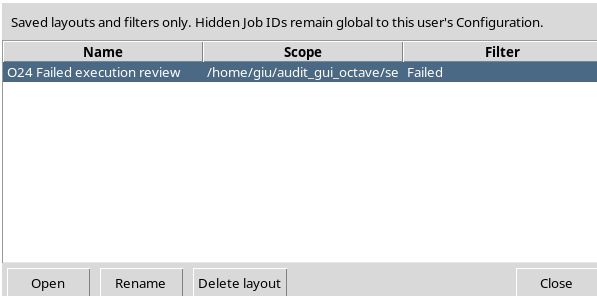
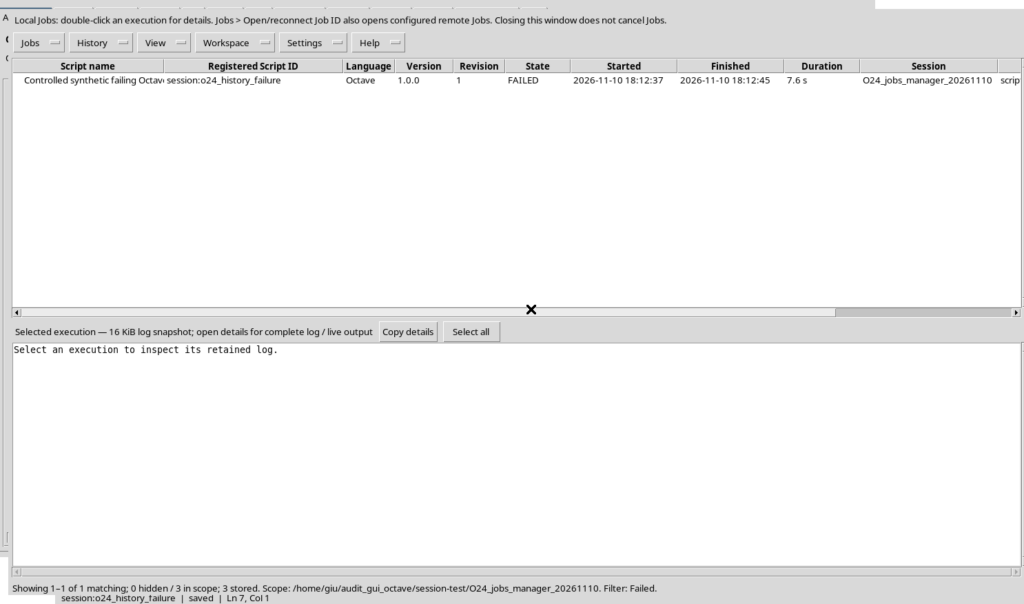
The Runner Workspace keeps only a presentation and navigation configuration. It does not contain a copy of computations, Datasets or scripts. To find a single execution you use the Job ID, while the Workspace is used to find an organized view of the whole set.
Closing Script Jobs Manager is not a cancellation command: the button for cancelling active Jobs is a separate operation. When a Job is still running, do not assume that just closing the window stops it; always check its state in the history.