

Publishing numerical results and text output
At the end of a GNU Octave script, GX-TXT can keep two very different kinds of results: structured scientific data, which a publication API registers as a numerical Dataset, and the text emitted by the program, which can be published as a document Dataset from the Job details window. The distinction matters: a log file does not automatically become a table of measurements.
This guide uses GX-TXT DEV112-P005, Octave Script Workspace 1.8.3 and a synthetic example of five voltage readings. The English command names are those shown in the GUI. The editor uses High Contrast Dark, while the other windows keep the native colors of the Tk/ttk controls.
1. Preparing a Script That Publishes a Numerical Series
Open Octave Script Workspace with an active Session, choose File → New Script, assign an identifier and save with File → Save. Copy the following example, with English comments and no references to instruments or external files.
% Synthetic five-point voltage series; controlled GX-TXT Octave Job.
% Public Script Bridge; no instrument or filesystem paths.
gxtxt_parameter_declare('gain', 'double', 'default', 2.0, ...
                        'min', 0.0, 'max', 4.0, ...
                        'description', 'Synthetic voltage multiplier');
ctx = gxtxt_context();
time_s = [0; 1; 2; 3; 4];
voltage_V = ctx.parameters.gain .* [0.1; 0.2; 0.3; 0.4; 0.5];
if (!gxtxt_api_has_operation('DATASET_PUBLICATION_API_v2', 'publish_series'))
  error('Required Dataset Publication API operation unavailable');
endif
request = struct('dataset_id', 'o26_numeric_calibration', ...
                 'contract', 'table.generic', 'storage', 'csv', ...
                 'x_values', time_s, 'y_values', voltage_V, ...
                 'x_variable', struct('variable_id', 'time_s', ...
                                      'name', 'Elapsed time', 'unit', 's', ...
                                      'semantic_role', 'time'), ...
                 'y_variable', struct('variable_id', 'voltage_V', ...
                                      'name', 'Synthetic voltage', 'unit', 'V', ...
                                      'semantic_role', 'voltage'), ...
                 'notes', 'Five synthetic calibrated readings with numerical provenance');
receipt = gxtxt_api_call('DATASET_PUBLICATION_API_v2', 'publish_series', {request});
disp('O26_NUMERIC_PUBLICATION_COMPLETE');
fprintf('O26_POINT_COUNT=%d\n', numel(voltage_V));
disp(receipt);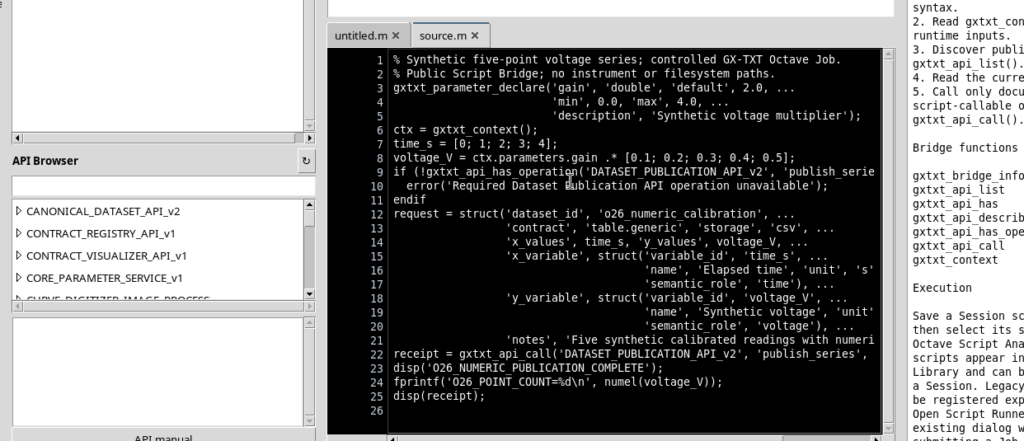
The gxtxt_parameter_declare function describes to the Runner the gain parameter as a double number, defaulting to 2.0, with limits from 0 to 4. gxtxt_context() returns the context of the invocation and lets you read the validated value, ctx.parameters.gain. The time coordinates are 0, 1, 2, 3, 4 seconds; the voltages obtained with multiplier 2 are 0.2, 0.4, 0.6, 0.8 and 1.0 volts.
2. Understanding the Public API Operations
The gxtxt_api_has_operation(…) condition checks that the managed Bridge actually exposes the required operation before attempting a publication. If it were not available, the program would raise an explicit error instead of continuing and pretending that the result had been registered.
gxtxt_api_call(‘DATASET_PUBLICATION_API_v2’, ‘publish_series’, {request}) sends the GX-TXT public service a request dictionary made up of:
- dataset_id: stable identifier of the Dataset, here
o26_numeric_calibration; - contract:
table.generic, which identifies a scientific table with variables; - storage:
csv, canonical format of the result; - x_values / y_values: two vectors of the same length;
- x_variable / y_variable: descriptors with identifier, name, unit of measurement and semantic role.
Only the actual completion of the publication call creates the numerical Dataset. Printing with disp or fprintf, instead, produces text in the log and is not a publication of measurements.
3. Validating the Request in the Runner
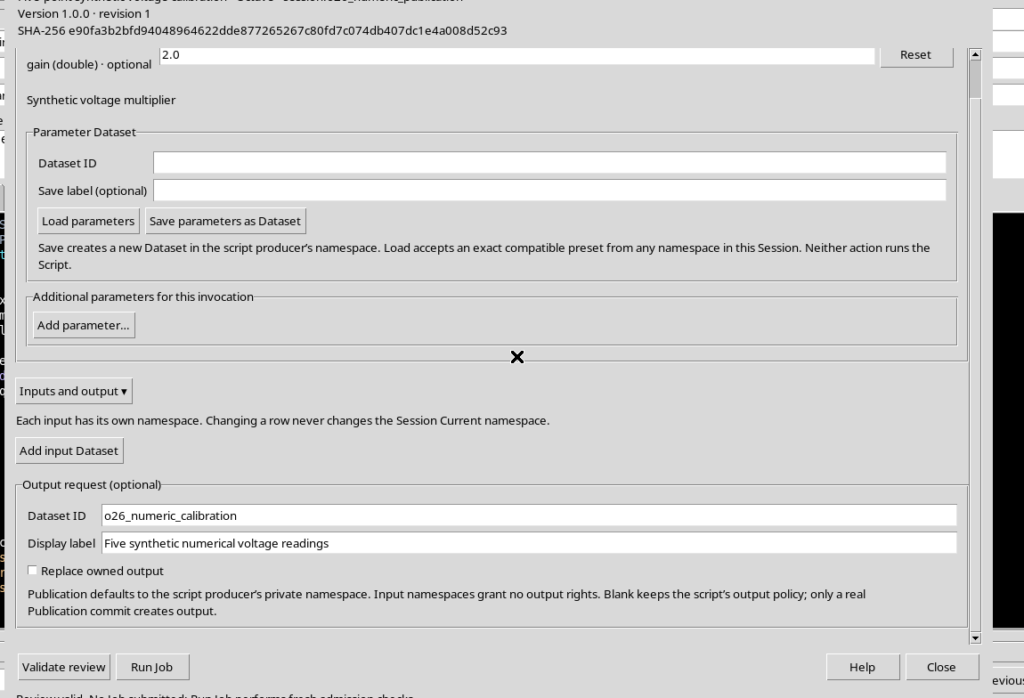
Open Run → Open Script Runner…. Check gain = 2.0 and, in the Output request (optional) section, choose the identifier o26_numeric_calibration, a descriptive name and Replace owned output disabled. The explicit output request does not replace the code that performs the publication: it tells the Runner which result you want to register.
Press Validate review. When Review valid. No Job submitted appears, parameters and inputs have been validated, but no new Job exists yet. Only Run Job starts the execution.
4. Checking the Completion of the Scientific Job
After Run Job, open Run → Script Jobs Manager… and check the state of the execution. In the example it is COMPLETED: the GNU Octave code finished correctly and the publish_series function registered five scientific rows.
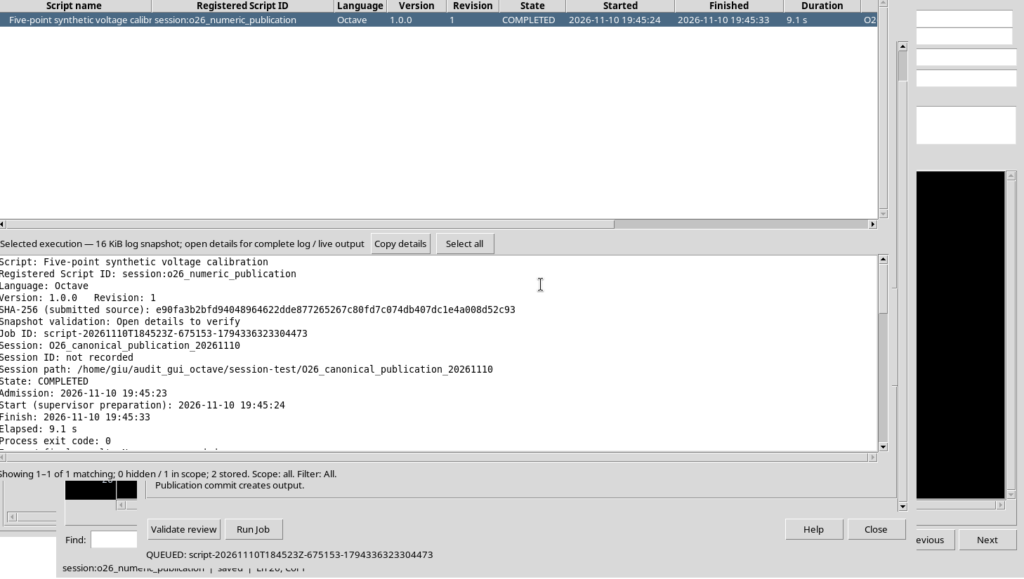
Selecting the Job and choosing Jobs → Open execution details opens the history of that specific execution, with source revision, identifier and available streams.
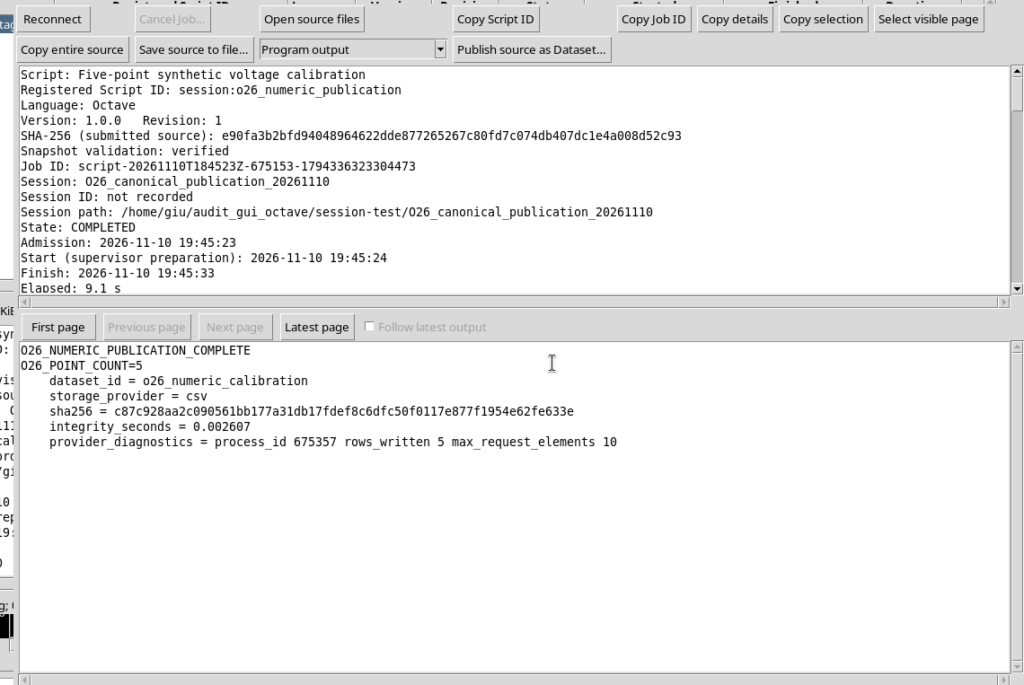
The text contains the message O26_NUMERIC_PUBLICATION_COMPLETE, the number of points and a publication receipt. This text is useful for documenting the result, but the table.generic Dataset exists separately in the canonical storage of the Session.
5. Publishing a Job Stream as a Document Dataset
In the Execution details window select Program output and press Publish source as Dataset…. The GUI presents a request to register the stored stream as a canonical text Dataset.
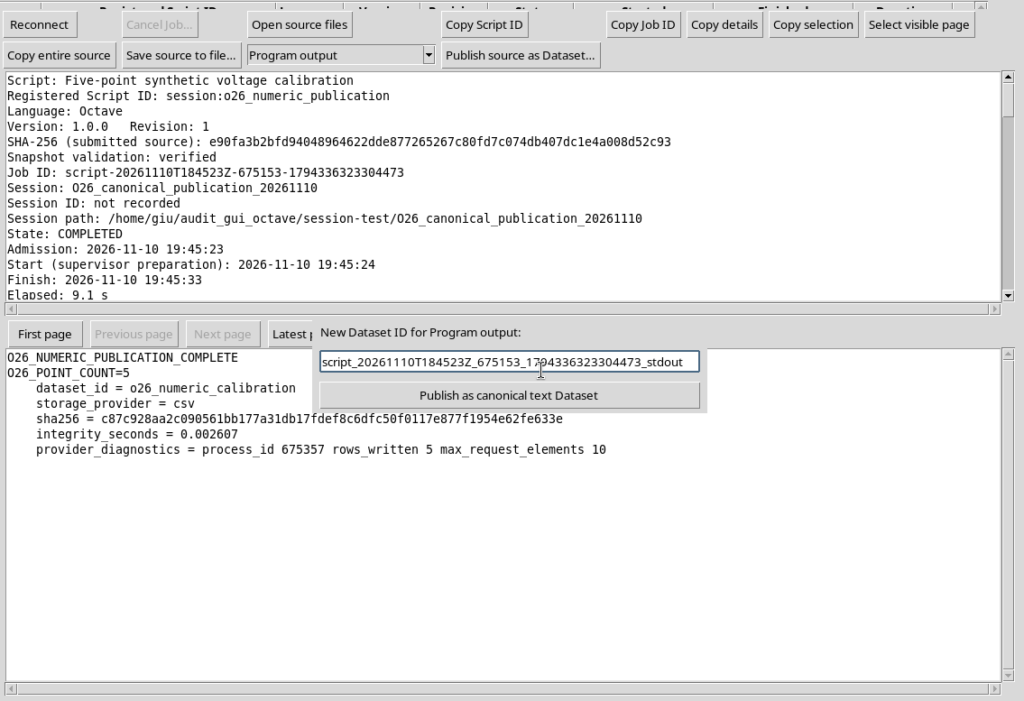
The Publish as canonical text Dataset command publishes the content of the chosen stream. In this example we assign the new identifier o26_stdout_document. The resulting contract is document.text, with format txt, not table.generic.
Important: the document publication copies the text produced by the Job; it does not repeat the Octave computation and does not automatically derive new numerical variables from the content of the log.
6. Handling Invalid Identifiers
Dataset identifiers must follow the GX-TXT rules. If a name containing spaces, such as invalid text dataset with spaces, is entered in the window, the publication is rejected.
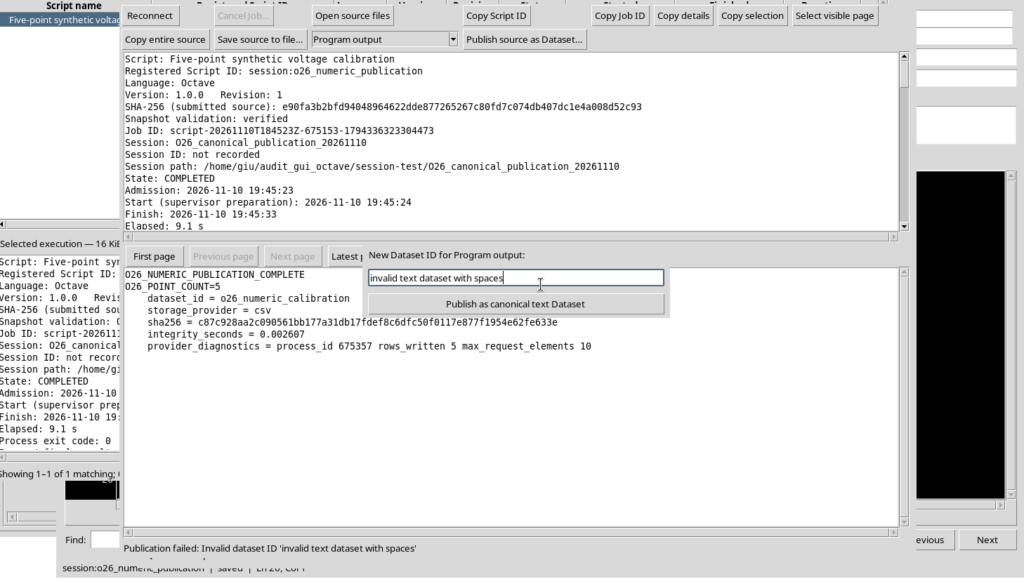
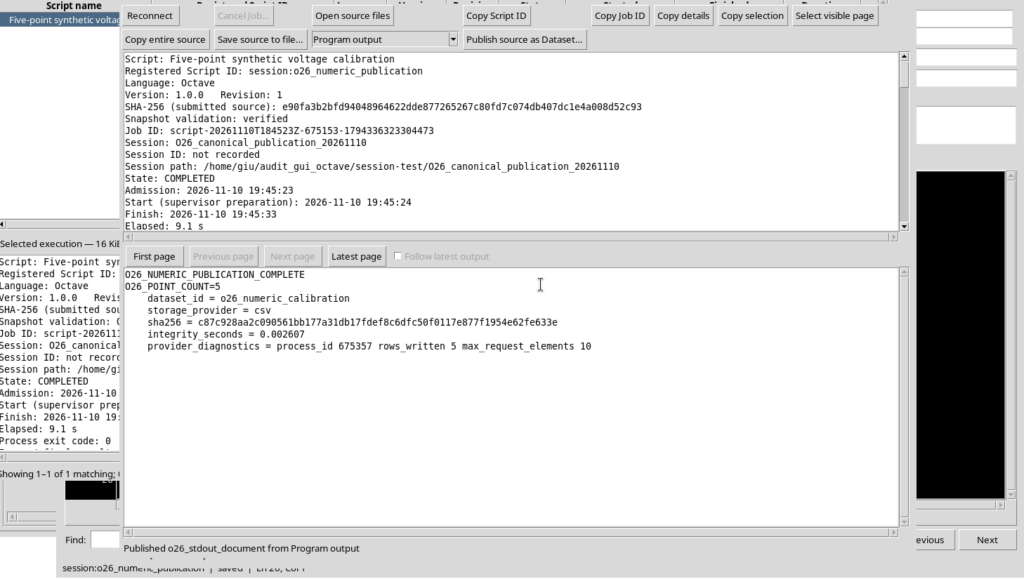
Correct the field with a valid identifier, for example o26_stdout_document, and repeat Publish as canonical text Dataset. After the commit, the details window indicates that the new Dataset has been published from the Program output.
7. Avoiding Unintended Overwrites
A further attempt to publish the same stream using o26_stdout_document again is rejected because the Dataset already exists. An ordinary publication is not the same as an explicit request to replace the Dataset.
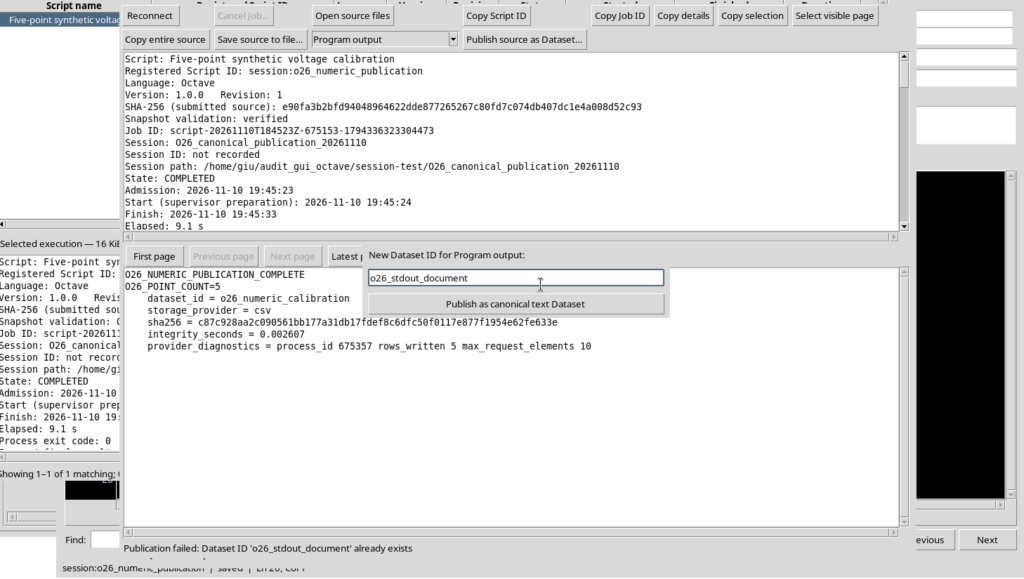
When you want to keep a new result, choose a different identifier and check the active Session. An existing Dataset must not be used as a temporary destination for the log.
8. Consulting the Canonical Text Document
The document.text Dataset contains the complete stdout stream, not a summary of the computation. The GX-TXT canonical view presents it read-only together with the available information on contract and provenance.
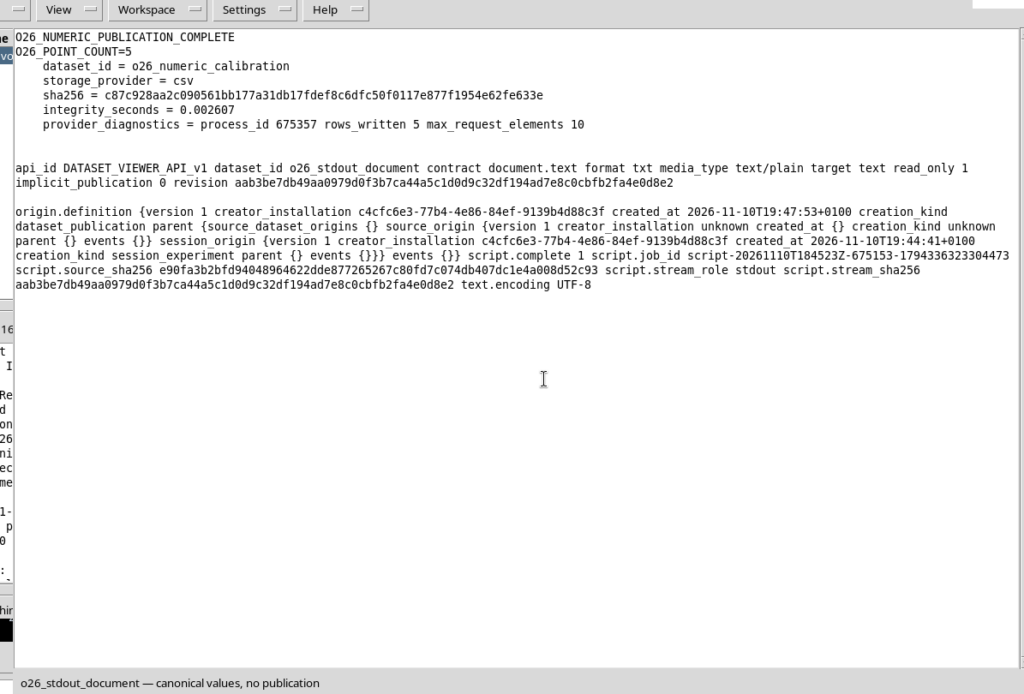
The document record keeps information that links the result to its source: Job ID, role of the stdout stream, fingerprint of the executed source, fingerprint of the stream and completeness status. This makes it possible to distinguish a text coming from a specific execution from text written directly in the editor.
The content of the document is identical to the stdout bytes kept by the original Job. However, it must not be treated as a scientific series: for numerical operations you need to open the structured Dataset.
9. Reading the Five Points in the Numerical Dataset
Open the canonical view of the o26_numeric_calibration Dataset and choose the Canonical table tab. The columns Elapsed time (s) and Synthetic voltage (V) are displayed.
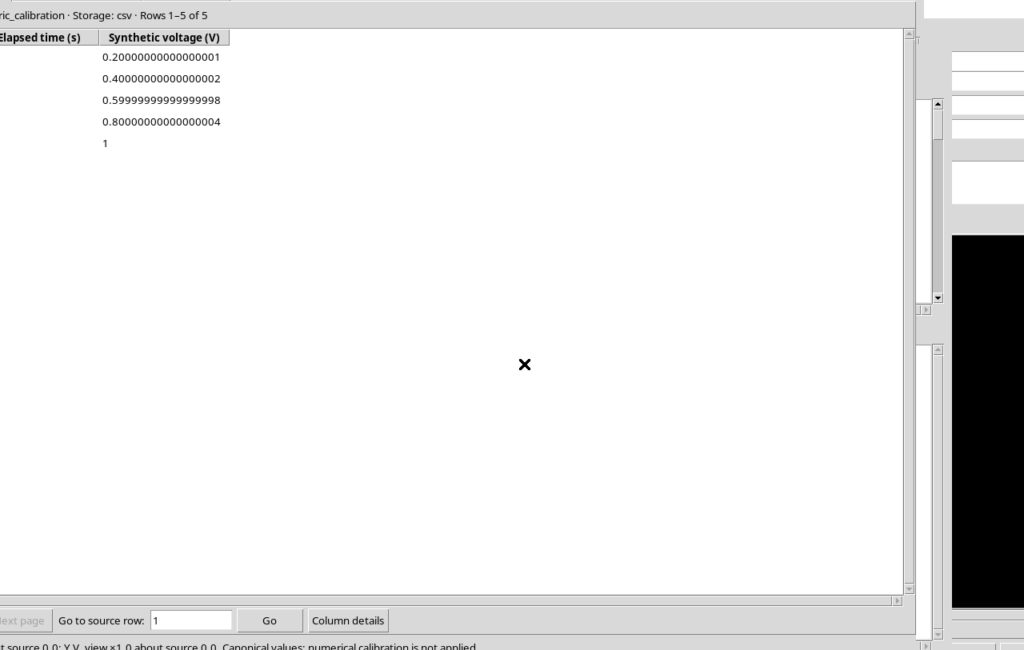
Checking the points gives:
| Time (s) | Voltage (V) |
|---|---|
| 0 | 0.2 |
| 1 | 0.4 |
| 2 | 0.6 |
| 3 | 0.8 |
| 4 | 1.0 |
The values are double numbers: the interface may show the digits of their floating-point representation, for example 0.20000000000000001. This is neither a sixth measurement nor an error in the calibration; the numerical precision remains the one provided by the data type.
10. Consulting Schema and Provenance
The Schema and provenance tab of the scientific view presents the variable descriptors and the properties of the Dataset. It is the appropriate place to distinguish columns, units, contract and the information recorded about the result.
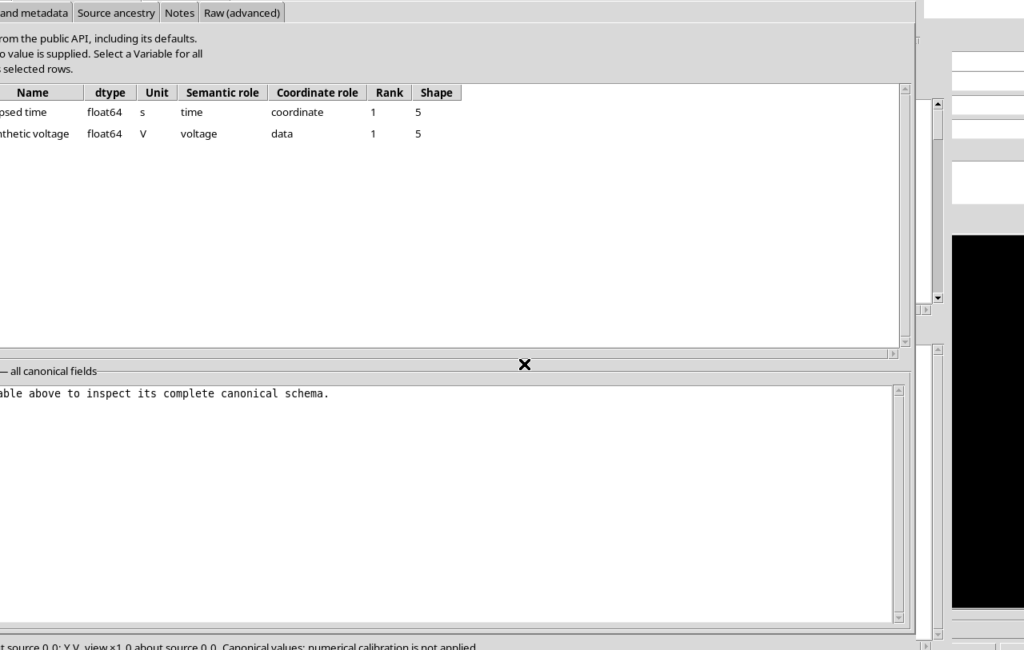
The two publications belong to the current scientific Session and to the Octave producer, but they have different contracts and contents. The numerical Dataset is suitable for reading the time_s and voltage_V variables; the text one is the canonical copy of the human-readable output. Provenance lets you trace back to the execution without confusing these two levels.
11. Returning to the Source and Keeping the Results
Close the Dataset views and the Job details window. The execution history remains available in the Script Jobs Manager. To return to a wide editor, hide the optional panes and use View → Focus source / restore panes.
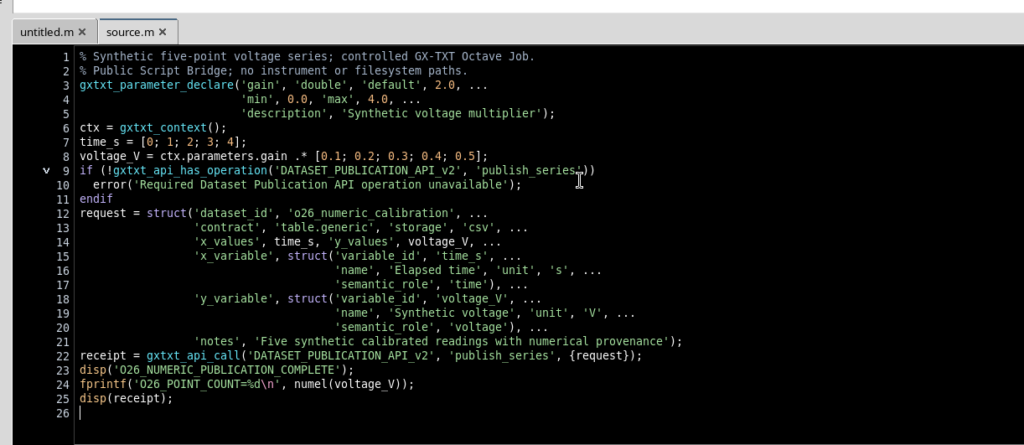
Closing the windows does not delete the registered code, the completed Job or the Datasets. You must, however, distinguish between the stored objects: Script Registry stores the script revision, Script Jobs stores the identity and results of the execution, while the Dataset Registry identifies the two canonical results published in the Session.
In short, use publish_series when the result must remain a table of variables and measurements, and Publish source as Dataset… when a stored output stream needs to be archived in document form. The text of a Job is valuable as documentation, but it does not replace the publication of structured numerical data.