

The first Octave script: from Celsius to Kelvin
With Octave Script Workspace you can write a GNU Octave program, save it as a scientific source in the Session, check its execution request and read its results. This first example performs a very simple but verifiable conversion: five temperatures expressed in degrees Celsius are converted to kelvin (K).
The procedure uses GX-TXT DEV112-P005, with the Octave Script Workspace 1.8.3 module, keeping the actual English labels of the GUI. The source appears with the High Contrast Dark theme; the other controls may keep the native Tk/ttk colors.
1. Scientific Goal and Requirements
The kelvin scale is the absolute thermodynamic temperature scale. To convert a temperature expressed in degrees Celsius, apply:
T(K) = T(°C) + 273.15
The result is expressed in K, not in “°K”. We will use five synthetic values: −20, 0, 20, 37 and 100 °C. No instruments, external files or already published Datasets are needed.
Before starting, open GX-TXT and activate a working Session. Then open Octave Script Workspace. The program will be associated with the current Session and, after execution, its Job can be found in the history.
2. Creating a New GNU Octave Source
In the Viewer select File → New Script. In the properties choose Scope: session, assign a recognizable identifier, for example celsius_kelvin_five_points, a descriptive name and version 1.0.0.
Enter this program in the editor; the comments are in English:
% Celsius-to-Kelvin conversion: five synthetic scientific measurements.
% This standalone GNU Octave script does not access external files or instruments.
celsius_C = [-20; 0; 20; 37; 100];
kelvin_K = celsius_C + 273.15;
expected_K = [253.15; 273.15; 293.15; 310.15; 373.15];
assert(numel(celsius_C) == 5);
assert(all(abs(kelvin_K - expected_K) < 1e-10));
fprintf('CELSIUS_TO_KELVIN_CONVERSION\n');
fprintf('Point  Celsius_degC  Kelvin_K\n');
for i = 1:numel(celsius_C)
  fprintf('%d      %+7.2f       %7.2f\n', i, celsius_C(i), kelvin_K(i));
endfor
fprintf('TOTAL_POINTS=%d\n', numel(celsius_C));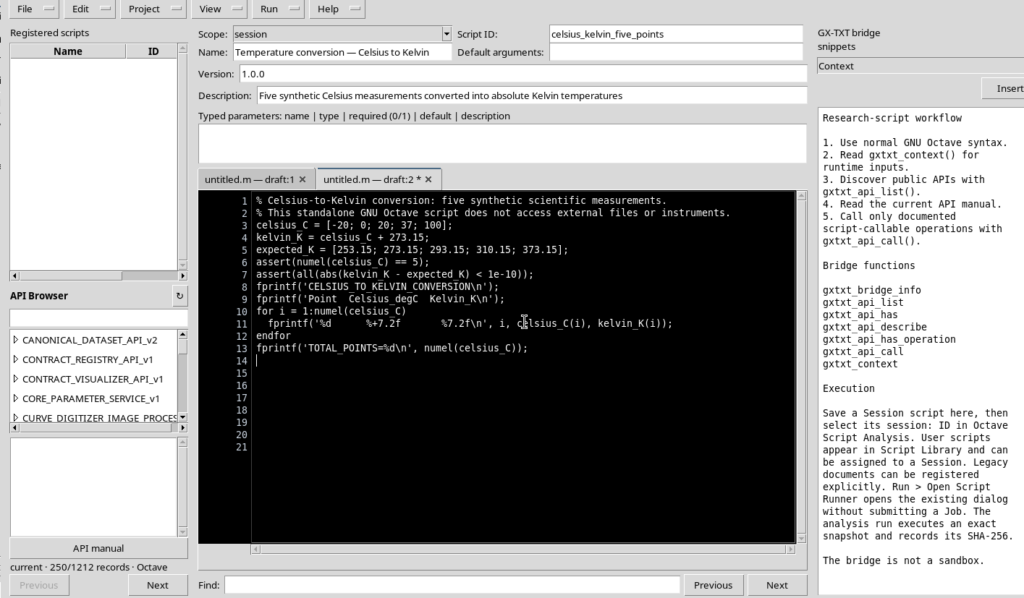
The file uses only standard GNU Octave statements. It makes no GX-TXT-specific API calls: in this example the framework provides the editor, the source Registry, the Runner and the Job history.
3. Understanding the Code and Saving Its Revision
The celsius_C line defines a column vector with five elements. The statement kelvin_K = celsius_C + 273.15 adds the same constant to each value, without the need for an explicit loop.
The expected_K vector contains the expected numerical results. The two assert statements check, respectively, the number of measurements and the difference between computed and expected values, using a numerical tolerance of 10⁻¹⁰. The for loop and fprintf are used only to write a readable summary to stdout.
Choose File → Save. The unsaved change becomes a registered revision of the session source. Saving the code does not start any execution.
To give space to reading the lines, use View → Focus source / restore panes and leave the optional panes you do not need closed.
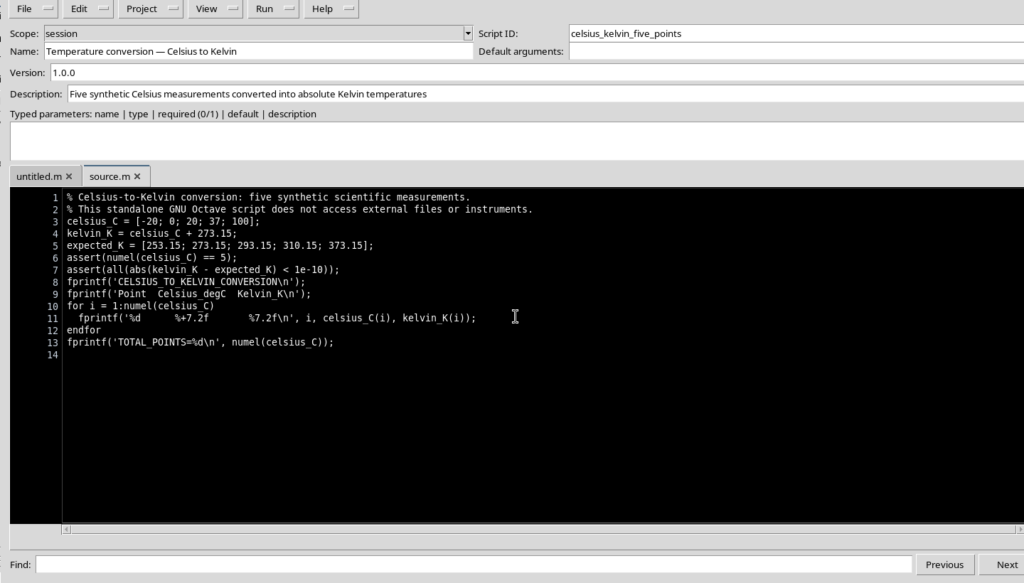
The Script Registry keeps the document and its revision. Any later changes in the editor are a local buffer until they are saved again.
4. Validating the Request in the Runner
Open Run → Open Script Runner… from the registered source. The Runner shows the identity of the script and the invocation options. For this conversion no input Datasets, manual parameters or numerical publication request are needed.
Press Validate review. The correct answer is Review valid. No Job submitted; Run Job performs fresh admission checks.
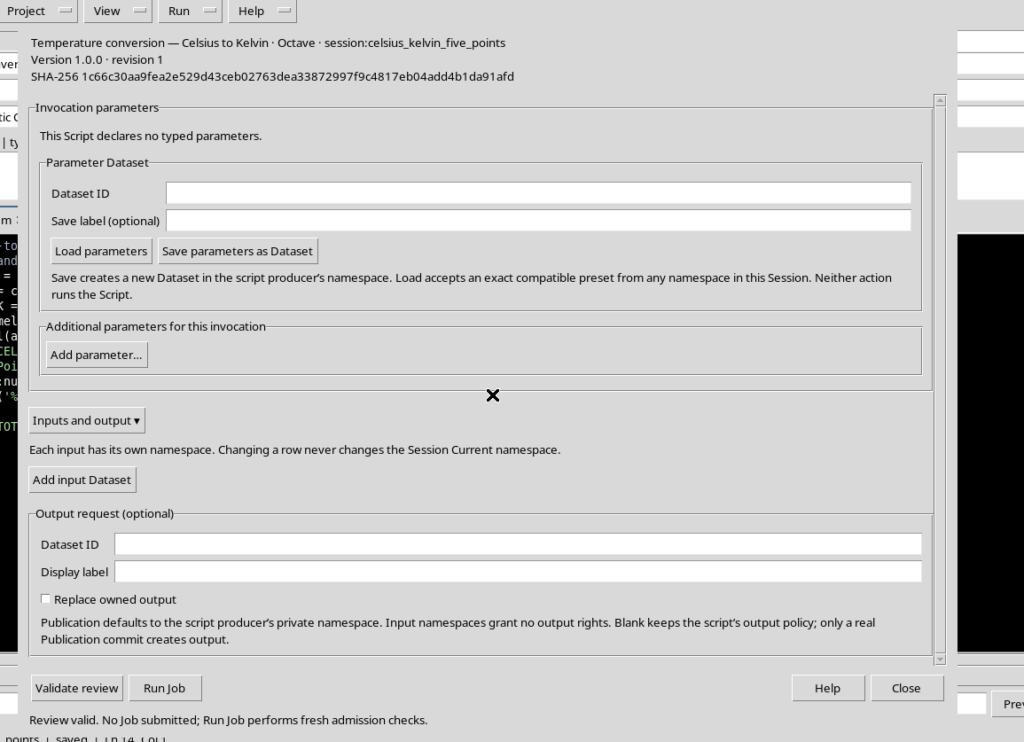
The distinction is essential: Validate review checks that the request is admissible, but produces no results. It is the next button, Run Job, that sends the program to the execution supervisor.
5. Running the Script Only Once
After validation choose Run Job. GX-TXT runs the saved script through GNU Octave and records a new Job, with its own identifier, state and copy of the revision actually executed.
Open Run → Script Jobs Manager…. In the table the Job, once finished, must be COMPLETED. A FAILED state would instead require examining the error messages and the source, without assuming that all the values have been computed.
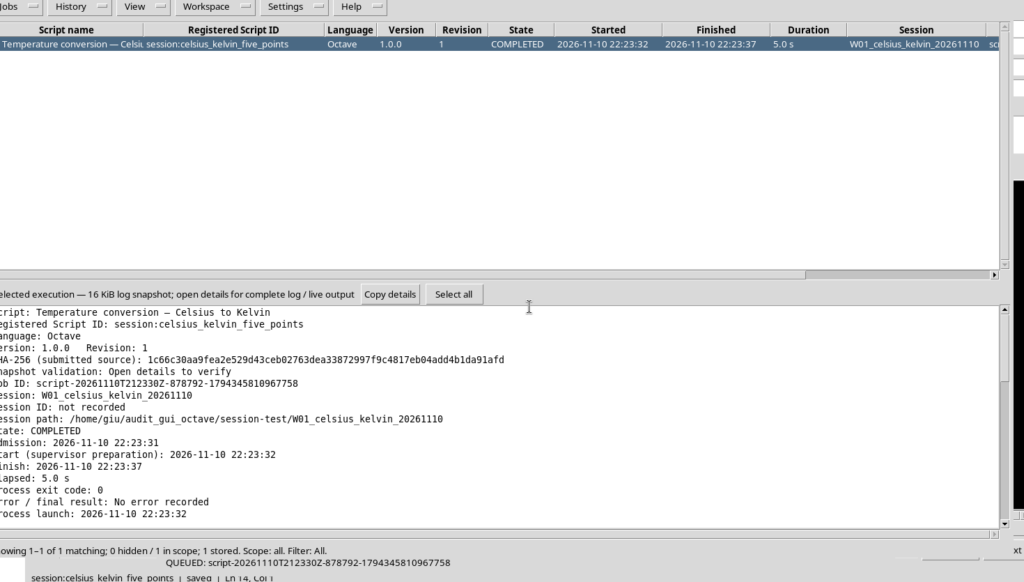
There is no need to press Run Job several times to obtain the final state: a Job can go through the preparation and execution states before completion. A new press would start a separate execution.
6. Reading and Interpreting the Five Results
Select the completed Job and choose Jobs → Open execution details. In the stream selector choose Program output. The text emitted by GNU Octave is:
CELSIUS_TO_KELVIN_CONVERSION
Point  Celsius_degC  Kelvin_K
1       -20.00        253.15
2        +0.00        273.15
3       +20.00        293.15
4       +37.00        310.15
5      +100.00        373.15
TOTAL_POINTS=5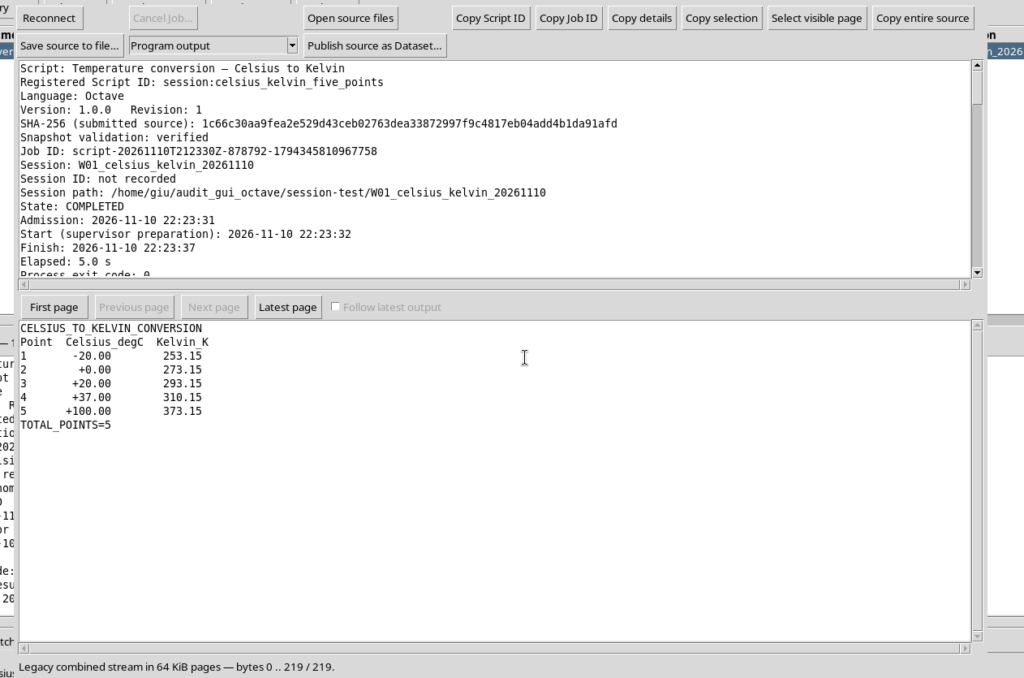
Summarizing the values:
| Point | Celsius (°C) | Kelvin (K) |
|---|---|---|
| 1 | −20.00 | 253.15 |
| 2 | 0.00 | 273.15 |
| 3 | 20.00 | 293.15 |
| 4 | 37.00 | 310.15 |
| 5 | 100.00 | 373.15 |
The conversions are consistent with the initial formula. The assert check ensures that the program stops if a difference exceeds the specified tolerance. In the case shown all checks pass and the Job ends with exit code 0.
From the details window you can use Copy entire source to copy the whole displayed stream, which is distinct from the function that copies only the page. In this first experiment the output source is short, but in more complex Jobs it can be split into pages.
Caution: what you read here is the stdout of the Job, not a published scientific Dataset. In this lesson no canonical data publication is carried out.
7. Exporting a .m File That Can Also Be Used Outside GX-TXT
Go back to the editor with the saved source and choose File → Export .m…. In the native file selector choose a suitable folder and a name with the .m extension, for example celsius_kelvin_five_points.m.
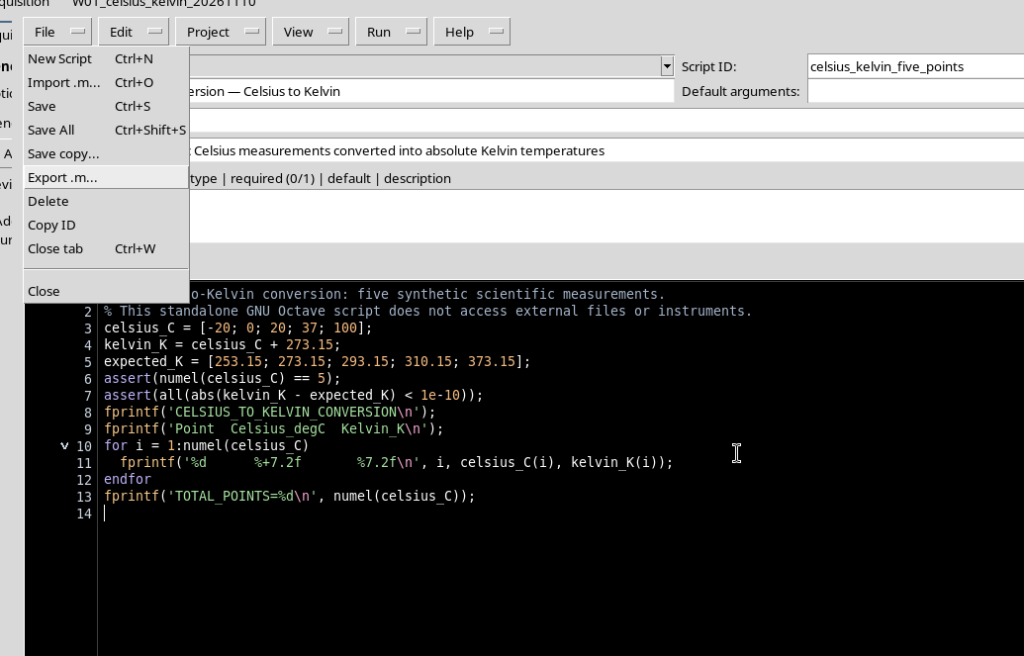
The command exports a copy of the source, not the output of the Job. The file can also be run directly in GNU Octave, because it contains only standard language features.
The exported file and the registered source have the same content. A second, independent execution with GNU Octave produces the same five text results. Exporting does not create a new Registry revision or a new managed Job.
8. Closing and Reopening Octave Script Workspace
After the execution has finished, choose File → Close. Closing the Viewer window is not the same as deleting the source or the completed Job.
Open Octave Script Workspace again in the same Session. If the source is not shown immediately, make Registered scripts visible and select the saved document. Then go back to View → Focus source / restore panes to give room to the code.
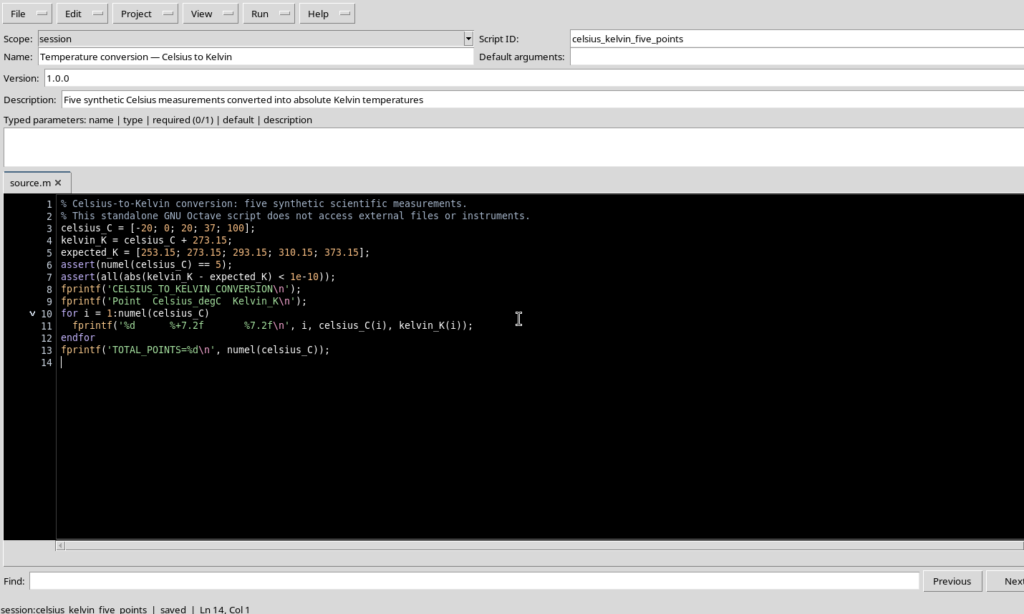
The editor shows the saved revision with the same Celsius values, the formula and the numerical check. There is no need to recreate the file or to import the exported program again.
9. Recovering the Historical Job Without Running It Again
From the reopened Viewer choose Run → Script Jobs Manager…. The history contains the same COMPLETED Job: no second computation was started to recover the data.
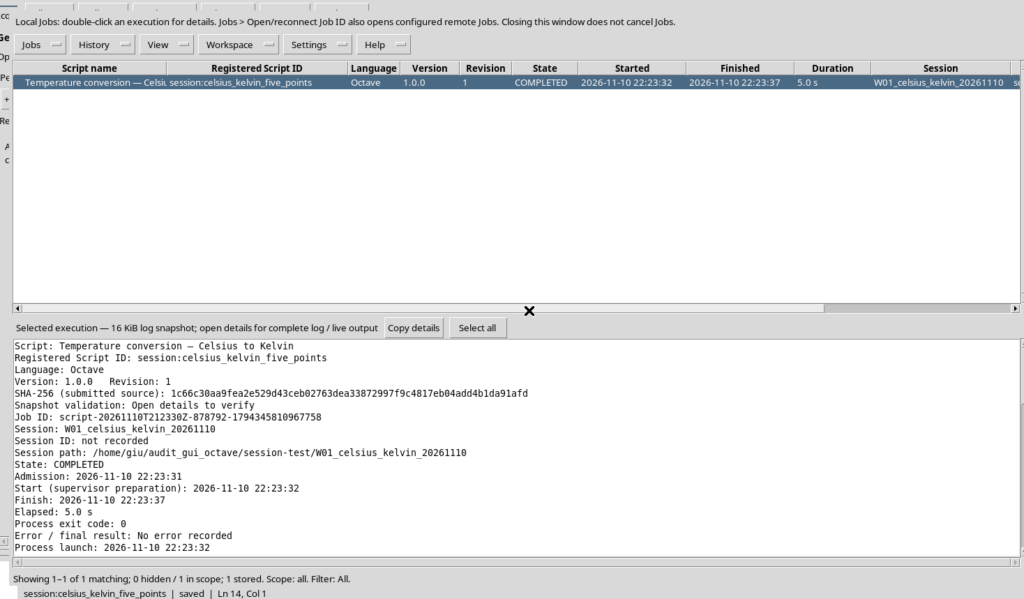
Open Jobs → Open execution details again and consult Program output. The five scientific lines are still available and their values have not changed.
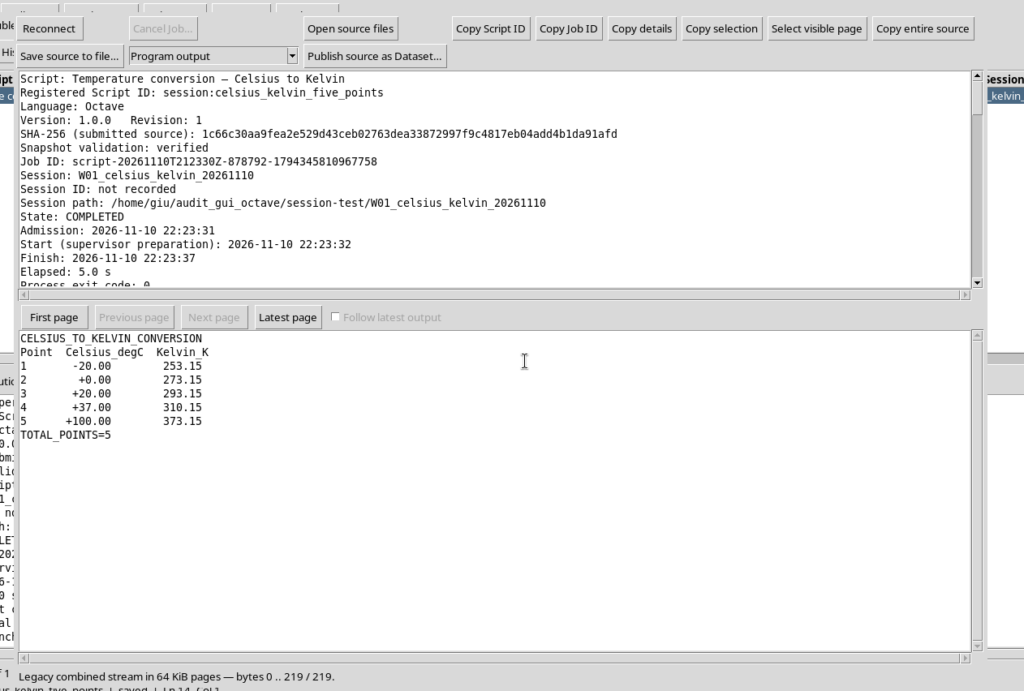
This check distinguishes three objects: the registered source, the Job that executed it and an exported .m copy. Exporting and reopening the Viewer do not automatically change the results of a Job that has already finished.
10. Common Problems and Summary
If the Runner does not open, check that the document has a Script ID, the correct scope and a saved revision. If the result seems to be missing, first check the state of the Job and then Program output and Program stderr: the validation message is not a numerical result.
If the editor is too narrow, use Focus source; if a tab does not appear after closing, find the source again from Registered scripts. Script Jobs Manager lets you recover executions without repeating them.
In the complete workflow we carried out a reproducible sequence: File → New Script → Save → Validate review → Run Job → Program output → Export .m → Close → Reopen. The five values are correct, the exported source is portable and the managed Job remains available. In the following workflows we will also be able to use the GX-TXT public APIs to read structured Datasets and publish real scientific results, instead of just printed text.