

GX-TXT Python Script Workspace: identity, versions and metadata of Scripts
Before running a Python program in GX-TXT you need to distinguish the source in the editor from its registered identity. The Workspace lets you assign a Scope, a Script ID, a Name, a Version, the required APIs, a Description and typed parameters. These properties are used to keep and identify the program and to describe its future inputs. They do not automatically run a computation.
1. A draft is not yet a registered Script
When Python Script Workspace opens, an untitled.py tab normally appears. It is an editable document, not a scientific result and not necessarily a Script already present in the Registry.
A registered Script, on the other hand, has a scope and a persistent identifier, together with metadata and a revision. Its code is kept separately from the execution of a Job and from any publication of Datasets.
2. Where the fields are
At the top of the Viewer there are Scope, Script ID and Name. Through the View menu you can show or hide Version, Additional required APIs, Description and Typed parameters.
Open only the panels that are useful for the current activity: while writing, keeping a wide code area helps readability. When the identity needs to be completed, it is reasonable to make the registration fields temporarily visible.
3. The initial state in a Session
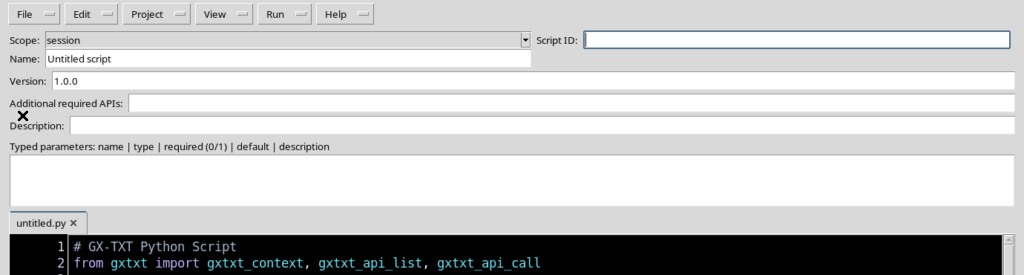
If a Session is open, a new draft may take Scope = session, have Name Untitled script and Version 1.0.0, while the Script ID is empty.
The absence of the ID is significant: the tab does not yet contain a persistent registration. Opening the editor creates neither executable Scripts nor Datasets.
4. Scope user and Scope session
user identifies the user’s collection of Scripts, which can be used to prepare a source even without an open Session.
session instead identifies a registration belonging to the current Session. If you intend to keep a Script within a specific experiment, check that you have opened the correct Session before registering it.
5. Changing Scope does not move a Script
The Scope is a component of the Script identity, not a command for automatically moving a record between collections. Changing the field in a draft is not the same as copying a User Script into the Session.
Explicit copy, assignment or save-with-another-identifier operations exist for creating a different identity. You do not need them while simply preparing the metadata.
6. Script ID: a stable identifier
Script ID is the technical key of the record. In the version illustrated it must start with a letter and may contain letters, digits, underscore, dot and hyphen.
An ID with spaces or slashes, or one that starts with an underscore, is rejected by the validator. It is advisable to choose a compact, meaningful identifier that does not depend on the computer name or on the location of the files.
7. Name: the title for the reader
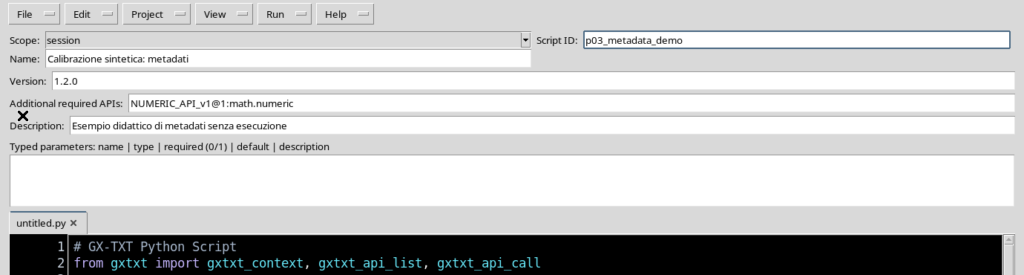
Name is the descriptive name shown in the GUI. It can be more readable than the technical identifier: for example, Calibrazione sintetica: metadati.
The Registry requires a non-empty Name. This title helps recognise the purpose of the Script in the Explorer, but it does not take the place of the Script ID.
8. Filling in the identification data
Choose a Scope, enter a valid Script ID and complete Name and Version. If the Script needs to declare dependencies or further information, show the corresponding fields from the View menu.
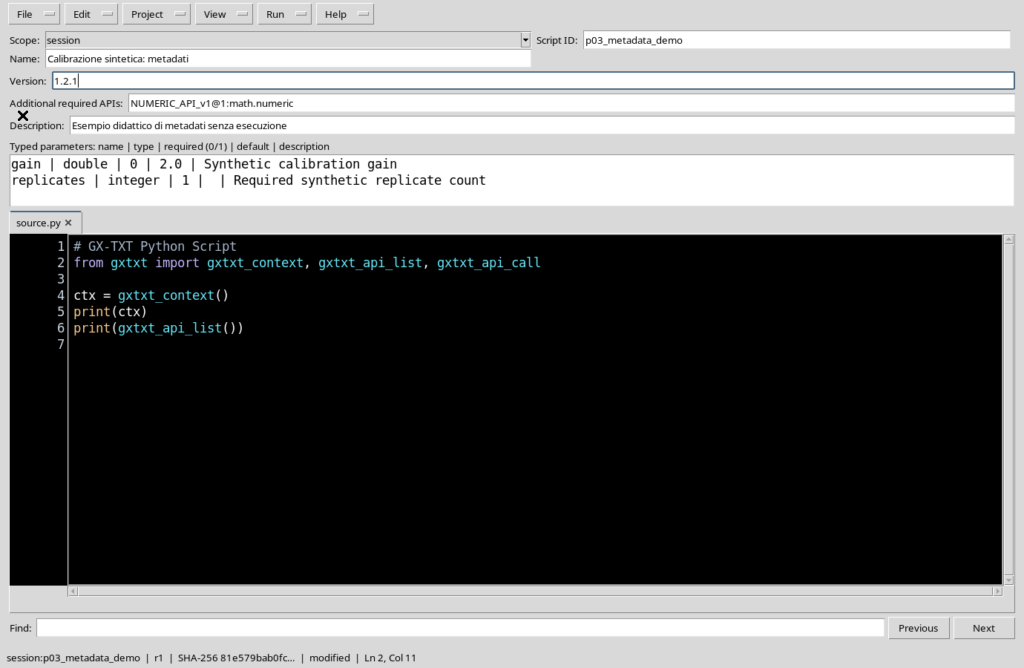
The following image shows the metadata of a synthetic example. The fields have been filled in in the editor; the local change is not yet a registered revision.
9. The Version field
Version requires the numeric format major.minor.patch, for example 1.2.0. A version with only two components, a fourth component or non-numeric words does not satisfy the contract of this version of the Registry.
The semantic version is chosen by the author. It can indicate the maturity or logical evolution of the Script, but it does not automatically count the number of save operations.
10. The Description field
Description briefly describes the purpose of the Script, the expected inputs and the scientific meaning. For example, you can state that the source is a synthetic example and contains no instrument measurements.
The metadata must be a single line. It is not Python code, it is not executed and it does not replace proper documentation of the formulas or units adopted.
11. Additional required APIs
The Additional required APIs field lets you declare dependencies on public GX-TXT interfaces. A documented identifier for the numeric module is NUMERIC_API_v1@1:math.numeric.
The declaration is not a call to the API and does not, on its own, guarantee that a specific operation is available in the runtime. Before running a Script you need to consult the contract of the required API and check the actual prerequisites.
12. Typed parameters: line format
The Typed parameters panel uses one line per parameter, with five fields separated by a vertical bar:
name | type | required (0/1) | default | descriptionThe panel collects a schema of the future arguments. Writing these lines does not add instructions to the Python source and does not start a Job.
13. An optional real value
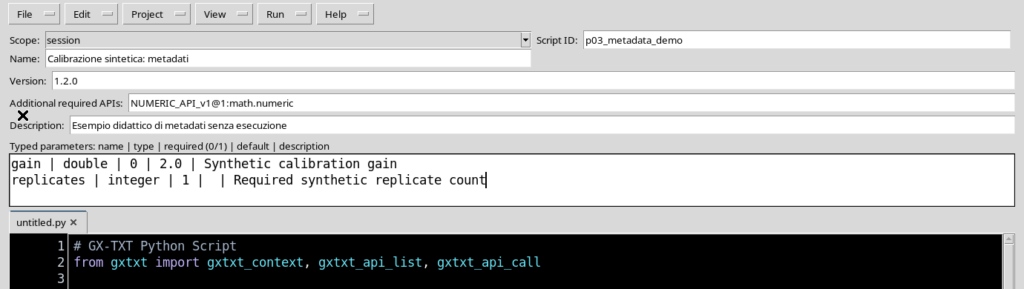
The first line of the example is:
gain | double | 0 | 2.0 | Synthetic calibration gaingain is the name of the parameter, double the real numeric type, 0 the optional flag and 2.0 the declared default value.
The description clarifies its role. In a real experiment, for any dimensional quantity it will be advisable to also state the unit of measurement and the scientific conventions.
14. A required integer parameter
The second declaration is:
replicates | integer | 1 | | Required synthetic replicate countThe integer type identifies an integer number; the flag 1 declares that the parameter is required. The default is deliberately empty: no number of repetitions is preset.
The example concerns only the schema. The values actually supplied to a Job are checked when the execution is prepared.
15. Other supported types
Besides double and integer, the Registry also recognises string, number, boolean, choice, color, path, file and command.
The choice of type must be consistent with the function of the Script. Metadata validation checks the structure and the declared type; it does not certify the scientific plausibility of the values or their compatibility with any physical models.
16. What required means
The required field accepts a Boolean flag, normally represented by 0 or 1. With 0 the parameter is optional; with 1 it is declared required.
Being required and having a default are different concepts. An optional parameter may have a default value, while a required parameter may call for an explicit choice at invocation time.
17. Checking the parameters before Save
Before registering the Script, reread the names, types, flags and defaults. The validator rejects declarations with duplicate names, unknown types, improper required flags or an invalid number of fields.
The rules on the parameter schema protect the description of the Script, but they do not perform any experimental check. Any validation of the values at Job time is the subject of a separate procedure.
18. Metadata change the local state
When you change an identification field or a Typed parameters line, the Workspace may report modified.
For a draft not yet registered, the status bar shows the absence of the saved identity and a SHA-256 still pending. The fact that the Python text has remained identical does not prevent the metadata from being marked as modified.
19. Registering a first version
With the metadata completed, File → Save registers the Script in the chosen scope. Scope, ID, name, version, API requirements, parameters and a reference to the source are associated with the record.
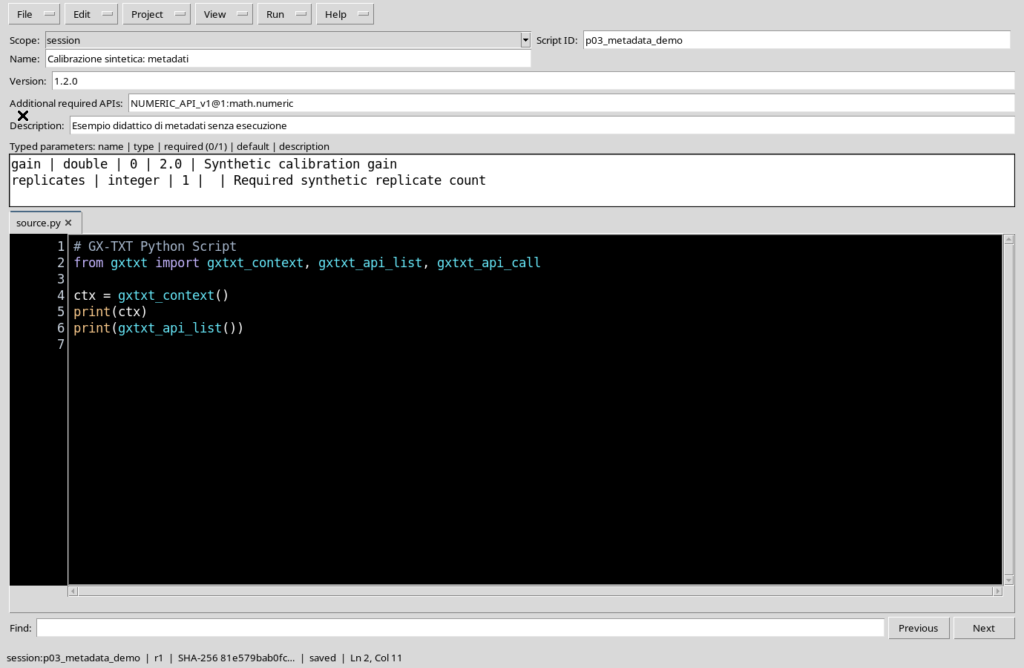
After the first registration, the bar shows revision r1, the prefix of the SHA-256 fingerprint of the code and the saved state. The tab may appear with the name source.py.
20. Revision and Version are not the same thing
The semantic Version is a value decided by the author, for example 1.2.0. The revision is instead the revision number of the record in the Registry.
A new save can increment revision even if the author does not change the Version. Conversely, a Version field changed in the draft does not modify the Registry until it is saved.
21. SHA-256 of the code: what it represents
The SHA-256 shown in the bar identifies the registered source content. Two revisions with the same code can keep the same source fingerprint.
The Registry also has its own integrity information for the record, which includes the metadata and can change when they are updated. It must not be confused with the SHA-256 of the Python code.
22. Changing only the Version
Suppose we move from 1.2.0 to 1.2.1 without changing the source. The Version field immediately shows the new value, while the saved revision temporarily remains r1.
The bar shows modified because the metadata buffer no longer matches the last registration. The screenshot lets you recognise this difference immediately.
23. Saving a metadata-only change
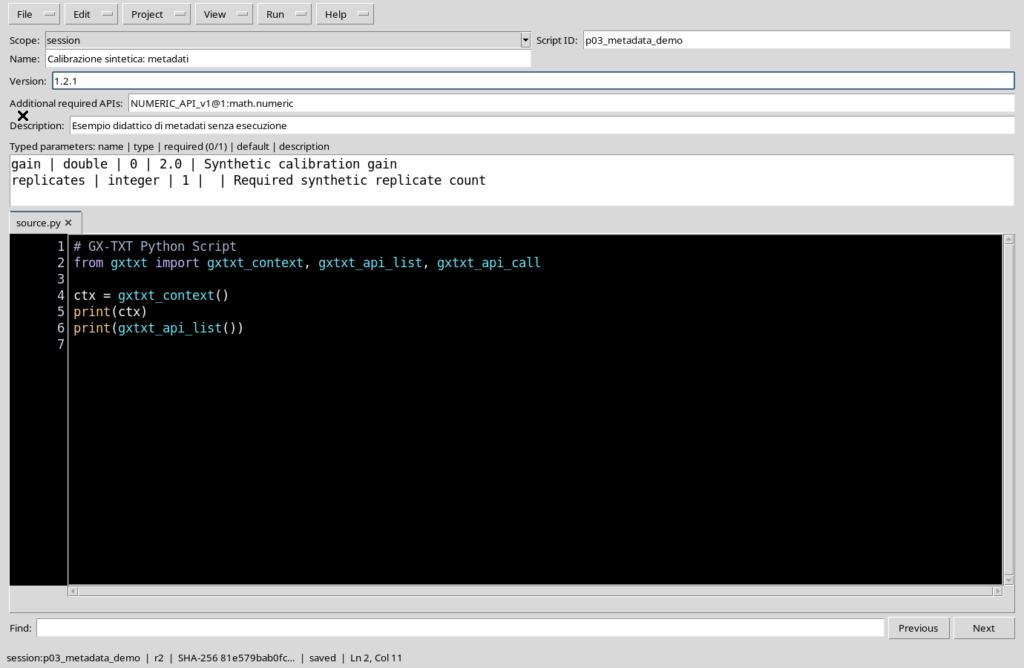
After the new Save, the Registry moves to r2 and keeps Version 1.2.1. In the example the Python code has not been changed, so the SHA-256 of the source remains identical to that of r1.
This shows why revision is not an index of code changes only. A revision can also exist to document a descriptive update.
24. Comparing the identities
| Property | First registration | Updated metadata |
|---|---|---|
| Version | 1.2.0 | 1.2.1 |
| Revision | r1 | r2 |
| Python code | Identical | Identical |
| Source SHA-256 | Same value | Same value |
| Record metadata | First version | Updated version |
The table concerns an example in which only the metadata change. When the code is modified and registered again, the relationship between SHA and revision may be different.
25. Consulting Registered Python scripts
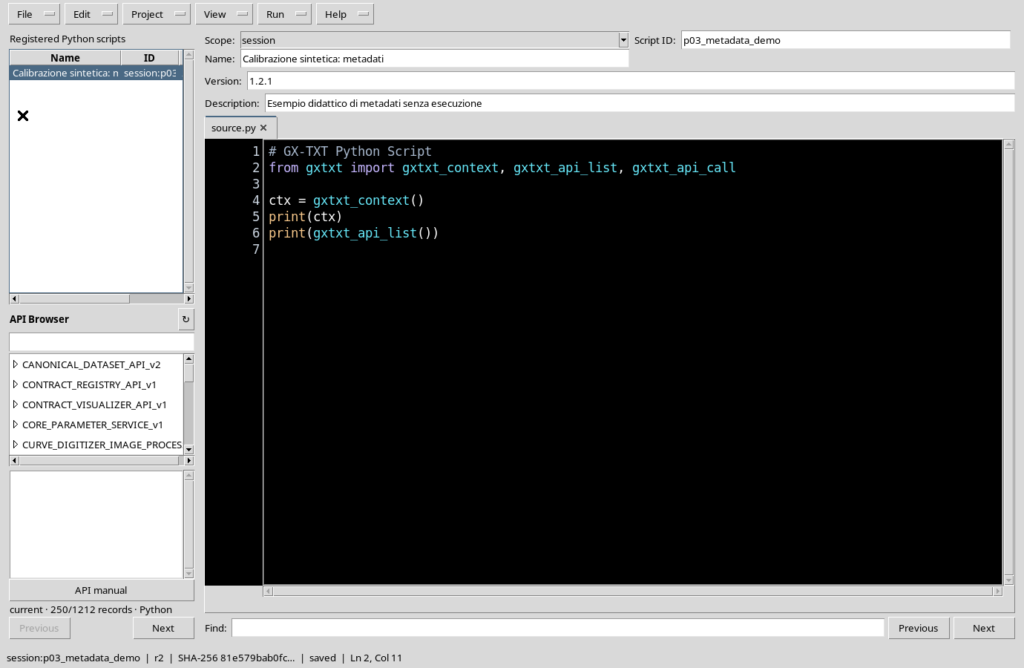
Through View → Script Explorer / Registered scripts you can temporarily open the panel with the registered Scripts.
The list shows the Name and the reference of the Script, which for a Session Script includes the session: prefix. The panel is useful for identifying what has actually been registered; there is no need to keep it open all the time while writing code.
26. Registration, execution and Datasets remain separate
Registering the metadata does not run the source. Even the presence of Additional required APIs or required parameters does not imply submitting a Job.
Execution requires an explicit procedure and the related checks. A scientific Dataset is published only through the appropriate path and does not arise automatically from simply saving a Script.
27. Common errors and limits of the identity
An ID with disallowed characters, a version that does not follow major.minor.patch or duplicate parameters must be corrected before registration. A descriptive name does not replace a valid Script ID.
After registration, changing Scope or Script ID must not be interpreted as an implicit renaming of an existing record. The operations for creating a distinct copy, managing revisions and dealing with concurrent changes are covered separately.
28. Back to the code with Focus source
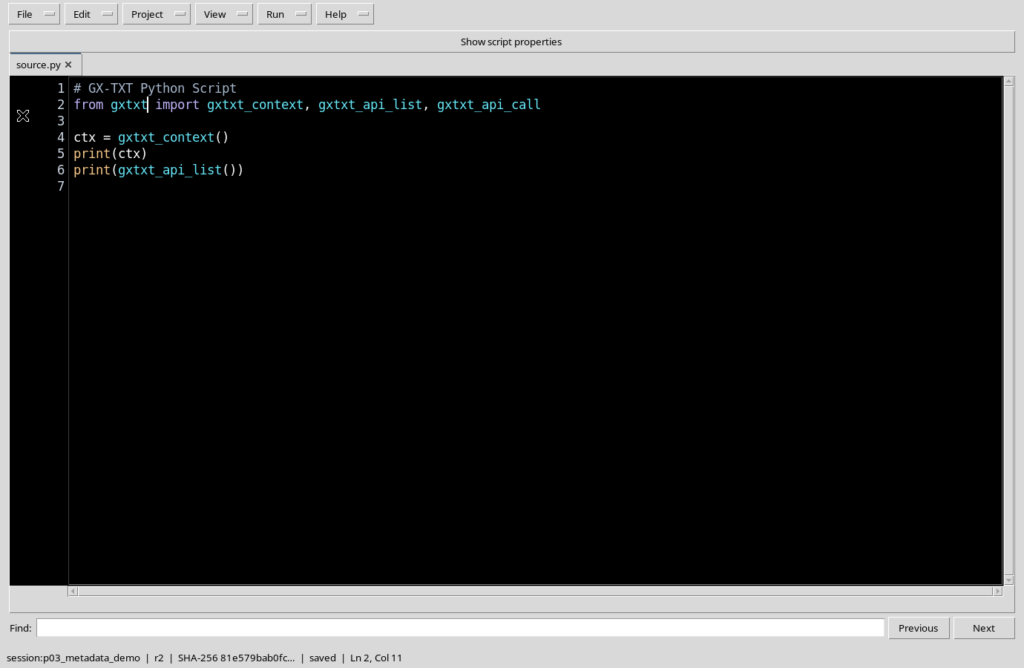
Once the metadata are filled in, you can hide the secondary panels from the View menu and recover the wide editor area with Focus source.
The editor keeps its authentic High Contrast Dark theme. The outer frame of the window may stay light without compromising the readability of the source.
The next chapter is devoted to the New Script, Save, Save As, Delete and Close operations, including the cases of unsaved changes and the protection of revisions.