

GX-TXT Python Script Workspace: creating and opening Python projects
Python Script Workspace lets you create a Python Script Project directly from the editor. Each project has a registered identity, an entry file (entrypoint) and can later contain several sources. The New Project, Open Project and Manage Project operations are available from the Project menu of the same window.
In this guide we will create a simple project with a single main.py file, examine name, Stable ID, Scope, Description and initial revision, and then open it again through the list of projects. Advanced management of several files belongs to the next chapter.
1. Why use a Script Project
For a short program, a single Python Script may be enough. A Project becomes useful when you want to organise the code around an entrypoint and later add auxiliary modules.
The project is a real identity of the GX-TXT Registry. It is not just a displayed directory and it does not automatically authorise a scientific execution.
2. Distinguishing New Script and New Project
File → New Script creates a new independent source. Project → New Project… instead starts a procedure for registering a new project identity.
There is no need to convert all Scripts into Projects. The choice depends on the structure of the program you intend to develop.
3. Opening the New Project command
From the GX-TXT main window, open Viewers → Python Scripts, then select Project → New Project….
The command opens a temporary panel inside the same Python Script Workspace: there is no need to start another Viewer.
4. Recognising the Python Script Projects canvas
The canvas contains the New project, Open / Manage projects, Import project and Public APIs tabs, as well as the Return to code button.
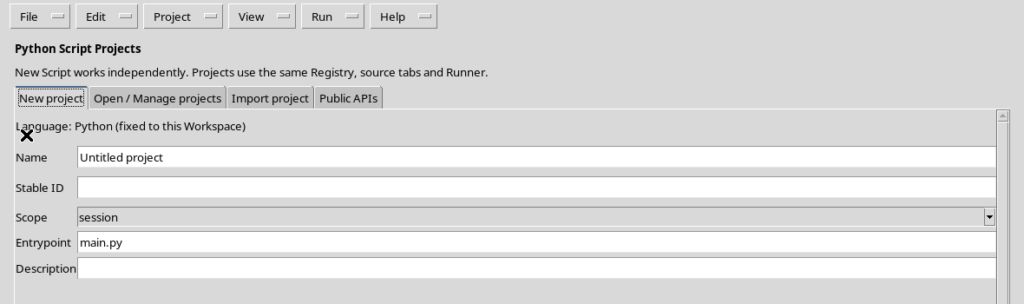
The Source and its tabs remain available. The canvas temporarily replaces their view, without deleting their content.
5. Entering the project name
In the Name field use a title that describes the goal, for example Curva di calibrazione in Python.
The name can contain spaces and is used to recognise the project in the lists. It does not necessarily match the name of the entry file.
6. Choosing a valid Stable ID
In the Stable ID field enter a stable identifier, for example calibration_python_project.
The ID must start with a letter and may contain letters, digits, underscores, dots or hyphens. It must not be a filesystem path: a slash is not allowed.
7. The project language
The line Language: Python (fixed to this Workspace) indicates that the language is already determined.
The Python Script Workspace canvas creates Python projects. For an Octave Script Project you use the corresponding Workspace.
8. Selecting User or Session
The Scope field offers the user and session options when a valid Session is present.
| Scope | Meaning |
|---|---|
| user | Project registered in the personal scope, reusable in different contexts |
| session | Project registered in the context of the current scientific Session |
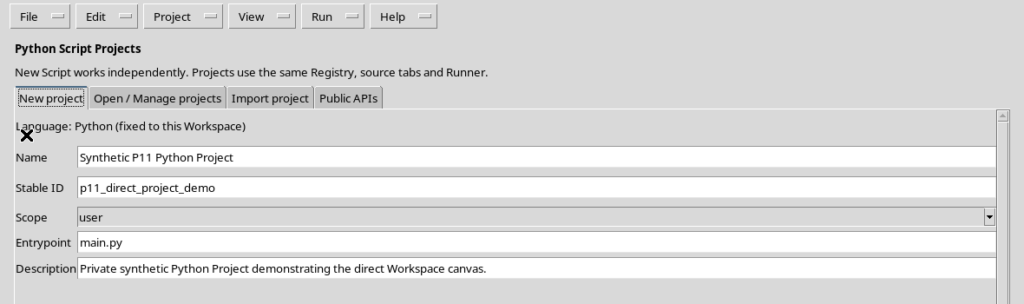
The choice of Scope identifies the owner of the project and must be evaluated before creation.
9. When to choose Session
Choose session for a project directly linked to an experiment or to a data collection of the active Session.
Registering it in this scope requires an open Session. The canvas is bound to the context present when it is opened: if that changes, you must repeat the selection in the correct context.
10. When to choose User
Choose user when the project must belong to the personal catalogue and not to a single Session.
This scope can be used regardless of whether a Session is present. This does not remove the possible need for a managed context to carry out scientific operations in the future.
11. What Entrypoint is
The Entrypoint field initially shows main.py, the file that the Workspace will open as the entry point of the project.
For a simple project it is advisable to keep this name. It is a path relative to the inside of the Project, not an absolute path on the computer.
12. Filling in Description
Description lets you specify the purpose, for example Analisi di una curva di calibrazione con Python.
The description is a metadata item of the project. It is not code and does not start a computation.
13. Checking the form before creating
Reread Name, Stable ID, Scope, Entrypoint and Description. The example shows a Session project, with a valid identifier and main.py.
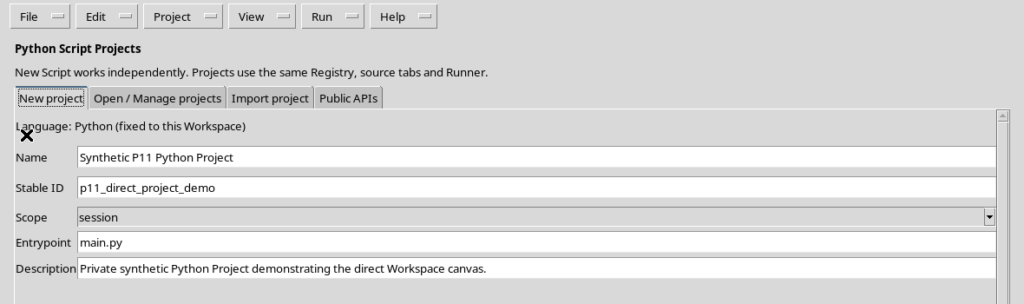
Checking Scope and Stable ID is important: these two values determine where the project is registered and how you will find it again.
14. Pressing Create project
With the form filled in, press Create project. GX-TXT validates the values and, if the same identity does not already exist in the chosen scope, registers the new project.
Creation is not the same as running a Script. No Jobs or Datasets are produced automatically.
15. The generated main.py file
After creation, the editor opens main.py. The initial code is a simple comment:
# Project entrypoint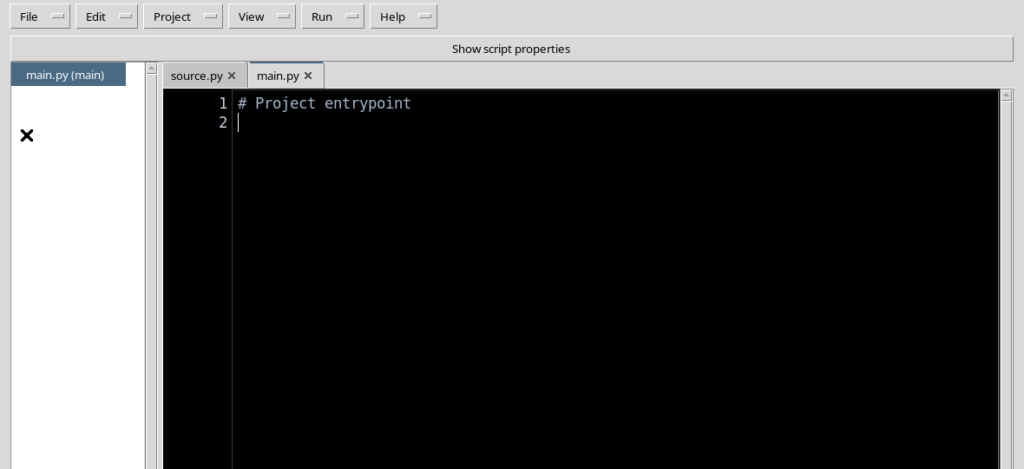
The file is ready to be developed. The comment does not perform any scientific operation.
16. The initial revision of the project
The registered Project has a first revision r1 and a SHA-256 fingerprint associated with the saved content.
This information documents the identity of the source, not the success of a processing run. Subsequent revisions require explicit save operations.
17. The other tabs remain independent
When the project is opened, the tabs of the Scripts already present are not automatically converted into files of the new Project.
You can switch between documents with different identities. A change to another Script must not be confused with saving the current project.
18. The Project file navigator
In the Workspace, the open project presents a view of its own files and identifies the main entry file.
This view is not the same as Script Explorer / Registered scripts: the Project navigator concerns its sources, while Explorer presents the registered identities.
19. Returning to the code
When the canvas is open, click Return to code to restore the previous Source area with its tabs.
Escape is also provided for returning to the code when the canvas has the focus. Leaving the canvas without completing Create project does not register a new identity.
20. Correcting an invalid Stable ID
If the Stable ID contains a slash or other disallowed characters, the canvas shows Project action refused.
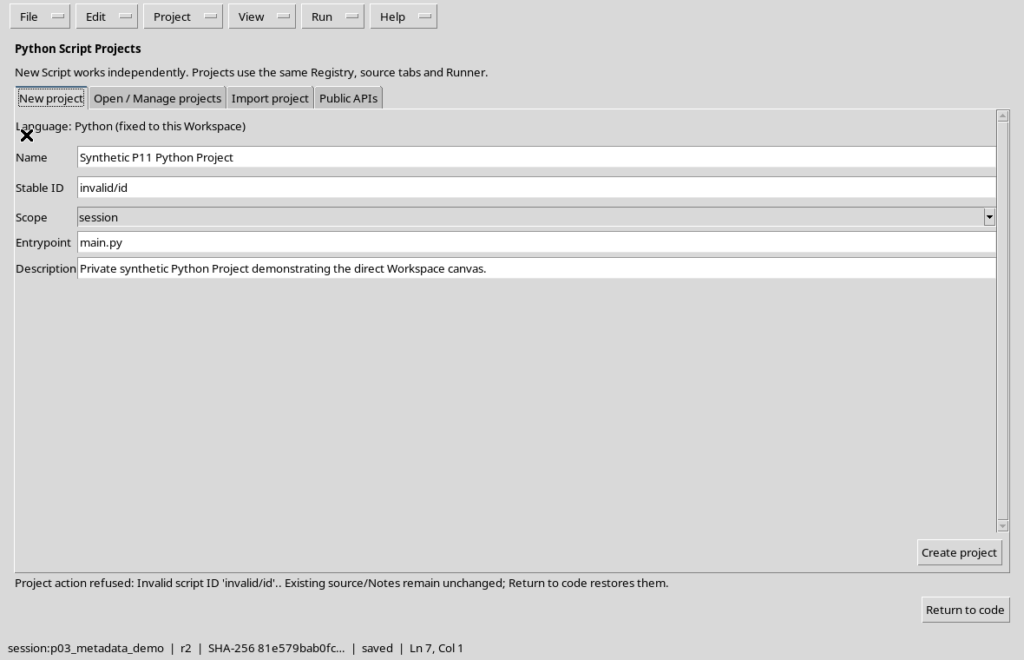
The form stays open so that you can correct the value. The previously open Script and any notes remain available.
21. Rejection of a duplicate identifier
An attempt to create a second project with a Stable ID already registered in the same scope is rejected.
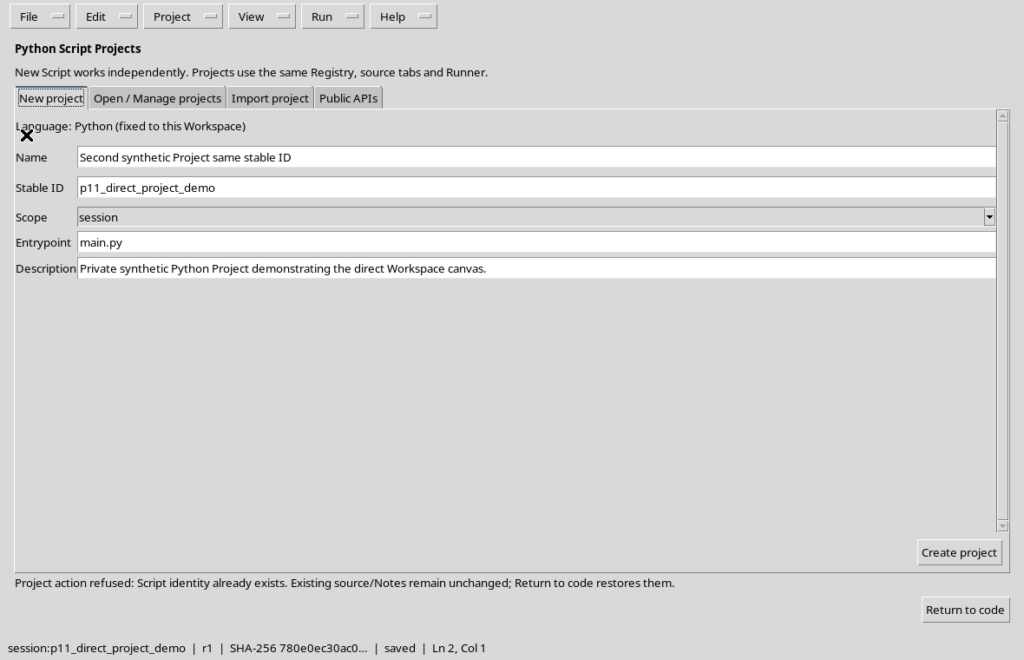
The existing identity is not overwritten. If you want to work on the registered project, open it from the Project menu instead of repeating its creation.
22. Opening a saved project
The Project → Open Project… command shows the Open / Manage projects tab, with the list of projects registered in the current language.
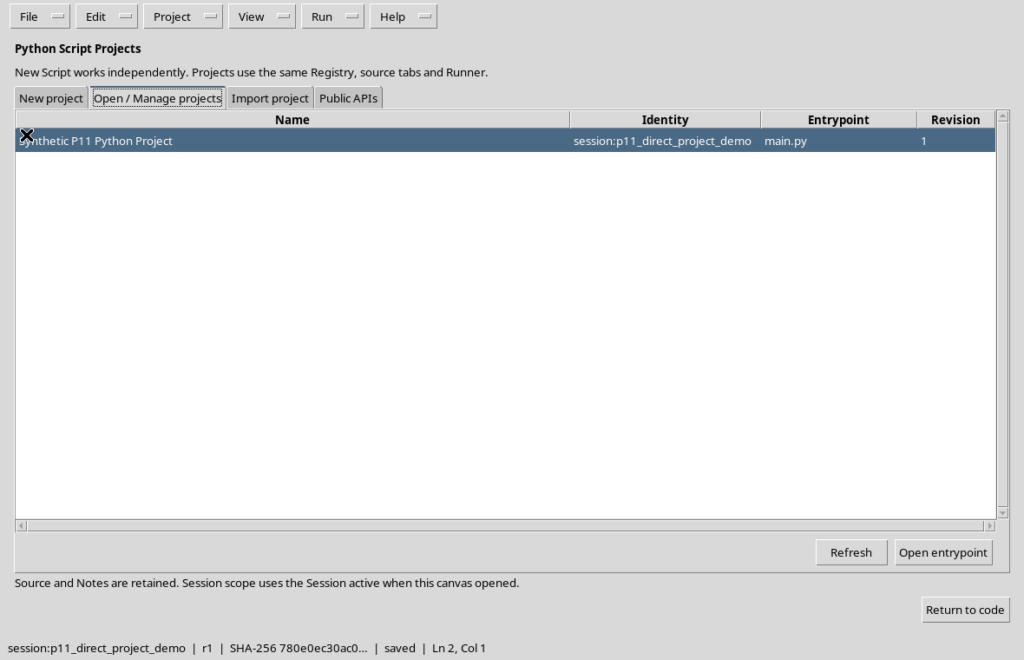
The Name, Identity, Entrypoint and Revision columns let you choose the project to open knowingly.
23. Opening the entry file
Select the row of the desired project, then click Open entrypoint.
The canvas closes and the Workspace returns to the code view, opening the entry file associated with the chosen identity. The command does not automatically submit any Job.
24. Open Project and Manage Project
Project → Manage Project… opens the same canvas in the Open / Manage projects tab.
Here Refresh rereads the list, while Open entrypoint requires a selection. If a project has been updated elsewhere, the system may ask for a refresh before opening.
25. A project must be selected
If you press Open entrypoint without selecting any row, the canvas presents the message Select a saved project.
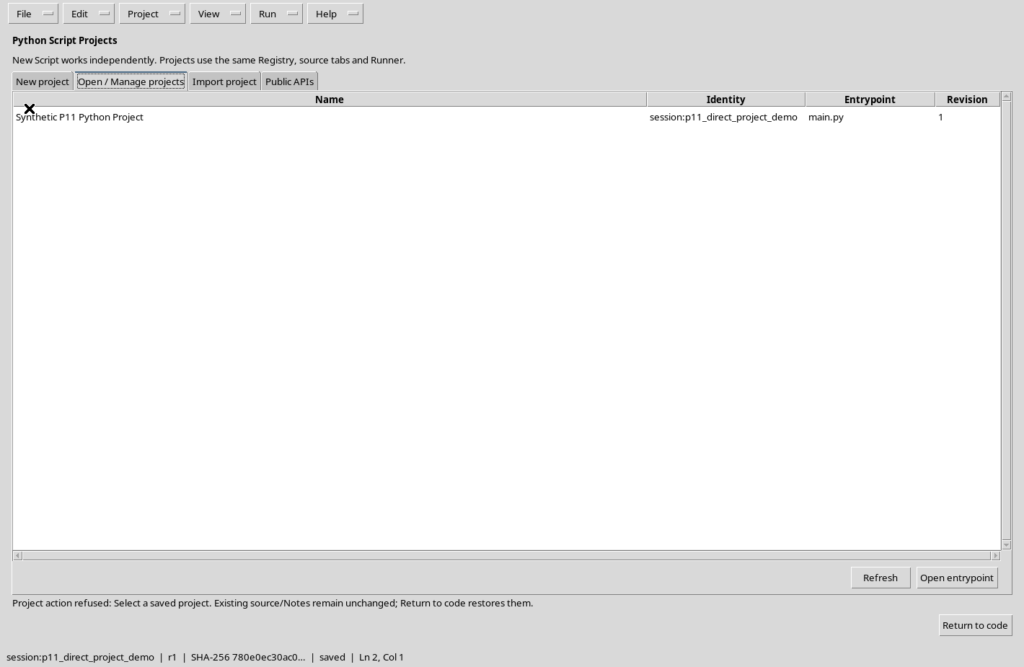
The rejection does not change the Source. It is enough to choose the correct row or use Return to code to abandon the procedure.
26. Reopening the project after closing the Viewer
A registered project remains available after Python Script Workspace is closed and opened again.
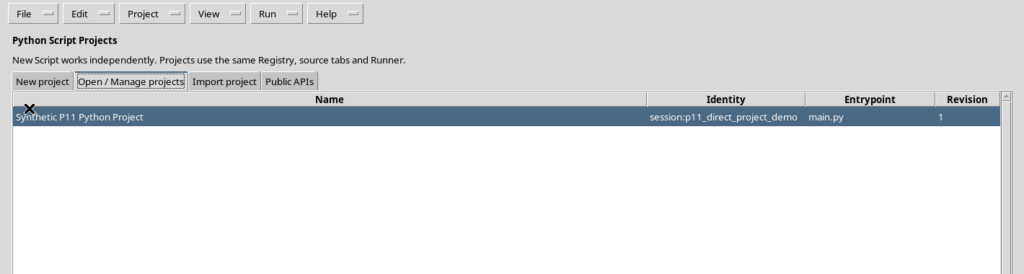
Going back to Project → Open Project… you find the identity, the entry file and the saved revision. Reopening does not by itself produce a new revision.
27. Moving to a Project with several files
The simple project initially contains only main.py. It can later be extended with other source files, auxiliary modules and Python packages.
Adding, renaming and organising files requires checks on relative paths, imports, entrypoint and consistent saving. These operations are covered in the next guide on multi-source Python projects.
28. Summary
Project → New Project… lets you register a new Python Script Project with Name, Stable ID, Scope, Entrypoint and Description. The project created opens its initial file in the normal editor, without running a Job.
Open Project… and Manage Project… let you find saved projects. Invalid or duplicate identifiers are rejected without overwriting existing documents. Return to code restores the working area while keeping the sources.
The next chapter covers auxiliary files, package structure, imports between sources, the entrypoint and Save All in depth.