GX-TXT Python Script Workspace: configuring output, validating and running a Job
Script Runner separates the review of the settings from the actual execution. With Validate review it checks the Script, the parameters and the Datasets without launching Python; with Run Job it sends the supervisor an autonomous request with verified source and configuration. This guide follows three synthetic executions: one without publication, one with a Dataset actually published and one interrupted through the original GX-TXT commands.
1. The four identities not to be confused
A registered Script identifies the code through reference, version, revision and SHA-256. The Session provides the scientific context. The Job identifies a single immutable execution, which has its own state and its own log. The output Dataset, when published, is a further canonical object with distinct identity and provenance. The existence of one of these elements does not automatically imply the existence of the others.
2. Preparing a synthetic Python source
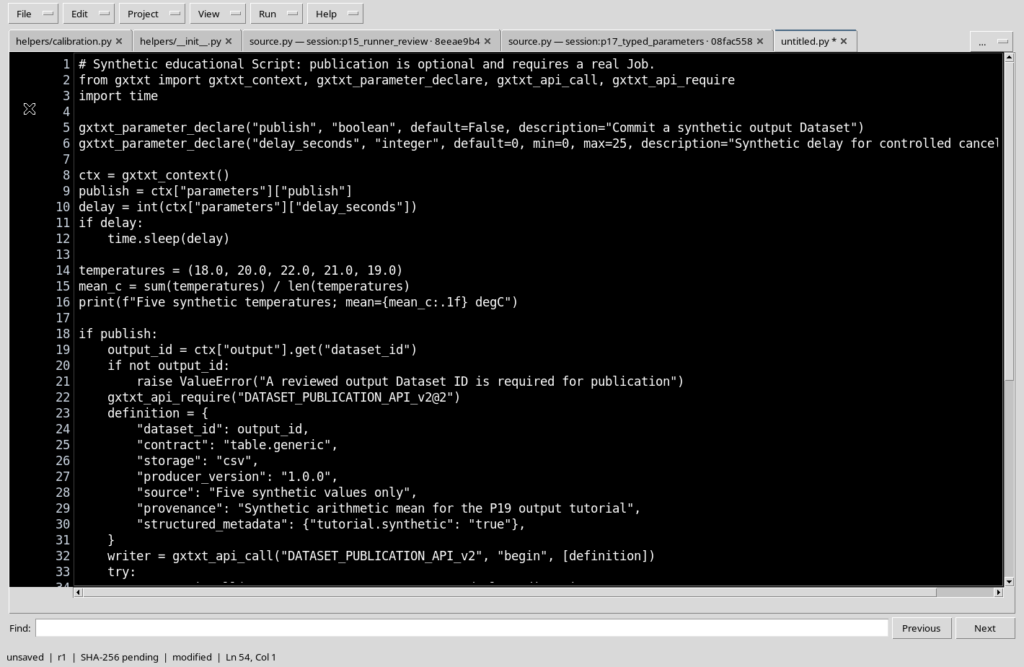
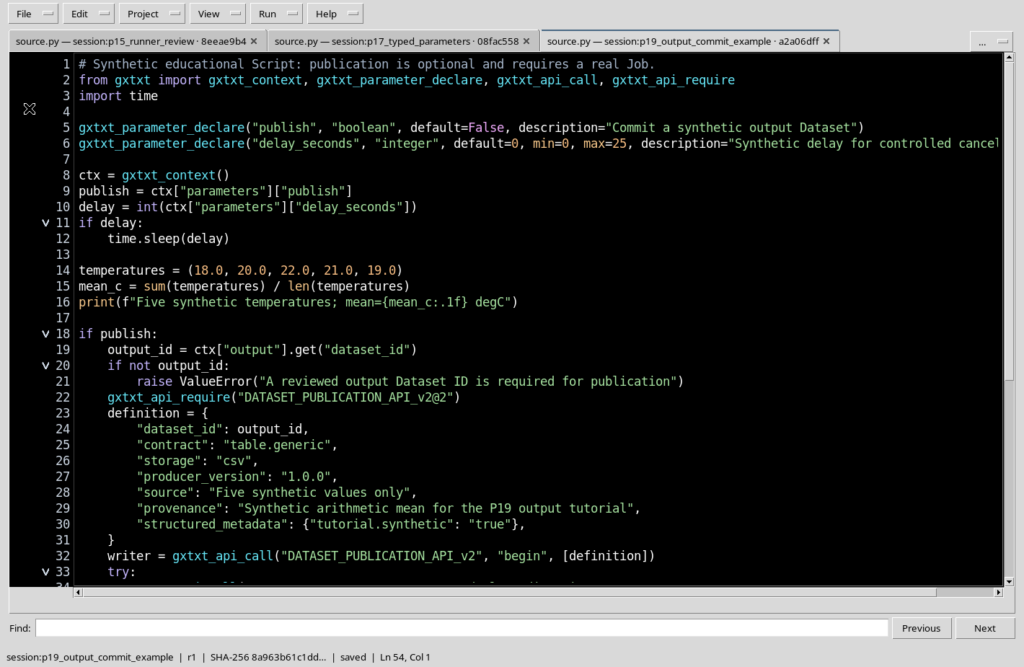
To illustrate the procedure we use five invented temperatures: 18, 20, 22, 21 and 19 °C. The program computes the arithmetic mean, equal to 20.0 °C. The source also contains a boolean option to distinguish computation from publication and an optional delay to demonstrate cancellation. These are teaching data, not experimental results.
3. Registering the Script before execution
In Python Script Workspace fill in Script ID, Name, Version and Scope, then use File → Save. Registration keeps an identity and a SHA-256 fingerprint of the source. Saving a Script produces no Job: it allows the Runner to choose a well-defined revision. If the editor has unsaved changes, you need to decide which revision to use before proceeding.
4. Opening the Script Runner window
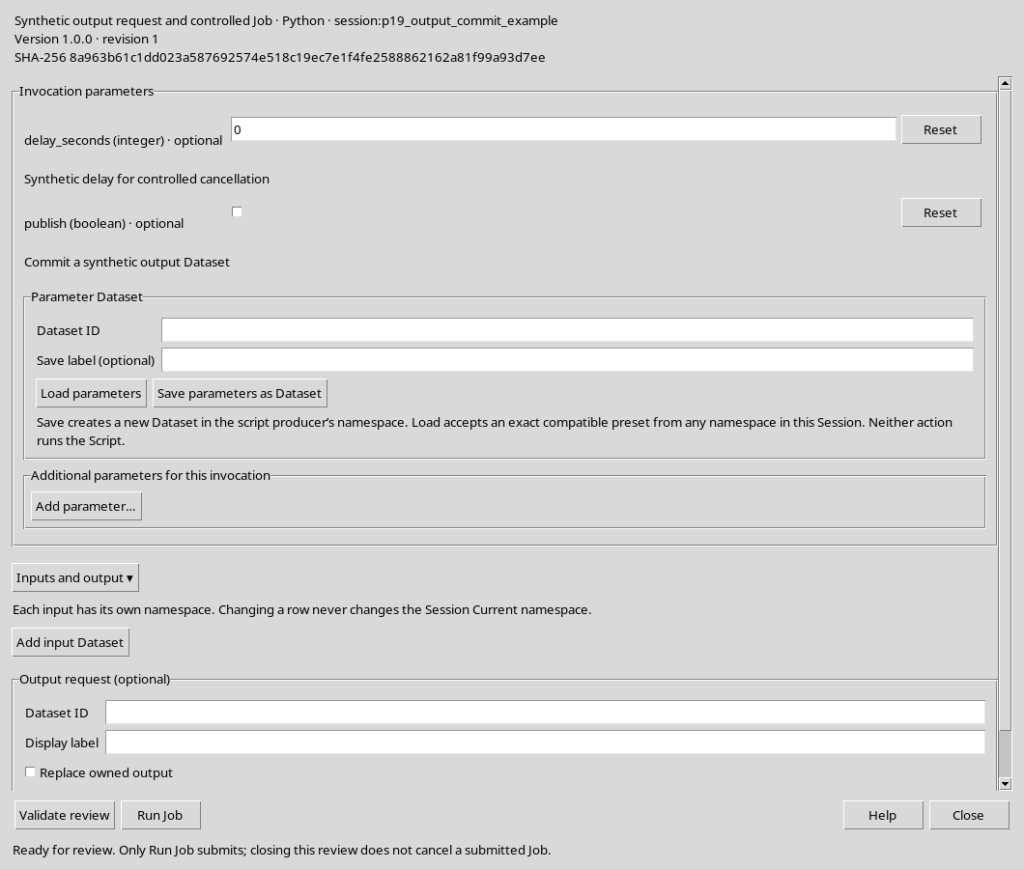
With the registered Script selected, choose Run → Open Script Runner…. The header shows name, language, reference, version, revision and SHA-256 of the source. These data are essential to recognise the program that could be run. Opening it does not submit a Job and does not automatically acquire a results Dataset.
5. Expanding Inputs and output
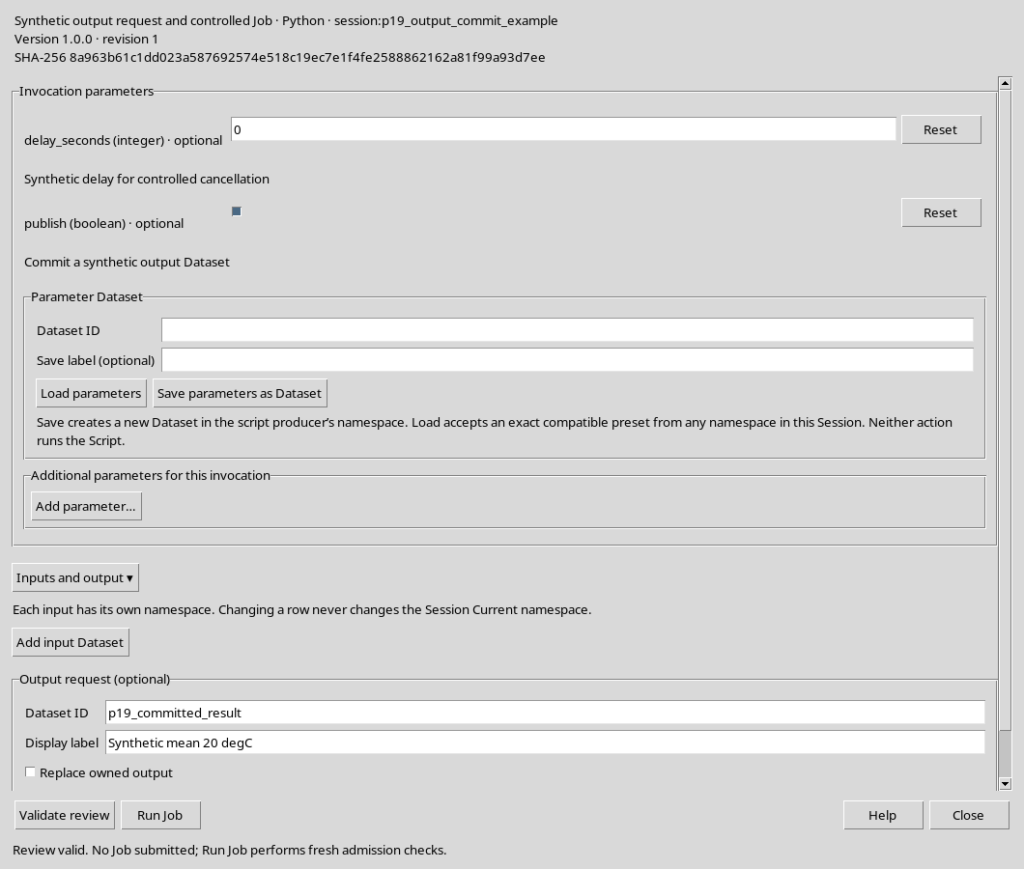
Open Inputs and output ▾ in the Runner window. The upper part lets you associate any input Datasets, while Output request (optional) contains Dataset ID, Display label and Replace owned output. Inputs were covered in the chapter on namespaces. For the current example the program directly uses five synthetic values, so there is no need to add external inputs.
6. Dataset ID and Display label
The Dataset ID field describes the desired canonical identifier for a result. Display label is optional and serves to explain the meaning of the output. The two fields have different functions: the label is not an identifier and grants no publication right. Leaving the Dataset ID empty means not requesting an explicit destination: it does not prevent an authorised Script from using the scientific APIs provided by its contract.
7. An invalid output identifier is rejected
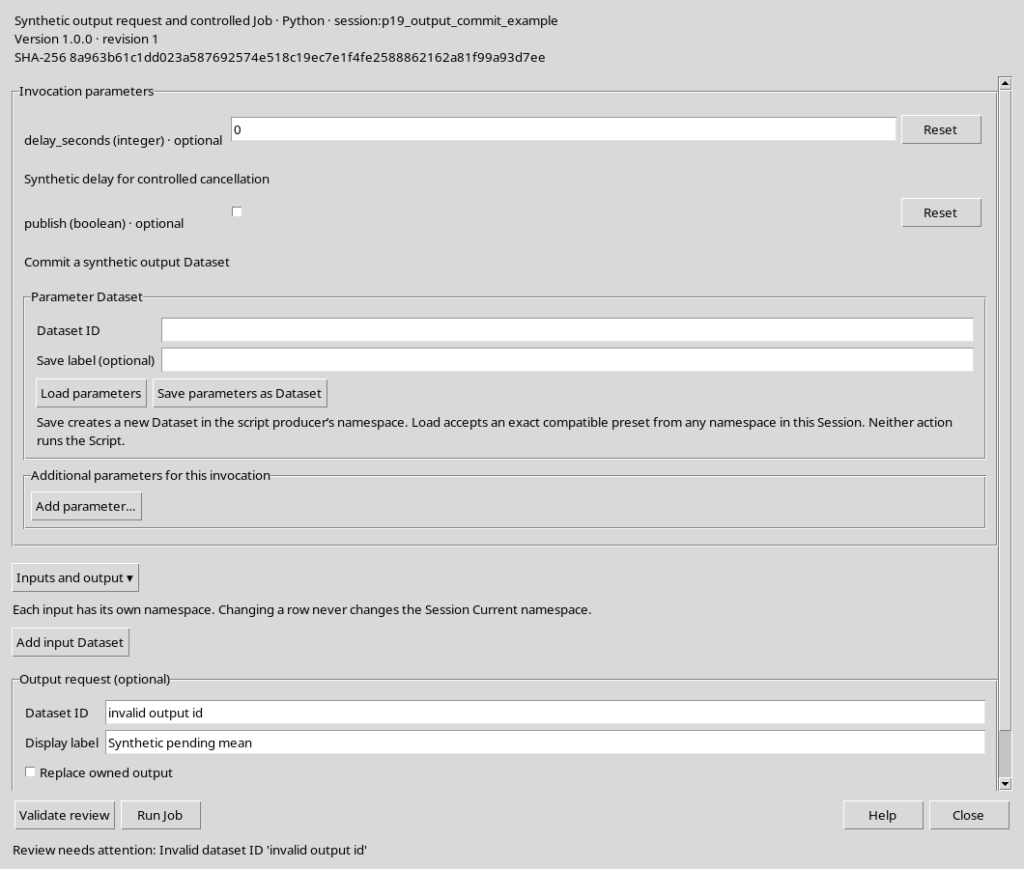
The choice of ID must follow the syntax required by the Registry. If, for example, you enter an identifier with disallowed spaces, Validate review shows Review needs attention and does not authorise the request. The error concerns the preparation of the output; there is no need to launch the Script to notice it.
8. An existing output is not implicitly overwritten
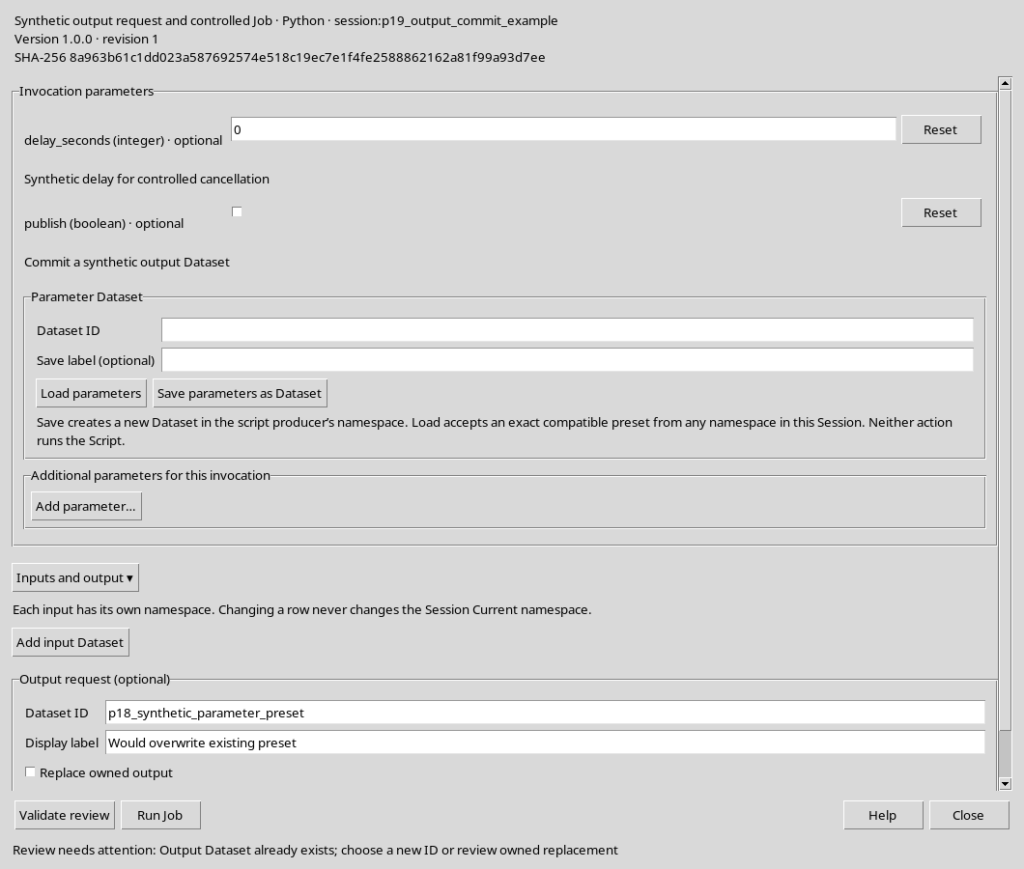
If you request as destination a Dataset ID already present, the default configuration is create-only. The Runner reports Output Dataset already exists and asks you to choose a new name or to explicitly examine the conditions for authorised replacement. Do not try to use an existing Dataset as a simple destination without understanding its provenance and ownership.
9. The meaning of Replace owned output
The Replace owned output checkbox requires a further check. It is not a general authorisation to modify Datasets of other producers: the CORE checks namespace, identity, producer and replacement right. For the first teaching publication the checkbox should be kept disabled, using a new Dataset ID. An input belonging to a different namespace does not grant permission to write to that namespace.
10. Validate review does not start a Job
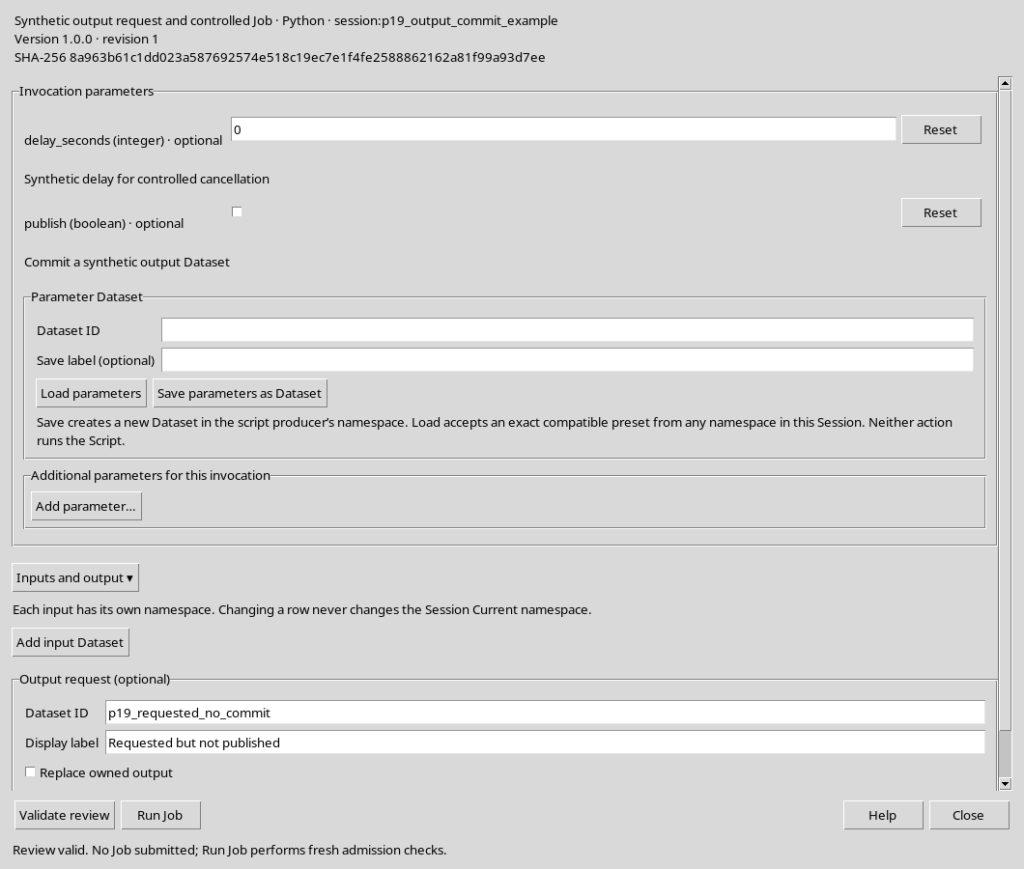
Once the fields are filled in, press Validate review. The message Review valid. No Job submitted confirms that the current request has passed the available checks, but does not mean that Python has been run. The check again verifies the registered source, the typed parameters, the inputs and any output request; final admission will be repeated when Run Job is pressed.
11. Requesting an output is not the same as publishing it
The Output request field indicates a destination, but does not create a Dataset by itself. It is the Script, through a public publication API, that must produce and register the data. In the example the program has a boolean parameter publish: set to False, it performs the computation and prints the result without publishing canonical data, even if an output Dataset ID is present in the Runner.
12. Pressing Run Job: first execution without commit
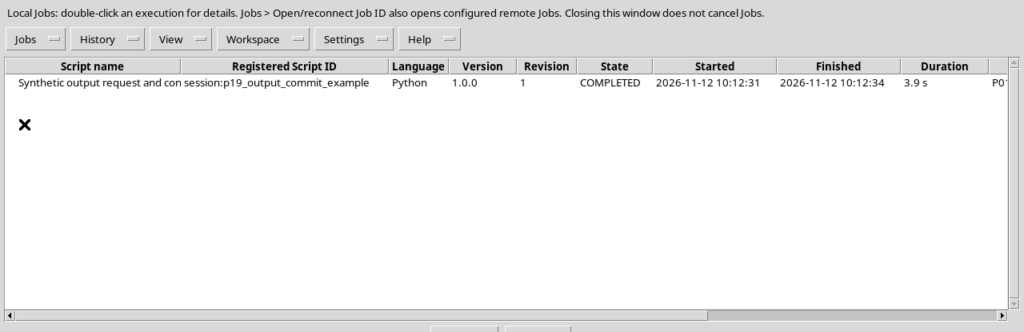
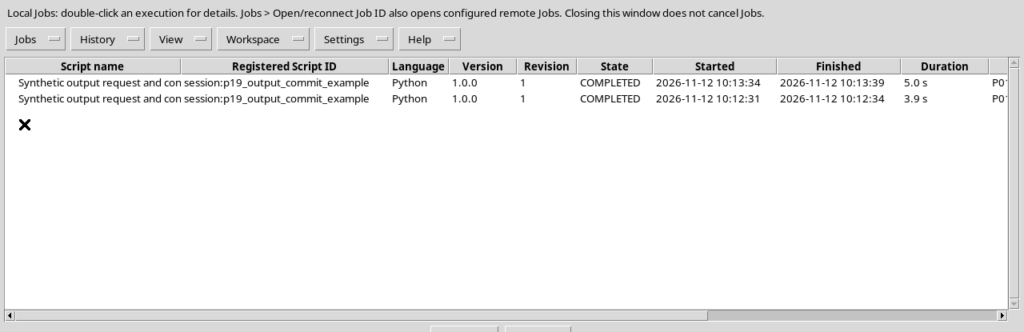
With a valid request and publish=False, press Run Job. The interface sends the configuration to the supervisor and the Script Jobs window appears. The first execution of the example ends in the COMPLETED state and returns the mean of 20.0 °C, but registers no Dataset. This behaviour confirms that completion of the Job and publication of the result are two distinct operations.
13. The Script Jobs window
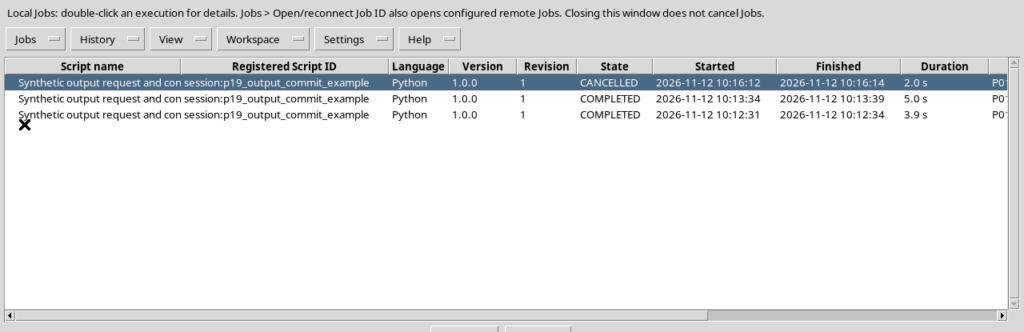
Script Jobs presents executions with name, registered reference, language, version, revision, state, start, end and duration. By selecting a Job you can examine its log and open Open execution details. The list can show several executions of the same revision: they are distinct Jobs with different configurations and results. Closing this window does not cancel a Job already submitted.
14. Checking the result that was not published
The first log reports the synthetic mean, but the Job’s publication register is empty and the requested Dataset ID does not appear in the catalogue. The absence of the Dataset is consistent with the code actually run. You must not declare a result published just because it appears in the console or because the Job is shown as COMPLETED.
15. Preparing a second request with publication
Return to the Runner, choose a new Dataset ID, assign a descriptive label and enable the Script’s publish=True behaviour. Leave Replace owned output disabled. Repeat Validate review: the source revision stays the same, but the parameters and the output request do not coincide with those of the first execution.
16. Publication requires a public API
To register a numeric Dataset the Script can use Dataset Publication API v2 through the public Python client gxtxt_api_call(). The following fragment shows the core of the protocol, with a single numeric variable and one row.
from gxtxt import gxtxt_context, gxtxt_api_call, gxtxt_api_require

ctx = gxtxt_context()
output_id = ctx["output"]["dataset_id"]
gxtxt_api_require("DATASET_PUBLICATION_API_v2@2")

definition = {
    "dataset_id": output_id,
    "contract": "table.generic",
    "storage": "csv",
    "producer_version": "1.0.0",
    "source": "Synthetic tutorial values",
    "provenance": "Arithmetic mean of five synthetic readings",
}
writer = gxtxt_api_call("DATASET_PUBLICATION_API_v2", "begin", [definition])
try:
    gxtxt_api_call("DATASET_PUBLICATION_API_v2", "declare_dimension",
                   [writer, "row", 0, {"extendible": 1}])
    gxtxt_api_call("DATASET_PUBLICATION_API_v2", "declare_variable",
                   [writer, "mean_c", {
                       "dtype": "float64", "rank": 1,
                       "dimension_ids": "row", "unit": "degC",
                       "coordinate_role": "data",
                       "semantic_role": "derived",
                   }])
    gxtxt_api_call("DATASET_PUBLICATION_API_v2", "append",
                   [writer, "row", {"mean_c": [20.0]}])
    receipt = gxtxt_api_call("DATASET_PUBLICATION_API_v2", "finalize", [writer])
    writer = None
except Exception:
    if writer is not None:
        gxtxt_api_call("DATASET_PUBLICATION_API_v2", "abort", [writer])
    raise
begin opens the publication, the declarations define dimension and type, append inserts the values and finalize performs the canonical commit. abort discards the incomplete publication when an error occurs. Do not write directly to the Registry files or to the Dataset directories.
17. Second execution: completion and commit
After validation, press Run Job again. The second execution also ends COMPLETED, but this time the Script performs the publication. The Job keeps its own identifier and the publication register indicates the new canonical Dataset. It is not an automatic effect of the Output field: it is the result of the explicit commit carried out by the code.
18. Checking that the Dataset really exists
After the commit, the Catalogue contains the new Dataset with contract table.generic, producer analysis.python_script and the module’s namespace. The content is a variable mean_c of type float64, unit degC, a single row with value 20.0. The check must be carried out with the canonical APIs or the authorised Viewer, not by inferring the existence of the Dataset from the name shown in the Runner.
19. Requested output, published output and temporary data
The supervisor distinguishes three elements: Output request, that is, what the user requested; the temporary files and traces of the execution; the Committed published Dataset IDs, registered by the CORE. Only the last group identifies results published and kept as canonical Datasets. The standard output printed by Python remains a stream of the Job, unless it is published separately.
20. The immutable identity of the Job
Each Job keeps the registered Script, the version, the revision and the SHA-256 of the source actually run. It also keeps the parameters, any inputs, the output request, the Session context and the runtime information. Two Jobs can use the same Script and produce different results without changing its Registry. The frozen copies of the source make it possible to reconstruct the execution even when the editor file is modified in the future.
21. Reading Open execution details
The Open execution details window shows state, exit code, source provenance, output requests and publications actually committed. The log panels let you consult separately program output, stderr and diagnostics. The local path of the Job and other technical identifiers may be present in the view: they belong to the installation’s Session and must not be transferred into public guides as reusable instructions.
22. CORE preview services are separate
When a numeric Dataset is published, GX-TXT can start an automatic CORE Dataset Preview preparation. This is a service execution distinct from the user’s Python Job. In the example the preparation of the preview of the new numeric Dataset completed correctly; this changes neither the meaning of the Job state nor the number of Python executions explicitly requested.
23. Preparing a controlled cancellation
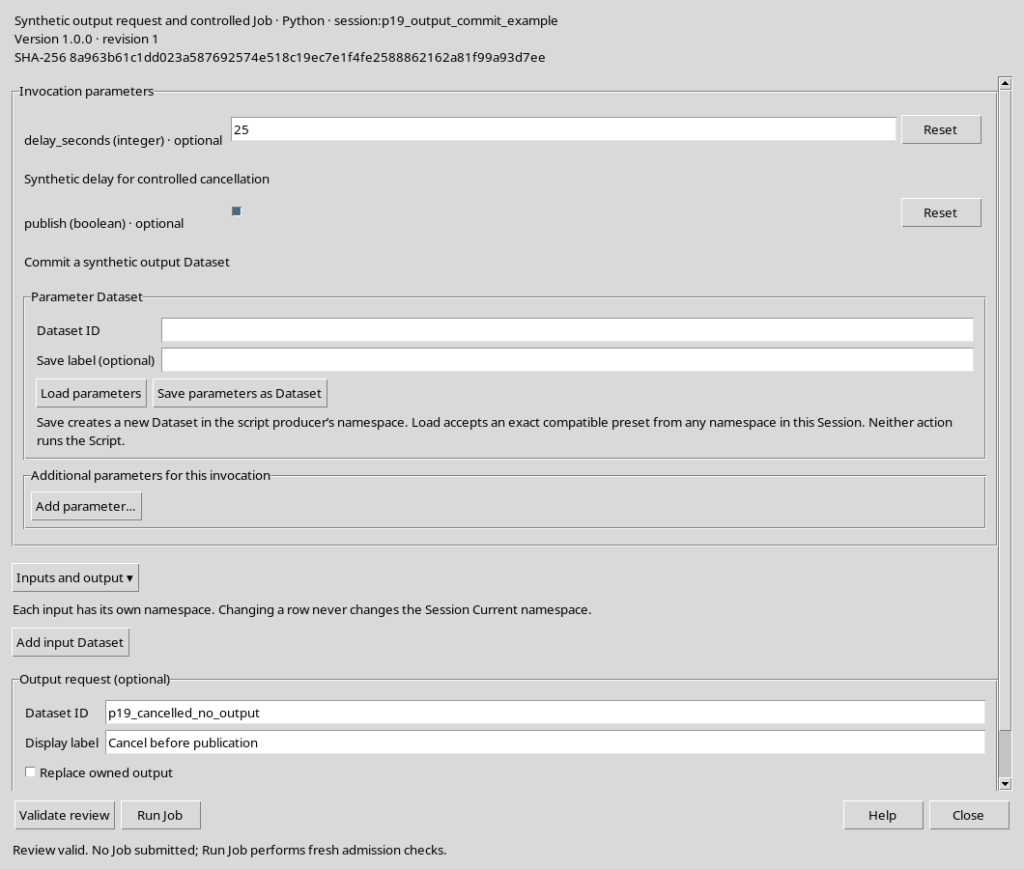
To show the stopping behaviour, a short delay is set, only in the synthetic Script, through delay_seconds. The third Job receives a new output Dataset ID and the same registered source. The delay does not represent a real experiment: it serves to keep the execution active long enough to select it in the Jobs window.
24. Identifying the RUNNING Job to interrupt
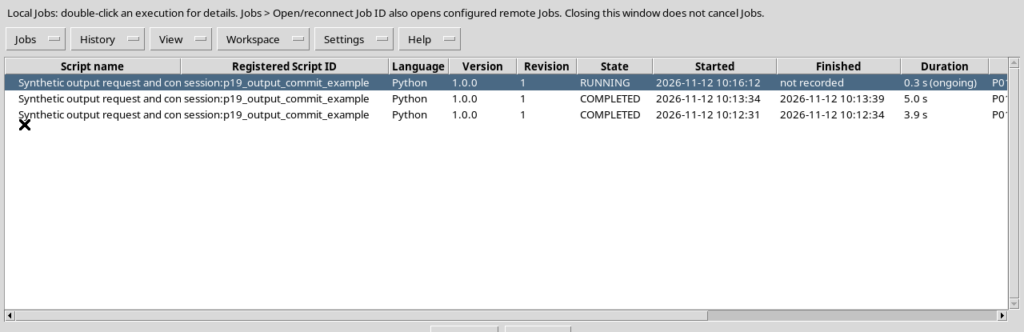
After Run Job, locate the correct execution in the Script Jobs table and check its RUNNING state. It is important to distinguish the current Job from the others already COMPLETED: the cancellation button or command must not be applied to an unintended multiple selection. The state is managed by the supervisor, not by the text content of the editor.
25. Cancel running jobs: stopping through the supervisor
With the correct Job selected, use Jobs → Cancel running jobs. The supervisor sends a cancellation request and takes care of the process and the associated resources. There is no need to manually terminate the Python interpreter or delete Session files. In the example the final state becomes CANCELLED with reason Cancellation requested, and no output of the third Job is published.
26. COMPLETED, FAILED and CANCELLED mean different things
COMPLETED indicates that the Job has finished its processing; it does not guarantee that a Dataset has been published. FAILED identifies an error in preparation or execution, to be read in the diagnostics. CANCELLED indicates that the interruption request was accepted and the supervisor stopped the Job. Always check separately any Datasets actually committed: cancellation and failure must not be reinterpreted as scientific results.
27. Closing the windows does not cancel a Job
The Runner’s Close button and closing Script Jobs end the display; they do not implicitly cancel an execution already submitted. A Job can continue to be managed by the supervisor even with the windows hidden. To interrupt an active processing run you instead need the specific Cancel action on the correct Job. It is good practice to wait for a terminal state before considering the procedure finished.
28. Returning to the code and keeping provenance
After the three tests, close the details, the Jobs window and the Runner. In Python Script Workspace the original source is visible again with the High Contrast Dark theme and without superfluous panels. Only one new numeric Dataset remains registered, published by the second execution: the first ended without output and the third was cancelled.
The procedure shows that validation, Job submission, execution state and canonical publication are autonomous steps, linked by verifiable identities and revisions. The next guide will cover integration with Python analysis started from the normal GX-TXT interface.