GX-TXT Python Script Workspace: Job history, filters and reruns
The GX-TXT Script Jobs Manager lets you find the previous executions of a Script, check their outcomes and consult the reports without starting Python again. Each Job has a persistent identity, distinct from that of the registered Script. You can filter and sort the history, reopen an already finished execution and prepare a new execution only after an explicit review of the request.
1. The history is not the source editor
Python Script Workspace is used to create, edit and save code. Script Jobs Manager is instead used to consult the executions that the supervisor has already admitted. A Job keeps the reference to the Script, the revision, the SHA-256 of the source and the state. The history is not a list of files to run directly: selecting a row or reading its report does not run Python.
2. Opening Script Jobs Manager
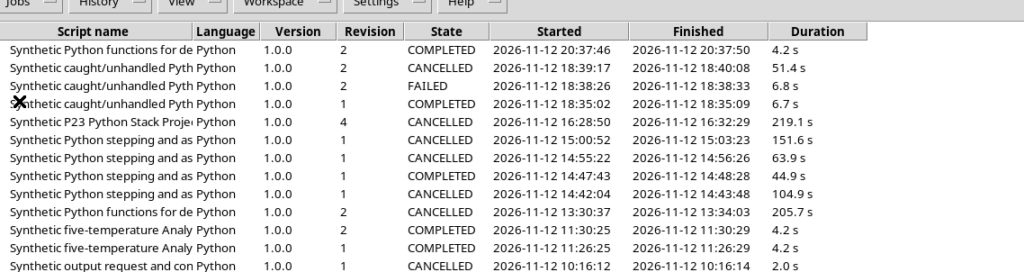
In Python Script Workspace choose Run → Script Jobs Manager…. The window presents a table of executions and, in the lower part, a preview pane of the selected Job. The list can be read without opening debugger panels or overloading the editor. For an ordinary consultation session it is advisable to keep only the necessary columns visible.
3. The columns identify a precise execution
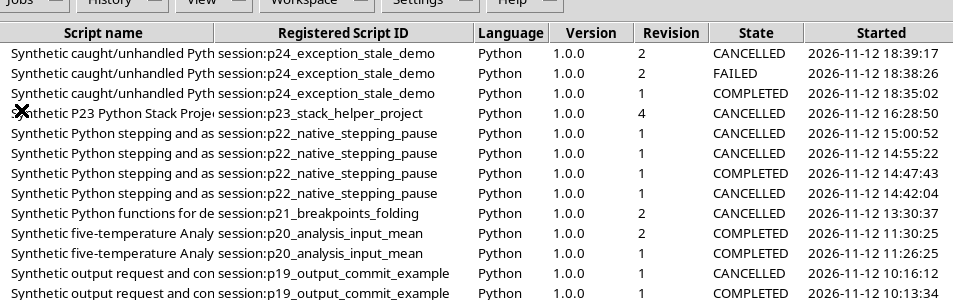
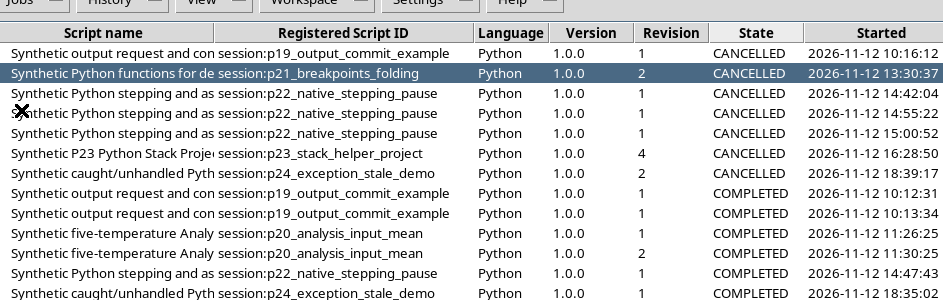
The columns include the Script name, Registered Script ID, language, version, revision, state, dates, duration, Session and Job ID. The choice of visible columns changes only the presentation: it removes no metadata from the Job. The readable name helps recognise the program, while the Job ID is the exact reference to a single execution.
4. Script ID and Job ID are not equivalent
The same registered Script can be run many times. Each execution obtains a different Job ID, while the Registered Script ID can remain identical. In addition, two Jobs of the same Script can use different revisions. When comparing results or errors, therefore check the Job ID, the revision and the SHA-256 (submitted source), not only the name of the program.
5. Limiting the view to the correct Session
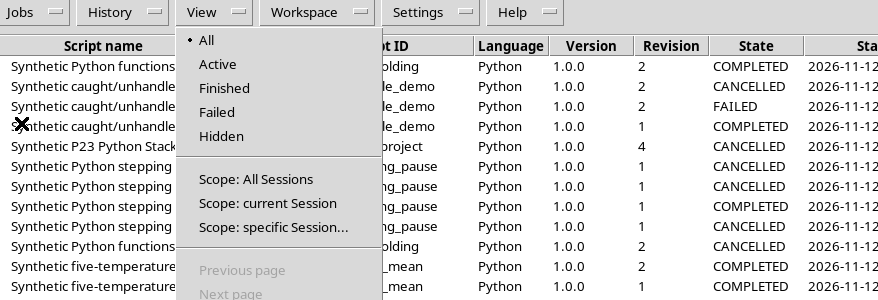
In the View menu select Scope: current Session to show only the executions belonging to the active Session. Scope: All Sessions and Scope: specific Session… are also available. Before consulting or rerunning a scientific Job it is preferable to restrict the view to the Session containing the work to be examined: the history filter does not change the currently open Session.
6. The five view filters
The View menu lets you choose All, Active, Finished, Failed and Hidden. These filters concern the display of the executions, not the content of the Job or its revision. From the same menu you reach the commands for the Session, pages and columns.
7. All: the set of visible executions
All shows the Jobs of the selected Session that have not been hidden by the personal configuration. Executions with different outcomes, belonging to different Scripts, can appear in the list. The list can be consulted and selected; the default sort order highlights the most recent executions.
8. Active: recognising a Job still being managed
Active limits the view to executions not yet terminal, for example queued, being prepared or running. When there are no active Jobs in the Session, the filter can show an empty list: it does not mean that the history has been deleted. To interrupt a really active Job you need the supervisor’s cancellation command; closing the Manager window is not a substitute for Cancel running jobs.
9. Finished: consulting terminal executions
The Finished filter lets you find completed Jobs, including those that ended normally, failed or were cancelled. The state of each row remains visible, so as not to confuse a COMPLETED processing run with a FAILED or CANCELLED execution. A history of terminal executions only is useful before comparing reports and results.
10. Failed: isolating unsuccessful executions
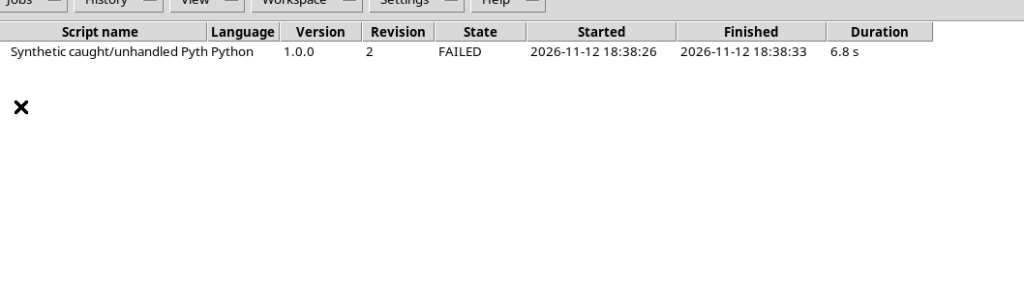
The Failed filter shows the executions classified as failed. This view is useful to quickly open the diagnostic report and read the original error. However, CANCELLED must not be interpreted as a synonym for FAILED: a deliberately interrupted Job belongs to a different state.
11. Sorting the table by state
You can click on a column header, for example State, to reorder the rows. A second click can reverse the order. This operation does not modify the date or the identity of the Jobs: it only changes how the records are presented in the table. To return to chronological order use the criterion corresponding to the execution date or restore the usual view.
12. Managing columns and available space
From View → Columns you can enable or hide columns. When an overview is sufficient, it is advisable to leave Script name, language, revision, state and dates visible, preventing the table from occupying the whole screen with very wide columns. To identify a specific execution, re-enable Job ID. Showing or hiding a column does not alter the Journal and does not delete information.
13. Pages and view limit
The history uses pages of at most 500 Jobs. The Previous page and Next page commands are enabled when there actually are records before or after the current page. If the Session contains fewer than 500 executions, both commands may remain disabled. The total number shown in the status bar refers to the whole set of filter results, not only to the rows visible on the page.
14. Refresh updates the view
The Jobs → Refresh command rereads the information on the state of the Jobs. It is useful after a new execution or when a process already started passes from RUNNING to a terminal state. Refresh is not a rerun request and does not produce a new copy of the Script. The selection and scrolling of the table are kept when possible.
15. Reconnect / recover local journal
Jobs → Reconnect / recover local journal asks the supervisor to realign the local history with the persistent records. It is distinct from the Rerun selected… command: reconnecting means finding an already existing Job, while rerunning means preparing a new one. Do not use Reconnect to duplicate work or to automatically import remote executions: inspecting remote Jobs requires a separate, authorised configuration.
16. Selecting a row and reading the preview
When a Job is selected in the table, the Selected execution pane shows provenance information and a preview limited to 16 KiB of the stored log. If the log is longer, this view is not equivalent to the complete content. To consult extended streams and reports you need to open the execution details window.

17. Opening Execution details
With a Job selected, choose Jobs → Open execution details or use the normal opening from the table. The Execution details window shows the identity of the Job, the registered Script, the SHA-256 of the snapshot, the state, the exit code and further relevant information. The presence of Snapshot validation: verified indicates that the source copy has been recognised and verified.

18. Program output is not the same as the summary
The details window offers consultation of the different streams, such as Program output, Program stderr and Diagnostic log. They are different channels: a program can correctly print a message before ending FAILED because of a later error. The details view reads streams kept by the original Job; simply opening it does not run code and does not publish Datasets.

19. Reopening a Job from its ID
The Open/reconnect Job ID command accepts the exact identifier of an already registered execution. For a local Job, reopening keeps the same ID, the same state and the same snapshot; if its panel is already open, GX-TXT can reuse it instead of creating a duplicate. The Reconnect commands in the details window update the inspection; they do not restart the execution.
20. Rerun selected opens a new request
Select a terminal historical Job and choose Jobs → Rerun selected…. GX-TXT opens the Runner with an explicit section dedicated to the new execution. The historical Job remains unchanged; for comparison the Runner presents the original Script and revision and those currently available. If the historical reference differs from the current source, you need to carefully check the differences before proceeding.
21. Checking source, parameters and Datasets
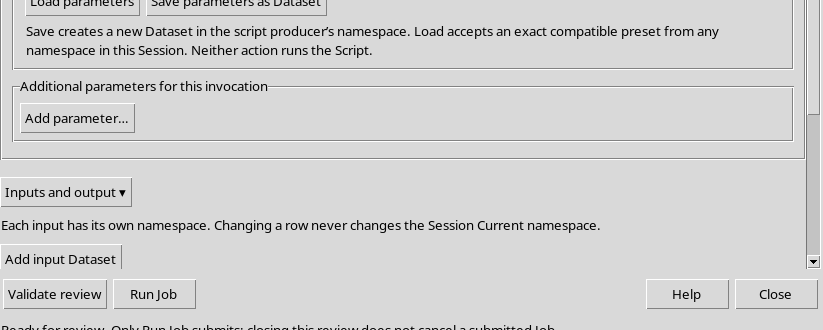
Before rerunning, check Script ID, Version, Revision and SHA-256, together with the parameters, the input Datasets and any output request. A different revision can involve different logic even if the Script name is the same. A missing Dataset or one whose revision has changed must be selected again: the previous settings do not automatically grant the right to use data or destinations that are no longer valid.
22. Validate review creates no Job
The Validate review button checks the consistency of the current values. If the check is positive, the Runner reports that the request is valid, without submitting an execution. It is important to use this phase to separate the preparation of the request from its actual execution. Validation does not involve publishing new Datasets.
23. The explicit confirmation of the rerun
When the Runner has been opened from Rerun selected…, the option I reviewed this invocation appears. Without this confirmation, Run Job must not admit a new execution: the Runner first requires an explicit review. Tick the control only after reading source, inputs, parameters and destination. The control is not a permanent authorisation for all subsequent reruns.
24. Run Job creates another execution
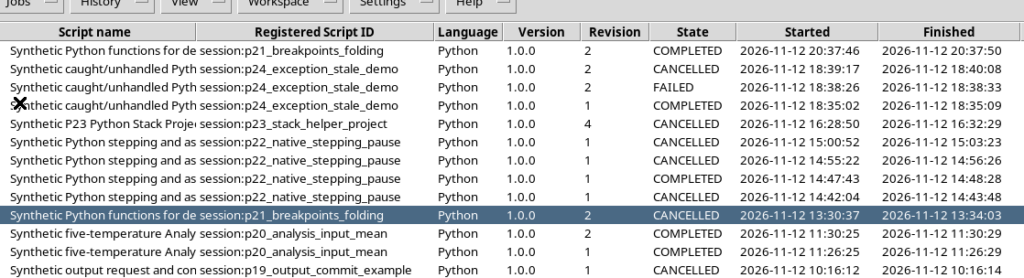
After confirmation, Run Job asks the supervisor for a new Job with its own immutable identity. In the example, a synthetic Python rerun ended COMPLETED, code 0, with output:
Synthetic range: 0.333 1.0The historical Job from which the request was started remained CANCELLED, with the same identity and revision. No canonical Dataset was published.
25. Hide selected hides, it does not delete
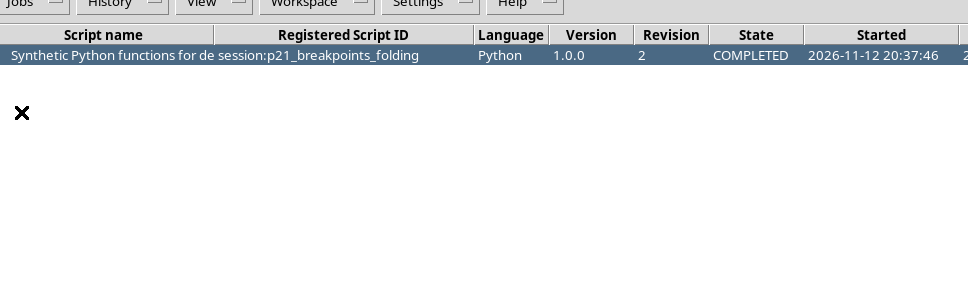
From the History menu you can choose Hide selected / Remove from visible list to hide an already finished row. The operation concerns only the displayed history and the personal configuration: it does not delete logs, executed code, scientific data or Job IDs. The Hidden filter is used to find the executions temporarily excluded from the normal view.
26. Restore selected restores visibility
Select a row with the Hidden filter active, then choose History → Restore selected. Returning to All, the Job reappears in the history with the same state and the same identifiers. This way Hide and Restore can be used to organise a very large history without compromising the reproducibility of the executions.
27. Closing and reopening Script Jobs Manager
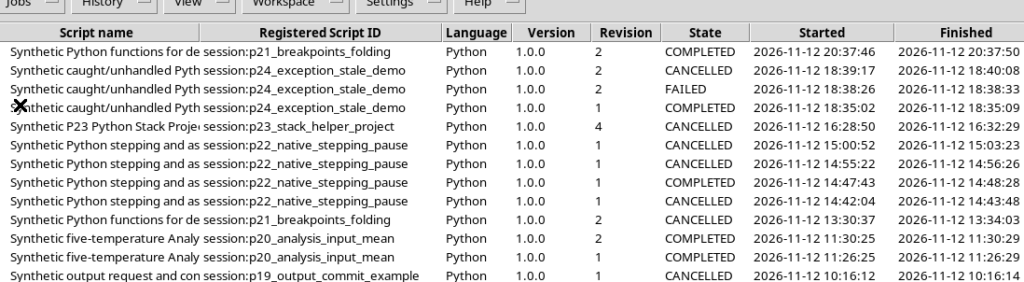
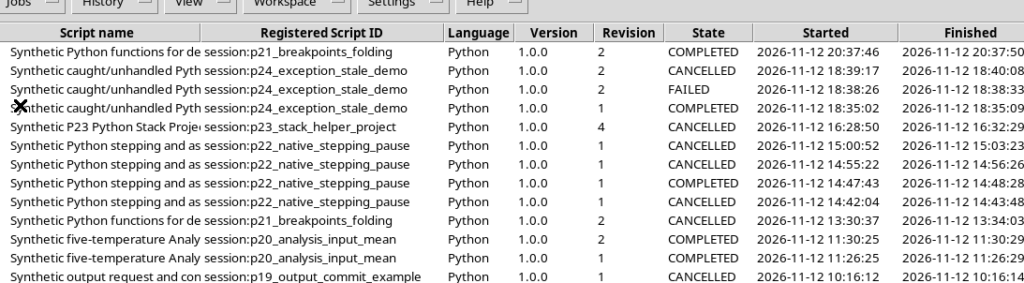
Closing the Script Jobs Manager window does not delete Jobs already registered. When the Manager is reopened you can find the executions and their states: in the example both the historical CANCELLED Job and the new COMPLETED execution were still present. The filter, column and Session preferences concern the appearance of the view, not the identity or content of the executions. Any Job still active remains the responsibility of its supervisor.
28. Returning to the Python code
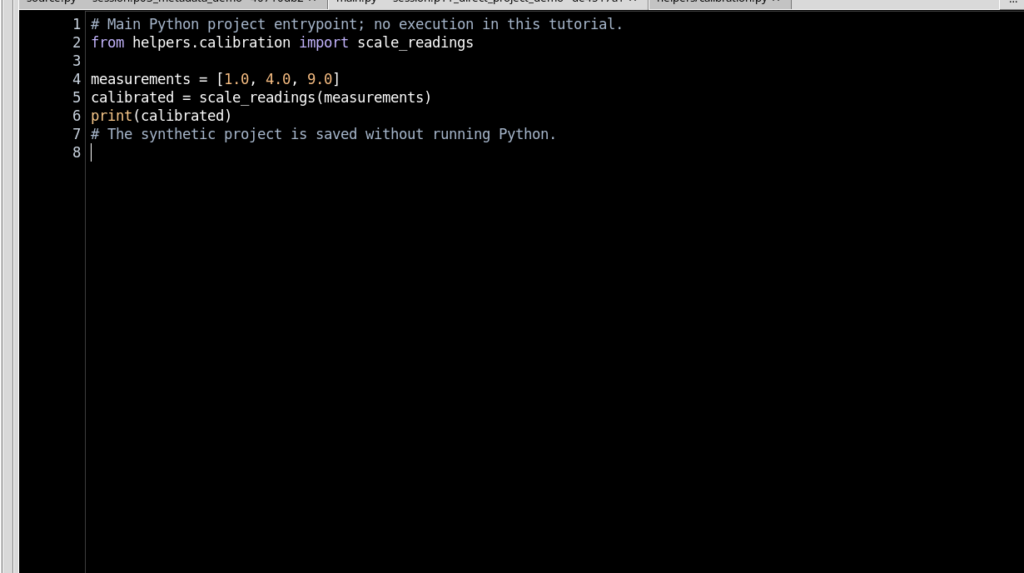
Once consultation is finished, close the Manager and return to Python Script Workspace. In the High Contrast Dark editor the registered source is separate from the history and no filter, selection, reconnection or details-opening operation has modified it. The next guide will go into the complete reading of stdout, stderr, diagnostic logs and paginated streams of the single Job.