GX-TXT Python Script Workspace: saving and reloading typed Parameter Datasets
The Parameter Dataset lets you keep in GX-TXT the values of an already verified Python invocation, together with the types, the declarations and the revision of the corresponding Script. Script Runner offers Save parameters as Dataset and Load parameters: these commands prepare and retrieve reproducible configurations, without running Python. The guide shows a set of synthetic parameters and the checks that prevent applying presets that are incomplete, obsolete or tied to another Script.
1. Why save the parameters of a scientific procedure
The same procedure can be repeated changing coefficients, number of replicates or processing mode. Keeping only the source does not document which values were chosen in a particular preparation of the computation. A Parameter Dataset keeps a typed set of values for a specific registered Script, allowing them to be retrieved for a new check before any execution.
2. Parameter Dataset and scientific Dataset are not the same thing
A numeric Dataset can contain observations or measurements, for example a sequence of temperatures. A Parameter Dataset is instead a canonical configuration Dataset, with contract gxtxt.script_parameters.v1. Its variables describe the parameters of the invocation. It must not be confused with a results Dataset or with the Python file that performs the analysis.
3. Three identities to keep distinct
The Script is identified by the registered reference, the revision and the SHA-256 of the source. The Parameter Dataset has its own Dataset ID, revision and content integrity. A possible Job is a third entity, created only by an explicit submission. Saving or loading a preset does not change the revision of the program and does not create a Job.
4. Requirements for using a preset
Open the correct Session and choose an already saved Script in Python Script Workspace. The Script should declare its parameters through gxtxt_parameter_declare() or through the editor’s typed parameters table. Check the reference, version and revision of the source: a preset can be retrieved only when its identity and schema are compatible with those of the current Script.
5. Opening Script Runner and locating Parameter Dataset
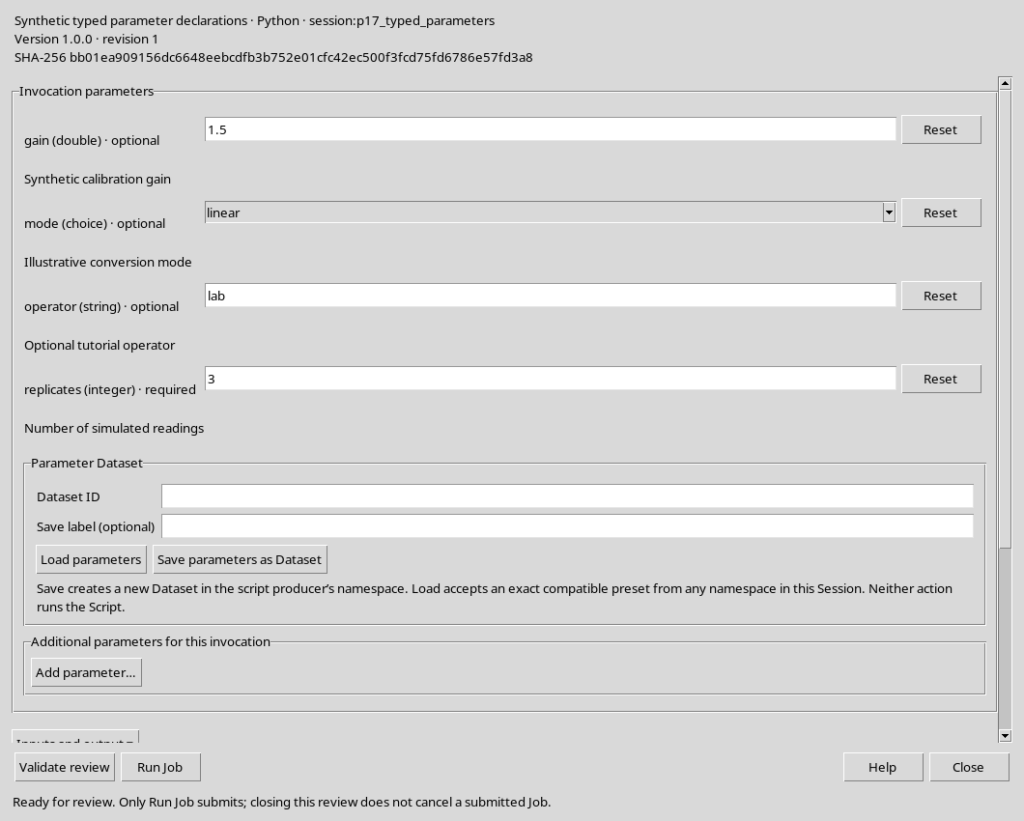
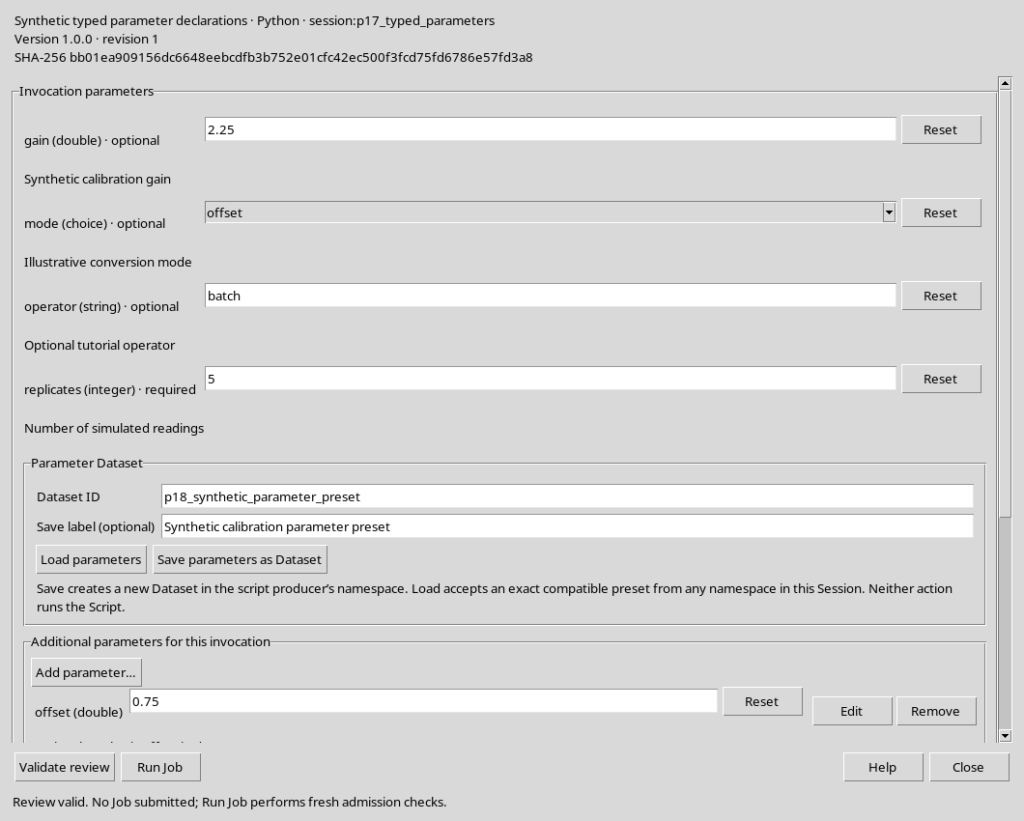
Use Run → Open Script Runner… with a saved, unmodified Script. The Runner presents the typed parameters and, below them, the Parameter Dataset section with the Dataset ID and Save label (optional) fields. The Load parameters and Save parameters as Dataset buttons perform different operations. Their presence does not mean that a Job has already been launched.
6. Preparing a synthetic example
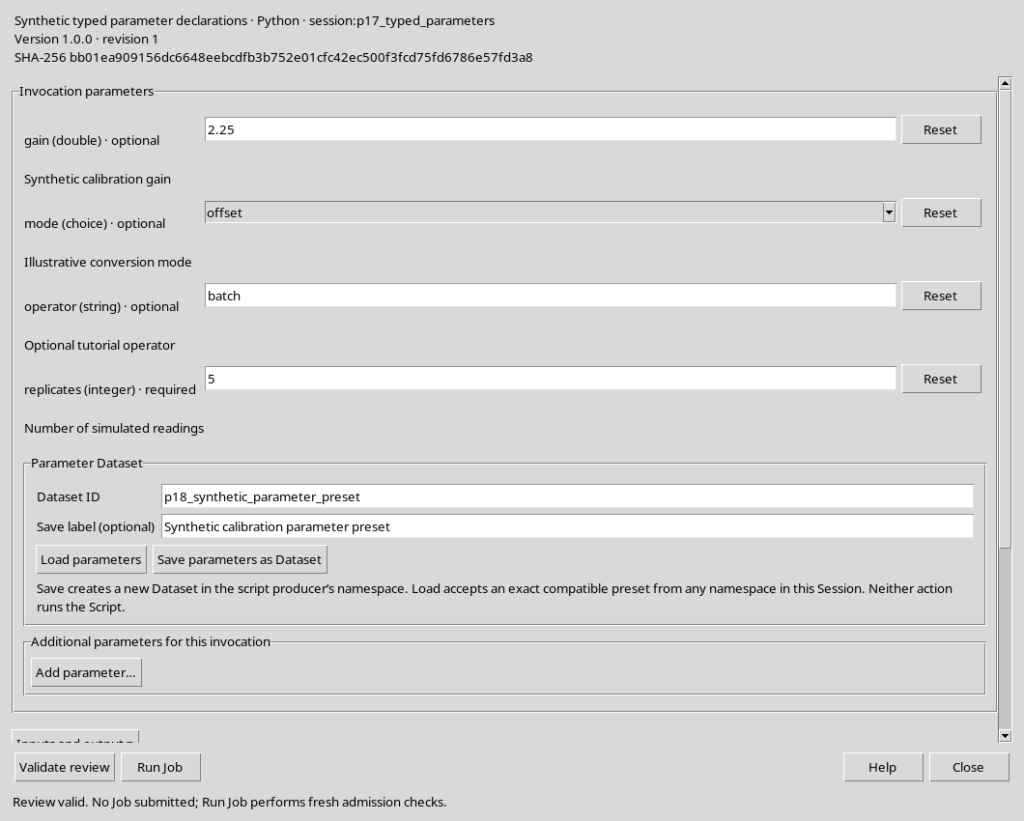
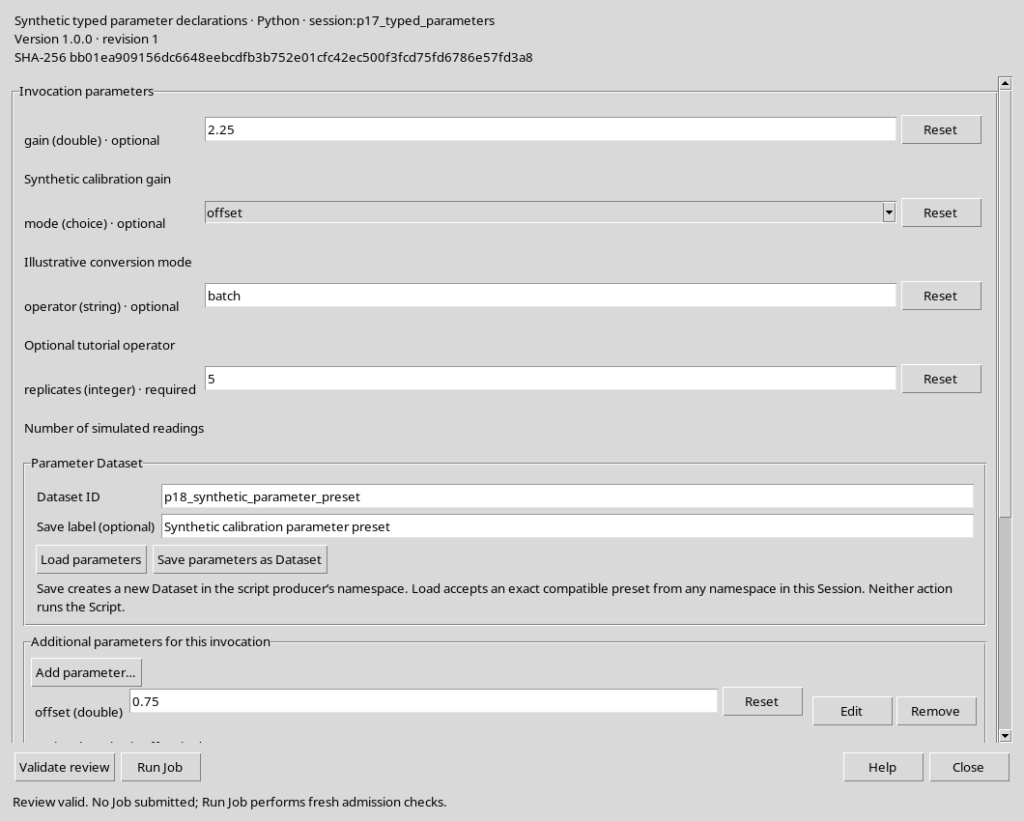
Consider four Script parameters: gain of type double, replicates of type integer, mode of type choice and operator of type string. Their schema was registered together with the source. To illustrate saving, we set values different from some of the defaults:
| Parameter | Type | Chosen value |
|---|---|---|
gain | double | 2.25 |
replicates | integer | 5 |
mode | choice | offset |
operator | string | batch |
These are teaching values, not experimental measurements or results of an execution.
7. Filling in the typed fields
Change the values directly in the Runner. The numeric editor applies the type and any limits set by the declaration; a choice field allows only the available alternatives. It is useful to press Validate review before saving: a configuration that does not pass validation should not be treated as a ready-to-use preset.
8. Adding a parameter valid for a single invocation
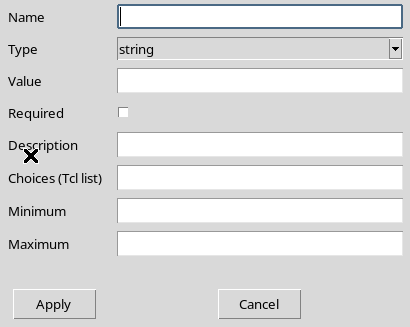
To also associate a coefficient not present in the registered schema, choose Add parameter… in the Additional parameters for this invocation section. The native dialog lets you specify Name, Type, Value, Required, Description, Choices, Minimum and Maximum. In our example we add an offset of type double, with initial value 0.75 and allowed range from −2.0 to 2.0.
9. An additional schema does not modify the source
After Apply, the new offset appears with the Edit and Remove buttons. It is a manual_invocation parameter, that is, it belongs to the current configuration and not to the Script Registry. Saving the Parameter Dataset also keeps this additional declaration, so that its meaning and limits can be reconstructed during loading.
10. Dataset ID and Save label have different functions
In the Parameter Dataset panel, enter a new, valid Dataset ID. The identifier is the canonical key in the Session; the Save label (optional) is a description for the user, which can convey the role of the preset. Do not enter a file path instead of the ID. A stable, understandable name, different from those already registered, is preferable.
11. Saving with Save parameters as Dataset
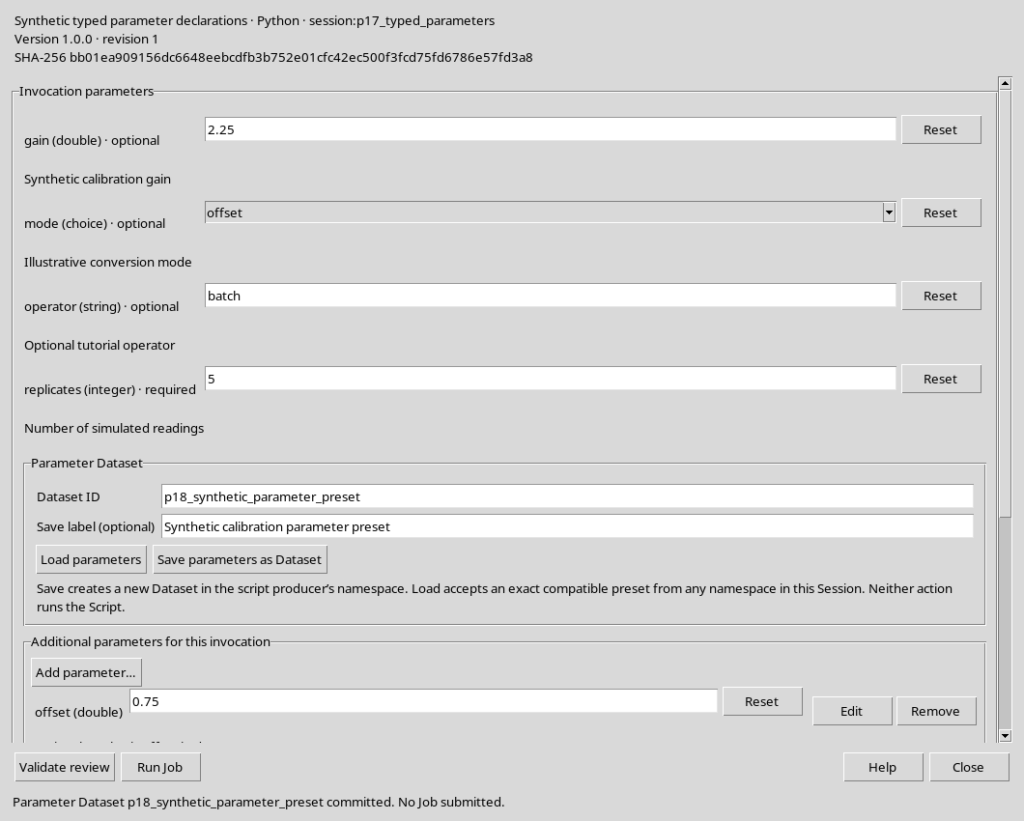
Once the values have been checked, press Save parameters as Dataset. If all constraints are satisfied and the Dataset ID is available, GX-TXT publishes the preset as a canonical Dataset. The Runner confirms the commit with a message specifying that no Job was submitted. The procedure does not change the revision of the Python Script.
12. The canonical format and the saved variables
The Parameter Dataset uses the gxtxt.script_parameters.v1 contract and contains one row of values. Each effective parameter corresponds to a stable variable, with the prefix p_, for example p_gain or p_replicates. The integer type is stored as int64, double as float64, while string and choice use text variables. There is also preset_marker, a boolean marker that preserves a canonical row even for presets with empty values.
13. The preset also keeps the declarations
In addition to the five values, the metadata keep the schema version, the qualified reference of the Script, the SHA-256, the revision and the typed definitions. The parameters coming from the Registry and those added manually remain distinct as registry_declarations and invocation_declarations. This allows loading to reconstruct an effective schema, checking its origin and compatibility.
14. The publication namespace
Saving normally creates the Parameter Dataset in the private namespace of the producer module, for example that of the Python analysis module. The namespace is an organisational property of the Session, not a directory to be entered in the Dataset ID field. Reading can use a compatible preset even when it has been legitimately moved to another namespace of the same Session; this does not grant new write rights.
15. An existing Dataset ID is not overwritten
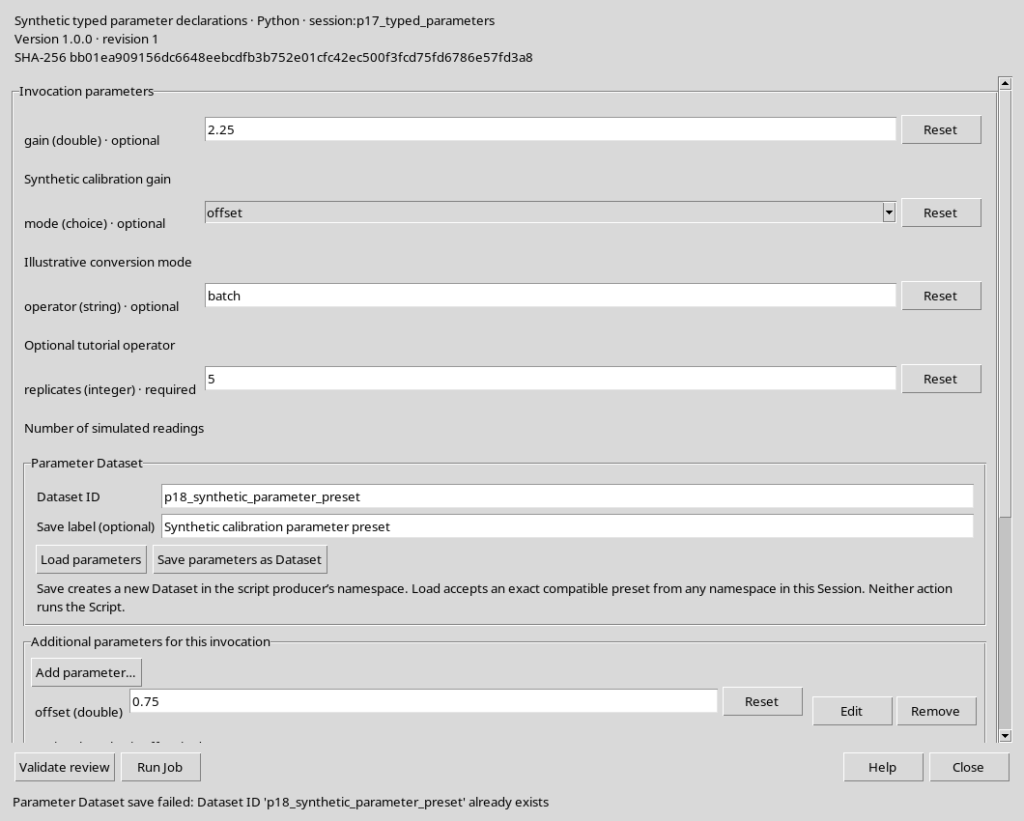
If you press Save parameters as Dataset again with an identifier already present, GX-TXT refuses the new commit. No implicit replacement takes place: the existing Dataset keeps its revision, values and SHA-256. To save a different configuration, choose a new Dataset ID instead of relying on an automatic update of the previous preset.
16. Changing the current values before loading
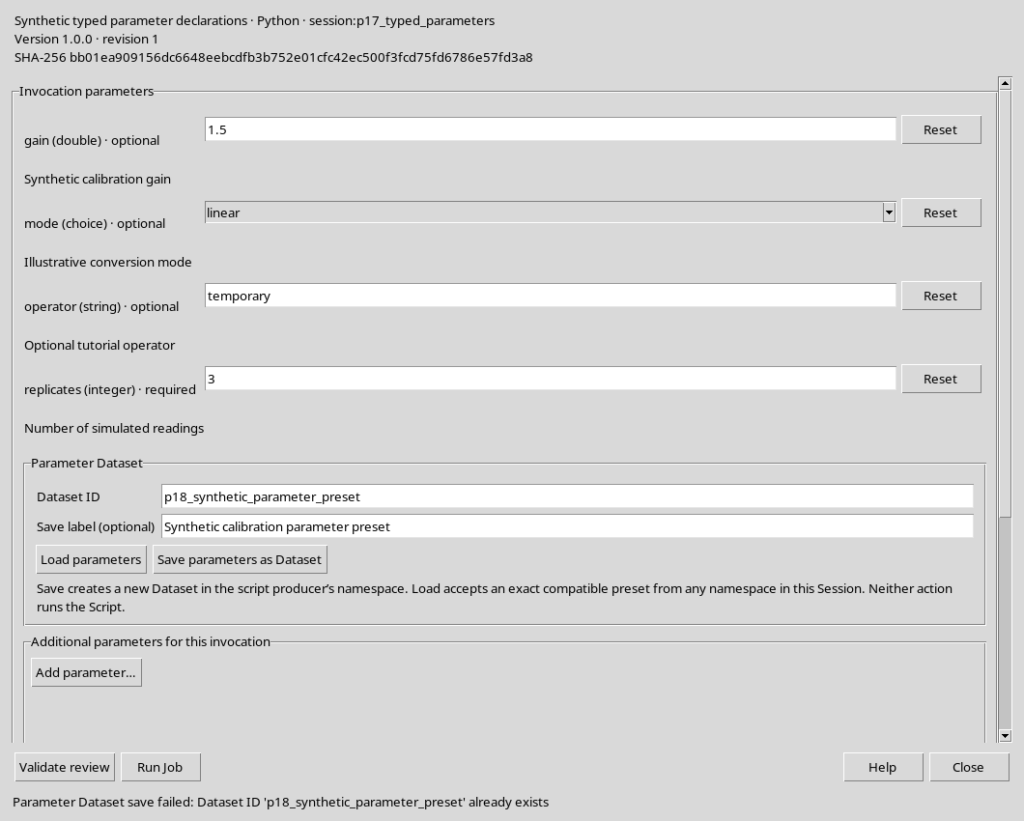
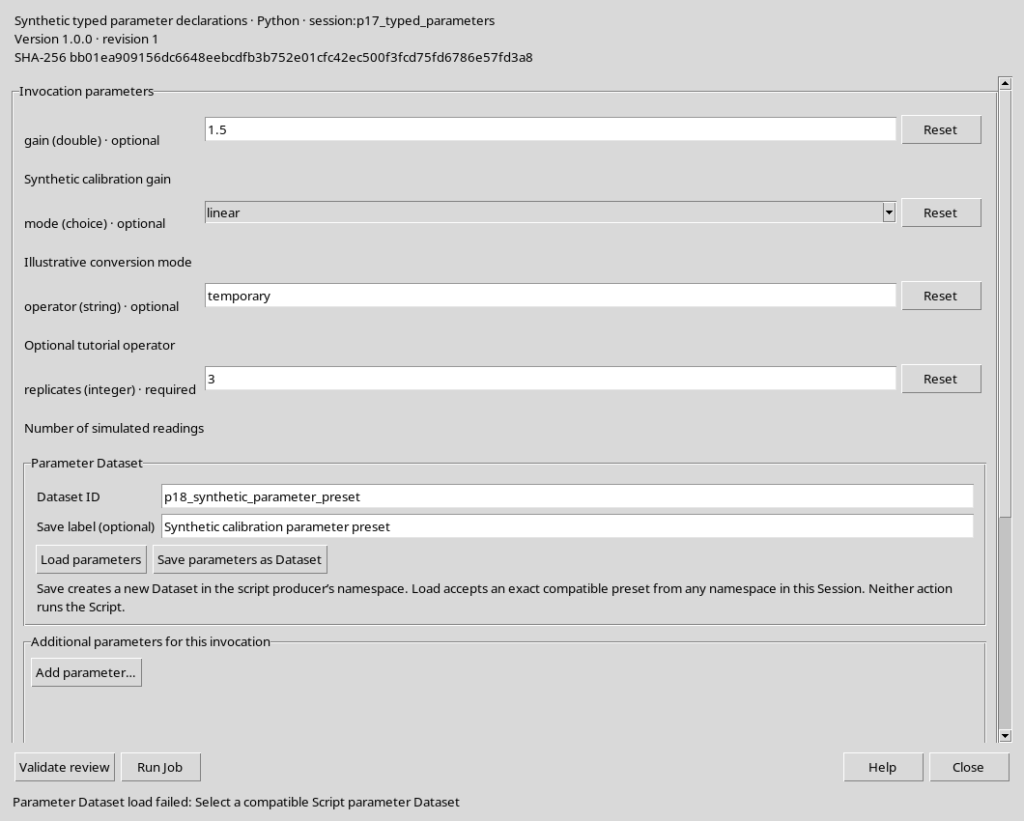
To understand retrieval, temporarily change the displayed values: set gain back to 1.5, replicates to 3, mode to linear, change operator and remove the offset row. These operations affect only the Runner; the already published Parameter Dataset remains unchanged. Loading serves precisely to replace this local configuration with the one saved previously.
17. Using Load parameters
Enter in the Dataset ID field the identifier of the Parameter Dataset to retrieve and press Load parameters. GX-TXT checks the whole document, including type, constraints, provenance and integrity, before applying any value. If loading succeeds, the Runner reports that the values have been loaded and requires an explicit check before any Run Job.
18. Loading also restores the offset
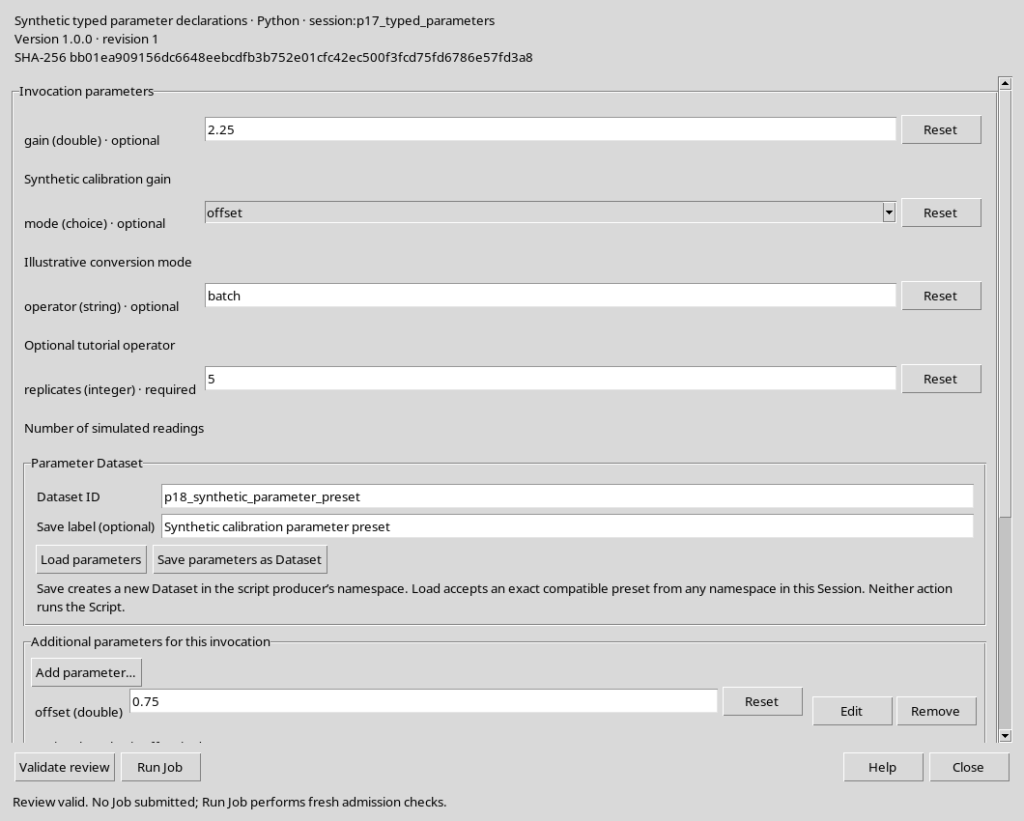
After Load parameters the values gain=2.25, replicates=5, mode=offset and operator=batch reappear, along with the manual row offset=0.75. Not only the value is restored: the additional declaration needed to interpret and validate it also returns. Validate review can then confirm that the request is consistent, without running the program.
19. The integrity checks of loading
Reading requires a canonical Dataset with the correct contract, a complete row and the expected Variable IDs. It also checks the types, the content fingerprint, the identity of the Script and the compatibility of the declarations. A missing or incompatible value causes a rejection, not a partial load. The original values of the window must remain available when the operation fails.
20. An ordinary numeric Dataset is not a preset
Choosing by mistake the ID of an observations Dataset instead of that of a Parameter Dataset is not enough for loading. The Runner recognises that the contract is not gxtxt.script_parameters.v1 and shows Parameter Dataset load failed, leaving the current values unchanged. You need to locate the real preset and repeat Load parameters.
21. A different Script cannot automatically use the same preset
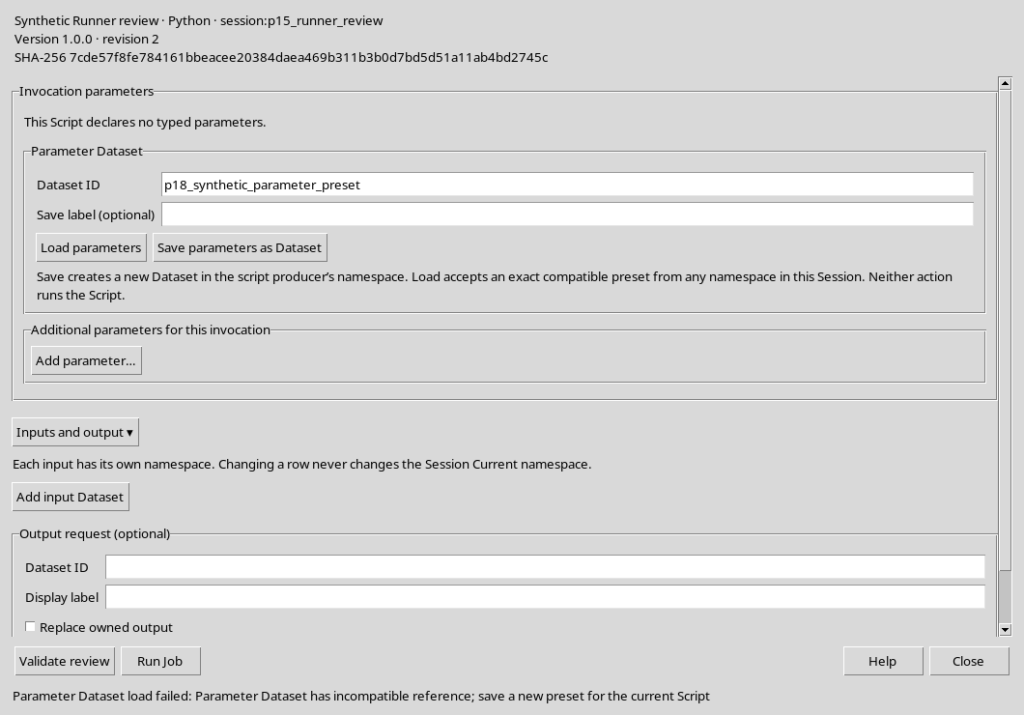
A preset is associated with a specific qualified reference of the Script and with its schema. If the Runner of a different Script is opened and you try to load the same Dataset, an incompatible reference message appears. It is not enough for two programs to have similar parameter names: the identity and the declarations must fully satisfy the compatibility contract.
22. Why the revision of the preset must be checked
A Parameter Dataset has its own revision, independent of the revision of the Python source. After loading, the Runner keeps a reference to the verified revision and SHA-256. If the Dataset changes or is moved to a different namespace with a change recorded in the metadata, that association can become stale. The Runner must not automatically replace the previously accepted revision.
23. Validate review catches a changed revision
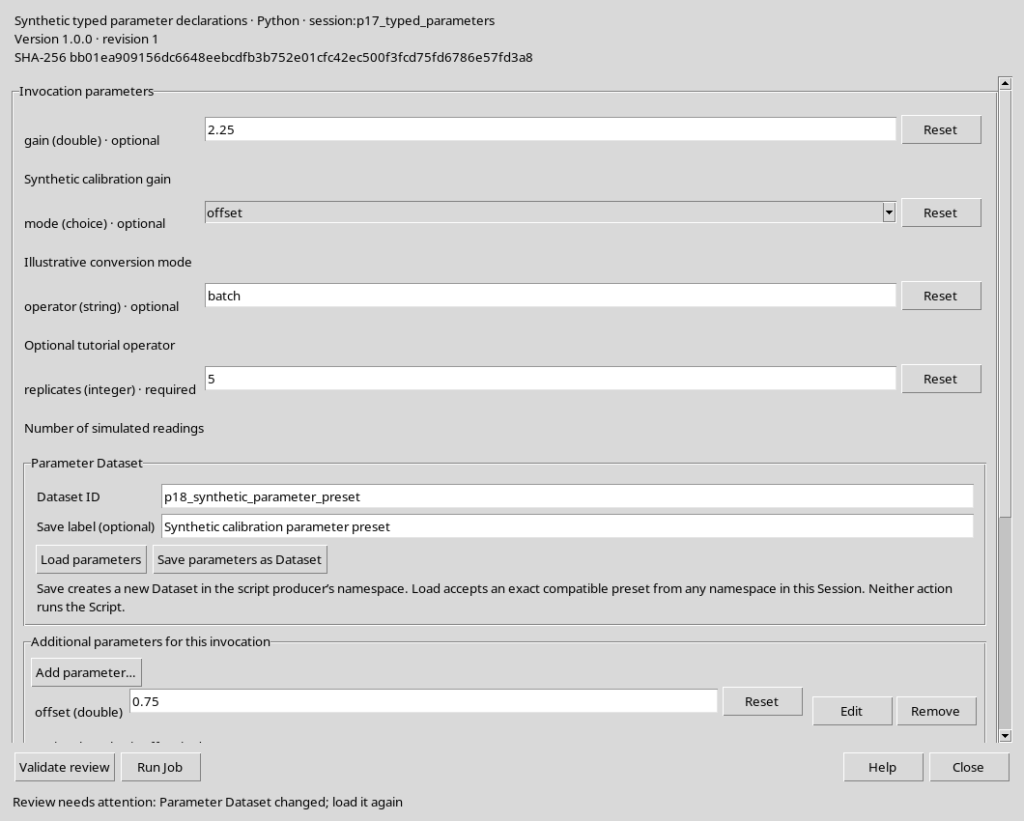
Suppose the Parameter Dataset is reorganised in the Session after being loaded and its revision token changes, while keeping identity and numeric content. When pressing Validate review, the Runner reports Parameter Dataset changed; load it again. The check rejects the old association before a Job and requires a new decision by the user.
24. Reloading the preset from its new location
After checking the current identity of the Dataset, press Load parameters again and repeat Validate review. A compatible preset can also be read from another namespace of the same Session; the Current namespace does not necessarily have to coincide with the one of initial publication. The new revision is verified explicitly, while the scientific values remain those saved.
25. What happens when the Python source changes
The Parameter Dataset also keeps the SHA-256 and the revision of the registered Script at the time of saving. If the Script later changes, loading checks the current source and declarations; a preset that is no longer compatible is rejected. It is preferable to create a new preset for the current revision, instead of manually altering the metadata of the previous one. The verified identity protects against executions with parameters belonging to another version of the program.
26. The loaded values remain editable
After Load parameters, the Runner fields remain available. You can make new corrections, respecting the constraints of the schema; this does not modify the Dataset already saved. If you also want to keep the new configuration, you need a different Dataset ID and a new explicit save. Validate review checks the current preparation, while Run Job is a separate command.
27. Parameters in the execution context
In an actual Python execution, the effective values are available through the public API:
from gxtxt import gxtxt_context

context = gxtxt_context()
parameters = context["parameters"]
gain = parameters["gain"]
replicates = parameters["replicates"]
Any provenance of the Parameter Dataset is kept in the execution context and in the traceability of the Job. This example describes how to read the values when a Job is actually run: there is no need to start one to save, load or validate a preset.
28. Closing the Runner without running Python
At the end, check the identity of the Script, the Dataset ID of the preset, the retrieved parameters and the state of Validate review. Press Close to return to the Python editor, preferably with unneeded panels closed and in High Contrast Dark. Saving, loading and checking the Parameter Dataset are preparation operations: they do not need to start a Script or generate a results Dataset. The next guide will show how to configure the output request, validate and knowingly start a Job.