

GX-TXT Python Script Workspace: creating, saving, copying and closing a Script
Once you know the identification fields and the metadata, you can tackle the life cycle of a Python Script: New Script, Save, Save As, Delete, Close tab and Close. They are different operations. Some act only on the text visible in the editor, others update or delete a Registry record.
The procedure uses a synthetic example, without running any Job or publishing Datasets. The aim is to learn how to keep the code and not lose important changes.
1. The document and the registered record
A Workspace tab contains the text you can edit; a registered record instead represents the Script with its own Scope, Script ID, metadata, revision and SHA-256 of the saved source.
A document can be changed locally without updating the record. For this reason, before closing or deleting, you must distinguish the state of the tab from the persistent state of the Registry.
2. The File menu operations
The File menu contains New Script, Import .py, Save, Save All, Save As, Export .py, Delete, Copy ID, Close tab and Close.
In this chapter we use New Script, Save, Save As, Delete and Close. Import, Export and the advanced operations on several tabs or projects are analysed separately.
3. New Script creates a draft
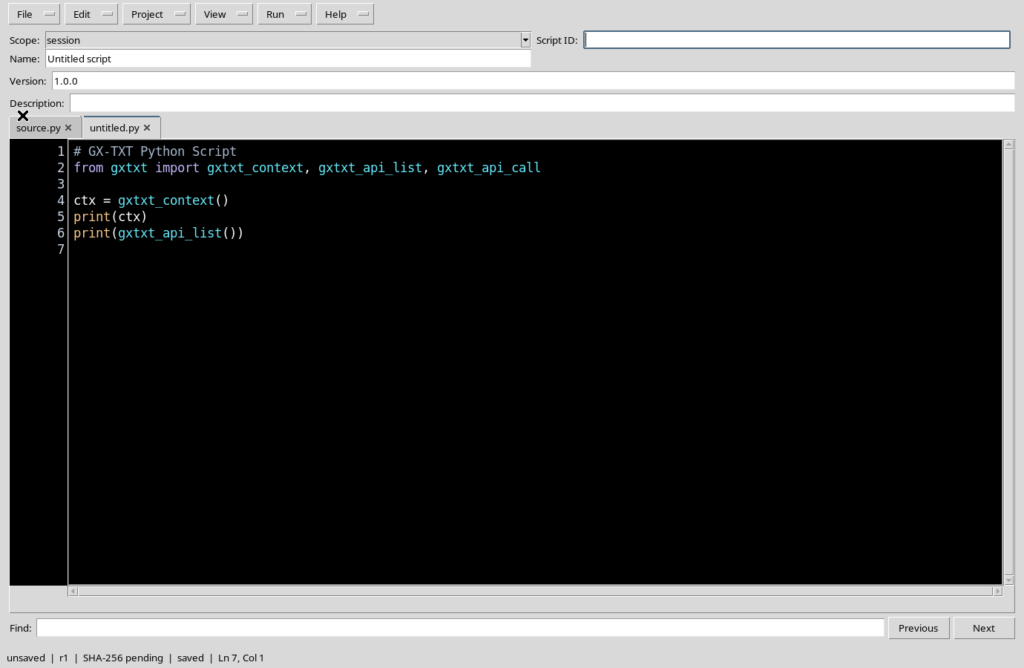
Select File → New Script, or the shortcut Ctrl+N shown in the menu. A new untitled.py document appears, with the initial identification fields and the Python code prepared by the Viewer.
The newly opened document is not automatically registered and does not start any processing. If a Session is active, the new draft normally uses the corresponding Scope.
4. The new tab does not replace the previous one
When you open New Script from a document already saved, the previous one can remain available in its own tab. The new draft is distinct from that record.
Before filling in a Script, check which tab is selected, especially if several files are called source.py. The number of tabs does not necessarily match the number of registered Scripts.
5. Preparing a valid identity
To register the draft, fill in Scope, Script ID, Name and Version. The Script ID must follow the Registry rules; the Name must describe the use of the source in an understandable way.
It is advisable to also check Description, Additional required APIs and Typed parameters, if needed. In this example no dependencies or additional parameters are required: the focus is on managing the file.
6. A short synthetic source
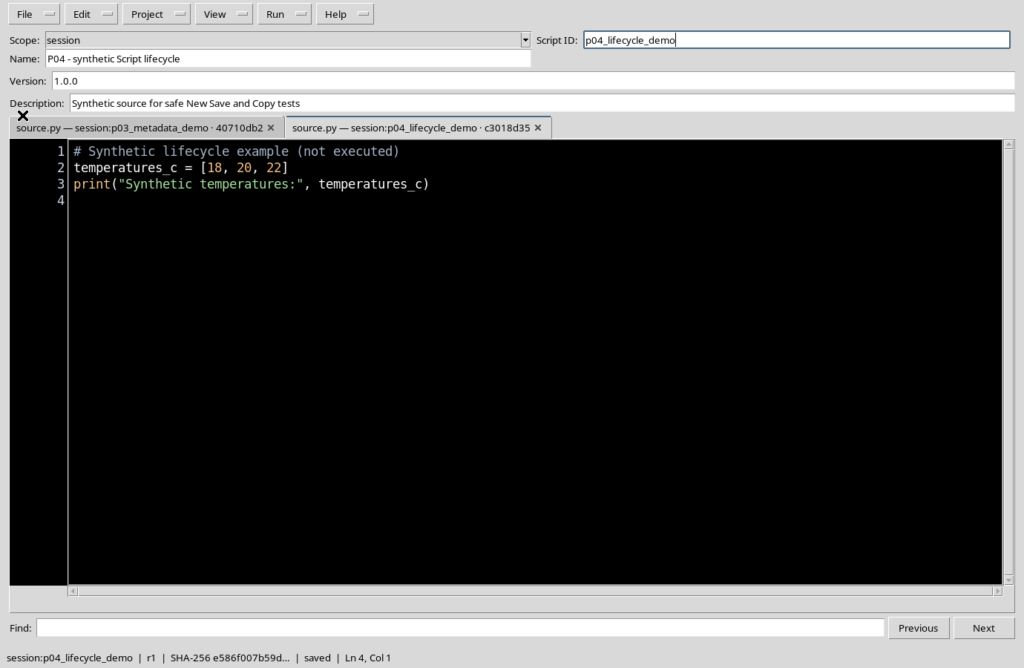
The example code is deliberately simple:
# Synthetic lifecycle example (not executed)
temperatures_c = [18, 20, 22]
print("Synthetic temperatures:", temperatures_c)
The list contains invented numbers for teaching purposes. The code is registered but not executed: no Job stdout, measurements or Datasets are produced.
7. Save registers the document
With the identification data completed, choose File → Save, or Ctrl+S. If the document has no registered identity, the command creates a new record in the selected Scope, after the necessary checks.
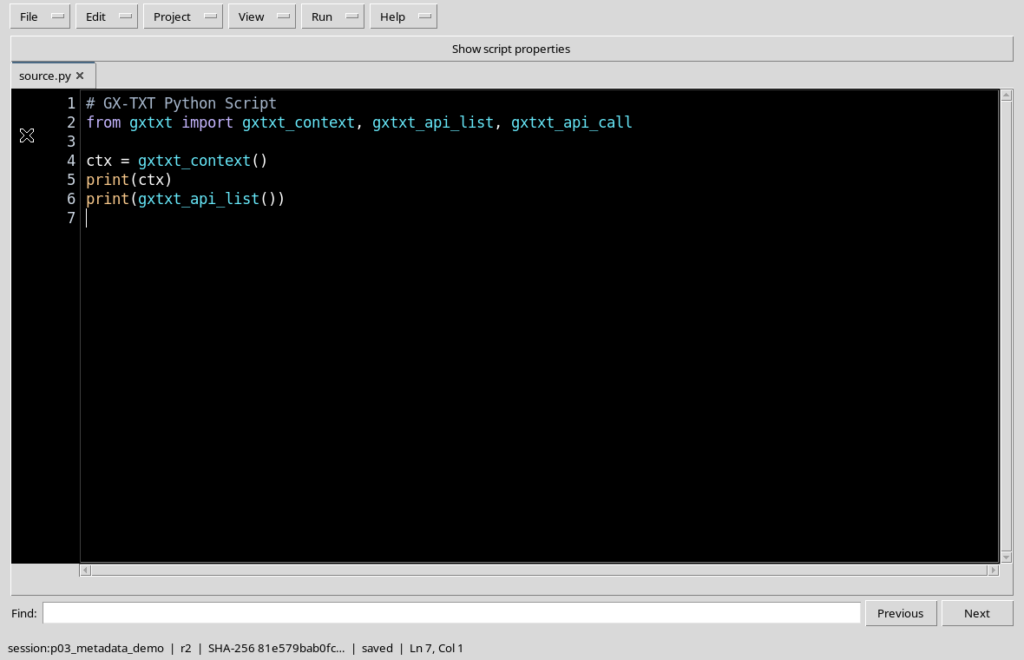
The first save of the example produces revision r1. The status bar shows the qualified identity, a SHA-256 prefix of the code and the saved state.
8. What changes after the first Save
The draft tab may take the name source.py and the Registry associates the saved source and metadata with the identity.
The saved state concerns the local document with respect to the current record. It does not certify that the program has been run correctly, nor that a scientific result is already available.
9. Editing the code of a registered Script
If you add a line or change a Python instruction, the editor records a local change. Until you save, the registered source keeps the previous revision.
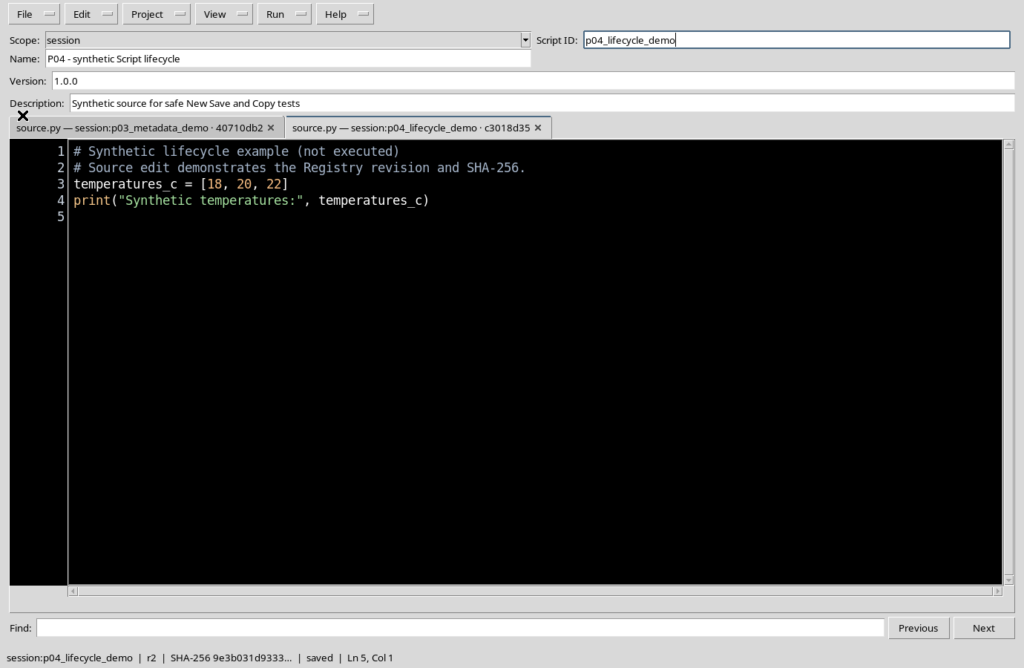
In the example we add a second comment in English, leaving the numeric content unchanged. It is a change to the source text, not to the Session metadata.
10. A new Save updates revision and SHA-256
After the code change, Save updates the existing record. In the example the revision moves from r1 to r2 and the SHA-256 of the source also changes, because the text is no longer identical.
The revision number belongs to the Registry, while the SHA-256 value identifies the saved content. They are pieces of information distinct from Version, which the author can keep unchanged.
11. Save is not the same as Save All
Save operates on the current document. Save All, shown in the menu with the shortcut Ctrl+Shift+S, is meant for a set of open sources or documents.
When working with several tabs, their state can differ: one may be saved, another modified. Independent file management and the conditions of Save All are covered in depth in the chapter on source tabs.
12. Save As creates a distinct identity
File → Save As is used to register a copy of the Script with another identifier. It is not a simple update of the original record.
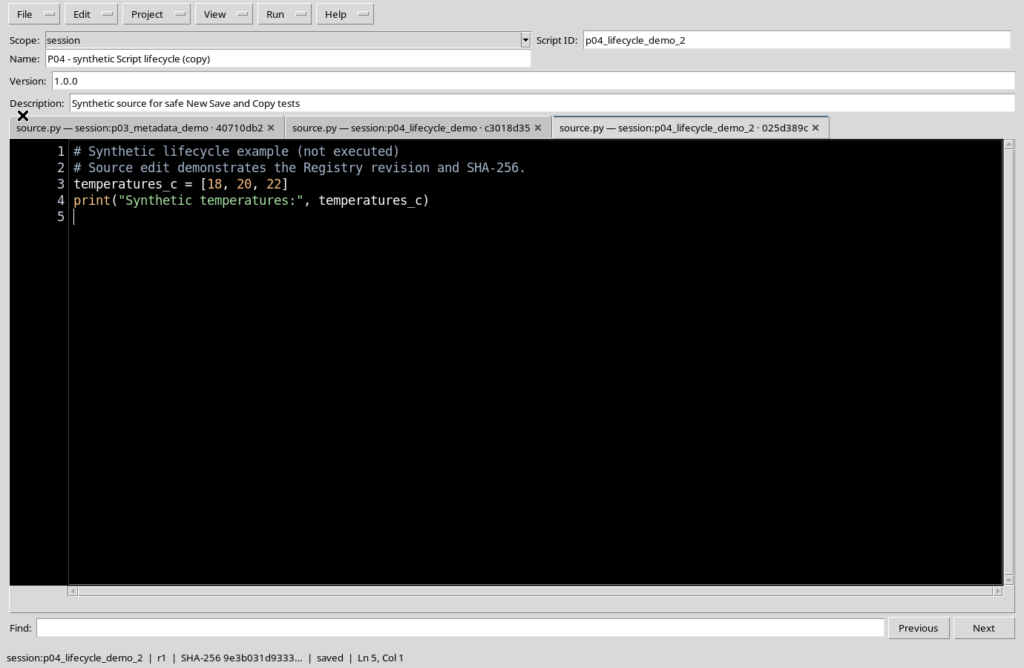
The Workspace builds a new ID, using a suffix when necessary, and a new descriptive Name indicating the copy. The new record starts from its own initial revision.
13. The visible result of Save As
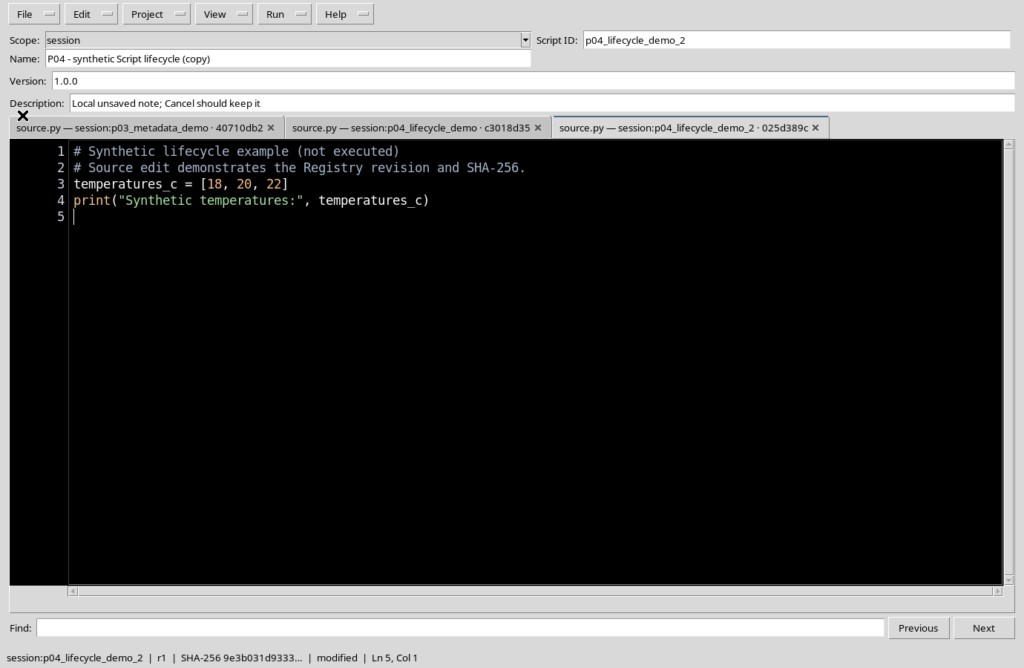
After Save As you may see new source.py tabs associated with different identities. It is therefore important to use Script ID and Scope to understand which copy you are examining.
In the example the copy has a new revision r1 and the same source code as the original at the time of duplication. Revision r2 of the original remains unchanged.
14. Save and Save As compared
| Operation | Registered identity | Revision | Code |
|---|---|---|---|
| First Save of the draft | New Script ID | r1 | Initial source |
| Save after a change | Original identity | Incremented | Updated |
| Save As | New Script ID | New r1 | Copy of the current source |
The table describes the normal case of a single Script. The rules for projects made of several files may involve additional operations.
15. The modified document has not been saved
If you change Description, the code or a parameter, the Workspace may show modified. The local change is not automatically transferred to the Registry.
For example, a change to the description of the copy remains only in the buffer until Save is called. This distinction is particularly important before closing a tab.
16. Close tab closes the current tab
File → Close tab, associated in the menu with Ctrl+W, concerns the currently selected tab. It is not the command that deletes the Script from the Registry.
If the tab contains no changes, it can be closed without a save prompt. If it contains local changes, the Viewer presents a dialog to decide how to proceed.
17. The Unsaved source dialog
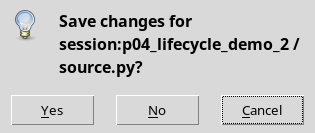
When you try to close a modified tab, the Unsaved source dialog appears, with Yes, No and Cancel.
Cancel stops the closing and keeps the tab with its changes. No lets you close it while discarding the local draft; the record already saved in the Registry is not deleted. Yes asks for saving before proceeding.
18. No does not mean Delete
It is essential to distinguish the No button of the closing dialog from the Delete operation of the File menu.
Closing a tab while discarding local changes does not delete the corresponding registered Script. The Script can be reopened from the Registry with the content of the last saved revision.
19. The check on out-of-date revisions
The Registry protects Scripts from operations based on an old state of the source. An update or deletion with a SHA-256 value that no longer matches the current record is rejected.
If you receive a message reporting changes made since the last opening, do not force the operation: reload the correct record and compare the state before saving or deleting.
20. Delete removes the registered record
File → Delete is an operation different from Close tab. It is available when there is a registration to operate on and concerns deleting the Script from the Registry.
It is advisable to check the Scope and the identifier shown by the dialog. Do not use Delete to free space in the editor: for that, closing the tab is enough.
21. The Delete confirmation
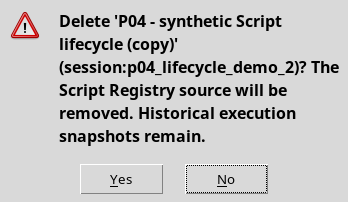
The Delete script dialog shows the name and the identity of the Script and asks for a choice between Yes and No.
No cancels the deletion. Yes confirms the removal of the indicated record. The message distinguishes the registered source from any historical execution snapshots, which are separate resources.
22. A peculiarity of version P005 after Delete
In this version, after a confirmed deletion, a source.py tab associated with the identity just removed may remain visible. The presence of the tab does not mean that the record still exists in the Registry.
If you observe this situation, do not use the old tab to continue working: closing the Viewer and reopening it retrieves the actual list of registered Scripts.
23. Close closes the whole Workspace
File → Close closes the Python Script Workspace window, not just the current tab. If several documents are present, the Viewer must examine any unsaved content.
Before closing, it is advisable to check which source you want to keep. Closing the window does not correspond to an analysis Job nor to deleting the records already registered.
24. Unsaved changes on closing
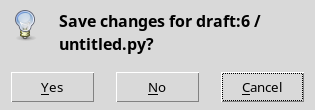
If a modified draft exists, Close presents a dialog with Yes, No and Cancel, similar to that of Close tab.
Cancel leaves the window open with the draft still modified. No lets you close while discarding the local change. Yes saves the content before closing.
25. Reopening the Viewer after Close
After closing the Workspace, return to the GX-TXT main window and choose Viewers → Python Scripts again.
The window is rebuilt from the Session Registry. The registered Scripts remain available with their saved revisions, while a draft discarded with No is not recreated automatically.
26. Tabs, copies and revisions compared
| Action | Does it change the Registry? | Does it change the tab? |
|---|---|---|
| New Script | No, until you save | Opens a new draft |
| Save | Yes, it creates or updates a record | Keeps the registered document |
| Save As | Yes, it creates another identity | May open a new tab |
| Close tab with No | No | Discards the local changes and closes the tab |
| Confirmed Delete | Yes, it removes the record | In version P005 a leftover tab may remain |
| Closing the window | Does not delete the saved records | Closes the Workspace after handling the drafts |
Operations on Scripts are independent of the execution of a scientific Job. A saved revision does not prove that the code has been run.
27. A prudent working routine
When you create a new Script, set a stable identity, write the code, save it and check the saved state with revision and SHA-256. Before a copy with Save As, check the active document.
To close a document you do not need, use Close tab. To delete a record, choose Delete only after checking Scope and Script ID. If an unexpected dialog appears, Cancel lets you return to the document and check the situation.
28. Conclusion
New creates a draft, Save keeps or updates the registered Script, Save As creates a new identity, Delete removes a confirmed record, while Close tab and Close manage the visibility of documents and of the window.
The difference between modified, saved, revision and SHA-256 lets you control your work without confusing local changes, registration, execution or Datasets. The next chapter covers source tabs and their individual state in depth.