

GX-TXT Python Script Workspace: organising Python imports with Manage imports
Python Script Workspace has an assistant for preparing the import statements of a Python source. Manage imports lets you consult a catalogue, select a declaration, check its insertion in the preview and explicitly apply the change to the code.
The assistant is not a package installer, does not authorise access to new GX-TXT APIs and does not run the program. In this guide we will work with a simple synthetic example, without carrying out scientific processing.
1. Why organise imports
A Python program uses statements such as import math or from statistics import mean to call modules and the names defined inside them. Keeping these declarations in order helps read the source and identify its dependencies.
Manage imports simplifies inserting and checking declarations. Choosing a line of the catalogue is not proof that every function of the module can be used in the execution environment.
2. Starting from a Python source
Open Viewers → Python Scripts and select the tab of the code to be edited. It is advisable to have a draft or a copy of your work before trying new statements.
In our example import math is already present. The program uses synthetic numbers and serves only to show the point where other imports will be added.
# Synthetic source; not executed
"""A simple illustration of Python imports."""
import math

values = [1.0, 4.0, 9.0]
results = [math.sqrt(item) for item in values]
print(results)
3. Opening Manage imports
From the Edit menu choose Manage imports…. The command opens an assistance panel in the same window as the Viewer.
To avoid a cluttered interface, keep Explorer, Snippets and the property panels hidden when they are not needed. It is useful to leave the main code visible, which will remain distinct from the assistant’s preview.
4. The areas of the panel
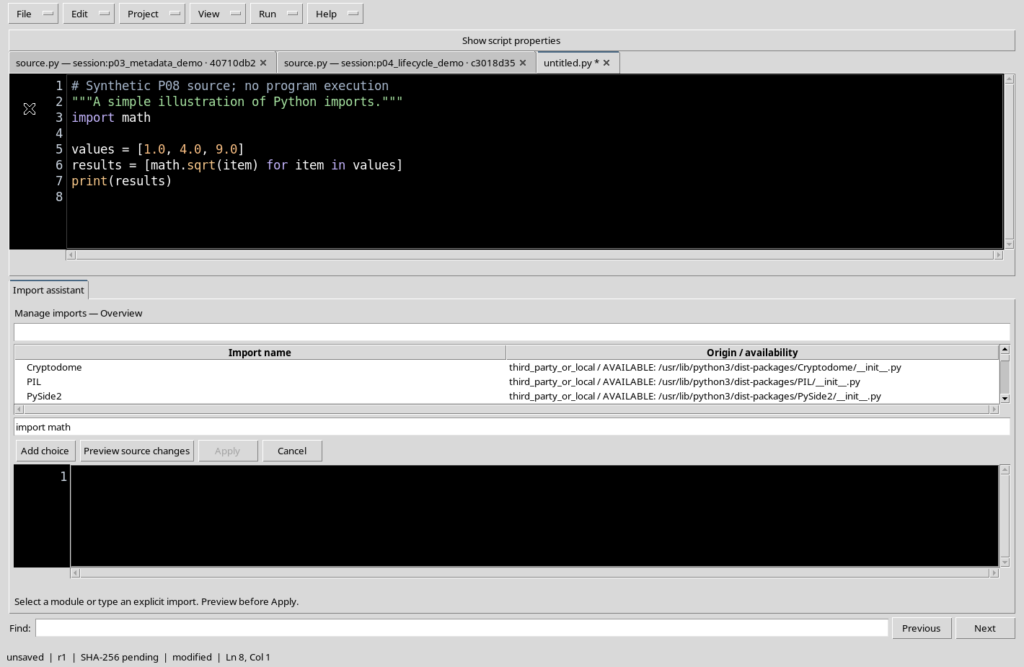
The assistant includes Search, the Import name / Origin / availability list, a box containing the Python statement and the Add choice, Preview source changes, Apply and Cancel buttons.
Below these controls there is a preview of the code, distinct from the actual editor. When it first opens, Apply is disabled, because no valid preview has been produced yet.
5. What the catalogue contains
The catalogue is built from the Python interpreter configured in the framework. It shows module names, classification and static information about origin or availability.
The entries may refer to built-in modules, the standard library or third-party or local components. Consulting the catalogue does not require running the Python source open in the editor.
6. The meaning of Origin / availability
An entry marked AVAILABLE means that static inspection has found a reference to the module in the analysed environment. It does not prove that the module initialises correctly, that all its dependencies are available or that every function behaves as desired.
If you change the configured interpreter, the catalogue may also change. Verifying the actual execution of an import requires separate and appropriate checks.
7. Searching for and selecting a module
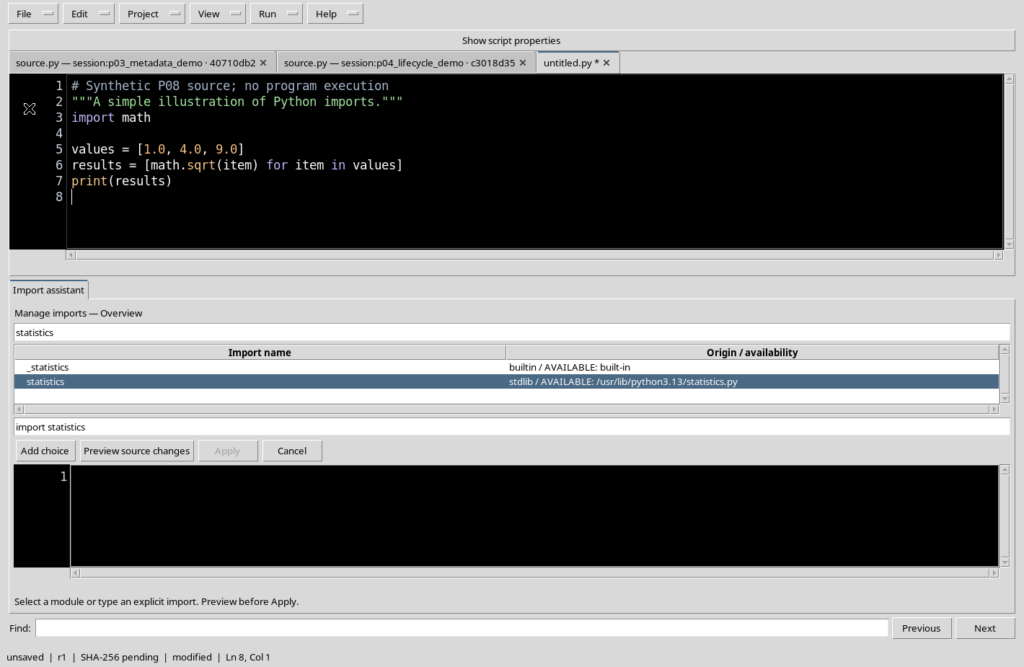
Type statistics in the Search field. The search filters the names containing the string: both statistics and _statistics may appear, which are different modules.
Select exactly the statistics row. The statement box is filled with import statistics. The filter helps find a name, but it does not automatically determine which entry should be chosen.
8. Writing a statement directly
The statement box can be edited manually. You do not have to restrict yourself to the names shown by the catalogue: you can type an explicit declaration, for example from statistics import mean.
However, Python syntax must be respected. A line written manually is not an installation request and does not guarantee that the indicated module exists.
9. Add choice prepares the selection
With import statistics in the box, press Add choice. The assistant adds the declaration to its temporary selection and shows a summary of it.
The code in the editor remains unchanged. Add choice is not the same as Apply and does not register a revision in the Registry. You can prepare several statements to be checked together.
10. Why Preview is needed
Before changing the source you must choose Preview source changes. The assistant checks the statements through Python syntax analysis and prepares an insertion proposal.
While the preview is being prepared, Apply must not be used. The mere presence of a declaration in the box or in the list of choices is not yet a change to the program.
11. A preview does not run the code
Preview examines the text of the source and the requested statements without running the program. It does not start a Job, does not install a library and does not produce a Dataset.
The result is a new proposed text, to be compared with the original code. You can still cancel the procedure without applying any change.
12. Comparing the code and the preview
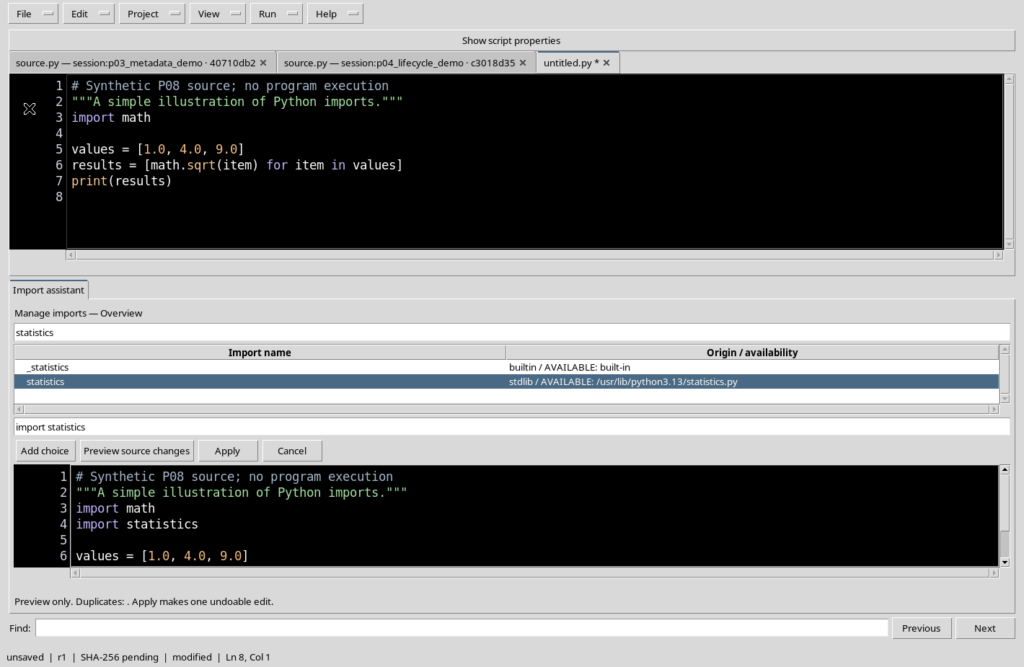
After Preview, the original source with import math remains in the upper part, while the lower panel shows import statistics added.
The preview is read-only: its content must not be confused with that of the active tab. Applying the proposal remains a distinct decision, made with Apply.
13. The insertion point
In the example the assistant inserts import statistics next to the existing import and before the statements that process the list of values.
The organiser takes into account the structure of the source, including any initial comments and docstrings. It is nevertheless advisable to read the whole result, especially when the program contains conditional imports or a more complex structure.
14. Checking for duplicates
A program may already contain the declaration you are proposing. In that case it is not useful to add a second identical line.
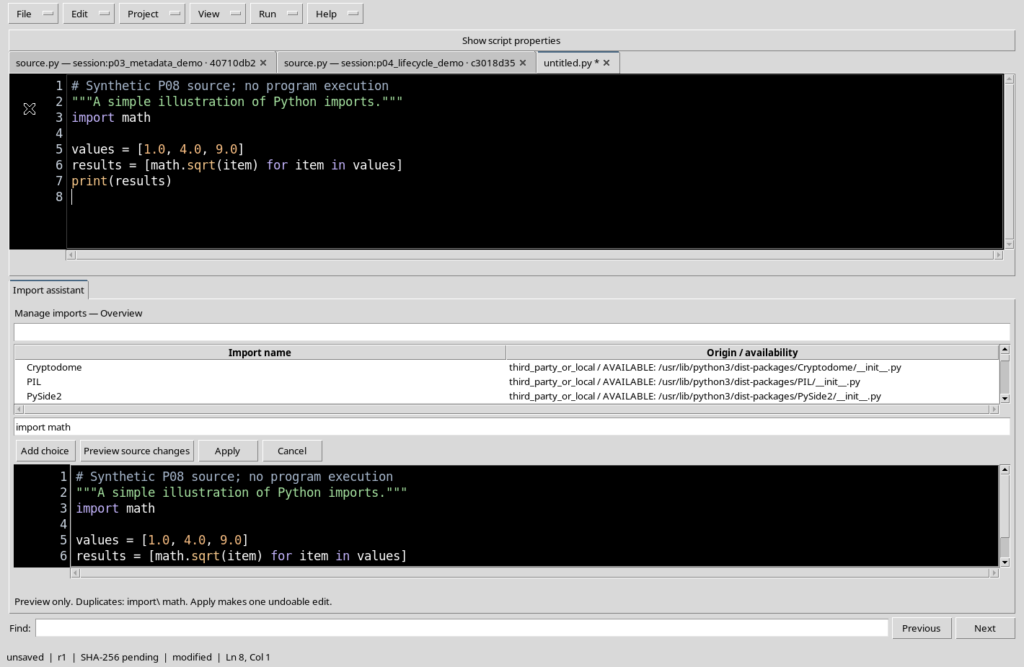
If the assistant receives import math again and the source already contains that import, the organiser recognises the duplication. The information appears in the message below the preview.
15. Deduplication in the Preview
For import math already present, the Preview reports the duplicate. In version P005 the message may show import\ math: the backslash is a small presentation inaccuracy and is not inserted in the Python code.
The proposed content remains the same as the original source: no second import is added. The check concerns the statements recognised by the Python structure, not a complete verification of runtime dependencies.
16. Cancel before Apply
Pressing Cancel closes the assistant without applying the proposal. The source in the editor keeps the text it had before the assistant was opened.
This is the right choice when you are simply exploring the catalogue or when the preview does not match your intentions. The choices prepared temporarily do not become permanent imports.
17. Apply changes the current source
When the Preview is valid and the proposal has been checked, press Apply. The assistant changes the buffer of the active document and closes.
In our example a single import statistics line appears after import math. The tab remains modified: no Save to the Registry has been carried out and the source has not been run.
18. Checking the change and using Undo
After Apply, check visually that the lines have been inserted at the expected point.
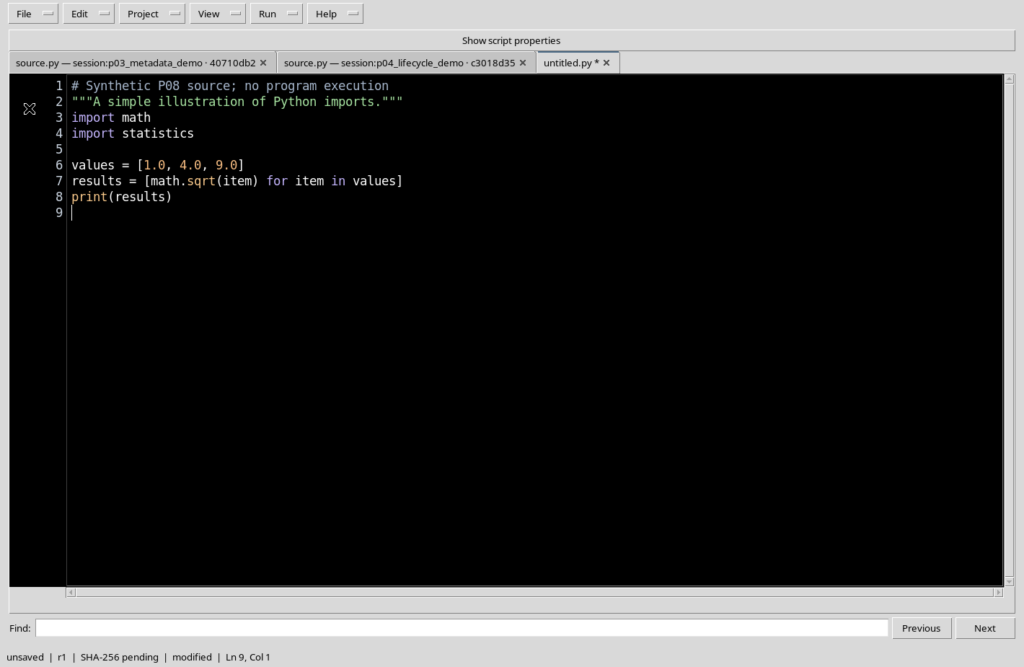
The insertion is a normal undoable change: Ctrl+Z restores the previous code and Ctrl+Y restores the insertion. The Undo/Redo cycle concerns the buffer and is not the same as recovering an old Registry revision.
19. Save remains a separate step
After Apply, if you want to keep the Script in the framework, check Scope, Script ID and metadata and proceed with File → Save.
Even a correctly inserted import declaration may refer to a library that cannot be used in a given runtime. Save keeps the source and its identity, but does not automatically authorise execution or the installation of packages.
20. Statement with invalid syntax
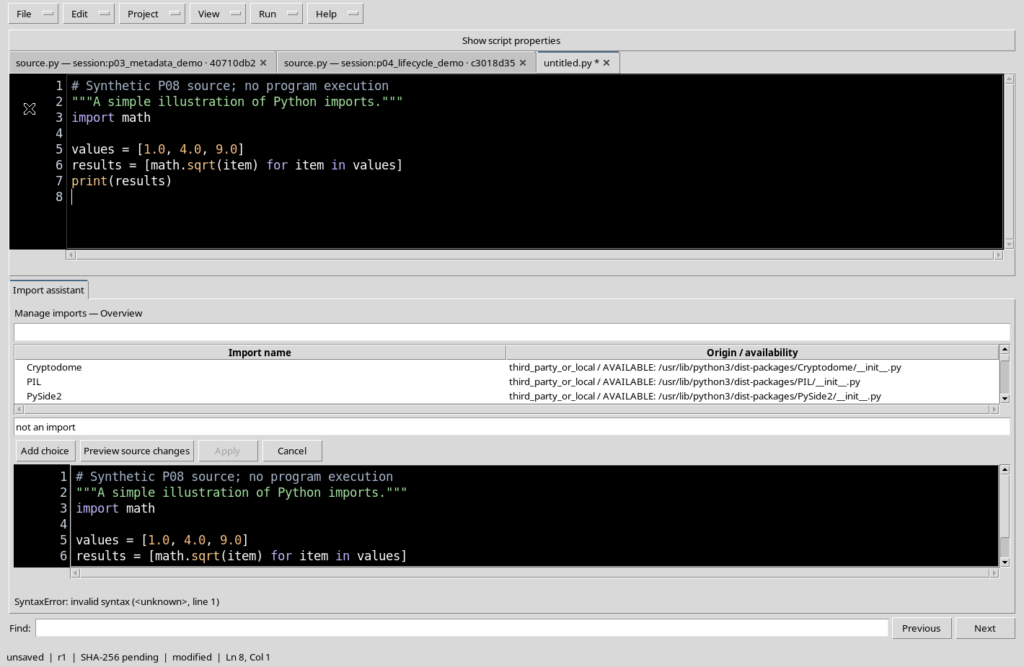
A declaration that is not a valid Python import, such as not an import, is rejected during Preview.
The assistant shows SyntaxError and Apply remains disabled. The current source is not changed: correct the declaration and create a new preview.
21. Alias conflict
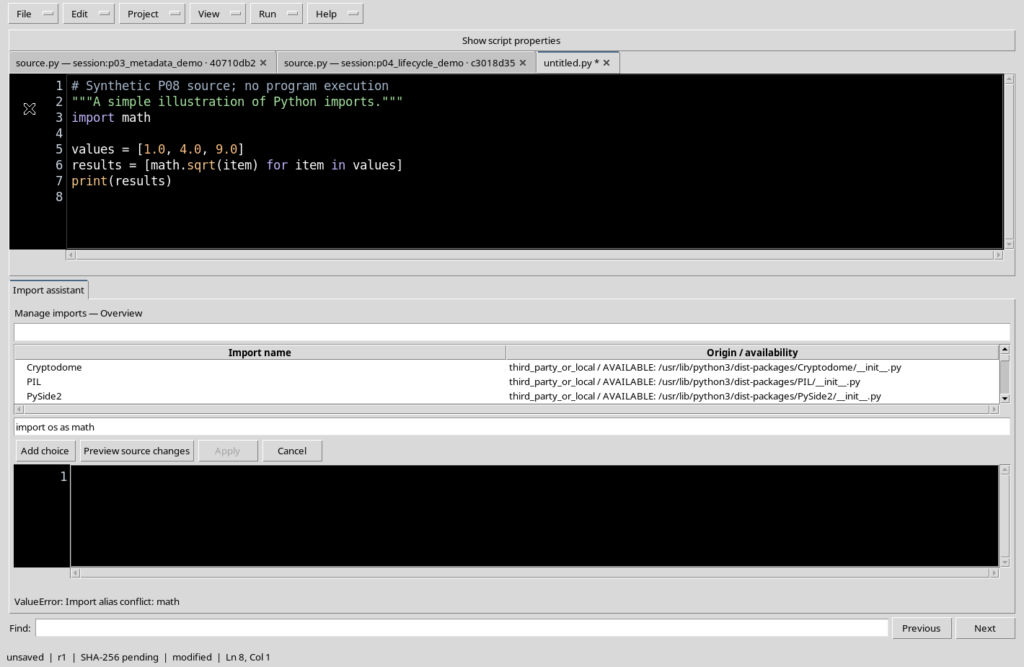
A declaration such as import os as math tries to give the name math a different meaning, while import math already exists in the source.
The organiser reports Import alias conflict: math and does not allow Apply on the wrong proposal. When aliases are present, it is advisable to check the meaning of the names before changing them.
22. Wildcard imports are not supported
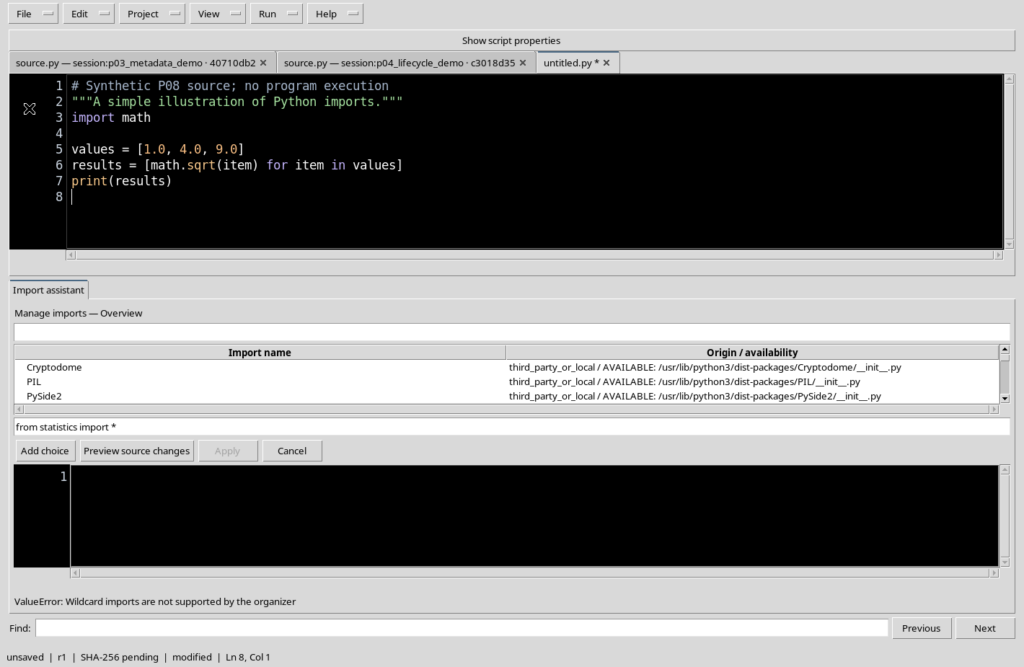
The statement from statistics import * asks to import all the public names of the module. The organiser does not support this type of import.
The Preview returns Wildcard imports are not supported by the organizer and leaves Apply disabled. It is better to declare explicitly the names actually needed, avoiding hidden collisions.
23. Valid syntax does not prove that the module exists
You can type a syntactically valid statement referring to a module name not present in the catalogue. The organiser may still show its insertion in Preview: it is checking the structure of the statement, not running the import.
For this reason the catalogue, the preview and actual availability during an execution must remain distinct concepts. Do not use Apply to assume that a new dependency has been installed or verified.
24. If the source changes after Preview
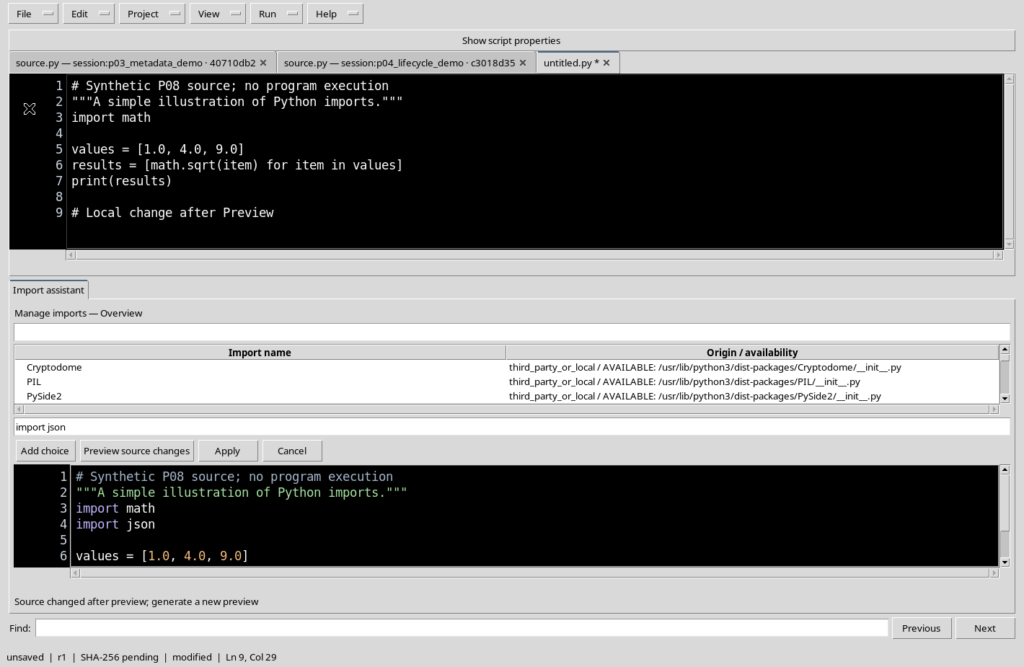
Suppose we create a preview for import json and, before Apply, edit the code directly in the editor.
The Workspace rejects the out-of-date proposal and shows Source changed after preview; generate a new preview. The local change remains in the buffer, while the planned import is not inserted.
25. Source, Session and interpreter are checked
The assistant links the preview to the active document, the Session and the Python interpreter used to prepare it. If the selected document or its content changes, the old proposal must not be applied.
When a message of this kind appears, return to the correct document and request a new Preview. It is not advisable to treat a previous proposal as if it were still valid.
26. Removing an existing import
Manage imports is used to prepare and add declarations; it does not offer a Remove command for deleting existing imports.
To remove an import that is no longer needed, return to the editor, select the appropriate line and edit it manually. Consider carefully whether other parts of the program still use the imported names.
27. A tidy procedure of use
Open Manage imports on the correct source, search for the name in the catalogue and read the classification. Select the entry or write the desired statement, press Add choice and then Preview source changes.
Check the proposal: names, duplicates, conflicts and insertion point. Use Cancel to give up or Apply to update the buffer. Finally, if appropriate, save the Script explicitly in the Registry and check the dependencies before a future execution.
28. Summary
Manage imports is an assistant for editing Python code. Search helps find module names, Add choice prepares the statements, Preview shows the proposed code and Apply introduces an undoable change. Cancel avoids unwanted changes.
The assistant identifies duplicates and rejects malformed imports, alias conflicts, wildcard imports and out-of-date previews. It does not install packages, does not prove that a library can be imported and does not run the Script.
In the next chapter we will examine the snippets of the GX-TXT Python Bridge and the built-in guide to the available public APIs.