

GX-TXT Python Script Workspace: opening the editor and telling User and Session apart
Python Script Workspace is the GX-TXT environment dedicated to preparing and managing Python sources. In this guide we open the Viewer from the main window, recognise the initial state of the editor and distinguish a User document from one intended for the Session. No computation needs to be started.
1. What Python Script Workspace opens
The Viewer offers a Python editor with syntax highlighting, source tabs, identification fields, navigation tools and access to the documentation of the public GX-TXT APIs. It is the environment in which code is prepared: on its own, it is not a scientific result.
Working on the source, registering a Script, running a Job and publishing a Dataset are different operations. Keeping them separate is useful from the very first start.
2. Opening the Viewer from the main window
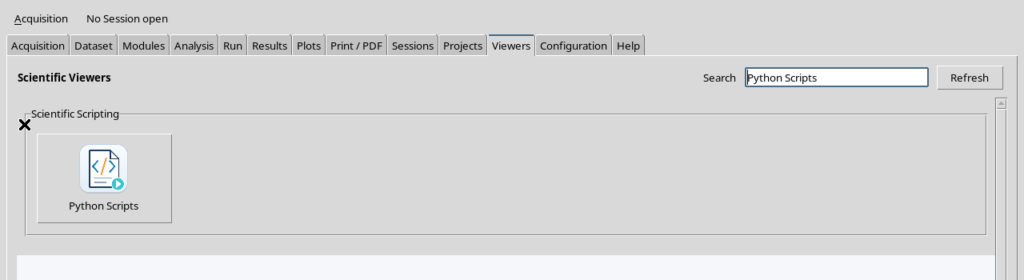
In the GX-TXT window choose the Viewers tab, find the Scientific Scripting category and select the Python Scripts tile. If many Viewers are available, the Search field helps you find the right tile.
The button opens the window called Python Script Workspace. If the Viewer is already open, calling it again from the same tile brings the existing window to the front, without requiring a second environment.
3. Before starting: is a Session needed?
No Session is needed to open the Viewer and prepare a User source. You can therefore read the controls and compose a draft even when the main window indicates that no Session is open.
To register a Script with Scope session and to carry out scientific activities, however, you must open the target Session. Having the Viewer open does not mean it is automatically linked to a Session.
4. The general Workspace screen
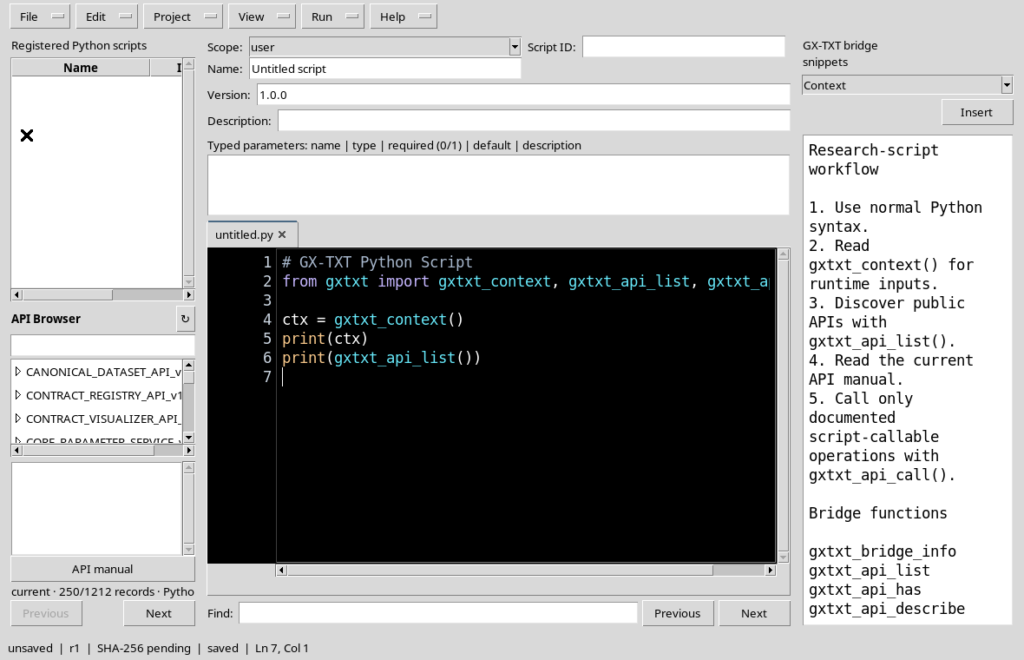
The window contains a menu bar at the top, the Registered Python scripts panel, a central area with the editor, the identification fields and the GX-TXT bridge snippets panel.
The following screenshot deliberately opens the panels to show where they are. It is not the most comfortable configuration for writing code: once you understand the layout, it is better to recover space for the editor.
5. What the panels are for
Registered Python scripts shows the registered Scripts available in the current context; an empty list does not mean that the editor cannot open. The central area hosts the source tabs and the editable text.
The GX-TXT bridge snippets panel offers examples of how to use the public GX-TXT client. A snippet is support text: displaying it does not start a Job and does not automatically call an API.
6. The six menus of the window
The top bar contains File, Edit, Project, View, Run and Help. The first three mainly concern work on sources, properties and projects; View lets you show or hide the panels, Run hosts the entry points to the execution flows and Help makes the manual available.
A visible command is not necessarily executable in the current state. For example, an entry may be disabled as long as there is no registered Script. Menus and shortcuts are examined in detail in the next chapter.
7. The first document: untitled.py
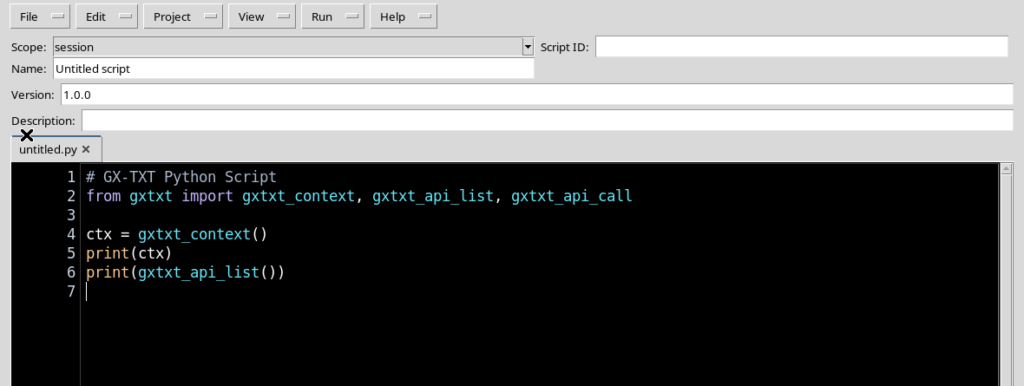
On first opening an untitled.py tab normally appears. It is a draft with a few Python lines prepared by the Viewer: it is not a scientific file that has already been run and it does not automatically have a registered identity.
The initial descriptive name is Untitled script and the version shown is 1.0.0. Before keeping a real Script, these fields must be filled in deliberately.
8. The initial code is an example, not a result
The initial tab contains the following Python template, useful for recognising the framework client:
# GX-TXT Python Script
from gxtxt import gxtxt_context, gxtxt_api_list, gxtxt_api_call

ctx = gxtxt_context()
print(ctx)
print(gxtxt_api_list())
This text is shown in the editor but is not executed when the Viewer opens. The print lines produce no result until a real Script activity is prepared and run in the GX-TXT context.
9. The meaning of the Python client functions
gxtxt_context() returns the context of the specific execution managed by GX-TXT, including the inputs and the invocation information available. It is not a request to be run manually in the editor to discover Datasets.
gxtxt_api_list() lets you query the public APIs available in the active Bridge. gxtxt_api_call(api_id, operation, args) invokes a registered public operation, using a Python list or tuple of positional arguments. To learn their contracts you need to consult the documentation of the specific API.
The Bridge makes sense in the context of a real managed execution. An import visible in the example code does not, on its own, prove that the call has been made.
10. Syntax highlighting and numbered lines
The editor recognises Python elements such as keywords, strings, comments and function names. Line numbers help locate a position, while the status bar at the bottom shows the current line and column.
The text is editable, but writing, searching, undo and saving are documented in their own chapters. For this first visit it is enough to identify the source area without changing the code.
11. Giving priority to the code with Focus source
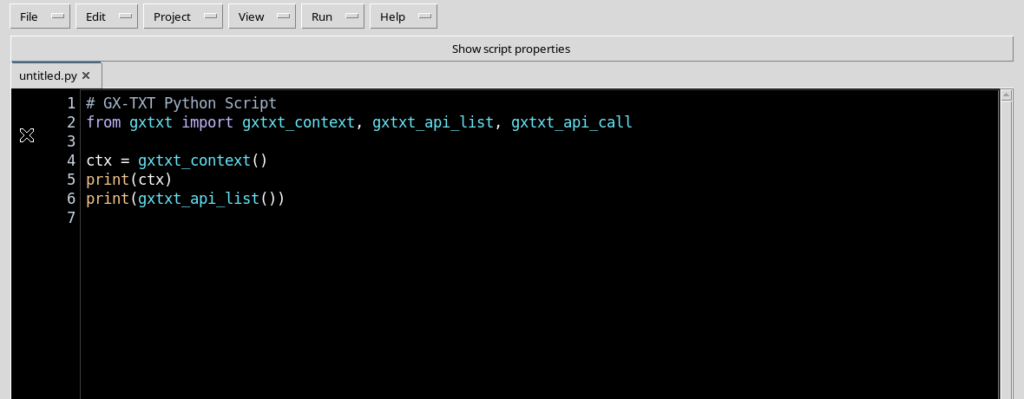
To work with more space use View → Focus source / restore panes. The command reduces clutter by hiding the side panels that are not needed for the current activity.
When you need to consult properties or tools, use the same View menu to bring them back. There is no need to keep Explorer, snippets and secondary panels open all the time while editing code.
12. The High Contrast Dark look of the editor
The code surface can use the native High Contrast Dark theme: the editor background is black, ordinary text is light and syntax elements are coloured. This makes the separation between code and other controls more evident.
The dark theme concerns the Source surface, not necessarily the whole Tk window. It is therefore normal for menus, labels and outer panels to keep a light appearance. There is no need to edit or recolour screenshots to obtain a fake, uniformly dark window.
13. Scope: the meaning of the field
The Scope field indicates the scope in which a Script can be registered. The editor offers two choices: user and session.
A User Script belongs to the user’s collection and can be prepared without an open scientific Session. A Session Script instead belongs to a specific Session and follows its identity. A document that still has no Script ID does not become registered just because a Scope is selected.
14. User state without an open Session
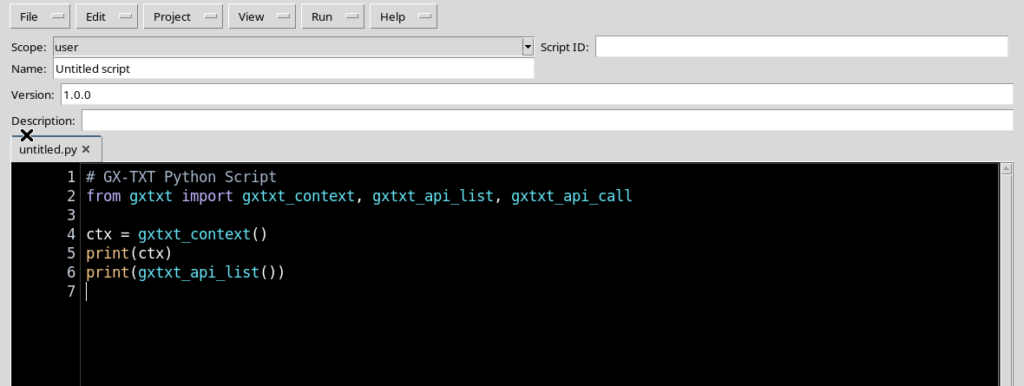
When the Viewer is started without a Session, a new document normally takes Scope = user. The Script ID field is initially empty and the source is not yet registered.
The screenshot also shows the name and version of the draft. These values represent the preparation of a possible Script, not a file already saved in the collection.
15. Name, ID and version are not interchangeable
Script ID is the stable identifier that will be used to distinguish the registered Script. Name is the descriptive name intended for the user. Version describes the semantic version of the source.
The other fields let you associate a description, required APIs and declared parameters. It is advisable to choose a consistent ID and metadata before saving. This guide does not save yet: identity, revisions and duplicate checks are covered in the dedicated chapters.
16. What unsaved means in the status bar
The bottom bar may show unsaved, an initial revision and SHA-256 pending. The unsaved entry indicates that the registered identity of the draft has not yet been established; pending means that the hash of the registered source does not exist yet.
The same bar may show the local state saved when the buffer contains no changes with respect to its initial base. This does not mean that a Dataset has been published or that a registered Script already exists: the local state of the editor and persistence in the Registry are two different pieces of information.
17. When a scientific Session is opened
From the GX-TXT main window open the Session in which you intend to work, using the normal Session management path. Before continuing, make sure you have selected the right one.
A Session contains its own working context, but opening it does not run the code in the editor and does not implicitly move a User Script into the Session collection.
18. Reopening the Viewer in the desired Session
If Python Script Workspace was open with another Session or without a Session, close the unchanged draft and reopen the Viewer from the Viewers tab after choosing the desired Session. This avoids confusing the previous context with the new one.
If there are unsaved changes, keep or export them with the appropriate procedure before changing context. The editor protects Session-scope operations with a check on the Session life cycle, precisely to prevent saving into the wrong Session.
19. The new draft takes Scope session
With an active Session, a newly opened document normally takes Scope = session. The Python editor, untitled.py, the descriptive name and the initial version remain visible.
The Script ID field may still be empty: Scope session is not the same as Save. It is only a draft prepared for the current Session.
20. User and Session compared
| Feature | Scope user | Scope session |
|---|---|---|
| Session already open to prepare a new draft | Not needed | Needed for Session registration |
| Owner of the registered Script | User collection | Current Session |
| ID registered on simple startup | No | No |
| Automatic execution when the editor opens | No | No |
| Reference to the Session | Not implicit | Explicit for the registered Script |
Choosing the Scope does not, on its own, copy, move or assign a Script: registration and revision management require dedicated commands.
21. Editor, registered Script, Job and Dataset
It is useful to distinguish four moments: the source in the editor is editable text; the registered Script has an ID, Scope and revision; the Job represents a specific execution started explicitly; any Dataset is a published result with its own contract.
A Python source does not automatically turn into a Dataset. Even a message printed on screen by a future Job is not, in itself, a canonical table.
22. Where to find help
The Help menu lets you open the Viewer manual with F1 and the Script Bridge help guide. The Bridge reference presents the client functions available for querying and invoking the public APIs.
Before using a scientific operation, check its identifier, the actual version, the accepted arguments and the result contract. Avoid inferring the existence of operational functions from the name of a menu alone.
23. Operations left to the dedicated chapters
This first opening requires no code changes, saves, library installation or Job submission. The following chapters cover menus and shortcuts, Script identity, saving, importing Python files, projects, the Runner and the debugger.
For scientific work we will use example Scripts and controlled Sessions, always keeping source text, registration, execution and publication of results separate.
24. Summary
Python Script Workspace opens from Viewers → Python Scripts even without a Session. A new source starts as a draft, normally user without a Session and session when it is reopened in the context of an active Session.
The High Contrast Dark editor lets you work on the code with the optional panels closed. A correct understanding of Scope, Script ID and the unsaved state is the prerequisite for safely using the saving and execution tools we will see later.