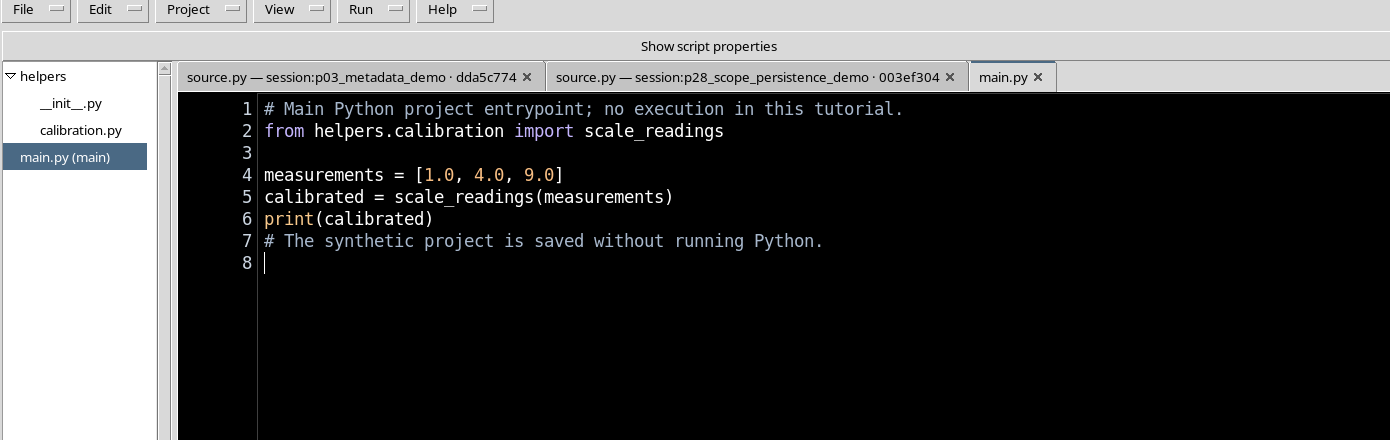
GX-TXT Python Script Workspace: User, Session and historical sources
A GX-TXT Session identifies the scientific context in which Scripts, Datasets and Jobs work. The Python editor distinguishes sources of the User Registry, available as personal resources, from sources of the Session Registry, which instead belong to the open Session. Jobs already run also keep their own immutable copy of the code. Understanding these three identities lets you save correctly, reopen work without confusing revisions and recover the code of a previous processing run.
1. The source does not coincide with the Job
The Script is the registered program; the Job is a single supervised execution of one of its revisions. Saving a Script does not run it. If the registered code is later modified, a historical Job continues to refer to the snapshot that was actually run. GX-TXT therefore presents three levels of information: User sources, Session sources and historical execution sources.
2. What User means
The User scope indicates a source registered in the GX-TXT user’s profile. The program is not automatically associated with the scientific Session currently open. If you switch to another Session, a registered User source can remain available in the editor Explorer. Its presence, however, is not equivalent to the publication of Datasets nor to a Job already run.
3. What Session means
The Session scope indicates a source registered in the context of the active Session. The editor can show and reload it as long as that Session is open and the owner identity is valid. In another Session the same source does not appear as a local resource of that Session. For normal exercises with scientific data, it is advisable to explicitly choose the desired Session scope before saving.
4. Creating a personal Script
In Python Script Workspace use File → New Script. In the document properties choose Scope: user and enter a name, a version and the code. In the simple example below no Dataset is created and Python is not started:
# Synthetic example: no Job or Dataset is created.
SOURCE_SCOPE = "USER"
print(f"Source scope: {SOURCE_SCOPE}")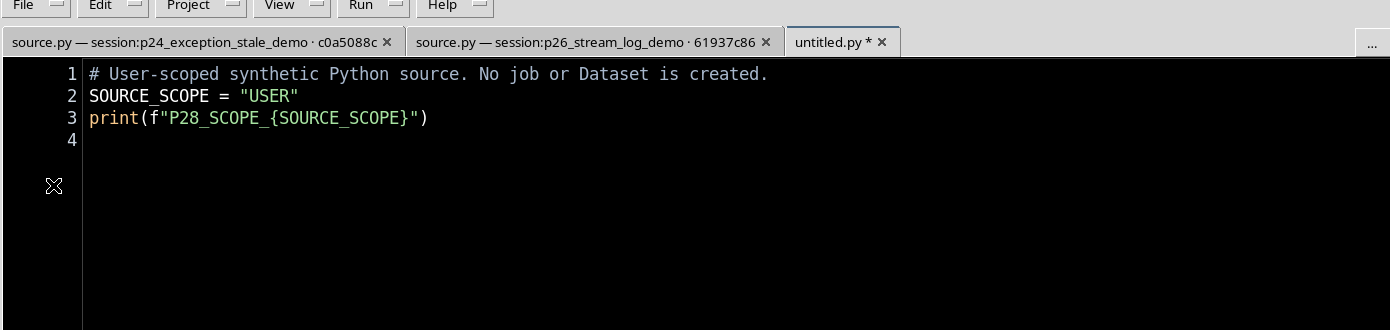
5. Saving to the User Registry
Choose File → Save. GX-TXT creates the source record in the User Registry and associates an initial revision and a SHA-256 with it. The tab changes from unsaved draft to registered source. Saving does not create a Job: to run the code in an experiment you need an explicit request and an appropriate Session.
6. Creating a Session source with the same name
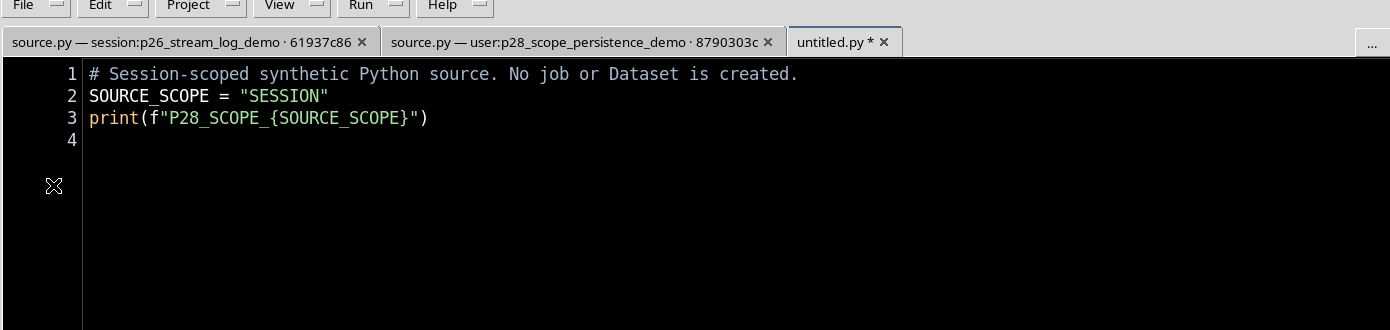
With the desired Session open, choose File → New Script again. This time keep Scope: session and use the same short name as the previous document. The new code can be different:
# This script belongs to the currently opened Session.
SOURCE_SCOPE = "SESSION"
print(f"Source scope: {SOURCE_SCOPE}")
They are two independent sources: the short name alone does not constitute a unique identity.
7. Saving the Session source
Press File → Save for the second Script too. The Registry records a new initial revision in the Session scope, without modifying the User source with the same name. If the codes differ, the SHA-256 values also differ. A save operation must always be attributed to the active tab and its owner.
8. Qualified identifiers
The full identifiers have a part that indicates the scope:
| Example | Meaning |
|---|---|
user:scope_demo | Personal Script in the User Registry |
session:scope_demo | Script belonging to the open Session |
snapshot:… | Immutable historical copy linked to a Job |
The part after the colon can be the same for User and Session. To distinguish sources and Jobs you need to use the full qualified identifier, the revision and the SHA-256, not only the title shown in the table.
9. Reopening the User source from the Explorer
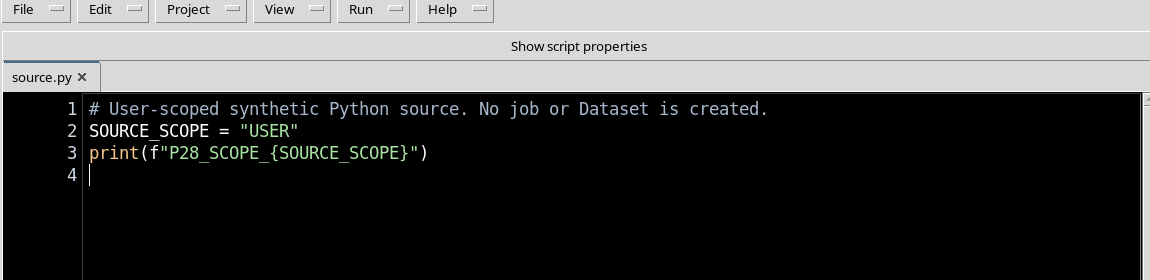
Select the User entry in the Python Script Workspace Explorer. GX-TXT shows the saved code in its tab and restores its revision and SHA-256. Even if there is a Session Script with the same short name, the User source remains the one registered with its owner.

10. Reopening the Session source
Select instead the Session entry. The GUI loads the code registered in the current Session. In this example the displayed constant changes from USER to SESSION and the source identity is distinct, while both tabs keep their own initial version.

11. Tabs keep separate buffers
The tab bar lets you work on several sources, even when they have the same file name, for example source.py. The short title of a tab must not be used as proof of the owner identity. During work it is good practice to check both the Script identifier and any unsaved-change indicator.
12. Version, revision and SHA-256
The Version is the semantic number chosen for the program, for example 1.0.0. The revision is the revision of the registered record. The SHA-256 identifies exactly the content of the registered source. These three values are not equivalent: two revisions can belong to the same semantic version; a historical copy keeps the SHA-256 of the code that was run even when the current Registry moves forward.
13. When a tab becomes dirty
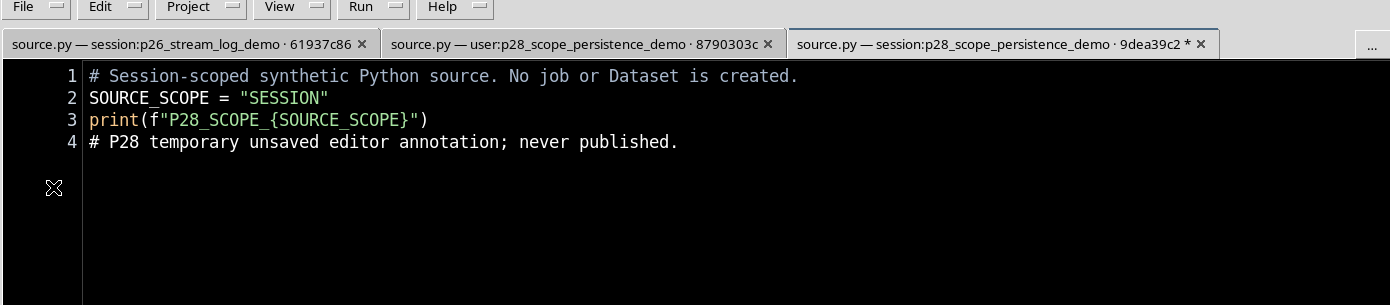
A change to the text makes the buffer modified/dirty. In the example only a temporary annotation was added, without running the program or saving it. The GUI shows the modification indicator, while the Registry still keeps the previous revision and SHA-256. The distinction avoids considering as published code that exists only in the editor.
14. Switching tabs does not save automatically
Switching from the modified Session tab to the User tab did not transfer the changes into the User source. Returning to the Session tab, the unsaved buffer was still present in its original context. Switching tabs must not be mistaken for saving: each tab keeps its own state.
15. The Unsaved source dialog
When closing a tab with unsaved changes, GX-TXT presents the Unsaved source dialog with Yes, No and Cancel. Yes requests saving; No discards the tab’s changes; Cancel keeps the tab open. Before choosing, read the Script reference shown in the dialog, especially when several sources have the same name.
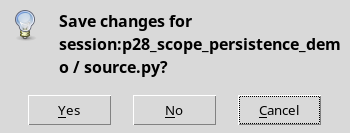
16. Discarding a change without altering the Registry
In the example the No action was chosen. The temporarily modified tab was closed and reopening it returned the code of the registered revision, with the same initial SHA-256. This behaviour is different from Save, which would have committed a new state of the source. When the intention is to discard a draft entirely, the controlled close offers an explicit result.
17. Undo and the boundaries of changes
The Edit → Undo command works on the history of the text buffer, not on the Registry revisions. A single Undo operation can include several characters or a group of changes: you must not assume that it always undoes only the last line typed. It is preferable to check the text actually remaining in the editor before choosing Save. If you want to recover the registered code unambiguously, close the tab discarding the draft and reopen the source.
18. A Job’s snapshot is a different source
When a Script is run, the supervisor keeps an identified copy of the code used. Meanwhile the current Script can be modified and saved in a later revision. Opening the old Job is therefore not the same as opening the most recent source: the results must be interpreted on the basis of the code run in that specific processing run.
19. Opening the code run by a historical Job
From Script Jobs Manager select the desired execution, then Open execution details → Open source files. If the snapshot is verified, GX-TXT opens a historical tab of the code. In the test the Job had run a previous revision of the Script and the editor showed its original check value, not the one present in the current Registry.
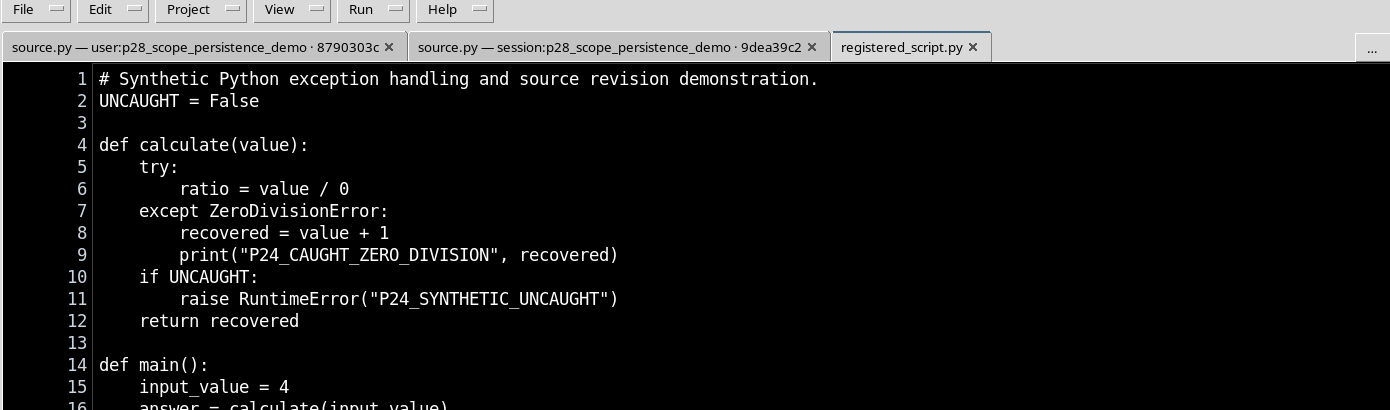
20. Historical tabs are read-only
A snapshot:… tab is read-only. The text widget is disabled and File → Save is also not available for that historical source. It is not a draft ready to be saved and must not be used to retroactively alter a Job. The historical copy serves to check, compare and document; for a new program you explicitly create or register another source.
21. Comparing a historical revision with the current one
In the example the historical Job uses a condition that is initially false in revision 1, while the currently registered source has the same condition true in revision 2. The two copies have distinct SHA-256 values. This comparison shows why the state of today’s editor is not enough to reconstruct the behaviour of an old execution: the verified snapshot of the Job is needed.
22. The Session has its own execution identity
GX-TXT uses a Session identity valid for the current process context. This Session epoch is neither the version of the Script nor the revision of a Dataset. It serves, among other things, to distinguish the owner of an open editor from the current context. The system must prevent a tab belonging to a previous Session from becoming writable just because the Script has the same name or the same hash.
23. Changing Session changes the current owner
When a different Session is opened, the identity of the context changes. A Session source belonging to the previous context must not be considered automatically writable in the new environment. The source ownership checks prevent old tabs from being treated as if they belonged to the Session just opened. If in doubt, close the previous editor and reopen it in the desired context.
24. The User source remains available
After opening another Session, the User-scope Script was found with the same content and SHA-256. In that new Session, however, the sources registered only in the previous Session did not appear. This difference is useful to separate reusable personal tools from the code specific to an experiment.
25. Opening or creating a new Session
The ordinary workflow goes through the GX-TXT commands to open an existing Session or create a new one. A new Session has its own resources and its own source registry; it does not automatically inherit all the scientific Datasets and Session Scripts of the previous one. The GUI can continue to show the User-scope resources, because they belong to the personal profile, not to the new Session.
26. Why close and reopen the editor
After a Session change, an editor window left open could contain tabs created under the previous identity. Even when they are visible, these tabs do not constitute proof of a new ownership. Properly closing Python Script Workspace and then reopening it in the chosen Session makes it possible to rebuild the Explorer from the relevant registries. This means reopening the editor and the Session context, not necessarily restarting the whole application.
27. Returning to the previous Session
When the starting Session and then Python Script Workspace were reopened, the original Session source was recovered with identical saved code, revision and SHA-256. The new Session identity of the process is instead different from the initial one. This is the expected behaviour: persistence of the scientific content, new operational identity of the context.
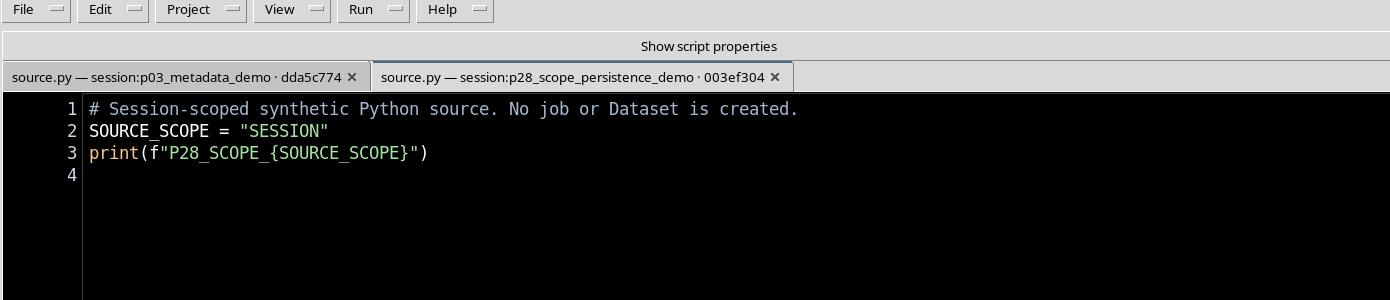
28. Checking the return and resuming work
Before continuing, check that the current Session is the intended one, that the source in the editor belongs to the correct scope and is not modified, that the saved revisions are the expected ones and that the historical Jobs remain separate from the current code. Canonical Datasets already published belong to their Session and are not implicitly transferred to another. Once the check is complete, you can return to the previous Project with its helper files without modifying the historical sources.