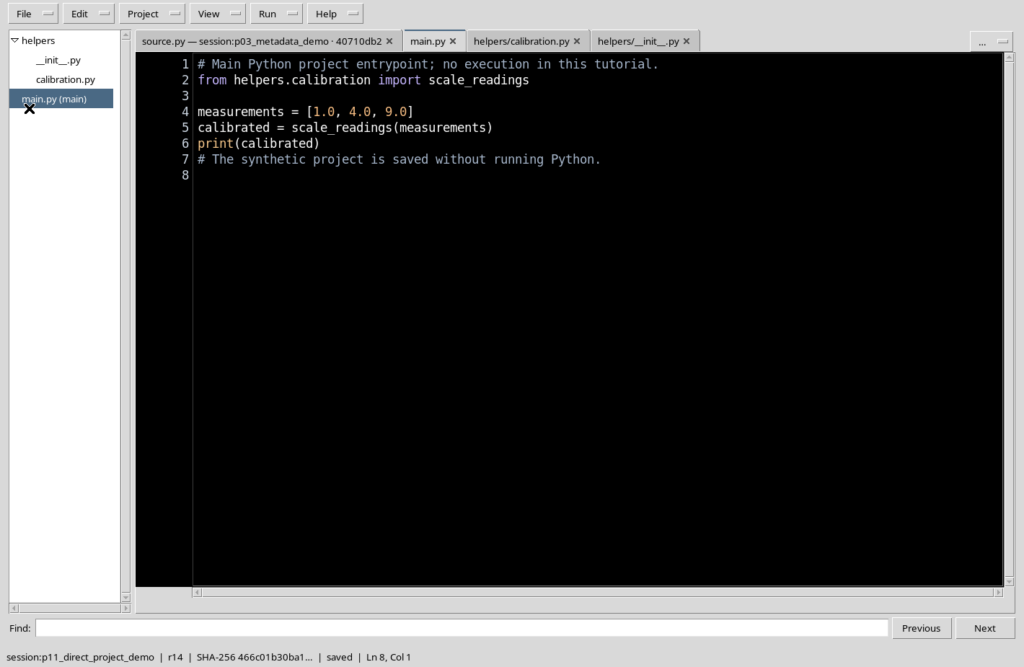
GX-TXT Python Script Workspace: opening Script Runner and choosing the revision to run
In Python Script Workspace, the Run → Open Script Runner… command opens a window for checking the already registered Script, its version, revision and SHA-256 fingerprint, before deciding whether to launch a Job. This guide distinguishes the code currently visible in the editor from the source actually saved. The operations described prepare the review: no Job is started merely by opening the Runner.
1. The purpose of the Script Runner
The Script Runner is where you examine a registered version of a Python Script together with any execution settings. The editor, instead, is used to write and edit the source. This distinction is fundamental when the text has been changed after the last save: the visible code and the registered revision may differ.
2. Prerequisites: a valid Session
To open the Runner you must work in the context of the intended scientific Session. The Runner does not automatically run scripts in a missing or different Session context. Before continuing, check that you have opened the correct Session and can consult the Script in Python Script Workspace. For the example a synthetic Script with no links to instruments is used.
3. Preparing a Python Script without running it
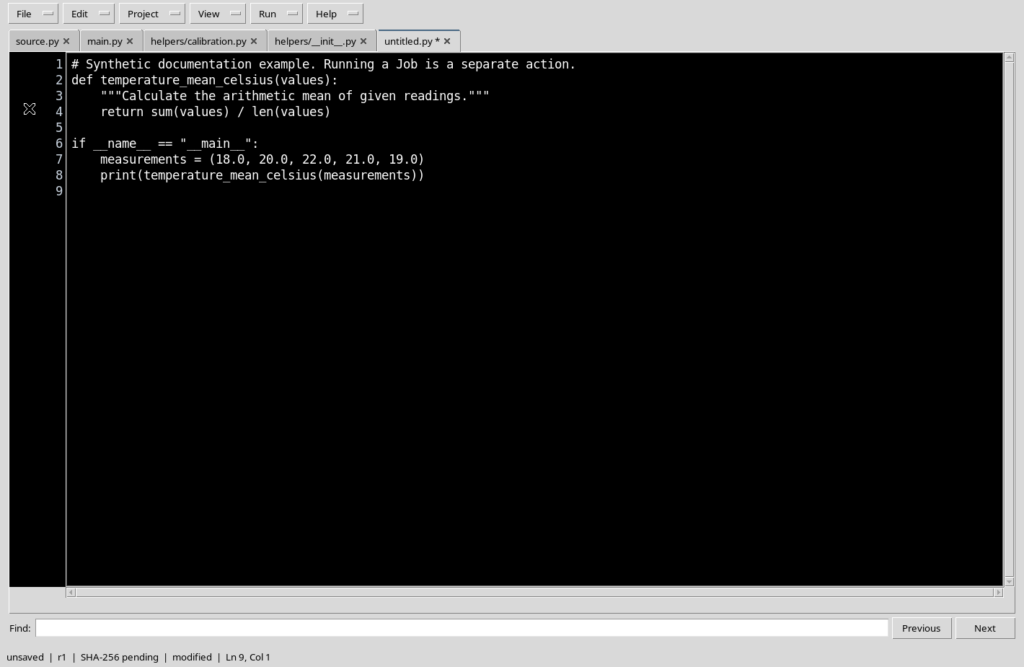
From File → New Script you can create a new source and enter teaching code in it. Merely writing or opening the editor produces neither a scientific registration of the result nor a Job. At first the new document is a draft, not yet identified as a registered revision.
4. Illustrative code that is easy to read
The following example calculates the arithmetic mean of synthetic measurements. It is presented only to make the transition from the editor to the Runner understandable: there is no need to launch it to follow the guide.
# Synthetic example: opening Runner does not execute this code.
def temperature_mean_celsius(values):
    """Return the arithmetic mean of the supplied values."""
    return sum(values) / len(values)

measurements = (18.0, 20.0, 22.0, 21.0, 19.0)
Before an actual execution, even an example like this requires normal checks on the input data, such as a possible empty list.
5. Scope, Script ID, Name and Version
The editor has the Scope, Script ID, Name and Version fields. The Scope distinguishes the context it belongs to, while Script ID is the registered identifier. Name is readable by the user; Version is a semantic version, for example 1.0.0. Identifier, version and revision are not synonyms: the revision changes when a save modifies the registered record.
6. Registering the first revision with Save
After choosing a valid identifier and the appropriate Scope, select File → Save. The editor registers the document and shows its saved state. In the case illustrated a first revision with synthetic code is obtained. Saving registers the source: it is not a request to the Runner and does not start any Job.
7. Opening the Runner from the editor
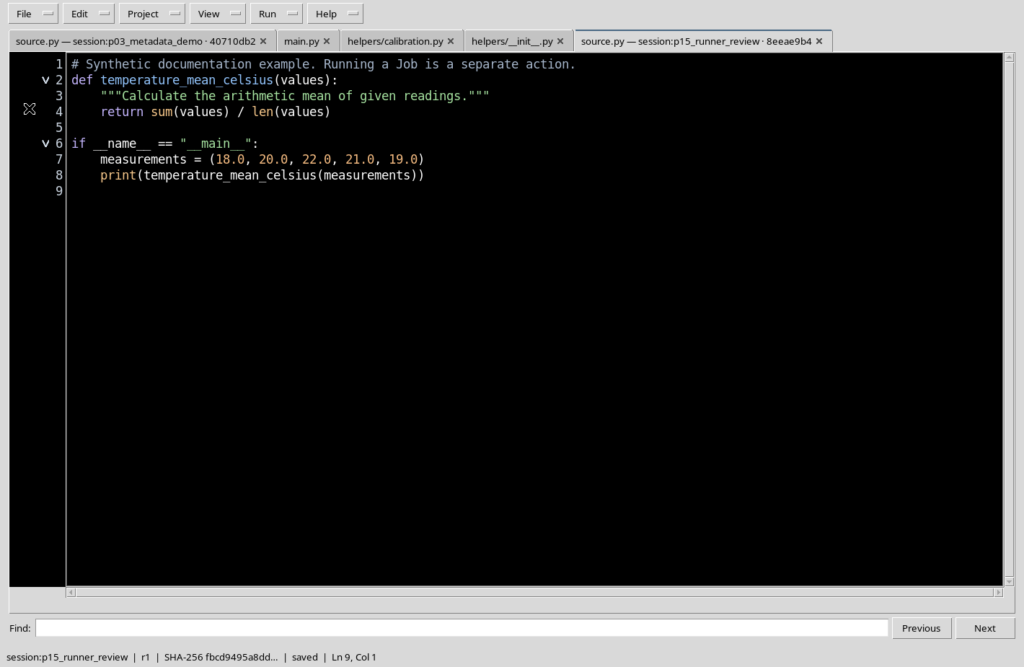
With the Script saved and selected, choose Run → Open Script Runner…. The dedicated window opens, without going through other Viewers. It is important to use the Script already open to keep the link with its registered identity, rather than looking for alternative unverified procedures.
8. Reading the identity header
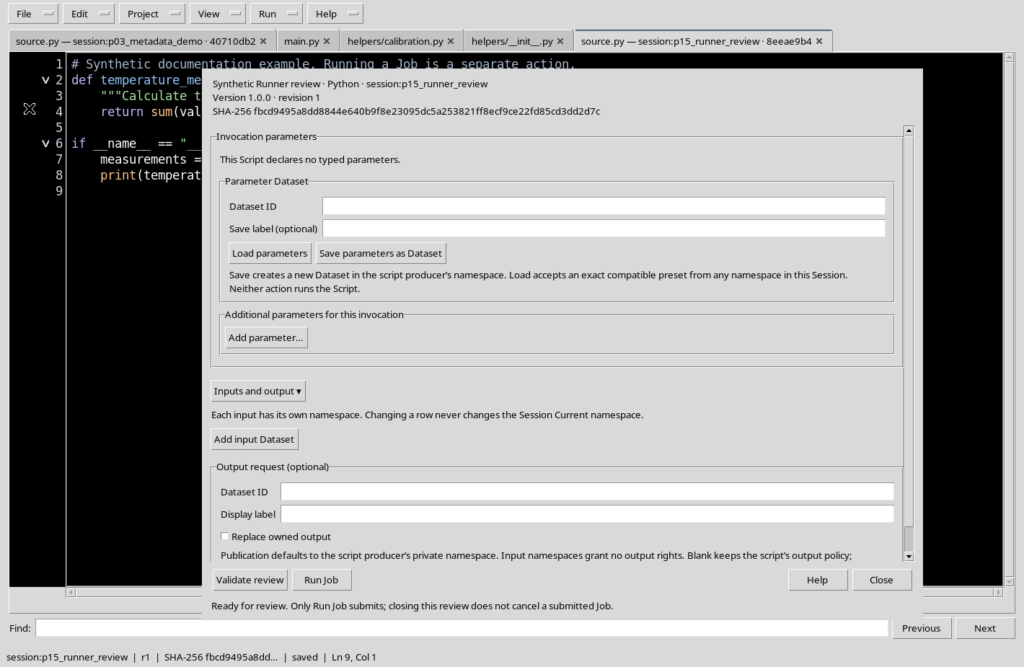
At the top the Runner shows Name, the language Python, the Script reference, Version, revision and SHA-256. The reference identifies the registered record; the SHA-256 value distinguishes the content of the revision. Always check these fields before considering a future execution. Two revisions with the same Name can have different sources.
9. Opening the Runner and starting the Job are distinct
Opening the window presents the data to be reviewed. Run Job is a separate command and requires an explicit decision. The header, the parameters and the choice of inputs are available for consultation without running Python. In this chapter Run Job is not pressed and no invented scientific results are shown.
10. The buttons at the bottom
The window shows Validate review, Run Job, Help and Close. Validate review is meant for checking the settings; Run Job is the action that submits the invocation to the execution system; Close closes the review window. Do not confuse the existence of a button with the corresponding function having been carried out.
11. Visible parameters and settings
The Runner contains an Invocation parameters section, with any typed parameters declared in the Script, and a Parameter Dataset section. In the example, the document declares no typed parameters, so the corresponding indication appears. Adding, validating and saving parameters are the subject of separate procedures: here we only observe the initial layout.
12. Input Datasets and output request
The Inputs and output section gives access to the configuration of inputs and to an optional output request. Each input has information about the Dataset and its namespace. These entries do not mean that an external source has already been loaded or that an output Dataset has been published. Input management is covered separately.
13. Closing a review without running it
Pressing Close makes the Runner disappear and returns to Python Script Workspace. When no Job has been started, no stop operation needs to be carried out. Simply closing the Runner does not delete the registered Script and does not change its source.
14. What a dirty buffer means
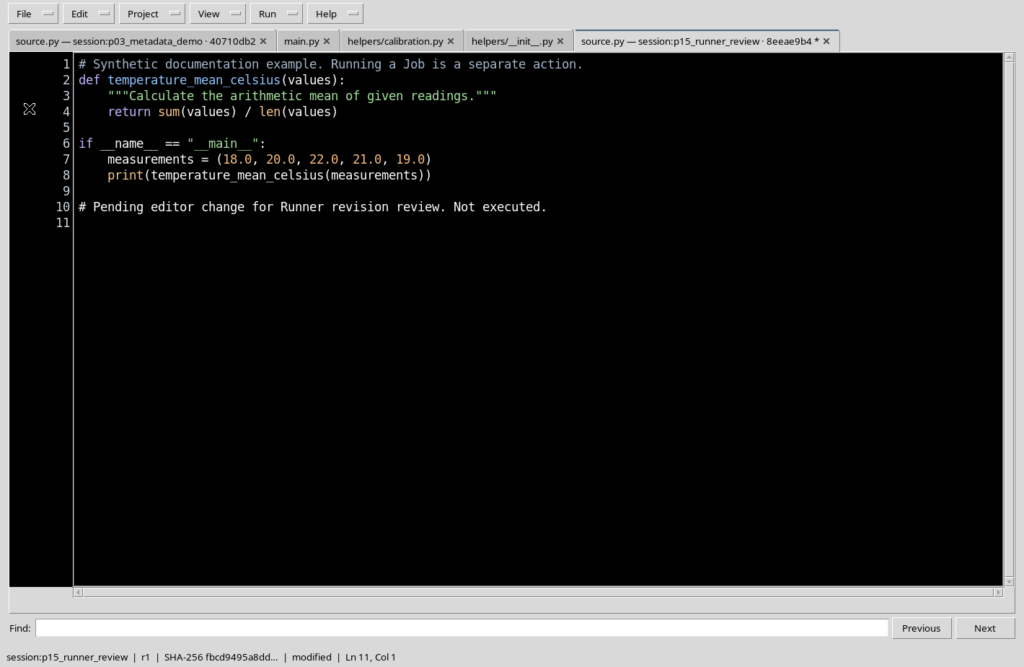
When you edit the text of an already saved Script, the editor signals that the current source is modified. This is called a dirty buffer: there is a difference between the document in the window and the registered revision. This difference must be resolved knowingly before opening the Runner; you should not assume that the Runner will automatically run the most recent text.
15. The Choose the Runner revision dialog
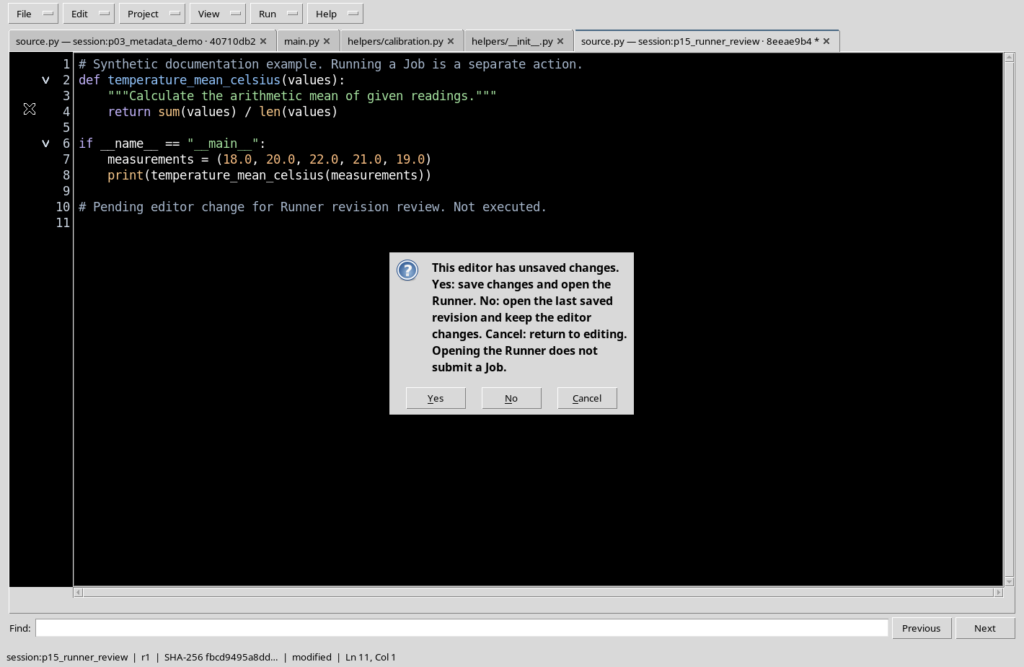
If you attempt Run → Open Script Runner… with unsaved changes, Choose the Runner revision appears. The message offers three alternatives, Yes, No and Cancel. It explicitly states that opening the Runner does not submit a Job. It is a revision choice, not an execution confirmation.
16. Cancel: staying in the editor
By selecting Cancel, the Runner does not open and the draft is not discarded. The editor keeps the modified text, which can be corrected, saved or exported later. This is the most prudent choice when you have not yet decided which revision to use.
17. No: opening the last saved revision
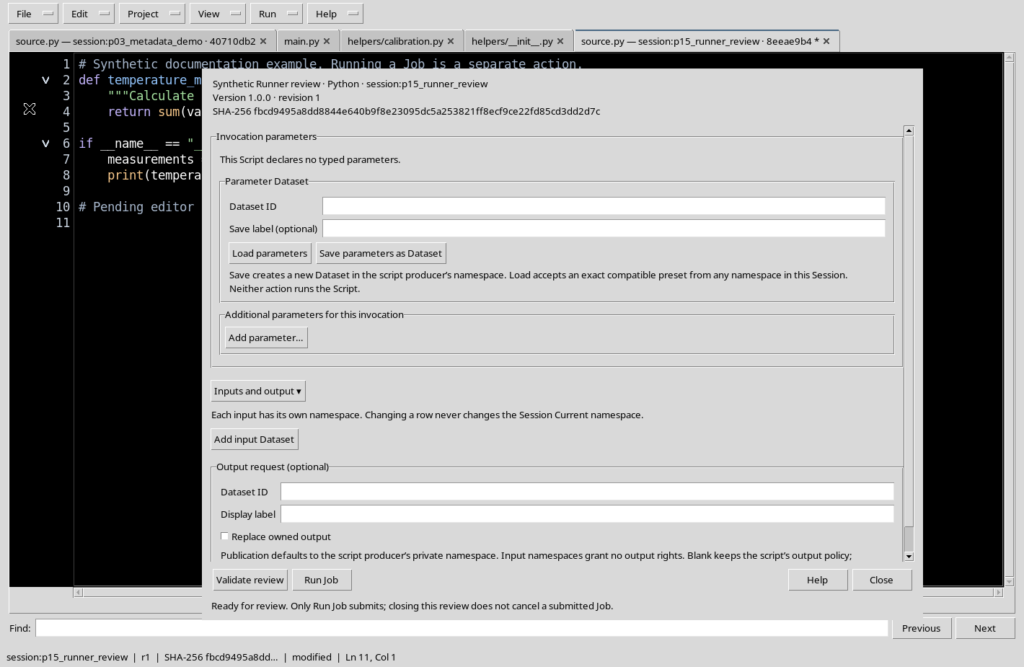
By selecting No, the Runner opens on the revision already registered, while the unsaved changes remain in the editor. It is therefore possible to have at the same time a Runner referring to a previous revision and a source tab marked as modified. Before a future Job, read the revision and the SHA-256 in the Runner header.
18. The operational meaning of No
The No choice does not mean discarding the draft and does not mean running the Script immediately. It only lets you consult the parameters of the saved version. Closing the Runner returns you to the still modified draft; if you want to use it later you will need to save it explicitly.
19. Yes: saving and opening the updated revision
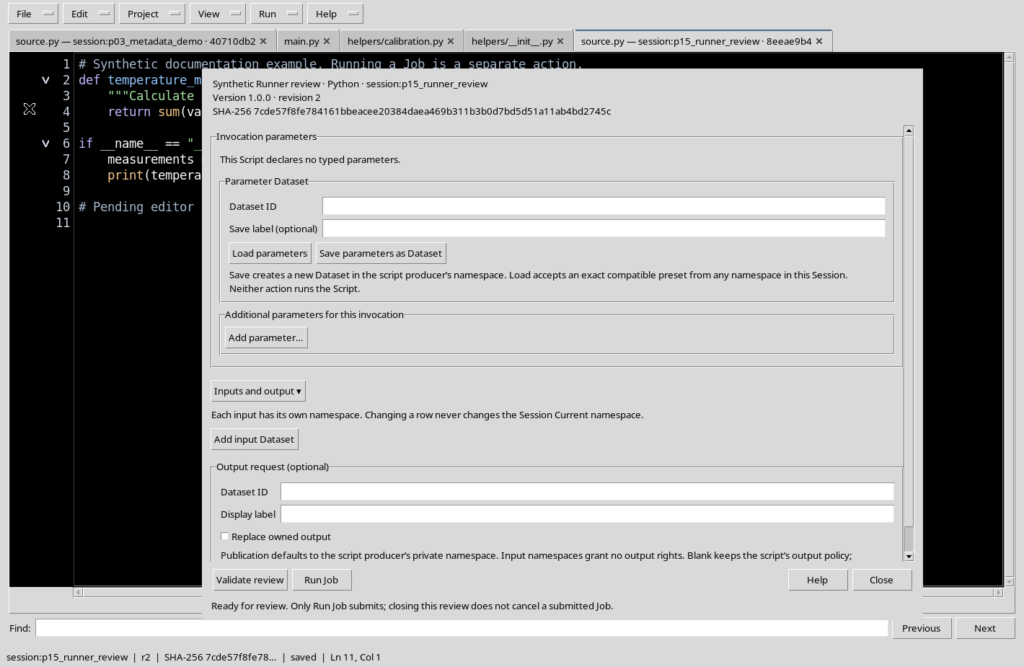
With Yes, the editor first attempts a regular save of the source. If the save succeeds, the Runner opens on the updated revision. In the example, moving from the first to the second revision results in a different SHA-256. The presence of the new revision in the Runner confirms the save, not the execution of the Script.
20. Checking revision and SHA-256 after Yes
After Yes, check the header again. The Runner must show the updated registered version, with its revision and its SHA-256. If the editor has concurrent changes or cannot save them, do not bypass the rejection: re-examine the Script in the correct context. In the flow illustrated the editor returns to the saved state.
21. Version and revision: two different pieces of information
Version is the version number defined for the Script, for example 1.0.0. revision is the progression of the saved record, for example from revision 1 to 2. Editing and saving the source can change the revision and the hash without requiring a change in the semantic version number. The header lets you check both.
22. Why SHA-256 matters
The SHA-256 identifies the content of the registered revision and helps distinguish two states of the same Script. It is not an indicator of scientific accuracy, absence of errors or quality of the computation. It serves the traceability of the source selected for review, but it does not replace reading the code and checking the inputs.
23. New Script without registration
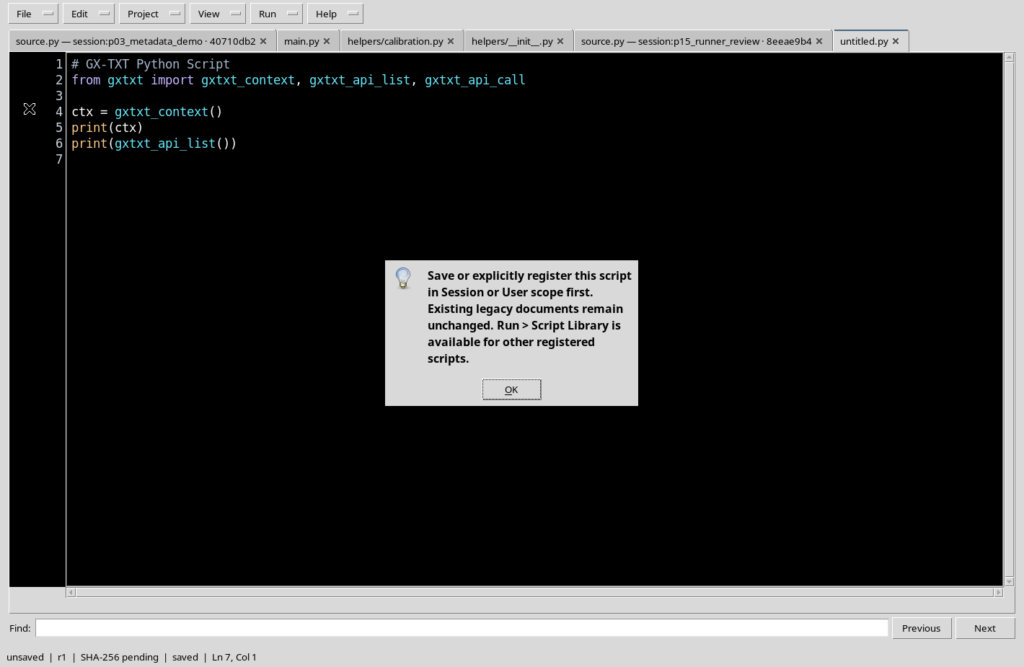
A newly created document, without a Registry reference, is not yet available as a saved Script for the Runner. If you try to open the window, a message appears asking for saving or explicit registration. There is no implicit Job for an unregistered draft: return to the editor and complete the normal File → Save.
24. Session identity and context protection
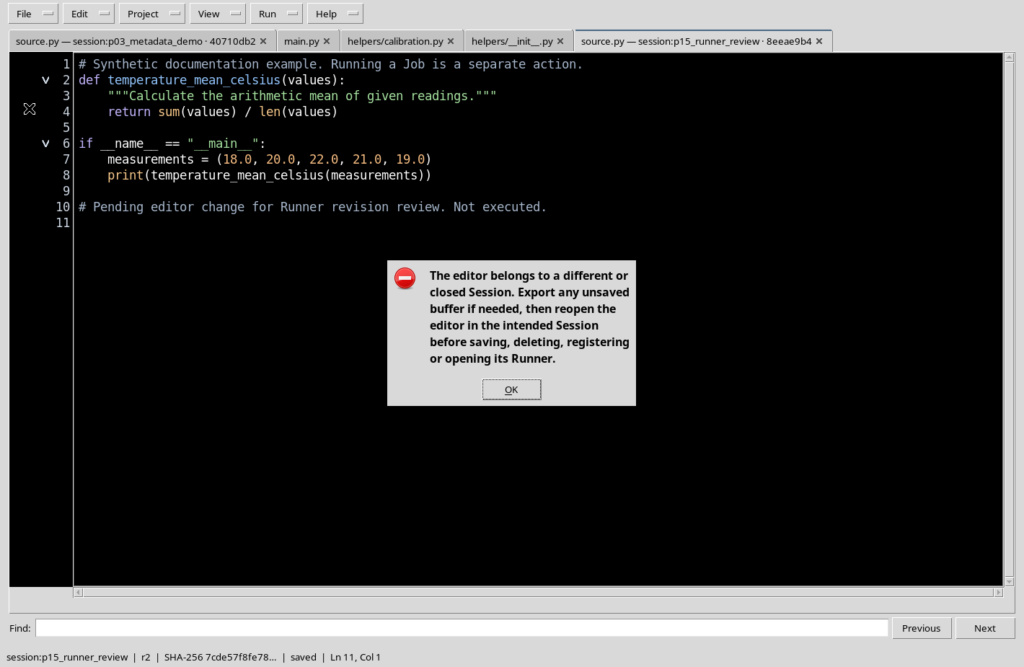
The Runner is bound to the current Session. If the editor belongs to a different or already closed Session, a protection prevents you from continuing and asks you to reopen the source in the appropriate context. This check protects the identity of the source and of any Datasets, even before execution comes into play.
25. Do not confuse Script, Session, Runner and Job
The Script is the registered source with its metadata; the Session provides the scientific context; the Script Runner is the preparation and review window; a Job arises only from an actual execution request. They are different entities and keep different identities. Even a Markdown note associated with the Script is documentation and not a Job result.
26. When in doubt, review before starting
A practical check includes identity and Scope of the Script, current Session, version and revision, SHA-256, parameters, any inputs and output destination. If this information does not match expectations, close the Runner without pressing Run Job and return to the source. The availability of Validate review does not authorise you to skip the checks of the document.
27. What is covered in the following chapters
The choice of input Datasets and namespaces, the declaration of typed parameters, Parameter Datasets, the Validate review checks, the publication of outputs and the actual Run Job are described in their respective chapters. This separation avoids attributing to a display-only operation effects that occur only during the subsequent execution.
28. Conclusion: back to the source without a Job
At the end of the checks, use Close and return to the Python source. Keeping only the necessary panels visible lets you reread the code clearly, keeping the original High Contrast Dark presentation. A registered Script can be consulted and reviewed in the Runner several times without starting any Job, until the execution command is explicitly given.