

GX-TXT Python Script Workspace: working with multiple source tabs
Python Script Workspace lets you keep several Python documents open, switch from one to another and keep unsaved changes separate. This is important when you consult several registered Scripts or prepare different drafts: a tab does not necessarily correspond to a new Script in the Registry.
The guide shows the actual tabs, keyboard navigation, the overflow menu and closing active or inactive documents. The sources used in the examples are synthetic and are not executed.
1. What a tab represents
Each tab contains a source document, with its own text and its own local state. The Workspace keeps the identity of the document even while you switch to another tab.
A document can be an unregistered draft or the source of a Script already present in the collection. The status bar describes the active document, not all those open at the same time.
2. Open tabs and registered Scripts are different things
The number of visible tabs does not indicate how many Scripts have been saved in the Registry. You can open several drafts with New Script without creating any record, just as you can close the tab of a saved Script while leaving the registration intact.
This distinction avoids confusing operations on the interface with the persistent management of sources.
3. Opening two independent Scripts
Open Python Script Workspace in the desired Session and select two registered Scripts. Each is presented in a separate source tab and keeps its own registration reference.
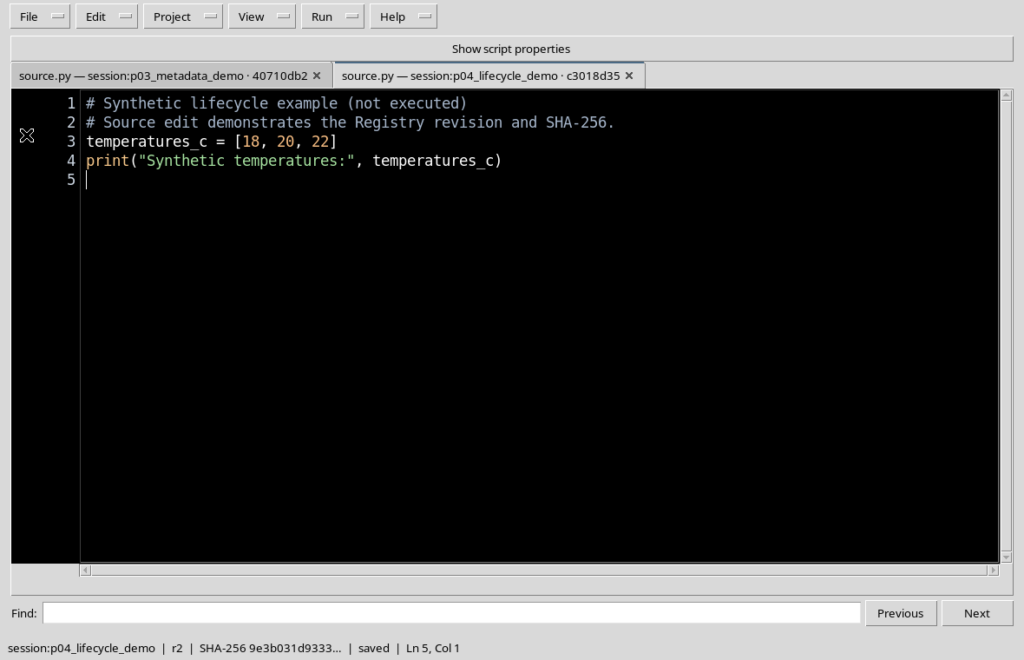
In the example both tabs have a file called source.py, but they belong to two different Scripts. It is the qualified references that distinguish them.
4. Do not rely only on the name source.py
The name source.py describes the main source file of a registered Python Script. On its own it is not a unique key when several Scripts are open.
The tab title may contain the qualified reference, for example the session: prefix followed by the Script ID and a short identifying fingerprint. Before editing the code, check the selected tab.
5. One text buffer for each document
Independent tabs keep separate contents. A change made in one tab must not overwrite the text of the others.
This principle also applies if the two documents are drafts and their visible name is untitled.py. The editor manages the text of the active document, while the others remain available for later selection.
6. Creating a new draft with New Script
Use File → New Script to open a new unregistered tab. The draft starts from the initial code prepared by the Viewer, but it does not automatically have a saved Script ID.
You can write provisional code and decide later whether to give it an identity. There is no need to register every document opened for consultation or preparation.
7. Preparing two different drafts
To make the independence of the buffers evident, we use two synthetic fragments that are not executed.
Draft A:
# Draft A - local source, not executed
synthetic_a = 11
Draft B:
# Draft B - local source, not executed
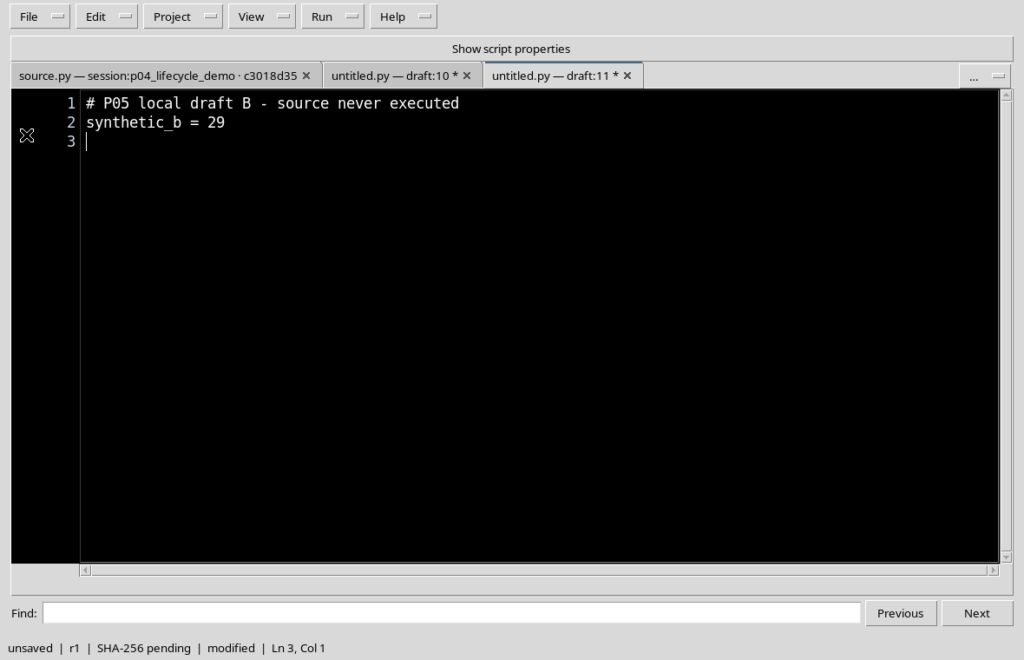
synthetic_b = 29
They are examples of Python text, not measurements and not results of a computation. Each draft keeps its own lines even when the other becomes active.
8. Two drafts can both be called untitled.py
When two new drafts are opened, the bar may show two untitled.py entries, each accompanied by a distinct provisional reference.
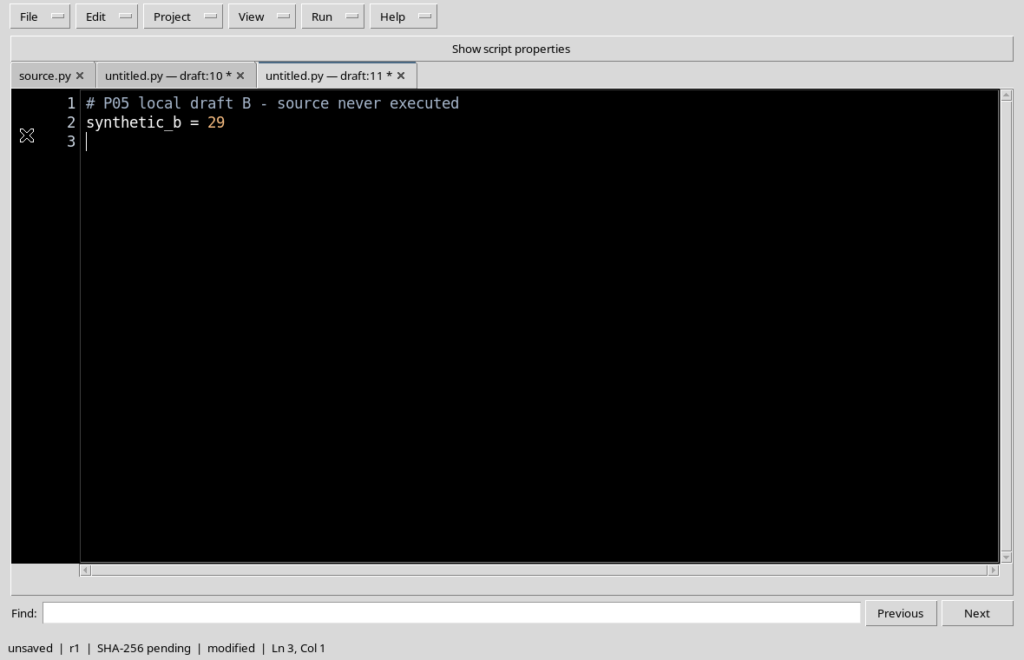
One tab changes its own buffer and leaves the other unchanged. In the screenshot both drafts have the unsaved-changes asterisk.
9. What the asterisk indicates
The asterisk (*) added to the tab indicates local changes not yet saved. The text of a draft can be modified even if the registered Scripts open in the other tabs are saved.
The asterisk belongs to the individual document. It does not represent a compilation error and does not indicate that a Job has been started.
10. Moving with Ctrl+Tab
With several tabs open, Ctrl+Tab moves to the next document. When you reach the last tab, the cycle can continue from the first.
After the switch, the editor shows the text of the new active document. The changes in the other tabs remain in their respective buffers, without being saved automatically.
11. Going back with Ctrl+Shift+Tab
Ctrl+Shift+Tab runs through the tabs in the opposite direction. It is useful for quickly comparing two fragments without searching for the tab with the mouse each time.
Navigation changes the active document, not the content of the code. In the example the two shortcuts let you move to a registered Script and return to the modified draft.
12. The status bar follows the selected tab
When a registered Script is selected, the bottom bar may show the session: identity, the revision, the SHA-256 prefix and saved.
When you move to an unregistered draft, the bar may instead show unsaved, SHA-256 pending and modified. These values describe the current tab and must not be automatically attributed to the others.
13. When the tabs do not fit in the bar
If there are many labels or they contain long references, the available space may not be enough to show them all.
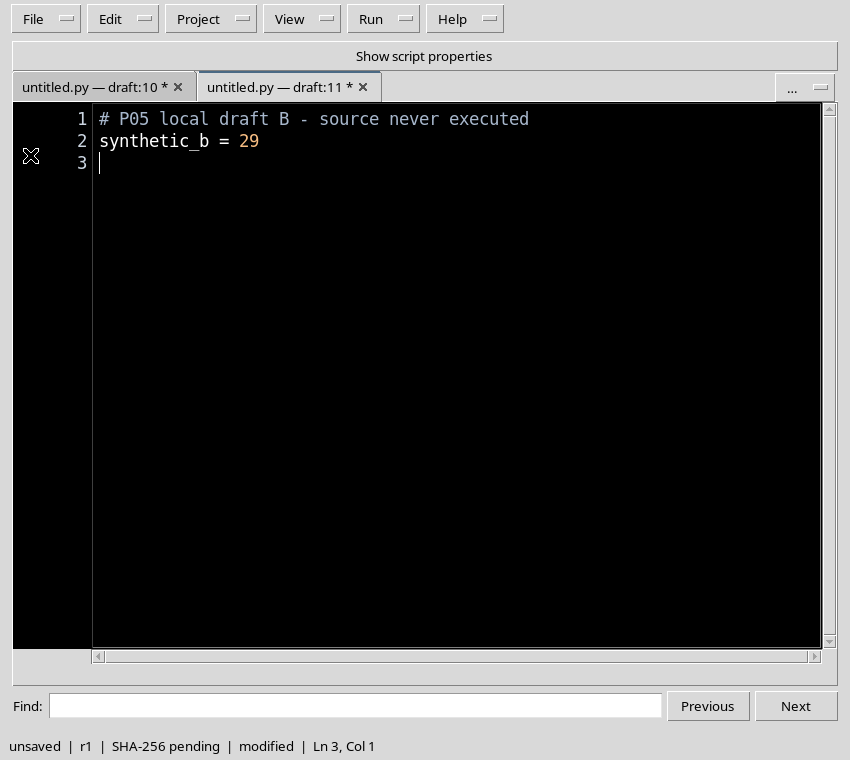
The Workspace can then temporarily hide some tabs and present the overflow button …. The documents remain open: only some of the tabs disappear.
14. The overflow menu keeps the full identities
Open the … button to see the list of documents, including those not visible in the bar. The menu shows the qualified references of the registered Scripts and of the drafts.
This list is particularly useful when several files are named source.py or untitled.py: it lets you select the document by its identity, not only through a shortened tab.

15. Selecting a hidden tab
An entry in the overflow menu makes the corresponding document active. The selection does not involve a new save, an import or a copy of the Script.
The selected tab becomes visible again in the bar according to the available space. The others, even if temporarily hidden, keep their own text and any asterisk.
16. Recovering space for the code
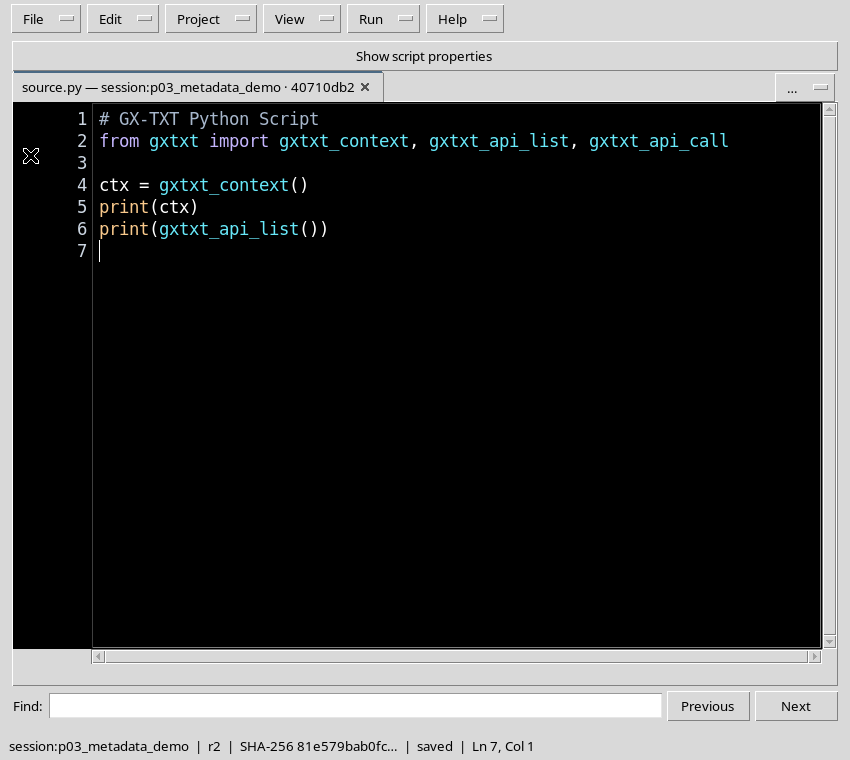
Once you have consulted the menu, it is better to go back to a window wide enough to read Python. You can also close the unnecessary side panels with View → Focus source / restore panes.
Whether the overflow menu is available depends on the space required by the labels: its appearance can change if you resize the window or open or close a tab.
17. Closing a tab is not the same as deleting the Script
The close control of a single tab acts on the display of the document. When the registered source contains no local changes, the tab can be closed without deleting the corresponding Registry record.
The Script remains available for a future reopening. To remove a registered record there is the separate File → Delete command, with its own confirmation.
18. Closing a clean inactive tab
You can also close a tab that is not currently in the foreground. The Workspace removes it from the list of tabs, keeping the active draft with its changes.
In the case illustrated, a tab of an unchanged registered Script is closed; the two temporary drafts still appear with the asterisk.
19. An inactive tab may contain changes
The fact that a tab is inactive does not guarantee that it is saved. A draft can keep changes even while you work on another document.
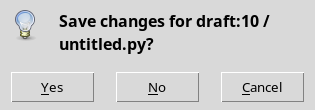
Before closing, check the asterisk and, when a confirmation appears, read the reference of the document in the dialog. This prevents you from discarding the wrong buffer by mistake.
20. The Unsaved source dialog
When you try to close a modified draft, even an inactive one, the native Unsaved source dialog appears with three choices: Yes, No and Cancel.
Yes asks for saving, No discards the local changes of the indicated document and Cancel stops the closing. The operation does not involve a Python execution.
21. Cancel keeps both drafts
By choosing Cancel, the Workspace keeps the tab for which closing was requested. The local changes remain in the corresponding buffer.
When closing is requested on an inactive tab, the Viewer returns the focus to the previously active document. In the example the two drafts remain distinct and modified.
22. No discards only the indicated draft
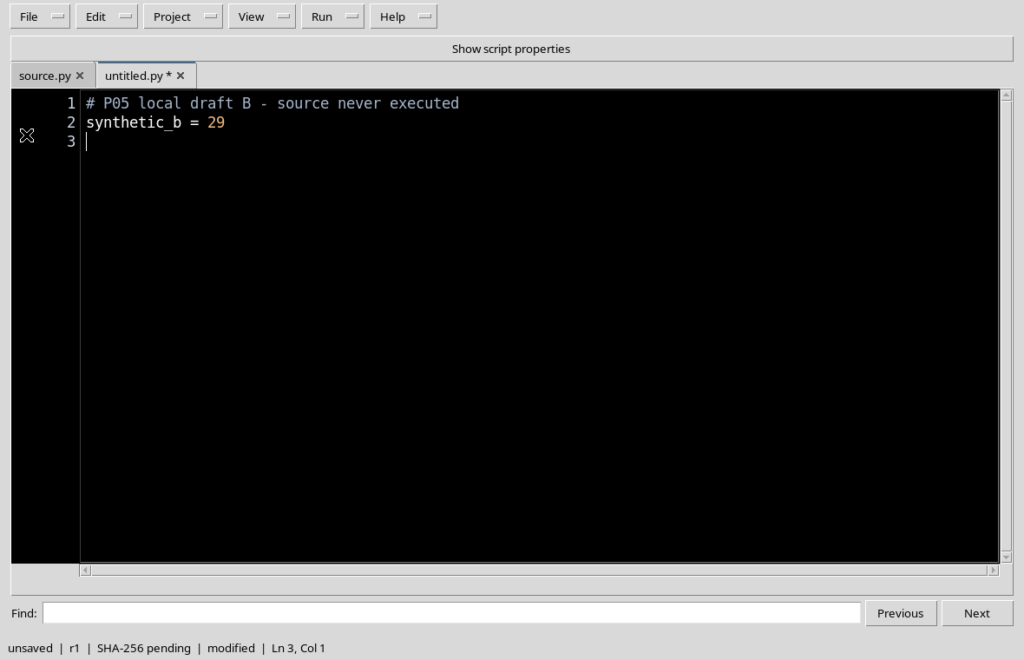
By choosing No, the tab concerned by the request is closed without registering its changes. The other tabs keep the contents they had before the dialog.
In the image the first draft is no longer present, while the second is still modified. No registered Script has been deleted from the Registry.
23. Yes requires attention to the identity
The Yes choice starts the saving procedure for the indicated tab. Before confirming it, consider whether you are saving a new draft or updating a Script already registered.
This guide has checked that the button appears, but for the temporary drafts it used only Cancel and No. Registration and conflict cases are illustrated in the previous chapters.
24. How to interpret the draft reference
An unregistered tab may appear in the overflow or in the closing dialog with a provisional reference starting with draft:.
This identifier is used to distinguish the drafts open in the window. It is not a persistent Script ID and must not be copied as if it were the identity of a Script already available in the Registry.
25. Read-only historical tabs
The Workspace also provides for opening historical sources from execution snapshots. Access to them requires a verified snapshot and a matching source language.
In this chapter no Job has been created or run: therefore a read-only historical tab is not shown as tested. Its display and actual constraints are examined together with Jobs and their provenance.
26. Difference between single tabs and the files of a project
The tabs illustrated here represent two independent Python Scripts and some drafts. They do not yet demonstrate how the different files work within a single Script Project.
In a project the files can share the identity of the project while keeping different text buffers. Managing the entrypoint, secondary files, renaming and Save All is covered in the dedicated chapters.
27. Restoring a clean Workspace
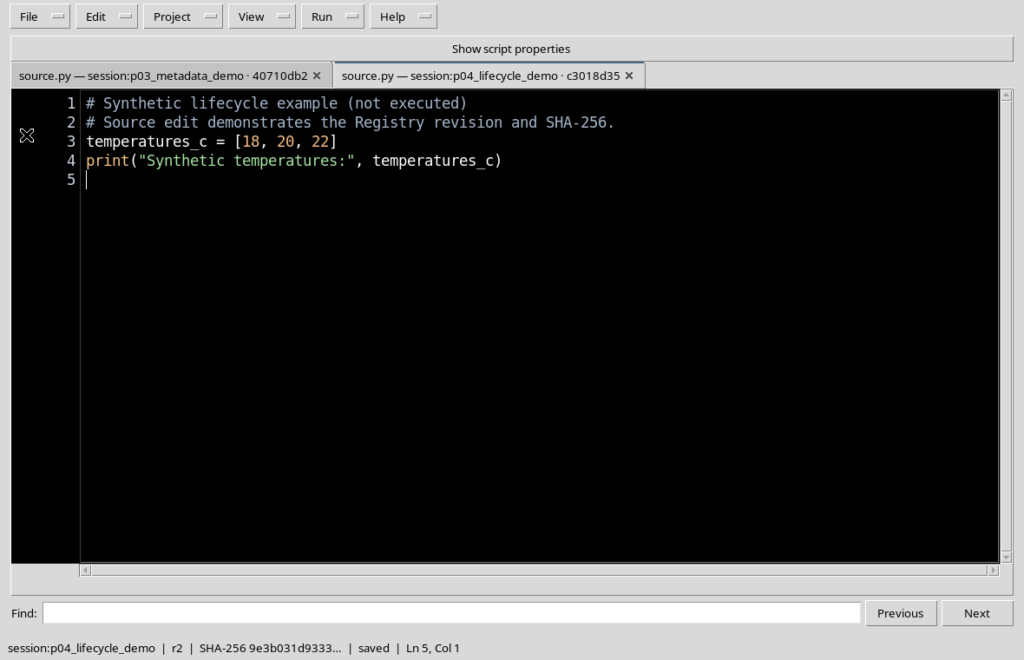
When the test is over, close the temporary drafts you do not want to keep, using No only after checking which buffer is being discarded. The previously registered Scripts remain in the Registry and can be reopened.
The final screenshot again shows the two registered sources, without temporary drafts or local changes. The code keeps the authentic High Contrast Dark theme.
28. Conclusion
The tabs of Python Script Workspace let you compare Scripts and prepare drafts without confusing their contents. Ctrl+Tab and Ctrl+Shift+Tab let you navigate between documents; the … menu makes hidden ones accessible when space is limited.
Each tab keeps its own modification state. Close tab acts on the open document and does not delete the registered Script, while Cancel and No let you manage modified drafts without affecting the other buffers.
The next chapter covers editing the source, syntax highlighting, searching and navigating between lines in depth.