

GX-TXT Python Script Workspace: organising a multi-file Python project with Save All
A scientific program can become easier to maintain when the code is split into an entry file, auxiliary modules and Python packages. In GX-TXT, Python Script Workspace lets you add and edit these sources directly in the Project, navigate between the tabs and register them together with File → Save All.
The guide shows the interface commands and the relationship between modified code and saved revision. We will use only a synthetic numeric example: creating, editing and saving files does not run the Script, nor does it produce Datasets.
1. Starting from a Python Script Project
Open Viewers → Python Scripts and select a registered Project with Project → Open Project… and Open entrypoint. To create the Project first, follow the chapter devoted to New Project.
The new structure grows out of a Project with a single main.py, already registered. The commands described here operate on the identity of the open Project, not on an arbitrarily chosen external folder.
2. Recognising the entrypoint
In the file tree the main file is marked with (main). In a newly created Project, main.py normally appears with the initial comment # Project entrypoint.
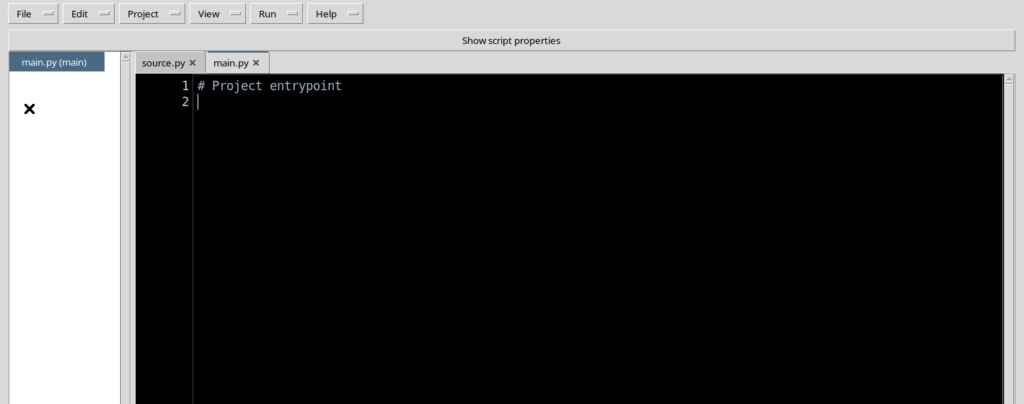
The entrypoint identifies the file from which a future managed execution will start. Simply opening or selecting it does not start Python.
3. The source tree and the tabs
The Project shows a file tree next to the Source. Subfolder paths can be expanded to show their modules; choosing a file opens or reuses its tab.
Each tab keeps its own text, cursor and modification state. The tree belongs to the open Project: it must not be confused with Script Explorer / Registered scripts, which lists the identities of different Scripts.
4. The Project commands for files
The Project menu contains Open project file…, New file…, Rename/move file…, Remove file and Set entrypoint.
These commands work on the allowed sources of the Project. Write operations require a registered Project that can be edited in the correct context; a read-only historical snapshot is not a valid destination for new revisions.
5. Creating a file with a relative path
Choose Project → New file…. A window appears with the field Normalized relative source path (subfolders allowed) and the Apply and Cancel buttons.
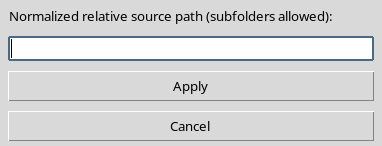
Write, for example, helpers/calculation.py. It is a path relative to the root of the Project: helpers is the subfolder, calculation.py the new Python file. Cancel closes the window without registering anything.
6. Writing an auxiliary module
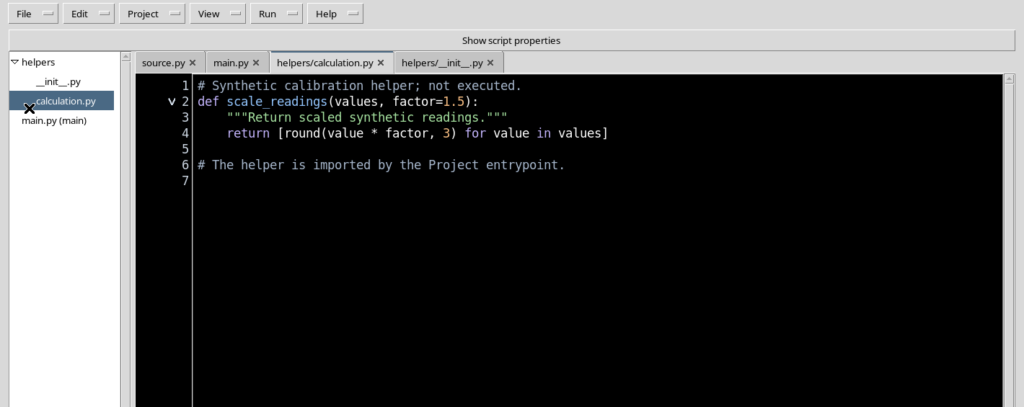
After Apply, the Project registers the new empty file and opens it in an independent tab. You can write a function for processing synthetic data:
# Synthetic calibration helper; not executed.
def scale_readings(values, factor=1.5):
    """Return scaled synthetic readings."""
    return [round(value * factor, 3) for value in values]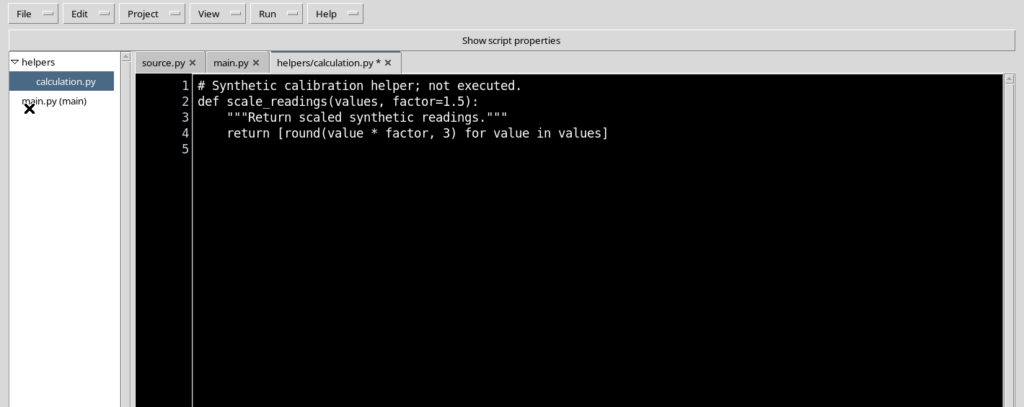
The example multiplies the values by a numeric factor. It does not use private GX-TXT functions and does not require any scientific API merely to edit the source.
7. Adding the helpers package
To organise the files explicitly as a package, also create helpers/__init__.py with Project → New file….
The file can contain only a comment:
# Synthetic Python package for calibration helpers.The helpers package and the modules inside it will appear in the Project tree. The __init__.py file does not perform a computation by itself.
8. Linking the main file to the module
Open main.py from the tree and prepare an explicit import statement. With the initial module, an example is:
# Main Python project entrypoint; no execution in this tutorial.
from helpers.calculation import scale_readings

measurements = [1.0, 4.0, 9.0]
calibrated = scale_readings(measurements)
print(calibrated)
The module name in the import must match the path of the file. helpers/calculation.py is a path in the Project, while helpers.calculation is the module form used by the Python statement.
9. How the files are separated
| File | Role in the project |
|---|---|
main.py | Entrypoint, uses the auxiliary function and prepares the results |
helpers/calculation.py | Module with the scale_readings function |
helpers/__init__.py | Initialisation of the helpers package |
The code in this guide is deliberately simple. The physical interpretation of the quantities, access to Datasets and any publication of results require specific contracts and scientific procedures.
10. Identifying modified tabs
When different files are modified, an asterisk appears on their tabs. Several asterisks indicate that there are several buffers to save.
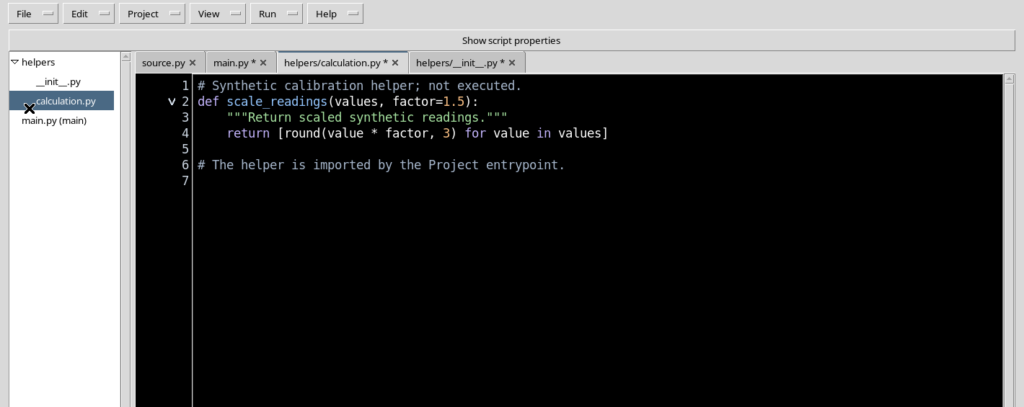
Switching tabs does not save the code automatically. When you go back to another file, the changes not yet registered remain available in the editor.
11. Saving with File → Save All
Choose File → Save All to register the changes of the Project. The Workspace gathers the sources concerned and saves them as a new consistent revision of the project, instead of registering a separate revision for each tab of the same Project.
After saving, check that the asterisks have disappeared and that the status bar shows Saved.
12. The revision concerns the whole Project
The Registry keeps a Project identity and a revision associated with the set of sources. Saving records the complete content, the entrypoint and the information needed to recognise exactly that version.
In a multi-source example, the three files modified together are therefore associated with the same revision. The three tabs must not be interpreted as three independent Projects.
13. Opening another file from the tree
Click the name of a file under helpers to switch to its source. To return to the main program, choose main.py.
Alternatively Project → Open project file… offers the entries present in the Project. Opening a tab does not change the code and does not change the file designated as entrypoint.
14. Renaming or moving a file
To change the path of a file, activate its tab and select Project → Rename/move file…. The window proposes the current path.
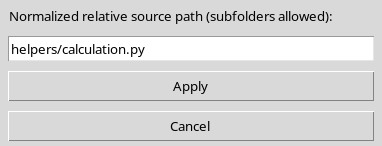
You can replace helpers/calculation.py with helpers/calibration.py. This too is a path relative to the Project. Cancel leaves everything unchanged; Apply requests saving the new structure of the Project.
15. Checking the rename
After Apply, the new name appears both in the tab and in the file tree.
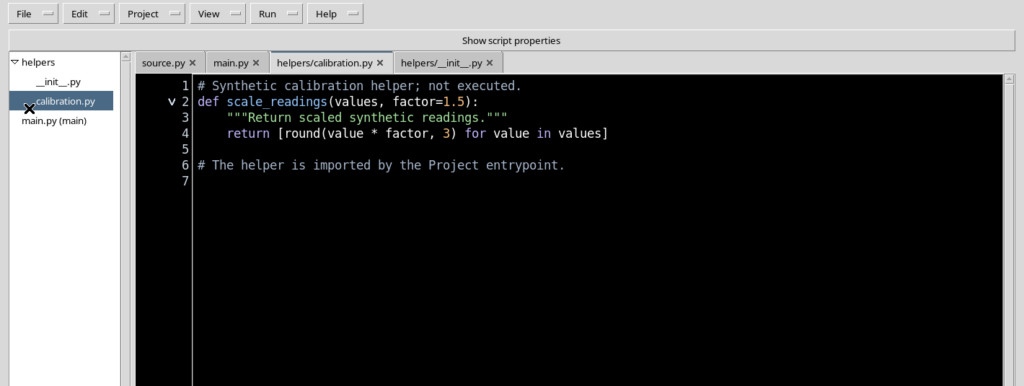
The Project keeps its overall identity, but registers a new version of the structure. The rename must not be considered just a label change: the path is part of the identity of the Python file.
16. Imports are not updated automatically
After renaming the module, go back to main.py. The previous statement may still be:
from helpers.calculation import scale_readings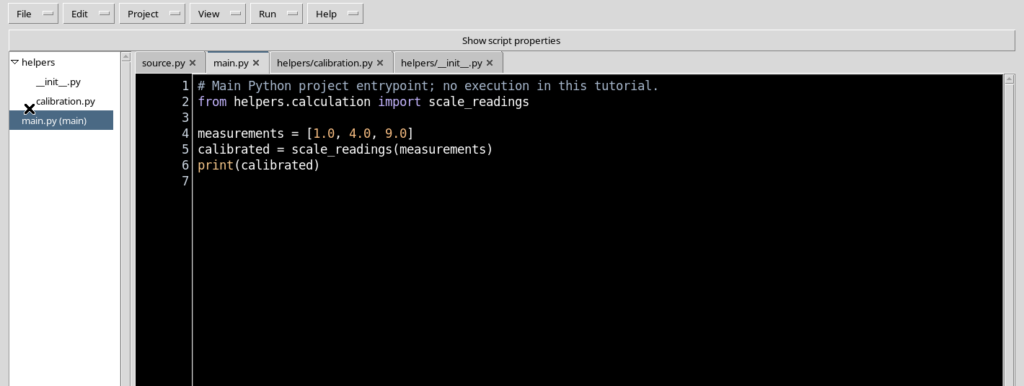
Rename/move file does not automatically correct the imports in the other sources. If the old module is no longer in the Project, the import must be updated manually before using the program.
17. Correcting the import statement
In our example, the new declaration is:
from helpers.calibration import scale_readings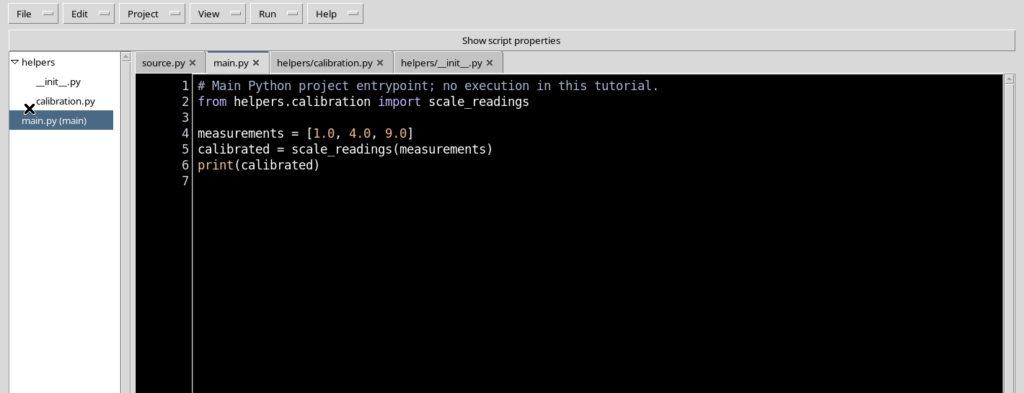
After correcting the code, use Save All to register the change. Saving checks the structure of the source but does not replace the future verification of the import in the Python runtime.
18. Changing the entry file
To designate another file as the main one, select it in the tree and use Project → Set entrypoint. The (main) marker moves to the chosen file.
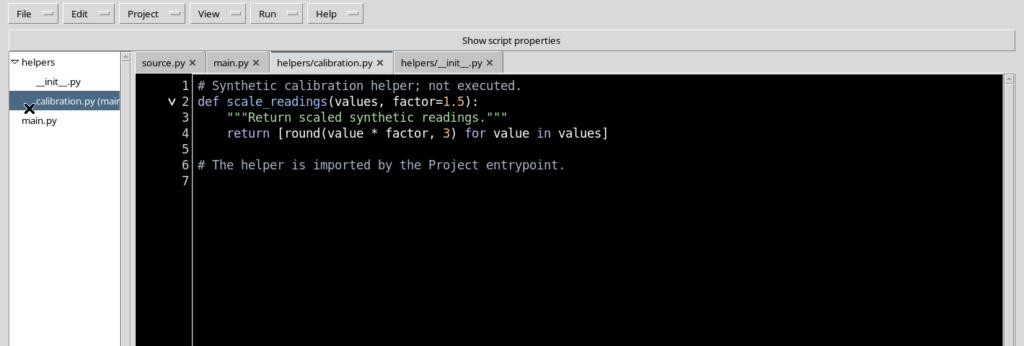
This function is useful when a project has several possible entry programs. A file containing only auxiliary functions should not become the final entrypoint unless it has been designed to be run directly.
19. Restoring main.py as entrypoint
Go back to main.py and choose Project → Set entrypoint again. The tree shows (main) next to the main file again.
Each change of entrypoint is registered as a new revision of the Project. Files are not copied, deleted or run merely by changing the designation.
20. Protection against removing the entrypoint
With main.py designated as the main file, try Project → Remove file on that file. GX-TXT refuses the operation and asks you to select another entrypoint first.
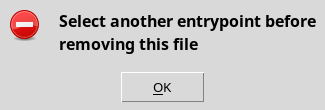
This check avoids accidentally creating a project without an entry file. Pressing OK returns to the editor without changing the saved structure.
21. Removing an auxiliary file
For a source that is not the entrypoint, Remove file asks for explicit confirmation. The dialog shows the exact path of the file and the OK and Cancel buttons.
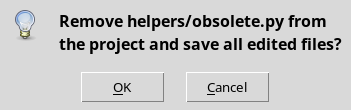
Read the path before accepting: confirmation removes the file from the Project and registers the change to the set of sources.
22. Cancel and confirmation are not equivalent
With Cancel, the auxiliary file remains in the list and the saved revision does not change. With OK, a temporary non-main file is removed and the Project keeps the other files.
When working with a Python package, first check that no other source imports the module you intend to remove. GX-TXT cannot automatically infer all the dependency logic of the program.
23. The Ctrl+Shift+S shortcut
Ctrl+Shift+S calls the same Save All operation from the Workspace. It is useful when you are editing a program that includes several tabs.
Its effect must be checked in the status bar and in the tab markers. The shortcut saves the source, does not start the Runner and does not generate a Job.
24. When the Project has changed in the Registry
If the revision or fingerprint of the saved Project no longer matches the one expected by the editor, GX-TXT refuses the save and asks for a new check.
This protection avoids silently overwriting a version updated from another context. In that case it is advisable to review the registered Project, keep the local work and open the correct version before trying again.
25. Which paths and sources are allowed
Paths must be relative, normalised and refer to .py files. Absolute paths, references to parent directories through .. or names that leave the Project are not allowed.
The validator also checks manifest integrity, name collisions, size limits and certain attempts to load external sources or replace reserved GX-TXT modules. These checks help keep the structure consistent and portable.
26. The final project
After the demonstration operations, the useful structure is back to three files:
main.py                     (main)
helpers/
    __init__.py
    calibration.py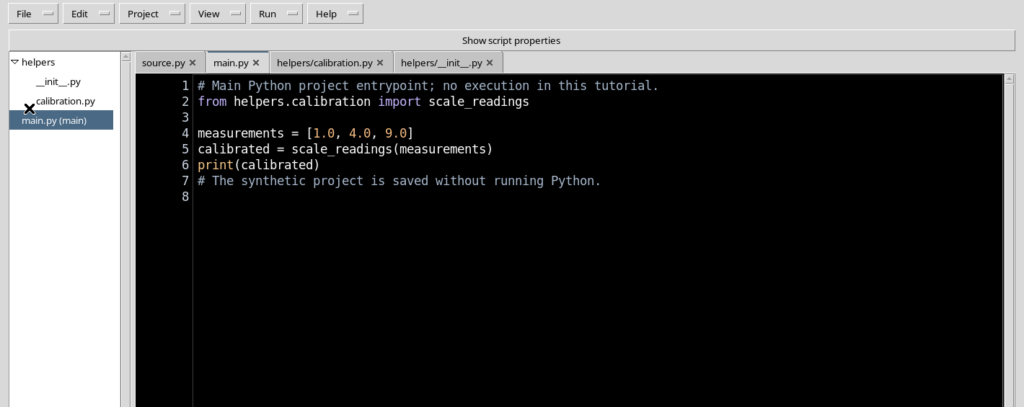
The entrypoint imports scale_readings from helpers.calibration. This representation describes the saved code, not an experiment already run.
27. Reopening a multi-source Project
After closing and reopening Python Script Workspace, use Project → Open Project…, select the project and press Open entrypoint. The main file and the source tree are available again.
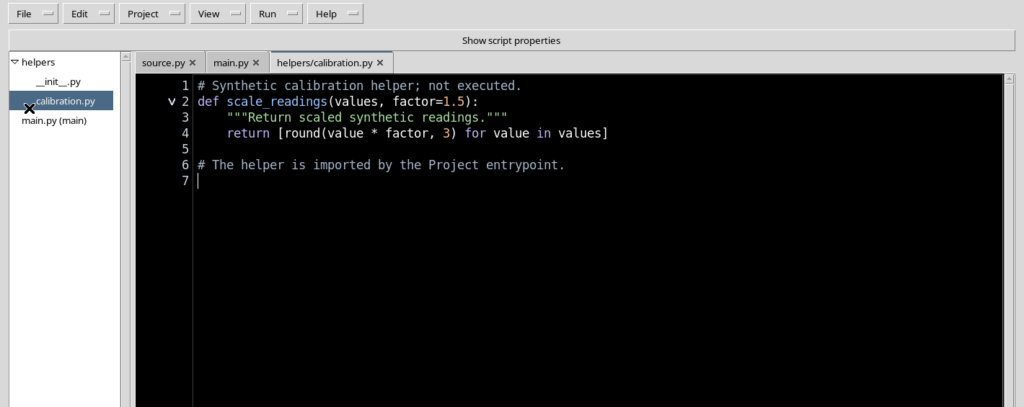
From the tree you can open calibration.py and __init__.py again without changing the revision. The files read must match the content saved in the Registry.
28. Summary
With New file… you create sources relative to the Project; the tree and the tabs let you move between independent files. Save All registers the changes of the group in a new revision; Rename/move file…, Set entrypoint and Remove file change the structure with identity checks and confirmation.
Remember that renaming a module does not update the imports and that saving does not mean running. Before a future Job, check the main file, the consistency of the imports, the public dependencies and the input data.
The next chapter examines the Markdown notes associated with individual sources, how they are displayed and the differences between editing the note and editing the program.