

GX-TXT Python Script Workspace: arranging panels and improving code readability
A scientific editor must leave room for the program and, at the same time, make the tools available when they are needed. Python Script Workspace lets you show and hide Explorer, Snippets and the metadata fields, resize the panels and quickly return to a view dedicated to the source.
This guide shows the original controls of version 1.6.3, with High Contrast Dark highlighting for the code. The dark look concerns the source surface: menus, windows and other controls may keep the colours of the desktop graphical theme.
1. Opening Python Script Workspace
From the GX-TXT main window open Viewers → Python Scripts and select the document you intend to work on.
The editor lets you consult registered Scripts and drafts not yet saved. The panel layout does not, on its own, change the identity, the revision or the code of the Scripts.
2. The three main areas of the window
The Workspace is organised in three zones: Script Explorer / Registered scripts on the left, Source in the centre and GX-TXT Bridge Snippets on the right.
The Source is the area where you read and edit Python. The two side panels are consultation tools: there is no need to keep them open throughout the work.
3. The code as the main working area
With the secondary panels closed, the editor takes up almost the whole window. Lines are numbered, the text is monospaced and colours distinguish comments, keywords, strings and numbers.
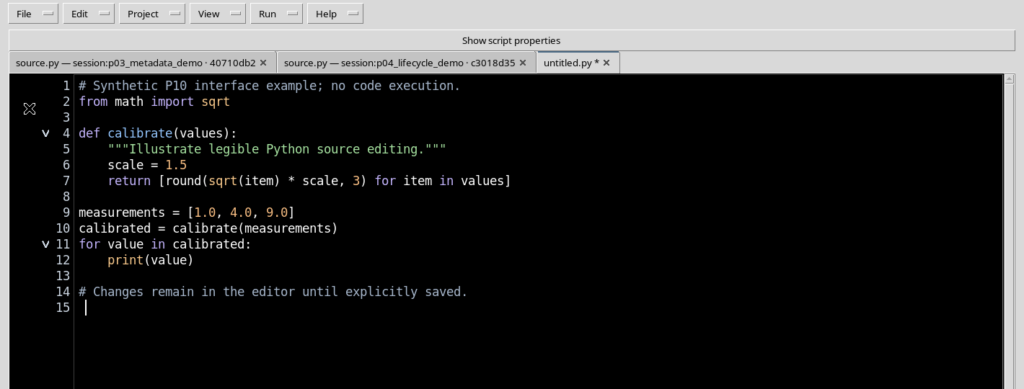
For the examples we use only an illustrative source:
# Synthetic layout example; no code execution.
from math import sqrt

def calibrate(values):
    """Illustrate readable Python source editing."""
    scale = 1.5
    return [round(sqrt(item) * scale, 3) for item in values]
Writing this code in the editor does not run a scientific function and does not publish Datasets.
4. Examining the View menu
The View menu contains the controls needed for the layout: Script Explorer / Registered scripts, GX-TXT Bridge Snippets, Script properties, Parameters, Version, Additional required APIs, Focus source / restore panes and Reset editor layout.
The entries with an active check show or hide an element; the other two commands act on the overall layout.
5. Opening Script Explorer
With View → Script Explorer / Registered scripts the left panel is shown, with the list of Scripts registered for the available context.
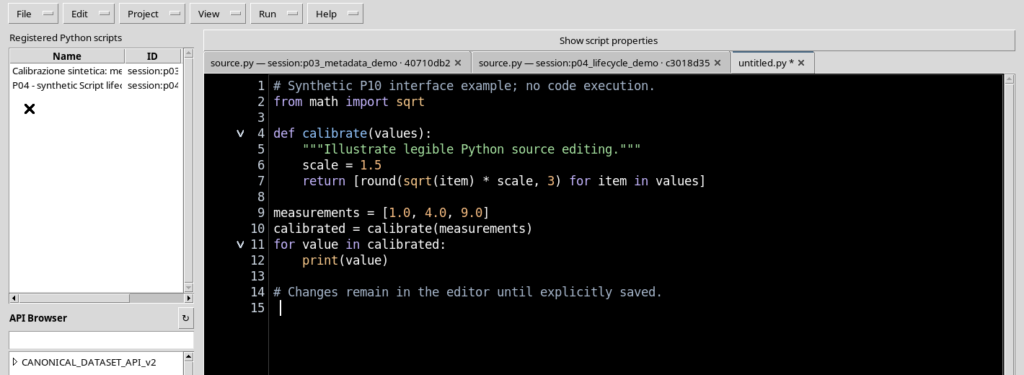
The list lets you find a Script, but it does not require you to edit or close the active source. To work on the code, it is often better to close Explorer again after selecting the document.
6. API Browser in the left panel
The left zone can also include API Browser, with a catalogue of the APIs visible to the interface and the related consultation controls.
This catalogue takes up vertical space inside Explorer. There is no need to keep it open to write Python and it is not the same as running a public call in the context of a Job.
7. Opening GX-TXT Bridge Snippets
View → GX-TXT Bridge Snippets shows the right panel, with the Context, Discover APIs, Require API, Describe API and Call API examples.
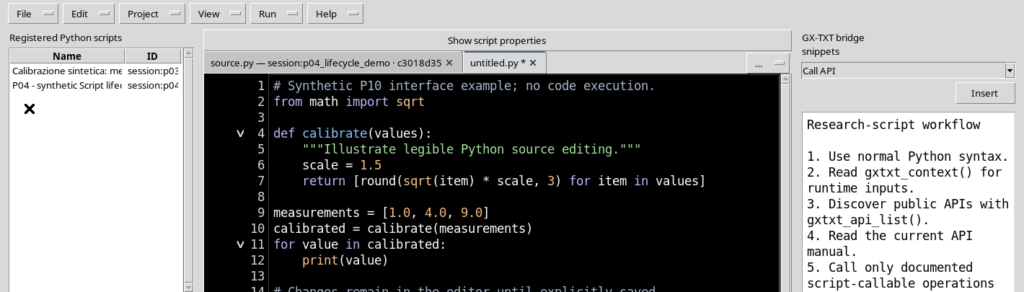
When both Explorer and Snippets are open, the central editor becomes narrower. It is a layout useful for a general overview, less suited to writing a program for a long time.
8. Showing one panel at a time
Explorer and Snippets are independent: opening the first does not require keeping the second open.
A practical sequence consists in consulting the Script in Explorer, closing the panel again, then temporarily opening Snippets if you want to insert a Bridge example. The code stays in its tab.
9. The metadata bar is separate from the side panels
Above the Source, fields relating to the identity, version, requirements and parameters of the Script may appear. These elements are not the side panels.
Hiding Explorer or Snippets does not automatically hide the metadata; likewise, disabling a metadata row does not remove the corresponding value from the document.
10. Script properties
The View → Script properties entry shows the Scope, Script ID, Name and Description fields.
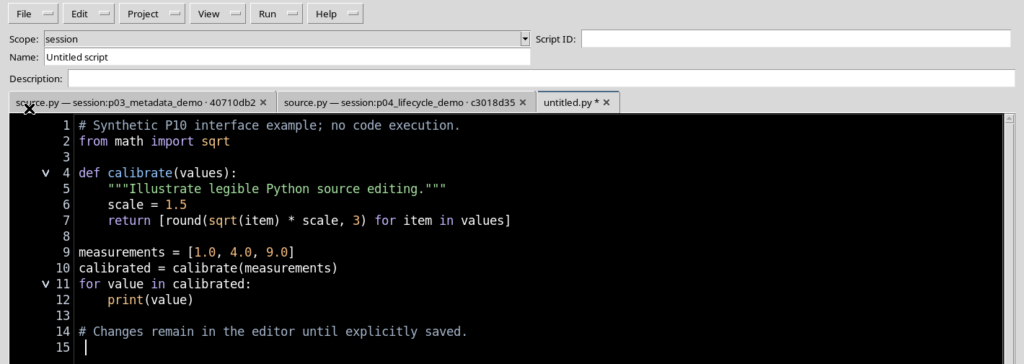
These data identify the Script and describe its purpose. Changing their display is different from saving the metadata in the Registry.
11. Parameters
The View → Parameters entry shows the Typed parameters zone, intended for the structured declarations of the parameters.
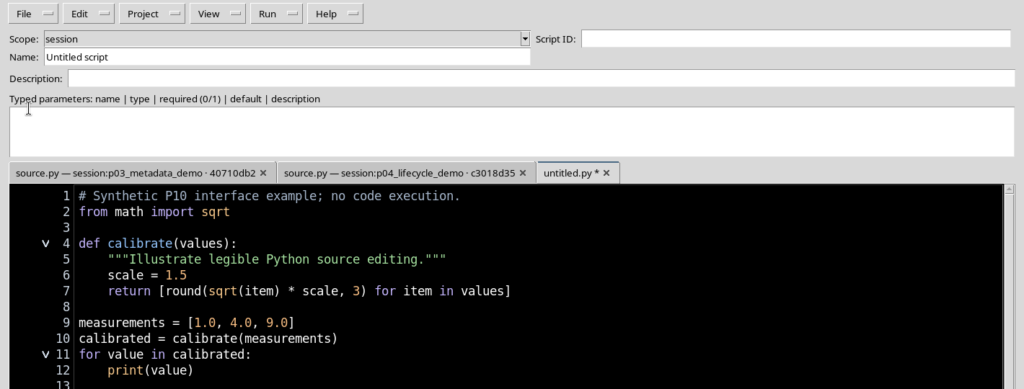
The field takes up height above the editor. It is advisable to leave it open while defining parameters and to hide it when you need to examine a long program.
12. Version
With View → Version you show or hide the Version row, in which the semantic version of the Script appears.
The version is a metadata item of the registered source: showing it does not create a new revision and does not start a Job. Validation and saving remain separate operations.
13. Additional required APIs
View → Additional required APIs displays the field that describes further requirements for public APIs.
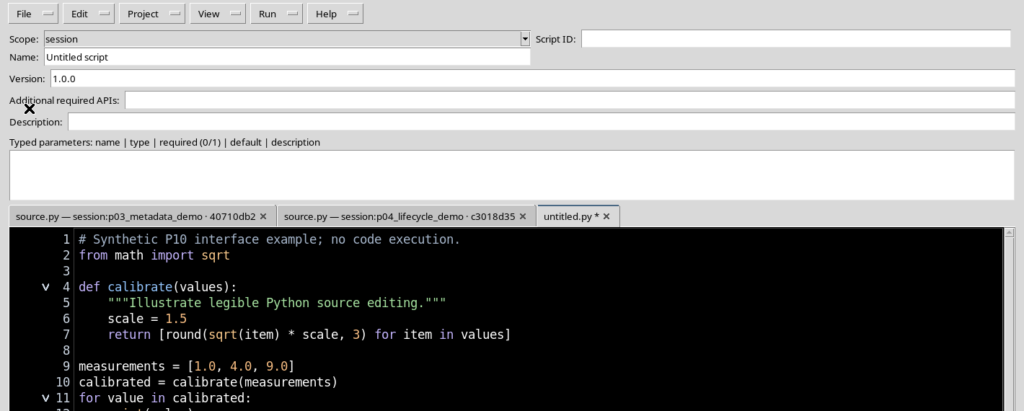
The actual availability of the APIs is checked according to their contract and at the appropriate time. Simply displaying the field does not authorise any private function.
14. The four metadata controls are independent
Script properties, Parameters, Version and Additional required APIs can be enabled individually.
This lets you, for example, display Version while checking the requirements, without also keeping the parameters area. The right choice depends on the activity, not on a compulsory layout.
15. The Show script properties button
When Script properties is hidden, the Show script properties button appears above the source tabs.
Pressing it reopens the corresponding row. It is a quick shortcut for recovering the identity fields, without having to look for the entry in the View menu each time.
16. Recovering height for the program
Each metadata row takes away part of the height available for the code. With many rows active, the Source becomes lower even when the side windows are closed.
To read and edit a program it is advisable to temporarily hide Parameters, Version and Additional required APIs when they are not needed. None of the rows is deleted simply by hiding it.
17. Focus source / restore panes
With Explorer and Snippets open, select View → Focus source / restore panes. The Workspace temporarily hides both side panels and concentrates attention on the code.
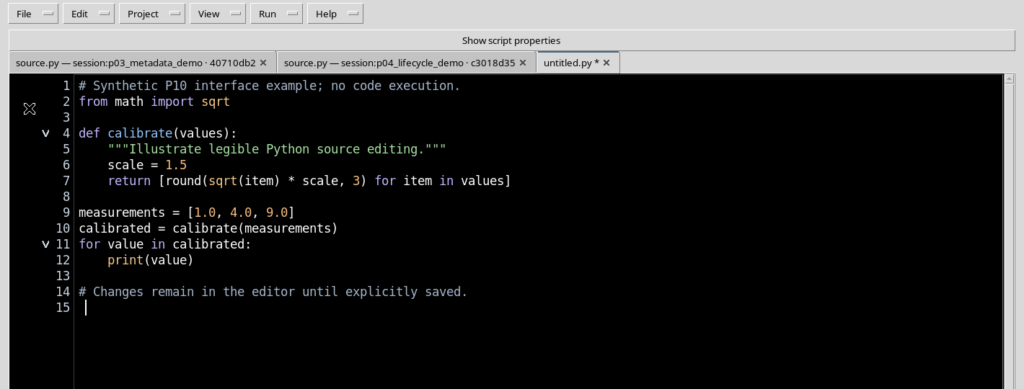
The content of the Script does not change. The command acts on the layout of the areas of the window, not on the registration of the Script.
18. Restoring the previous panels
If you select Focus source / restore panes again, the side panels that were present before the focus are brought back.
This behaviour is useful when you alternate between consulting Explorer or Snippets and working on the code: there is no need to reopen all the panels individually after each step.
19. The dividers between panels
When several panels are visible, their width can be changed using the vertical dividers.
Dragging a divider changes the space assigned to the zones. It is advisable to leave the Source wide enough to read a whole Python statement without continuous horizontal scrolling.
20. An example of resized panels
A layout with a narrower Explorer and a wider Snippets panel can be useful for consulting the API guide; the code, however, has less space.
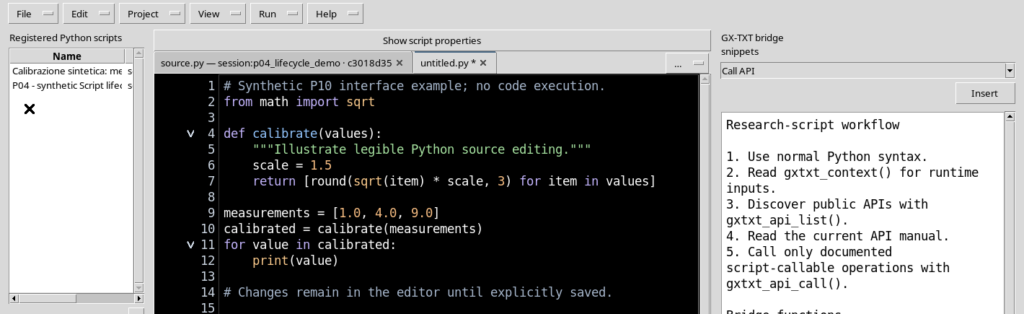
If the program becomes hard to read, close the less useful panel again or return to Focus source. The dividers do not change the contents of the Script.
21. Reset editor layout
The View → Reset editor layout command brings the horizontal dividers back to the default layout and shows the two side panels.
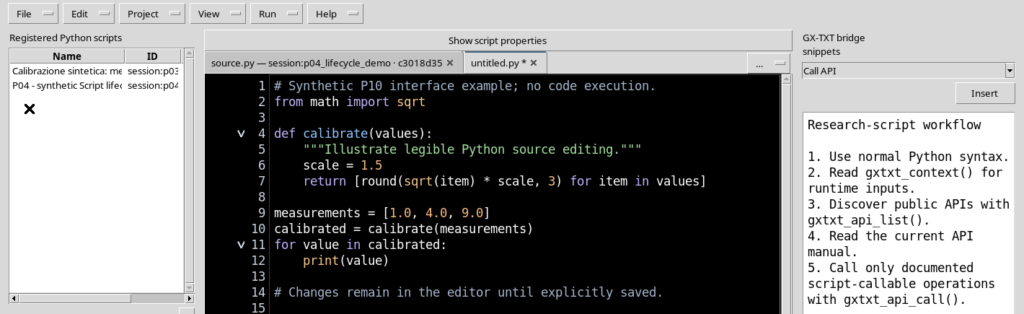
It is useful when the dividers have been moved and the layout is no longer comfortable. Reset is not the same as deleting configurations, sources or registered Scripts.
22. What Reset does not restore
The version illustrated restores the main proportions of the panels, about 19% for the first divider and 78% for the second.
The visibility choices of Script properties, Parameters, Version and Additional required APIs instead remain independent. To show them again you need to use the respective View entries or the Show script properties button.
23. High Contrast Dark: the source theme
The appearance configuration of the Source includes the High Contrast Dark theme. In the editor the background is black, the main text is white and keywords, strings and comments have distinguishable colours.
The code surface can therefore look different from the Tk/ttk buttons and menus around it. A light panel must not be interpreted as proof that the Source theme has not been applied.
24. Selection and cursor on a black background
The cursor keeps a light colour and the selection uses a background other than black. The selected characters remain distinguishable even when the syntax is coloured.
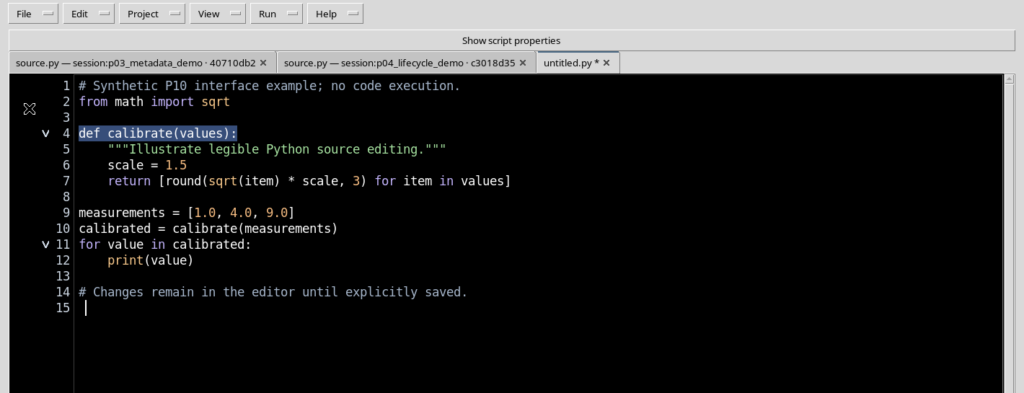
Line numbering helps follow the source, especially when using Go to line or analysing an execution error.
25. The editor shortcuts
Some useful shortcuts are Ctrl+F for Find, F3 and Shift+F3 for the next and previous occurrences, Ctrl+G for Go to line and F1 for the built-in manual.
Common selection and editing operations use Ctrl+A, Ctrl+C, Ctrl+X, Ctrl+V, Ctrl+Z and Ctrl+Y. To move between tabs you can use Ctrl+Tab and Ctrl+Shift+Tab. In this version the Focus source command is available in the View menu; there is no need to invent a shortcut not indicated by the interface.
26. Layout preferences persist
The editor layout is kept between closing and reopening the Workspace. The presence of Explorer and Snippets, the visibility of the properties and the saved proportions of the dividers can be restored.
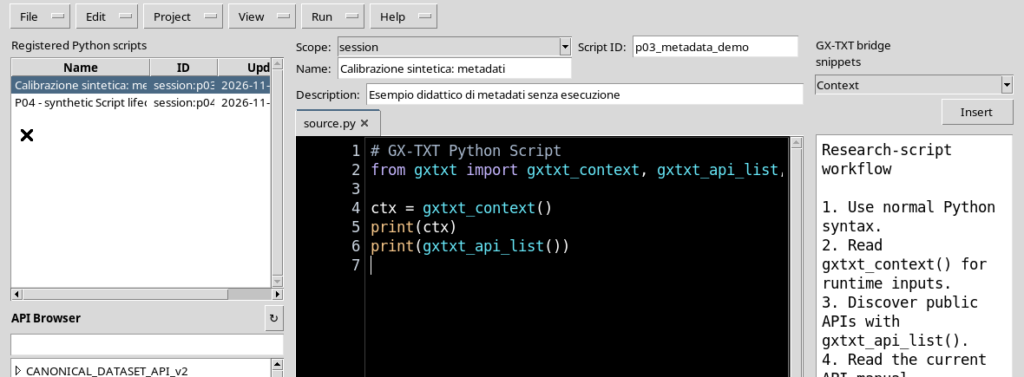
Even a configuration dedicated to the Source alone can be reopened keeping the unnecessary panels hidden. These preferences concern the interface, not the content of the Scripts.
27. A recommended layout for everyday work
While writing, keep mainly the Source visible, with the side panels and non-essential metadata fields hidden. Open Explorer to choose a Script, Snippets to insert an example and Parameters when you need to check the declarations.
If you want to compare code and tools, use the dividers. If the space becomes too small, return to Focus source and later restore the previous layout.
28. Summary
The View menu lets you manage Explorer, Bridge Snippets and the metadata rows separately. Focus source / restore panes is useful for alternating between concentrating on the code and consulting, while Reset editor layout restores the dividers and the main side panels.
The High Contrast Dark theme improves the visual distinction of the source without requiring all the controls of the window to become dark. Layout preferences are kept between openings of the Viewer and do not automatically change scientific Scripts.
The next chapter is devoted to creating and opening Python Script Projects directly in the Workspace.