GX-TXT Python Script Workspace: help, accessibility and troubleshooting
Python Script Workspace integrates source editing, project commands and access to the execution and debugging functions. Reliable use of the interface requires knowing where to find the manual, how to search for a command, how to recover space for the code and how to distinguish an interface problem from a change to the source or to the scientific state.
This guide uses the names of the controls exactly as they appear in the English interface. Navigation, search and presentation operations are not equivalent to saving, running a Script, starting a Job or publishing a Dataset.
1. Recognising the three levels of work
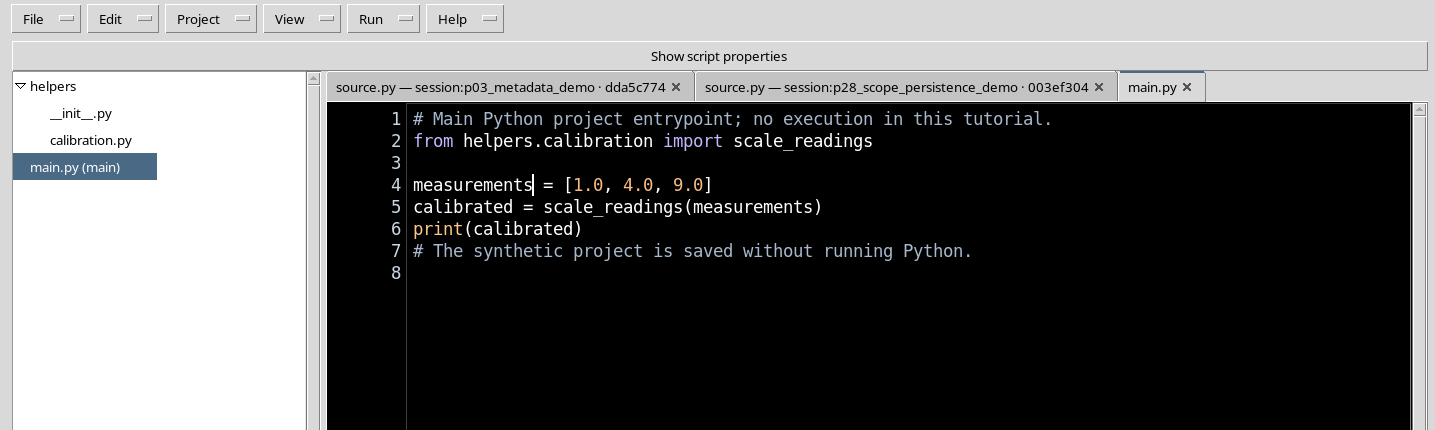
The Python source, the project panels and the commands linked to the Session can appear in the same window. Editor, registered Script, executed Job and published Dataset are distinct objects: modifying a view does not automatically create any of the others. For a first check, open an already saved Script and check that no indicator of unregistered changes appears.
2. The three access points to help
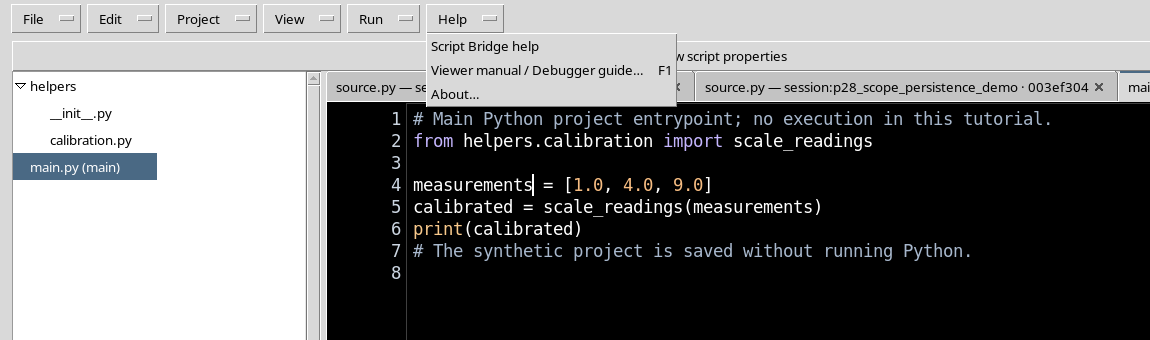
The Help menu of Python Script Workspace contains Script Bridge help, Viewer manual / Debugger guide… and About…. The first presents the APIs of the Python client; the second opens the consultable documentation; the third shows identifying information about the module. Do not confuse these tools with a command that installs dependencies or starts an analysis.
3. Opening the Help menu
Select Help in the top bar of the editor. The entries remain available even when the source is read-only or has no pending changes. This is the visual alternative to the F1 shortcut for consulting the Viewer guide.
4. Calling up the manual with F1
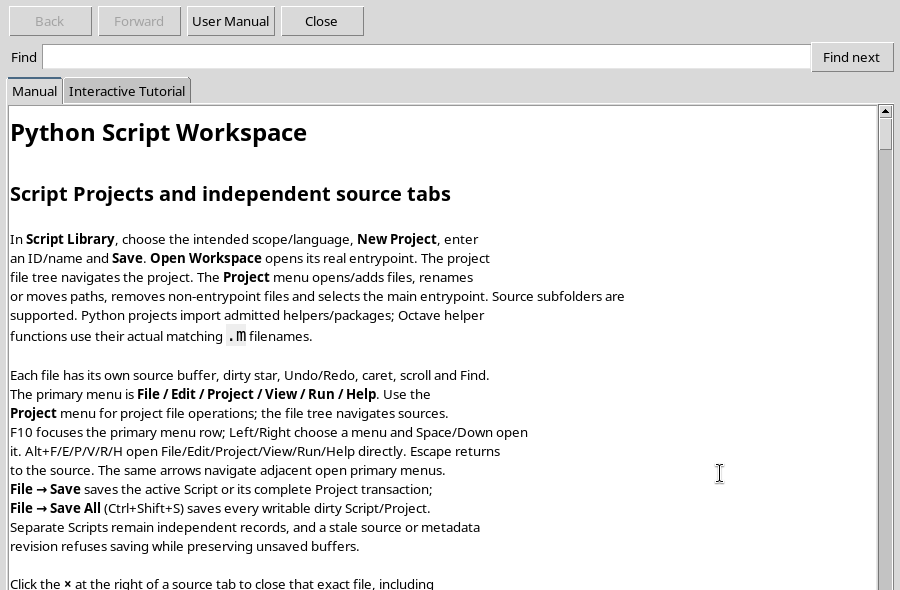
Give focus to the Python window and press F1, or choose Help → Viewer manual / Debugger guide…. Python Script — User Manual opens, a separate window that can remain visible while you work in the editor. To close it use Close; the open code is not modified.
5. Manual and Interactive Tutorial
The guide window contains the Manual and Interactive Tutorial tabs, as well as navigation and search controls. The Manual tab presents the reference text; the Interactive Tutorial tab hosts interactive paths when available for the module. The availability of a tab does not imply that every exercise mentioned in historical documentation is operational in the installed version.
6. Searching the manual
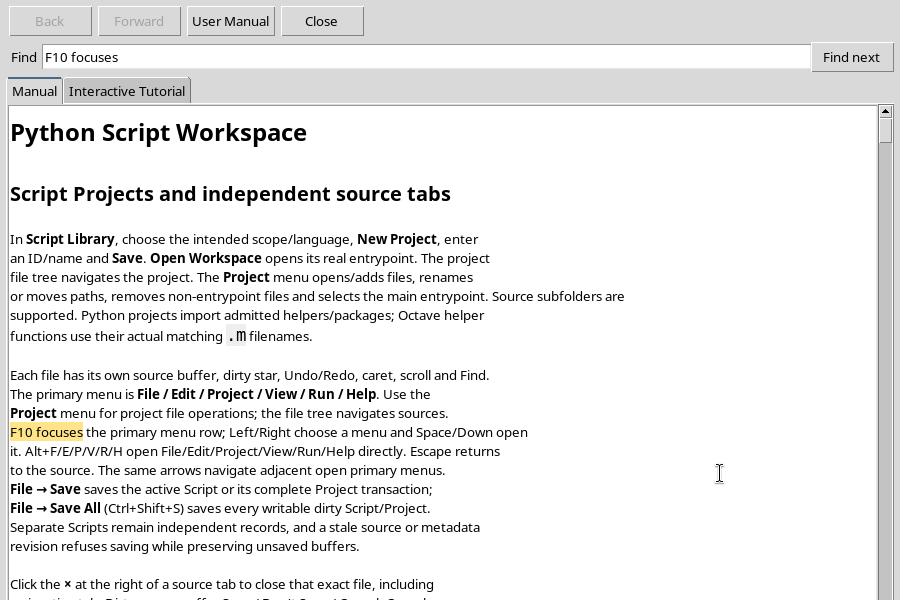
Type a word or expression in the Find field and press Find next or Enter. The text found is highlighted, and the window status indicates the result. For example, searching for F10 focuses takes you directly to the paragraph on keyboard navigation.
7. When a word is not found
If there is no match, the manual reports Text not found. and removes the previous highlighting. Try a shorter word, a different English name or a nearby section. This message does not indicate a program error or a problem with the Python source.
8. Manual zoom: distinguishing text and HTML
In the manual’s View menu there are Zoom in, Zoom out and Actual size (100%). The zoom service is intended for HTML pages and tutorials that use the corresponding viewer. On manual text shown as Markdown content, the command is not an enlargement of the Python editor font: do not assume that selecting Zoom in changes the characters of the code. To enlarge characters you need to distinguish the documentation viewer, the interface preferences and the desktop font settings.
9. Opening Script Bridge help
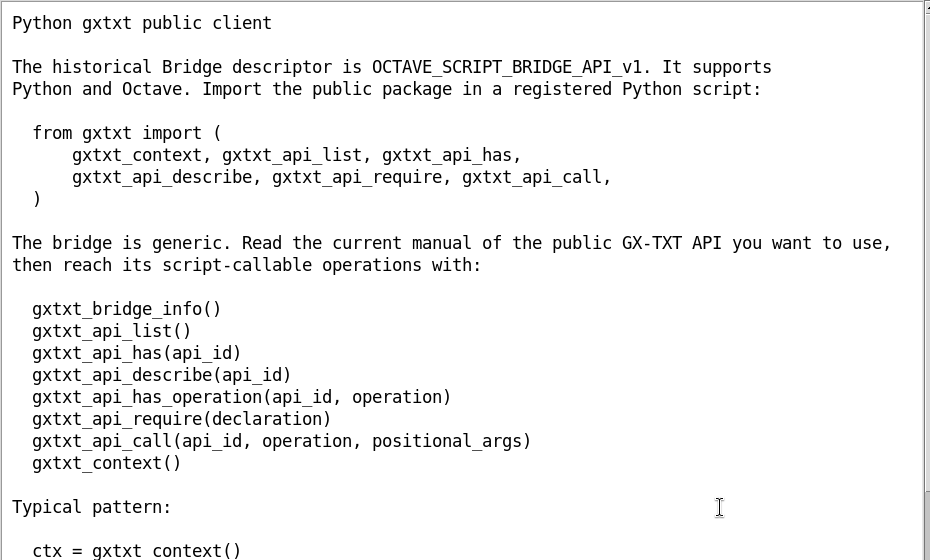
With Help → Script Bridge help a window opens that lists the functions of the public client, with an example of importing from gxtxt. It is a quick reference for understanding the names of the calls, not an alternative editor and not a run button.
10. The public functions referred to in the help
The interface documents gxtxt_context() for the execution context, gxtxt_api_list() for the list of declared APIs, gxtxt_api_has(api_id) to check whether an API is present, gxtxt_api_describe(api_id) to inspect its contract, gxtxt_api_require(declaration) to explicitly require its availability and gxtxt_api_call(api_id, operation, positional_args) to invoke one of its public operations.
Before calling a function, check the full identifier and version of the contract, the parameters and the return values. The list of names does not replace the description of the specific API.
11. Informational example without publication
This example is intended for a Script run in the appropriate context, not for the Help window. The calls consult available information: they do not publish a Dataset.
# Inspect public client information in the current execution context.
from gxtxt import gxtxt_api_list, gxtxt_context

context = gxtxt_context()
available_apis = gxtxt_api_list()
print("Public API entries:", len(available_apis))
print("Context type:", type(context).__name__)
The Bridge does not automatically isolate Python code from system resources. Always check the provenance of a Script before running it.
12. Searching the Python source
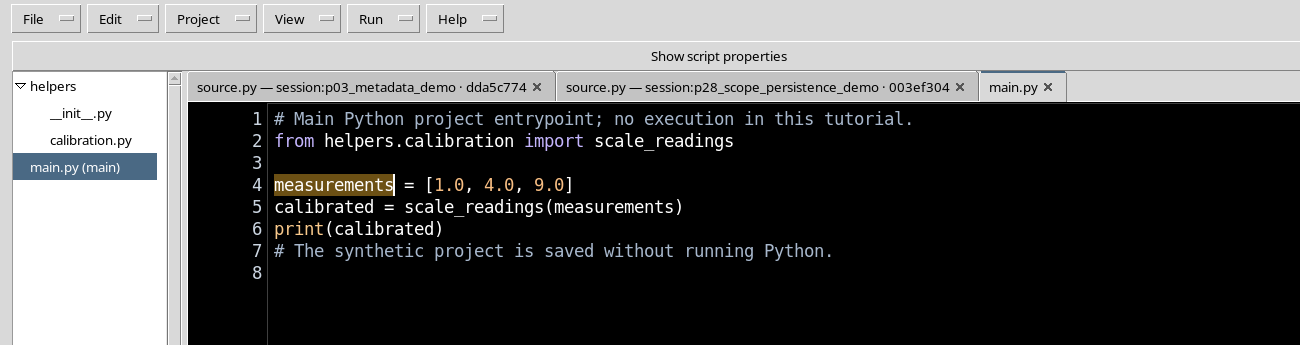
To find a variable or a function, select the editor and press Ctrl+F, then enter the search term. F3 goes to the next match and Shift+F3 to the previous one. In the example measurements is found: the text is highlighted, but the saved source remains unchanged.
13. Searching code and searching documentation
The Find field of the Viewer and that of the manual are separate. If the search seems not to work, check which window has focus and whether you are working in a Markdown note instead of in the Python code. A missing result in one field does not prove that the word is absent from the whole project.
14. Moving to a line and reading the indicator
With Ctrl+G Go to line… opens. Enter a positive integer to move the cursor to the corresponding physical line; Cancel closes without moving. The numbers in the margin belong to the current source, not necessarily to the file of a historical tab or of a different helper.
15. Essential keyboard navigation
| Key or combination | Action |
|---|---|
| F1 | Opens the Viewer manual |
| F10 | Moves to menu navigation |
| Alt+F, Alt+E, Alt+V, Alt+H | Accesses the corresponding menus, depending on focus |
| Ctrl+F | Searches in the current editing context |
| F3 / Shift+F3 | Next / previous result |
| Ctrl+G | Go to line… |
| Ctrl+S | Saves the modified source |
| Escape | Closes or leaves the search control, depending on the context |
The commands are handled by the widget that has focus. Avoid pressing editing shortcuts when a dialog or a read-only tab is active.
16. Finding the layout commands in the View menu
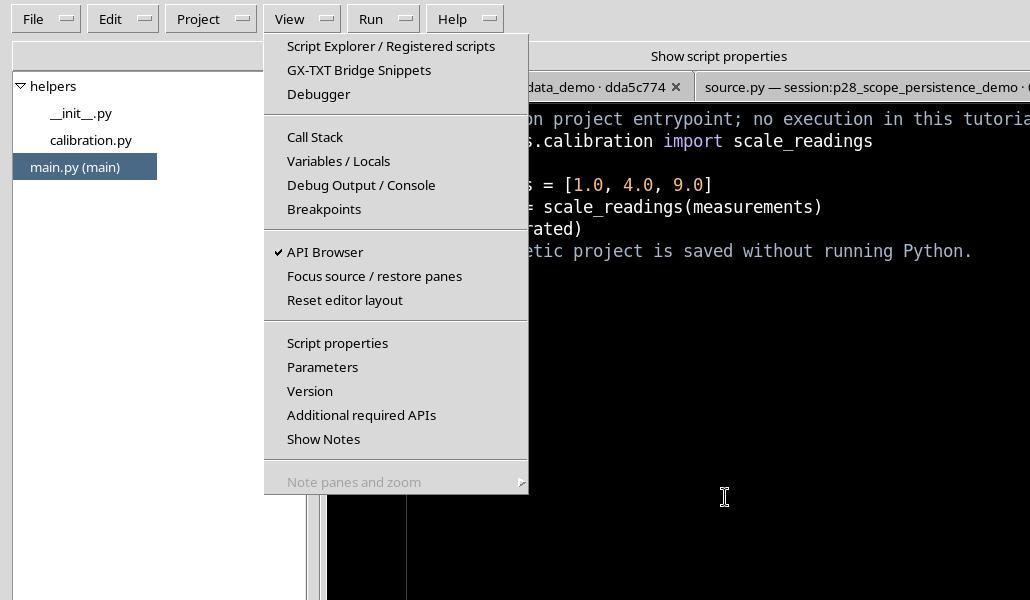
The View menu includes Script Explorer / Registered scripts, GX-TXT Bridge Snippets, Focus source / restore panes and Reset editor layout. They are presentation tools: they open, close or reposition components of the window. It is advisable to examine the menu before assuming that a missing panel has been deleted from the project.
17. Restoring a messy layout
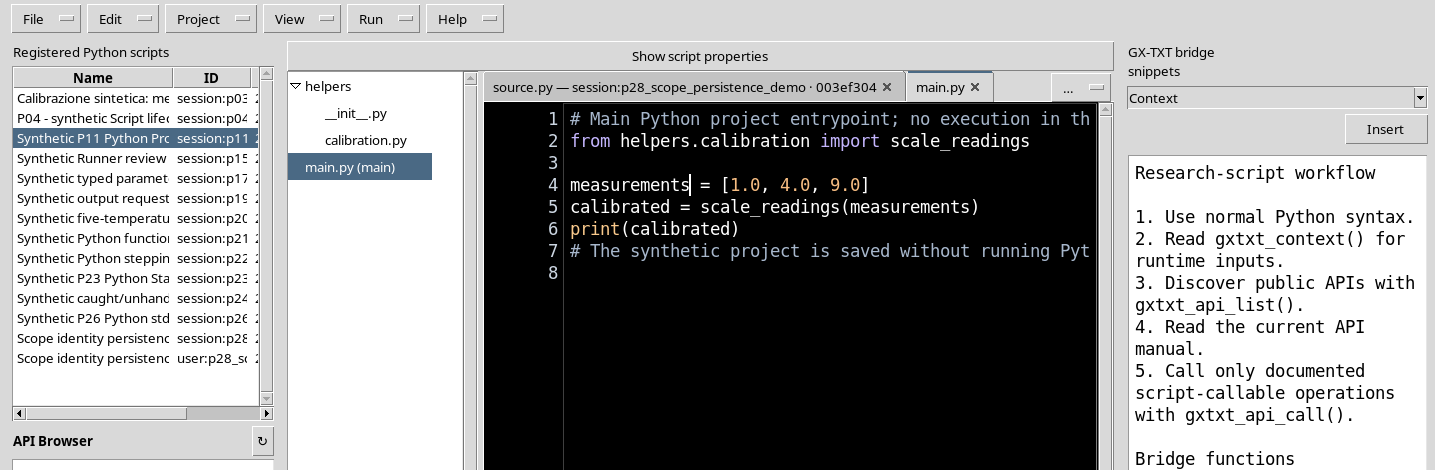
If the editor appears too narrow or some panels are no longer easily reachable, select View → Reset editor layout. The command restores the side layout with Explorer and Snippets and the main proportions of the dividers. The optional rows Script properties, Parameters, Version and Additional required APIs keep independent preferences: Reset does not imply that they are all shown.
18. Devoting more space to the code
When side tools are not needed, select View → Focus source / restore panes. The command temporarily hides the side panels and enlarges the source. Use it again to restore the previously stored panels. This operation does not run Python and does not save a Script.
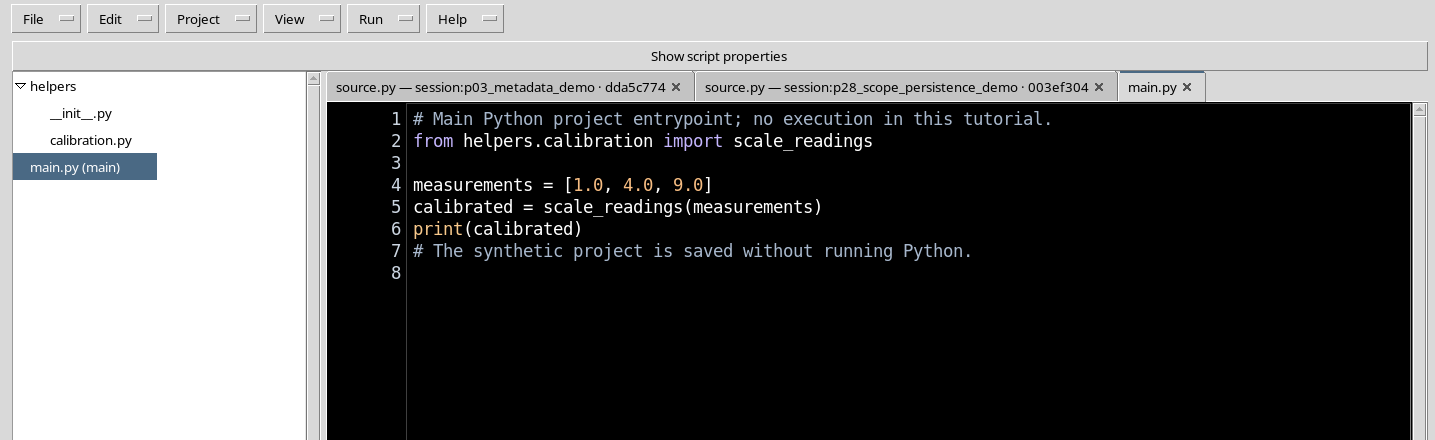
19. Reactivating a single panel
If you only need the list of files, enable Script Explorer / Registered scripts; if you need the quick references, enable GX-TXT Bridge Snippets. Keeping the other panels closed while editing code avoids needlessly compressing the work area. Open Debugger, Call Stack or Variables / Locals only when you are actually following a debugging Job.
20. Actual contrast of the source
The High Contrast Dark theme applies a black background and white main text to the code area, with specific syntax highlighting. Bars, menus and some Tk/ttk dialogs may remain light: the source theme does not necessarily recolour the whole GUI. In Configuration → Appearance, the Source color theme preference governs the code palette.
21. Font size and readability
The editor uses a monospaced font of the platform. Before increasing the number of panels or shrinking the window, check whether lines, cursor and brackets remain readable. A zoom command in the manual is not proof that the same command enlarges the source. If larger characters are needed, consider the desktop font settings and check the actual result, without confusing them with the code colour palette.
22. When an entry is disabled
A greyed-out entry can depend on the document type, the absence of a Session, the debugger state, the current selection or a read-only historical tab. For example, the commands relating to Notes may require an open note; some Runner actions require a registered Script revision; the execution commands become limited with modified sources or obsolete references. Check the context first instead of trying to force the control.
23. Unsaved changes: not losing the source
A modified buffer does not coincide with the revision present in the Registry. Before closing a tab, distinguish Save, No and Cancel in the unsaved source dialog. No discards the current buffer; Cancel cancels the close. In a multi-file Project, check which tab is dirty and whether Save All is needed. A historical view opened from a Job can instead be intentionally read_only.
24. Problems with Save, scope and revision
If saving fails, check User/Session scope, identifier, source type, required fields and the revision being edited. Two Scripts with the same short name but different owners can be distinct; a registered revision does not implicitly replace another. Keep the modified text before attempting a new registration or a copy.
25. Problems with Run and parameters
Opening Script Runner does not create a Job: first check the saved Script, the Session context and the Validate review summary. The parameters declared in the code have types, constraints and default values; a parameter Dataset may belong to a different revision. A validation error must not be circumvented by running an unchecked Script.
26. Datasets and output: checking what was created
The completion of a Job and the presence of text on stdout do not prove that a scientific Dataset exists. Distinguish between stdout/stderr, published text documents and numeric Datasets with schema, units and provenance. If an input Dataset is not accepted, check the namespace, the identifier and the selected revision, then repeat the validation before execution.
27. Debugging and recurring problems
Breakpoint, Pause, Step Into/Over/Out and Stop depend on the state of the native execution. The COMPLETED, FAILED and CANCELLED conditions are not interchangeable. For a Python exception read the trace and the line number in Program stderr; for system diagnosis distinguish the diagnostic log; for a Script run in the past consult the immutable copy associated with the Job. Avoid modifying the source during a paused debug Session.
28. Practical recovery sequence
If a command does not produce the expected result, first check the focus, then the active tab, the unsaved content, the Session type and the Job state. For the interface use Help/F1, Find and View; for execution open the Runner and validate the data; for the analysis of a result examine Job Details and the canonical publication. Any historical instructions about separate Viewers do not constitute a verified procedure for this version.
Once consultation is finished, close the help windows that are not needed and return to the source in High Contrast Dark mode with a large editing area.