

GX-TXT Python Script Workspace: editing code, searching and navigating lines
The GX-TXT Python editor brings together writing the source, selecting text, edit history, searching and navigating between lines and blocks. Knowing these tools lets you work on scientific programs without confusing a local change with saving a registered Script or with running a Job.
In this guide we use a synthetic draft that is not executed. The code is only an example for recognising functions, lines, colours and blocks: no laboratory instruments, experimental data or Datasets are required.
1. Opening the document in the editor
From the Python Script Workspace window open or create a Python tab. For a new draft use File → New Script.
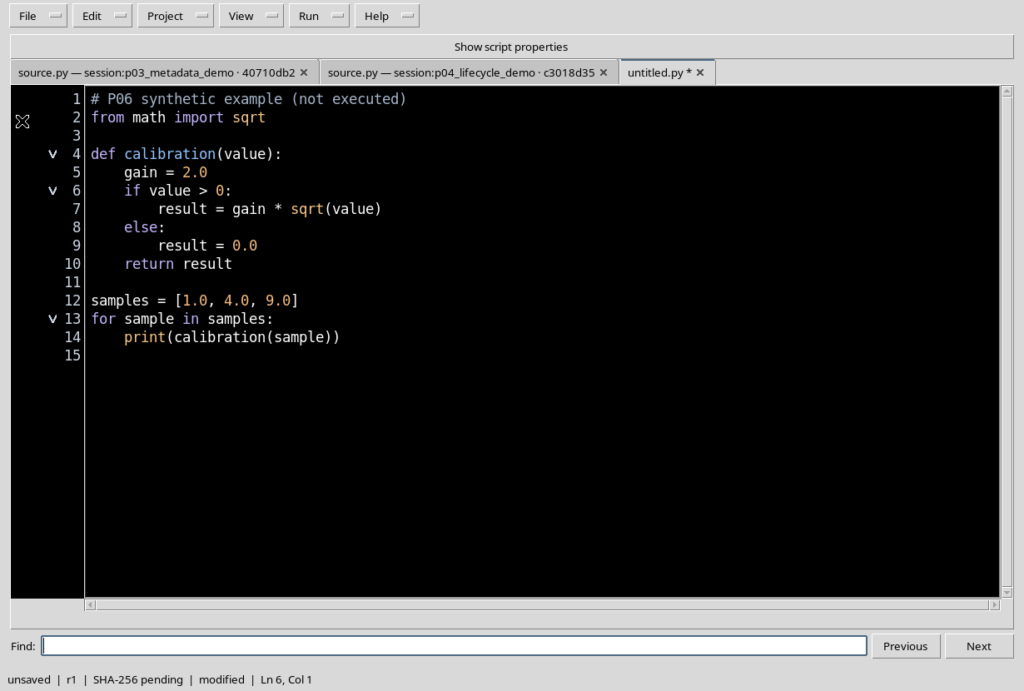
The code appears in the central area. The untitled.py tab indicates that the document does not yet have a registered identity. If the text is modified, an asterisk next to the tab name signals the presence of local changes.
2. A wide, readable code area
While editing it is better to keep Explorer, Snippets, Debugger and the other unnecessary panels closed. Use View → Focus source / restore panes to reserve almost the whole window for the code.
The Source surface can use the High Contrast Dark theme, with an authentic black background and syntax colouring. The Tk frame and the menus may remain light: there is no need to apply an artificial dark theme to the whole window.
3. A synthetic Python example
To follow the commands we can use this code, whose comments are in English:
# P06 synthetic example (not executed)
from math import sqrt

def calibration(value):
    gain = 2.0
    if value > 0:
        result = gain * sqrt(value)
    else:
        result = 0.0
    return result

samples = [1.0, 4.0, 9.0]
for sample in samples:
    print(calibration(sample))
The function, the conditional branch and the loop illustrate the structure of the source. The text is not executed when the tab is opened.
4. Python syntax highlighting
The editor recognises elements such as comments, keywords, definitions, identifiers, functions and numbers. The colouring is applied directly to the original Source surface.
Colouring helps read the code, but it is not the same as executing it and it does not guarantee that all inputs are scientifically appropriate. Public APIs and result contracts are checked separately.
5. The gutter with line numbers
To the left of the text is the gutter, which shows the numbers of the physical lines of the source. This reference is useful when looking for errors, navigating and consulting instructions.
The number of a source line is not a Dataset row and does not change because a block is temporarily hidden by folding.
6. Cursor position: line and column
The bottom bar shows information such as Ln 6, Col 1, referring to the current position of the cursor in the text.
Lines are numbered starting from 1. When the source ends with a newline character, the cursor can also be at the start of a final empty line: this does not mean that a new Python instruction has appeared.
7. Selecting text with Ctrl+A
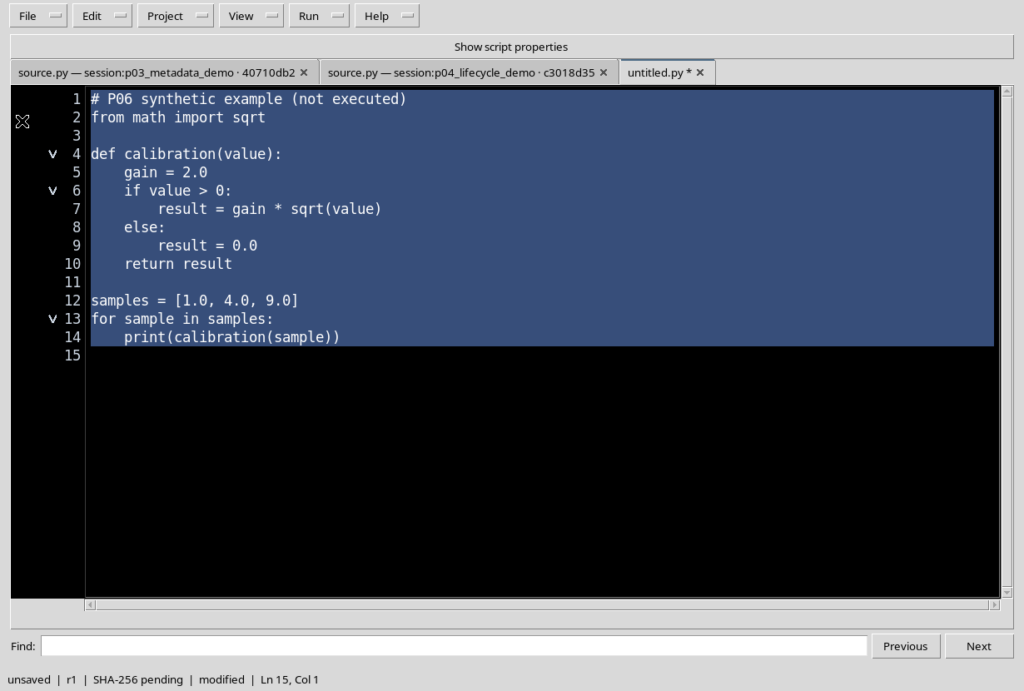
To select the whole document use Ctrl+A when the focus is in the code area. The selection is highlighted without changing the content.
If the focus is instead in the Find field or in a metadata field, Ctrl+A acts on the control that has the focus. Before selecting or copying the source, click directly on the code.
8. The Edit menu and shortcuts
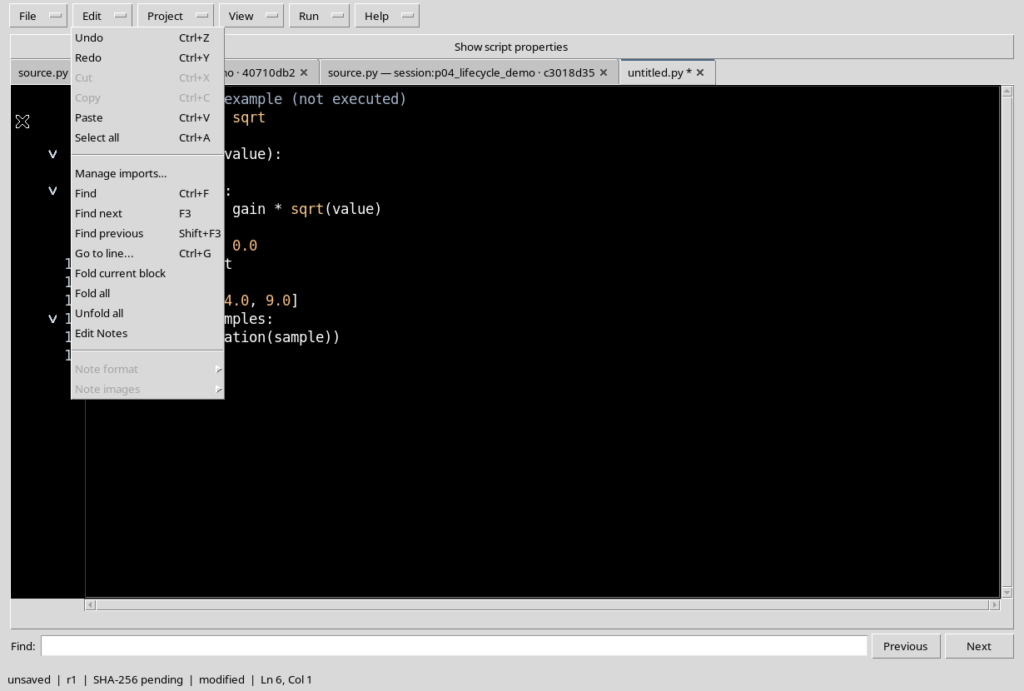
The Edit menu gathers Undo, Redo, Cut, Copy, Paste and Select all, as well as Find, Find next, Find previous, Go to line and the commands for folding blocks.
The shortcuts shown are Ctrl+Z, Ctrl+Y, Ctrl+X, Ctrl+C, Ctrl+V and Ctrl+A. Whether an entry is available depends on the selection, the focus and the history of the active document.
9. Copy and Cut are not equivalent
Copy copies the selected text to the clipboard, leaving it in the document. Cut moves the selection to the clipboard and removes it from the buffer.
Before using Cut, check that the selection concerns the intended document. Selecting the whole source is a powerful operation and can temporarily empty the tab, without however directly deleting a Registry record.
10. Paste and restoring the selection
Paste inserts the content of the clipboard at the current point or replaces the selected text. The editor treats the replacement as a local operation on the buffer.
If you paste the code you have just cut, the content can become identical to what it was. The history of operations remains distinct from the revision of the registered Script, which changes only after a subsequent save.
11. Undo with Ctrl+Z
Ctrl+Z undoes a recent change to the text. For example, after adding a temporary comment, Undo can bring the code back exactly to its previous form.
The command acts on the local content of the tab, not on the Registry history. To return to an already registered revision you must use the Script management tools.
12. Redo with Ctrl+Y
Ctrl+Y restores a change that has just been undone, when the buffer history allows it.
A change → Undo → Redo → Undo cycle lets you check the difference between temporarily changed text and the original text. Even after the content is restored, always check the saved or modified state before closing the tab.
13. Opening Find with Ctrl+F
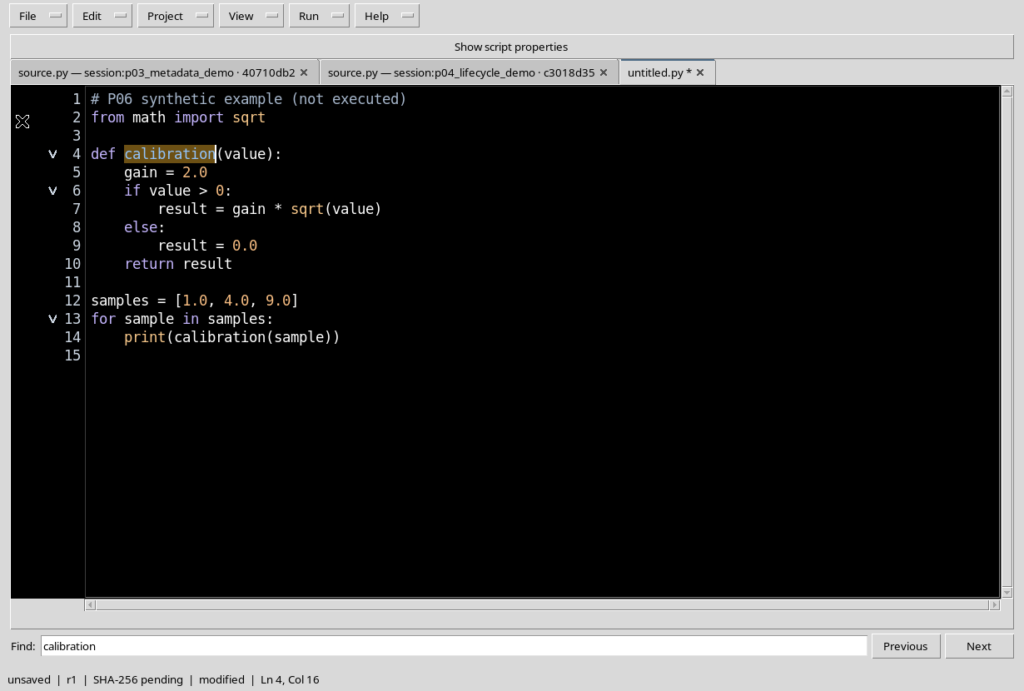
Press Ctrl+F to move the focus to the Find field. Type a word present in the source, for example calibration.
Search is a navigation function: it highlights a match and moves the reading position without adding instructions or running the code.
14. Searching forward with F3
F3 moves to the next match. If the word appears in the definition of a function and also in the calls, you can move from one to the others.
The match is highlighted on the Source surface and remains a text reference, not a computation result.
15. Searching backward with Shift+F3
Shift+F3 runs through the search results in the opposite direction. It is useful when you have moved to a call and want to return to the definition of the function.
Search is independent of the lines visible at that moment: to read a result inside a folded block it may be necessary to reopen the block.
16. Returning to the code after searching
Normally you can choose the point in the code to return to simply by clicking in the editor. The Escape key may also be provided for leaving the search field.
Note for version P005: after creating or closing other tabs, Escape in the Find field may not correctly return the focus to the active editor and may show a window error. To continue, select the text directly in the current tab. There is no need to save or restart the framework just to return the focus.
17. Opening Go to line with Ctrl+G
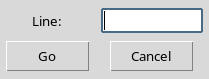
Press Ctrl+G or choose Edit → Go to line. A small dialog appears with the Line field, the Go button and Cancel.
The number requested is that of the physical line of the source. The command does not refer to the records of a Dataset, to the parameters of the program or to the position of a point in a plot.
18. Reaching a specific line
Enter a positive integer, for example 6, and confirm with Go. The cursor is placed at the first column of the indicated line.
In the example the sixth line contains a Python conditional statement. The status bar lets you check the position reached without changing the code.
19. Handling an invalid or out-of-range number
If you enter a non-numeric value or one less than 1, the dialog does not perform the move. You need to correct the field or choose Cancel.
If instead you enter a positive integer greater than the last line, the Viewer moves the cursor to the end of the source. The document remains unchanged.
20. What folding means
Folding lets you temporarily hide the body of a function, a conditional structure or a loop, leaving visible the line that identifies the block.
It is not a deletion of the code. The aim is to reduce the number of lines displayed when you are examining the structure of a longer program.
21. Folding the current block
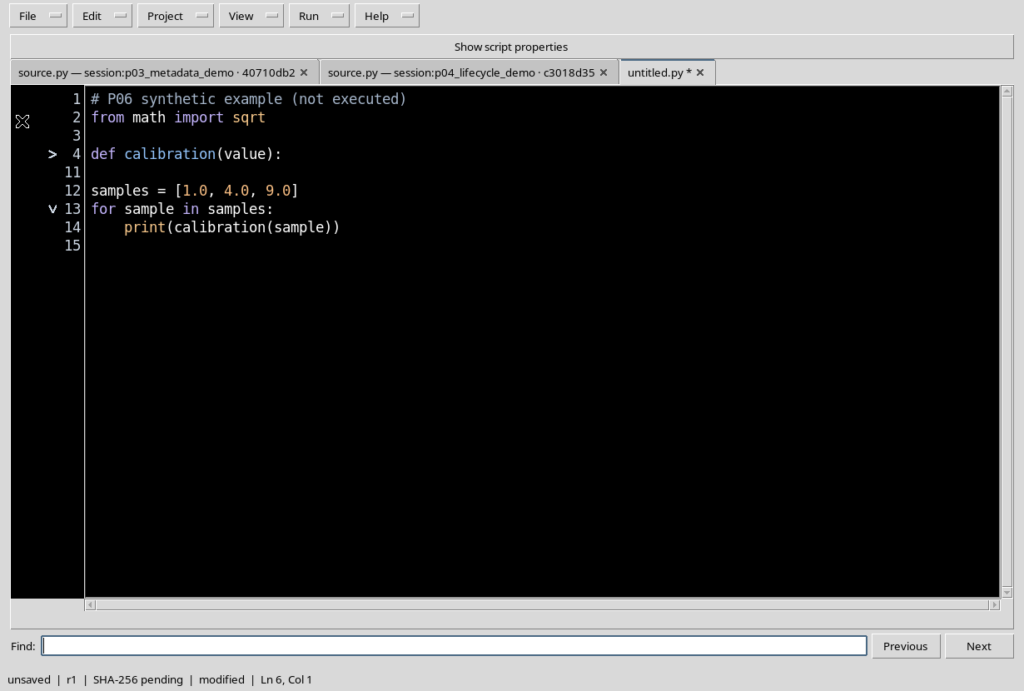
Place the cursor in a function and choose Edit → Fold current block. The body is hidden and an indicator appears in the gutter that lets you recognise the folded block.
In the screenshot, the function defined on line 4 remains visible, while the lines of the body are temporarily hidden. After the function you still see the original physical numbering.
22. Folding all blocks
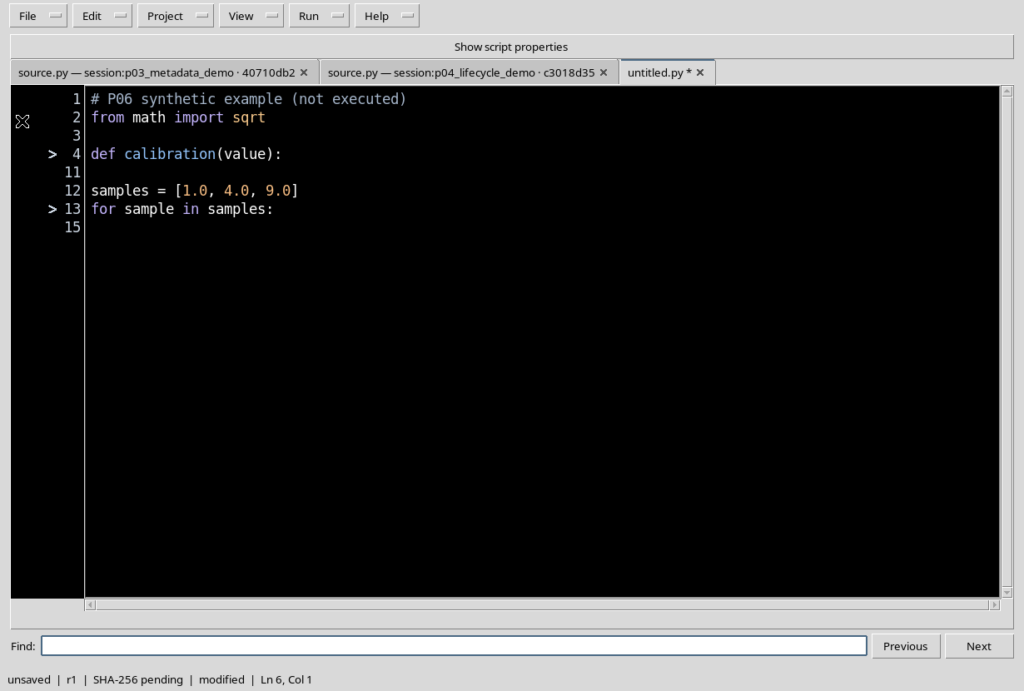
The Edit → Fold all command applies folding to all the blocks recognised by the Python structure of the document.
It is useful for getting an overview of functions, loops and nested structures. The content of the source remains identical: only display rules are applied.
23. Restoring all lines with Unfold all
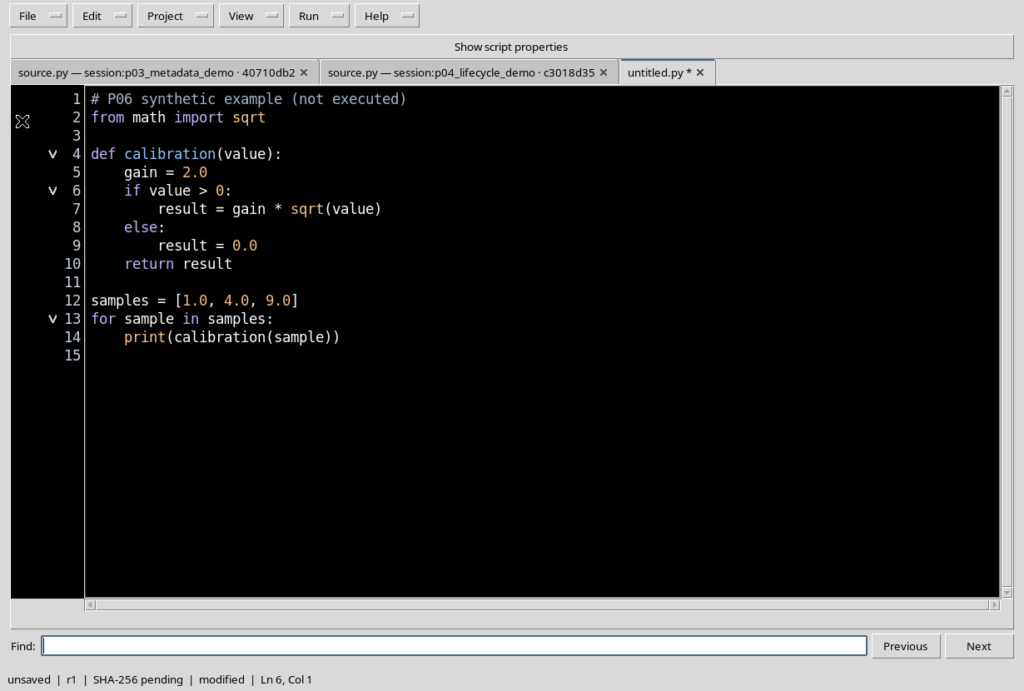
To return to the full text choose Edit → Unfold all. The blocks become visible again in their original positions.
The document recovers the readability of every instruction without requiring Undo or a new Save. Unfold all is a change to the presentation, not to the code.
24. The numbers in the gutter are not renumbered
When a function is folded, you may see jumps in the sequence in the gutter, for example from line 4 to line 11. The intermediate lines still exist, but they are not drawn.
This behaviour preserves the reference to the physical lines of the file. To read or edit a hidden line, first expand the corresponding block.
25. Writing code and saving it are different operations
If you modify a draft, the Workspace may show modified and SHA-256 pending, because there is not yet a registration of the new text in the Registry.
Highlighting, search, menu commands and folding do not produce a Job. To keep a Script you must set its Scope, Script ID and metadata correctly, then perform a real Save operation.
26. Do not confuse the lexer with scientific validation
Comments, keywords, blocks and numbers are recognised in the editor, which is useful even for sources not yet registered.
This lexical analysis does not replace checking the contracts of the public APIs, inputs, units, parameters or results. A program can look syntactically tidy and still require scientific corrections.
27. Closing a practice draft
If the text was created only for practice, Close tab asks you to choose how to handle the unsaved changes.
Cancel keeps the draft; No discards it without registering it. Before choosing No, check that the dialog really refers to the temporary tab and not to a Script with important changes.
28. Summary
The Python editor offers selection and clipboard, Undo/Redo, forward and backward search, Go to line and commands for folding blocks. Coloured syntax, the gutter and the wide Source surface help read longer programs.
The text remains independent of the other open documents: only an explicit registration operation changes the Registry. In the next chapter we will see how to import and export Python files while keeping the content and identity of the Script consistent.