

GX-TXT Python Script Workspace: importing and exporting Python files
Python Script Workspace lets you open an external Python source and export the code in the editor to a .py file. These operations let you reuse programs, produce portable copies and exchange text with other environments.
In this guide we will distinguish Import, Export and Save to the Registry. We will use only synthetic UTF-8 sources, without running Jobs or publishing Datasets.
1. Opening the Workspace
From the GX-TXT main window open Viewers → Python Scripts. The File menu contains the Import .py… and Export .py… commands.
It is better to keep the secondary panels closed when examining the code, using View → Focus source / restore panes. The Source surface remains authentically High Contrast Dark, even if the outer Tk controls are light.
2. Importing does not mean registering
Import .py reads an external file and shows its text in a new draft. The procedure does not automatically assign a registered identity.
To create a Script in the Registry you need a consistent Scope, Script ID and other metadata, followed by the separate Save operation. Import does not start a Job.
3. Starting Import .py
Select File → Import .py…, or use Ctrl+O. The native file chooser titled Import Python script opens.
It is a window of the Tk graphical system. Its appearance may vary slightly depending on the installed desktop theme, while the meaning of File name, Open and Cancel stays the same.
4. The Python filter of the dialog
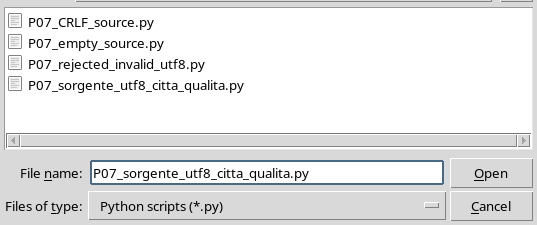
The chooser shows a list of files, the File name field, the Python scripts (*.py) filter and the Open and Cancel buttons.
Select a .py file and confirm with Open. The filter makes it easier to find Python sources, and the application also checks the actual extension.
5. Finding the appropriate source
Before confirming, check the name and extension. The Import .py command opens a single source file, not automatically the whole structure of a Python project with several modules.
Creating a Script Project, entrypoints and managing secondary files are the subject of separate chapters.
6. A UTF-8 example
The following source contains a simple function and comments with accented characters. It is used only to illustrate the imported content: it is not executed.
# P07 synthetic UTF-8 source — not executed
# Temperatura: città, qualità; unit: °C
from math import sqrt

def synthetic_curve(value):
    """Synthetic square-root calibration — esempio non eseguito."""
    gain = 2.0
    return gain * sqrt(value)

samples = [1.0, 4.0, 9.0]
for value in samples:
    print(synthetic_curve(value))
Keep it in a .py file with UTF-8 encoding. The accents, the degree symbol and the indentation are useful for checking any alterations.
7. The encoding check
The importer interprets the bytes as UTF-8 text and checks that decoding causes no differences. If a file contains an invalid byte sequence, the import is rejected.
The check concerns the encoding of the text, not the availability of Python libraries or the scientific correctness of the formulas.
8. The new draft in the editor
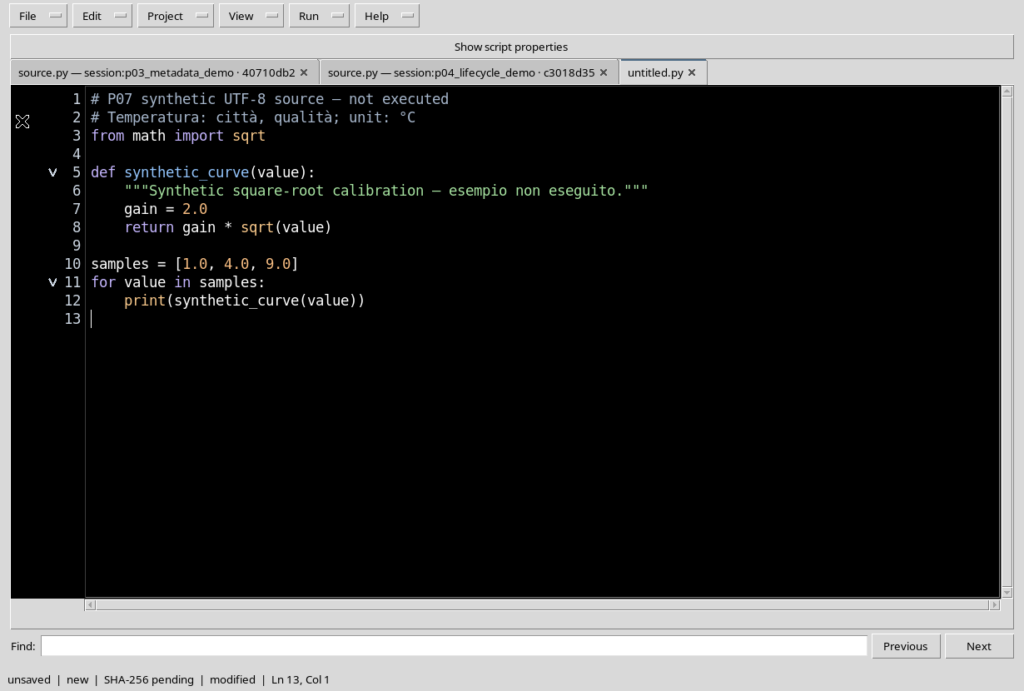
After Open the code appears in a new untitled.py tab. The text keeps the function, indentation, comments and Unicode characters of the file.
The bottom bar signals that the source is not yet registered, with indications such as unsaved, SHA-256 pending and modified.
9. The proposed metadata
The Viewer derives Name from the file name without extension and proposes Version = 1.0.0. The Scope follows the active Session or User context.
The origin from the file is noted in Description. Any registered Script will be independent of the original file; the Script ID still has to be defined before registration.
10. Import creates a new tab
The Import command opens an additional document without arbitrarily overwriting those already present. The previous registered Scripts and drafts remain available in their respective tabs.
When importing several sources, it is important to check which tab is active before using Save, Export or Close tab.
11. The external file does not synchronise by itself
After Import, the text in the editor is a working copy. A change to the external file does not automatically update the tab already open, and editing the tab does not automatically rewrite the source file.
Similarly, Save to the Registry is an operation on the GX-TXT Script, not a command for overwriting the imported file.
12. Export before Save
You can use File → Export .py… even when the imported source is still an unregistered draft.
This lets you read or edit code and keep it as an external file, without creating a new Registry revision.
13. The Export Python script dialog
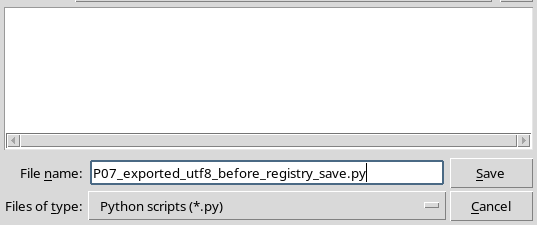
The native Export Python script dialog opens, with a suggested name, the Python scripts (*.py) filter and the Save and Cancel buttons.
Select a suitable destination, provide a name ending in .py and confirm. The file produced contains the text of the active tab.
14. Cancel does not create a file
Pressing Cancel in the Export dialog ends the procedure without creating the new destination. The document in the editor remains unchanged.
Cancel in the Import dialog also avoids opening a new source. Choosing the name and confirming are two distinct steps.
15. Checking the exported content
After Save in the Export dialog, GX-TXT writes the text as UTF-8 bytes to the selected .py file.
With the unmodified UTF-8 example, the exported file is byte-for-byte identical to the original: accents, degree symbol, indentation, empty lines and the final newline are preserved.
16. Checking the file with SHA-256
If an exact identity between external files is needed, you can compare the size and SHA-256 of the two files. Equal fingerprints indicate that the bytes are equal.
This fingerprint calculated on the external file must not be confused with the SHA-256 pending of the draft, which indicates the absence of an already registered source record.
17. LF and CRLF newlines
Lines in text files can end with LF or CRLF, common in the Windows environment.
In the verified Import → Export cycle, GX-TXT keeps the CRLF terminators of the original file, as well as LF ones. If the code is not modified, no automatic normalisation to LF is required.
18. A source imported with CRLF
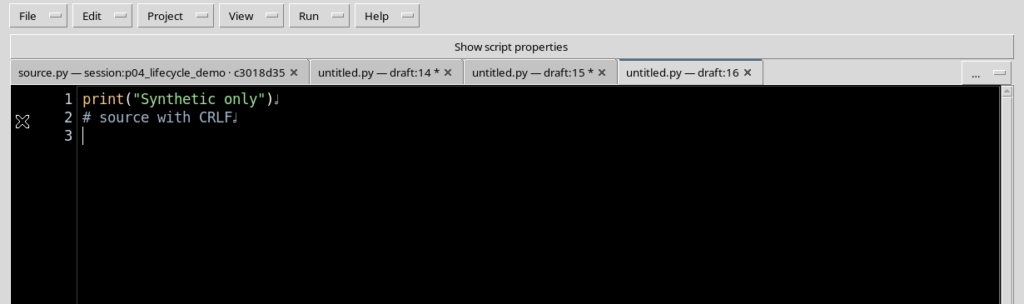
A short two-line file with CRLF terminators is displayed normally in the Python editor.
After Export, the file keeps the same bytes and the same SHA-256 as the original. Newlines must be checked on the bytes of the file, not only on the appearance of the text in the Viewer.
19. Importing an empty .py file
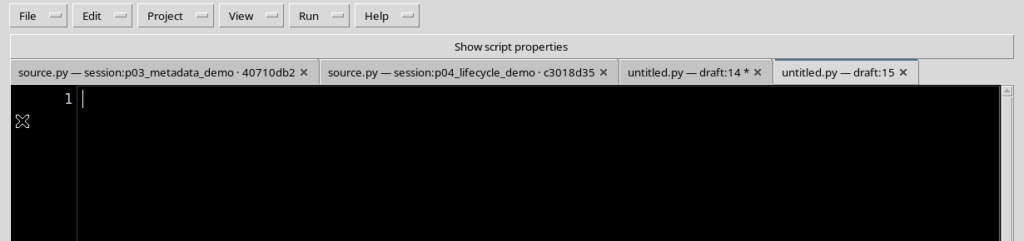
A .py file with no content can be opened. A new untitled.py tab appears, with an empty code surface and the descriptive name derived from the file.
The draft remains unsaved and does not create a new registered Script.
20. Import rejects a fake extension
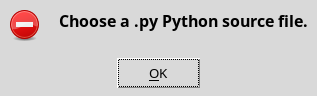
A file with an extension other than .py is rejected with the message Import failed.
The check takes place before a new tab is created. The current document and the registered Scripts remain intact.
21. Import rejects invalid UTF-8 bytes
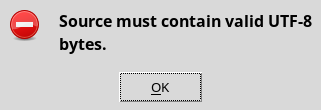
If a file ends in .py but contains bytes that are not valid UTF-8, the Viewer shows another Import failed message.
It is not advisable to replace unreadable characters arbitrarily. You need to correct the encoding of the source file and repeat the operation.
22. Errors leave the current source intact
In the two cases just described the import is rejected before the text is inserted. After the message is closed, the tab already open keeps its previous content.
You can correct the problem in the external file and repeat Import without rebuilding the existing document.
23. Export also checks the extension
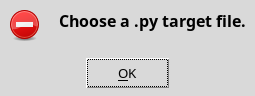
Export requires a destination file with the .py extension. If you choose a destination with a different extension, the Viewer shows Export failed.
The invalid destination is not created and the code in the editor does not change.
24. Import, Export and Save are different operations
| Operation | Main result | New Script in the Registry? |
|---|---|---|
| Import .py | Opens the external file as a draft | No |
| Export .py | Writes the current code as an external file | No |
| File → Save | Registers or updates the Script with ID and metadata | Yes, if validation succeeds |
| File → Save As | Registers a copy with a new identity | Yes |
To share a source, Export may be enough. To use it as an identified Script in the framework, an explicit registration is needed.
25. Script identity and portability
When you decide to register an imported file, choose a stable Script ID, an understandable Name and a Description that clarifies its purpose.
It is better to avoid absolute paths of the installation in the code. A portable source is easier to reuse in other Sessions or on another computer.
26. Checking the copy before distributing it
Reopen the exported file in an editor and check special characters, indentation, encoding and line terminators.
If a complete identity with the original is needed, compare size and SHA-256. If you have deliberately changed the text in the meantime, a different hash is normal.
27. A tidy working procedure
Open the Workspace, use Import .py and check the source in the editor. If you want to keep an external copy, use Export .py and check the file produced.
To integrate the program into the GX-TXT flow, complete Scope, Script ID and metadata and use File → Save separately. For a temporary test, close the draft only after deciding whether to keep it.
28. Summary
Import .py opens a working document, Export .py writes a Python file and Save registers the Script in the Registry. They are three distinct steps.
The Viewer accepts UTF-8 Python files, preserves the bytes and newlines of unmodified sources, also allows an empty .py and rejects invalid extensions or encodings without altering the previous document.
In the next chapter we will examine Manage imports: how to consult the suggested imports and insert them in the source, distinguishing the examples from the actual availability of the modules in the runtime.