

GX-TXT Python Script Workspace: Bridge snippets and the built-in guide
Python Script Workspace offers a collection of examples for the public GX-TXT Python client. The GX-TXT Bridge Snippets panel inserts into the source statements for reading the execution context, discovering the available APIs, declaring a requirement and preparing a call to a documented operation.
Snippets are code templates, not execution buttons. They can be inserted and edited without starting any Job. We will also examine Script Bridge help, the built-in manual accessible with F1 and the About window.
1. What Python Script Bridge means
The Bridge is the public link between a Python program run by GX-TXT and the APIs that the framework makes available to scientific Scripts.
From Python you import the public gxtxt package. There is no need to call Tcl procedures, internal CORE files or private services directly. The client consults the context and forwards requests to the operations exposed by the providers.
2. Finding the snippets panel
Open Viewers → Python Scripts and choose View → GX-TXT Bridge Snippets. This entry shows or hides the dedicated side panel.
It contains the example selector, the Insert button and a short reference to the available functions. The main area continues to be a Python editor with syntax highlighting.
3. Leaving room for the code
Keep Explorer, Debugger, Parameters and other unnecessary panels closed. Open GX-TXT Bridge Snippets only when you need to choose an example.
Once the fragment has been inserted, hide the panel with the same View entry to recover width. This does not change the code already inserted.
4. The five choices of the selector
The selector offers Context, Discover APIs, Require API, Describe API and Call API. Each choice prepares an example concerning a public function.
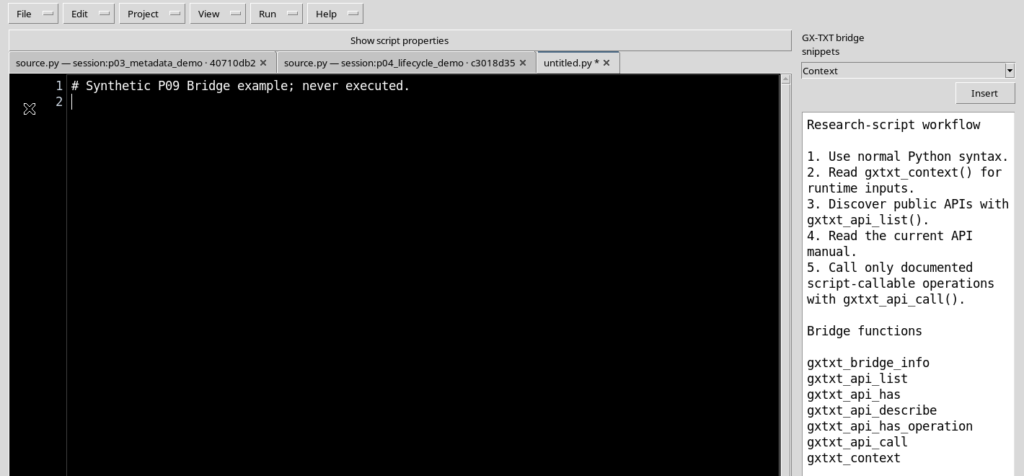
Choose an entry and press Insert. The text is added at the cursor position: before proceeding, check which tab and which insertion point are active.
5. Context: inserting access to the context
With Context → Insert a fragment appears that imports gxtxt_context, calls the function and displays the result with print.
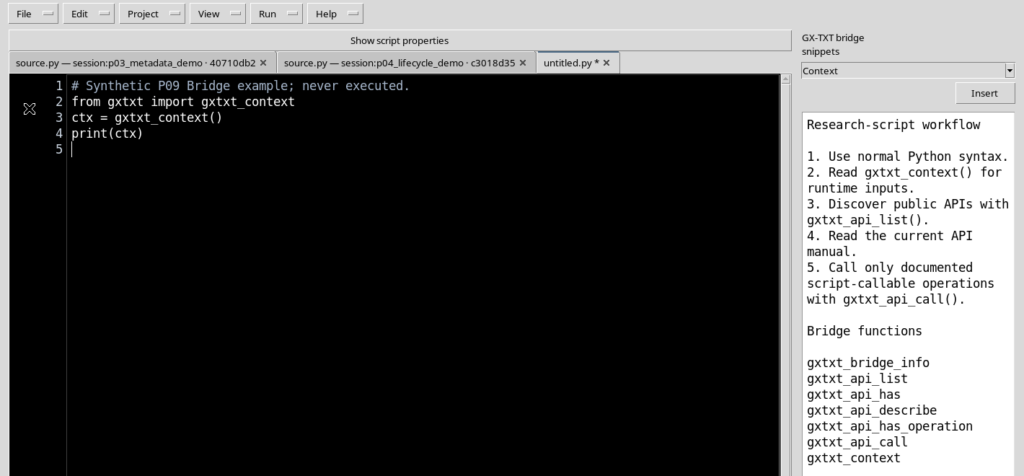
The appearance of those lines in the editor does not create a Job context. The function is evaluated when the program is run by GX-TXT with an active Bridge.
6. The result of gxtxt_context()
The public function gxtxt_context() takes no arguments. During a managed execution it returns information about the Job context.
The documented data include the aliases of the inputs, the typed parameters and the output directory managed by the framework, where relevant. The program must use the values actually allowed, without inventing internal paths or assuming the presence of undeclared Datasets.
7. Discover APIs: getting the list
With Discover APIs → Insert the Workspace inserts an example that imports gxtxt_api_list and iterates over the returned elements.
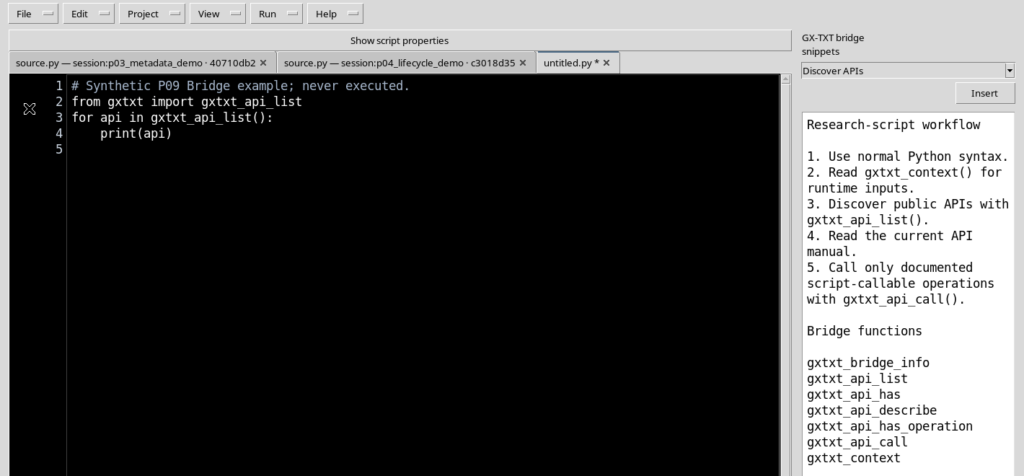
The fragment is used to learn which public APIs are registered during a managed execution, instead of relying on lists from another version.
8. Interpreting gxtxt_api_list()
gxtxt_api_list() takes no arguments and asks the Bridge for the registered public APIs. The response can be consulted from Python.
The presence of an API in the list does not guarantee that every operation can be used with any argument. You need to check the descriptor, the capabilities and the constraints of the provider.
9. Checking APIs and operations
gxtxt_api_has(api_id) takes an identifier and checks whether the API is registered in the Bridge. gxtxt_api_has_operation(api_id, operation) instead checks a specific operation.
These checks are useful before formulating a request, but they do not perform a scientific analysis nor replace the validation of the required inputs.
10. Require API: declaring a requirement
The Require API → Insert choice adds an example that calls gxtxt_api_require with the declaration SOME_PUBLIC_API_v1@1.
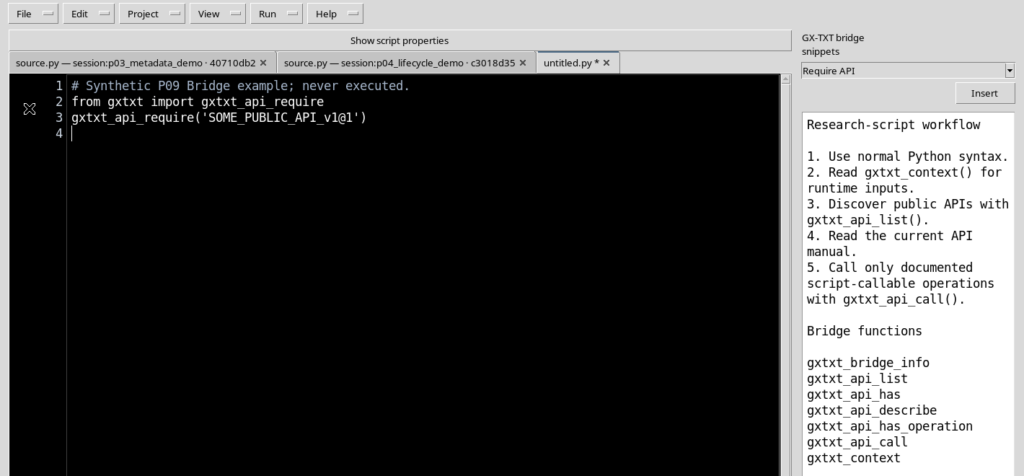
SOME_PUBLIC_API_v1 is a placeholder and does not identify a guaranteed provider. Replace it with a real API, checking its version and public contract.
11. The contract of gxtxt_api_require()
gxtxt_api_require(requirements) accepts a declaration, a dictionary of requirements or a list of declarations. The string can specify ID, version and, when necessary, provider or capability.
For example CANONICAL_DATASET_API_v2@2 requires the Canonical Dataset contract version 2. An unsatisfied request can generate a Bridge error. The function does not install packages.
12. Requirements and Script registration
Requirement declarations and the Additional required APIs field concern the admission of APIs during a future execution. They are checks distinct from inserting the text.
Adding gxtxt_api_require() to the buffer does not automatically save a revision, does not start the Runner and does not grant access to private CORE functions.
13. Describe API: reading the descriptor
Describe API → Insert prepares an example that imports gxtxt_api_describe, uses an illustrative ID and assigns the result to a variable.
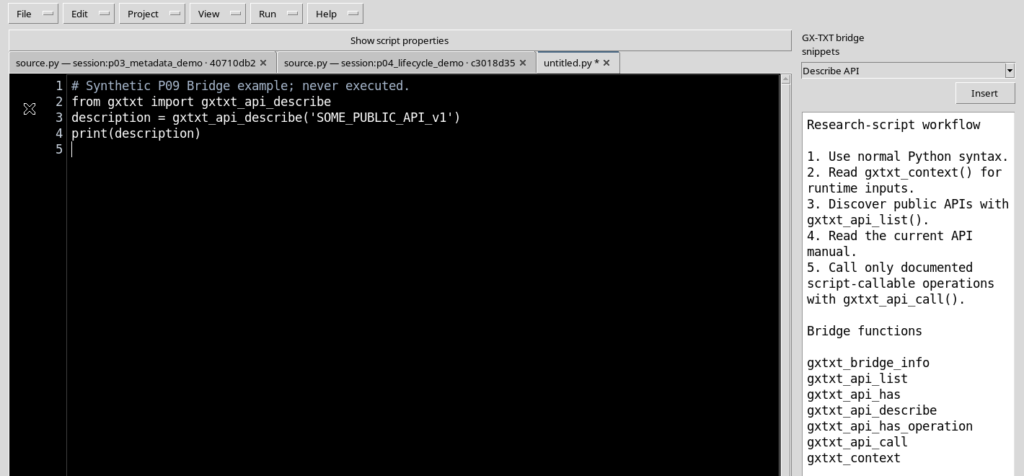
Replace the placeholder with the identifier of a real public API. The descriptor is the starting reference for learning version, provider and operations.
14. The result of gxtxt_api_describe()
gxtxt_api_describe(api_id) takes the ID of the API and returns the structured descriptor that the Bridge makes available.
The information can concern providers, versions, capabilities, operation names and arguments. For scientific meaning, physical units and the structure of the results you also need to read the manual of the specific API.
15. A generic Bridge for different services
The Python client does not reimplement every scientific operation: it uses the requests of the registered providers. The same call function can interact with different services.
Reading Datasets, managing progress or building plots, however, have separate contracts. There is no universal set of parameters valid for all services.
16. Call API: preparing a call
With Call API → Insert an example appears that uses gxtxt_api_call with API, operation and a list of positional arguments.
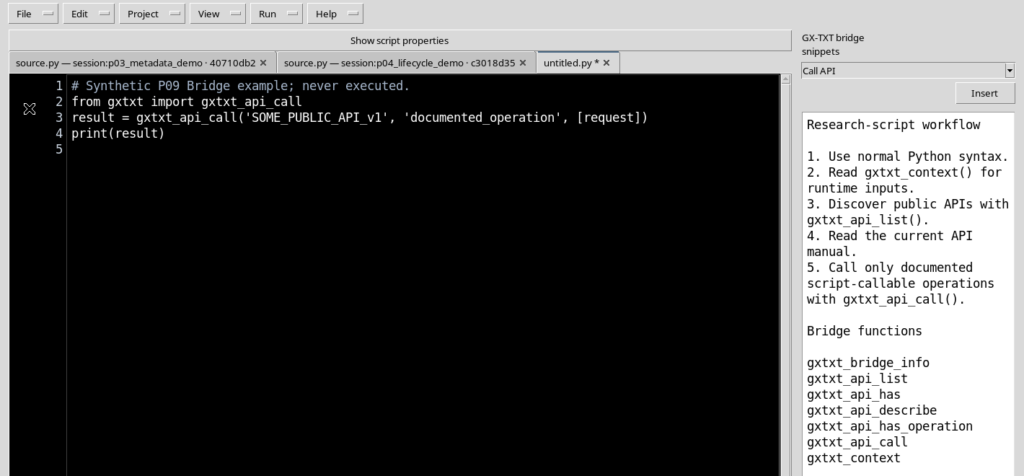
The words SOME_PUBLIC_API_v1, documented_operation and request are placeholders: you must replace them or define the necessary variables before running the code.
17. The contract of gxtxt_api_call()
The public signature is gxtxt_api_call(api_id, operation, args=None). The first two parameters identify API and operation. The third is a Python list or tuple with the arguments in the order expected by the service.
For operations without arguments you can pass []. The result depends on the provider. Unregistered APIs, disallowed operations, wrong parameters or provider errors can generate GXTXTBridgeError with a diagnostic identifier.
18. An example of a documented public API
The Python client documents a list request for CANONICAL_DATASET_API_v2. In a GX-TXT Job that admits this API, an essential template is:
# Example for a managed GX-TXT Python Job; not executed here.
from gxtxt import gxtxt_api_require, gxtxt_api_call

gxtxt_api_require("CANONICAL_DATASET_API_v2@2")
datasets = gxtxt_api_call("CANONICAL_DATASET_API_v2", "list", [])
print(datasets)
This is an interface example, not the result of an experiment. To use it you need an active managed context and the actual availability of the provider.
19. Replacing the placeholders correctly
Before reusing a snippet, check the illustrative identifiers and the variables. The template gxtxt_api_call(..., [request]) assumes that request has been defined with the structure required by the contract of the operation.
An insertion does not complete the program. You need to check data, units, dimensions, limits and the meaning of the results.
20. Insert is a local change
Insert writes to the buffer of the active tab. It is not the same as Save, it does not register a revision in the Registry and it does not start a Job.
If the fragment is inserted in the wrong place, Ctrl+Z undoes the change; Ctrl+Y restores it. The local history of the editor is independent of scientific Jobs.
21. Hiding the panel after inserting
When the code has been prepared, use View → GX-TXT Bridge Snippets again to hide the assistant.
The source remains editable, with more width available. The panel does not need to stay open while the program is being written.
22. Script Bridge help
The Help → Script Bridge help command opens a separate, read-only window with a reference to the public functions.
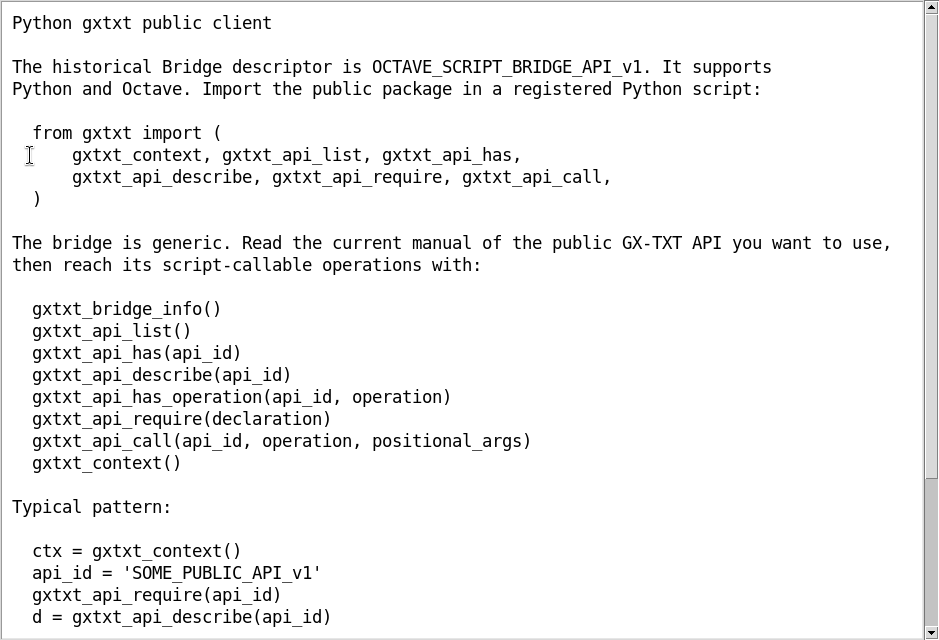
The guide refers to the Python Script Client v1 document and warns that the Bridge is not a sandbox: the Python program keeps the capabilities normally allowed by the configured environment.
23. Other functions of the public client
The reference also includes gxtxt_bridge_info(), which consults information about the active Bridge, as well as gxtxt_api_has() and gxtxt_api_has_operation().
The client also documents callbacks and typed parameter declarations. These features have specific contracts: they must not be confused with the insertion examples of the snippets.
24. The built-in manual with F1
Pressing F1 in Python Script Workspace opens Python Script — User Manual, with the Manual and Interactive Tutorial tabs and a Find field.
The Find next button searches the manual. When you enter Bridge, the result is highlighted.
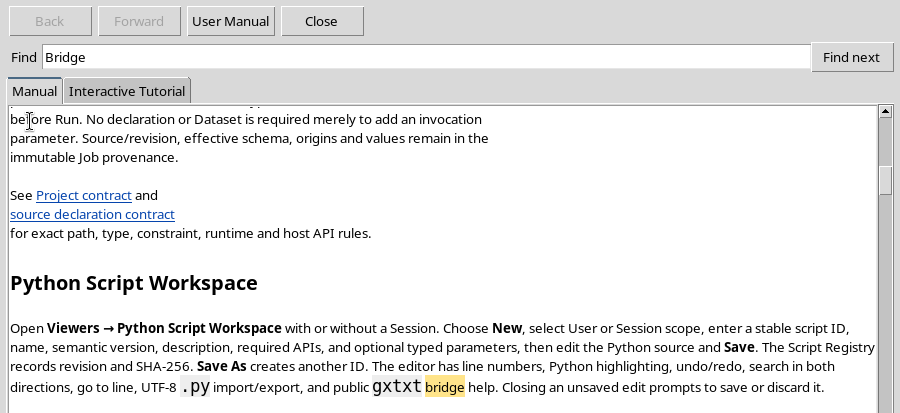
The manual may cover wider functions than the current work. For each procedure it is advisable to check that the related commands are really available in your installation.
25. About: learning the installed version
Help → About… opens the information dialog about the module. It shows the name Python Script, the identifier analysis.python_script, the Viewer python_script_editor and the version.
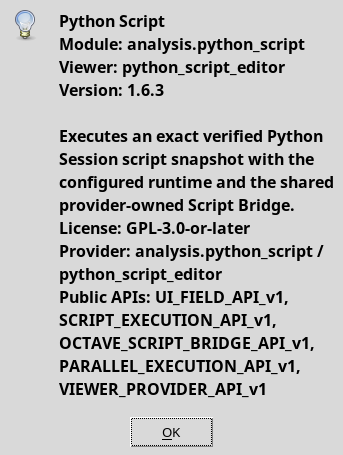
The version illustrated here is 1.6.3. About also lists some API references of the module; it is not, however, the complete dynamic list of the operations available in a Job.
26. The historical name of the Bridge
The reference shows the historical ID OCTAVE_SCRIPT_BRIDGE_API_v1. The name does not mean that Python Scripts use GNU Octave syntax: the Bridge and the provider transport are shared between the two languages.
In the Python program you keep using from gxtxt import ..., normal Python objects and lists or tuples of arguments. The reference document remains Python Script Client v1.
27. Table of the main functions
| Public Python function | Essential arguments | Purpose |
|---|---|---|
gxtxt_context() | None | Read the Job context |
gxtxt_bridge_info() | None | Read the information about the Bridge |
gxtxt_api_list() | None | List the registered APIs |
gxtxt_api_has(api_id) | API identifier | Check a registered API |
gxtxt_api_describe(api_id) | API identifier | Consult the descriptor |
gxtxt_api_has_operation(api_id, operation) | ID and operation | Check a specific operation |
gxtxt_api_require(requirements) | Requirement or list of requirements | Check the API requirements |
gxtxt_api_call(api_id, operation, args=None) | API, operation and positional arguments | Call a documented operation |
The functions listed are present in the public client of the version illustrated. Real scientific results and access to providers require a managed context and the respective contracts.
28. Summary
GX-TXT Bridge Snippets makes it easier to write Python examples; Script Bridge help, F1 and About let you consult the references and learn the installed version.
Insert is not Run and a snippet does not replace the contract of an API. Before an execution, check placeholders, inputs, documented operations and Bridge requirements.
The next chapter covers panel layout, Focus source / restore panes and the readability of the editor in depth.