

GX-TXT Python Script Workspace: writing and keeping Markdown notes for each Python file
This guide shows how to document a Python project directly in the Python Script Workspace of GX-TXT. Each source file can have its own Markdown note: you can write the text, consult its preview, navigate between headings, examine the association with the code and save the documentation separately. The examples use simple functions on synthetic measurements: they do not run the program.
1. Why associate a note with a Python file
A note places next to the source an explanation of its purpose, variables, assumptions and limitations. It is distinct from the # comments in the code: comments stay in the program, while the note is a Markdown document with headings, lists, highlighted text and a preview. There is no need to change the code to update the note.
2. Initial situation and prerequisites
Open Python Script Workspace and a .py file already belonging to a Script or a Project available in the workspace. This example uses a project with main.py as entry point and a helpers/calibration.py module. Saving persistent notes requires an authorised working context; simply opening and initially editing can come before saving.
3. Keeping the code readable
At the start it is better to leave mainly the Python source visible. Explorer, Snippets, Debugger and other unnecessary panels can remain closed. The code editor uses the actual High Contrast Dark theme: it is not a colouring applied to the images of the guide.
4. Opening the Notes tab for main.py
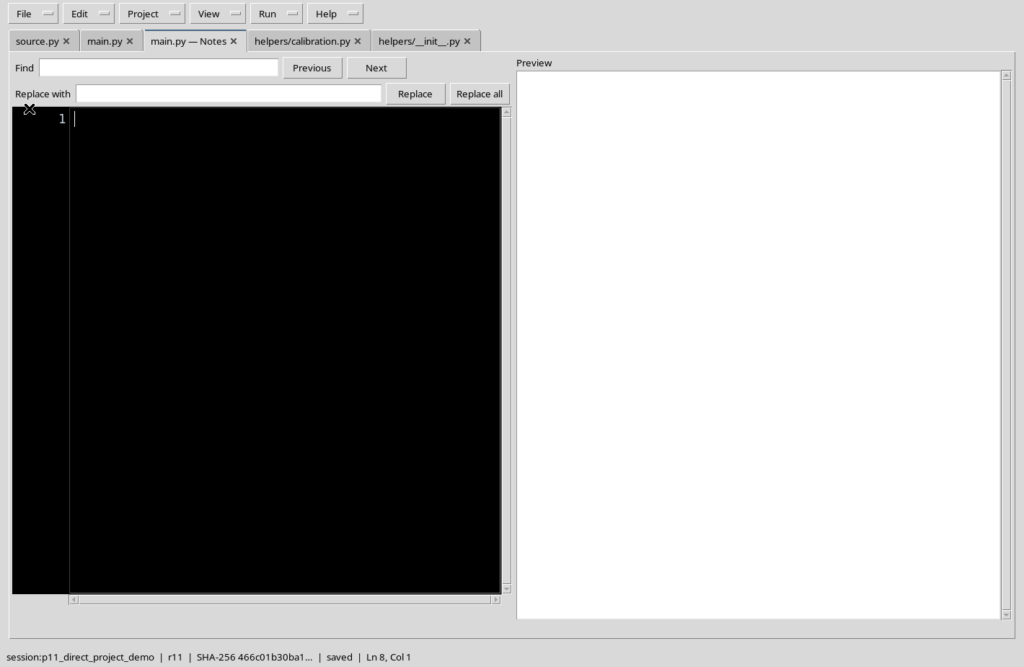
Select main.py and activate Edit Notes from the control available in the Workspace. The notes tab for the chosen file opens. In a new note the document is empty: this does not mean that the main.py file is empty or that the code has been replaced.
5. Identifying the document and the associated source
The Notes tab shows the identity of the file it is linked to. When working on several files, check the name of the tab before writing. The note of main.py is not automatically the note of an imported module.
6. Writing Markdown in the Source view
The Source view contains the editable Markdown text. Insert headings with # and ##, numbered lists with 1., highlighted words with **text** and file names or Python symbols between backticks. Here Source indicates the source of the Markdown document, not the executable Python source.
7. An example of a reproducible note
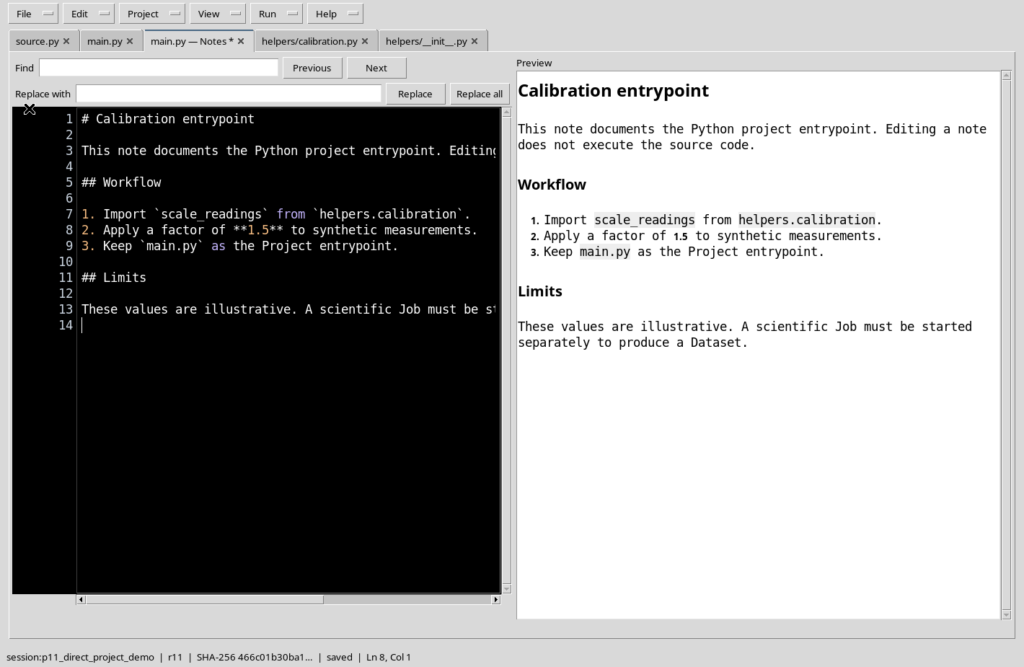
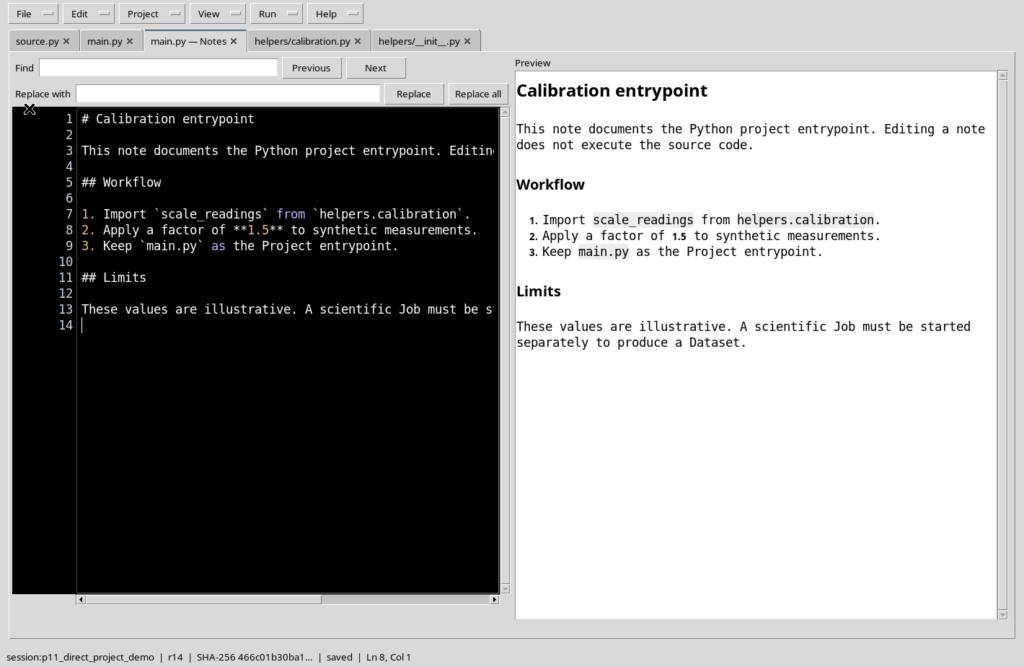
This short text describes the entry point, the import of the module and the limits of the example. It is an explanation: it contains no commands to launch in the Runner.
# Calibration entrypoint

This note documents the Python project entrypoint.
Editing a note does not execute the source code.

## Workflow

1. Import `scale_readings` from `helpers.calibration`.
2. Apply a factor of **1.5** to synthetic measurements.
3. Keep `main.py` as the Project entrypoint.

## Limits

These values are illustrative. A scientific Job must be
started separately to produce a Dataset.
8. Comparing Source and Rendered
The Rendered view shows the readable result of the Markdown: headers become headings, lists are laid out and the text delimited by backticks appears distinct. The views can be kept side by side to check the document immediately while writing.
9. What changes in the preview
In Rendered neither the Markdown nor the Python code mentioned is being executed. The view only interprets the formatting of the document. It is useful for finding a badly written heading, a broken list or a reference to the wrong module.
10. Opening the Outline panel
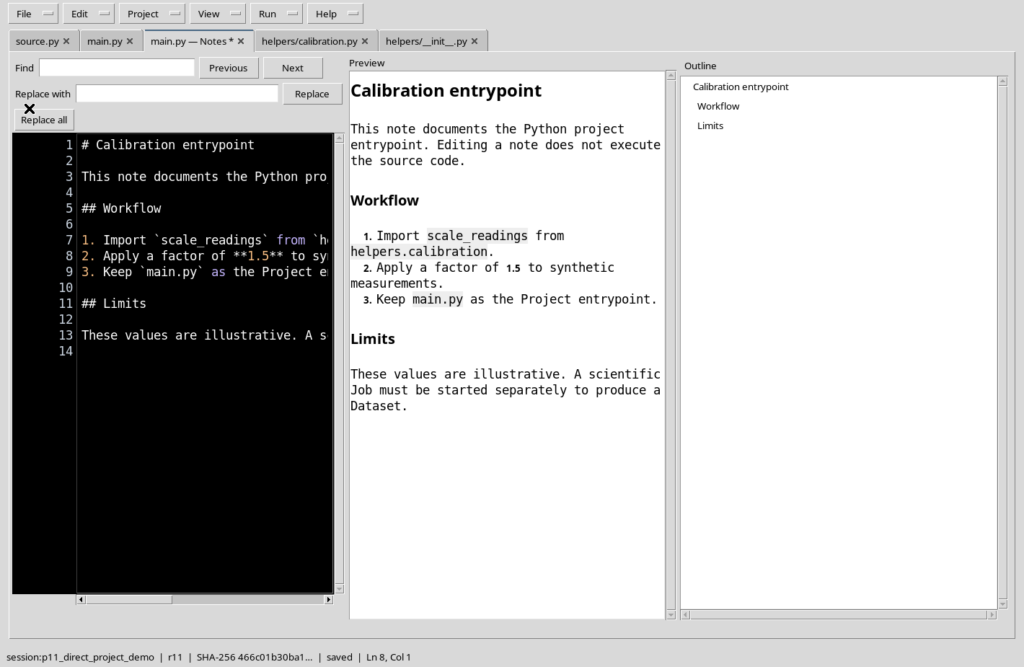
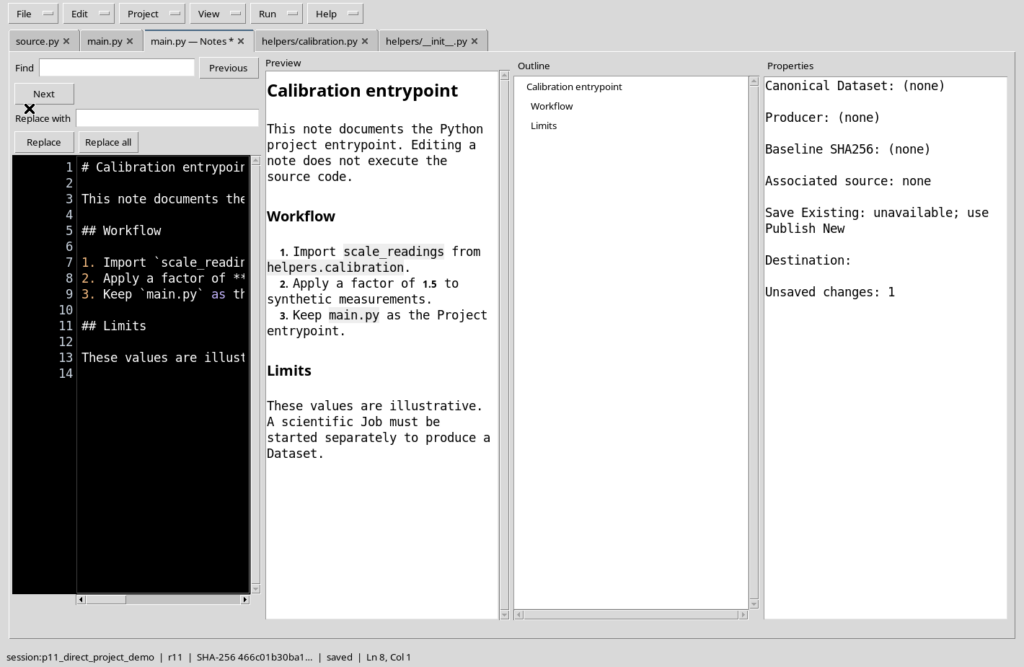
In the View menu of the Notes editor you can show Outline. The index lists the headings recognised in the document and helps you find your way as the note grows. It does not create new sections: it reflects the structure written in Source.
11. Examining the Properties tab
With View → Properties you display the information of the note, including the association with the source file when available. Before the first save you must not infer the existence of a persistent document from the mere presence of text in the editor.
12. Checking Resources without adding images
The Resources view is distinct from Source, Rendered, Outline and Properties. In the initial example it is empty because no resources have been associated yet. Inserting, replacing and removing images are covered separately in the guide devoted to formatting tools and resources.
13. Restoring an essential layout
For more comfortable reading, hide the Outline, Properties and Resources panels when they are not needed. The Reset note layout command, where present in the View menu, restores the basic layout with Source and Rendered. It is different from the general layout reset of the Python Workspace.
14. Back to the code with Show Notes
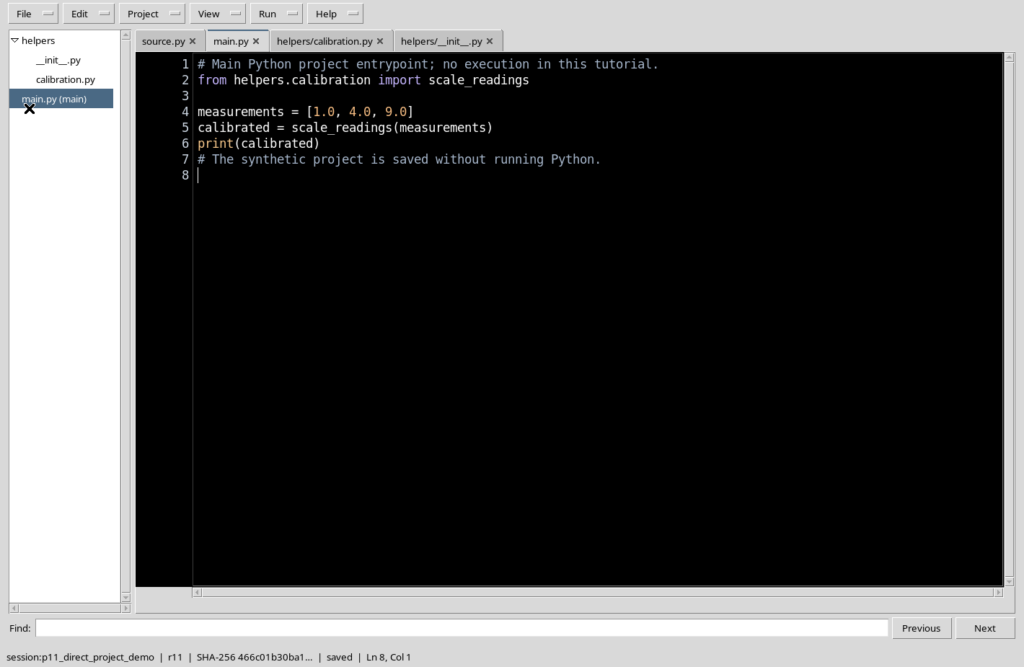
The command that shows or hides the notes lets you return to the Python source. Hiding the view does not delete the document nor turn the Markdown into code. After closing the optional panels, the editor space becomes usable for programming again.
15. A note modified but not yet saved
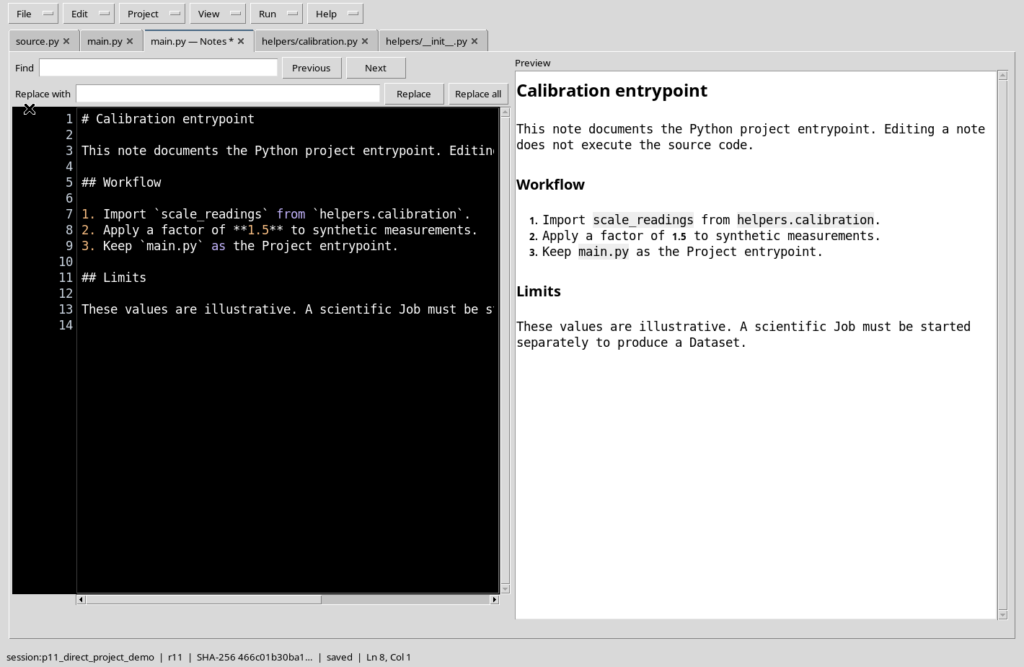
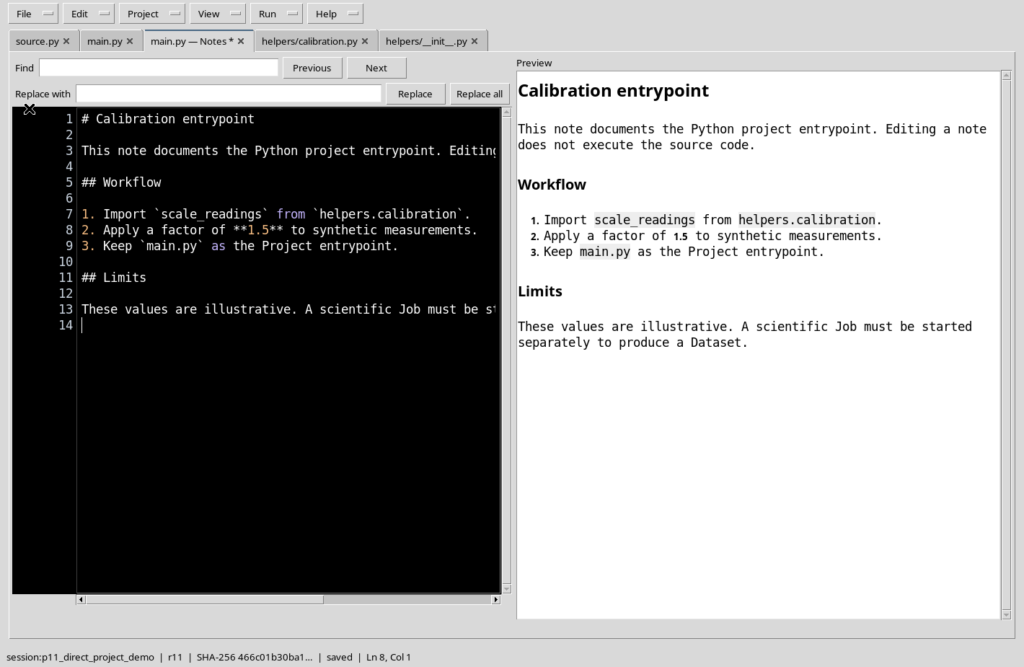
While writing, the Notes tab may show a modification indicator, distinct from any asterisk on the Python file. Do not confuse these two states: a modified Markdown document does not mean that the .py code has been altered.
16. Hiding and reopening a draft
It has been verified that hiding the note and then reopening it in the same Workspace keeps the unsaved text and the working position. This does not replace Save: if the document must survive closing the work session, it must be saved explicitly.
17. Saving the main note
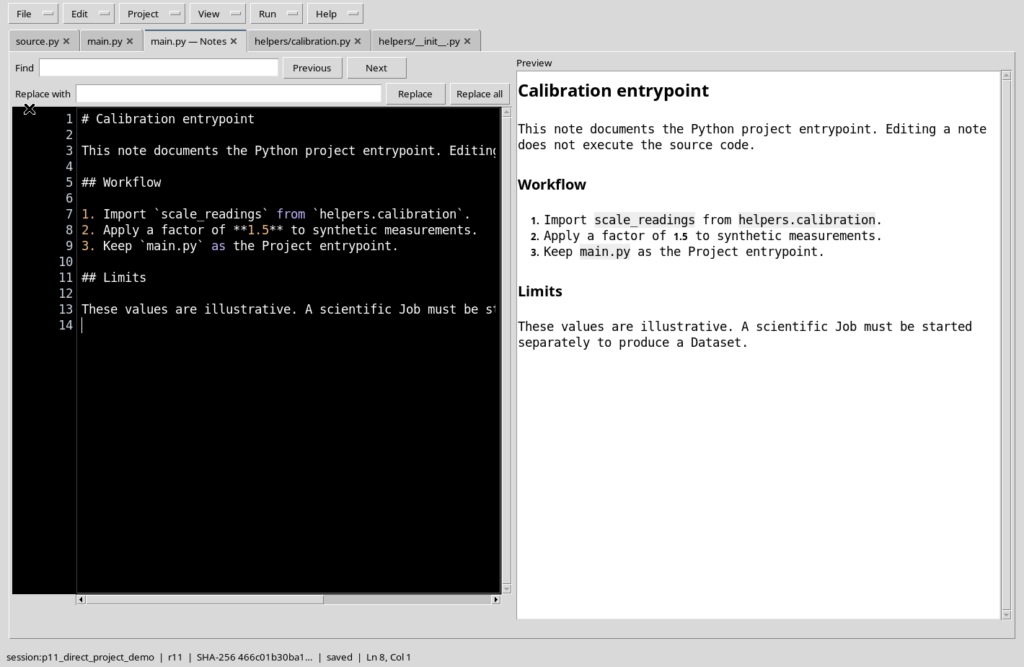
With the note of main.py active, use File → Save. The document moves from a modified draft to a saved note. The operation registers the Markdown note in the project/session context and associates it with the current file. The Python code remains separate.
18. What result is registered
The content of the note is kept as a canonical Markdown document associated with the source. In the case of a Session, saving uses the GX-TXT data registration system. It must not be confused with publishing a numeric Dataset produced by a computation: no scientific Job is started by Save.
19. Notes and project revision
Saving the note may update the revision of the Project metadata. This is not the same as changing the content of main.py or helpers/calibration.py. It is important to distinguish the revision of the document from the actual version of the Python algorithms.
20. Opening the notes of the auxiliary file
Return to the file tree, select helpers/calibration.py and open Edit Notes. The Workspace creates or shows a Notes tab linked to that very module. A new note of the auxiliary file does not inherit the Markdown already written for main.py.
21. Documenting the function of the module
For the auxiliary module you can use a second concise note. The reference to the function scale_readings(values, factor=1.5) serves to explain the arguments of the code, not to run it.
# Calibration helper

The file `helpers/calibration.py` defines
`scale_readings(values, factor=1.5)`.

## Purpose

- Process synthetic numeric measurements.
- Return a rounded Python list.

## Boundaries

This note describes the helper module, not the
`main.py` entrypoint. Saving is separate from execution.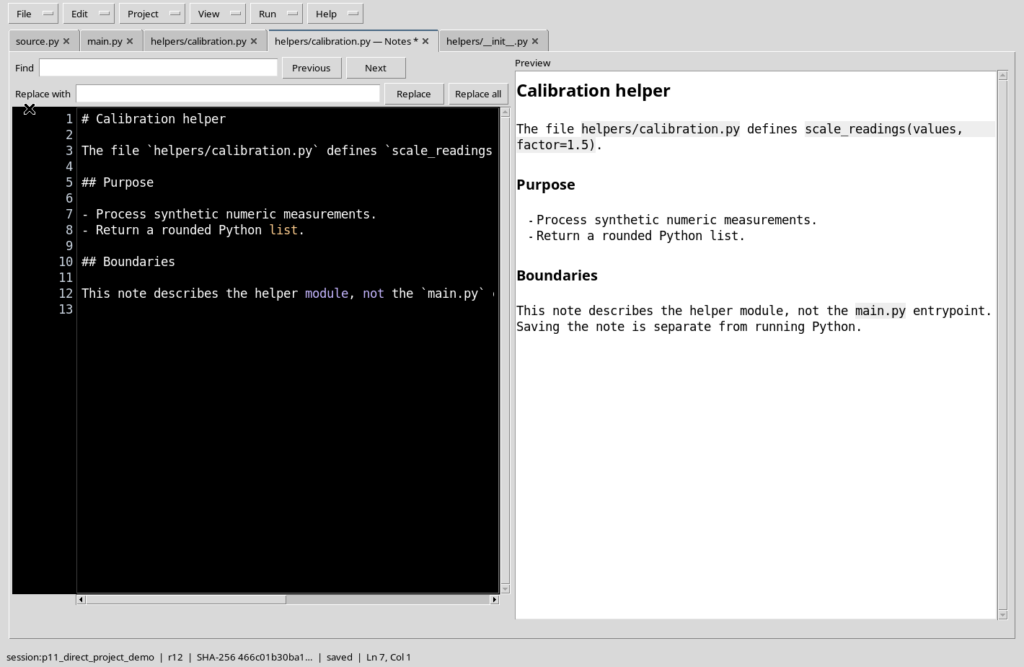
22. Two notes, two distinct identities
The notes of main.py and helpers/calibration.py are two different documents, even though they belong to the same Project. Always check the active file, the title of the Notes tab and the text before saving. The structure of the project does not change just because you describe more files.
23. Saving with the Save All command
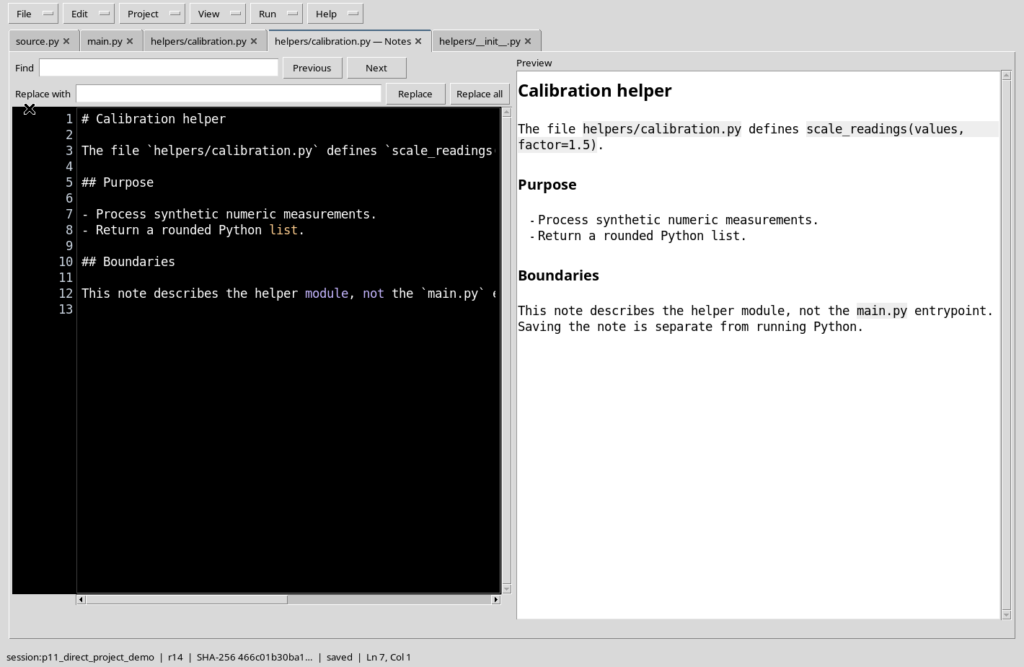
With a note of the auxiliary module modified, File → Save All lets you register the pending changes of the working area. In the test carried out, the second Markdown note was also saved. The command does not run Python and does not replace the later review of the Runner inputs.
24. Checking Properties after Save
Reopen the note of main.py and consult Properties. For the current file you see the valid association with the source: it is a useful check after working on several documents. A note that is still modified, on the other hand, requires Save before it can be considered registered.
25. What happens to the Python source
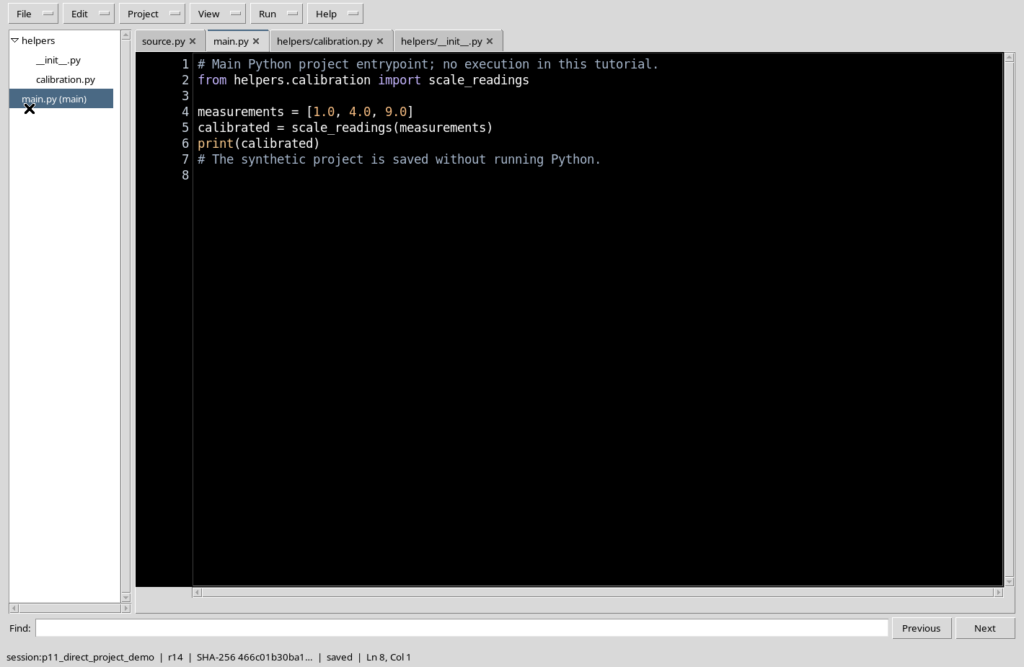
Writing or saving a note does not change the statements, imports, entrypoint or computation sequence of the .py files. To really update an algorithm, you must return to the corresponding Python Source tab, edit it and save the code with the procedure provided by the Workspace.
26. Finishing with the source editor
When the documentation is complete, hide Notes and leave the Python code visible, avoiding unnecessary panels. A project can thus contain the program and its explanations without turning the window into a permanent set of crowded tabs.
27. Limits and useful checks
Before closing the Viewer, check that there are no modification indicators on the notes you want to keep. Hide/Show Notes is not a save; Rendered is not an execution; Resources may be empty; an associated note does not guarantee that the Python code mentioned is up to date or scientifically correct. Image management is covered in detail in the next guide.
28. Operational summary
The complete path is: select a .py file, open Edit Notes, write in Source, check Rendered and Outline, consult Properties and Resources only when useful, then Save or Save All. Repeat for the individual files of the Project and finally return to the Python source. Documentation, metadata, executable code and Jobs remain distinct concepts.