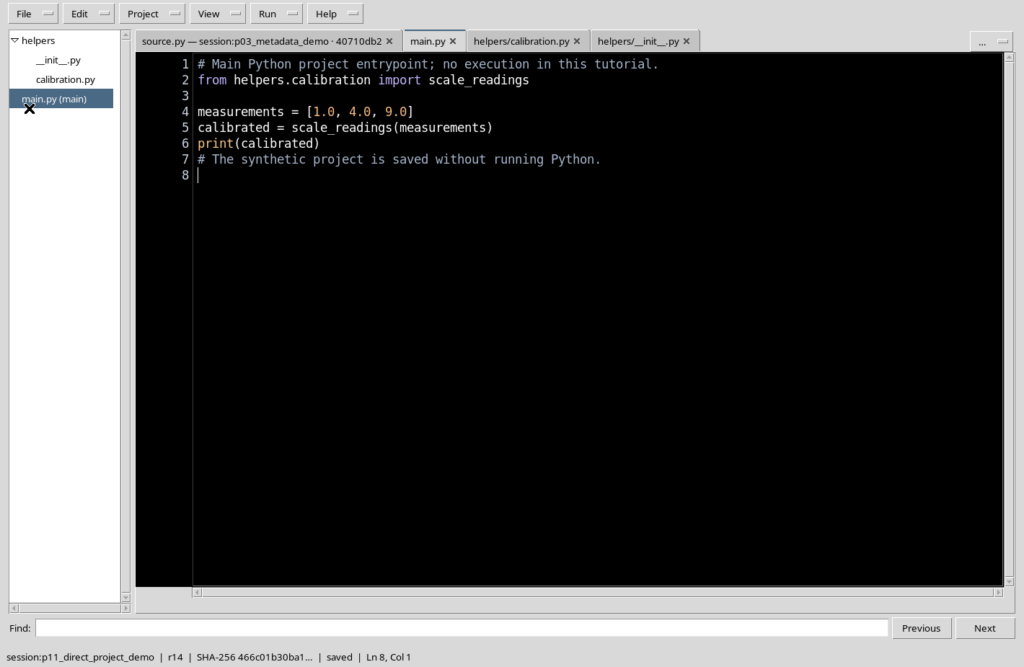
GX-TXT Python Script Workspace: binding input Datasets and choosing the namespace
The GX-TXT Script Runner lets you associate canonical scientific Datasets with a registered Python Script, without changing the code and without running it. Each input can have a Semantic alias, a label, a Namespace, a Dataset ID and a selected revision. This chapter shows how to compose, check, change and remove these bindings from the original interface.
1. Why bind Datasets in the Script Runner
A scientific Script can use data registered in the current Session, but their binding to the execution must be defined explicitly. An input binding indicates which Dataset you intend to make available to a Script and under which logical name. Filling in the row does not start Python and does not automatically produce new results. Instead, it lets you prepare a reproducible request.
2. Prerequisites for the procedure
Open Python Script Workspace, choose an already registered Python Script and check that you are in the correct Session. At least one canonical Dataset must also exist in the Session: a generic file not yet imported is not the same as a registered Dataset. The previous chapter explains how to identify the saved Script and open the Runner on its revision.
3. A canonical Dataset has a stable identity
The Dataset ID identifies an object in the Session registry; the content can be kept by the appropriate storage provider, for example CSV or HDF5. Selection in the Runner uses the canonical identity, not the physical path of the file. Do not manually enter absolute paths in place of the identifiers shown in the combobox.
4. An example with synthetic data
To illustrate the controls we consider a series of five invented temperatures, associated with indices 0 to 4. They are not experimental measurements and do not derive from a Job. The units are degrees Celsius (degC) and the Dataset variables are sample_index and temperature_c.
| Sample index | Temperature (°C) |
|---|---|
| 0 | 18.0 |
| 1 | 20.0 |
| 2 | 22.0 |
| 3 | 21.0 |
| 4 | 19.0 |
A later correction of one value will be used to illustrate the revision check.
5. Opening the Runner on the saved Script
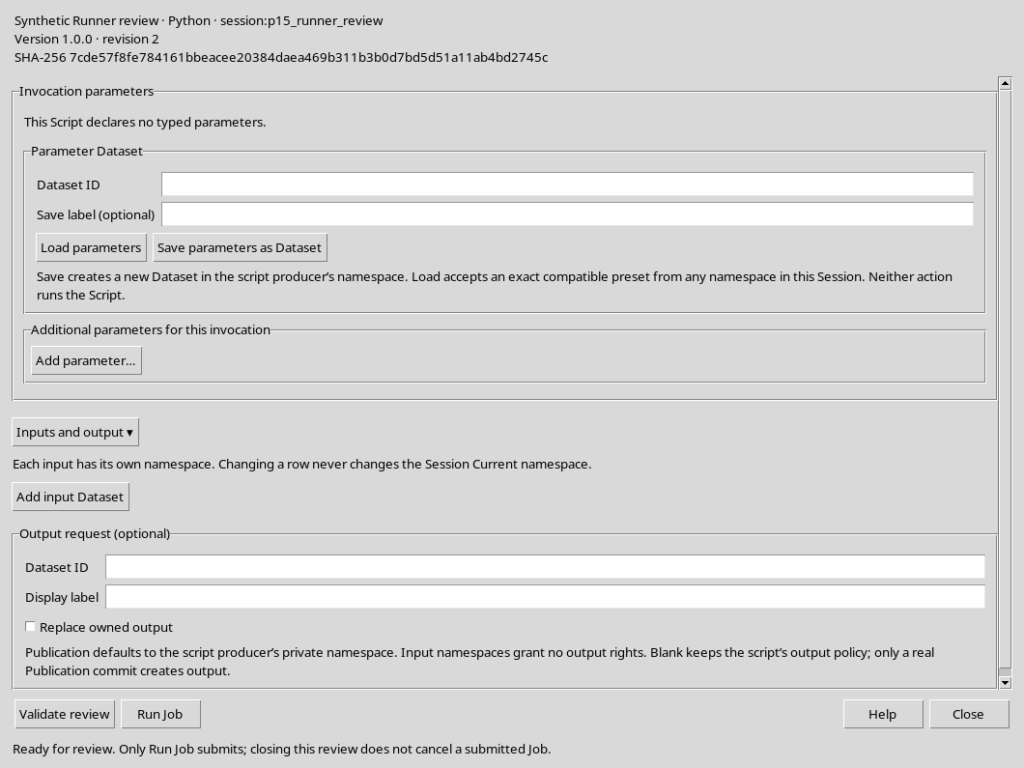
In the Workspace select the desired Script and choose Run → Open Script Runner…. At the top appear name, language, reference, version, revision and SHA-256 of the registered source. These elements identify the Script, not the input Dataset. Simply opening the Runner does not start a Job.
6. Finding Inputs and output
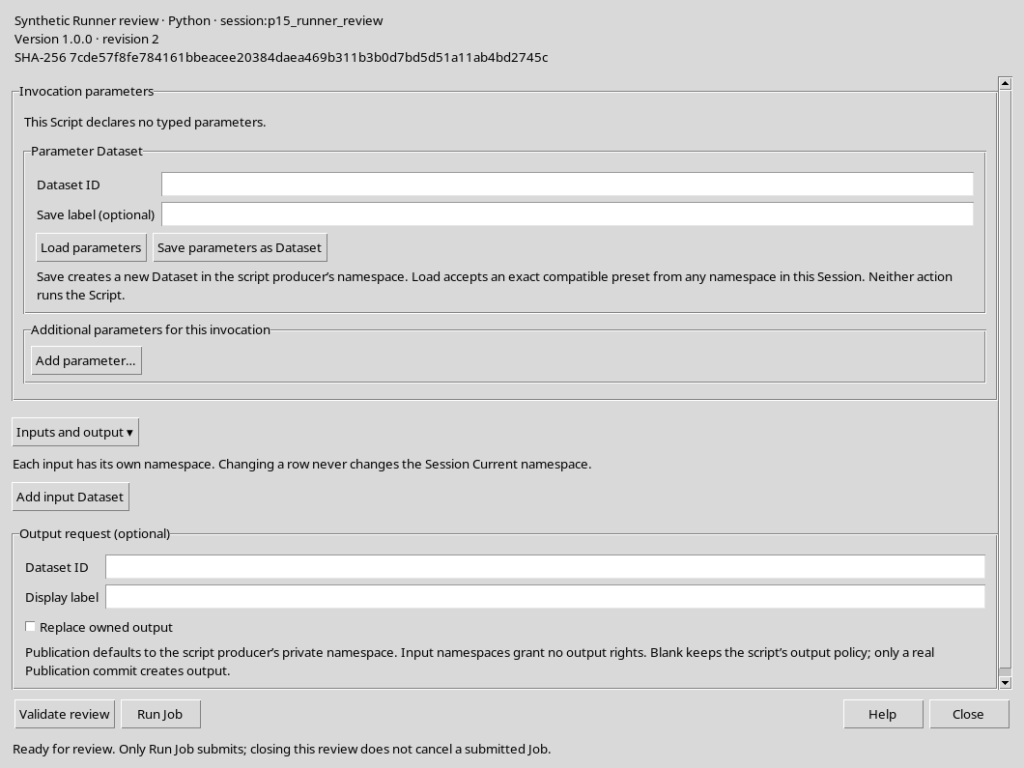
In the review window expand Inputs and output ▾, if necessary. The panel presents the Add input Dataset command and a separate section for output requests. For the moment leave any output fields empty: here we are only interested in the Datasets to be used as input.
7. Adding an input row
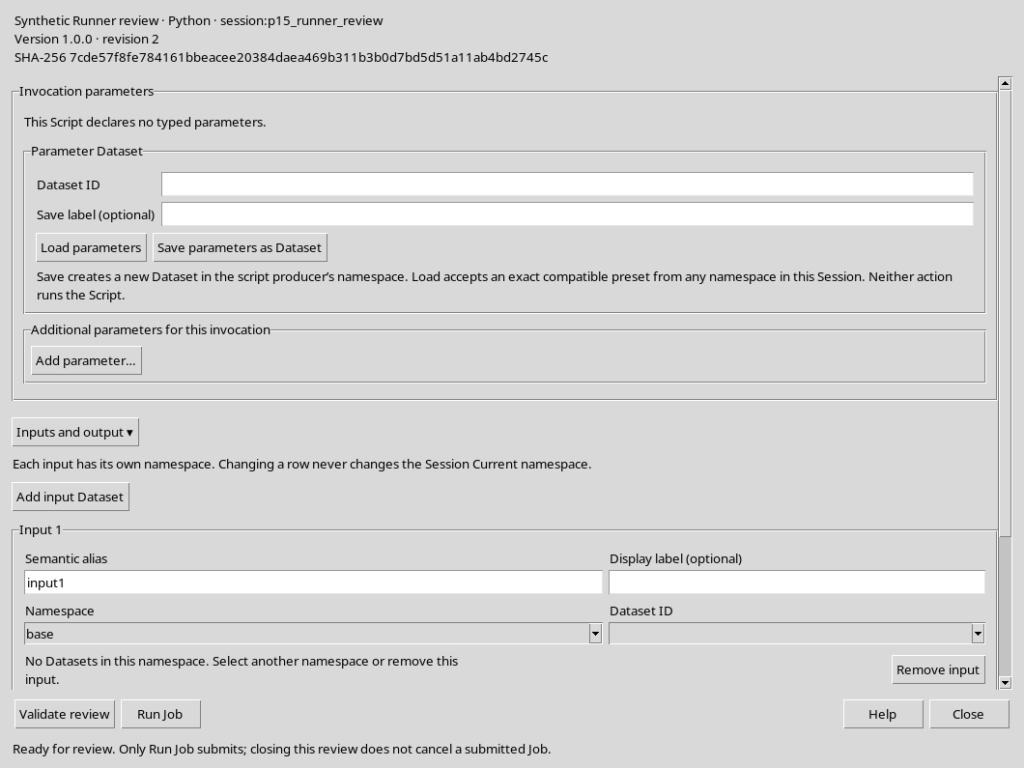
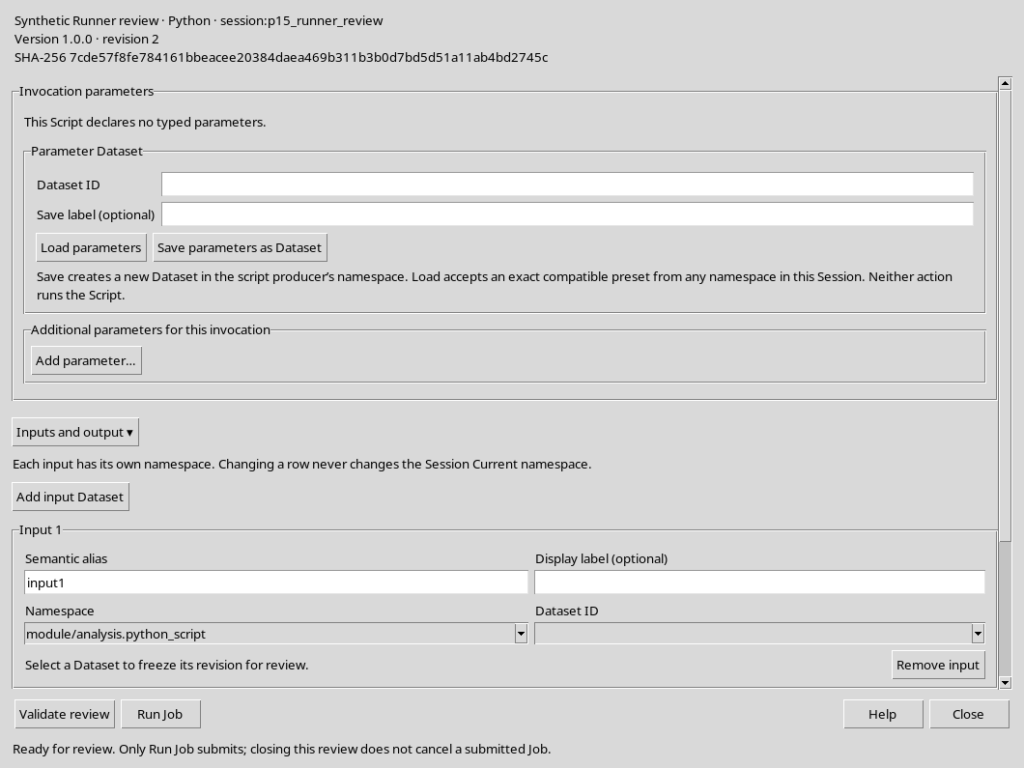
Press Add input Dataset. An Input 1 section appears with the binding controls. The new row does not imply that a Dataset has already been loaded: you need to select a compatible namespace and identifier. In a Session where the current namespace is base, the row may initially show exactly base.
8. The four fields of the input
Each row contains Semantic alias, Display label (optional), Namespace and Dataset ID. The first two provide respectively the logical name for the Script and the displayed description; the last two identify a Dataset in the Session. The four fields are not interchangeable and do not automatically change the content of the Dataset.
9. Semantic alias: the logical name
The Semantic alias field defines how an input is scientifically distinguished from the others. For example, measured can indicate the observations and reference a second reference set. Use unique, simple names made of letters, digits and underscores, not starting with a digit. The alias is not the Dataset ID and does not rename any Dataset.
10. Display label: an optional description
Display label (optional) can contain a readable phrase, such as Temperature sintetiche (°C). This label helps recognise the role of the binding, but it does not replace the alias and is not used as a canonical identity. Changing the label in the interface does not change the units declared in the scientific variables of the Dataset.
11. The namespace is an organisational filter
The Namespace field selects the organisational space in which to look for a canonical Dataset. Namespaces are neither physical folders nor a second identity of the data. GX-TXT distinguishes, for example, base and the namespaces of the producing modules. It is important to choose the one where the requested Dataset actually is.
12. Selecting the namespace that contains the data
Open the Namespace combobox of the row and choose the appropriate namespace, for example module/analysis.python_script when the input comes from the Python module. The Dataset ID list is updated to show only the objects of the selected namespace; choosing the namespace is not yet the same as selecting a Dataset.
13. Choosing the exact Dataset ID
Open Dataset ID and select from the list the Dataset you want to bind. It is not enough to type a label or choose the first available name: identifying the correct Dataset is an essential part of the review. The combobox is linked to the canonical catalogue of the Session and filters the objects according to the namespace of the row.
14. A complete selection
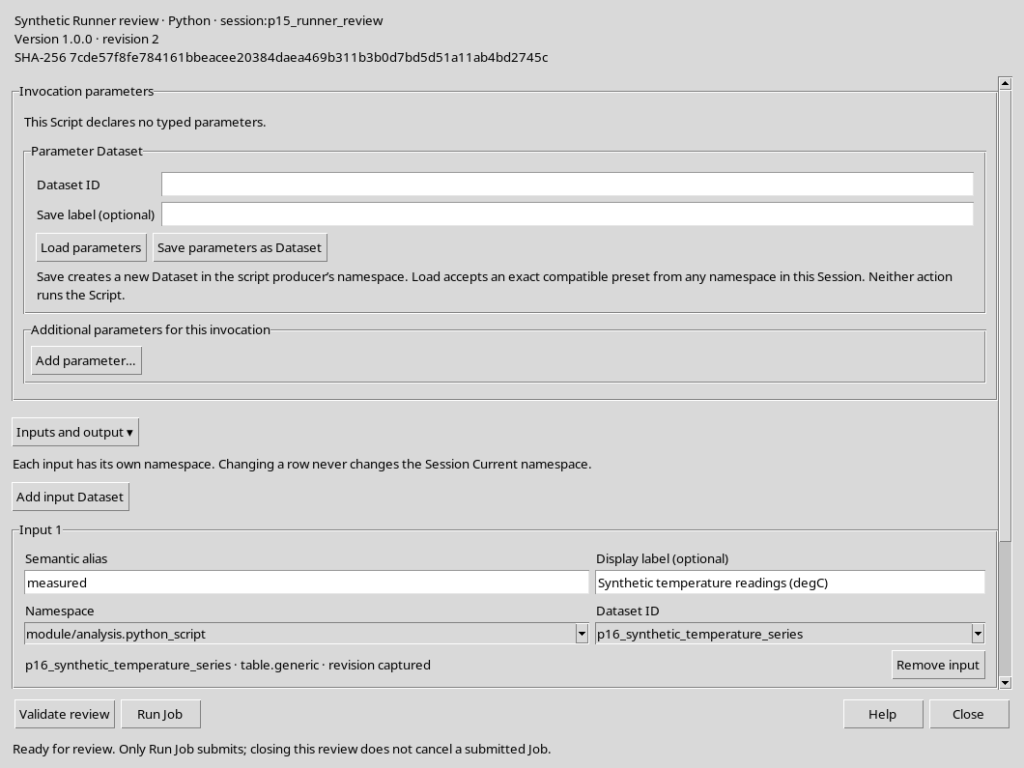
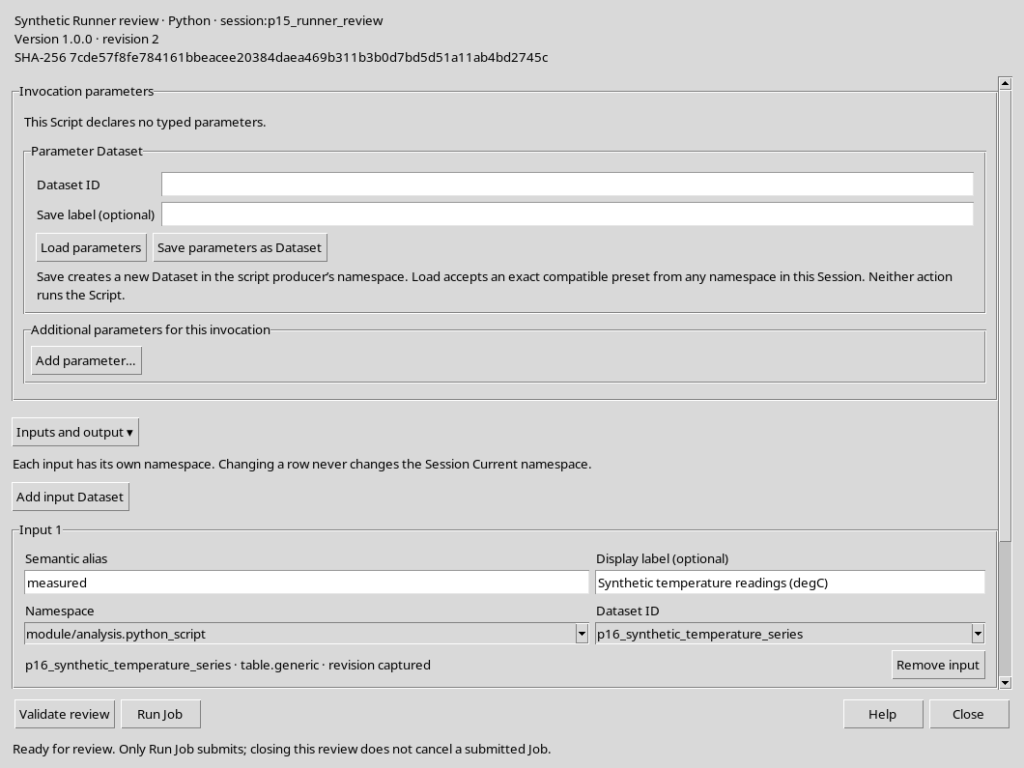
In the example, the alias measured identifies the scientific role, the label describes the synthetic temperatures and the Dataset ID points to the chosen canonical data. The text below the row confirms the table.generic contract and indicates that a revision has been captured. This message documents the current selection, not an execution.
15. What revision captured means
When you choose a Dataset, the Runner captures a reference to its current revision. This information lets you recognise a change in the data or in the relevant metadata that occurred after the selection. It is not the revision of the Python Script: source and Dataset have their own identities and histories.
16. Script, Dataset and input binding are three different elements
The Script remains the registered program; the Dataset remains a canonical object kept in the Session; the binding is the row that associates them for a future invocation. Changing the alias or the label changes neither the Script nor the Dataset. If instead the Dataset changes, the Runner must check the association again before allowing an execution.
17. Using several independent inputs
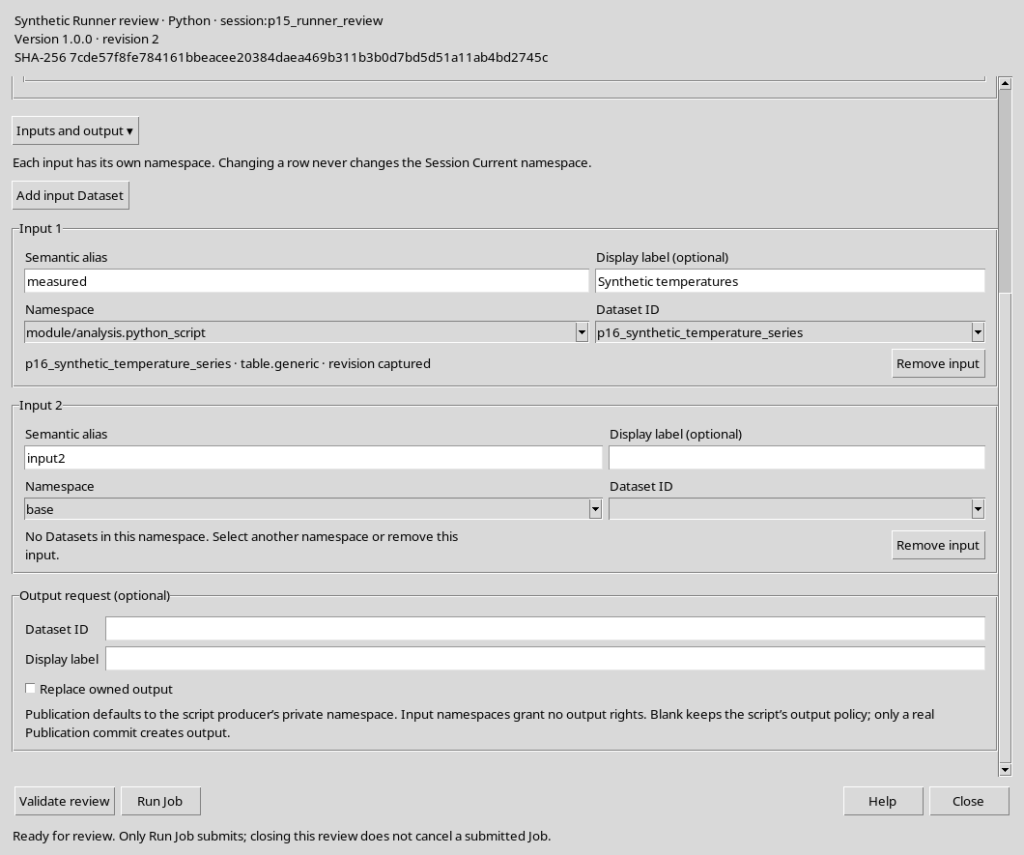
Pressing Add input Dataset a second time makes Input 2 appear, with a new initial alias and its own namespace selection. The rows are independent: you can bind observed and reference data even from different namespaces, as long as they are accessible. Each input must have a distinct alias and a selected revision.
18. One namespace for each row
Changing the namespace of Input 2 does not move the Dataset used in Input 1. The selection acts only on the row concerned; it does not change the Current namespace of the Session. This lets you prepare invocations with inputs of different origin without reorganising the Catalogue.
19. Removing an unnecessary row
If a row has been added by mistake or is not needed, use its Remove input button. The row disappears from the preparation window. The operation does not delete the Script and above all does not delete the canonical Dataset in the Session. Another row can continue to refer to the same object.
20. Changing namespace clears the selection of the row
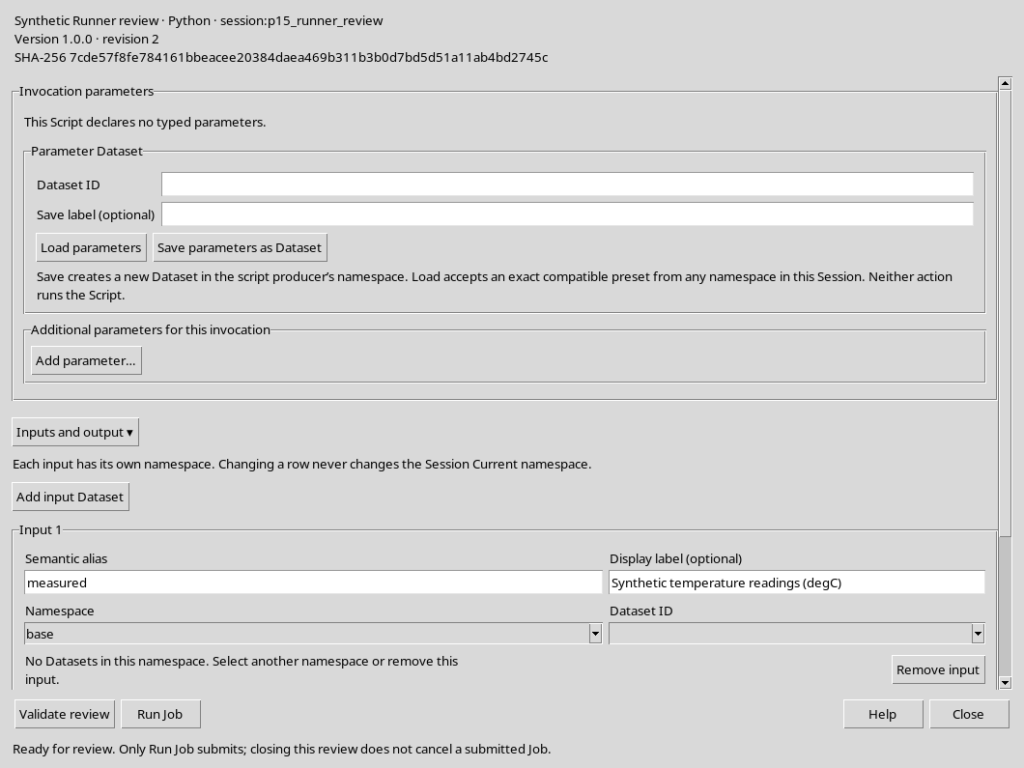
Suppose you have already chosen a Dataset in one namespace and then change Namespace to base. The Runner clears Dataset ID and the previously captured revision, because it cannot keep an identity associated with a different namespace. If no objects are available, an appropriate message is shown.
21. Keeping alias and label during the change
Changing namespace does not require renaming the semantic alias or rewriting the description, which can remain valid. However, you must select the Dataset ID again and check its revision. A row with a correct alias but no selected Dataset is not ready for a subsequent valid review.
22. Restoring the correct binding
Return to the namespace where the Dataset is and choose it again from the combobox. The Runner rebuilds the selection and captures the current revision. The operation does not publish a new Dataset: it restores the link between the Script Runner row and an object already registered.
23. When a Dataset becomes stale
A selection can become stale when the Dataset is updated after the Runner has captured its revision. In the illustrative example a value of the series is changed, from 22.0 to 22.5 °C, keeping the same Dataset ID. The new revision must not be confused with the one stored in the original row.
24. The out-of-date revision is rejected
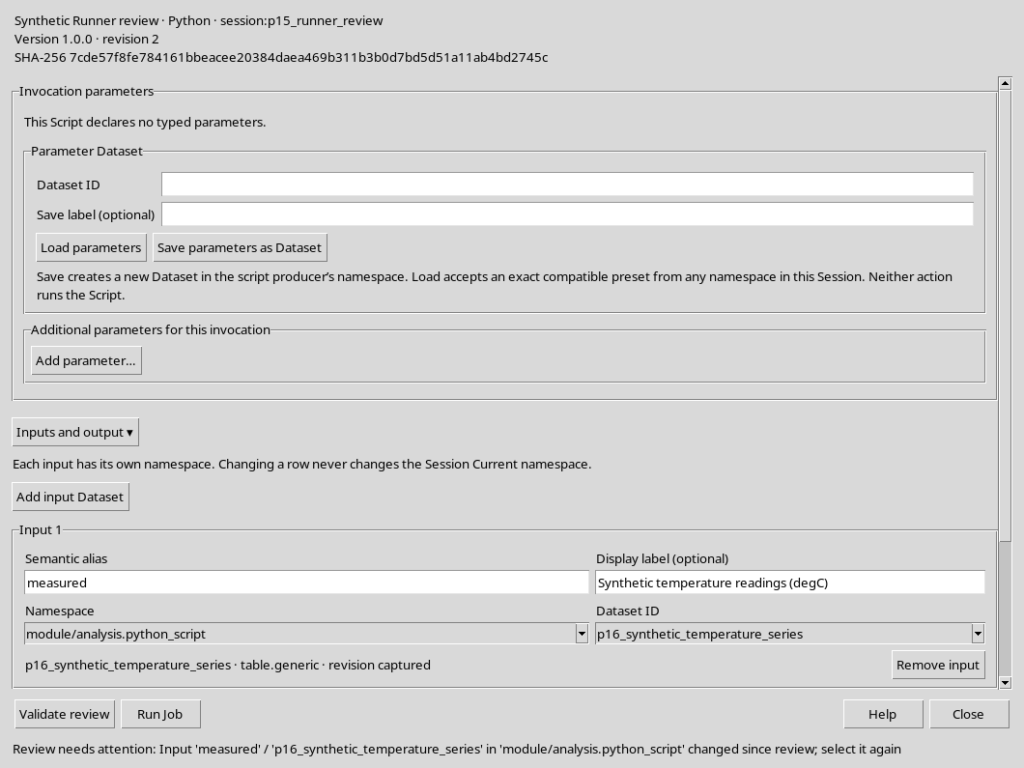
With a Dataset changed after the selection, Validate review reports that the input has been modified and asks you to choose it again. The Review needs attention message prevents an old selection from being treated as still valid. This check does not start a Job and does not silently replace the requested Dataset.
25. Reselecting the updated Dataset
Bring the attention back to Dataset ID, choose the canonical object again and check that its revision has been captured. There is no need to change the alias, the description or the namespace if they remain correct. The new selection represents an explicit decision about which revision to use.
26. Checking the updated revision without running
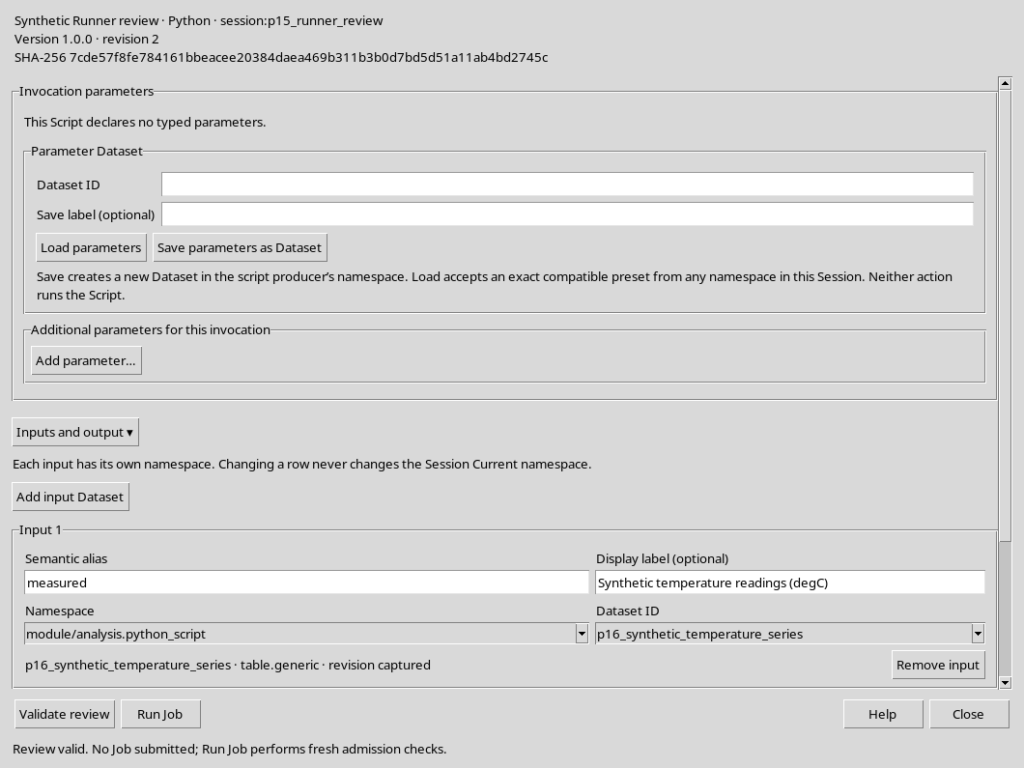
After the new selection, Validate review may show Review valid. No Job submitted. This confirms that the bindings currently declared pass the revision checks, not that the Script has been run or that outputs have been produced. The procedure for actually submitting a Job is covered separately.
27. Remove input does not delete the Dataset
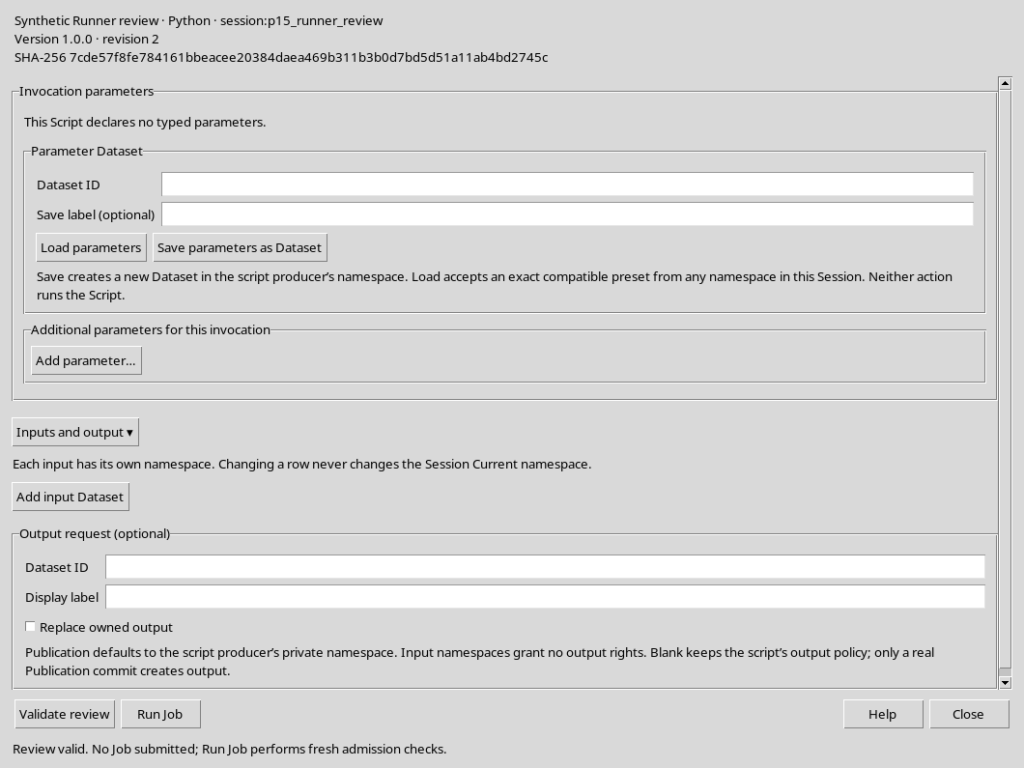
Use Remove input on the remaining row when it is no longer needed. The canonical object remains in the Session and can be selected in a new invocation. Do not use the row removal button as a data deletion procedure: it only changes the preparation of the Runner.
28. Closing the Runner and returning to the code
Use Close to return to Python Script Workspace. An incomplete or deleted input row does not alter the registered Python source; the Current namespace of the Session is not moved by using the comboboxes of the individual inputs. The next chapter illustrates the typed parameters and the declarations of the Script; the actual Run Job remains a separate action that is not carried out here.