GX-TXT Python Script Workspace: declaring parameters in the source and configuring them in the Runner
In Python Script Workspace the parameters of a program can be declared directly in the source with gxtxt_parameter_declare(), defined in the Script metadata or added for a single invocation through Script Runner. This guide explains the three levels, the allowed types, the limits and the revision check. Merely declaring, saving or validating parameters does not run Python and does not start a Job.
1. Why declare parameters
In a scientific program, coefficients, the number of repetitions and processing modes should not be numbers hidden in the code. Declaring them explicitly makes the contract between the Script and its future invocation clearer. GX-TXT lets you describe name, type, whether required, default value and constraints, keeping the identity of the parameters next to the revision of the registered Script.
2. Three levels to distinguish
Source parameters are gxtxt_parameter_declare() declarations in the Python file. Metadata parameters are defined in the editor, in the Typed parameters table. Manual invocation parameters are instead added and removed only in the Script Runner window. The first two belong to the saved schema; the third level applies to the current review of the request and does not rewrite the Registry.
3. Opening the Python Script in the correct Session
In Python Script Workspace open the desired Session and choose a registered Script, or use File → New Script to prepare one. Fill in Scope, Script ID, Name and Version and then enter the source. The Session is the scientific context of the future execution; simple editing produces neither a numeric Dataset nor a Job result.
4. The public function gxtxt_parameter_declare
The Python declaration uses two literal positional arguments, name and type, followed by optional keyword arguments, also literal. For example:
from gxtxt import gxtxt_parameter_declare

gxtxt_parameter_declare(
    "gain", "double",
    default=1.5, min=0.5, max=3.0,
    description="Synthetic calibration gain"
)
It is not a command that starts the computation: the declaration is recognised statically when the Script is saved.
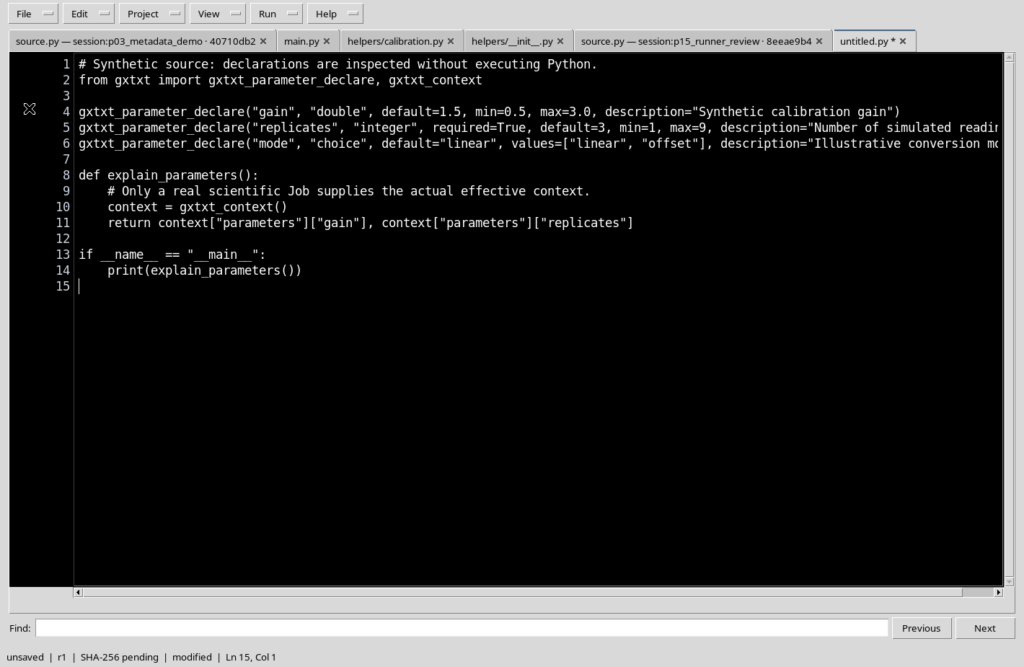
5. A Python example with three parameters
This fragment illustrates three different properties: a numeric coefficient, an integer number of repetitions and a mode chosen from a list.
from gxtxt import gxtxt_parameter_declare, gxtxt_context

gxtxt_parameter_declare(
    "gain", "double", default=1.5,
    min=0.5, max=3.0, description="Synthetic gain"
)
gxtxt_parameter_declare(
    "replicates", "integer", required=True,
    default=3, min=1, max=9,
    description="Number of readings"
)
gxtxt_parameter_declare(
    "mode", "choice", default="linear",
    values=["linear", "offset"],
    description="Conversion mode"
)
The comments and descriptions in the code are in English; the text of the guide explains the meaning of each statement.
6. The available types
The types supported by the schema are string, integer, double, number, boolean, choice, color, path, file and command. Use a type consistent with the semantics of the value: integer for a count, double for a coefficient and choice when the user must select one of the enumerated options. The choice of type also controls the field displayed by the Runner.
7. required and default
The option required=True declares the parameter as required. default instead provides the value initially proposed by the Runner. A parameter can have both properties: for example, replicates is required but initially set to 3. If a required value is deleted without a valid replacement, the invocation check must report the problem.
8. The min and max limits
For the numeric types integer, double and number you can declare a minimum and a maximum. The pair min=0.5, max=3.0 sets the allowed range for gain. The default value must fall within it, the minimum cannot exceed the maximum and the numeric constraints must be finite. These checks protect the preparation of the invocation; they do not prove the scientific validity of the model.
9. Parameters of type choice
For the choice type, values contains a literal list of allowed strings, for example ["linear", "offset"]. The default value must belong to the list and the alternatives must not be duplicated. The Runner presents a choice among the allowed options instead of a free numeric field. Do not build the alternatives through a function or a computed variable inside the declaration.
10. The role of description
description is a short explanation of the parameter, shown to help the user fill in the Runner. For a coefficient or a measurement it is advisable to state the physical meaning and any units in the description, where relevant. The descriptive text is not a unit schema for the Dataset: the units of canonical data belong to the respective scientific variables.
11. Saving the Script and analysing the declarations
Press File → Save. During saving, GX-TXT statically analyses the Python text and registers the valid declarations in the Script schema. The parser does not execute the scientific statements, the imports or the expressions in the program. If the declarations do not follow the expected syntax, the save is refused rather than silently inserting an incomplete schema.
12. Revision, origin and traceability
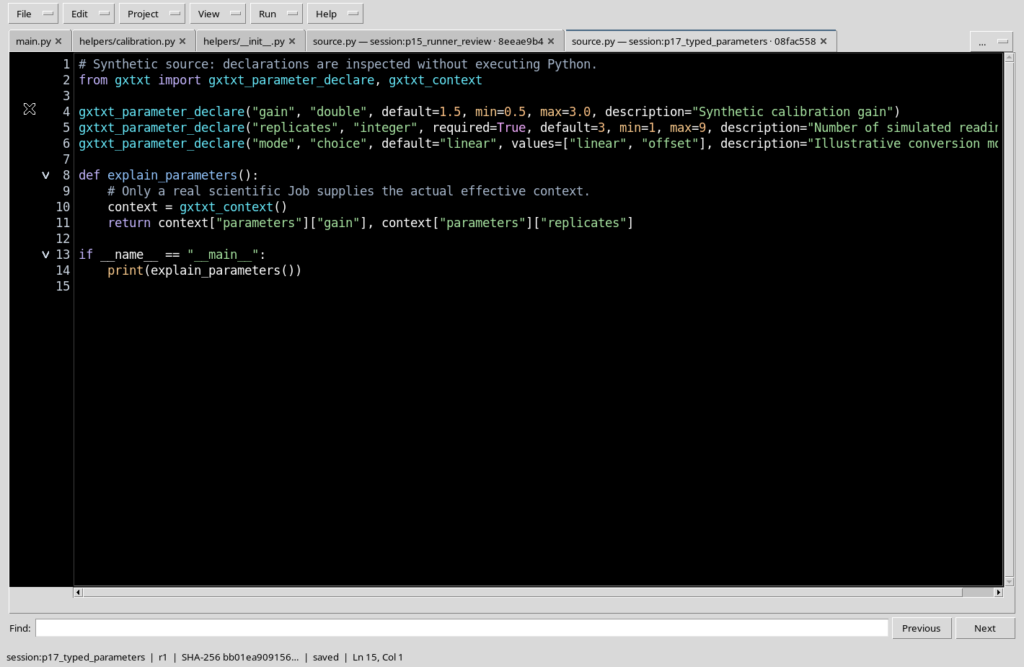
The declarations coming from the source are registered with the origin source and provenance information such as the file name, the line number and the SHA-256 corresponding to the saved source. A code change requires a new registered revision and a new check before a Job. The fingerprint of the source must not be confused with the values filled in for a single invocation.
13. The editor’s Typed parameters table
The editor also includes Typed parameters, with rows in the format name | type | required | default | description. These rows belong to the registered metadata; they are not declarations inserted in the code. An independent example is:
operator | string | 0 | lab | Optional tutorial operatorThe required field uses the 0/1 representation. The table does not require adding a Python function with the same name.
14. Combining source and metadata
The parameters declared in the Python file and those added through the editor table can be combined when they have distinct names. In the example the registered Script has four parameters: gain, replicates and mode come from the source, while operator is an editorial parameter. The different origin remains significant even if all four are presented in the same Runner.
15. Avoiding duplicate declarations
Do not declare the same name twice in the source and do not reuse for a declaration a name already present in the metadata. The parser rejects duplicates and conflicts: it does not arbitrarily choose which definition to keep. To correct the situation you need to change the declaration or the editorial parameter, then save again. Merely opening the Script Runner does not correct Registry conflicts.
16. Opening the Runner on the saved parameters
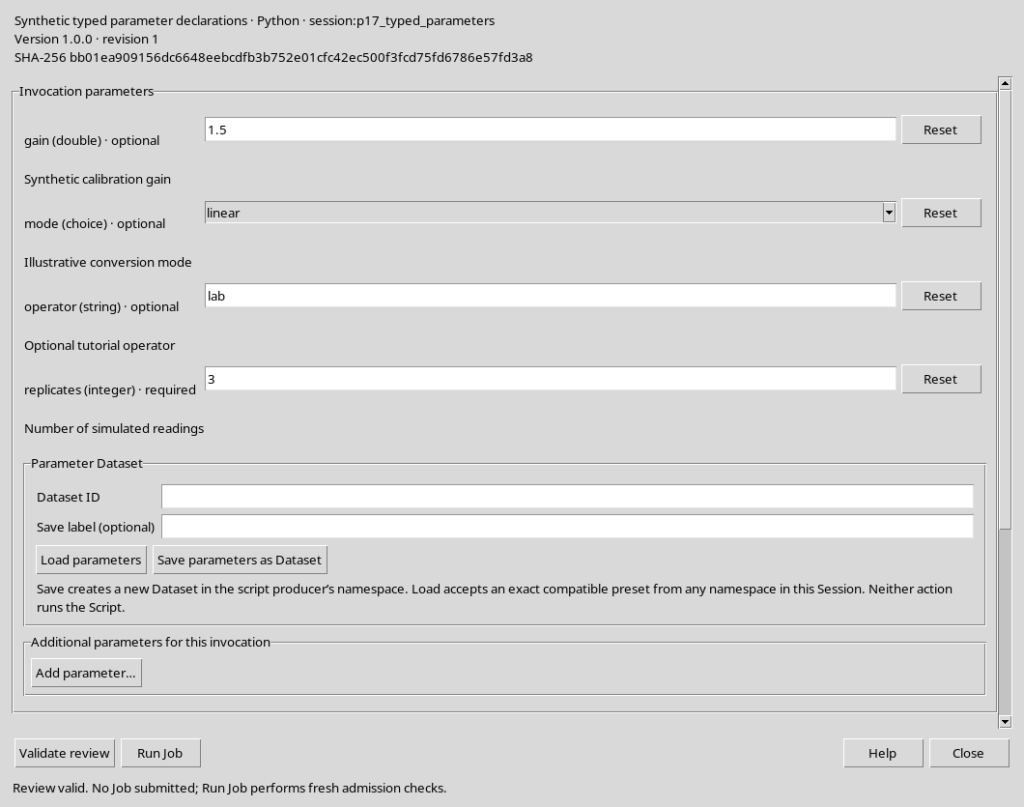
With the Script registered and unmodified, use Run → Open Script Runner…. The window shows name, version, revision and SHA-256 of the Script, followed by the typed inputs. In the example gain (double), mode (choice), operator (string) and replicates (integer) appear. The default value and the required or optional indication come from the saved schema.
17. Changing a value and using Validate review
The values shown in the Runner can be corrected before execution. If gain allows at most 3.0 and you enter 9.0, Validate review reports that the value exceeds the limit. The check examines the invocation without launching Python. A message such as Review needs attention requires a correction before the request can be considered valid.
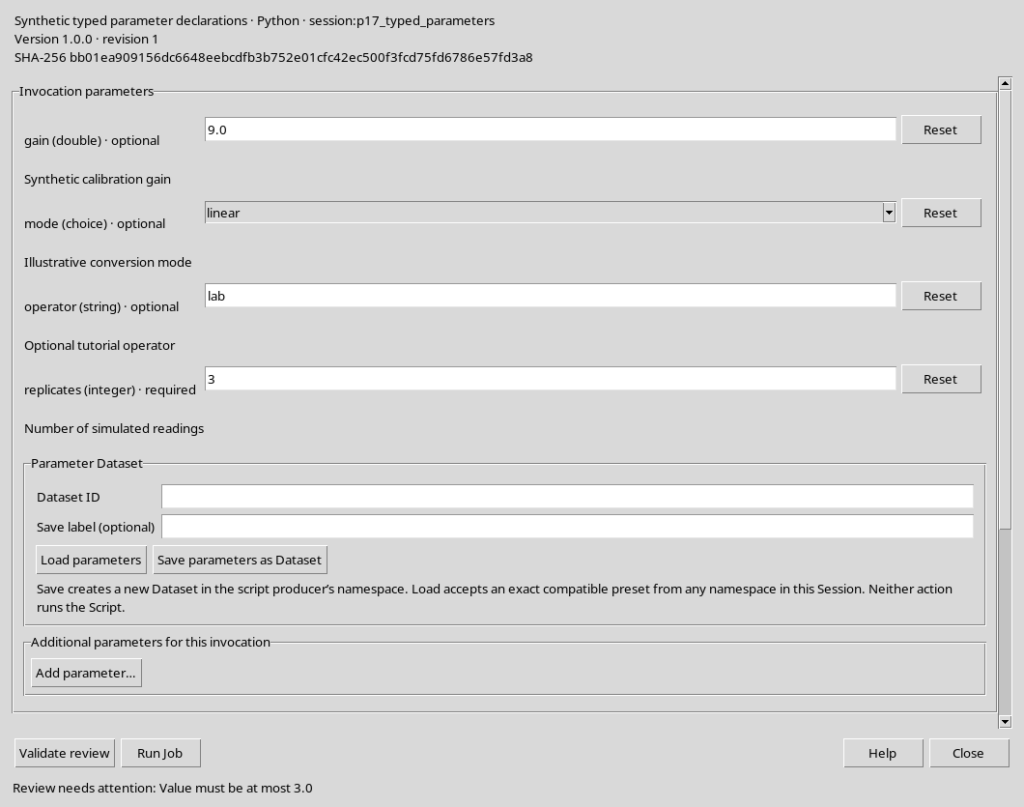
18. Returning to an accepted value
By replacing 9.0 with an allowed value, for example 1.75, and repeating Validate review, the Runner may show Review valid. No Job submitted. This only means that the current invocation checks have succeeded. It does not certify the scientific correctness of future results and is not the same as pressing Run Job.
19. Additional parameters for this invocation
The Runner has an Additional parameters for this invocation section, independent of the saved parameters. By pressing Add parameter… you can define a further value, useful for a specific processing run. The new definition is added only to the local review of the invocation and is not automatically registered in the source or in the metadata table of the Script.
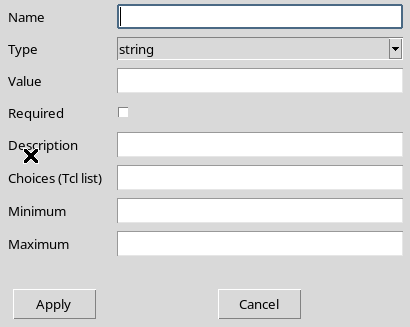
20. The Add invocation parameter dialog
The add window lets you fill in Name, Type, Value, Required, Description, Choices (Tcl list), Minimum and Maximum, with the Apply and Cancel buttons. The type determines the relevant options: for example, Minimum and Maximum are numeric constraints. Cancel closes the dialog leaving the invocation schema unchanged.
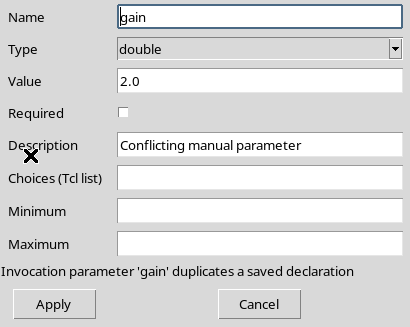
21. The manual name cannot duplicate a saved name
If you try to add a manual parameter called gain, already defined in the registered source, the window refuses Apply. The message indicates that the name matches a saved declaration. You need to choose a distinct identifier, for example offset, instead of creating two competing values with the same semantic name.
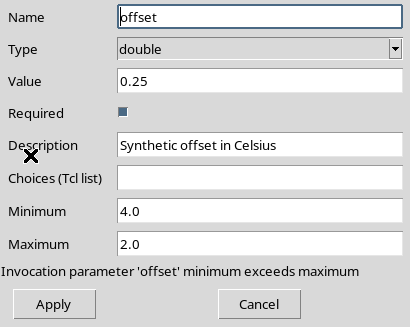
22. The limits of the manual parameter are also checked
An offset parameter of type double cannot be declared with Minimum = 4.0 and Maximum = 2.0. The Apply button leaves the dialog open and shows that the minimum exceeds the maximum. Instead, set limits consistent with the scientific problem, for example from −2.0 to 2.0, then check that the initial value lies within the range.
23. Adding a valid offset
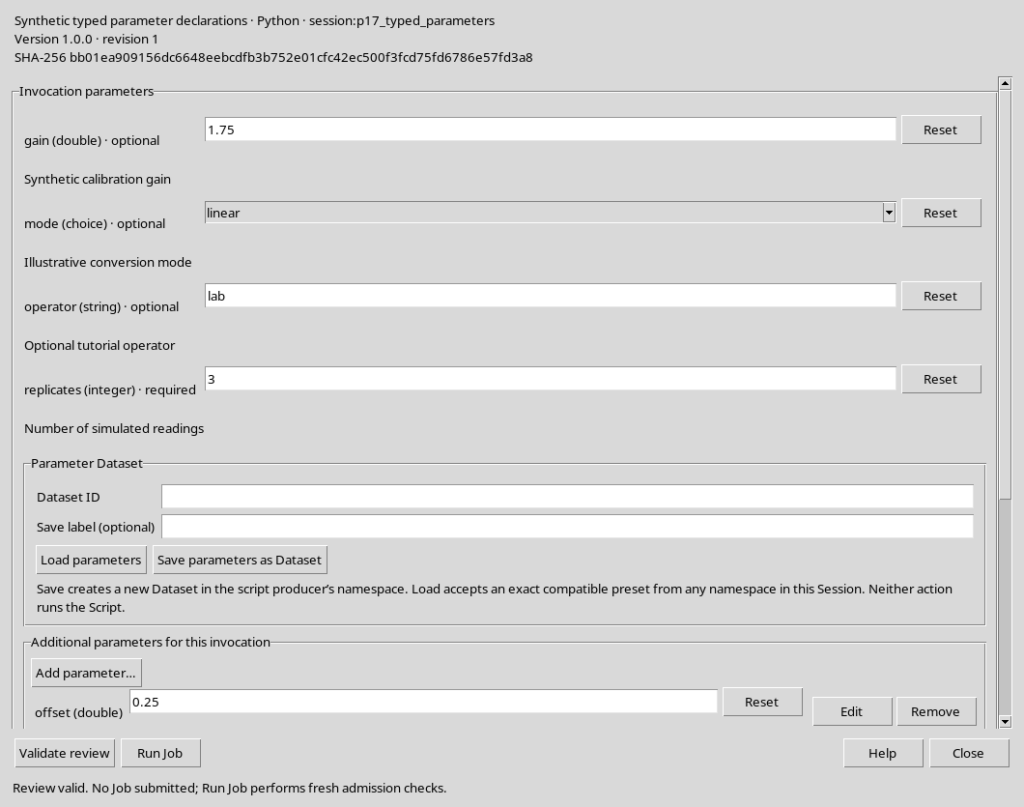
Set Name = offset, Type = double, Value = 0.25, Minimum = -2.0 and Maximum = 2.0; any Required flag and the Description complete the definition. After Apply, the row offset (double) appears in the additional parameters section, with the Edit and Remove buttons. The registered Script keeps its own revision and the same SHA-256.
24. Validating the effective schema of the invocation
During the review the Runner combines the saved parameters with those added for the invocation. Validate review checks the typed result and its limits, rejecting conflicting names or invalid values. In the example the invocation contains the four registered parameters and offset, but no manually added parameter is written to the Registry. The parameter does not become a Dataset just because it is entered in the Runner.
25. Editing a manual parameter with Edit
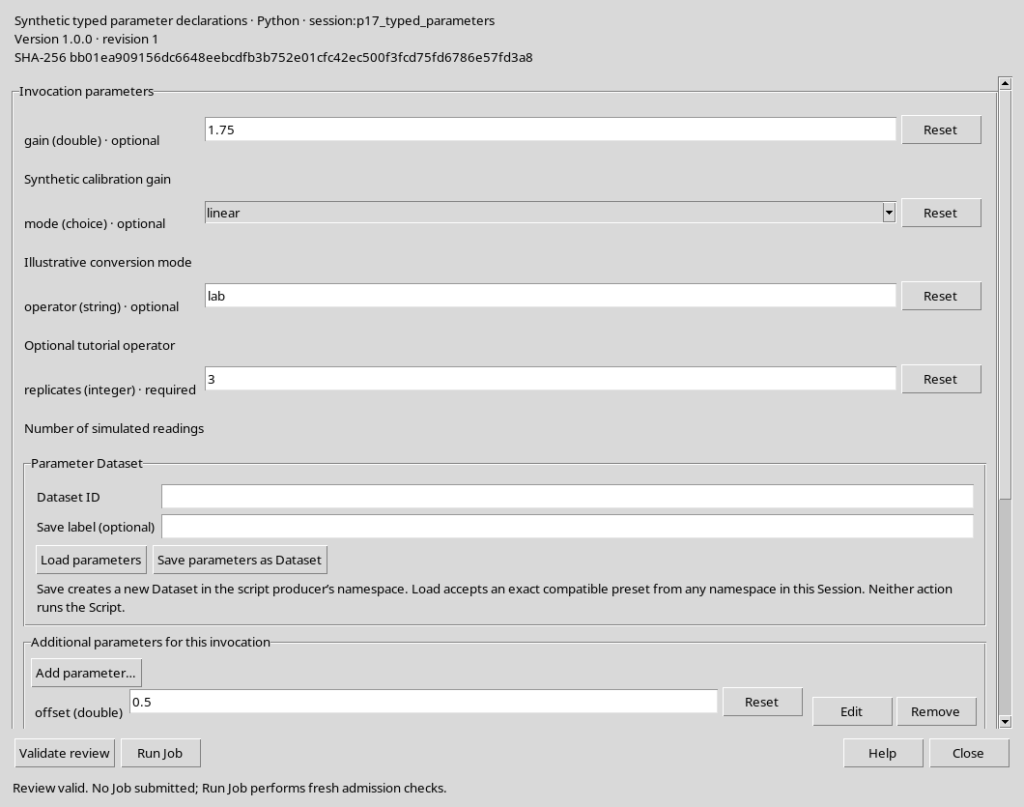
The Edit button reopens the definition of the added parameter, letting you change its value and any constraints. For example, offset can go from 0.25 to 0.5. After Apply, the updated row is validated without saving the source again. Distinguish this local change from a new revision of the Python program.
26. Deleting a manual parameter with Remove
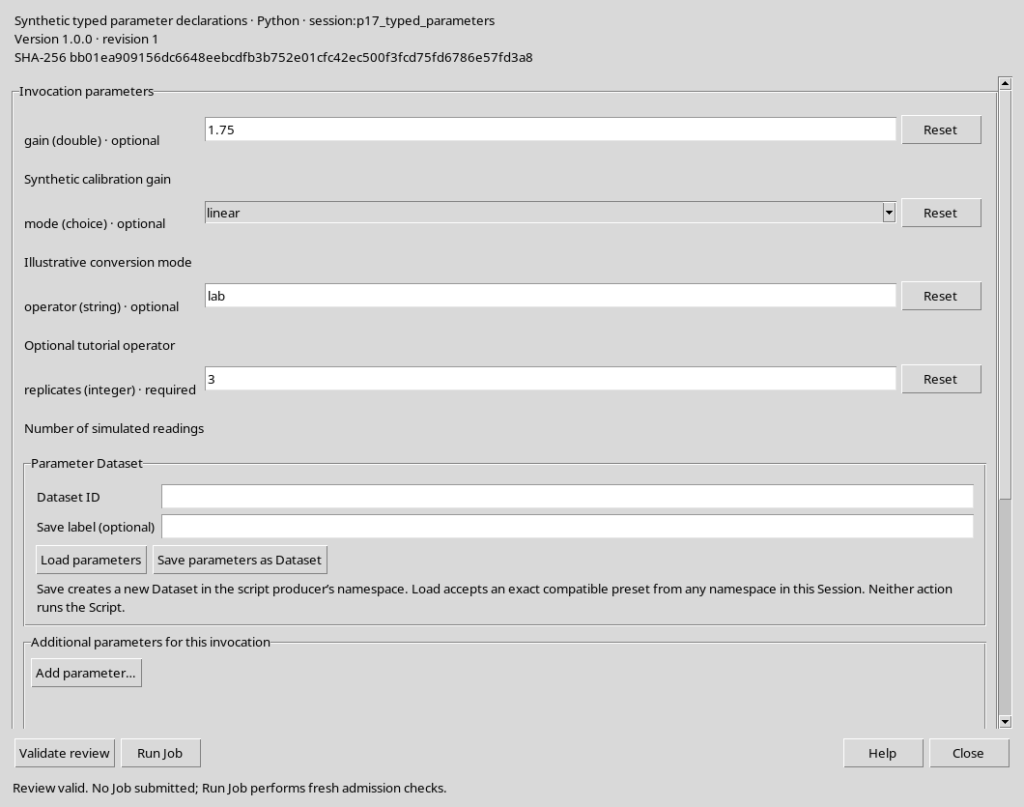
The Remove button of the additional row deletes that parameter from the current request. It does not delete the declarations in the source and does not change the parameters already registered. In the example, once offset is removed, gain, mode, operator and replicates remain. If you need to change a parameter coming from the source permanently, edit the declaration instead and save the Script.
27. Errors in declarations and conflicts during Save
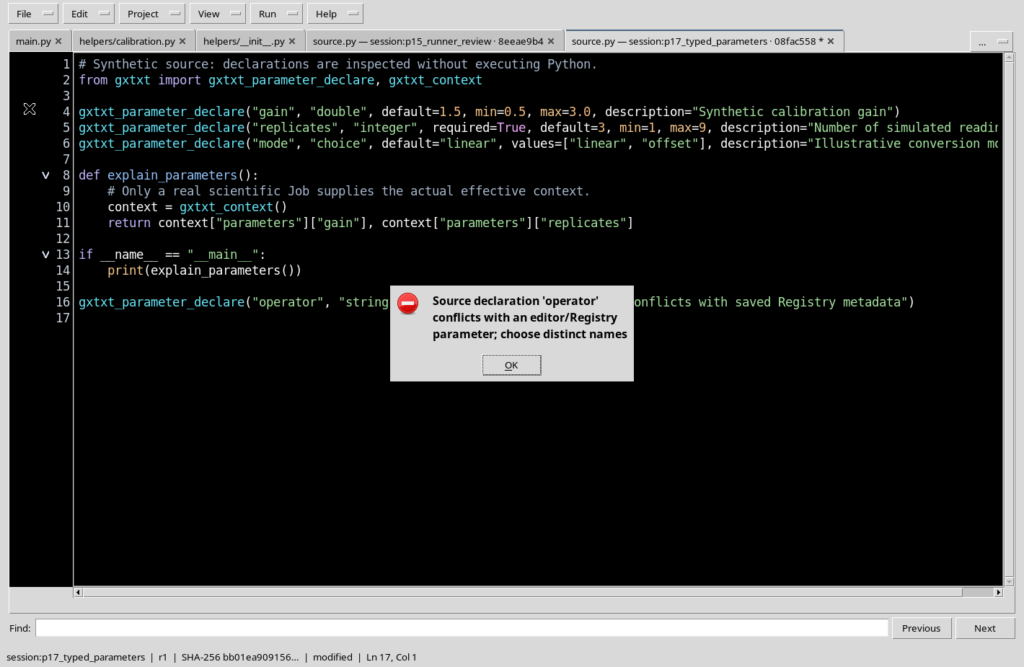
GX-TXT requires the name, type and constraints of the declarations to be literals; it does not evaluate a variable or a function to derive their value. Saving also rejects duplicate declarations, default values out of range, choices not among the alternatives and unsupported import aliases. If you add an operator declaration in the source when operator already exists in the metadata, File → Save shows Save failed and does not update the registered revision. Correct the source and try again.
28. Where to read the actual values and how to proceed
During an actual execution, the Script can read the typed values through gxtxt_context()["parameters"]. The gxtxt_parameter_declare() declaration is instead a static marker and does not return the invocation value at editing time. The execution context also makes the parameter schema available; before a Job, checking Session, source, inputs and values remains essential.
Once the review is complete, choose Close to return to the High Contrast Dark Python editor. The next chapter covers saving and loading Parameter Datasets; submission with Run Job will remain a separate procedure.