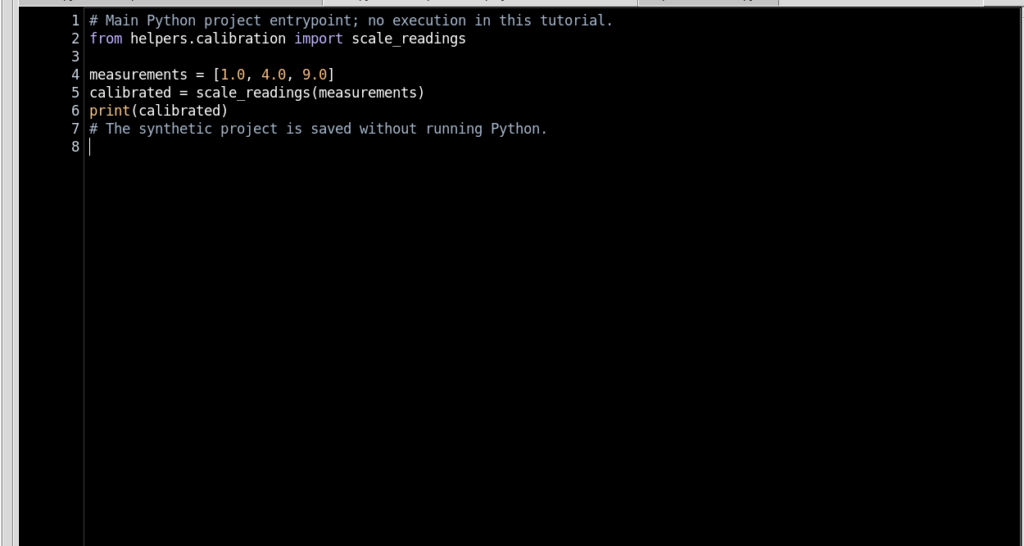
GX-TXT Python Script Workspace: exceptions, cancellation and revision safety
A Python program can intercept an error and finish correctly, end with an unhandled exception or be interrupted by the user. In GX-TXT Python Script Workspace these outcomes are not equivalent: the supervisor keeps the state of the Job, the code actually run and a verified copy of the Script revision. The guide also illustrates the GUI checks when the editor contains unsaved changes or no longer matches the execution snapshot.
1. Three different outcomes of the same program
It is important to distinguish COMPLETED, FAILED and CANCELLED. COMPLETED indicates that the process reached the end normally. FAILED identifies an unhandled error or a problem in the execution. CANCELLED indicates that the supervisor received and applied an interruption request. A Script can intercept an exception internally without the Job becoming FAILED; conversely, a cancelled Job must not be declared completed or failed.
2. Preparing a synthetic example
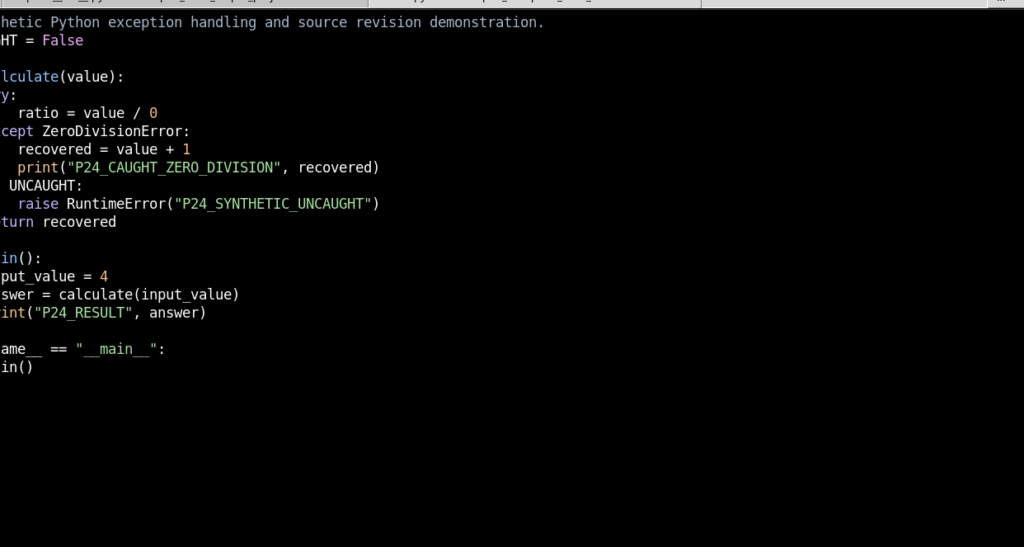
In the Python editor create a Script that attempts a division by zero, handles the corresponding exception and computes a simple alternative value. A boolean option will later make it possible to deliberately cause an unhandled error. No instruments, external connections or Datasets are needed: the program is only an example of flow control.
3. Registering the first revision
Use File → Save before execution. The Registry associates the version, the revision and the SHA-256 of the code with the Session Script. The Debugger does not run an arbitrary draft, but a snapshot of the registered source. An editor with unsaved changes is therefore not equivalent to the revision ready for the Job.
4. The meaning of try and except
The try/except structure intercepts a specific category of error. In the example:
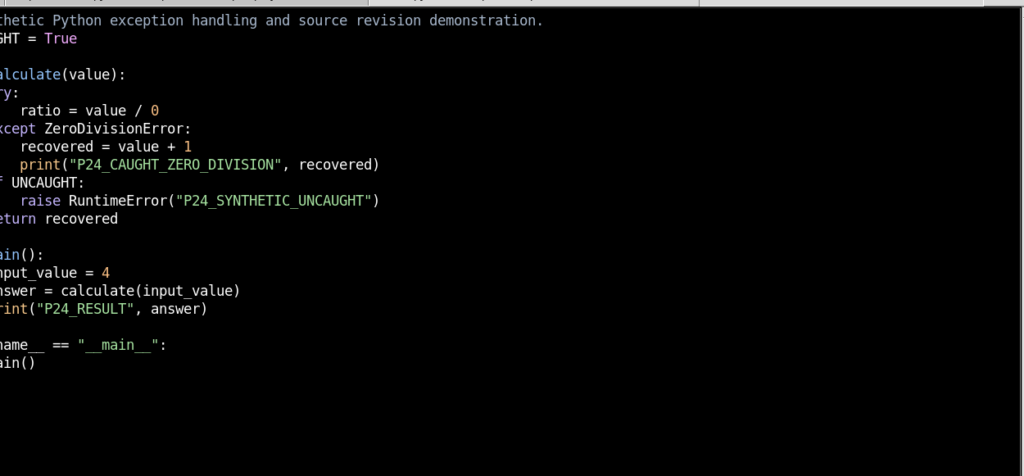
def calculate(value):
    try:
        ratio = value / 0
    except ZeroDivisionError:
        recovered = value + 1
    return recovered
The division statement causes ZeroDivisionError, but the except block handles it and assigns an alternative value. An intercepted error must not automatically interrupt the whole Job.
5. Opening the Debugger without running Python
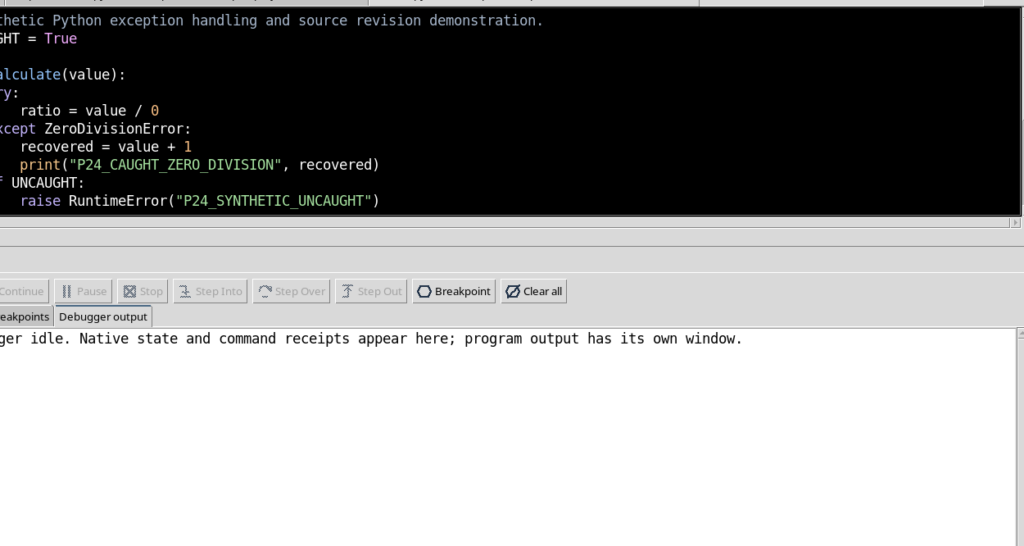
With the registered code selected, choose Run → Debug Session script…. The GUI opens the Debugger in the IDLE state. This lets you check that the Script is the desired one before submitting an execution. Opening the panel alone does not create a new Job; Start Debug does.
6. Start Debug and initial suspension
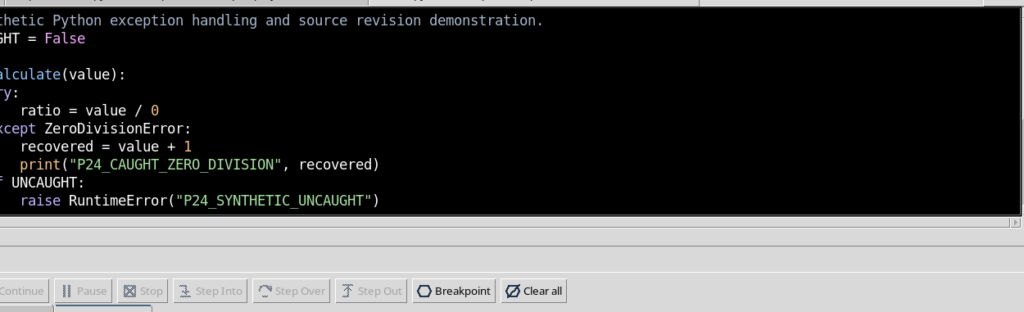
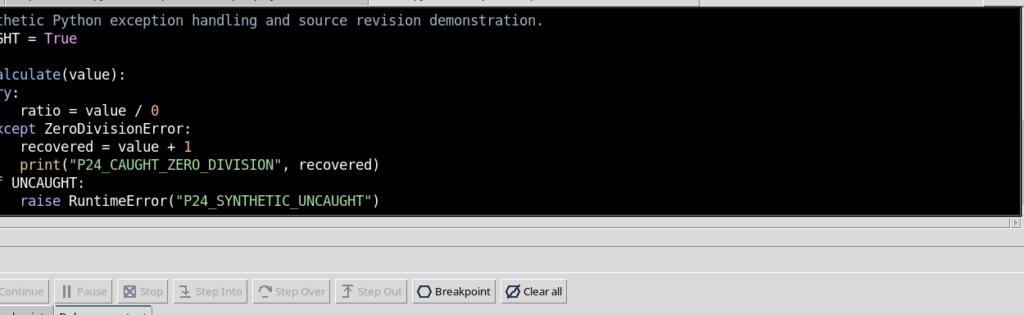
When you press Start Debug, GX-TXT prepares a Job with an immutable snapshot. The Python debugger can stop immediately on the first observable statement of the file. The yellow symbol in the margin represents the position actually reached by the interpreter; it is not an error and is not the same as a breakpoint created by the user.
7. Continue through a handled exception
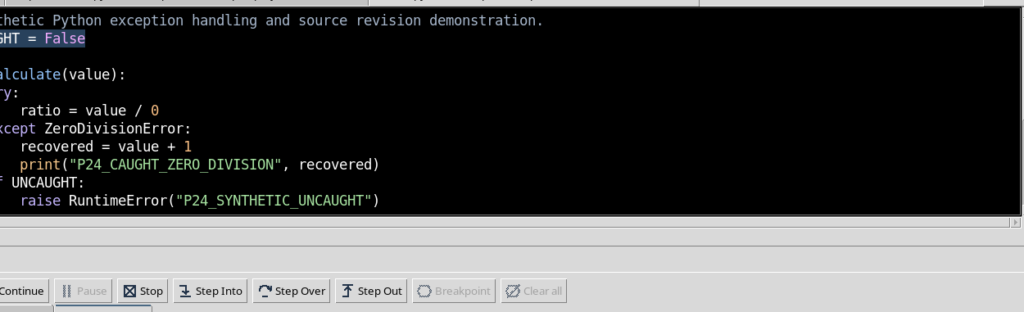
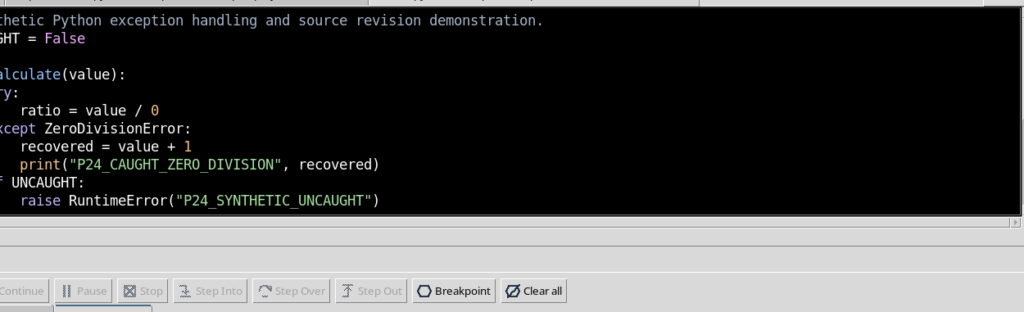
From PAUSED, press Continue. The example attempts the division, intercepts ZeroDivisionError, writes a recovery message to its output and ends the computation. The final synthetic value is 5. The function continued because the error condition was explicitly anticipated in the code.
8. A caught exception does not mean FAILED
The previous execution ends in the COMPLETED state, exit code 0. The program output indicates both the handled condition and the final result. The mere presence of the word exception in the code or in the console must not be interpreted as a failure of the Job. The terminal state verified by the supervisor and any traceback are the elements that make it possible to classify the result.
9. stdout, stderr and execution report
The program can write informational messages to stdout, while an unhandled Python error normally produces a traceback in stderr. The execution report also keeps the Script reference, revision, SHA-256, runtime and state. For a correct diagnosis you need to consult these channels separately: the message printed by the program does not replace the confirmation of the Job.
10. Preparing a deliberately unhandled error
For the second test, modify only the synthetic Script so as to enable a branch that raises a RuntimeError:
if UNCAUGHT:
    raise RuntimeError("Synthetic unhandled condition")
This error is intentional and limited to the demonstration program. Do not simulate a system fault, delete framework files or terminate external processes to demonstrate the behaviour of FAILED.
11. The modified buffer is not a registered revision
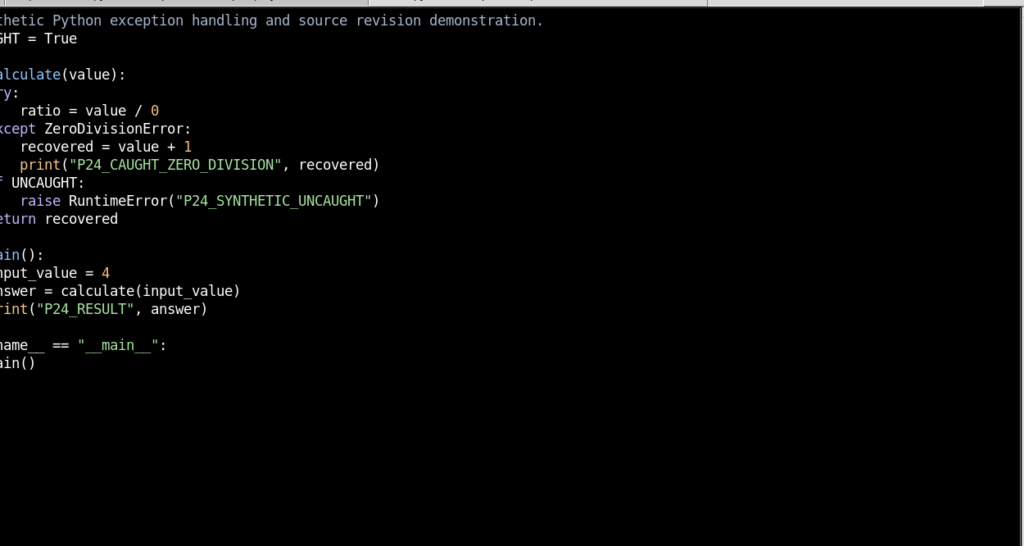
After changing the code, the document is dirty, that is, it contains changes not yet saved. When the Debugger is opened in this condition, Start Debug is disabled and the GUI asks you to save or discard the changes. The reason is precise: a new execution must refer to a verifiable source identity, not to a text that could change while the Job is being prepared.
12. File Save creates a new revision
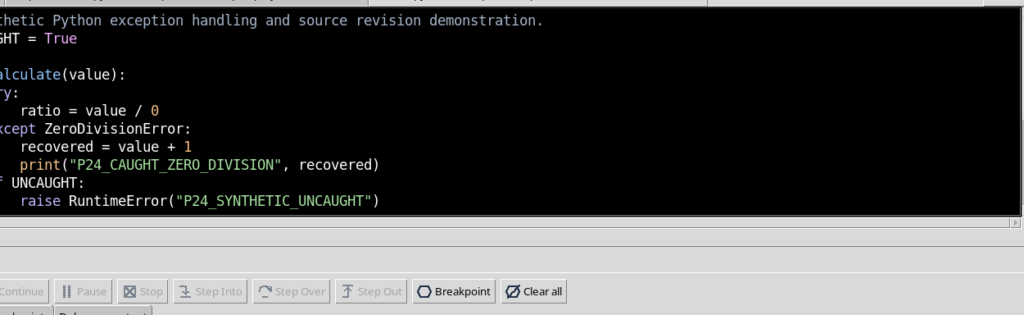
With File → Save a subsequent revision of the same Script is registered, associated with a new SHA-256. The Debugger can again start a Job from the new saved version. Previous Jobs remain tied to their historical copies: saving the current revision does not retroactively modify the code that was run before.
13. Protection against an outdated SHA-256
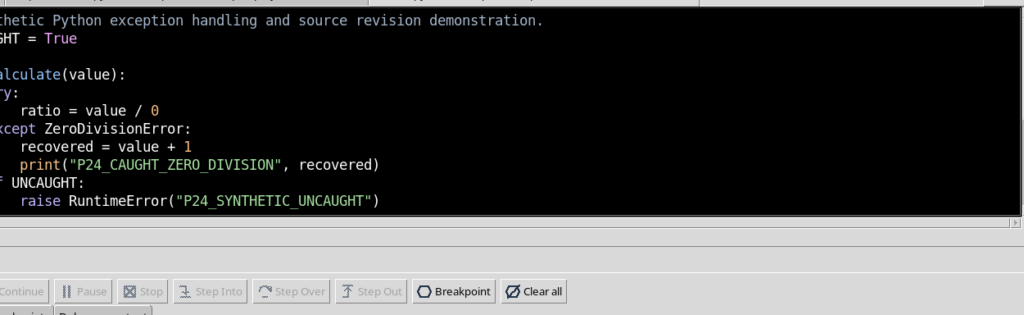
If an update is submitted using the SHA-256 of a previous revision, the Registry rejects it. The message asks you to reload the source before editing it. This comparison prevents an old buffer from silently overwriting a more recent revision. The rejected operation must produce neither a new save nor a partial revision.
14. Starting the second execution
The updated revision still contains the try/except block, but also enables the statement that raises the uncaught RuntimeError. Start Start Debug again and then Continue. This is a new Job, distinct from the first by identifier, revision and SHA-256, even though it uses the same Script registered in the same Session.
15. The unhandled error produces FAILED
When Python executes raise RuntimeError(...) without a corresponding except, the exception propagates to the caller and the Job ends FAILED, exit code 1. A message relating to the previously handled ZeroDivisionError may be present in stdout, but this does not cancel the subsequent unhandled condition. The outcome of the Job must be classified as a failure.
16. Reading the origin of the traceback
The Python traceback reports the sequence of call points. In the example the actual origin of the error is raise RuntimeError in calculate, on line 11 of the source that was run. The call comes from main, on line 16, in turn started by the main block of the file on line 20. The diagnosis must read the lines of the executed revision: if the current file was modified afterwards, its positions are not necessarily equivalent to those of the historical snapshot.
17. Using Program stderr for errors
The complete traceback is in the diagnostic stream of the Job, not necessarily in the numeric results panel. Check in particular the exception type, the message and the chain of functions. The absolute paths in the logs identify internal Session files: they must not be copied as portable instructions into tutorials or your own scripts.
18. FAILED is not a cancellation
A FAILED Job ended because of an error or an unmet execution condition. A CANCELLED Job was instead interrupted through a management command. The distinction remains valid even when in both cases the user does not obtain the expected numeric result. To understand the reason, always read the exit code and the terminal origin kept by the supervisor.
19. Inserting a breakpoint before the error
To examine the revision check with a live Job, create a third Job from the same saved revision. Before Start Debug press F9 on the condition if UNCAUGHT, on line 10. The point must be set on an executable Python line and belong to the currently registered source.
20. Stopping before executing raise
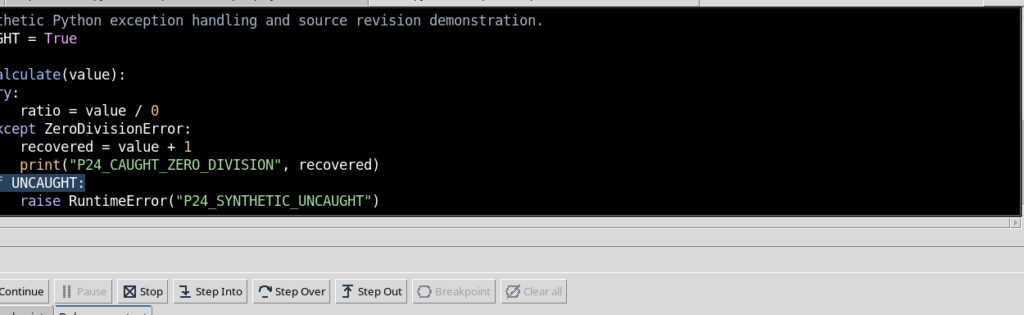
Use Start Debug and then Continue. The program enters the function, intercepts the anticipated exception and reaches the condition on line 10. Here the Debugger goes to PAUSED, with the yellow arrow on the breakpoint. The raise statement on the next line has not yet been executed. The Job snapshot continues to identify exactly the saved revision.
21. Modifying the buffer during PAUSED
During this suspension, a change to the text in the editor makes the source dirty. This does not rewrite the immutable snapshot kept by the supervisor, but it makes it impossible to guarantee that the lines currently visible correspond to the running program. The GUI must therefore prevent unverified progress. Modifying the buffer is not an operation that modifies the Job.
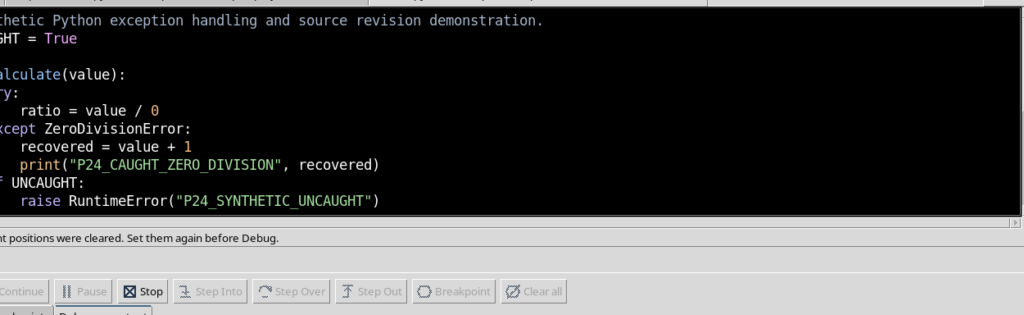
22. Continue and Step are disabled
When there are unsaved changes during a PAUSED Job, GX-TXT disables Continue, Step Into, Step Over and Step Out. Pressing one of these disabled buttons must not advance Python, change the Job identifier or replace its source. The GUI asks you to save or discard the changes; above all, Stop remains available to safely interrupt the computation already active.
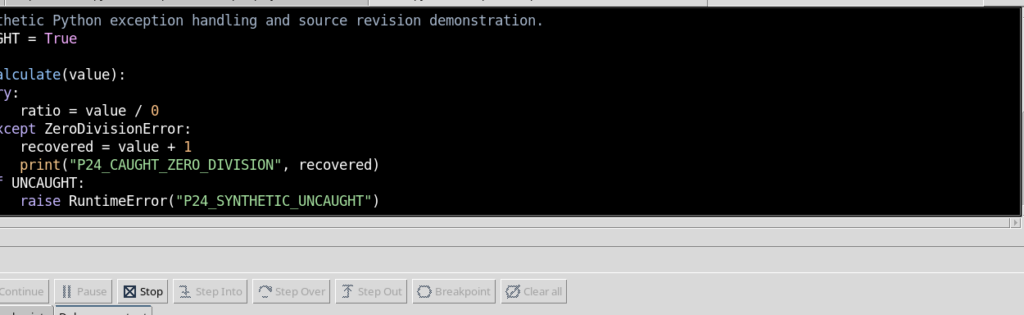
23. Stop remains available even if the code is dirty
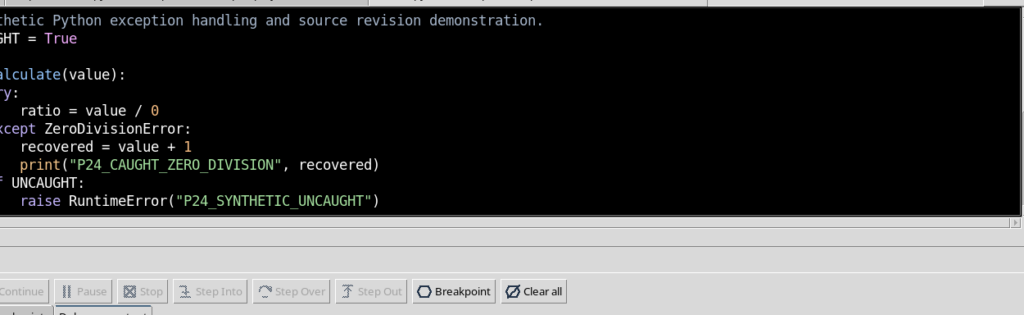
Press Stop on the paused Job. The supervisor ends it with state CANCELLED. In our example the terminal exit code is 241 and the reason is Cancellation requested. The modified buffer is not saved automatically and does not alter the SHA-256 of the Job. Once the Debugger is closed, Edit → Undo can discard the unsaved change, bringing the editor back to the registered revision.
24. Comparing the three terminal states
The same example Session produced three independent outcomes:
| Case | Job state | Exit code | Meaning |
|---|---|---|---|
Handled ZeroDivisionError | COMPLETED | 0 | The program intercepts the error and ends normally |
Unhandled RuntimeError | FAILED | 1 | The exception propagates and the traceback is recorded |
| Stop during PAUSED | CANCELLED | 241 | The supervisor cancels the Job without saving the dirty buffer |
These values belong to the observed Jobs; they are not a general method for attributing, by themselves, a scientific meaning to any process.
25. The executed copy remains distinct from the open file
Each Job has a snapshot of the source, for example executed_script.py, associated with revision and SHA-256. If an editor saves a new revision, the historical Job keeps its own data. In addition, when a Job is cancelled, the last Debugger observation may still be PAUSED: it is the last observed state of the interpreter, while the supervisor may have already recorded the terminal state CANCELLED. For the definitive outcome refer to the Job and its report, not only to the content of the last debug screen.
26. Session identity and lifecycle protection
A Debug Job belongs to a specific Session. The Workspace checks the Session token and the source identity before sending commands that would make the execution continue. The GX-TXT code provides that, if the Session context changes, the Debugger requests cancellation of its Job and continues to check its outcome until a terminal state. Do not use a change of Session as a substitute for the Stop button: before closing or changing Session it is preferable to end and check the active Jobs.
27. Job inspection and supervision lease
The supervisor can grant a temporary inspection lease to consult an already finished Job, allowing its identity and state to be read without starting another one. At the end of the inspection the lease is released. This mechanism serves to preserve lifecycle consistency. The user does not need to manually manage tokens or internal files: the GX-TXT windows and public functions expose the information of interest.
28. Returning to the normal Python Script Workspace
Once the Jobs have ended, close the Debugger, check that the buffer is no longer dirty and return to the normal High Contrast Dark view. Old Jobs remain traceable, while the registered source is ready for a new work session. To interpret later problems it is advisable to examine together revision, SHA-256, stdout, stderr, terminal state and correct Session. The next guide covers consulting the Script Jobs history and the link to execution reports.