

GX-TXT Python Script Workspace: the first scientific script, from Celsius to kelvin
A complete and reproducible experiment: five synthetic measurements, a numeric operation through the GX-TXT public API, the mean of the temperatures, a saved Script and a Job verified through its output. No laboratory instruments or input Datasets are needed.
1. What we will learn
In this exercise we create a Python program directly in Python Script Workspace, save it as a Session Script, check its configuration with Script Runner, run a Job and read the stdout from Script Jobs. We finish by closing and reopening the source tab. The whole path uses the ordinary Viewer interface.
2. The experiment data
The five Celsius temperatures are 18, 20, 22, 21 and 19 °C. They are values created for teaching purposes, not instrument measurements. The conversion is T_K = T_°C + 273.15. The arithmetic mean of the five measurements is 20 °C, so the mean after conversion must be 293.15 K. Kelvin is written as K, without a degree symbol.
| Measurement | Temperature (°C) | Expected temperature (K) |
|---|---|---|
| 1 | 18 | 291.15 |
| 2 | 20 | 293.15 |
| 3 | 22 | 295.15 |
| 4 | 21 | 294.15 |
| 5 | 19 | 292.15 |
| Mean | 20 | 293.15 |
3. Preparing a Session and opening the editor
Open your own Session and, from the list of Viewers, choose Python Script Workspace. In this case the Script is kept in the Session scope: its identifier is associated with the current scientific work. The User scope has a different persistence and must not be confused with the content of the Session. There is no need to create a Project for this first example.
4. Creating a new source
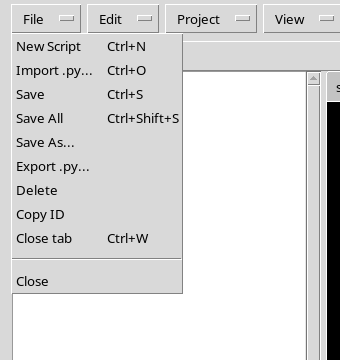
In the File menu, choose New Script. A source tab not yet registered opens; creating the tab is not the same as saving. Use a simple identifier, for example w01_temperature_kelvin, and a readable name such as Temperature conversion C to K. The figure shows the original command.
5. Identifier, version and description
In the Script properties set Script ID, Script name, Version and Description. For this exercise the semantic version is 1.0.0. The version chosen by the author and the revision assigned by the Registry are distinct concepts: saving the source again creates a later revision without having to automatically increment the semantic version. The code remains Python and the scope remains Session.
6. Writing in the high-contrast editor
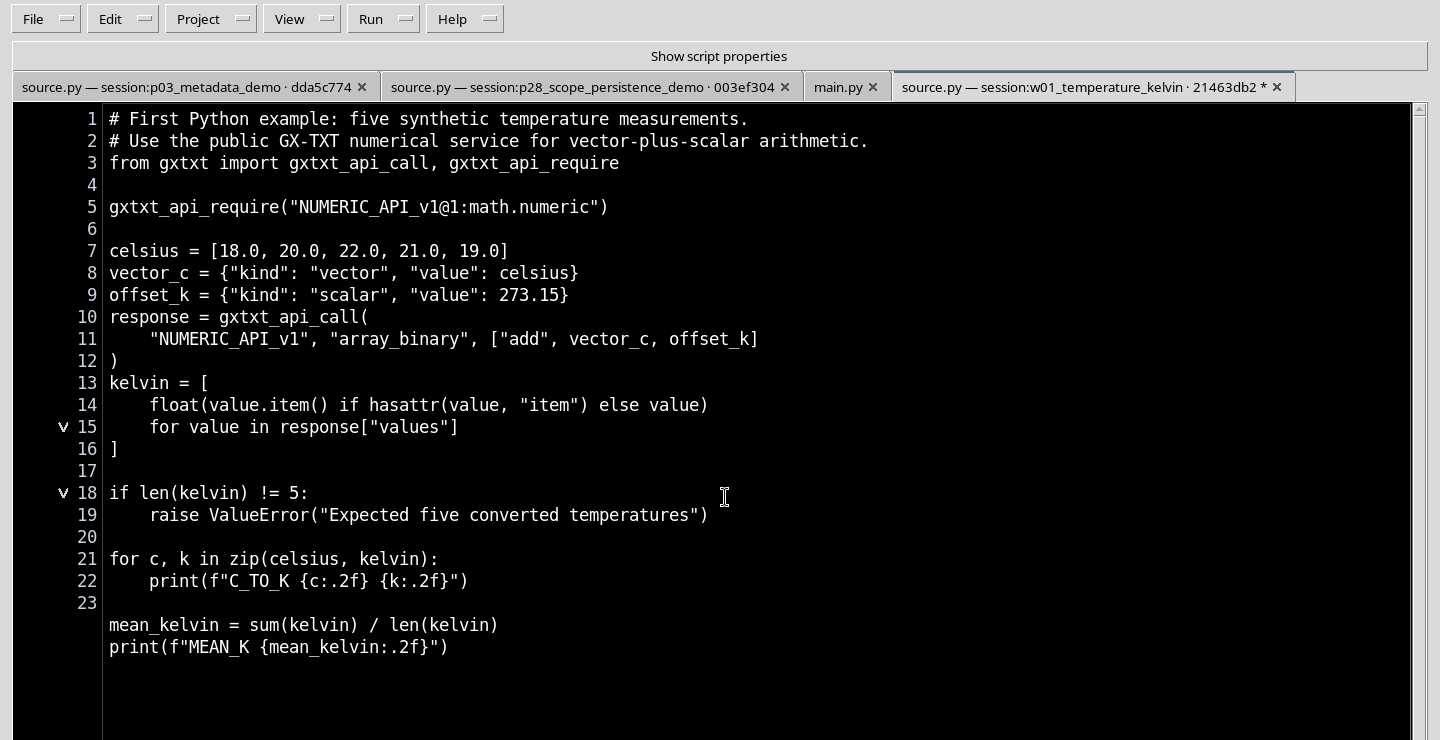
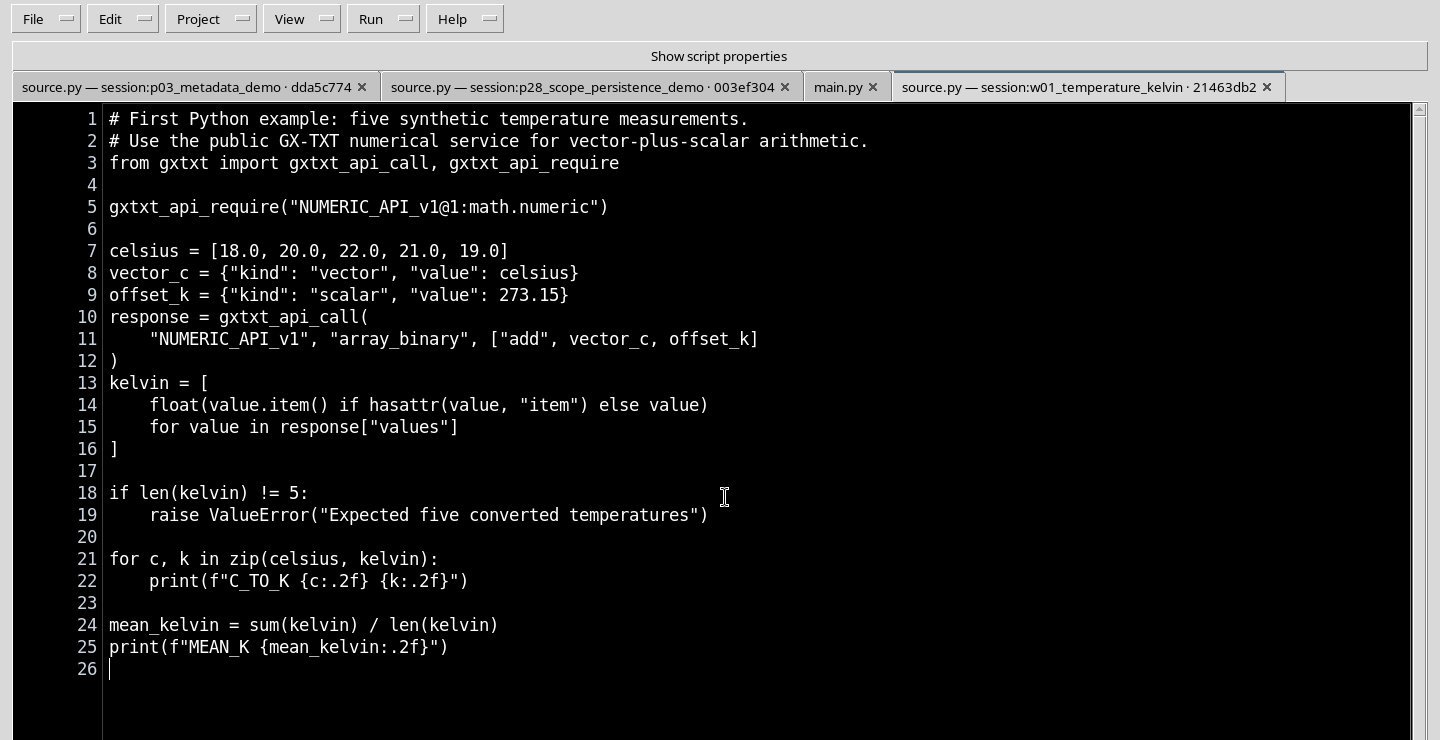
Enter the program in the central pane. The High Contrast Dark mode makes the code text light on a dark background and applies syntax colouring; there is no need to open Explorer, Snippets or Debugger while writing. The change to the buffer is visible immediately, but does not replace Save.
7. The complete program
Copy the following program into the tab. The comments are in English and the source requires no external files.
# First Python example: five synthetic temperature measurements.
# Use the public GX-TXT numerical service for vector-plus-scalar arithmetic.
from gxtxt import gxtxt_api_call, gxtxt_api_require

gxtxt_api_require("NUMERIC_API_v1@1:math.numeric")

celsius = [18.0, 20.0, 22.0, 21.0, 19.0]
vector_c = {"kind": "vector", "value": celsius}
offset_k = {"kind": "scalar", "value": 273.15}
response = gxtxt_api_call(
    "NUMERIC_API_v1", "array_binary", ["add", vector_c, offset_k]
)
kelvin = [
    float(value.item() if hasattr(value, "item") else value)
    for value in response["values"]
]

if len(kelvin) != 5:
    raise ValueError("Expected five converted temperatures")

for c, k in zip(celsius, kelvin):
    print(f"C_TO_K {c:.2f} {k:.2f}")

mean_kelvin = sum(kelvin) / len(kelvin)
print(f"MEAN_K {mean_kelvin:.2f}")
8. Importing the GX-TXT public client
The statement from gxtxt import gxtxt_api_call, gxtxt_api_require imports two functions made available by the Script Bridge of the managed runtime. gxtxt_api_require declares a requirement; it does not install a package. gxtxt_api_call invokes an operation exposed by a module through a public contract. These functions must not be replaced with calls to internal CORE procedures.
9. The NUMERIC_API_v1 requirement
gxtxt_api_require("NUMERIC_API_v1@1:math.numeric") requires the public contract NUMERIC_API_v1, version 1, with owner math.numeric. It is a prerequisite for execution: if the runtime does not make the required API available, you must not proceed pretending to have computed the data. Script Runner keeps the identity of the source and the verified dependency for the Job.
10. Preparing typed numeric operands
The array_binary API receives two operands: vector_c is a vector of five finite values; offset_k is a scalar equal to 273.15. Each operand is described with the keys kind and value. In addition operations, a scalar can be applied to each element of the vector. The values are numeric; units are not automatically inferred by the service.
11. Invoking the array_binary operation
The call gxtxt_api_call("NUMERIC_API_v1", "array_binary", ["add", vector_c, offset_k]) selects the add operation in the numeric service. The arguments are an ordered list: operation name, left operand and right operand. The result is a structure from which we retrieve the key values. It is the user’s program that establishes that 273.15 represents the correct physical Celsius→kelvin offset; the API performs the arithmetic, it does not invent a unit conversion.
12. Why extract a scalar from each element
The numeric transport can provide values as scalars or as single-element NumPy containers. The expression value.item() if hasattr(value, "item") else value retrieves the scalar when the item method is available, and then turns it into a float. This way the code does not try to directly convert a multidimensional array into a single number. The step is also useful to avoid deprecation warnings in modern versions of NumPy.
13. Checking cardinality and mean
The check len(kelvin) != 5 stops execution if five results are not returned: a value of unexpected length should not be silently accepted. The loop zip(celsius, kelvin) pairs each input with its corresponding conversion. Finally, sum(kelvin) / len(kelvin) computes the arithmetic mean. The :.2f format shows two decimal places without changing the original data.
14. Saving the source in the Registry
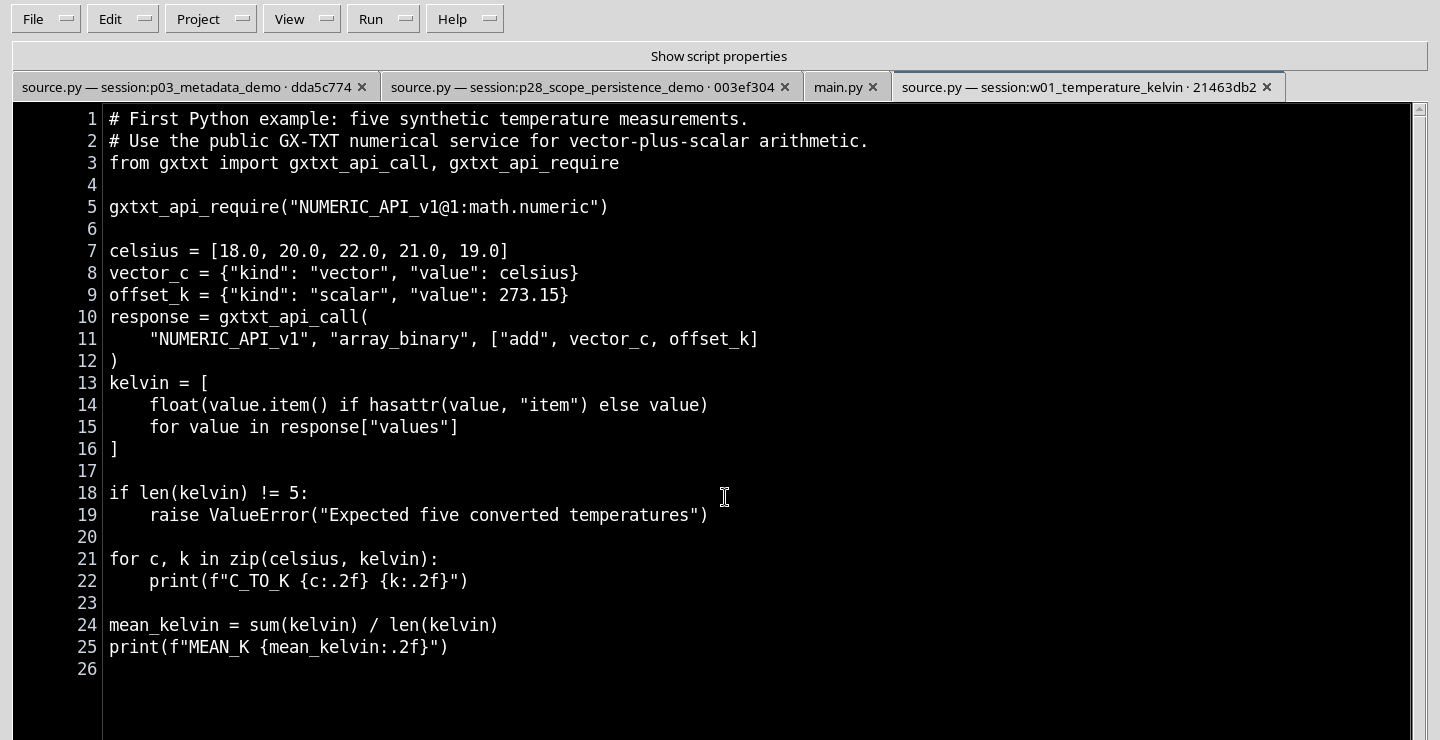
Use File → Save. Saving registers the identity, content and revision of the Script: it does not run the program and does not create a Dataset. The figure shows the saved source. Before starting a Job it is important that the buffer contains no unsaved changes; the Runner must be able to associate the execution with a defined snapshot.
15. Opening Script Runner
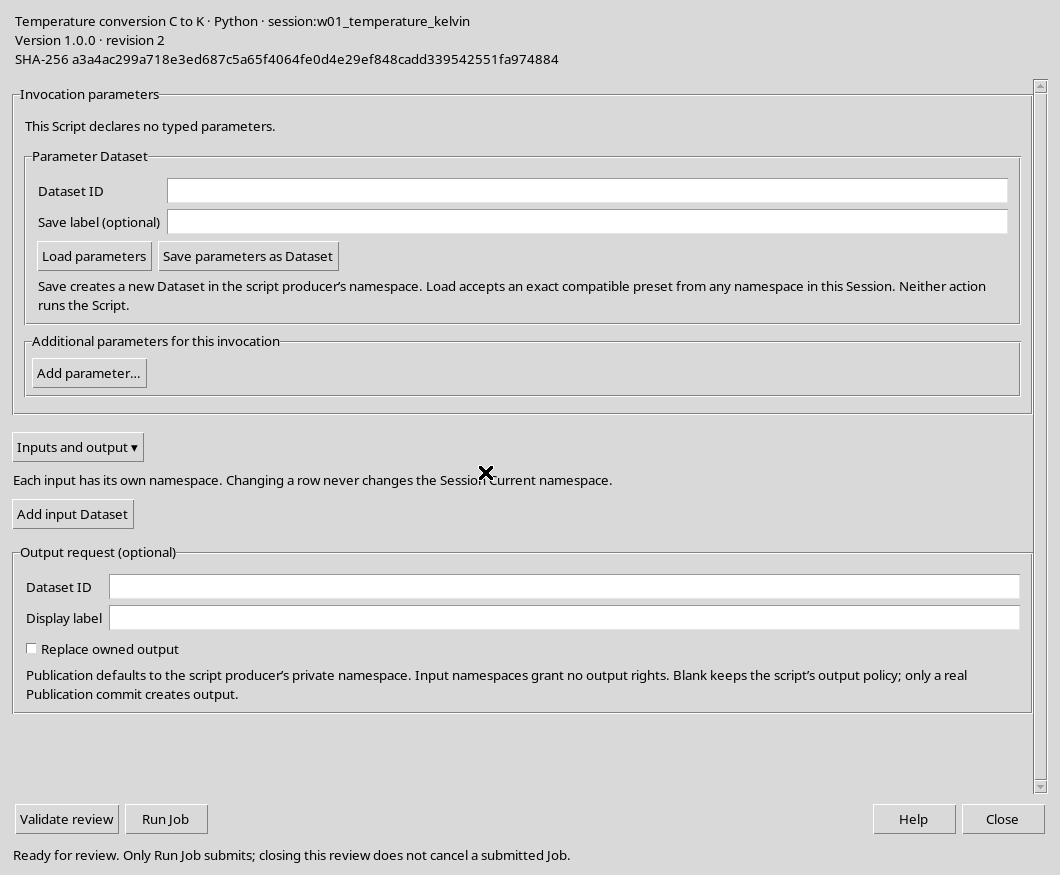
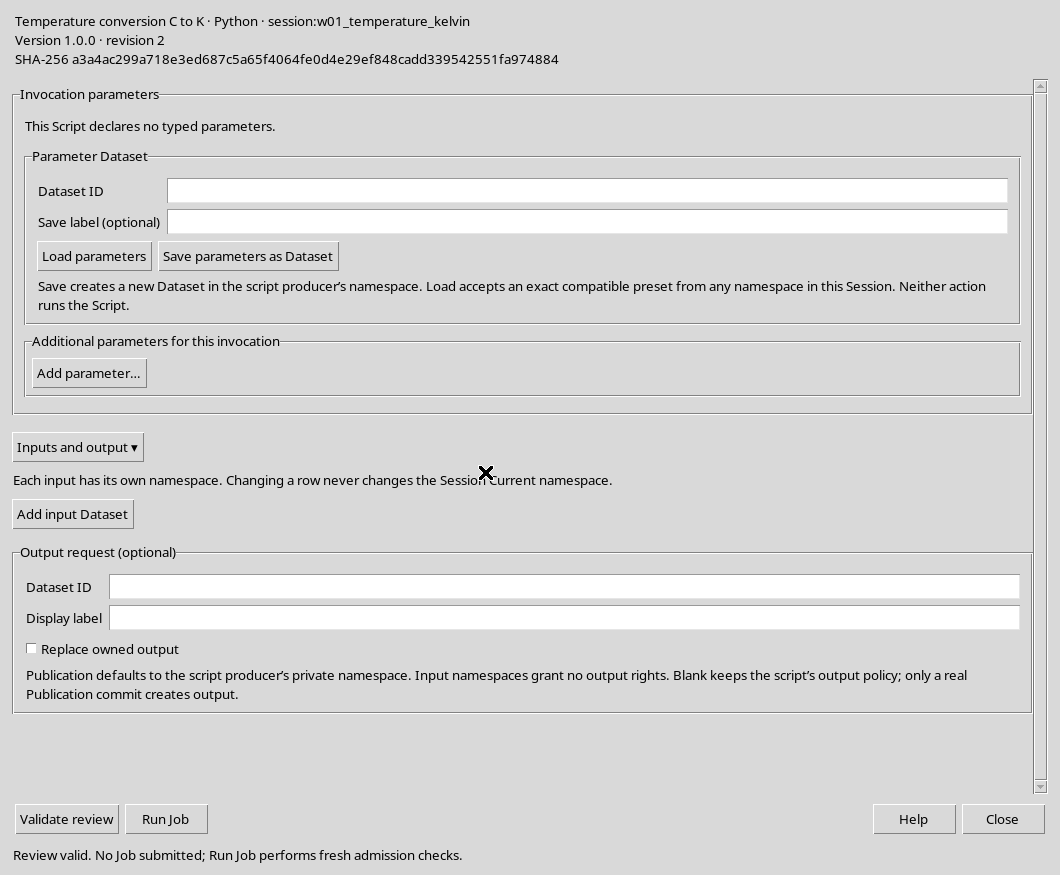
From the Run menu choose Open Script Runner…. The window identifies the chosen Script, its version, revision and source fingerprint. For this experiment there are no input Datasets, declared parameters or files to read. The advanced sections of the Runner remain available, but must not be filled in with values that are not required.
16. Inputs, parameters and optional output
The input Datasets panel can remain empty: the temperatures are defined in the Python code. A Parameter Dataset is not needed either, because there are no invocation parameter declarations. Leave the Output Dataset ID empty. This Job will write a text summary to Program output; printing text is not the same as publishing a canonical Dataset.
17. Validating without running
Press Validate review. The message Review valid. No Job submitted means that the configuration has been examined, but no Job has yet been started. The admission check is repeated at the moment of actual execution. It is normal to distinguish saving the code, validation and the subsequent Job: they are three different events.
18. Starting the Python Job
Only after checking revision and configuration press Run Job. GX-TXT submits a managed Job and keeps its state and identity. Starting does not automatically guarantee success: you need to wait for a terminal state and check for any errors. There is no need to open the Debugger for this short computation.
19. Checking the state in Script Jobs
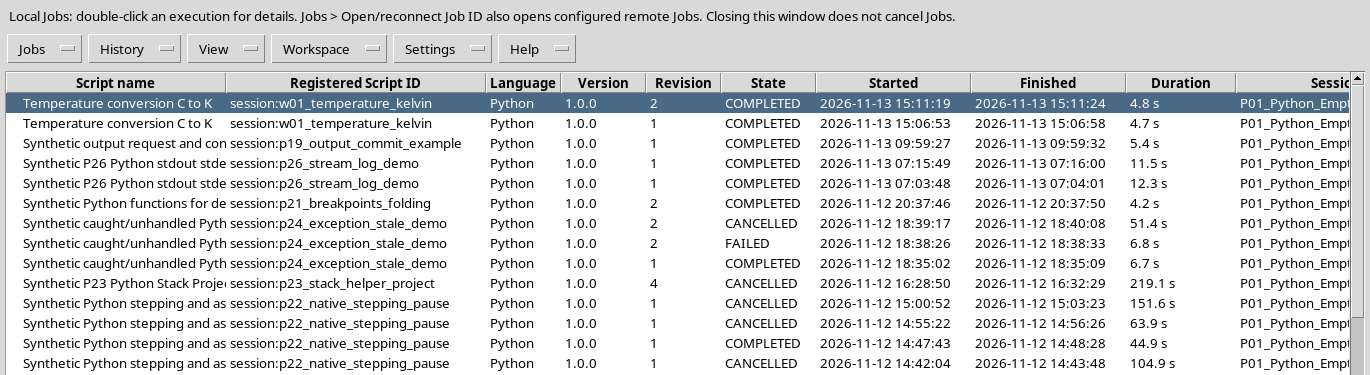
Open the Script Jobs Manager view and locate the execution of the Script. The expected state is COMPLETED, with exit code 0. A failed or cancelled Job does not provide the same evidence of completion. The list may contain other historical Jobs: choose the one associated with the revision and identity of the source actually run.
20. Reading Program output
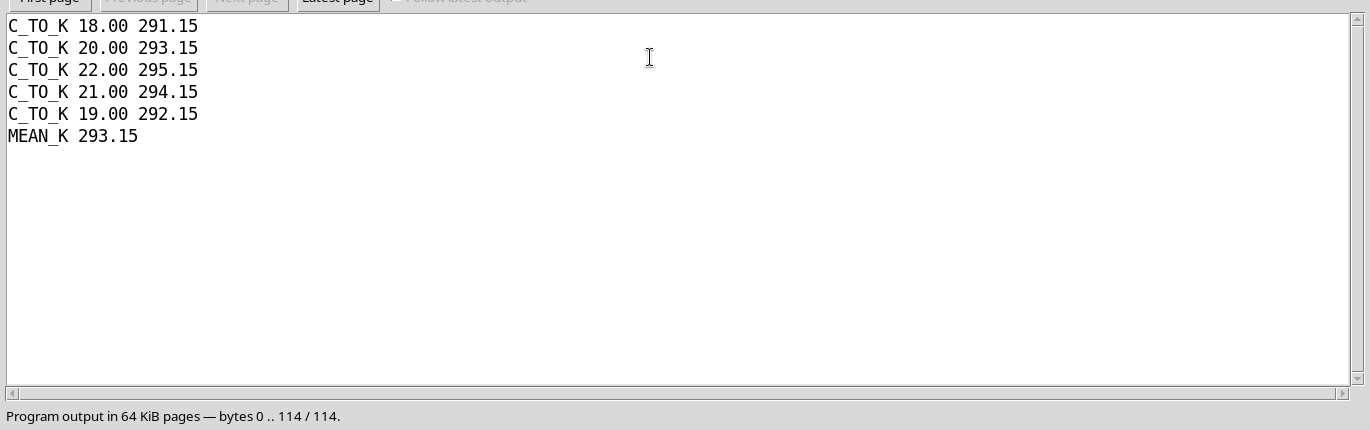
Open Job Details and select the Program output stream. The five C_TO_K lines show the Celsius value and the kelvin value; the MEAN_K line is the mean. Program stderr is a stream distinct from stdout: do not interpret the presence of a COMPLETED state as proof that both are always empty or correct.
21. The expected output and the numeric check
The text of the correct execution is:
C_TO_K 18.00 291.15
C_TO_K 20.00 293.15
C_TO_K 22.00 295.15
C_TO_K 21.00 294.15
C_TO_K 19.00 292.15
MEAN_K 293.15
Compare each of the six expected values with your own Job. A correct number on screen must still refer to a saved Script and to a finished execution. No new Dataset is generated here: the product of the Job is a text log.
22. Saved source and executed snapshot
The Registry keeps the current Script and its revisions; the Job keeps its own immutable copy of the code that was run. A later change to the Script does not retroactively rewrite the source of Jobs already run. The semantic version (1.0.0) and the revision (incremented at each new save) help to interpret the provenance of the result correctly.
23. Closing and reopening the tab
Once saved and the execution finished, close the source tab; do not delete the Script from the Registry. Then reopen the Script from the registered Scripts navigation. The text should return identical and without pending changes. Finally you can restore the normal workspace with the central editor in the foreground.
24. Common errors and conclusion
If Run Job is not available, check that there is an active Session, that the Script is saved and that the Runner check is valid. If the numeric request fails, check the identifier NUMERIC_API_v1, the owner math.numeric, the operand types and the presence of five finite values. A NumPy warning about arrays converted to scalars is resolved by first extracting the element, as item() does in the program. Finally, do not mistake stdout for a published Dataset: numeric publication requires explicit operations covered in a later experiment.
We have completed the path New Script → Edit → Save → Script Runner → Validate review → Run Job → Jobs → Program output → Close/Reopen with verifiable numeric results and a reusable source.