

GX-TXT Python Script Workspace: from source to scientific result
A concluding guide to checking a Python piece of work before archiving, sharing or reusing it: checking the source, inputs and parameters, execution, output, canonical Datasets and debugger. The images show the same functions examined in the previous chapters.
1. What must be reproducible
A scientific computation is reproducible when you can reconstruct the identity of the input data, the exact version of the program, the effective parameters, the execution and the result. In GX-TXT Python Script Workspace these elements do not coincide: Script or Project, Job, Dataset and Session have distinct roles. The program log and the canonical Dataset are not interchangeable.
2. Choosing Session and Scope correctly
A User-scope source is distinct from one linked to a Session, even when it has the same short name. The scientific executions described here require the appropriate Session and a registered source. Before saving or running, check the scope displayed in the GUI. Do not automatically attribute to one Session data coming from another.
3. Checking the editor and the state of the source
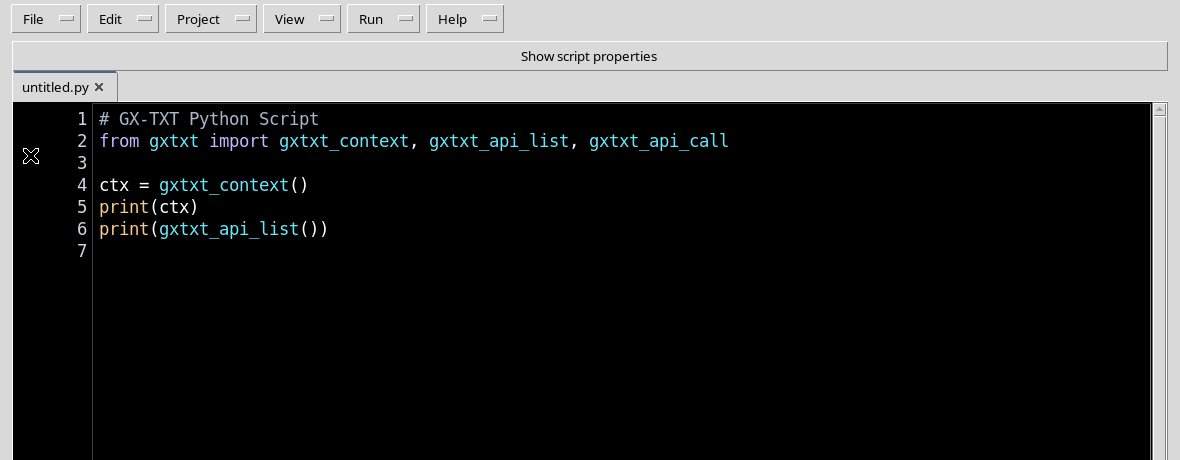
Use Python Script Workspace with a large code area. The High Contrast Dark theme makes Python text, selection and current line recognisable; the native bars and dialogs may keep their light appearance. Before starting a Job, make sure there are no pending changes and that the file shown corresponds to the saved version.
4. Identity, version, revision and SHA
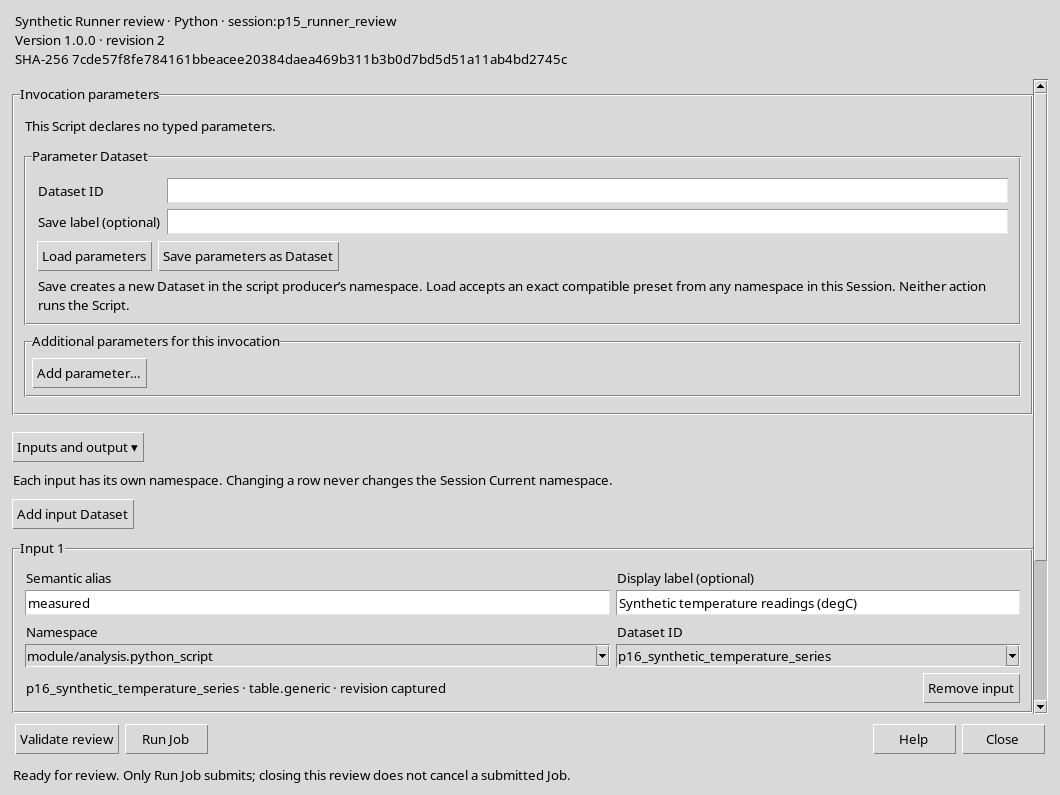
Stable ID identifies a Script or Project in its scope; the semantic Version is a description of its evolution; the Registry revision identifies a specific save. The SHA-256 fingerprint makes it possible to check that the content actually run coincides with the saved source. In multi-file Projects the revision represents a consistent set of files, not a single arbitrary .py.
5. Saving before running
Choose File → Save for a single Script or File → Save All for a Project with several files. Saving does not automatically create a Job and does not produce a Dataset. After a change, save again and check the new revision; any previous Job keeps its historical snapshot and does not change retroactively.
6. Linking a Dataset and keeping its revision
In Script Runner, the Inputs and output section lets you use Add input Dataset. Check namespace, Dataset ID, semantic alias, label and revision. The alias is the name with which the code finds the Dataset, while the canonical ID identifies its registration. If the source Dataset is updated after selection, Validate review may require a new selection of the current revision.
7. Declaring and reviewing typed parameters
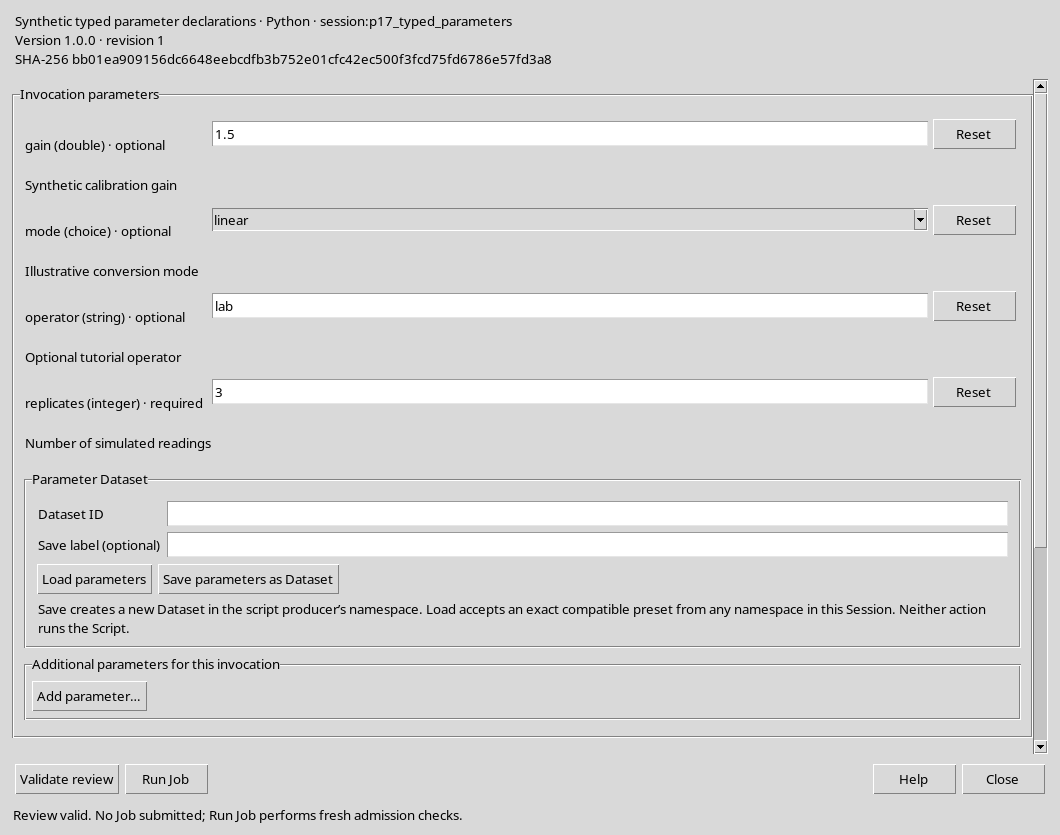
A parameter declared with gxtxt_parameter_declare can have type, default value, limits and description. In the Runner you choose the effective value for the single invocation. Changing a parameter in the Runner is not the same as modifying the source. If manual values are present, also check for any conflicts with the parameters declared in the program.
8. The boundaries of the public Python APIs
The public gxtxt client lets the code obtain the context of the Job and call the available APIs. For example, in exercise W02 this essential sequence was used:
from gxtxt import gxtxt_api_call, gxtxt_api_require, gxtxt_context

gxtxt_api_require("CANONICAL_DATASET_API_v2@2")

context = gxtxt_context()
dataset_id = context["inputs"]["measured"]["dataset_id"]
metadata = gxtxt_api_call(
    "CANONICAL_DATASET_API_v2", "describe", [dataset_id]
)
gxtxt_api_require checks the dependency on the required API; gxtxt_context gives access to the inputs and parameters of the specific execution; describe reads the schema of the Dataset. Reading, computation and publication operations remain separate. Do not use internal CORE modules as shortcuts.
9. Validate review is not Run Job
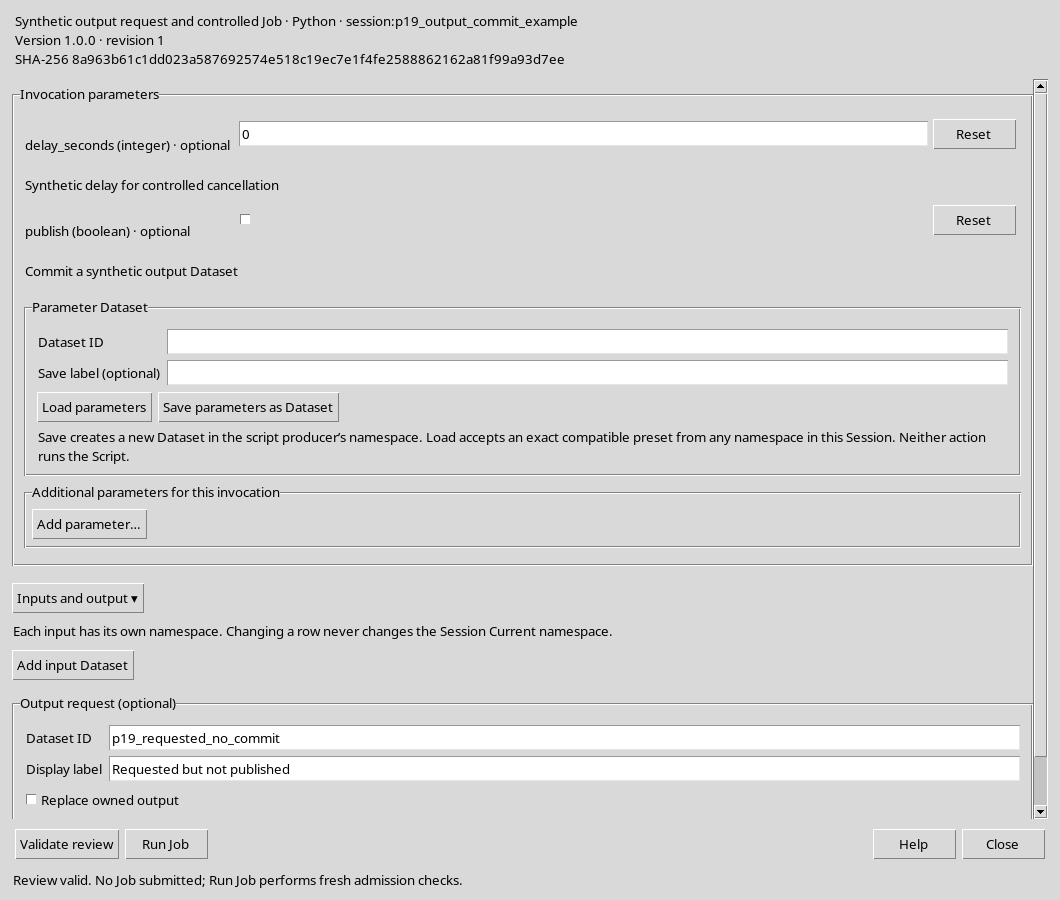
The Validate review button checks the configuration. A message such as Review valid. No Job submitted does not mean that the program has been run. Before pressing Run Job check again the Script revision, the Session, the inputs, the parameters and any output ID. This distinction prevents confusing an admissible configuration with a result already obtained.
10. Checking the terminal state of the Job
After Run Job, open Script Jobs Manager. A QUEUED or RUNNING Job is not finished; a COMPLETED Job with exit code zero signals normal completion; FAILED and CANCELLED have different meanings. Always check the identity and the revision that was run, do not limit yourself to reading the last line of output.
11. Separating stdout, stderr and diagnostics
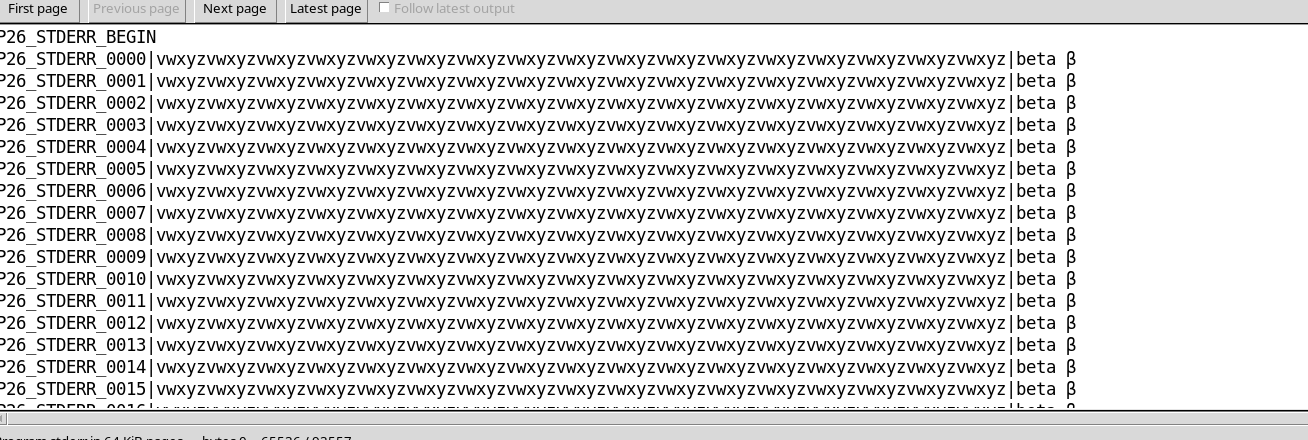
In Job Details choose the appropriate stream: Program output contains the messages written to stdout, Program stderr collects the process messages on stderr, while the diagnostic logs are distinct execution information. For a Job with long streams, the displayed pages are not the whole content: the complete copy/export commands are separate from the functions that select only the current page.
12. First scientific check: Celsius and kelvin
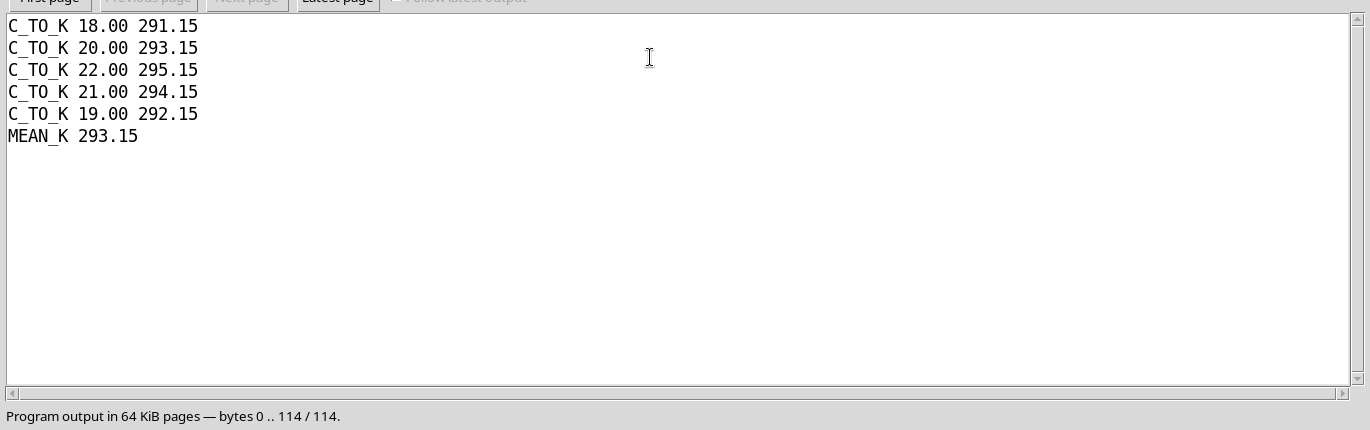
In exercise W01 the program processed five synthetic temperatures 18, 20, 22, 21, 19 °C applying K = °C + 273.15. The five values in kelvin are 291.15, 293.15, 295.15, 294.15 and 292.15. The arithmetic mean is 293.15 K. The final Job ended successfully and stdout keeps all the lines of the computation.
13. Second scientific check: additive calibration
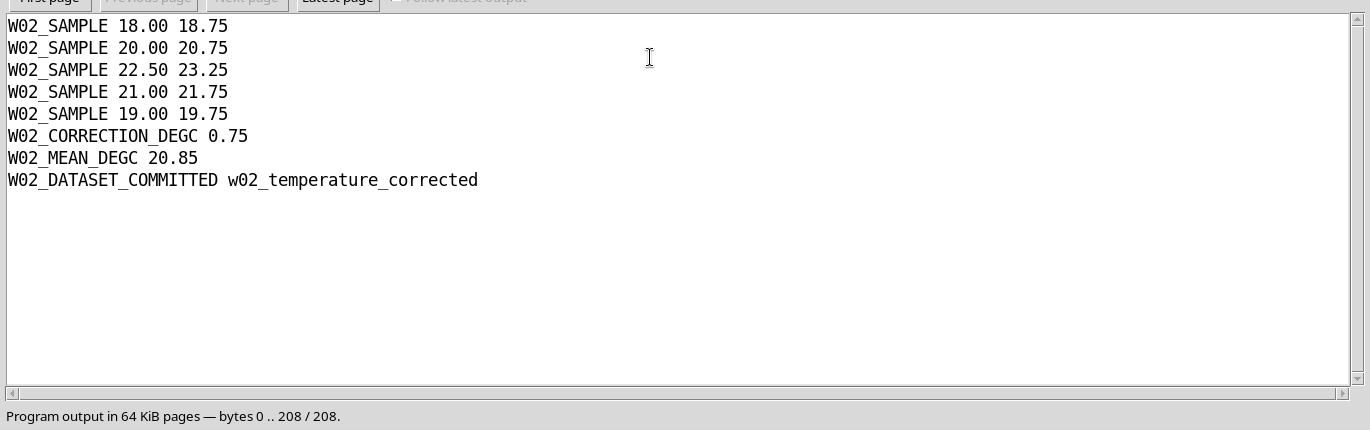
In exercise W02 a canonical Dataset of temperatures 18, 20, 22.5, 21, 19 °C was read through CANONICAL_DATASET_API_v2. The typed parameter correction_degC was set to +0.75 °C. The computation produced 18.75, 20.75, 23.25, 21.75 and 19.75 °C, with mean 20.85 °C. These numbers derive from synthetic teaching data, not from instrument measurements.
14. The scientific Dataset is not born from print alone
print() writes to the log, but does not create a canonical table. W02 explicitly published a table.generic Dataset with two variables, raw_c and corrected_c, both of type float64 and unit degC. The publication process uses DATASET_PUBLICATION_API_v2, with opening of the writer, declaration of dimension and variables, addition of the values and finalisation. Provenance keeps the link to the initial Dataset.
15. Checking the requested output and the published one
The Runner’s Output Dataset ID identifies a request, not the certainty of a publication. In Job Details distinguish Requested output and Committed published Datasets. A Job can end normally without publishing a Dataset, if the Script does not perform a finalisation. Before reusing the result, reread schema, rows, types, units and values from the canonical catalogue.

16. Python Project: entrypoint, helper and single revision
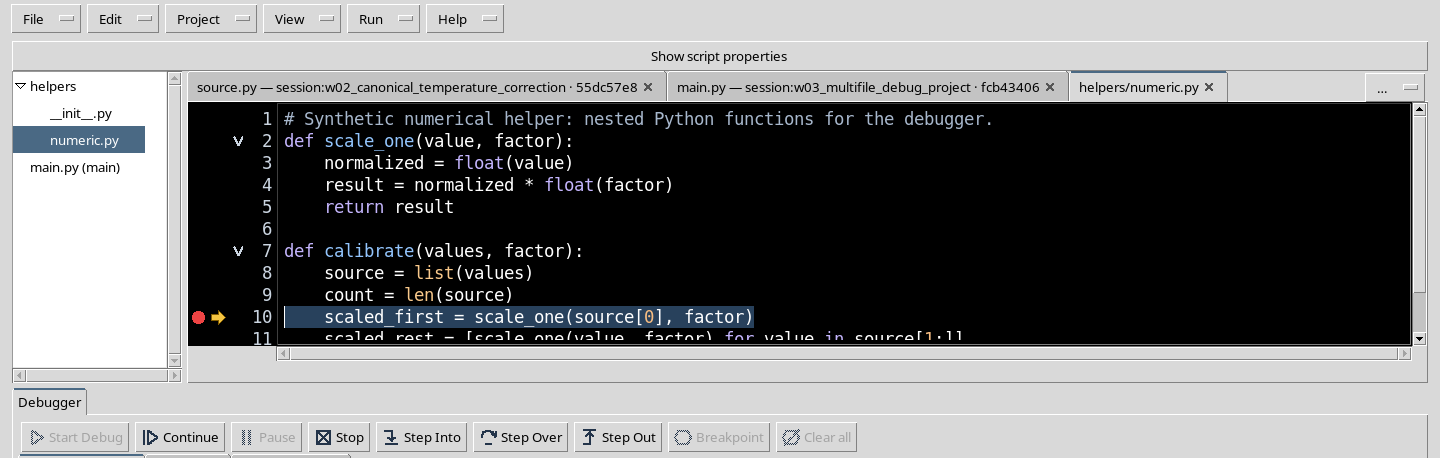
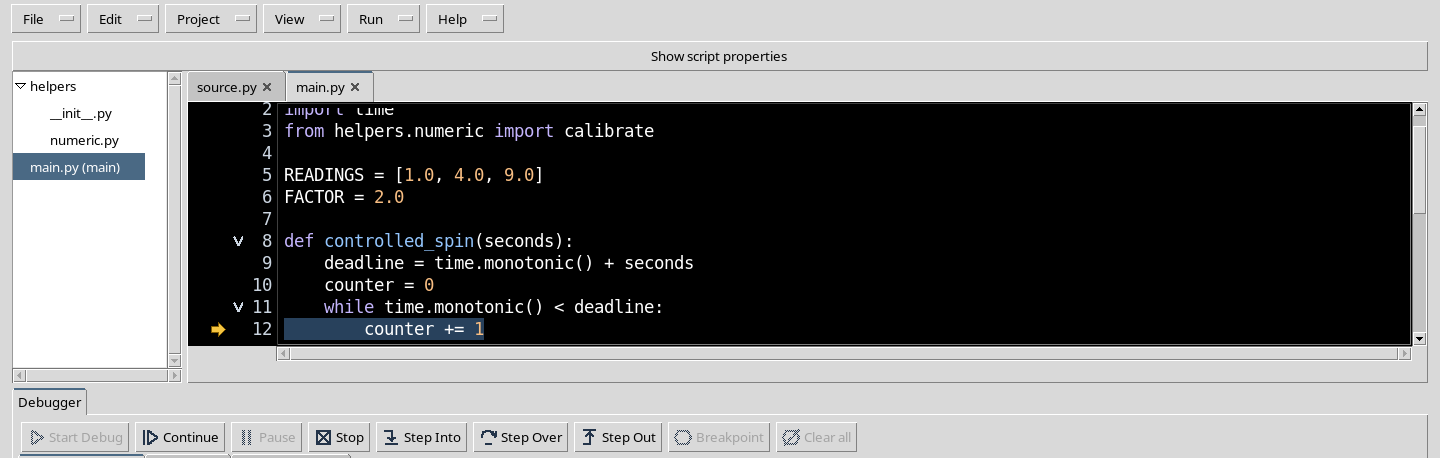
In work W03 main.py imported calibrate from helpers/numeric.py, while helpers/__init__.py identified the package. The synthetic readings [1, 4, 9], multiplied by two, returned [2, 8, 18] and the sum 28. The whole Project was saved with Save All; the Job kept the snapshot of all three files. A check of main.py alone would not be enough to certify the computation.
17. Breakpoints and Call Stack: the execution point is unique
In the native debugger the F9 key inserts an executable breakpoint in the desired file. Start Debug, Continue, Step Into, Step Over and Step Out control the actual execution of the Python Job. Call Stack lets you select a calling frame and observe other local values, without changing the position of the interpreter. The helper file tabs are therefore part of the normal navigation of the Project.
18. Pause, Stop and execution safety
During RUNNING, the Pause command can suspend a Python Job; the confirmation is the actual PAUSED state, not the click alone. The W03 test reached controlled_spin at line 12; the subsequent Stop produced CANCELLED. The case is distinct from the scientific Job completed with sum 28. If the breakpoint margin remains disabled after closing the debugger, close and reopen the Project through the normal menus: the saved content is preserved.
19. Checks before sharing the work
Before archiving or sharing a procedure, check that the source is saved and free of pending changes; that the Project includes all the required files; that Session, inputs, aliases, parameters and revisions are the intended ones; that the Job has the appropriate state; that stderr and logs have been consulted; and, when a Dataset is expected, that the result has actually been published and reread with correct type, units and provenance. A reassuring screenshot does not replace these checks.
20. Study path and limits of the exercises
Chapters P01–P14 explain the interface, the editor, Projects and notes; P15–P20 cover Runner, Datasets, parameters and Jobs; P21–P24 the debugger; P25–P29 history, output, publications and help. W01–W03 show the three complete scientific exercises. All the numeric examples in this series are synthetic: they do not demonstrate the metrological accuracy of real instruments and do not replace an evaluation of experimental uncertainties.