

Octave Script Workspace menus and keyboard shortcuts
The top bar of Octave Script Workspace groups the six menus File, Edit, Project, View, Run and Help. Knowing them, together with their keyboard shortcuts, lets you prepare the Octave source, move between tabs and reach the framework tools without crowding the area dedicated to the code.
This guide uses the English names actually displayed by GX-TXT DEV112 with patch P005, Octave Script Workspace module 1.8.3. The screenshots show the Focus source layout: high-contrast black Source, without the side panels that are not needed. The commands for saving, projects, execution and debugging are covered in detail in the dedicated chapters.
1. File — creating, opening and managing sources
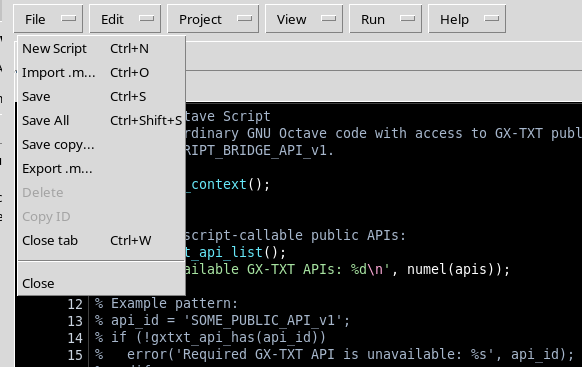
The File menu groups the basic operations on code documents:
- New Script (Ctrl+N) opens a new draft in a separate tab.
- Import .m… (Ctrl+O) lets you select an Octave source to import.
- Save (Ctrl+S), Save All (Ctrl+Shift+S) and Save copy… are different operations: respectively, saving the current source, handling several modified sources and requesting a copy.
- Export .m… concerns exporting the code to a .m file.
- Delete and Copy ID depend on the identity of the source: on an unregistered draft they may appear disabled.
- Close tab (Ctrl+W) is different from Close, which concerns the working window.
A draft open in the editor is not necessarily an already registered script. Before saving, check the current tab and the Scope.
2. Edit — changes, search and code structure
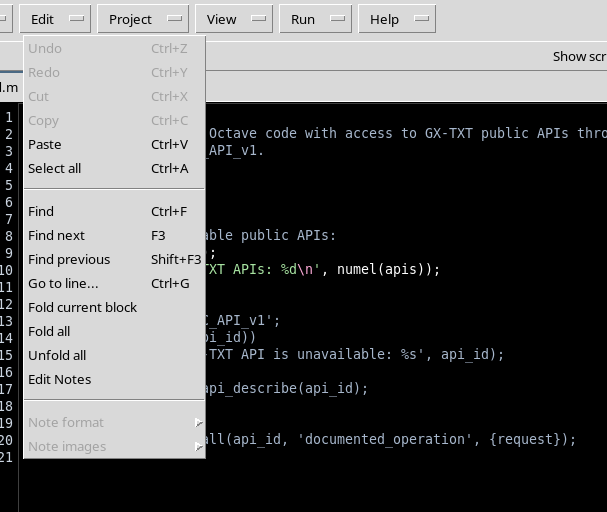
The Edit menu contains Undo, Redo, Cut, Copy, Paste and Select all. Commands that need previous changes or selected text may be greyed out: for example, Undo is not available if there is no change to undo.
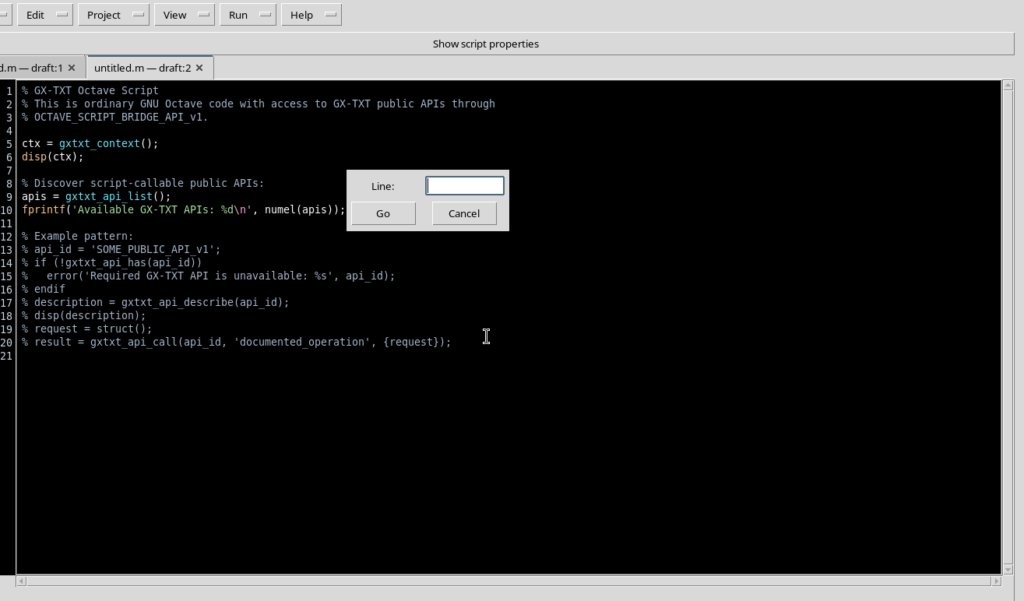
To find your way around the source, Find (Ctrl+F), Find next (F3), Find previous (Shift+F3) and Go to line… (Ctrl+G) are available. Search works in the code, while Go to line moves the cursor to the chosen line: neither command runs Octave.
The menu also includes Fold current block, Fold all and Unfold all for the structure of the source. Edit Notes leads to the notes area: the formatting entries for notes are contextual, not formatting tools for Octave code.
3. Project — projects and public APIs
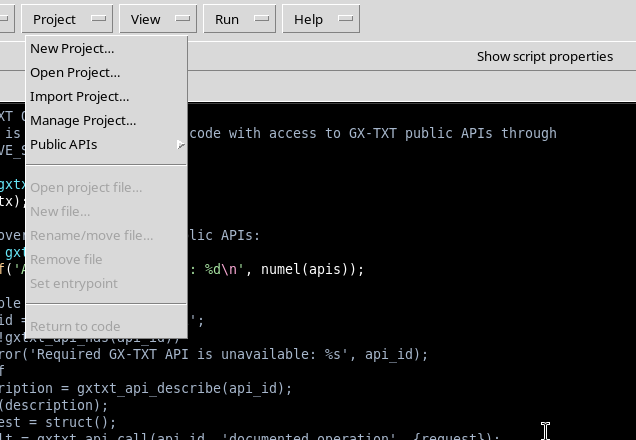
The Project menu offers New Project…, Open Project…, Import Project… and Manage Project…. These commands open the project organization functions from within Octave Script Workspace.
The Public APIs entry contains the commands for browsing the available APIs, examining a draft and reaching the implementation where provided. This area should not be confused with running a function: browsing the APIs and using them in a script are separate operations.
The entries Open project file…, New file…, Rename/move file…, Remove file and Set entrypoint are visible in the menu, but they may be disabled when no project is active. Their presence does not mean that a project file is already selected.
4. View — keeping the editor readable
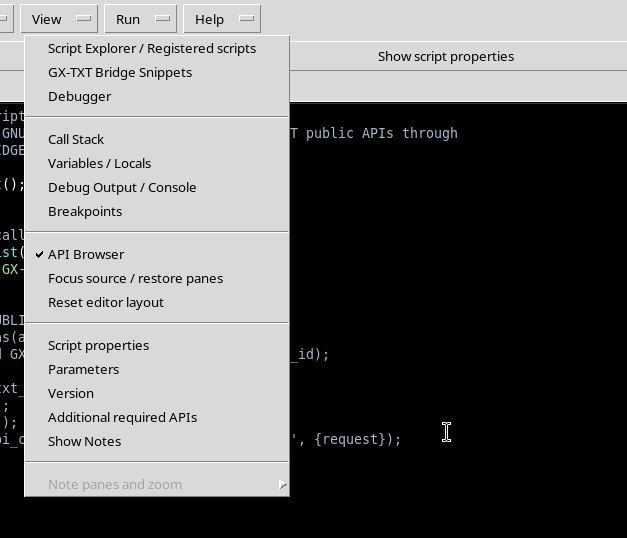
View lets you show or hide the support panels: Script Explorer / Registered scripts, GX-TXT Bridge Snippets, API Browser, Debugger, Call Stack, Variables / Locals, Debug Output / Console and Breakpoints.
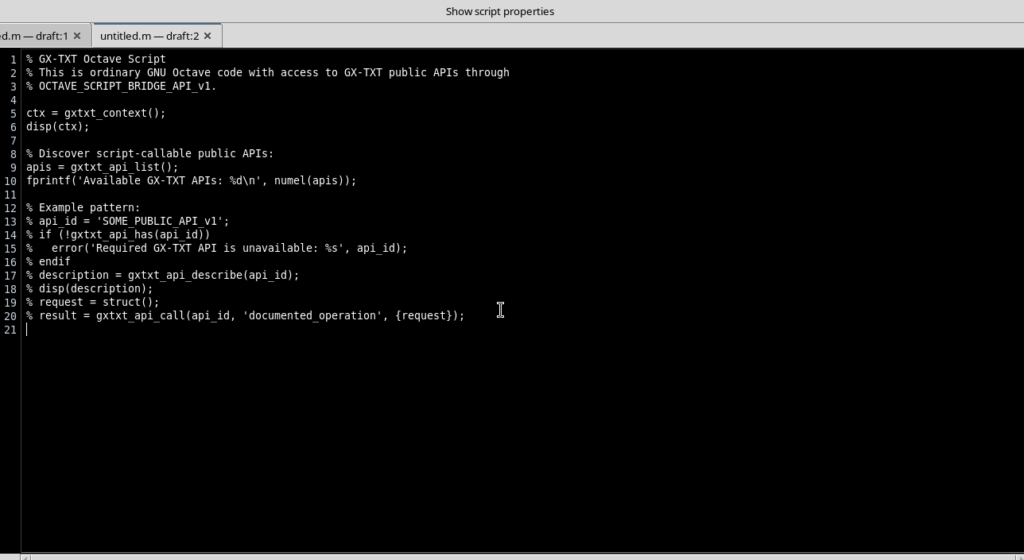
For writing code, Focus source / restore panes is generally preferable, as it frees the central area by hiding the side panels. The Script properties, Parameters and Version boxes can be managed separately. Reset editor layout restores the overall layout when needed.
Show Notes and Note panes and zoom concern the display of notes. The related options may be disabled when you are not in the appropriate context. Note zoom should not be read as a universal command for enlarging the Source editor font.
5. Run — the entry point to execution controls
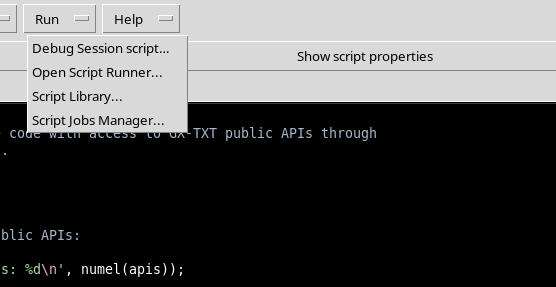
The Run menu gives access to Debug Session script…, Open Script Runner… and Script Jobs Manager…. Opening a review or management window is not, in itself, the same as submitting a scientific Job.
Before running a script, you will need to distinguish the displayed draft from the registered version, select the required inputs and check any parameters and outputs. The actual procedures are explained in the chapters on execution and on the debugger.
6. Help — API assistance and built-in manual
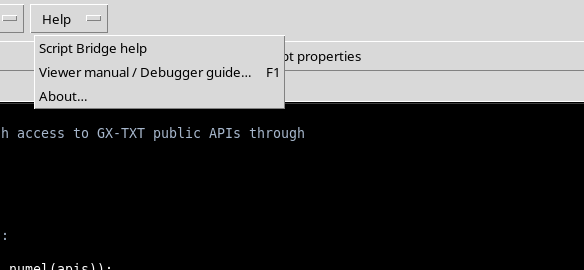
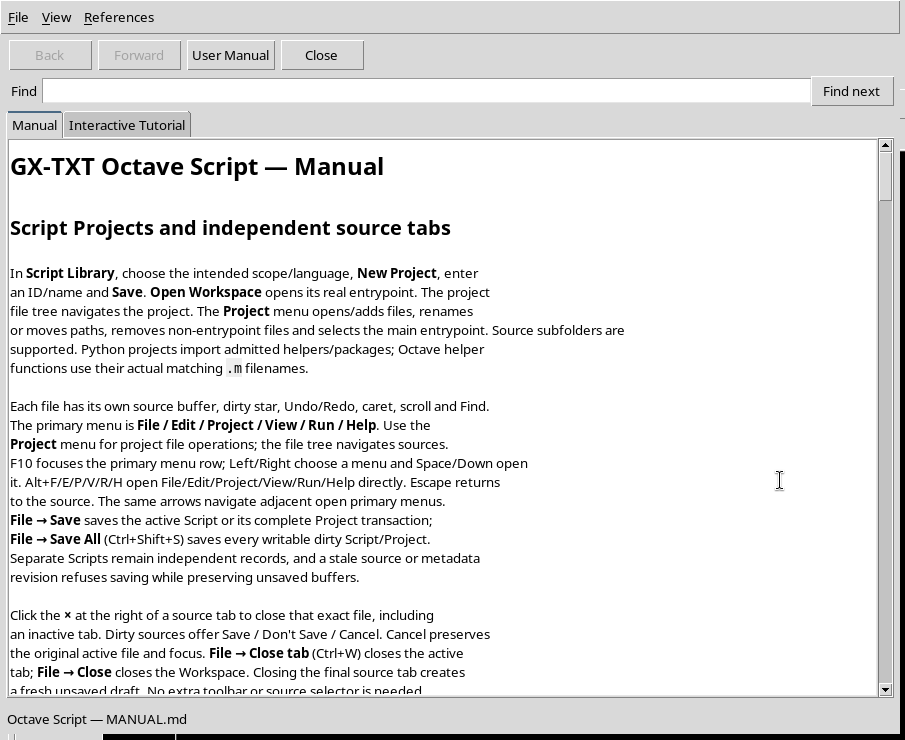
The Help menu contains Script Bridge help, Viewer manual / Debugger guide… and About…. The first command opens the reference to the GNU Octave/GX-TXT bridge functions; the second leads to the Viewer manual, which can also be opened with F1. The About entry is for the module’s identification information.
The manual is a real GX-TXT window with User Manual, Find search, Back/Forward navigation, Manual and Interactive Tutorial tabs, and a Close button. There is no need to start a calculation to consult it.
7. Moving through the menus with the keyboard only
When the cursor is in the editor, F10 moves the focus to the main bar, starting from File. The Left/Right arrows move the focus between menus, while Down or Space open the selected one. Esc closes the menu without choosing an entry.
The bindings Alt+F, Alt+E, Alt+P, Alt+V, Alt+R and Alt+H directly open, in order, File, Edit, Project, View, Run and Help. They are handy when you want to reach an entry without using the mouse.
To avoid unintended operations, close an open menu with Esc before moving back to the source area. A command shown as disabled does not become available just because you reach it with the keyboard.
8. Search, line number and switching between tabs
While working in the Source editor, Ctrl+F moves the focus to the Find field. Type a string, then use F3 and Shift+F3 to search forwards and backwards respectively. The highlighting and the cursor position help you recognize the result; the script text stays unchanged.
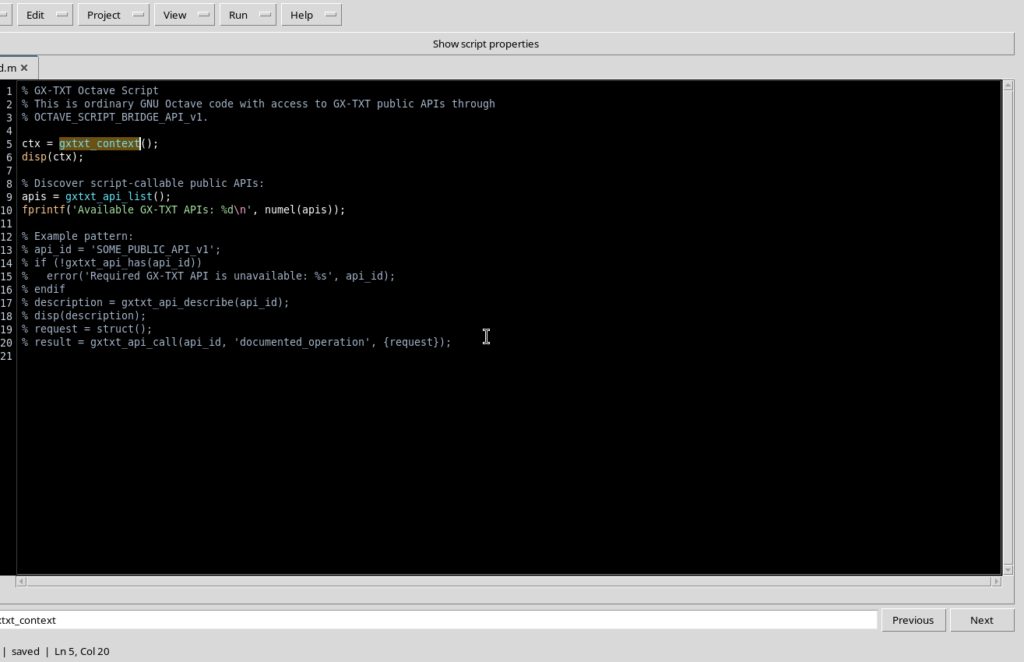
Ctrl+G opens Go to line. Enter the line number and choose Go to move the cursor, or Cancel to give up. The position of the dialog depends on the desktop environment; the operation does not change the content of the code.
Finally, Ctrl+N opens a new draft tab. Ctrl+Tab moves to the next tab and Ctrl+Shift+Tab goes back to the previous one. Each tab has its own content; switching tabs does not mean saving or running it.
9. Quick reference and distinction between commands
| Key or combination | Action |
|---|---|
| F10, Left/Right, Down, Space, Esc | Menu bar navigation |
| Alt+F/E/P/V/R/H | Direct opening of the six menus |
| Ctrl+N | New draft |
| Ctrl+Tab / Ctrl+Shift+Tab | Switching between tabs |
| Ctrl+F | Find field |
| F3 / Shift+F3 | Search forwards / backwards |
| Ctrl+G | Go to line |
| F1 | Built-in manual |
| Ctrl+S / Ctrl+Shift+S | Save / Save All, depending on context |
| Ctrl+O / Ctrl+W | Import .m / Close tab |
The shortcuts shown in the menus may depend on the current state: a greyed-out entry first requires the appropriate condition. Importing, saving, project management, execution and debugging have their own checks and must not be inferred from the mere presence of the entry.
For everyday use, keep mainly Source open, bring up the support panels only when you need them, and always check the selected tab before saving or starting a script.