

Creating, saving and protecting changes to a script
Octave Script Workspace lets you prepare GNU Octave sources, save them in the GX-TXT registry and keep separate versions of the same work. The correct procedure starts with a new tab and ends with a check of the registered identity, avoiding the loss of unsaved changes.
The screenshots refer to GX-TXT DEV112 with patch P005, Octave Script Workspace module 1.8.3. Commands are given with the English labels used in the program. The example uses simple numerical vectors: saving does not run the code or produce Datasets.
1. Creating a new Source tab
Open Octave Scripts from the Viewers section. If you need to work in the current Session, activate it from the main window before creating the script. Inside the Workspace, select File → New Script or use Ctrl+N.
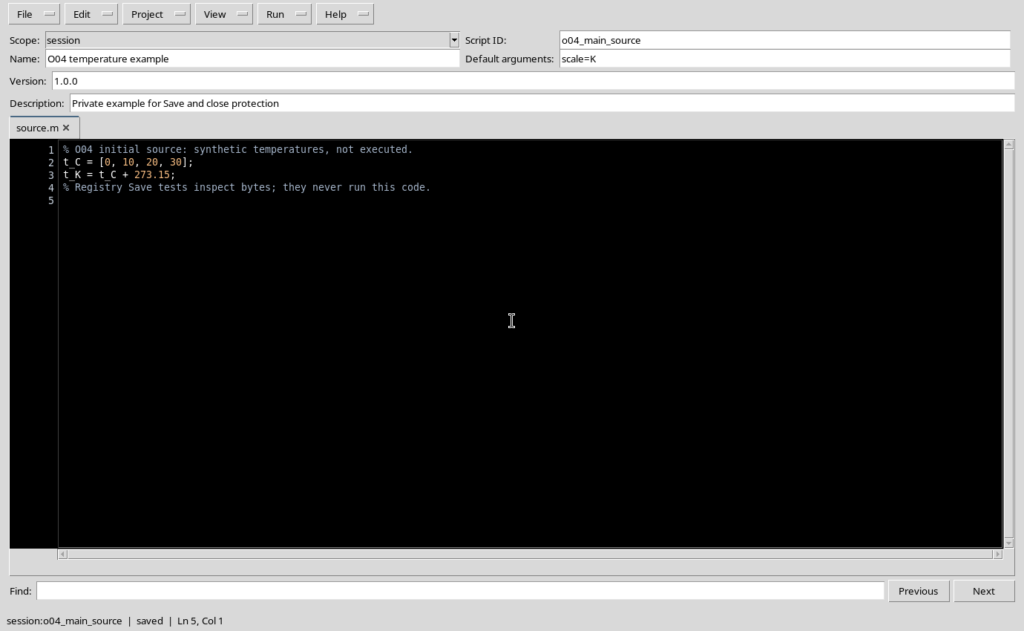
In the new tab, set Scope, Script ID, Name, Default arguments, Description and, when useful, Version. In the example shown, the Scope is session and the descriptive name of the script is O04 temperature example. The technical identifier and the title are different fields.
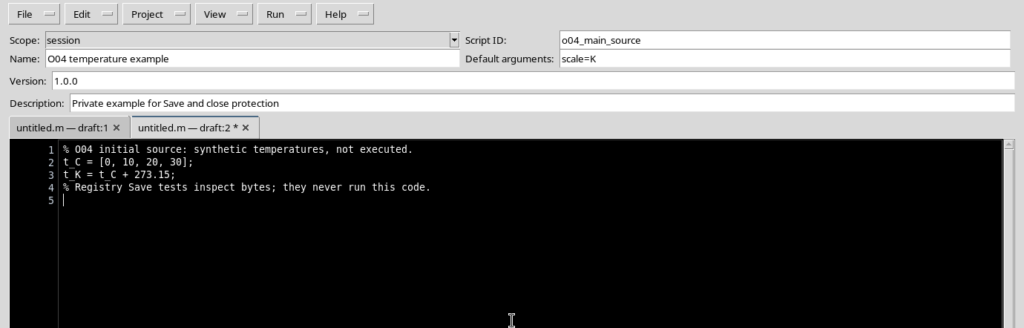
In the Source editor you can write ordinary Octave code. The following fragment shows a temperature conversion, without requiring any additional APIs:
% Synthetic temperature example.
t_C = [0, 10, 20, 30];
t_K = t_C + 273.15;
The declarations and calculations shown here remain only source text until an actual execution is requested.
2. Registering the source with File → Save
Select File → Save, or Ctrl+S, to save the current tab. When the script is registered, GX-TXT associates the content with its Scope and Script ID: in the example the full reference is session:o04_main_source.
After a successful save, the editor status bar shows the registered identity and the saved state. Saving the Source is not the same as exporting an external file: for that operation there is File → Export .m…, described in a dedicated chapter.
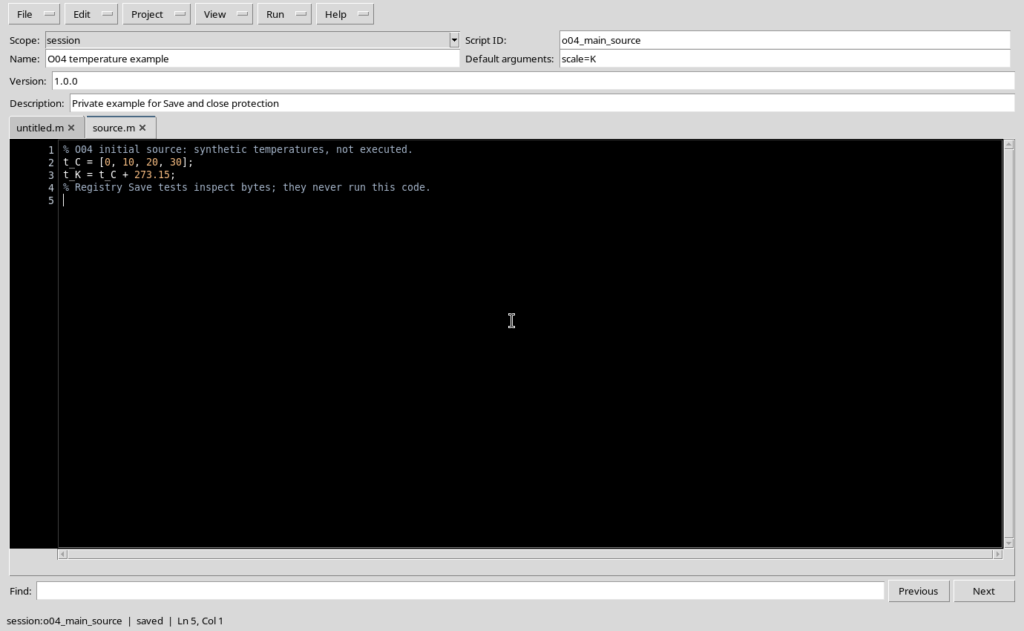
Every registered save keeps revision information and the SHA-256 fingerprint of the content. These values are used to verify the identity of the code and to protect updates; they are not fields that can be freely edited in the editor.
3. Recognizing changes not yet saved
When you change the code or a piece of metadata, the tab may signal the presence of changes with an asterisk and the modified status bar. Until you save, the registered version remains distinct from the buffer currently visible.
If you select File → Close tab while the source contains changes, the Unsaved source dialog appears, asking what to do before closing.
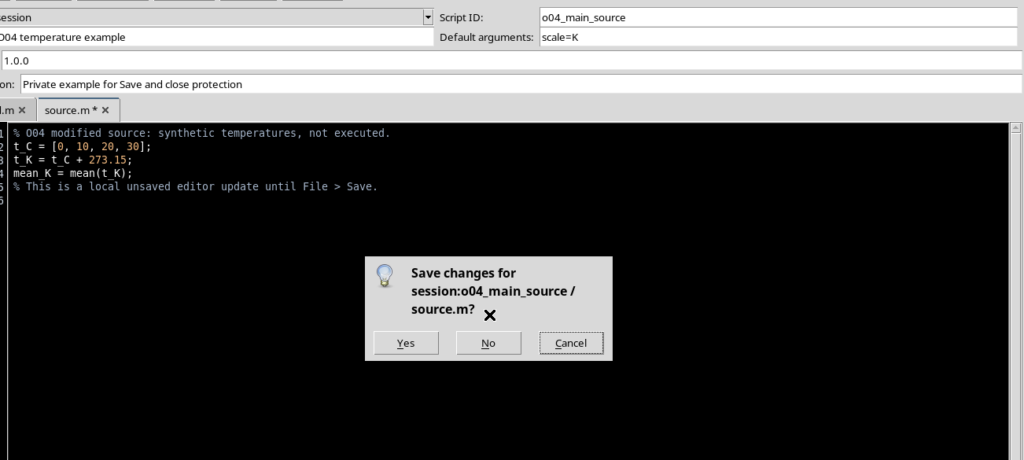
Do not automatically choose No when you intend to keep your work: the choice acts on the changes present in the tab.
4. How Cancel, No and Yes work
The three answers in the dialog are clearly different operations:
| Choice | Effect on the tab | Effect on the changes |
|---|---|---|
| Cancel | The tab stays open. | The unsaved changes remain available for further work. |
| No | The tab is closed. | The unsaved changes are discarded; a previously registered version is not overwritten. |
| Yes | A save is attempted and, if it succeeds, the tab is closed. | The content is registered before closing. |
For a new draft, Yes lets you save it directly while closing, provided that the required fields and the content are valid. In the example, a second draft was registered with a new identifier before being closed.
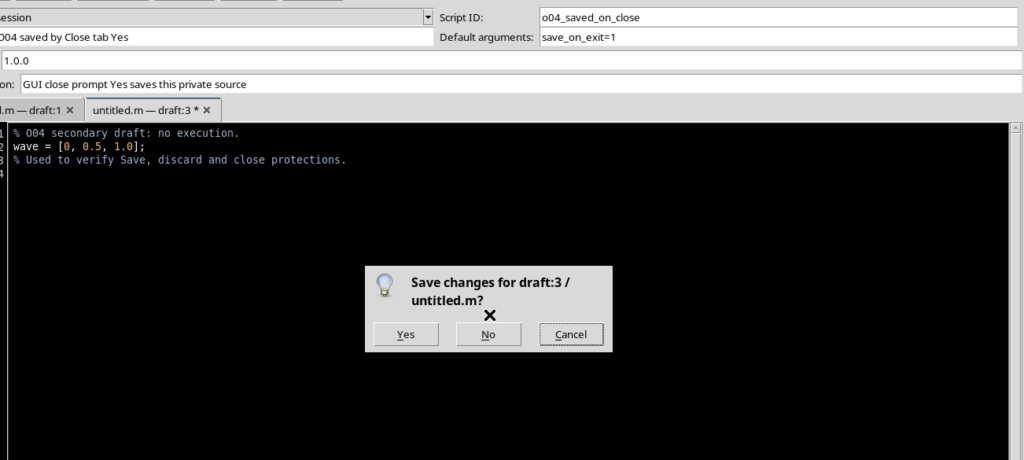
The same precaution applies to File → Close, which concerns the whole window: tabs with unsaved changes require a decision. Cancel interrupts the closing and keeps your work open.
5. Finding a registered script from the Explorer
Saved scripts can be found in the Registered scripts panel. When the Explorer is hidden, use View → Focus source / restore panes to bring it back on screen temporarily. Selecting the corresponding record opens the registered code in the working tab.
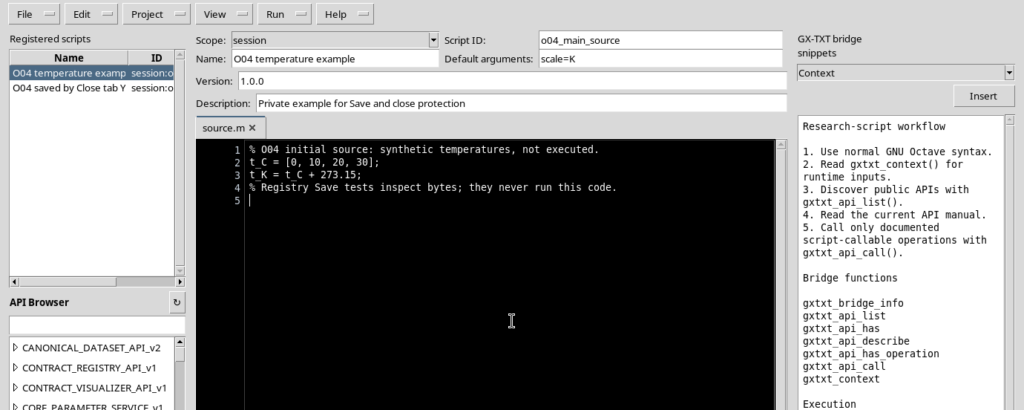
Always check the full identity, in particular session: or user:, before making changes. For normal writing, restore Focus source and keep unnecessary panels hidden.
6. Creating an independent copy with Save copy…
Select the script to duplicate and choose File → Save copy…. The Workspace creates a new source record, keeping the previous one. When a script with ID o04_main_source already exists, the example shows a copy with ID o04_main_source_2 and Name O04 temperature example (copy).
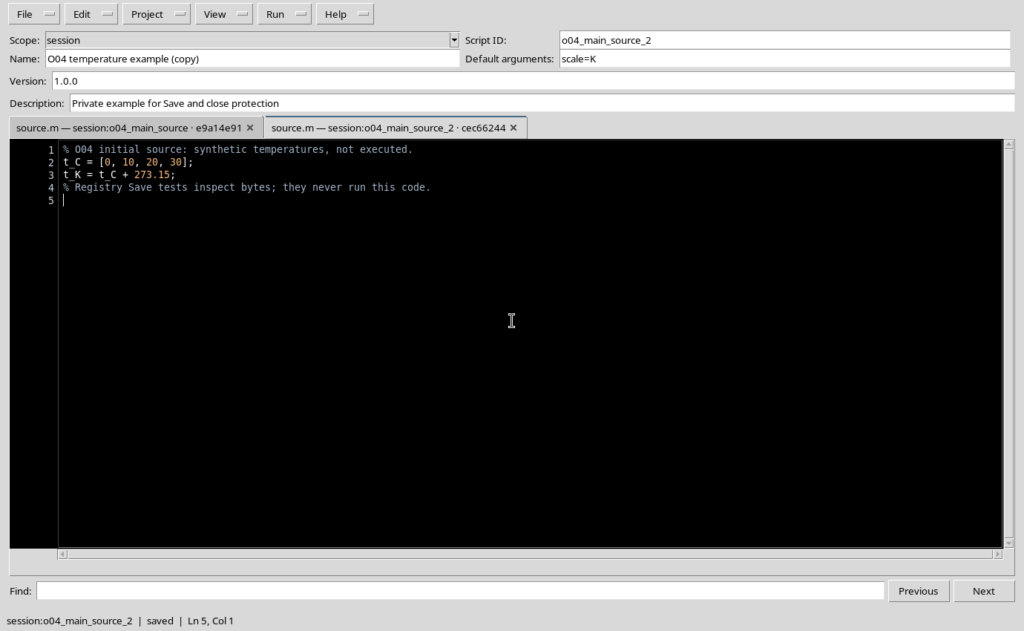
When you duplicate an unmodified source, the two copies initially have the same bytes and can therefore have the same SHA-256, while being two different records. If you later modify one copy, you are not automatically modifying the other.
The Save copy… function should not be confused with Save All: the former creates a new identity, while the latter concerns saving several open sources and is covered together with projects.
7. Protection against outdated revisions
A registered script may change after a tab has loaded it, for example because it was updated in another window. If you try to save changes based on a revision that is no longer current, the Workspace may refuse the operation to avoid overwriting the more recent record.
In the situation shown, the message Script metadata revision changed; review and retry appears inside the Save failed dialog.
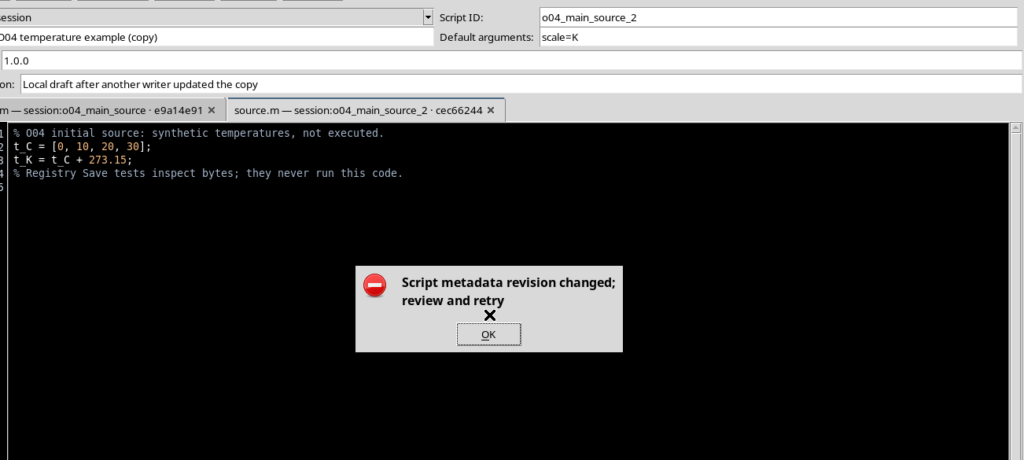
The refusal is a protection: it does not mean that the most recent version has been lost. Before trying again, compare the visible code with the registered version, check the identity of the script and decide deliberately how to keep the local changes. Do not blindly overwrite a source that has been updated in the meantime.
8. Closing the window without losing work
File → Close tab concerns the active tab; File → Close concerns the Workspace window. If a tab still holds changes, a confirmation is requested also when closing the whole window.
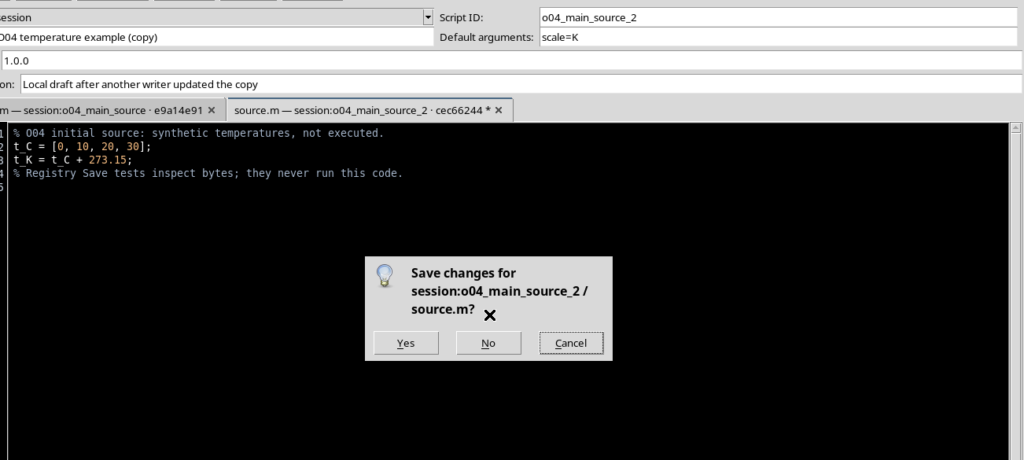
Before finishing, it is useful to check that the status bar shows saved for the sources you intend to keep, to check Scope and Script ID, and to restore the essential Focus source view.
The expected result is a set of recognizable registered sources, with no changes forgotten in unsaved tabs. The operations presented in this chapter concern only the life cycle of the code: preparing the Runner, execution and publishing results are later, separate activities.