

Script and Session lifecycle
In GX-TXT Octave Script Workspace the source shown in the editor, the registered revision of a script, the active scientific Session and the Job history are not the same thing. Understanding these boundaries lets you reopen your work, use personal scripts in several Sessions and avoid accidental changes to data that belong to another experiment.
The guide refers to GX-TXT DEV112-P005 and to the Octave Script Workspace 1.8.3 module. Commands are given with the English labels actually present in the GUI; the code uses English comments. The source is displayed in High Contrast Dark, while the other controls keep the native Tk/ttk look.
1. Distinguishing Session Scope from User Scope
In the editor the Scope field lets you choose between session and user. A session script belongs to the current scientific Session: it has its own registered identity, revision and content. A user script belongs to the personal Registry of the application and can be found again even when another Session is opened.
The distinction concerns who owns the source, not the language used: in both cases the content is GNU Octave. Opening the Runner and running a scientific Job still require an active Session. A tab open in the editor is not the same as creating a Job.
2. Creating and Saving a Script in the First Session
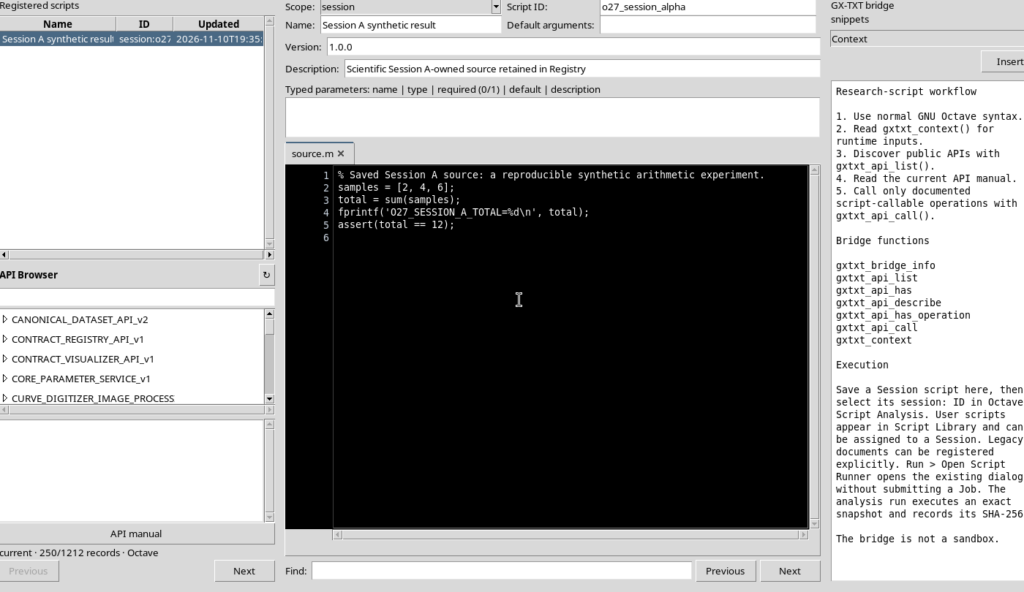
With a Session open, select File → New Script, leave Scope: session, assign a Script ID and a name, then enter a simple program:
% Saved Session A source: a reproducible synthetic arithmetic experiment.
samples = [2, 4, 6];
total = sum(samples);
fprintf('O27_SESSION_A_TOTAL=%d\n', total);
assert(total == 12);
The sum function computes the sum of the three elements, while fprintf writes to stdout. assert checks that the result is 12. The example uses no external files, instruments or Datasets.
Choose File → Save. The source becomes a registered revision of the Session. The editor must no longer show the unsaved-changes indicator.
3. Creating a Reusable Script with Scope: user
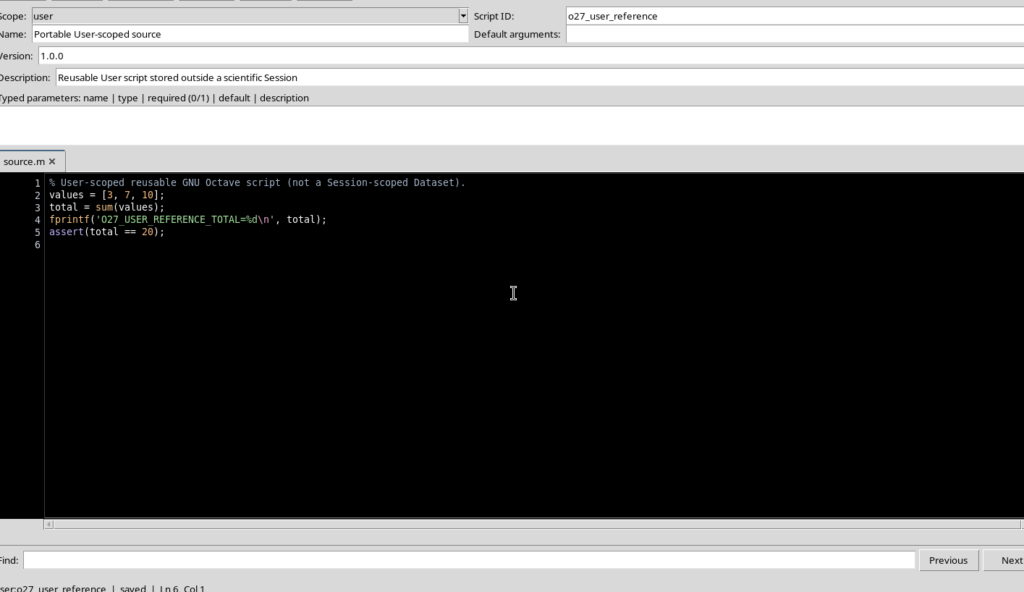
Select File → New Script again and set Scope: user from the drop-down list. Enter a different identifier and the code:
% User-scoped reusable GNU Octave script (not a Session-scoped Dataset).
values = [3, 7, 10];
total = sum(values);
fprintf('O27_USER_REFERENCE_TOTAL=%d\n', total);
assert(total == 20);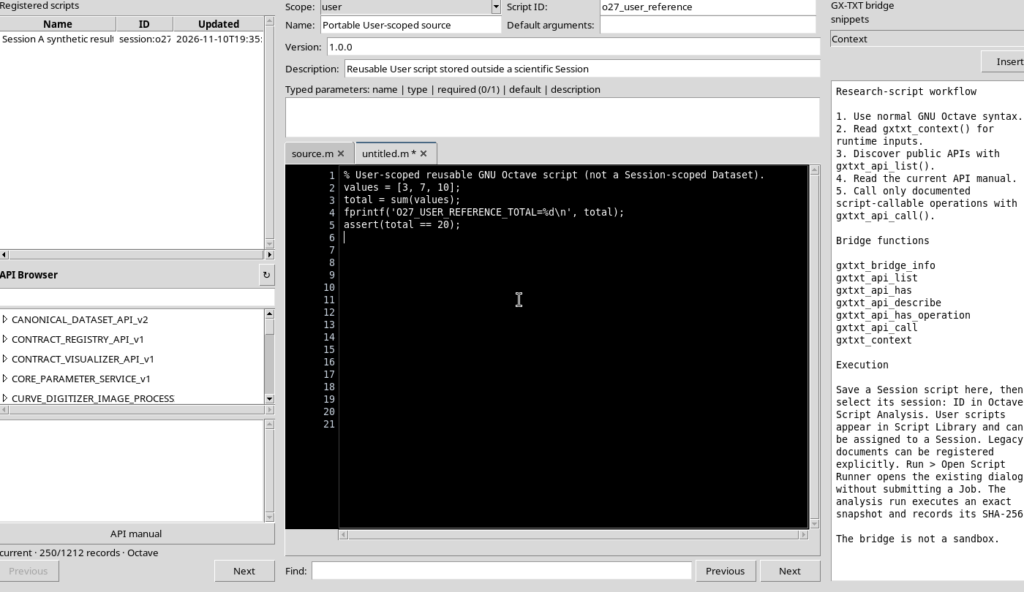
After File → Save, the source belongs to the User Registry. The expected arithmetic result is 20, but saving the code does not mean running it. The program is simply available for later operations.
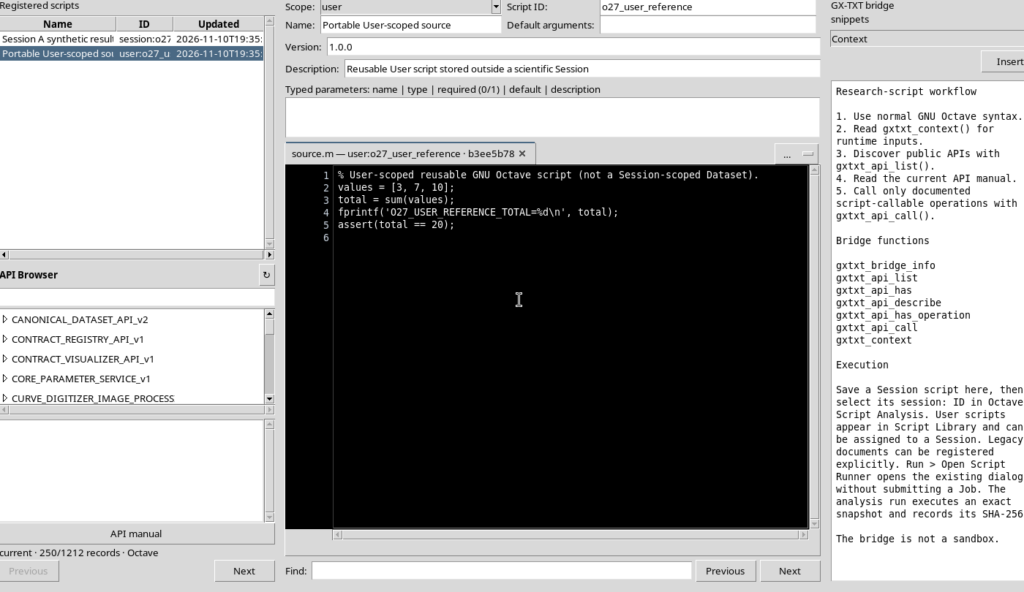
The difference is also visible in the qualified identifiers: a Session script is shown with the session: prefix, while the personal one uses user:.
4. Closing a Tab or the Whole Workspace Without Deleting the Sources
File → Close tab closes the current tab; it does not delete the script from the Registry. If the tab is clean, the document can later be found again from the Registered scripts pane, making it visible with View → Focus source / restore panes when necessary.
File → Close, instead, closes the Octave Script Workspace window. When the Viewer is reopened, the Registry lets you recover the stored scripts: the content does not depend on its tab being continuously present.
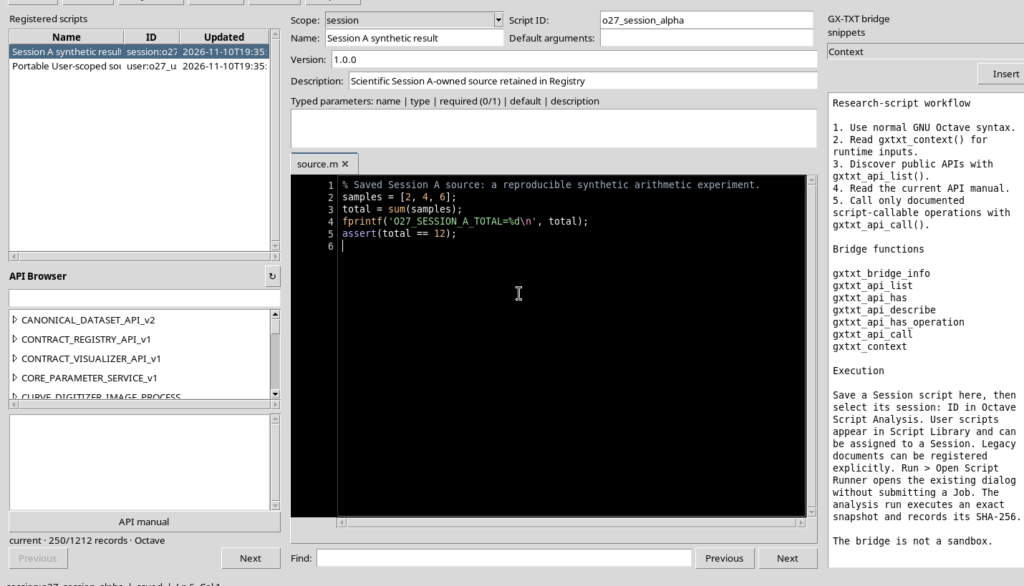
If a saved tab no longer appears in the bar, first check Registered scripts and reopen it from there. A missing visible tab, on its own, does not prove that the registered revision has been lost. For unsaved changes, the protections described further on apply instead.
5. Running the Saved Script and Keeping Its Job
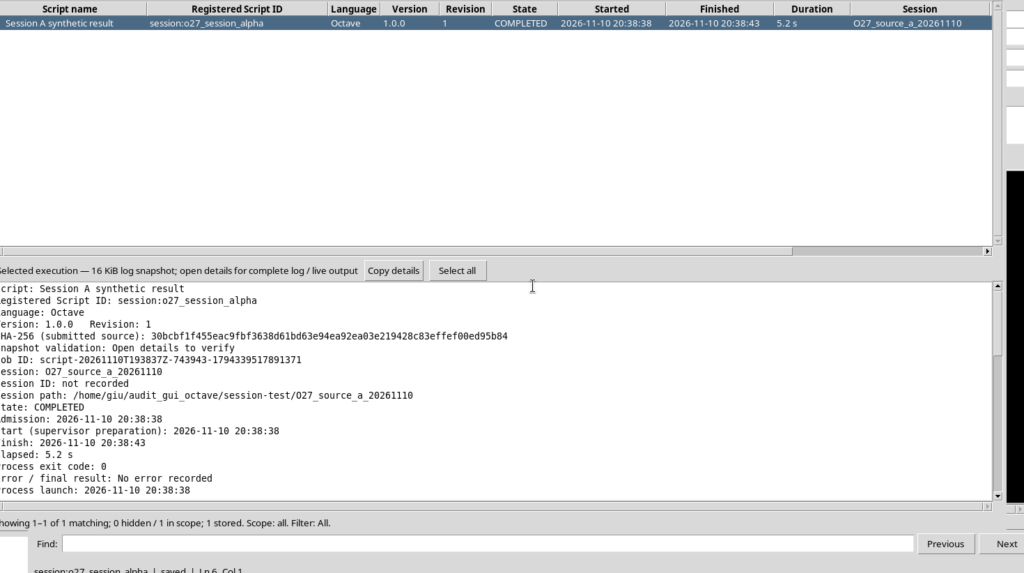
Reopen the script of the first Session, choose Run → Open Script Runner…, check the source revision and press Validate review. Only after validation press Run Job.
The program produces:
O27_SESSION_A_TOTAL=12In Script Jobs Manager the Job is COMPLETED. Its identity is distinct from the identity of the script; the Job keeps a copy of the source actually executed, in addition to stdout, revision and state information.
6. Opening the Historical Source of a Job Read-Only
Select the Job and choose Jobs → Open execution details. In the details window, Open source files opens the source stored with that specific execution.
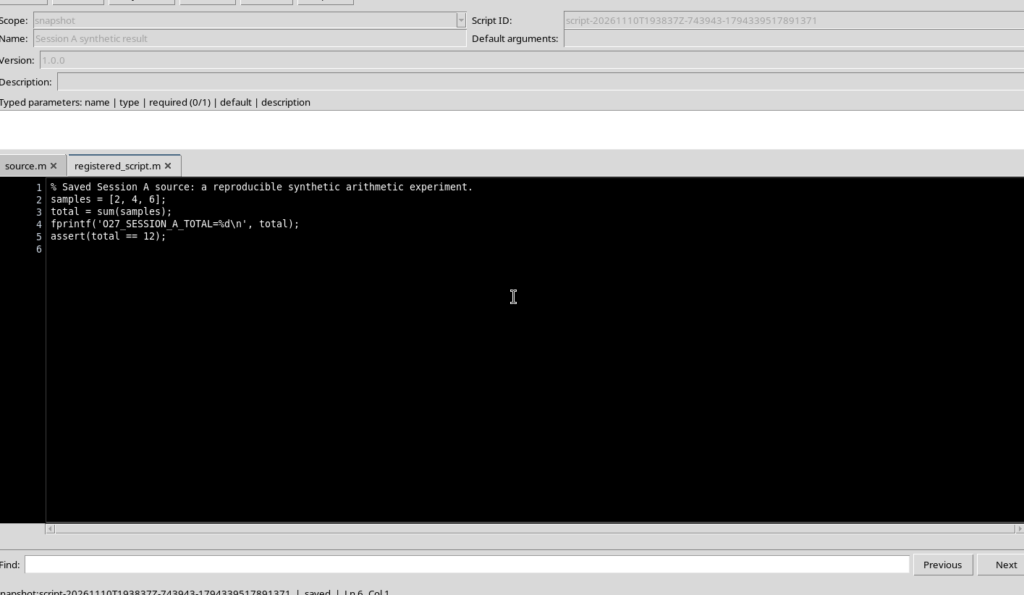
A historical tab is not a new editable revision of the script: the editor is read-only. It is used to compare the text actually executed with the document currently registered. To change the code you need to go back to an editable source, save the new revision and submit it to a new execution.
7. Keeping the Difference Between Unsaved Buffer and Registered Revision
Go back to the normal tab of the Session script and temporarily introduce a change. Until you use File → Save, the new version is only a local editor buffer: the registered content and the revision already executed by the Job do not change.
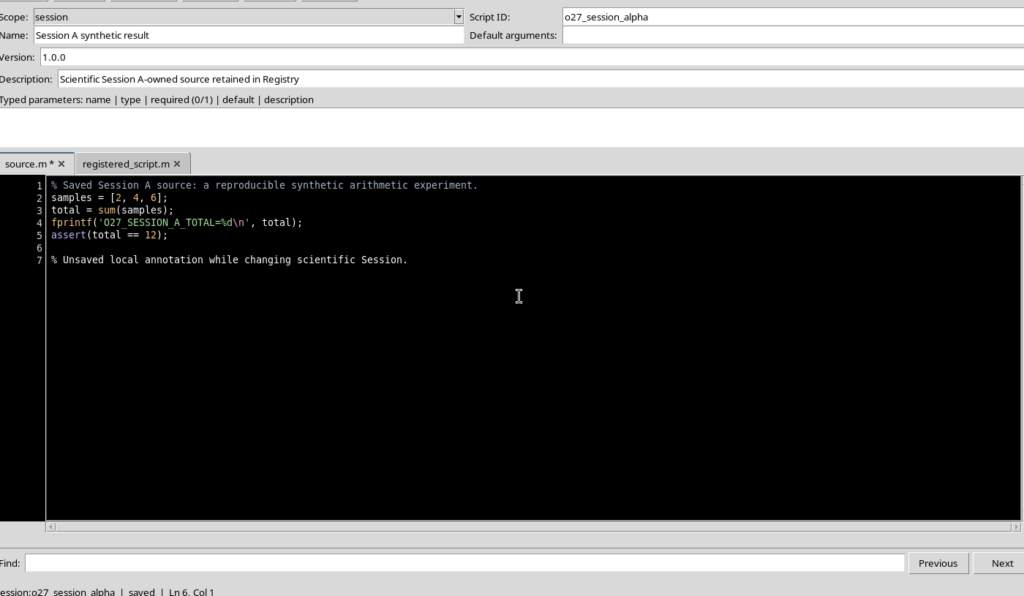
The distinction is essential when switching Session: a visible text may belong to the previous Session even if a different Session has been activated in the main window.
8. Switching to Another Session with Open Session
To open another scientific Session, use Open Session in the main GX-TXT window, choosing the folder of the Session to open. Open Session is not the same operation as Load configuration only (.ini): the latter concerns the configuration, not the full recovery of the data and of the Session Registry.
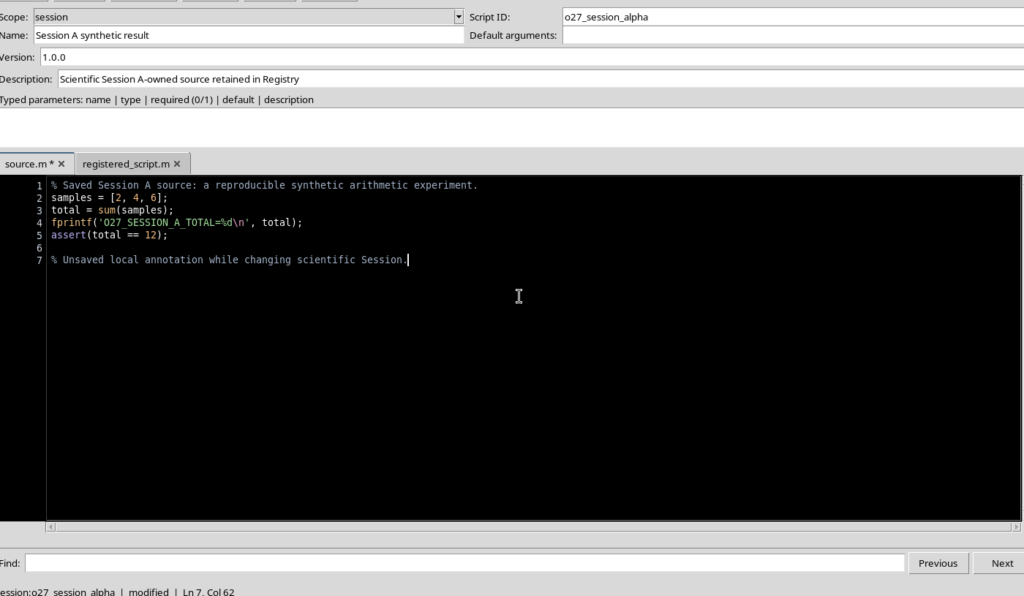
After the switch, the active Session is the new one. Any buffer left open from the previous Session continues to show its own text, but it must not be interpreted as a document owned by the new Session.
9. Protection Against Saving into the Wrong Session
If the displayed document belongs to the old Session, the GUI recognizes that the source owner no longer matches. The File → Save command is not available and an attempt to save with Ctrl+S can show Source owner changed.
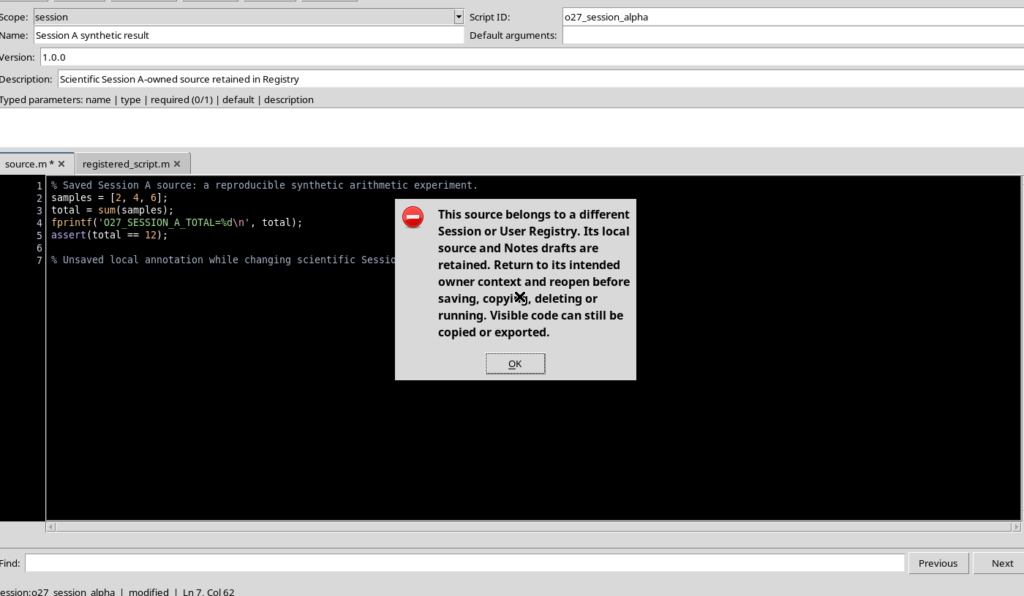
The message indicates that local buffers can be copied or exported, but that the document must be reopened in its own Session before it is saved, deleted, registered or run.
If you want to keep the unsaved change, go back to the correct context or export the text first. If, instead, the change was only temporary, you can close the buffer and knowingly choose to discard it.
10. Answering the Prompt When Closing a Modified Source
When you close a tab or the whole Workspace with unsaved changes, the GUI presents Unsaved source with the choices Yes, No and Cancel.
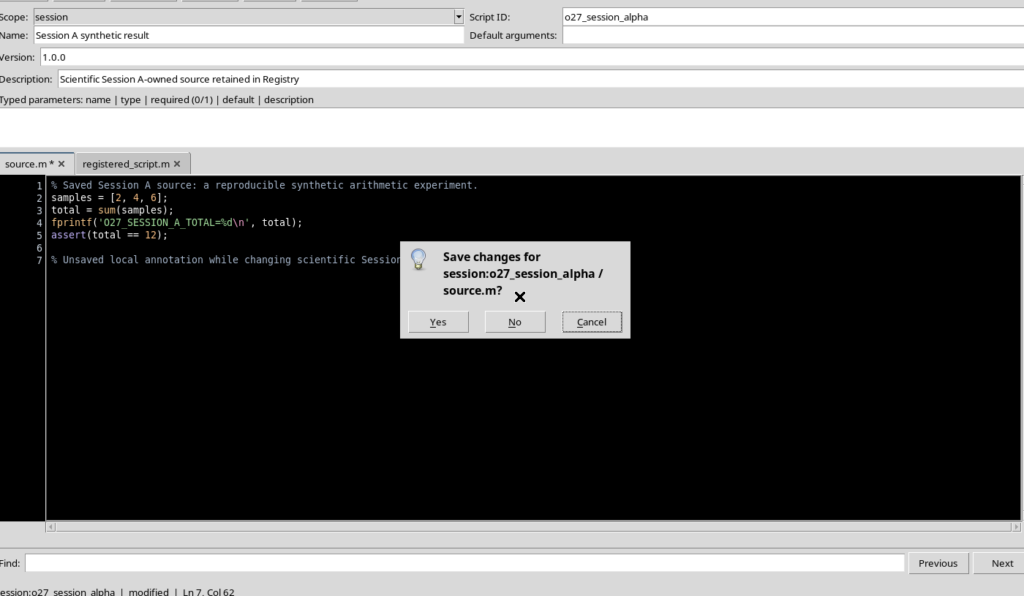
Yes requests the save, subject to owner and revision checks. No discards the local change to the buffer; Cancel cancels the closing so that you can review or export the changes. In a Session other than the owning one, do not use Yes assuming that the content can be registered in the new context.
Choosing No deletes neither the revision already saved nor the historical Job that executed it.
11. The Second Session Has Its Own Scripts but Shares the User Ones
When Octave Script Workspace is reopened in the second Session, the personal user scripts remain available, because their Registry does not belong to the first Session.
With File → New Script you can create a new session script, independent of the one in the first Session:
% New Session B source: distinguish its registered script from Session A.
measurements = [1, 3, 4];
result = sum(measurements);
fprintf('O27_SESSION_B_TOTAL=%d\n', result);
assert(result == 8);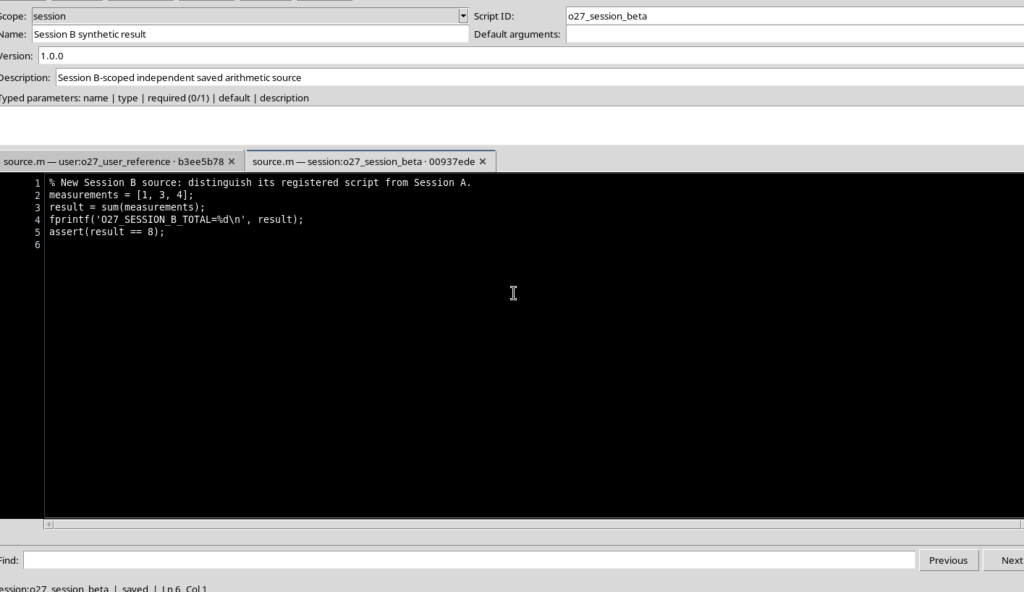
The second Session contains its own registered script; the script of the first Session is not automatically copied into its Registry.
12. Consulting the Jobs of Other Sessions Without Running Them Again
Open Script Jobs Manager and select View → Scope: All Sessions. The history can show the Job completed in the first Session even while the second one is active.
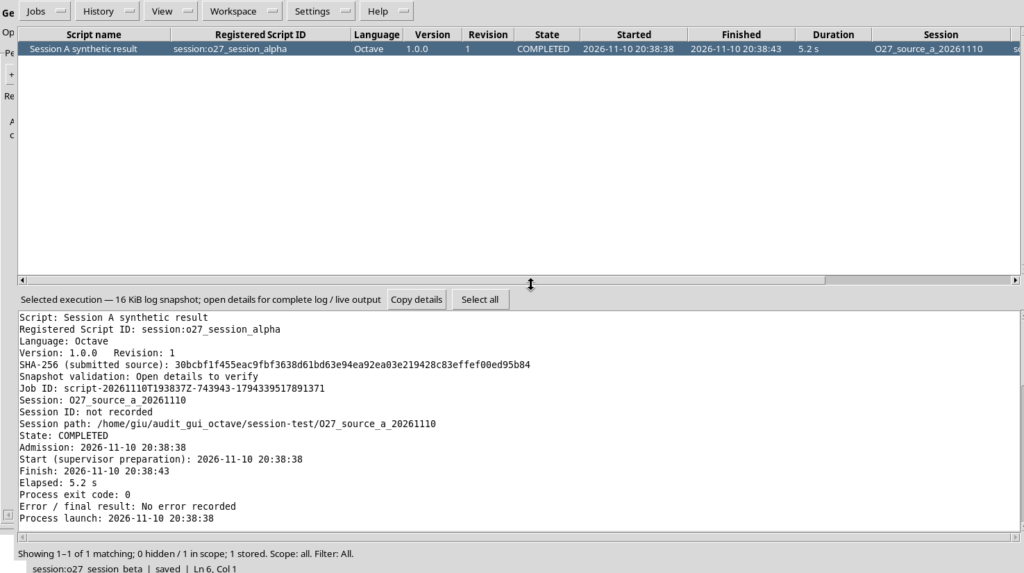
Consulting a Job is not the same as relaunching it. If you select Jobs → Rerun selected… while a Session other than the originating one is active, GX-TXT rejects the request and asks you to open the Session that owns the Job before preparing a new execution.
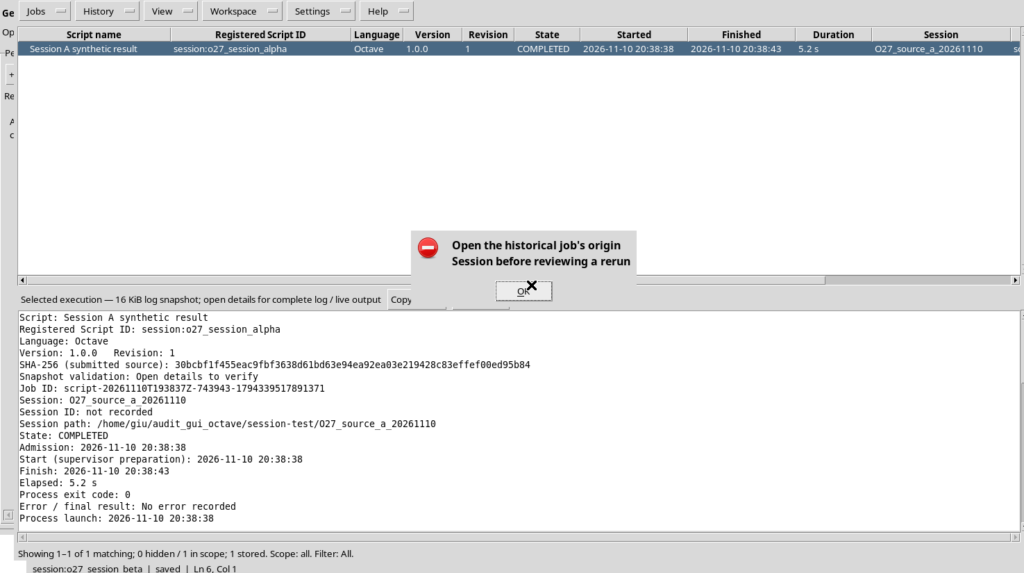
The check does not delete the Job: it serves to prevent a new scientific invocation in the wrong context.
13. Consulting the Historical Source from Another Session Too
The restriction on Rerun does not prevent consultation: from the details of the old Job you can use Open source files even when another Session is active. The historical tab remains read-only, identified by its own snapshot and not by an editable revision of the current Session.
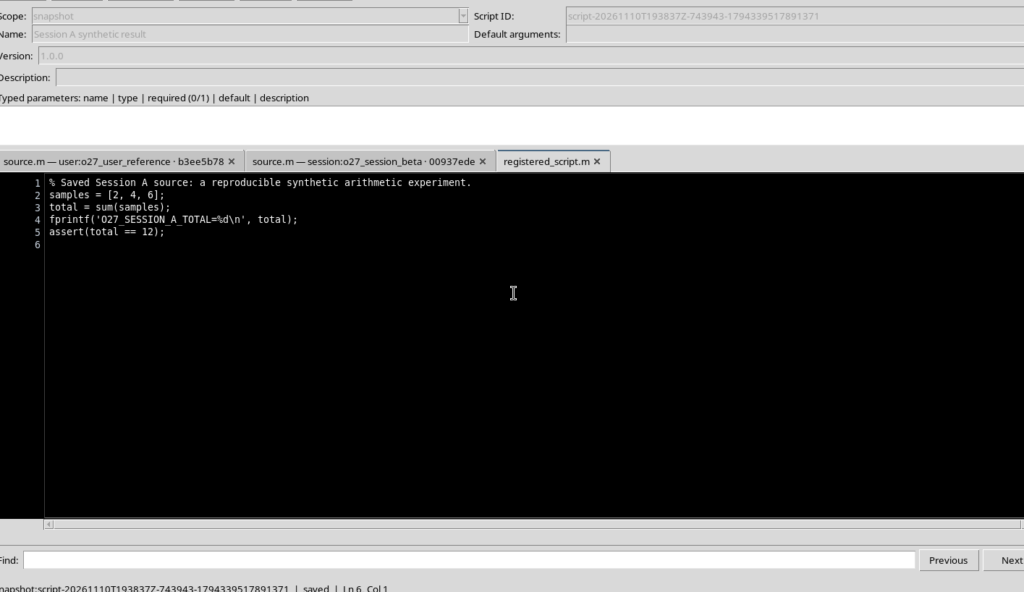
This operation is useful for verifying the provenance of a result and comparing versions: it does not change the active Session, does not save the file and does not create a new Job.
14. Reopening the Original Session and Recovering the Work
Use Open Session in the main window again to go back to the first Session. Its Registry makes the original script available, with the content and revision saved before the switch. The history also keeps the Job already finished; the User script continues to be available regardless of the Session.
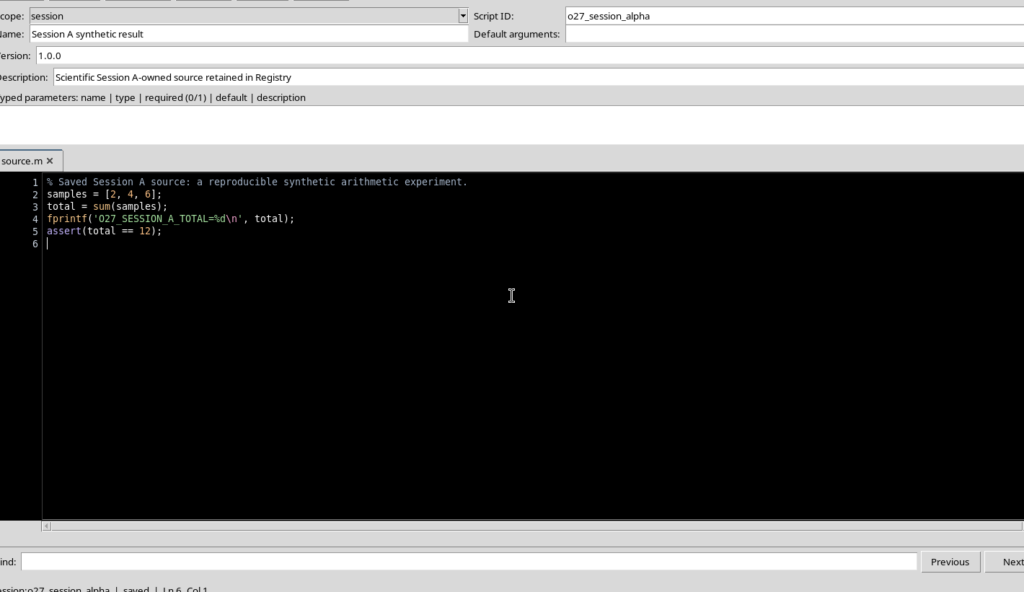
For normal work, close the unnecessary panes and use View → Focus source / restore panes when you need to recover space for the code.
Operational summary: the User script is reusable across Sessions, the Session script belongs to a single scientific context, the buffer can contain unsaved changes, the Registry keeps the registered revision and the Job keeps the snapshot actually executed. Before saving or running again, always check owner, active Session and revision state.