

GX-TXT Python Script Workspace: menus and keyboard shortcuts
Python Script Workspace gathers in a single bar the commands for managing sources, editing code, projects, panel layout and access to the Runner and the documentation. This guide presents the menus that are actually available and the main keyboard operations, distinguishing what can already be used with a draft from what requires a registered Script or a scientific Session.
1. Recognising the menu bar
At the top of the Viewer appear, in order, File, Edit, Project, View, Run and Help. They are not six separate programs: all of them act on the context of the Python Script Workspace.
The images show a code draft in the editor, without an already registered Script. This is why some entries are disabled. When you move to a registered document, a project or a Notes screen, the state of the menus can change.
2. Why the state of commands matters
A greyed-out command does not necessarily indicate a defect: often there is no object to operate on. For example, you cannot delete a registered Script when the current document is still a simple draft without an identity.
On the other hand, a visible and enabled entry does not prove that a scientific procedure can be completed in any context. Execution, debugging and publication of results involve further checks and a valid Session.
3. Reaching the bar with F10
Press F10 to move the focus to the Workspace menu bar. It is an alternative to the mouse, useful when you work mainly from the keyboard.
F10 does not save the source and does not start a Job. It only moves the point of interaction to the window controls.
4. Moving with the arrow keys
When the focus is on the menus, Right arrow and Left arrow let you move to the adjacent groups. It is a quick way to reach Edit or Project without using the pointer.
The name of the highlighted menu helps you understand where the focus is. Moving between menus does not change the code in the source tab.
5. Direct access with Alt
The shortcuts Alt+F, Alt+E, Alt+P, Alt+V, Alt+R and Alt+H call File, Edit, Project, View, Run and Help respectively.
It is important to use the name and letter of the menu actually visible in your version of the Viewer. This behaviour must be distinguished from the bindings of individual entries, for example Ctrl+F for searching.
6. Opening and closing a menu from the keyboard
With the focus on a group, Space or Down arrow opens the corresponding menu. Escape closes it again without selecting a command.
This sequence lets you explore the available entries while leaving the source unchanged. If you only want to learn the commands, avoid accidentally activating Save, Delete, Runner or other operations that require a specific context.
7. The File menu
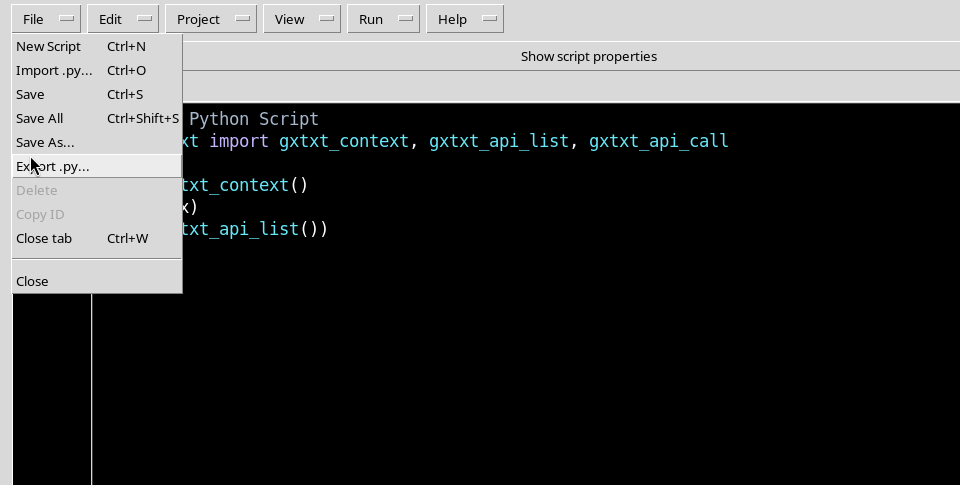
File gathers the main operations on documents and Script identities: New Script, Import .py, Save, Save All, Save As, Export .py, Delete, Copy ID, Close tab and Close.
The shortcuts shown include Ctrl+N, Ctrl+O, Ctrl+S, Ctrl+Shift+S and Ctrl+W. These are the names shown by the menu; the corresponding writing and saving flows are covered in depth in the dedicated chapters.
8. New, Import, Save and Save All have different purposes
New Script prepares a new draft. Import .py concerns an external Python file, while Save registers or updates the current document in the correct context.
Save All is meant for the changes to the various documents or source files managed by the Workspace. It is an operation distinct from Save and from Export .py; it must not be confused with running a program.
9. Save As, Export and closing
Save As prepares a copy with a distinct registered identity, according to the Registry rules. Export .py is used to write a Python source file, not to publish a scientific Dataset.
Close tab closes the current tab, while Close closes the Workspace window. Modified tabs may require an explicit choice to preserve unsaved work. Before using these commands, check the state of the draft and of its identity.
10. Why Delete and Copy ID may be disabled
In an initial draft with no registered Script ID, Delete and Copy ID are disabled. There is not yet a registered record to delete or an identifier to copy.
After a Script is saved, the availability of the commands can change. This distinction is a first example of how the GUI separates an editable buffer from a registered document.
11. The Edit menu
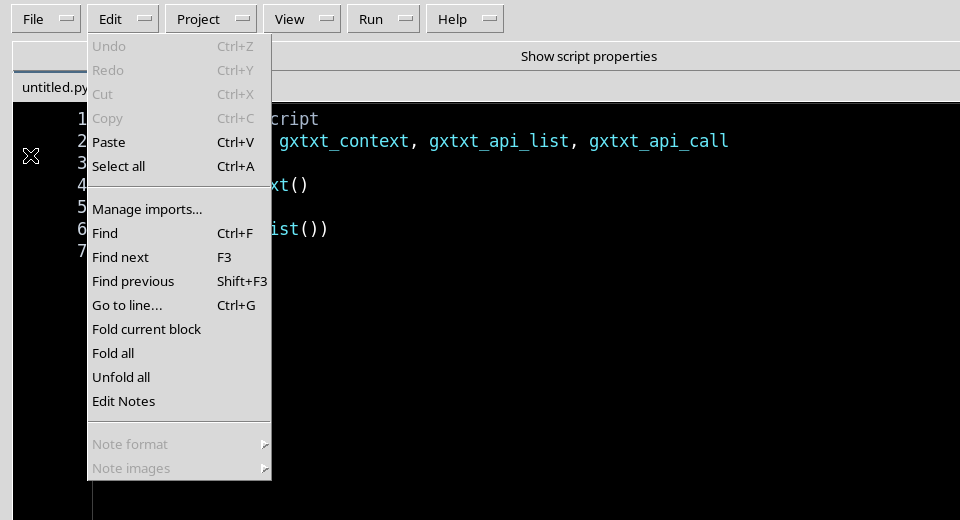
The Edit menu offers Undo, Redo, Cut, Copy, Paste, Select all, Manage imports, Find, Find next, Find previous and Go to line. It also contains the folding commands and the Notes functions available in the appropriate context.
The image shows an initial state in which Undo, Redo, Cut and Copy are disabled, while search and navigation are available. The Notes commands depend on the type of the active tab.
12. Selection, copying and edit history
The shortcuts shown by the menu include Ctrl+Z for Undo, Ctrl+Y for Redo, Ctrl+X for Cut, Ctrl+C for Copy, Ctrl+V for Paste and Ctrl+A for Select all.
These actions depend on the widget that has the focus. Before working on a scientific source it is useful to check that the cursor is really in the editor and not in a field such as Script ID, Name or Description.
13. The Project menu
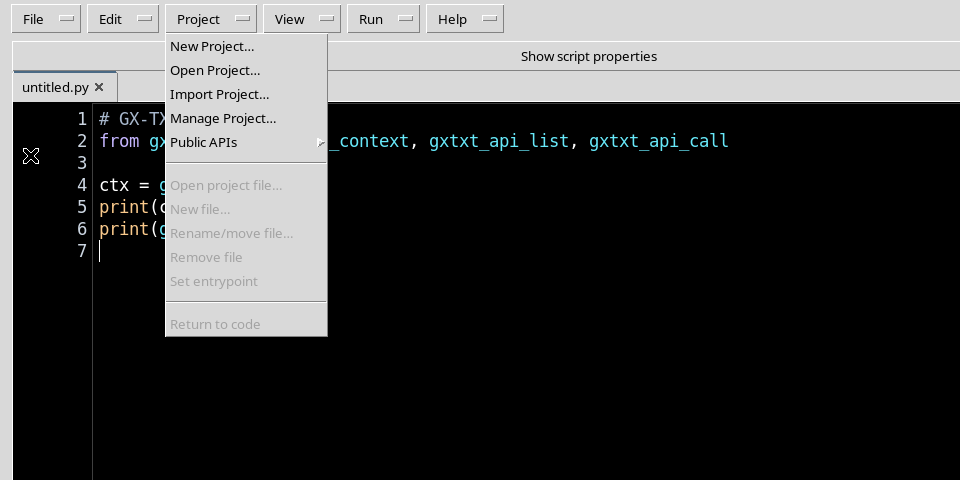
Project gathers New Project, Open Project, Import Project, Manage Project and the Public APIs submenu, as well as the operations on the individual files of the project.
In the initial state, with no project open, entries such as Open project file, New file, Rename/move file, Remove file, Set entrypoint and Return to code are disabled.
14. Creating a project is not the same as opening a Script
New Project opens the path for preparing a Python project, with its own set of files and an optional entrypoint. File operations become relevant when an active project exists.
The direct path Project → New Project is distinct from opening a single Script. Full use of the Project Canvas, the actual creation of files and saving are illustrated later, after the related checks.
15. The Public APIs submenu
The Public APIs entry contains commands for the inventory of the APIs associated with a project, such as Saved Public APIs, Preview draft APIs, Open implementation and Cancel API inventory.
These operations concern a project context and are not an invitation to call internal APIs directly from scientific code. Python Scripts must use only the public APIs that are documented and available for the installed version.
16. The View menu
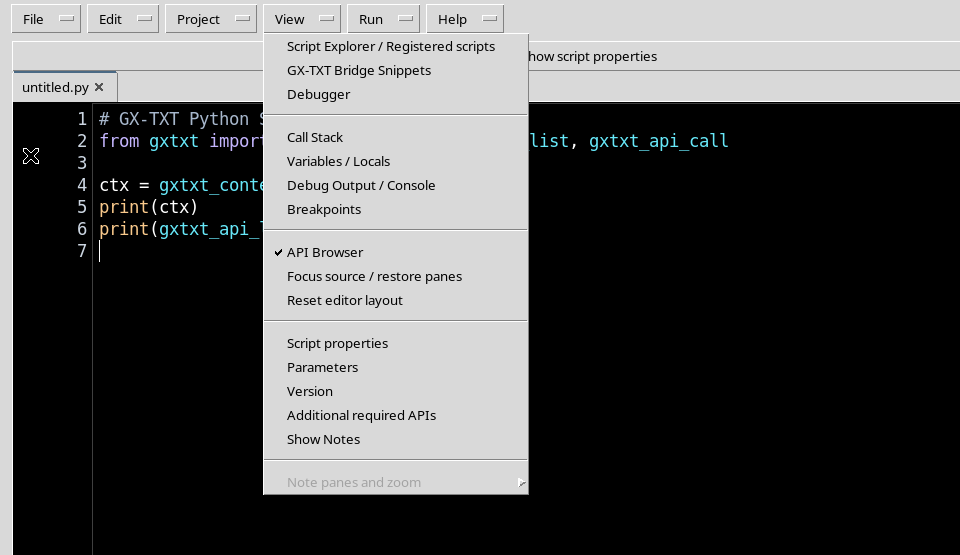
View manages the layout of the interface. It includes Script Explorer, GX-TXT Bridge Snippets, API Browser, Debugger, Call Stack, Variables / Locals, Debug Output / Console and Breakpoints, as well as the controls for properties and Notes.
Here you also find Focus source / restore panes and Reset editor layout, useful for adapting the window to the phase of the work.
17. Focus source: more space for the code
While writing, it is better to keep the panels you do not need closed. With View → Focus source / restore panes the central area can take up almost the whole width of the Workspace.
Explorer, snippets, parameters, properties and debug tools should be reopened when they need to be consulted or changed. The interface layout does not, in itself, alter the registered source.
18. Debug panels are not an active Job
The presence of the Debugger, Call Stack, Variables / Locals, Debug Output and Breakpoints entries in the View menu does not mean that an execution is already in progress.
They are working or inspection surfaces that become meaningful when a Session, a Script and a debugging process are actually available. To avoid confusion, do not open them all at the same time during normal editing of the source.
19. The Run menu
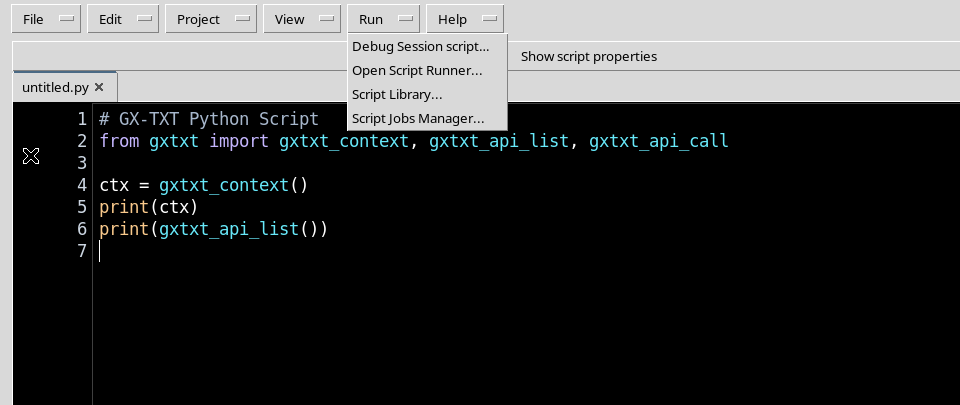
Run presents the entry points to Debug Session script, Open Script Runner and Script Jobs Manager. They are distinct paths that require checking the identity and state of the Script before reaching execution.
An entry that is initially enabled may still show a message or refuse an operation if no suitable Session or Script exists. Opening a menu does not automatically start any Job.
20. Do not confuse the Run menu with execution
The Runner is where you can check the registered Script, the revision and any parameters before starting a Job. The debugger is a separate procedure; the Jobs Manager is used to consult and manage existing Jobs.
In the version illustrated here a Script Library entry may also appear. It is not needed to learn these menus and is not used in the paths of this guide. For projects we will follow the direct functions of the Python Script Workspace after checking them.
21. The Help menu
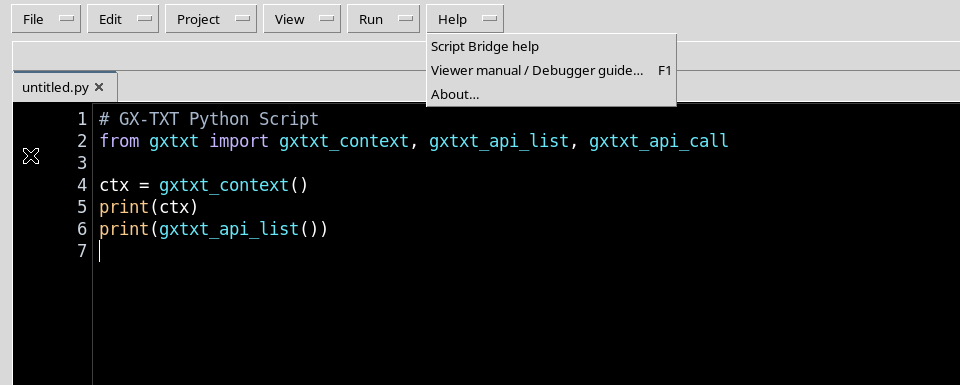
Help contains Script Bridge help, Viewer manual / Debugger guide and About. The shortcut shown for the manual is F1.
It is advisable to consult the guide before using new Registry or debugger management functions: the fact that a command is available in a menu does not mean you know its preconditions.
22. Searching for a word with Ctrl+F
Ctrl+F moves the focus to the Find field. After entering the search term, F3 moves to the next result and Shift+F3 goes back to the previous one.
The text found is highlighted in the source. These operations are useful for navigating between imports, definitions and function calls without changing the program.
23. Reaching a line with Ctrl+G
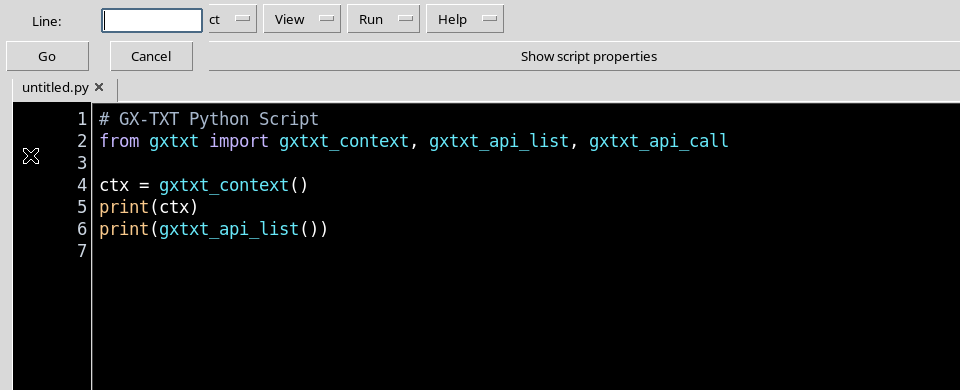
Ctrl+G opens the Go to line dialog. In the Line field you enter a line number and confirm with Go; Cancel closes the dialog without changing the text.
The line number is used to reach the position within the file. It is not the number of a Dataset row and is not interpreted as a scientific parameter.
24. Consulting the manual with F1
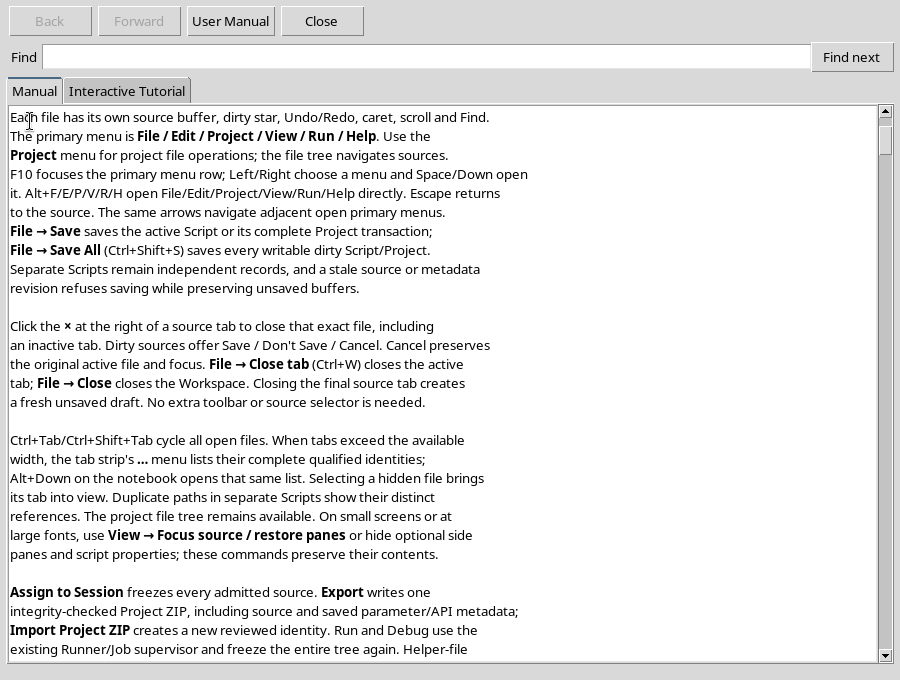
Pressing F1 opens the built-in manual of the Python module. Its navigation section describes F10, the arrow keys, the Alt keys and Escape; the window also includes an Interactive Tutorial tab.
The manual is a useful reference, but you need to check that the steps match the GUI actually installed. The following chapters illustrate only paths that have been carried out and checked in the current version.
25. Table of the main shortcuts
| Keys | Function shown or verified |
|---|---|
| F10 | Moves the focus to the menu bar |
| Left / Right arrows | Move the focus between adjacent menus |
| Space / Down arrow | Open the menu that has the focus |
| Escape | Closes a menu without invoking an entry; from the Find field it returns to the code |
| Alt+F / E / P / V / R / H | Reach File / Edit / Project / View / Run / Help |
| Ctrl+F | Moves the focus to Find |
| F3 / Shift+F3 | Search forward / backward |
| Ctrl+G | Opens Go to line |
| F1 | Opens the Viewer manual |
| Ctrl+S | Save, as indicated in the File menu |
| Ctrl+Shift+S | Save All, as indicated in the File menu |
| Ctrl+W | Close tab, as indicated in the File menu |
The first nine rows concern navigation and access to the controls. For Save, Save All and Close tab the menu explicitly indicates the shortcuts, but operations that affect persistence are covered together with Script management.
26. Reading disabled entries
| GUI state | Example | How to interpret it |
|---|---|---|
| Draft without a registered identity | Delete and Copy ID disabled | There is no registered Script yet |
| No change to undo | Undo and Redo disabled | There is no change in the local history |
| No active Project Canvas | Project file operations disabled | An appropriate project must be opened first |
| No active Notes tab | Note format and Note images disabled | The commands concern a different document type |
These examples explain the behaviour of the initial state. They are not absolute rules valid for all tabs and all projects.
27. A safe navigation routine
To get familiar with the interface, open the Viewer, use F10 and the arrow keys to examine the menus, then Escape to return to the source. Try Ctrl+F and Ctrl+G with the unchanged initial code, and consult the manual with F1.
When the goal is to write Python, reduce the secondary panels through View → Focus source / restore panes. Always keep simply moving the focus separate from activating a command that saves, registers, runs or deletes.
28. Conclusion
The six menus of Python Script Workspace give access to different but coordinated functions. The shortcuts let you move between menus, search the source and consult the documentation without leaving the editor.
Before using Save, the Runner or the Debugger, you need to understand Scope, Script ID, Name, Version and Script metadata. The next chapter is devoted precisely to these elements and to the difference between a draft and a registered identity.